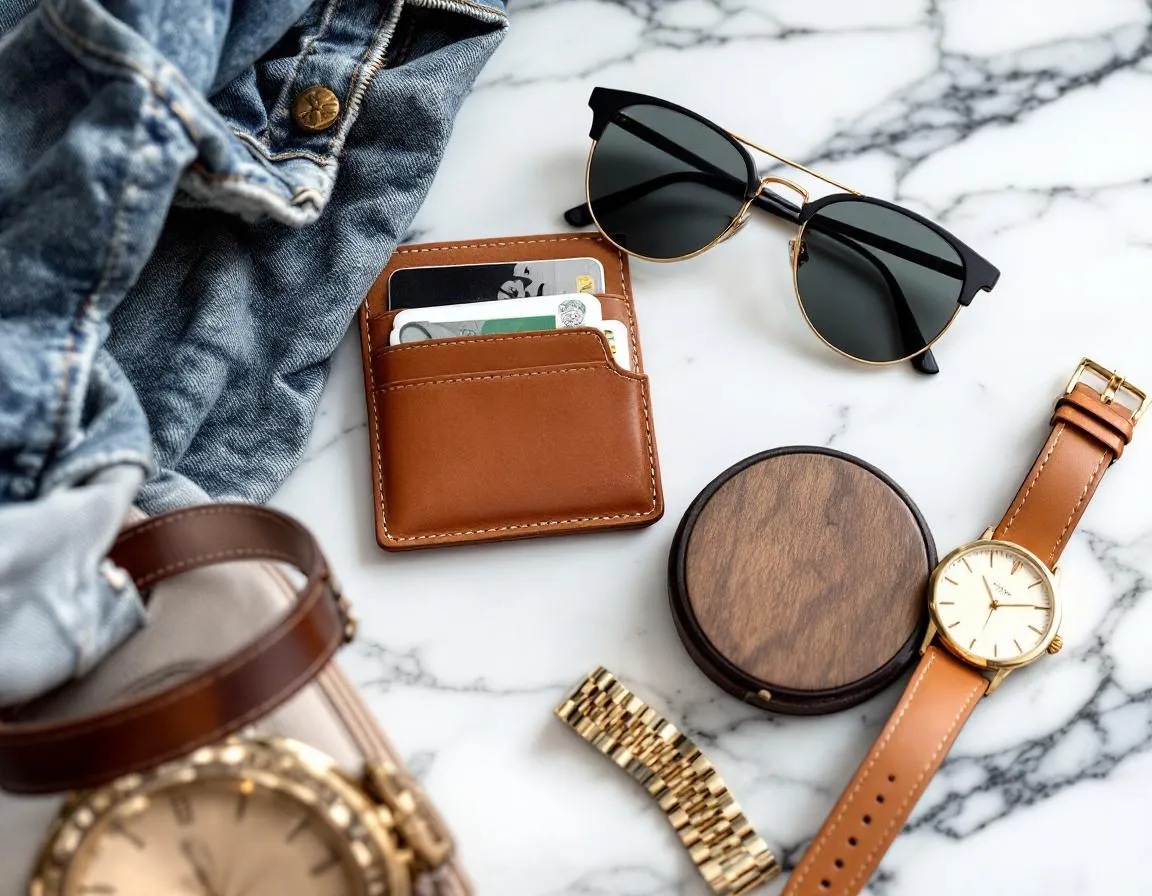
Photorealistic scene
“Editorial lifestyle photograph with natural window light and fine material detail.”
Black Forest Labs · image model
0.4 credits / image · every plan · price breakdown · API playground
Made with Flux 1.1 Pro · Photorealistic scene
Flux 1.1 Pro is a flexible image-generation model in Made for polished concepts, product visuals, and photorealistic scenes from descriptive prompts.
Original results
These examples use media produced for Made. Prompts are included when the production record allows them.
“Editorial lifestyle photograph with natural window light and fine material detail.”
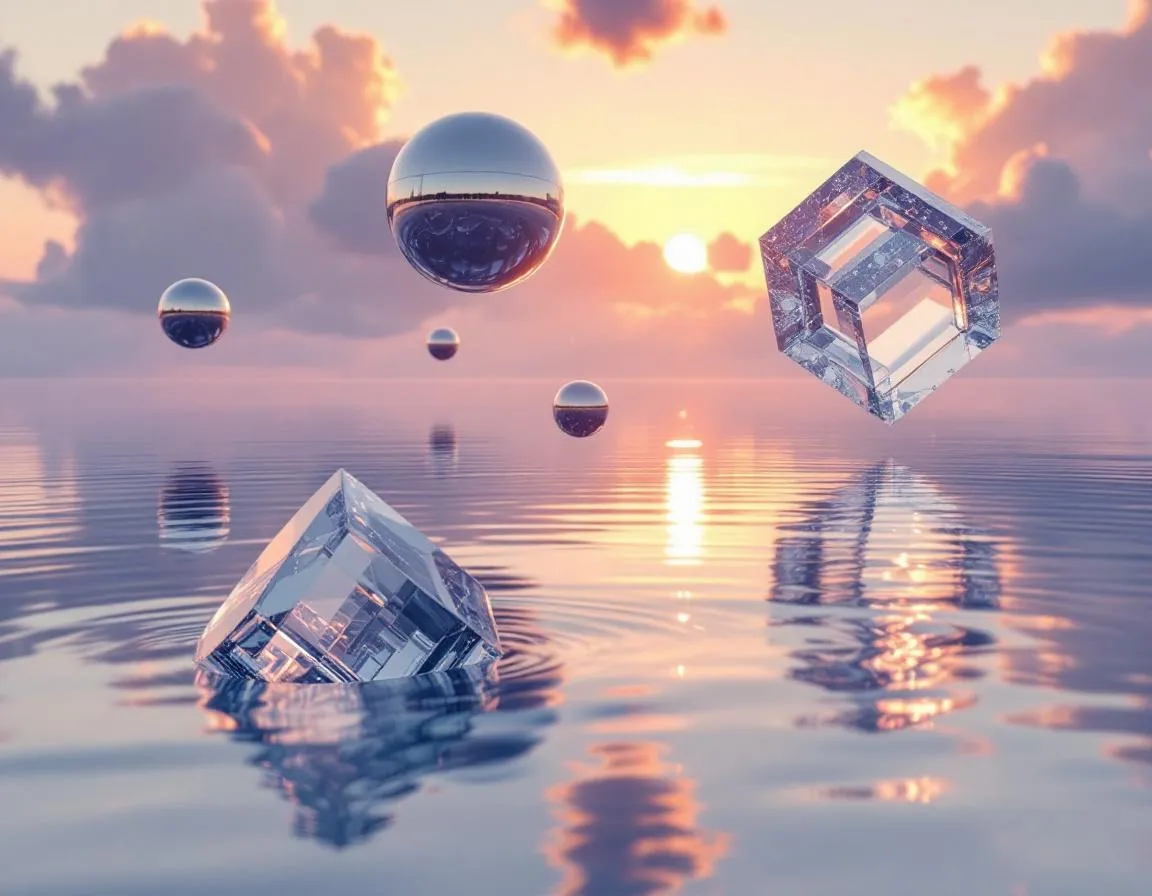
“Surreal campaign image with a restrained palette and clean composition.”
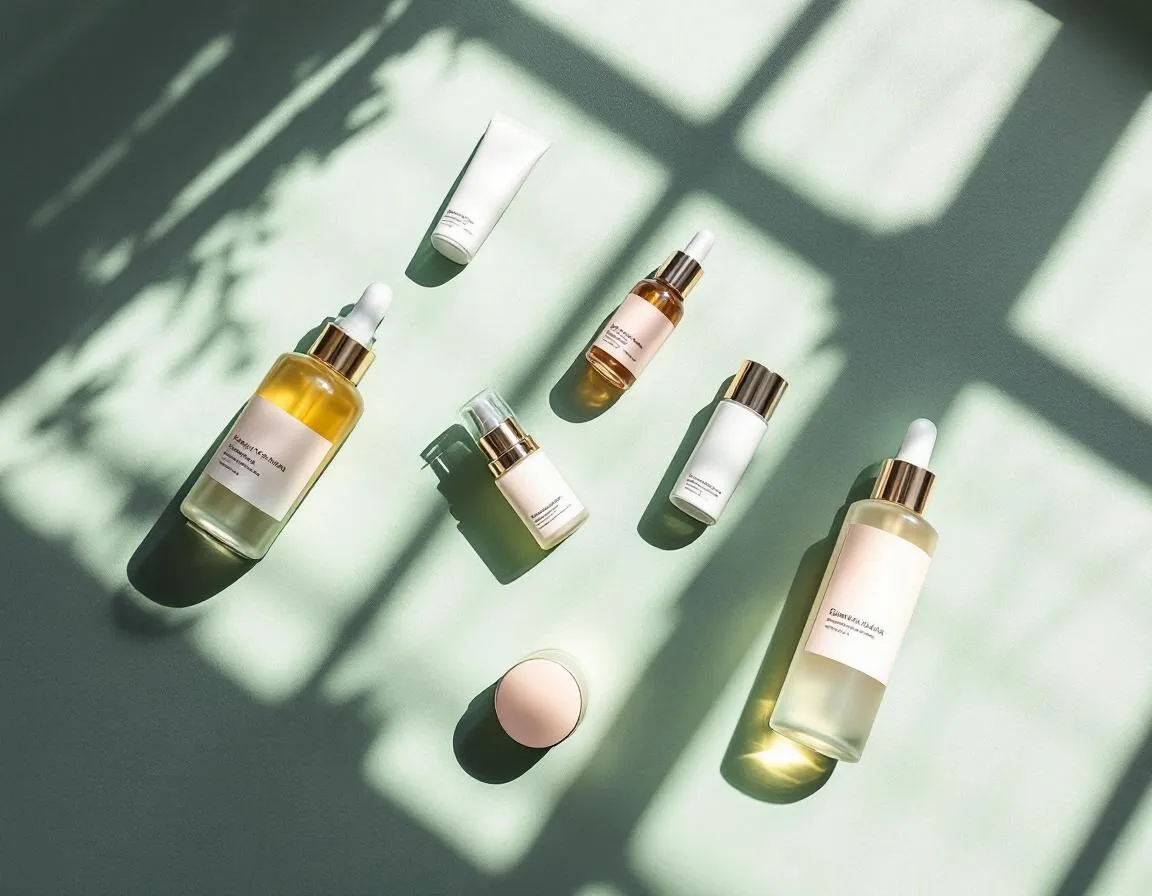
“Create the same editorial direction for square, portrait, and landscape placements.”
“Close-up product study with crisp texture and controlled highlights.”
“Golden-hour editorial portrait with realistic shadows.”
“Layer multiple subjects into a balanced commercial scene.”
These are the controls exposed by Made, which may be narrower than a provider’s full API.
Describe the subject, setting, lighting, composition, and intended visual style.
Select an aspect ratio and the available output settings for the destination.
Review the output and revise the prompt when a composition needs adjustment.
Save the selected image in the format exposed by Made.
0.4 credits / image — the full breakdown, verified.
6 tested prompts with the outputs they produced.
Side-by-side prices and specs, with a straight verdict.
Side-by-side prices and specs, with a straight verdict.
Side-by-side prices and specs, with a straight verdict.
Side-by-side prices and specs, with a straight verdict.
Side-by-side prices and specs, with a straight verdict.
Side-by-side prices and specs, with a straight verdict.
Approved examples and guides
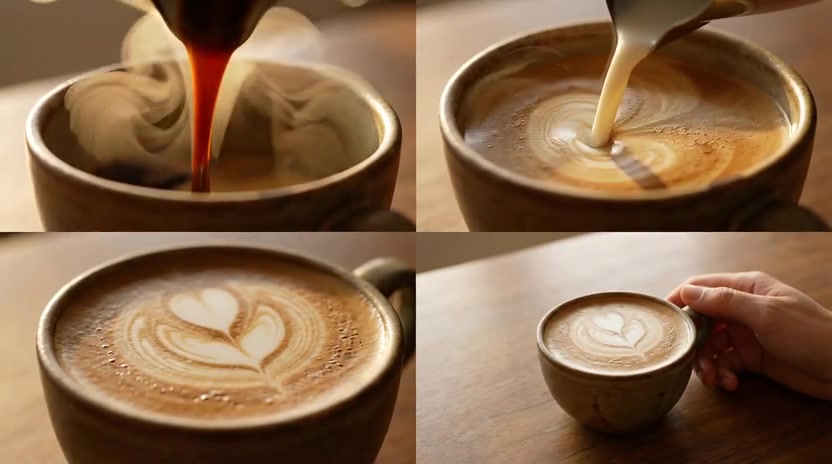
Example
A four-image coffee series comparing the pour, surface detail, latte art, and finished cup under warm controlled highlights.
Example
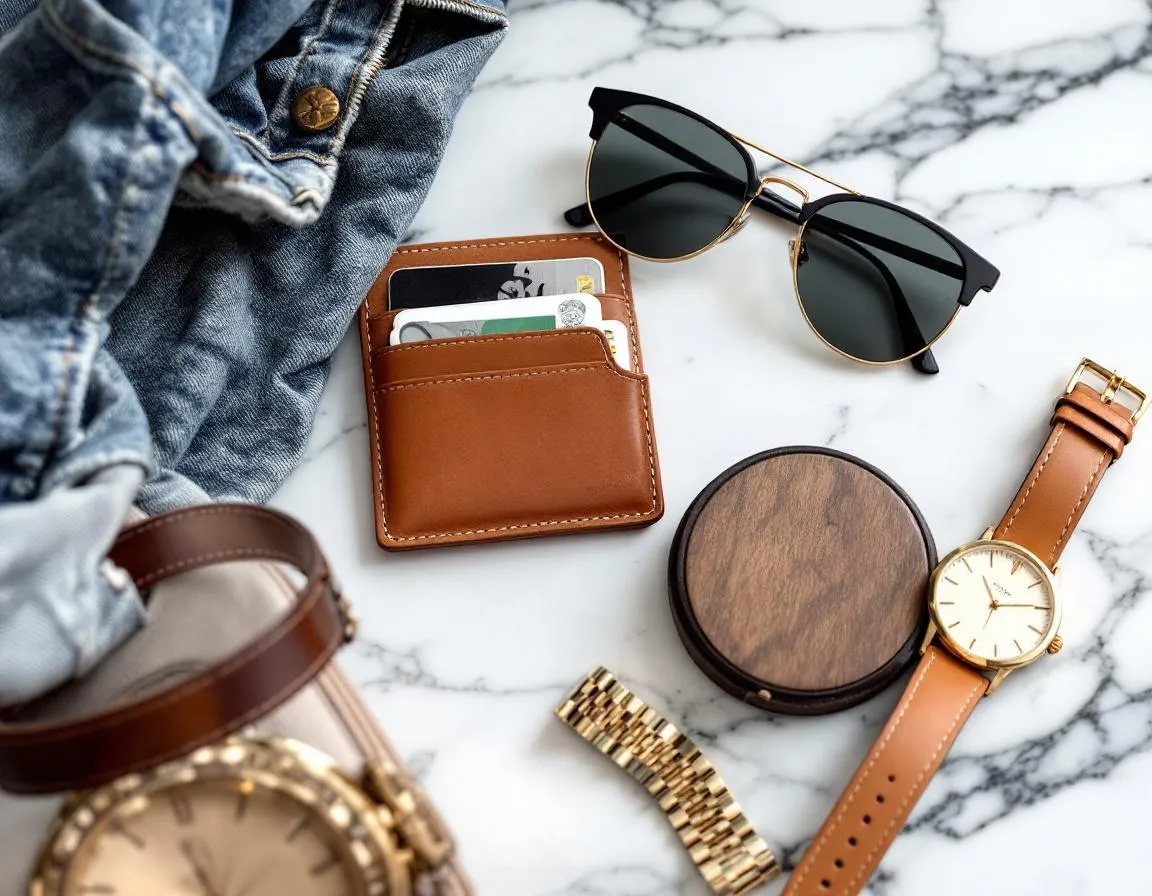
An overhead commercial still life arranging leather accessories, sunglasses, watches, and denim on white marble with crisp natural detail.
Example
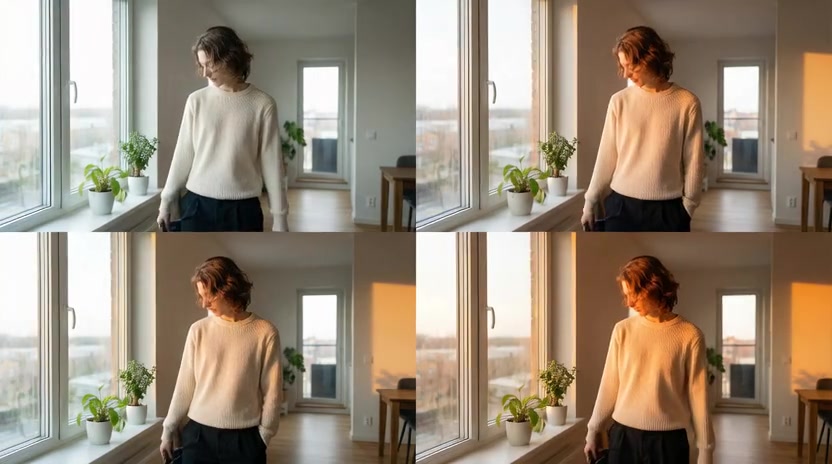
Four editorial portrait results compare neutral daylight with progressively warmer window light while keeping the room, clothing, and pose closely aligned.
image
Nano Banana Pro runs Google’s Gemini 3 Pro Image, the top tier of the Nano Banana family, generating and editing images at 1K, 2K, or 4K with legible in-image text and faithful identity across edits.
Explore model →image
Nano Banana 2 runs Google’s Gemini 3.1 Flash Image, generating and editing images from 0.5K to 4K in 15 aspect ratios: fast and affordable for everyday work.
Explore model →agent
Upload an image or describe the result you need. Made Auto interprets the request, selects an available Made tool, and keeps follow-up edits in one conversation.
Explore model →Create scroll-stopping product photos and marketing visuals in seconds. Describe your shot, pick your style, and get professional images ready for your store, social feed, or ad campaign.
See the tool →Skip the complex menus and toolbars. Edit Images With Text Prompts. Our AI photo editor understands what you want. Type "remove the background" or "make it brighter" and watch it happen instantly.
See the tool →Enlarge photos 2× or 4× with Topaz and get the detail back, or upscale video with SeedVR2 or FLUX 3. Drop a file to see the exact price before you pay.
See the tool →It is a strong general-purpose choice for detailed image generation, including product concepts, editorial scenes, and photorealistic visuals.