made
PromptTested August 13, 2026

Image Resizing Prompts for Social, Web, and Email

Write resize requests that name the destination, exact dimensions, fit behavior, focal-subject rule, and output format so every delivery version is easy to review.

Created with Made · Reviewed for rights, safety, and workflow accuracy.

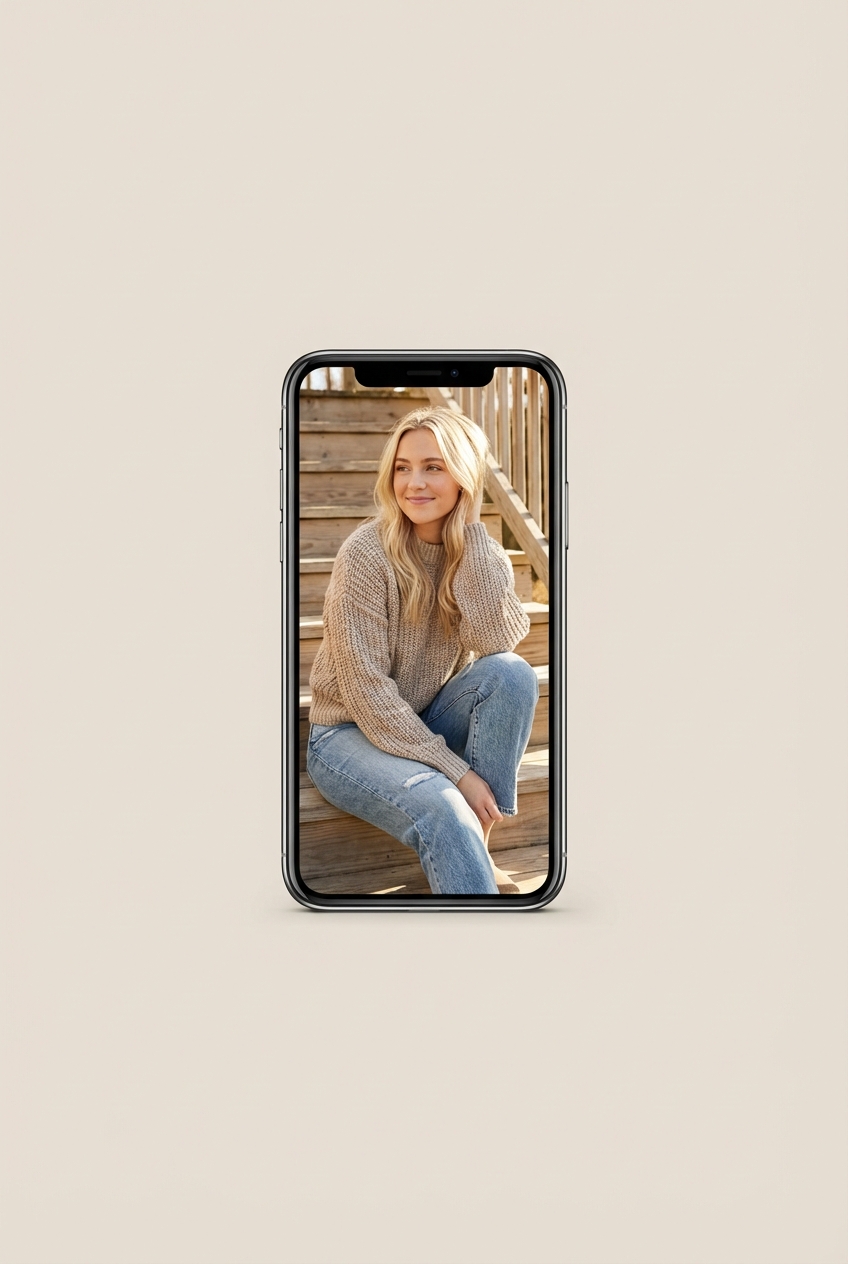
Vertical social image fitted into a phone-shaped 9:16 presentation
Primary request: a vertical social delivery with the portrait preserved.

Describe the delivery constraint

A useful resize request says where the image will be used, gives the exact pixel dimensions, and states whether cropping or padding is acceptable.

The destination provides context, but the dimensions and fit instruction keep the result testable instead of relying on an ambiguous request such as “make this social size.”
Protect the focal subject

Tell the workflow what cannot be lost when the aspect ratio changes. A face, product, or headline-safe area is more actionable than a broad request to keep the image looking good.

Prompt anatomy

Give every phrase a job.

Destination
Name the placement, such as Story, email hero, website banner, or print layout.
Dimensions
Give width and height in pixels instead of relying only on a platform name.
Fit behavior
Choose crop to fill, fit with padding, or stretching only when distortion is acceptable.
Subject rule
Identify the face, product, or other focal area that the crop must preserve.
Output
Request the file format and any delivery constraint that matters.

Controlled variations

Create portrait and landscape deliveries

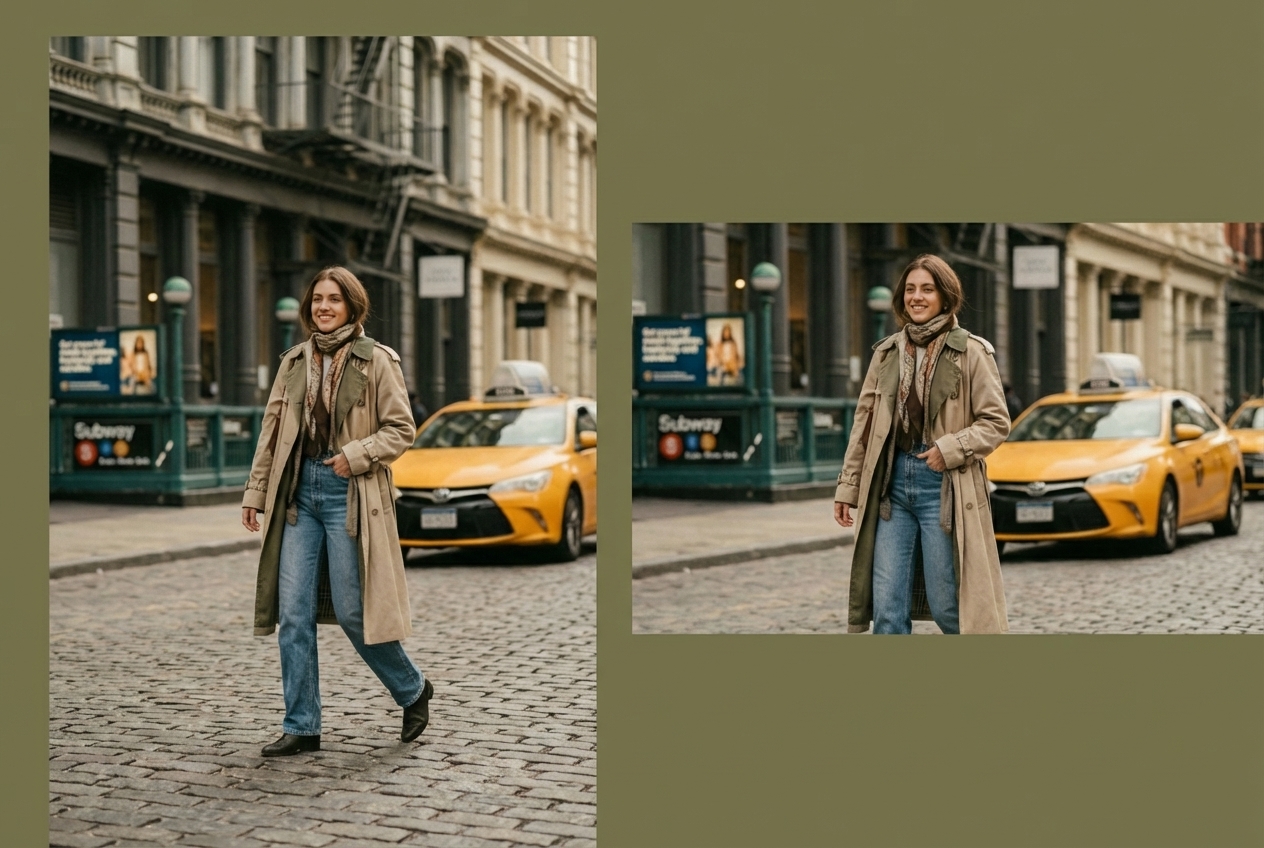
Create two versions of this image: a 1200 by 1500 portrait and a 1600 by 900 landscape. Crop to fill without stretching, keep the subject recognizable, and review both crops before export.

Prepare a wide email hero

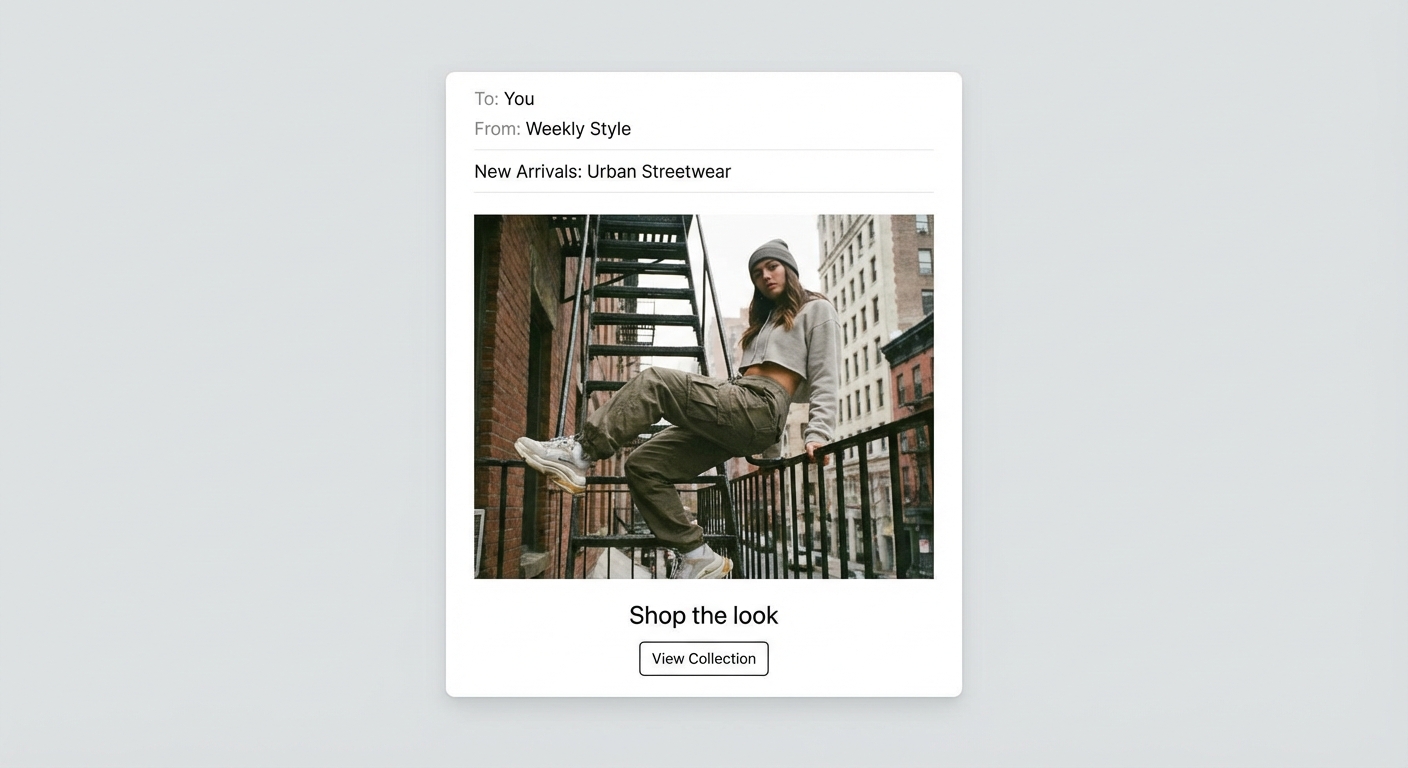
Resize this image for an email hero at 1200 by 675 pixels. Preserve the focal subject, use a centered crop, and export a web-ready JPEG.

Tested workflow

Use the exact starting point.

Prompt

Resize this image to 1080 by 1920 pixels for an Instagram Story. Preserve the full subject, do not stretch the image, and add padding only if it is needed.

Test record

Settings
width: 1080 · height: 1920 · fitMode: contain · format: jpeg
Tested
August 13, 2026

Run the workflow

  1. 1

    Upload the source image

    Choose the highest-quality source available and identify its focal subject.

  2. 2

    State destination, size, and fit

    Combine the placement, exact pixels, and crop or padding rule in one request.

  3. 3

    Inspect the finished crop

    Check the focal subject, edges, orientation, and exported dimensions before delivery.

Why it works

Exact dimensions make the request measurable, while an explicit fit mode and focal-subject rule resolve the main ambiguity introduced by a new aspect ratio.

Adjustment tips

  • Use “crop to fill” when edge-to-edge coverage matters more than preserving the full source.
  • Use “fit with padding” when every part of a product or document must remain visible.

Limitations

  • Resizing changes dimensions but does not recover missing detail; use an upscaling workflow when the source resolution is too small.
  • Platform requirements can change, so verify the current destination specification before a final export.

Original Made media

See what the instructions produced.

Vertical social image fitted into a phone-shaped 9:16 presentation
Primary request: a vertical social delivery with the portrait preserved.
One street portrait shown in portrait and landscape crops
Controlled variation: two exact output dimensions without stretching.
Landscape fashion photograph placed inside an email hero layout
Controlled variation: a wide, email-ready image placement.