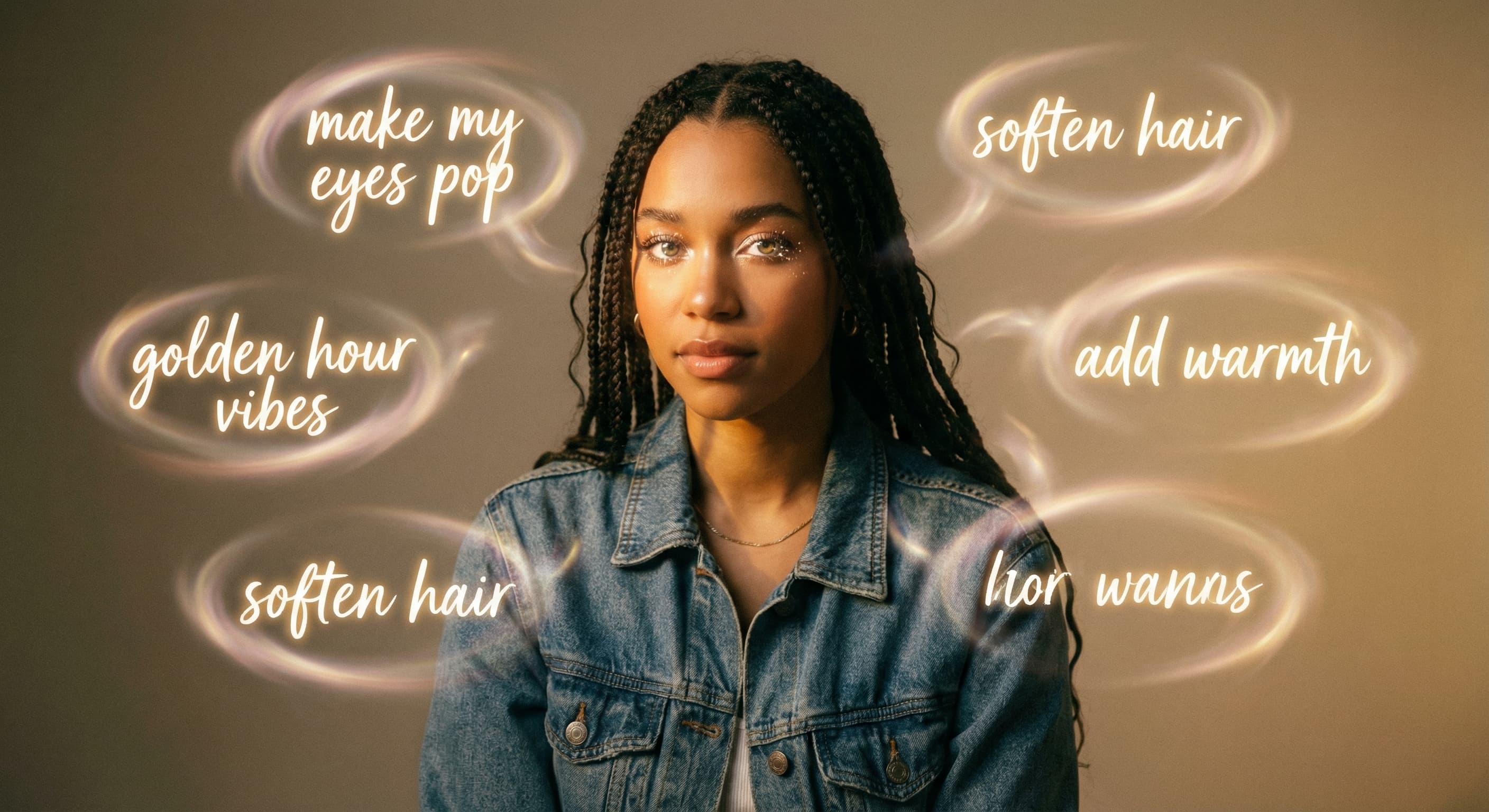
Edit with a sentence
“Replace the background and keep the subject unchanged.”
agent model
Upload an image or describe the result you need. Made Auto interprets the request, selects an available Made tool, and keeps follow-up edits in one conversation.
What you need to start
Add an image for edits, or start with a text request for generation.
Original results
These examples use media produced for Made. Prompts are included when the production record allows them.
“Replace the background and keep the subject unchanged.”
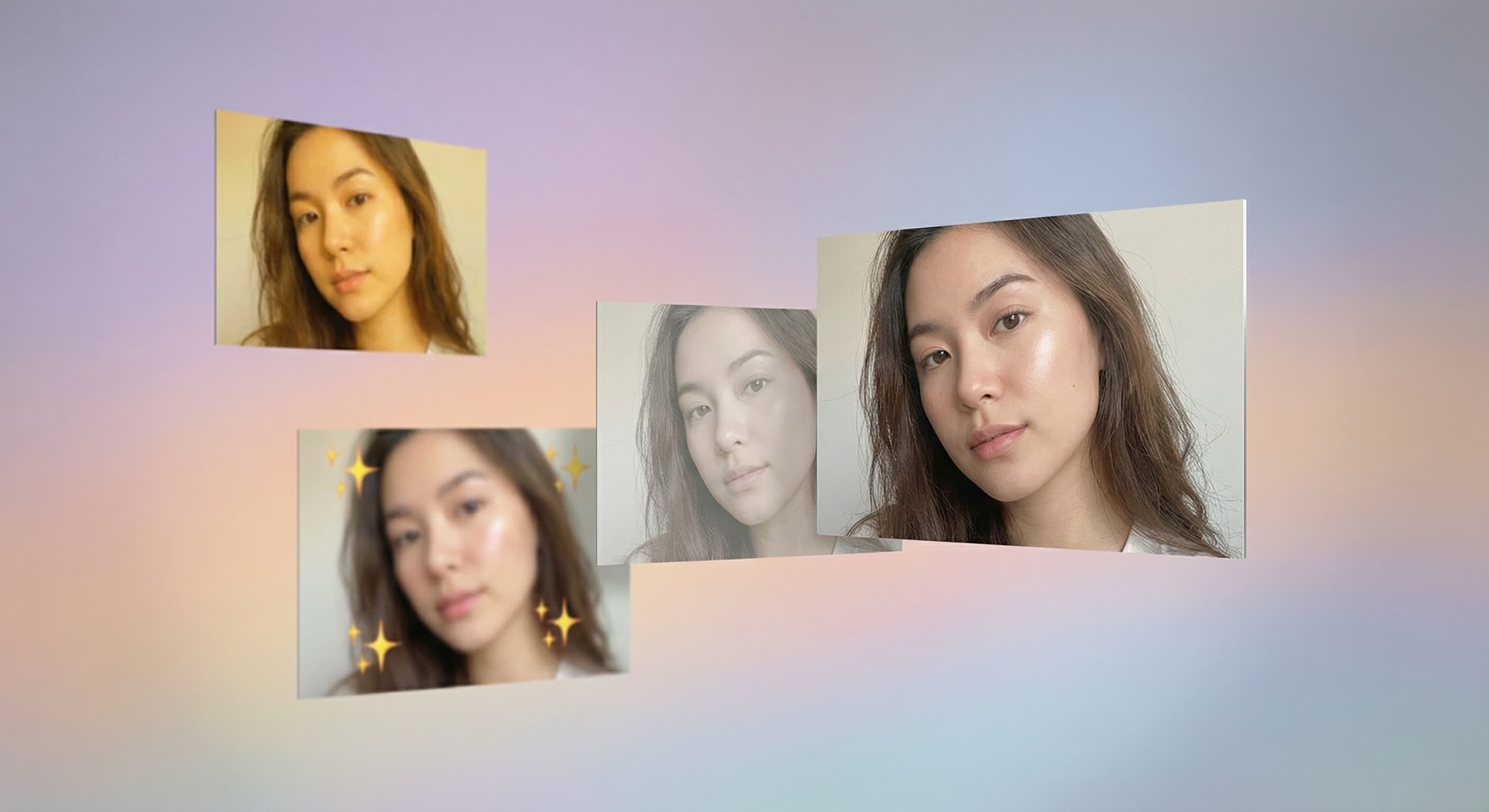
“Make the lighting warmer and leave everything else as it is.”
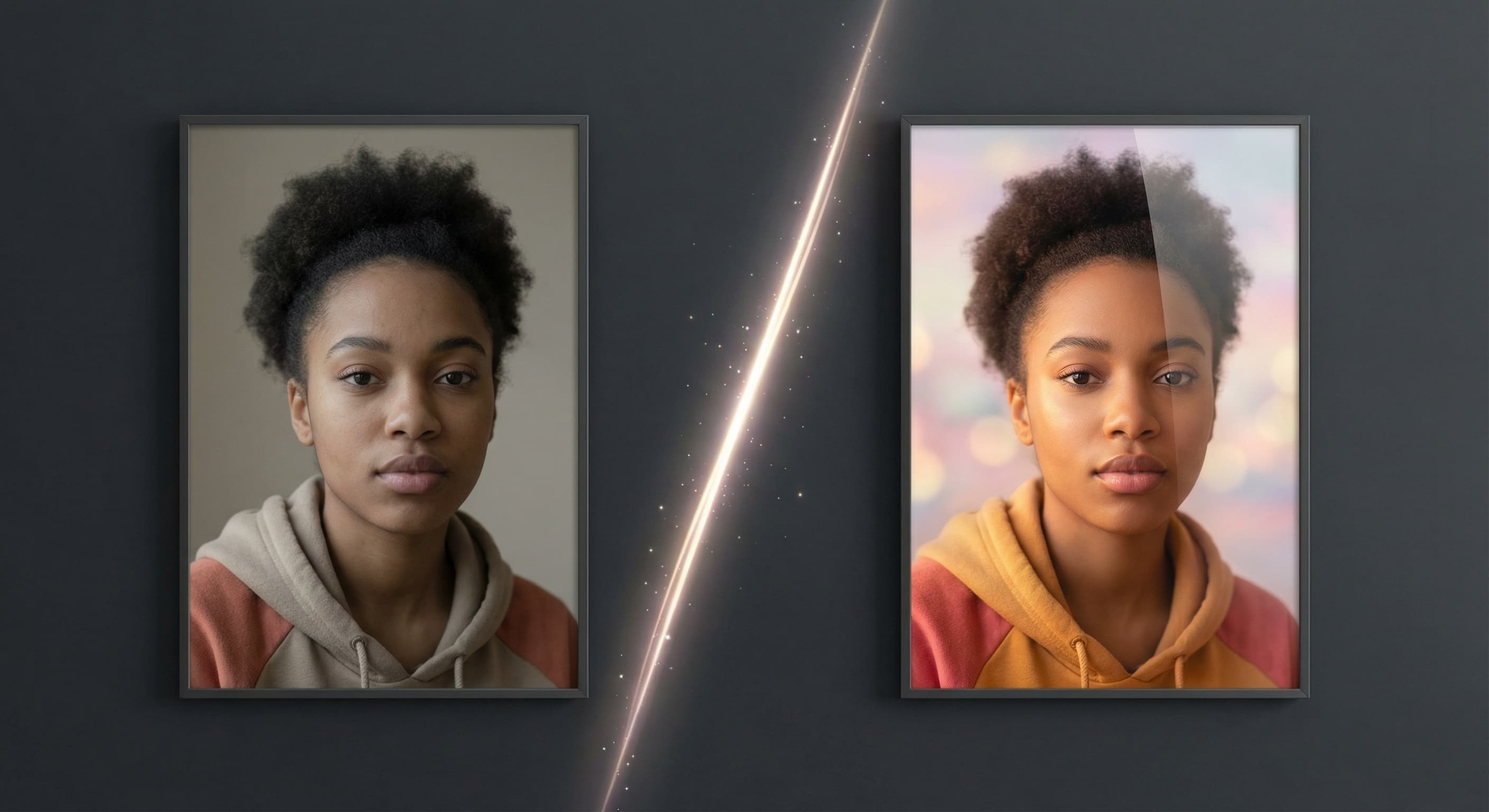
“Prepare this portrait for a vertical social post.”
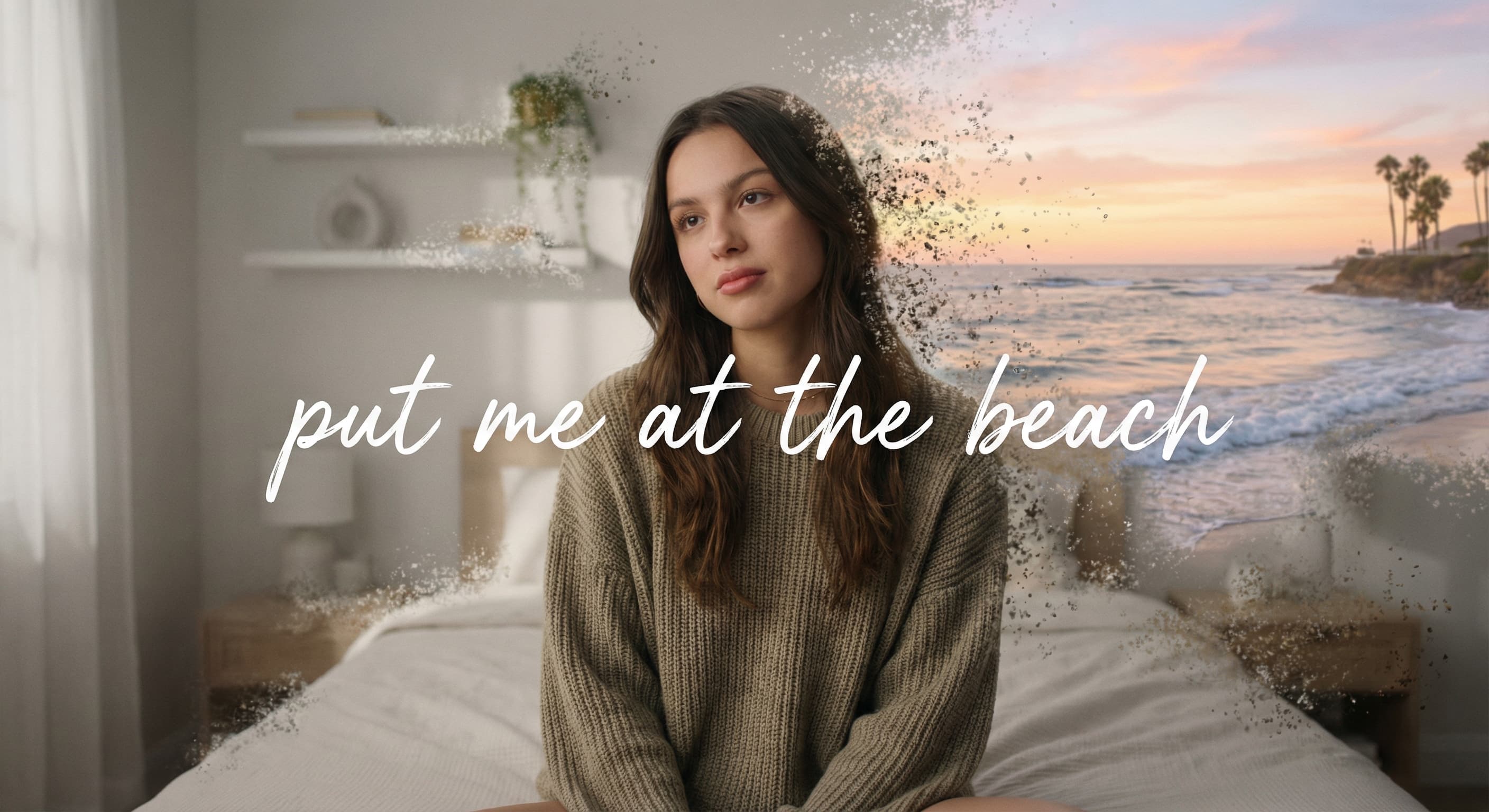
“Put the subject in a clean studio setting.”
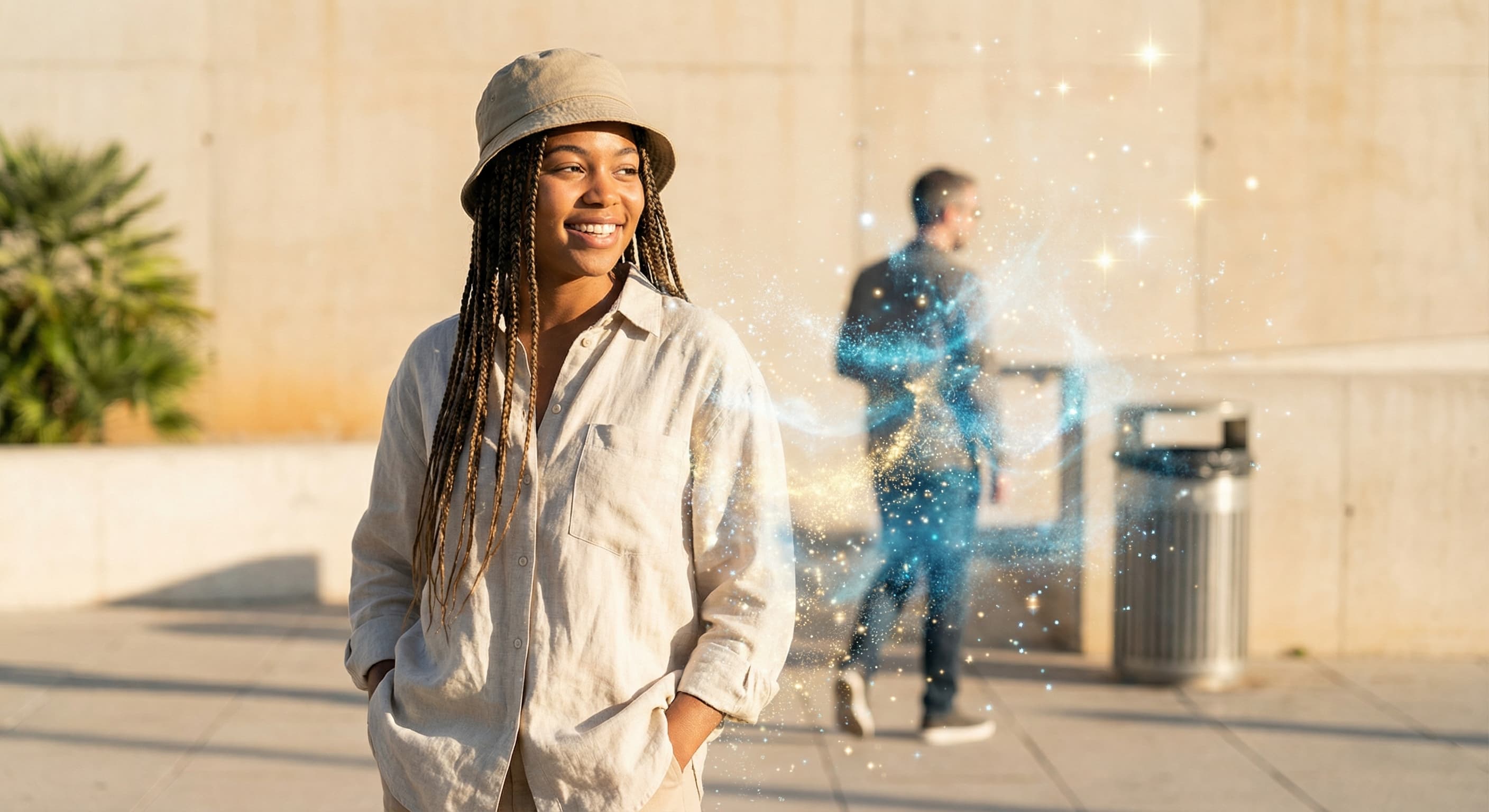
“Remove the distracting objects behind the subject.”
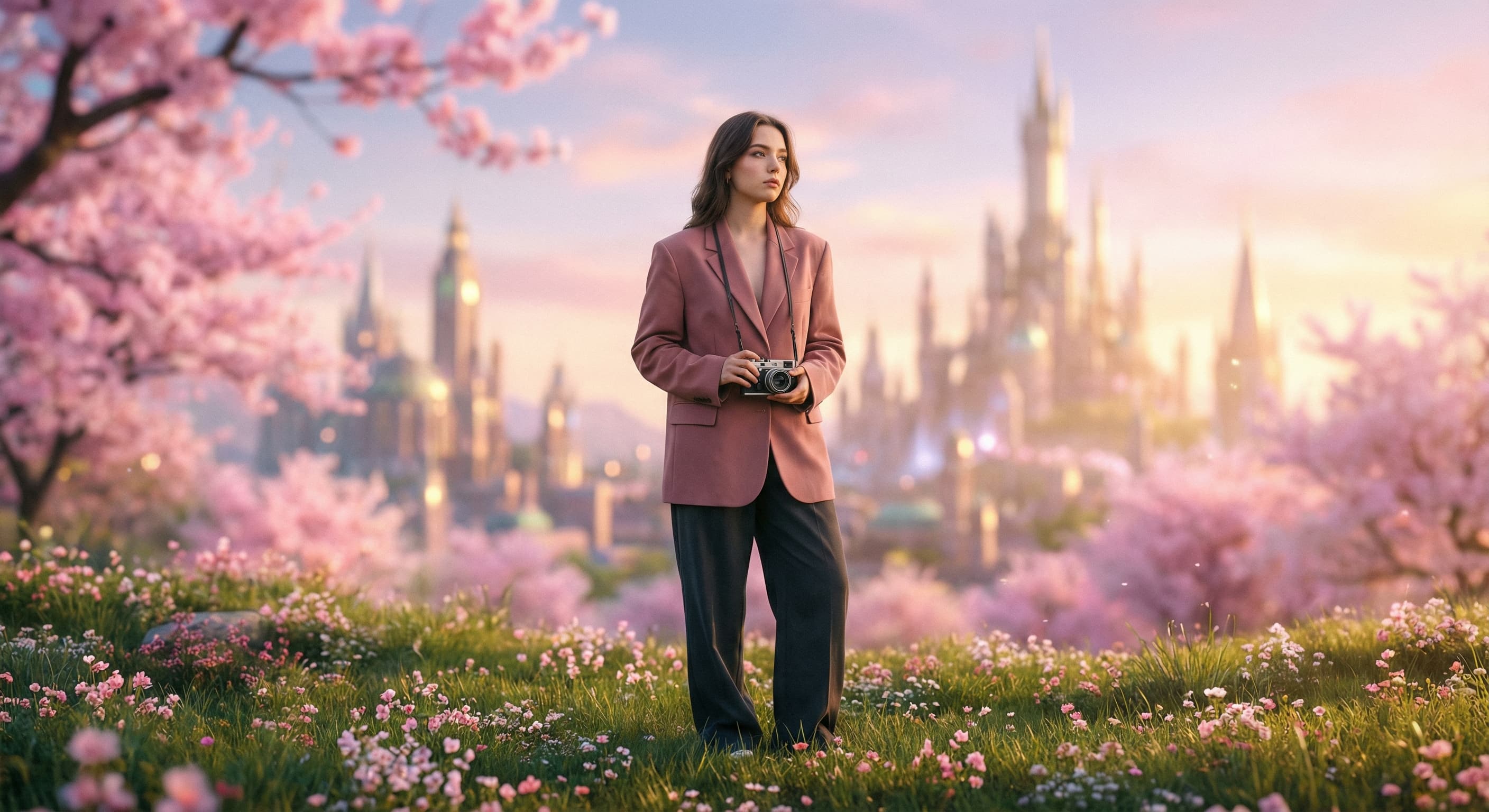
“Give this photo a cinematic editorial treatment.”
These are the controls exposed by Made, which may be narrower than a provider’s full API.
Write what you want to create or change in everyday language.
Attach an image when the request edits, resizes, or transforms an existing visual.
Made Auto routes the request and shows progress in the editor.
Continue with follow-up instructions, then download the result when it is ready.
Approved examples and guides
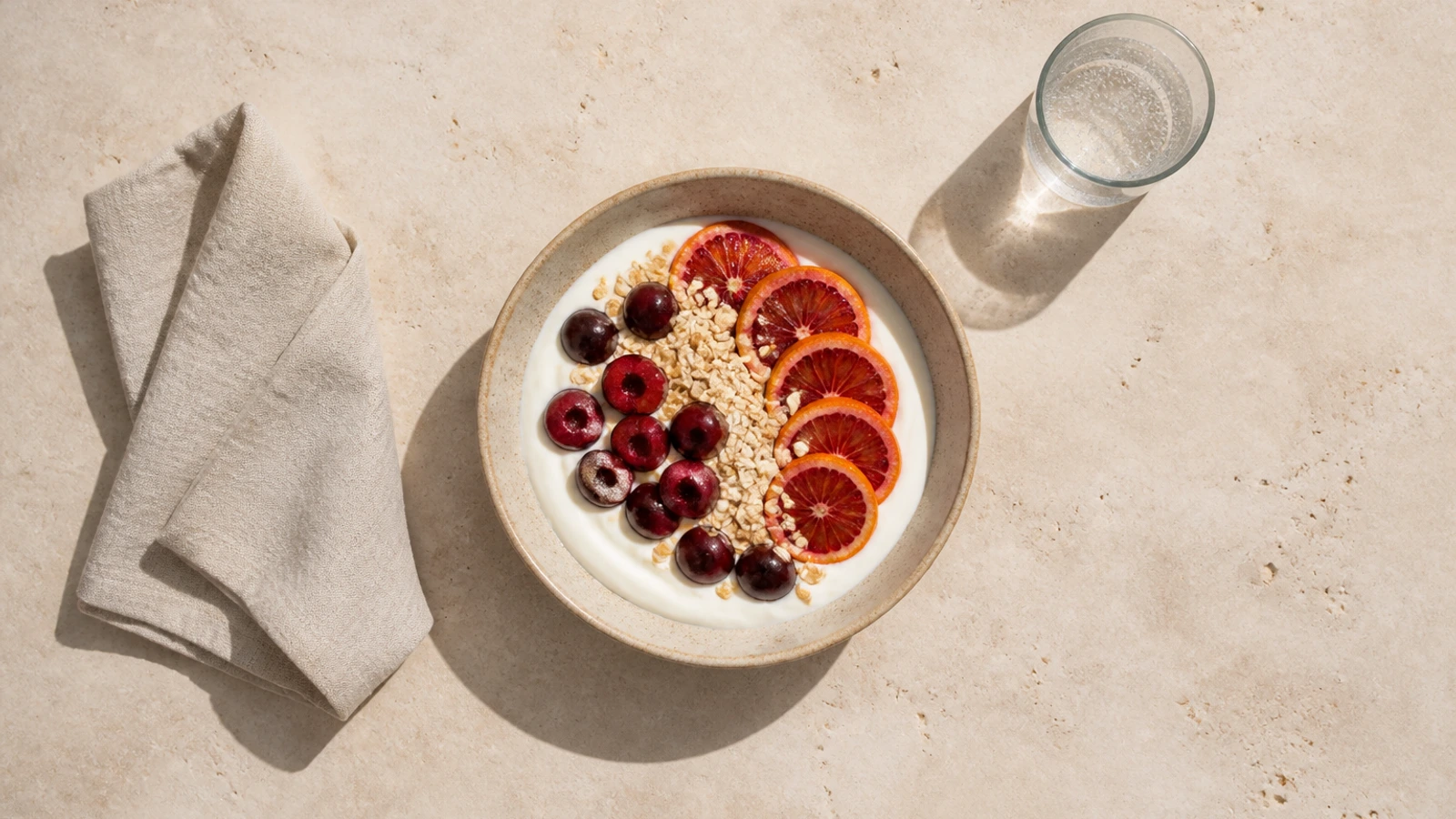
Example
An overhead editorial food master cropped to a 1600 × 900 WebP while keeping the central bowl, linen, and glass readable across a wide publishing slot.
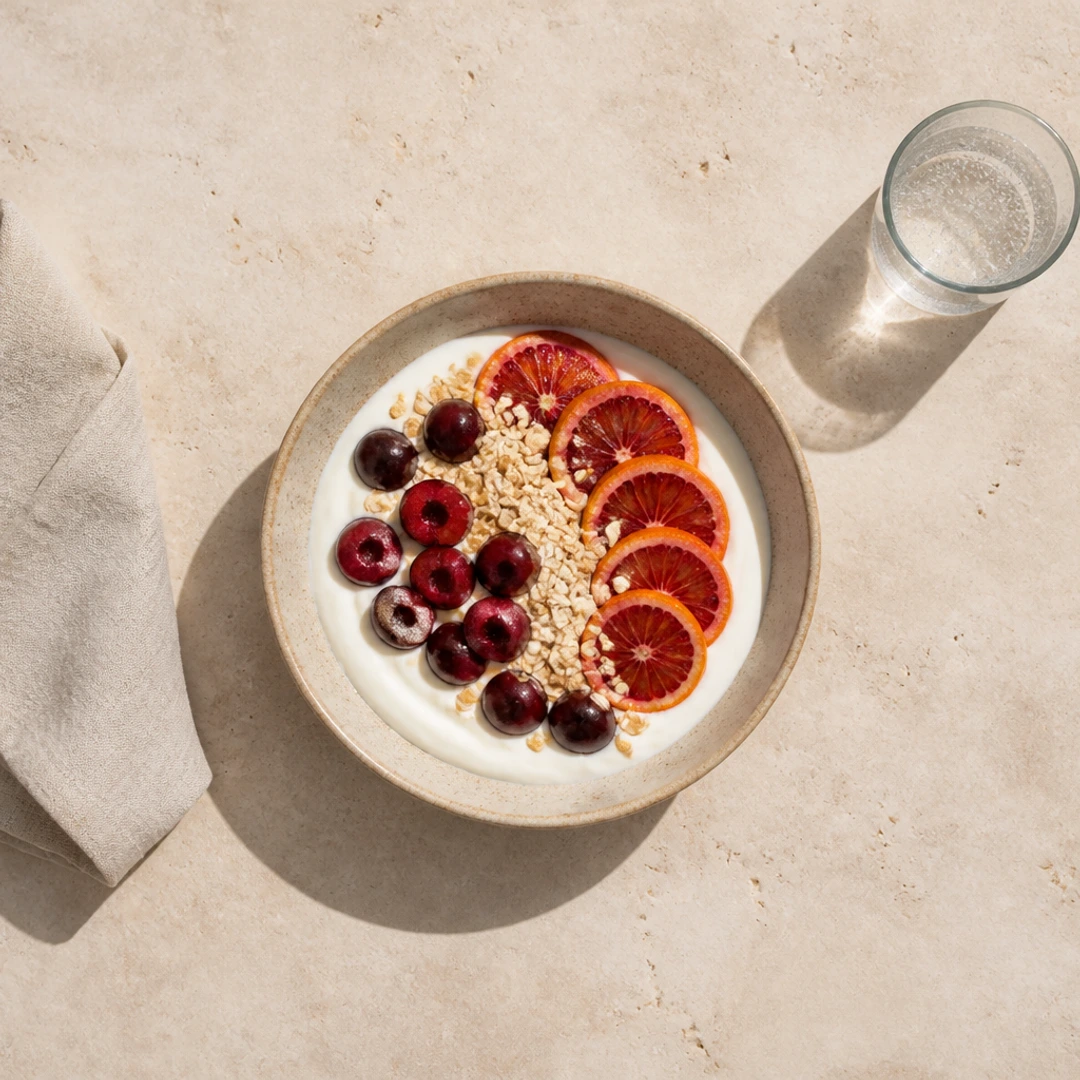
Example
A wide overhead food photograph converted into a 1080 × 1080 square WebP with the bowl retained as the focal subject and supporting props deliberately trimmed.
Example
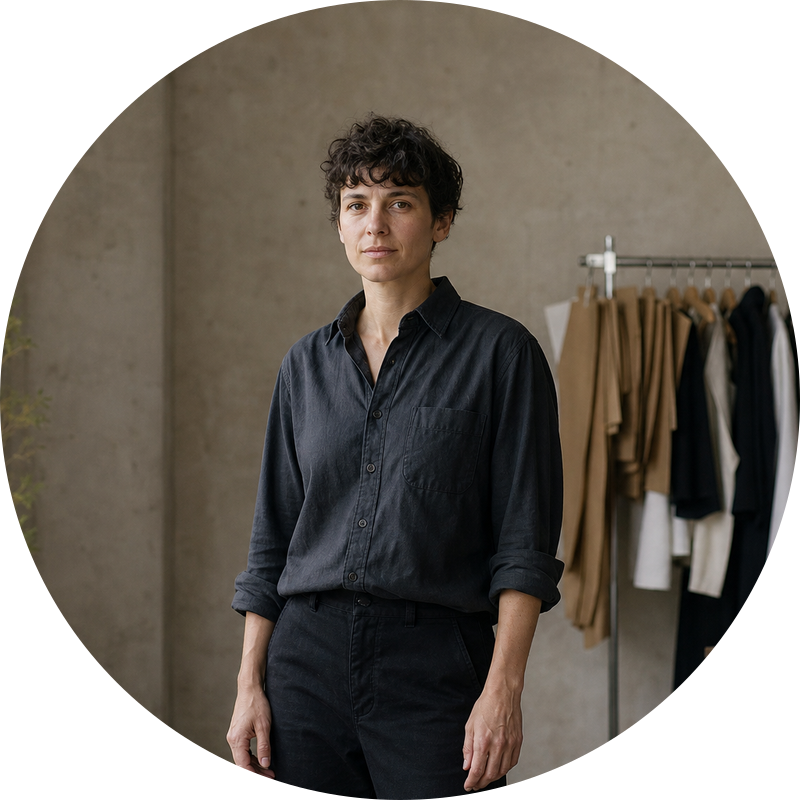
A wide studio portrait resized into an 800 × 800 circular PNG with the person centered and every pixel outside the circle transparent.
image
Flux 1.1 Pro is a flexible image-generation model in Made for polished concepts, product visuals, and photorealistic scenes from descriptive prompts.
Explore model →video
WAN 2.2 Turbo is Made’s fast iteration option for short text-to-video and image-to-video clips, with portrait and landscape output controls.
Explore model →image
Restore Image is a focused Made workflow for reducing scratches, fading, and visible damage while preserving the recognizable people and composition in a source photo.
Explore model →Skip the complex menus and toolbars. Edit Images With Text Prompts. Our AI photo editor understands what you want. Type "remove the background" or "make it brighter" and watch it happen instantly.
Open tool →Upload an image, pick a size or type exact pixels, and choose whether Made crops it to fill, fits it inside, or stretches it.
Open tool →Enlarge photos 2× or 4× with Topaz and get the detail back, or upscale video with SeedVR2. Drop a file to see the exact price before you pay.
Open tool →Made Auto is Made’s orchestration experience. It reads a plain-language request and selects an available generation or editing workflow.