Image Resizer
Upload an image, pick a size or type exact pixels, and choose whether Made crops it to fill, fits it inside, or stretches it.
Exact dimensionsExamples
How to use Image Resizer
- 1
Upload an image
Choose a supported JPEG, PNG, or WebP file.
- 2
State the target
Enter exact width and height or name the destination format.
- 3
Choose how it should fit
Use contain/pad to preserve the full image, cover to crop, or fill only when stretching is acceptable.
- 4
Review and download
Inspect the crop and dimensions, then save the resized result.
Image Resizer examples
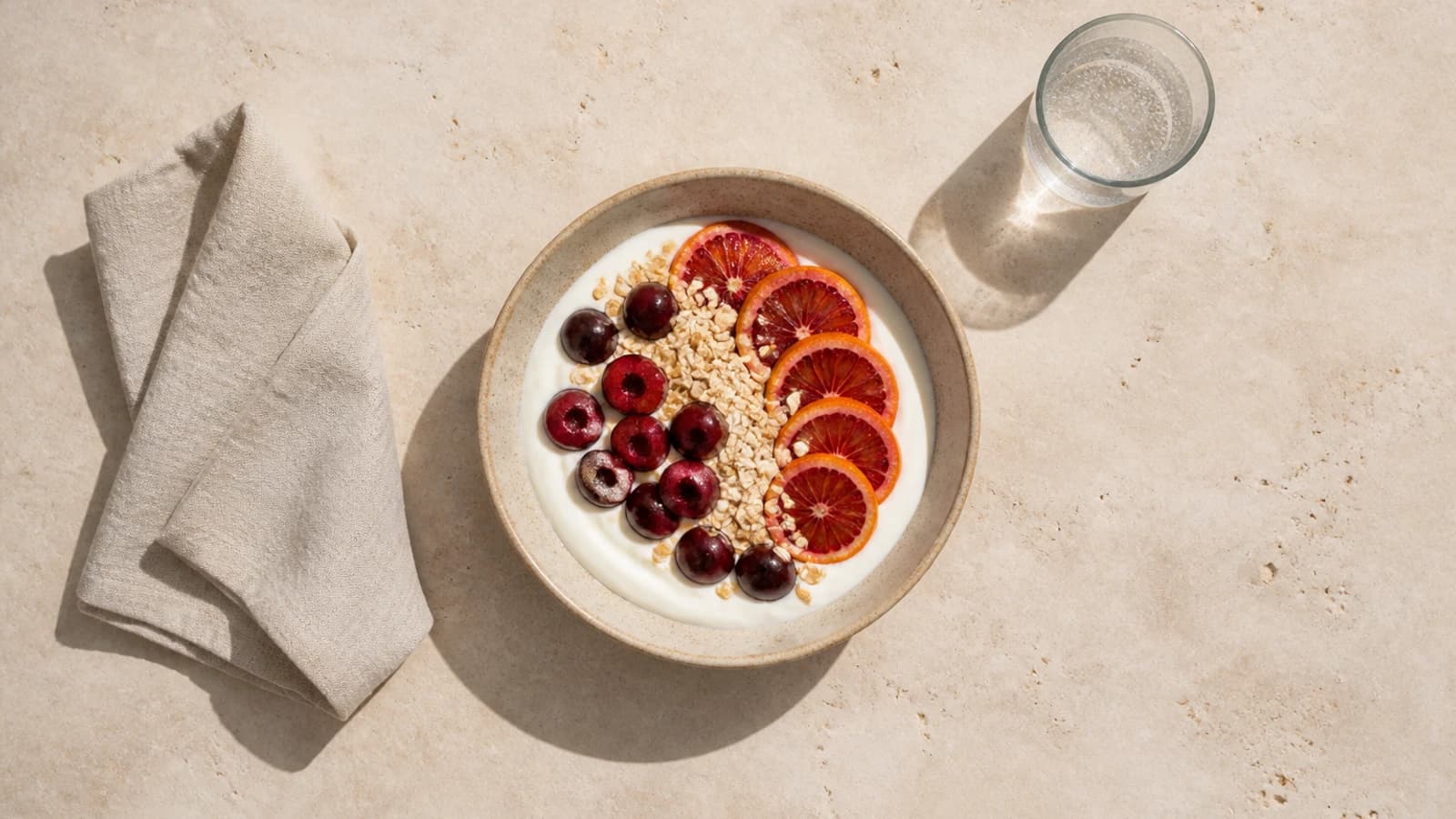
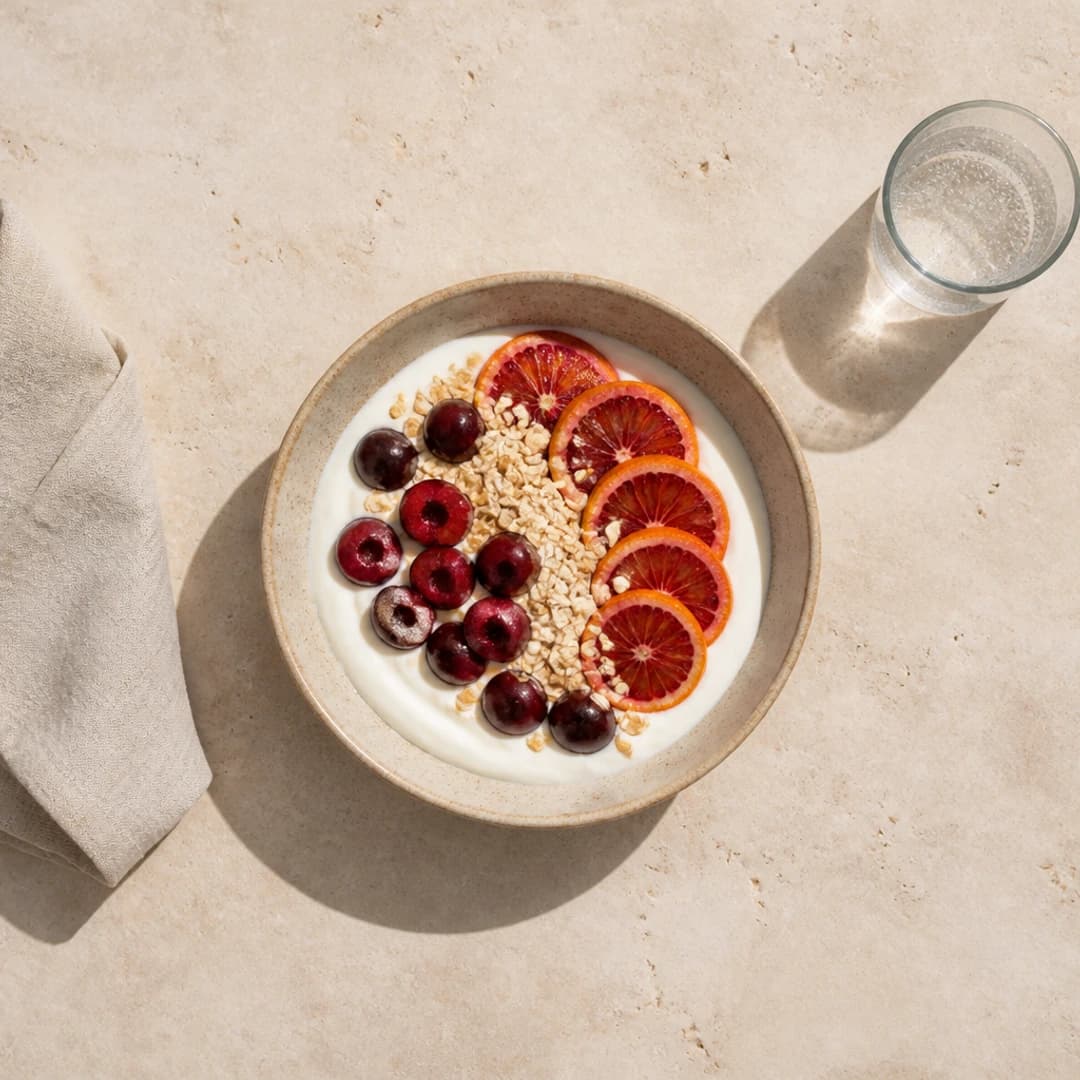
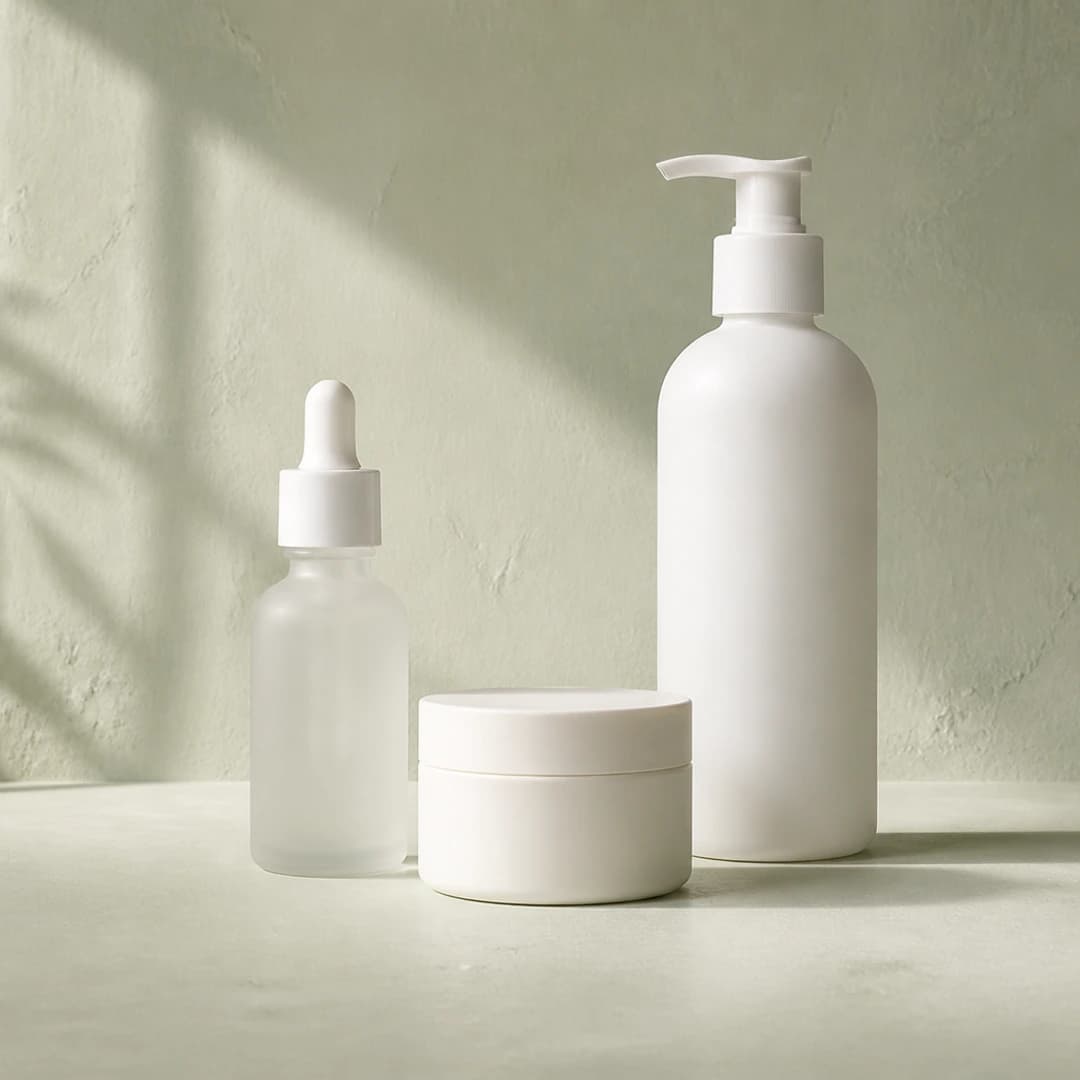
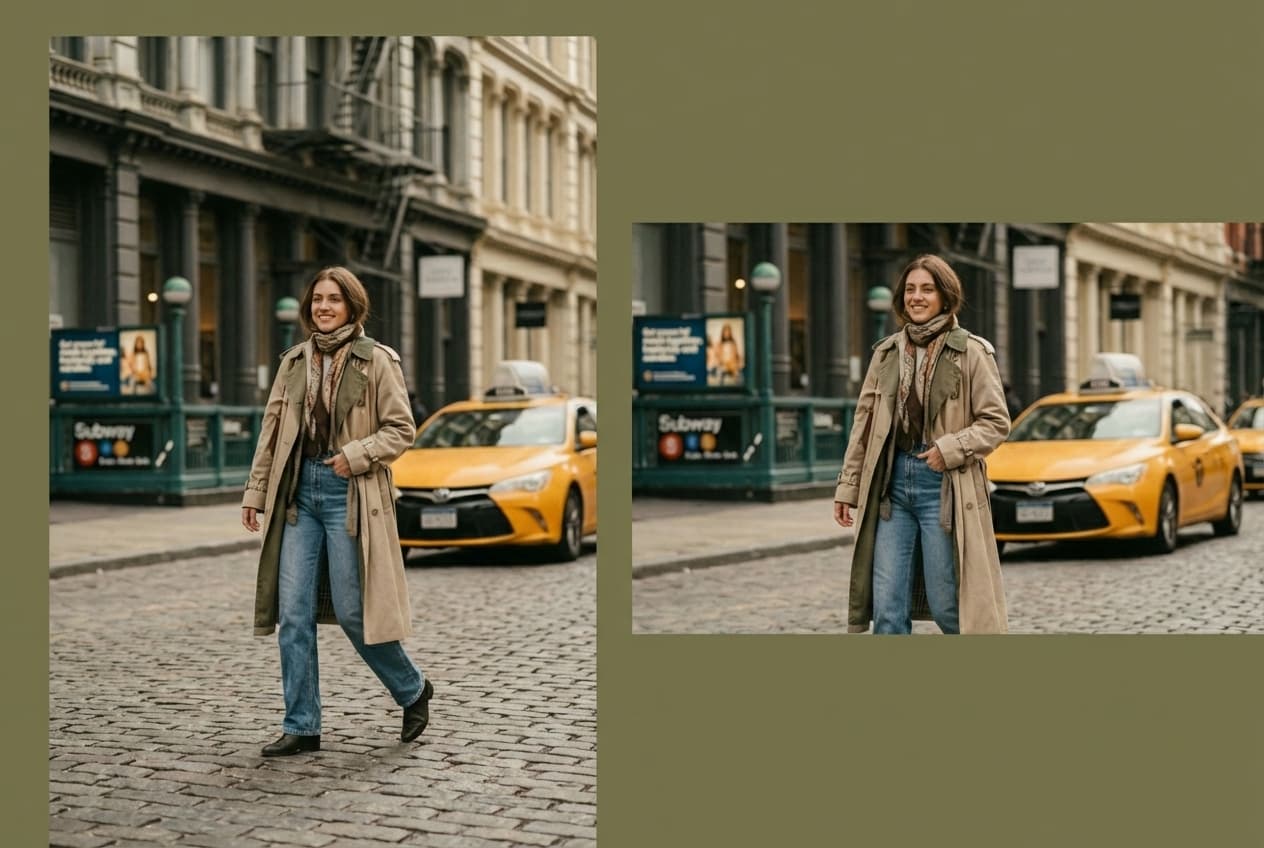
Real results from Made. Add your own photo in the studio above.
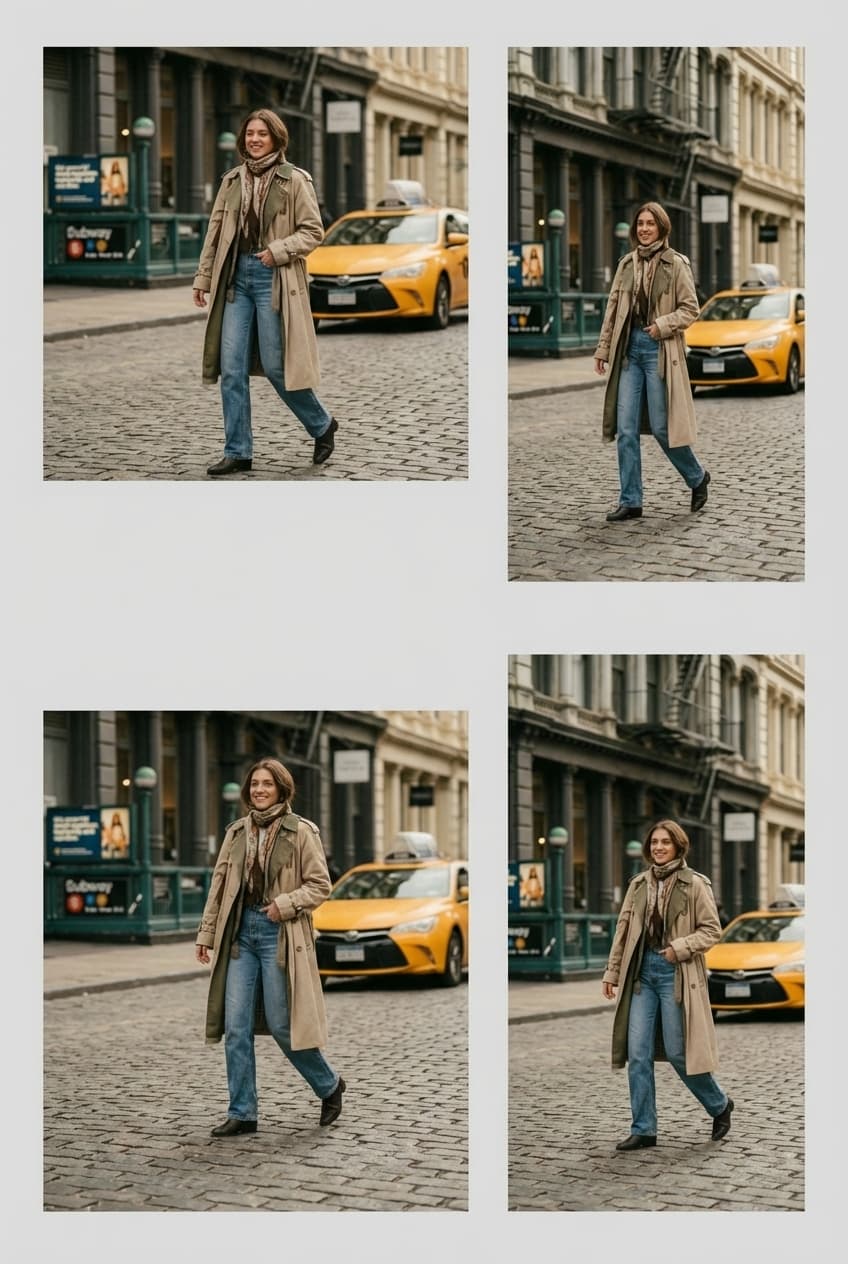
Platform formats
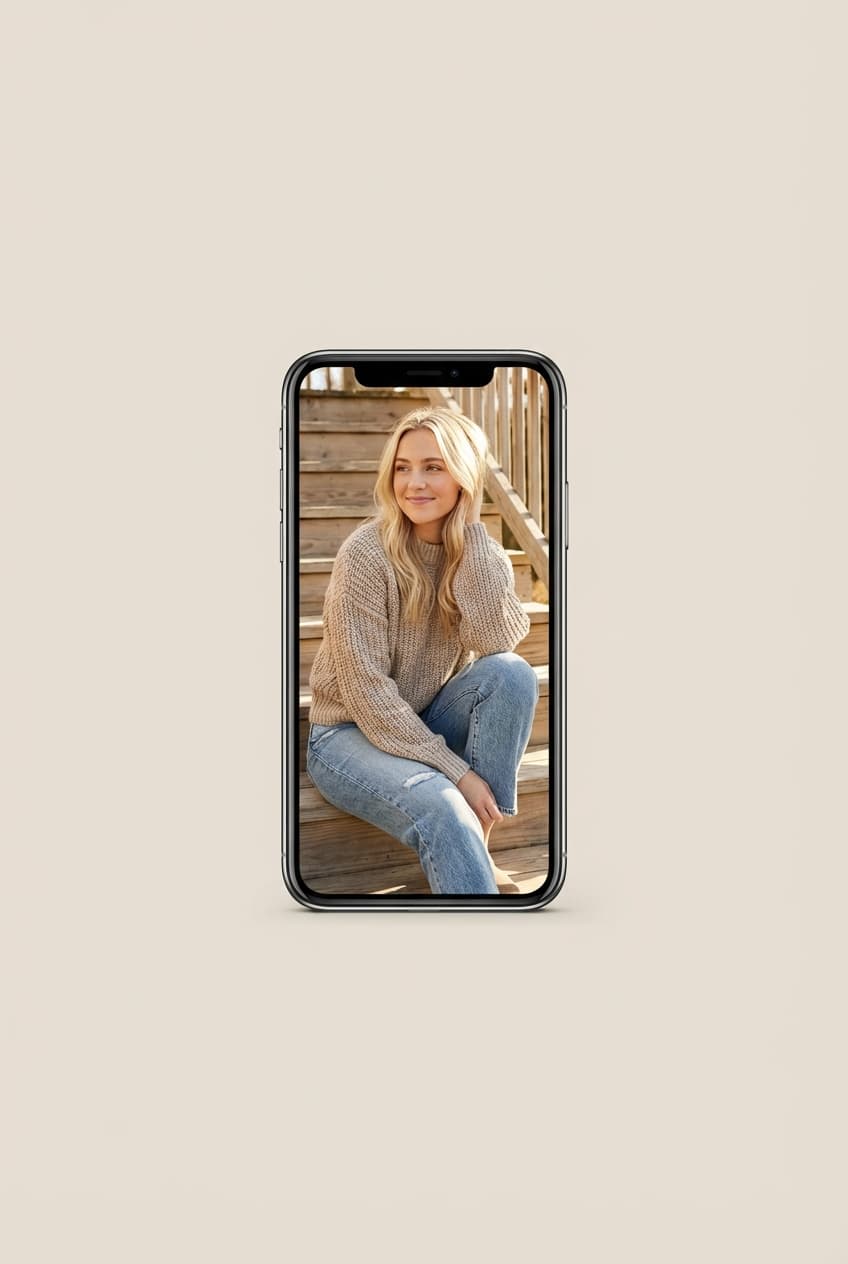
Vertical social post
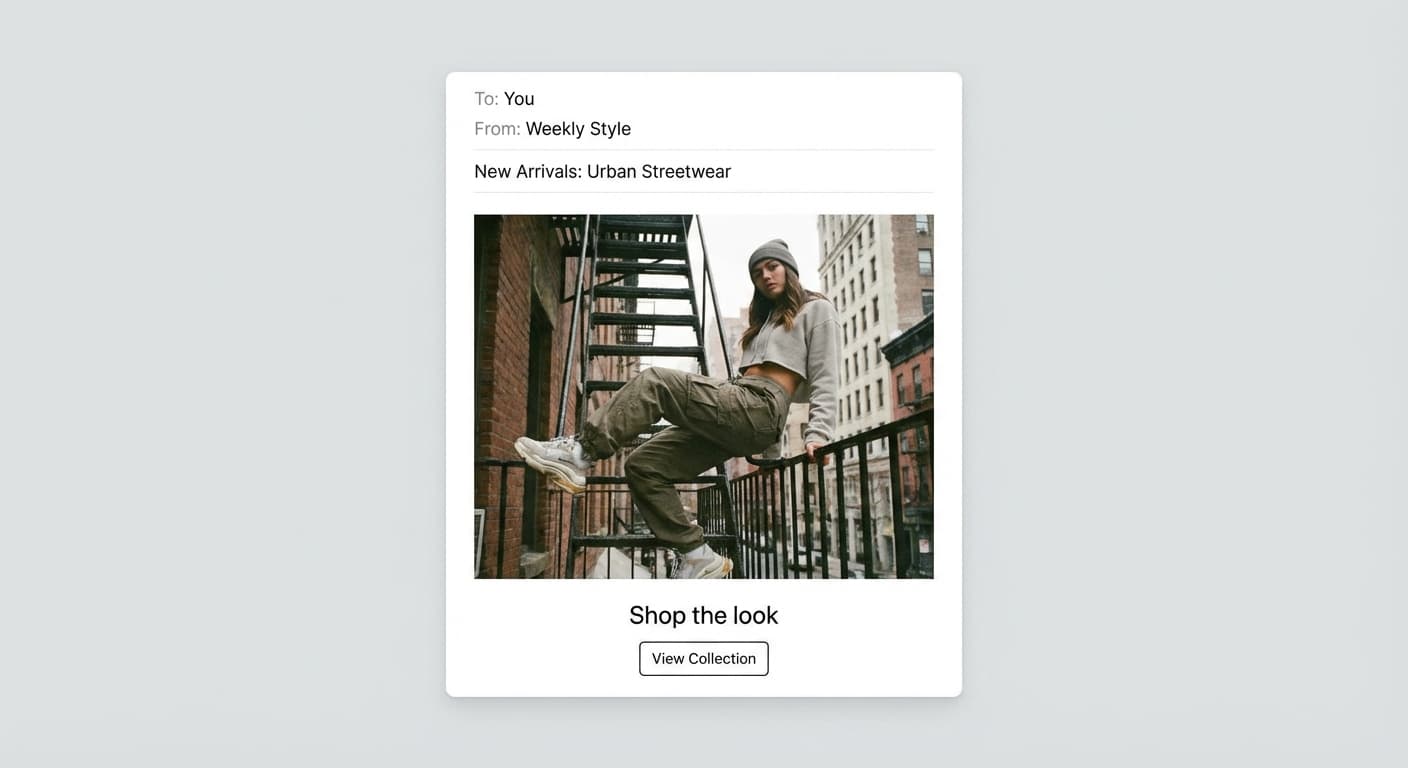
Email-ready dimensions
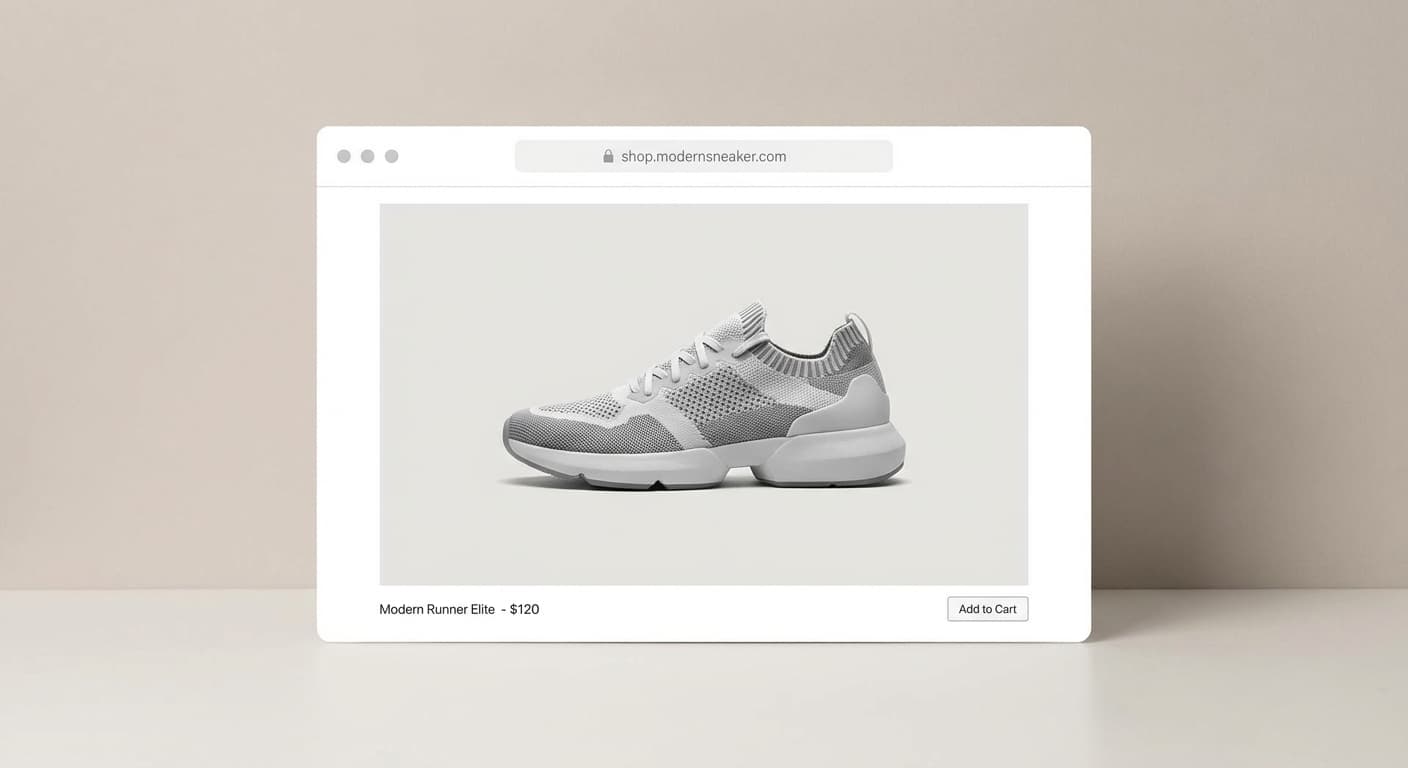
Web placement
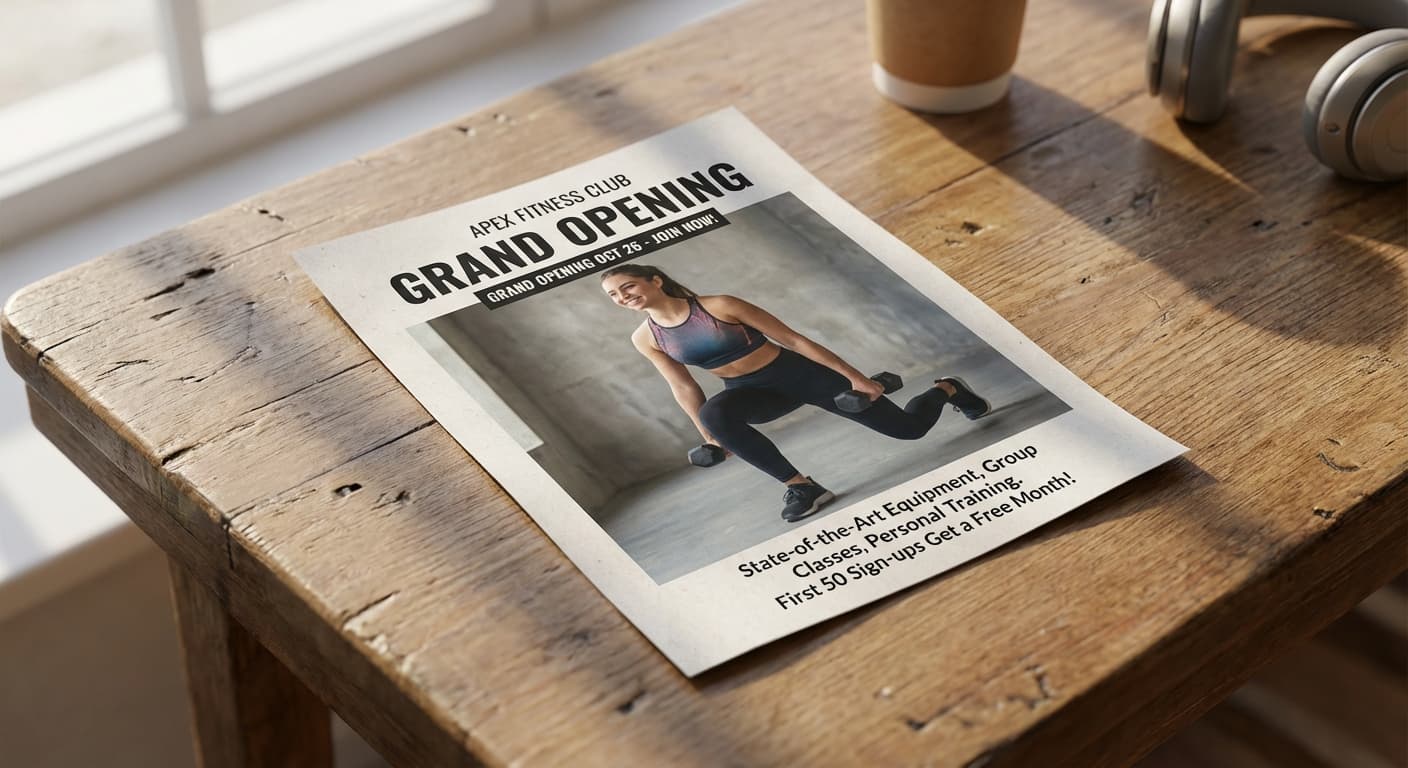
Print layout
What people use it for
- Social media formatsPrepare square, portrait, landscape, and story-size images without memorizing every dimension.
- Website placementsFit an image into a known content area or thumbnail while controlling cropping.
- Profile and cover imagesCreate exact-size assets and choose padding or cropping based on the composition.
- Print preparationSet the pixel dimensions requested by a print workflow without claiming to add missing detail.
Resize an image to the dimensions you need
What it does
- Input
- JPEG, PNG, or WebP image
- Output
- JPG, PNG, or WebP image up to 10,000 × 10,000 pixels
- How it works
- Resizing is deterministic and runs in your browser at the exact pixels you pick; no AI is involved.
- Access
- Free, with no sign-in. It runs in your browser, so your photo isn’t uploaded.
Formats and limits
- Input formats
- JPEG, PNG, WebP
- Output formats
- JPG/JPEG, PNG, WebP
- Dimensions
- 1 to 10,000 pixels on each side
- Fit modes
- Contain, cover, fill, inside; padding color is supported
- Batch behavior
- One image at a time, resized in your browser
Checked against the running tool on 2026-08-13.
Questions about Image Resizer
How do I resize an image to exact dimensions?
Upload the image, enter the target width and height, then choose how the original should fit inside those dimensions.
What is the difference between contain and cover?
Contain keeps the entire image visible and may add empty space. Cover fills the target dimensions by cropping parts that fall outside the frame.
Will resizing stretch my image?
Contain, cover, and inside preserve the source proportions. Fill changes width and height independently and can distort the image.
Which image formats are supported?
The published workflow supports JPEG, PNG, and WebP input, with JPG/JPEG, PNG, and WebP output.
What is the maximum output size?
The resize API accepts dimensions up to 10,000 by 10,000 pixels. Very large files may still be limited by the upload and browser workflow.
Does resizing improve a blurry image?
No. Resizing changes dimensions. Use Image Upscaler when the goal is to enhance a low-resolution or soft image.
Can I add padding instead of cropping?
Yes. Use a contain/pad-style request and specify a background color when you need exact dimensions without losing any of the image.
Specific Image Resizer workflows
More photo fixes
Image Upscaler
Sharpen and enlarge up to 4×
AI Photo Editor
Edit any photo by describing the change
Expand Image
Extend any photo past its edges
Background Remover
A clean transparent cutout in one step
Object Remover
Erase people, cars or clutter
Edit Text
Change the words in any image
Photo Restoration
Repair scratches, tears and fading
Photo Colorizer
Natural color for black-and-white photos
Unblur Image
Sharpen soft and blurry photos
Text Remover
Erase captions, dates and watermarksRelated models
See what each one makes, then open it in Made.

Tested Image Resizer workflows
Guides and examples made with this tool.