YouTube Thumbnail Resizer
YouTube thumbnails are 1280 × 720 at 16:9. Upload any image and Made resizes it to those exact dimensions, cropping or padding on your terms — then compress it if you need to stay under YouTube’s 2MB upload limit.
Exact dimensionsExamples
How to use YouTube Thumbnail Resizer
- 1
Upload your image
Any JPEG, PNG, or WebP works — a video still, a photo, or an exported design.
- 2
Ask for thumbnail size
Say “resize this to 1280 by 720 for a YouTube thumbnail.” That is YouTube’s recommended size at the required 16:9 ratio.
- 3
Pick crop or pad
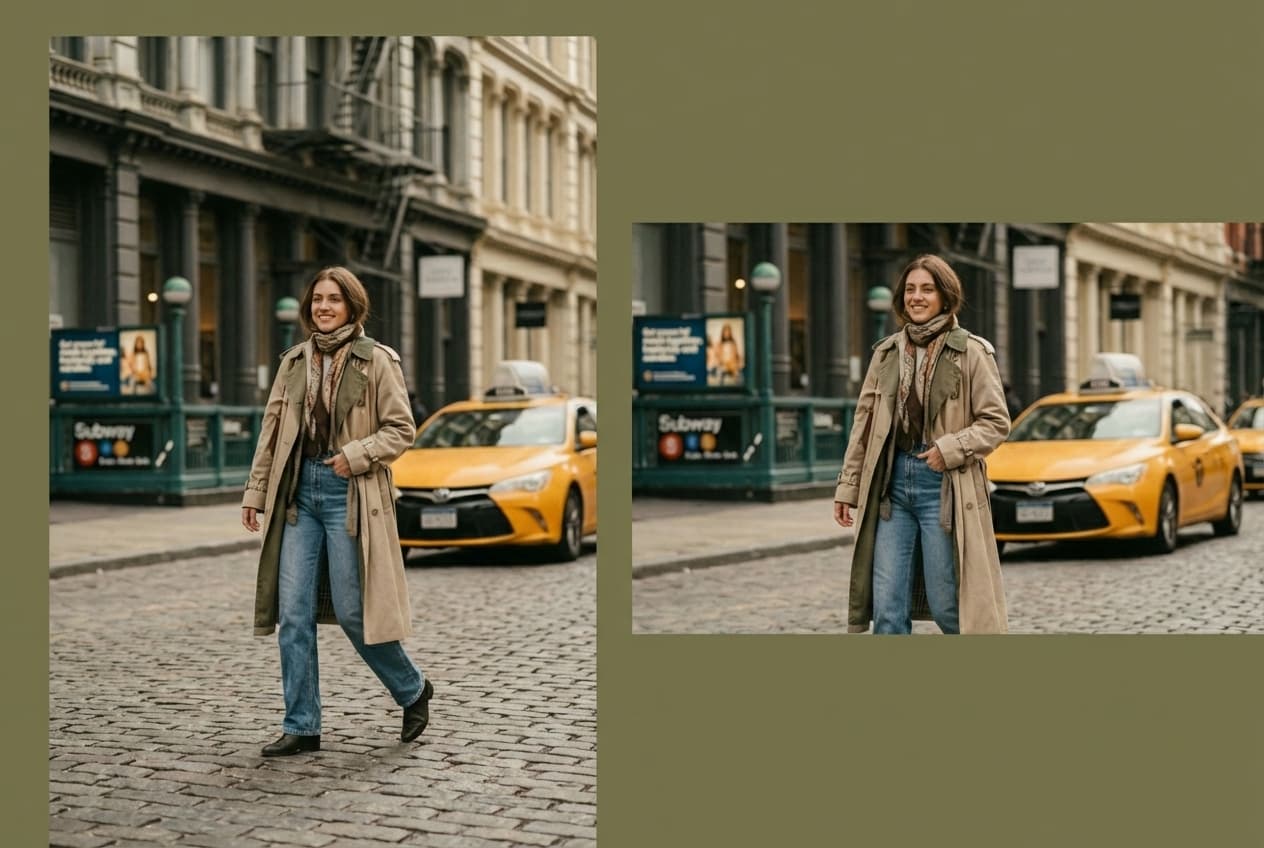
Cover crops the image to fill the frame; contain keeps everything visible and pads the edges with a color you choose.
- 4
Check the file size
YouTube caps thumbnail uploads at 2MB. If your file is over, ask Made to compress it in the same conversation.
YouTube Thumbnail Resizer examples
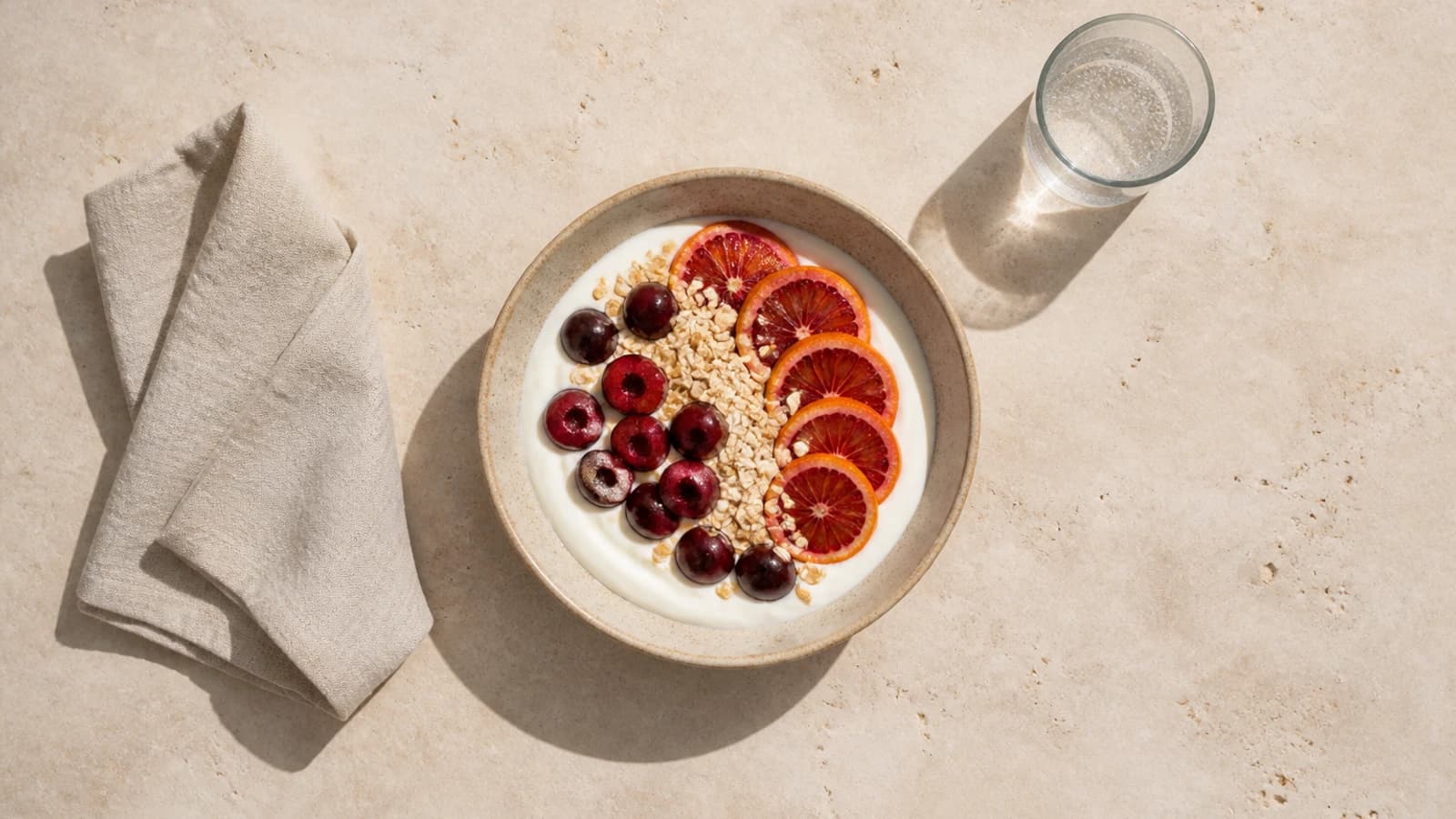
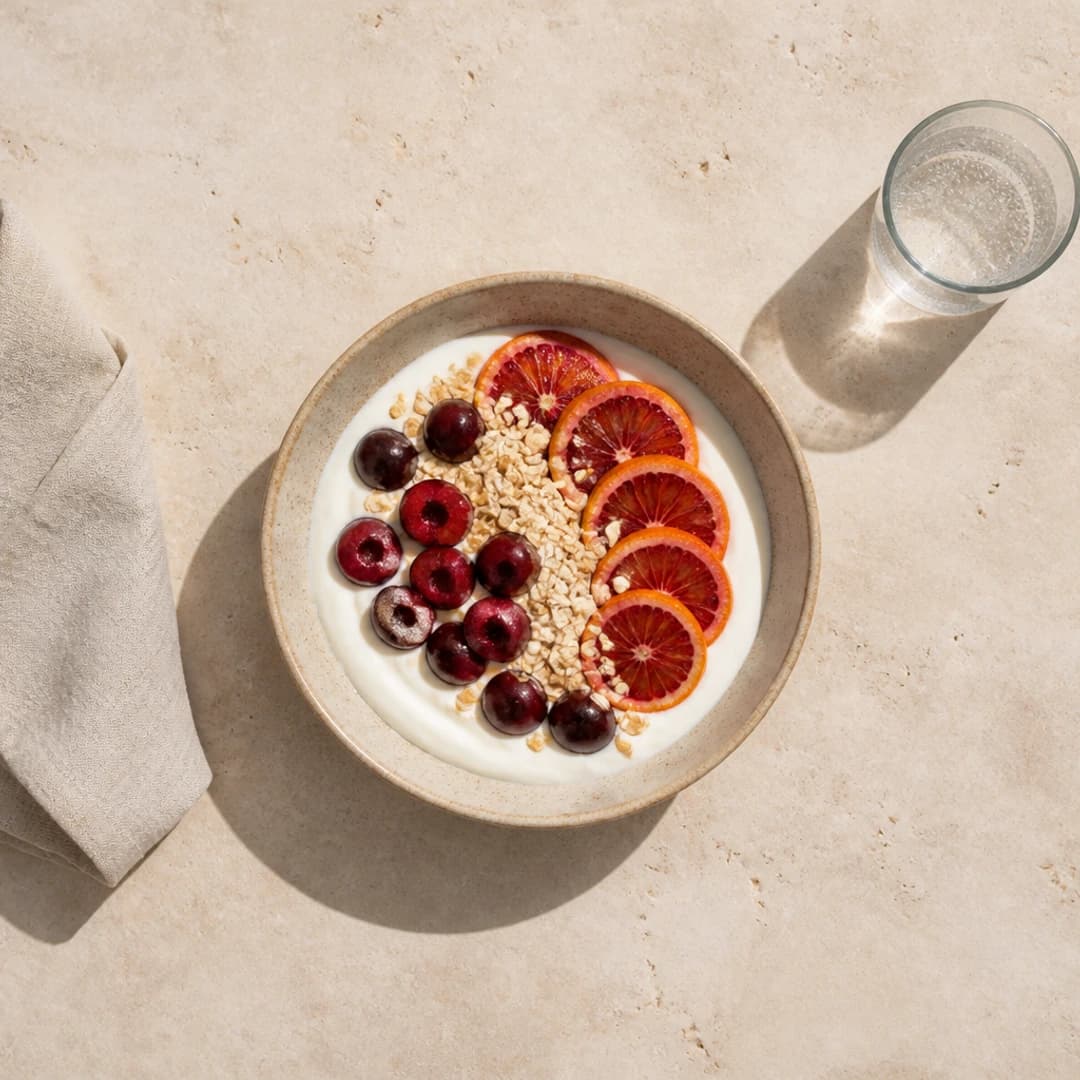
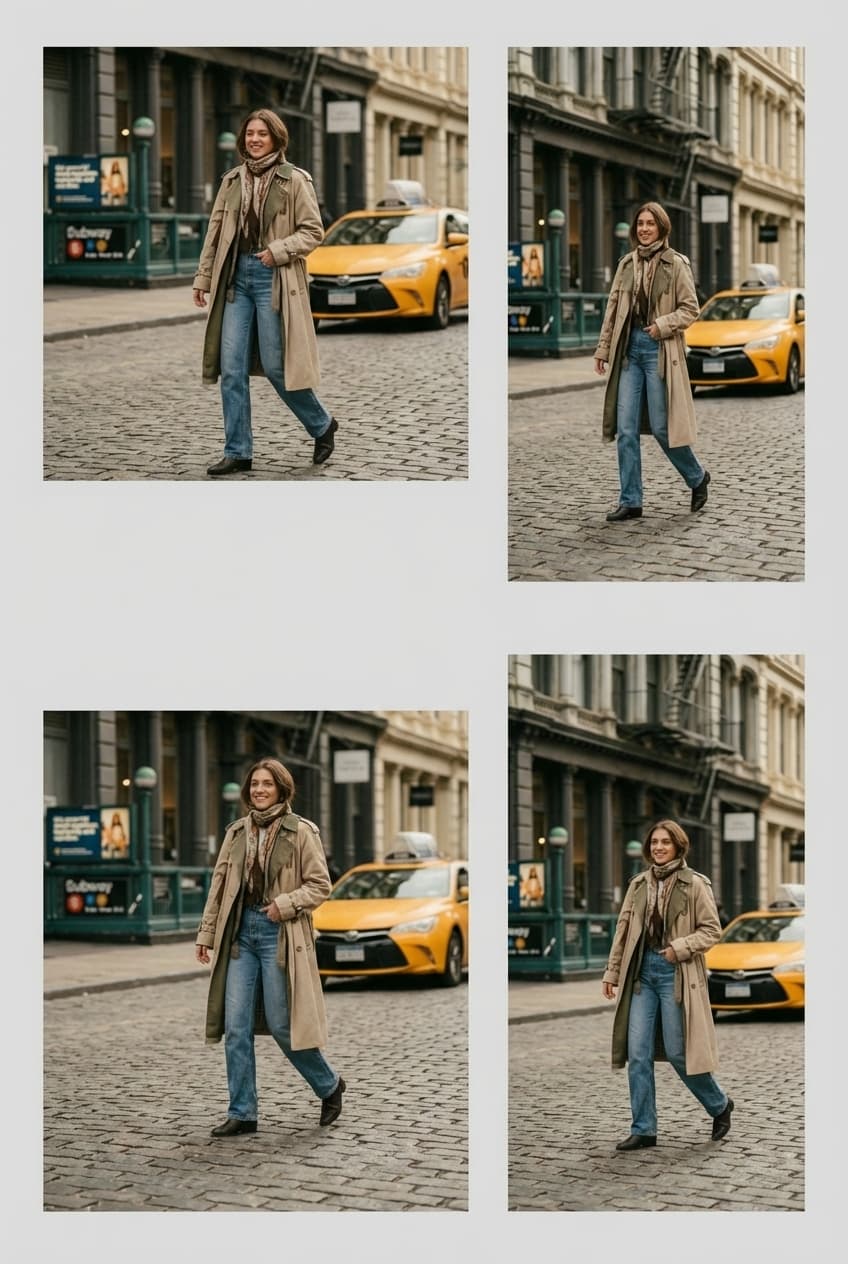
Real results from Made. Add your own photo in the studio above.
Platform formats
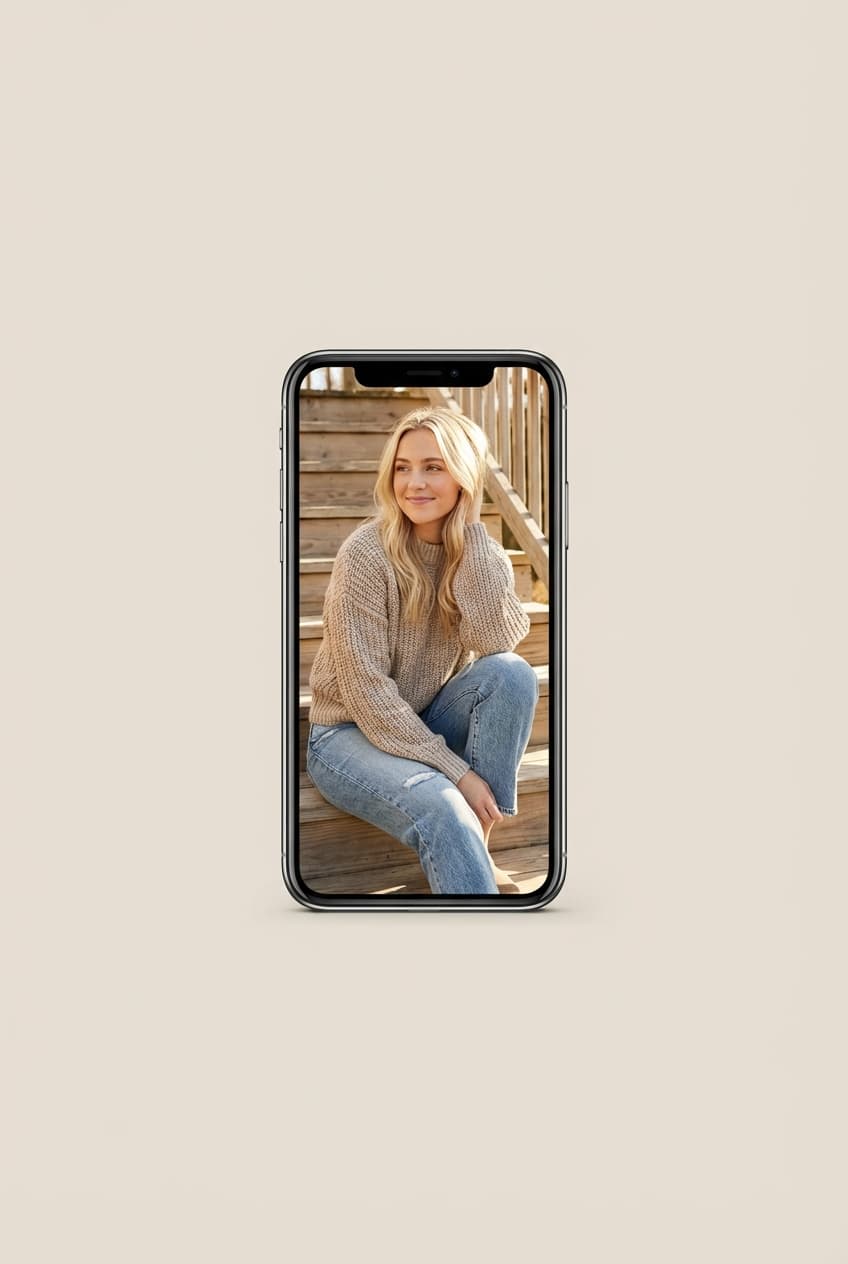
Vertical social post
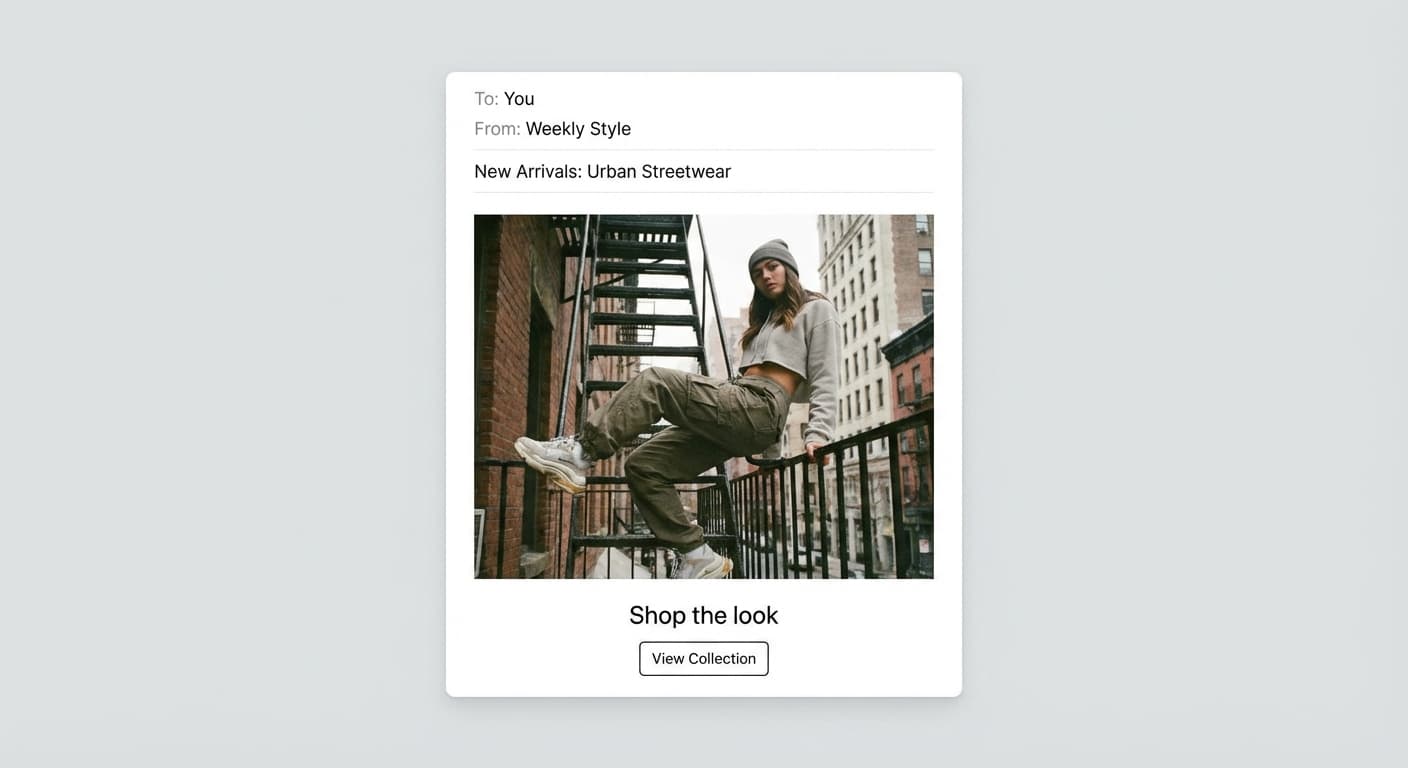
Email-ready dimensions
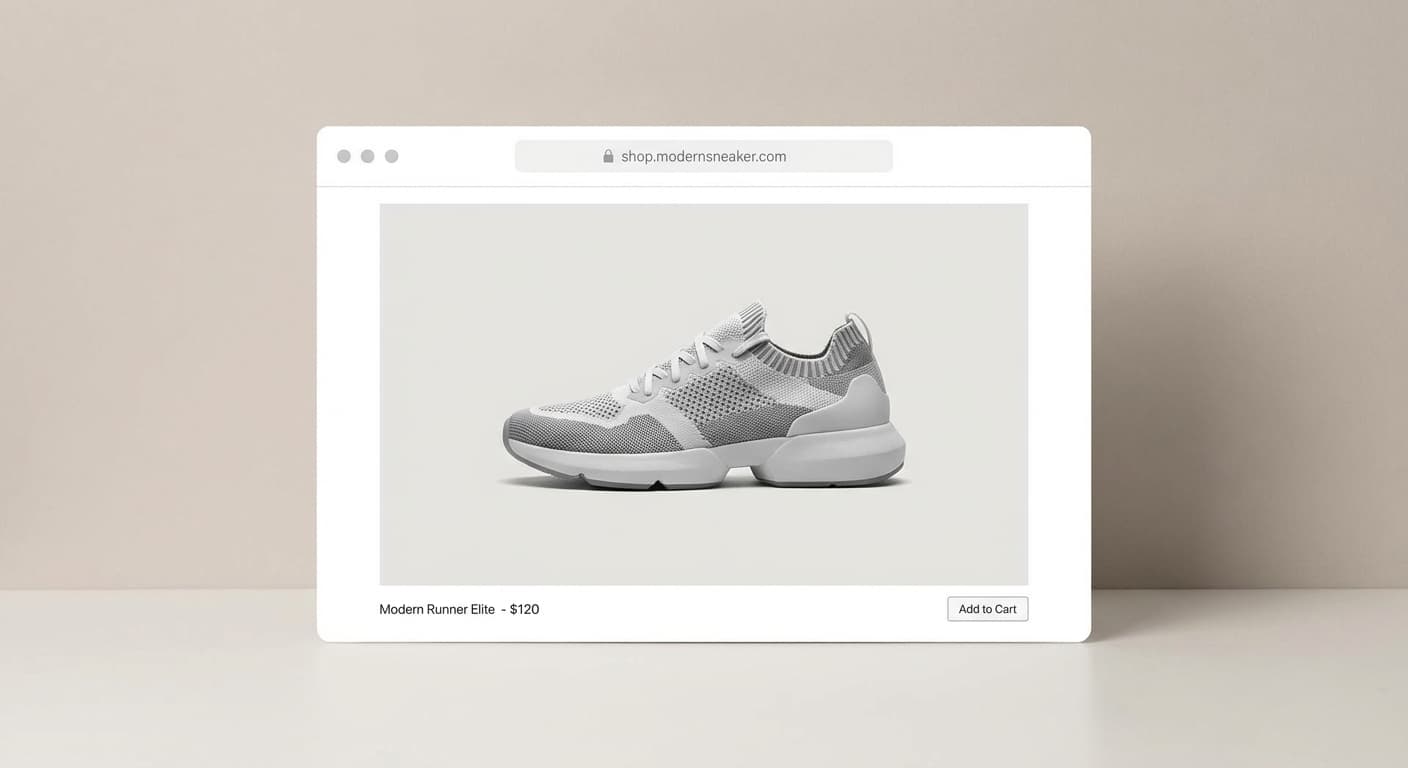
Web placement
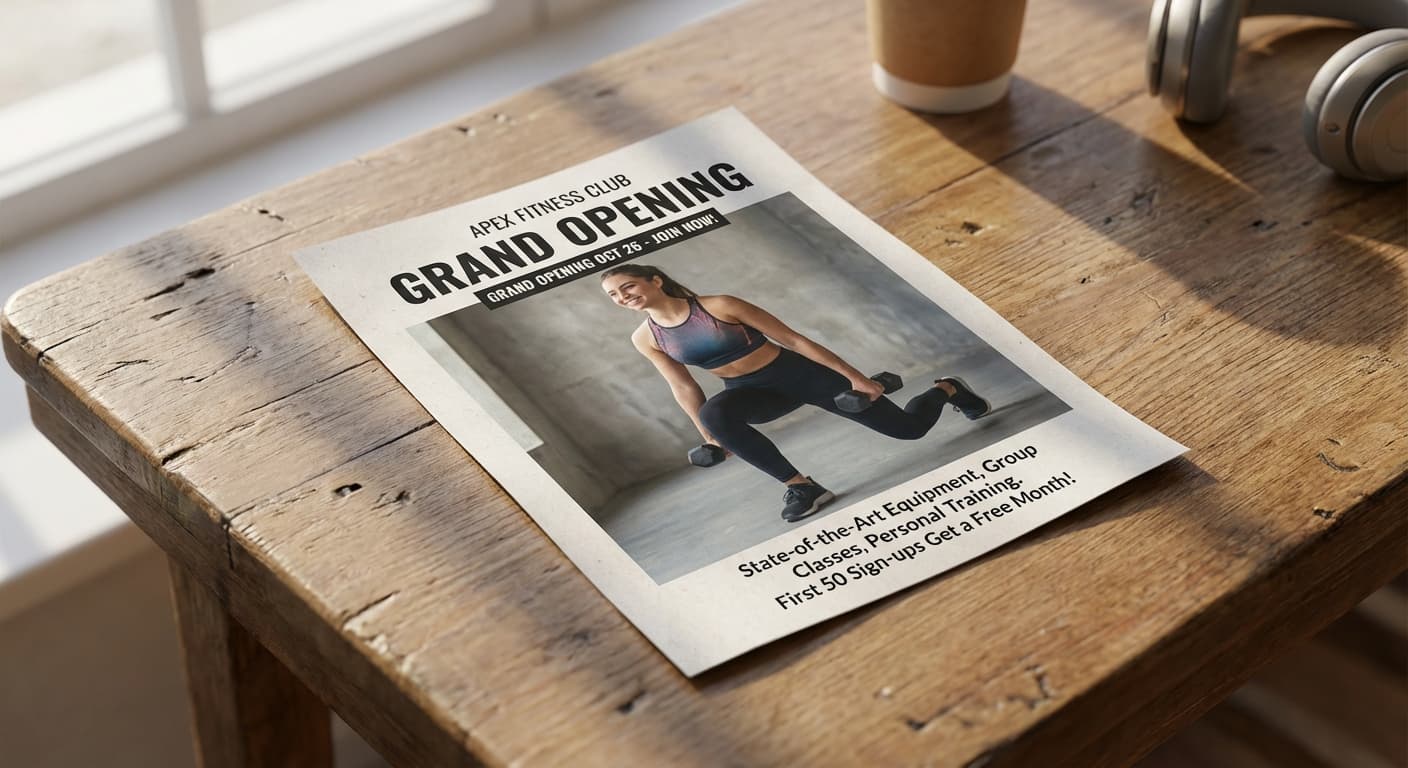
Print layout
What people use it for
- Video thumbnailsTurn a still frame, photo, or design export into the exact 1280 × 720 file YouTube expects.
- Podcast and stream artReformat square cover art into 16:9 with controlled padding instead of an automatic crop.
- Consistent channel styleResize every episode image to identical dimensions so the channel grid looks uniform.
- Community post imagesPrepare 16:9 versions of photos for posts and end screens.
Resize an image to YouTube thumbnail size
What it does
- Input
- JPEG, PNG, or WebP image
- Output
- JPG, PNG, or WebP at 1280 × 720 (16:9)
- How it works
- Made resizes deterministically with Sharp to the exact 1280 × 720 frame — cover crops to fill, contain pads with a background color you choose.
- Access
- Set up the request on this page. You sign in to run it, and each run is priced in credits before you start.
Formats and limits
- Input formats
- JPEG, PNG, WebP
- Output formats
- JPG/JPEG, PNG, WebP
- Dimensions
- 1 to 10,000 pixels on each side
- Fit modes
- Contain, cover, fill, inside; padding color is supported
- Batch behavior
- One image at a time, resized in your browser
Checked against the running tool on 2026-09-03.
Questions about YouTube Thumbnail Resizer
What size should a YouTube thumbnail be?
1280 × 720 pixels at a 16:9 aspect ratio — YouTube’s recommended size. The platform requires at least 640 pixels of width and accepts JPG, PNG, and WebP under 2MB.
What happens if my thumbnail is not 16:9?
YouTube letterboxes or crops it in previews, and different surfaces crop differently. Resizing to exactly 1280 × 720 first is the only way to control what viewers actually see.
How do I keep the thumbnail under 2MB?
A 1280 × 720 JPG rarely exceeds 2MB, but a PNG with photographic content can. If yours does, ask Made to compress it — the Image Compressor targets an exact file size in the same conversation.
Will text on my thumbnail stay sharp?
Resizing to 1280 × 720 keeps text as sharp as the source allows. Design your text large — thumbnails are mostly viewed at small sizes — and start from an image at least 1280 pixels wide so nothing is upscaled.
Can I make a thumbnail from a vertical photo?
Yes. Cover mode crops it into the 16:9 frame around the center, or contain mode pads the sides. To fill the frame without losing anything, use Image Extender to generate scenery on both sides instead.
More Image Resizer options
More photo fixes


Image Upscaler
Sharpen and enlarge up to 4×
AI Photo Editor
Edit any photo by describing the change

Expand Image
Extend any photo past its edges
Background Remover
A clean transparent cutout in one step
Object Remover
Erase people, cars or clutter

Edit Text
Change the words in any image
Photo Restoration
Repair scratches, tears and fading
Photo Colorizer
Natural color for black-and-white photos
Unblur Image
Sharpen soft and blurry photos
Text Remover
Erase captions, dates and watermarksRelated models
See what each one makes, then open it in Made.

Tested YouTube Thumbnail Resizer workflows
Guides and examples made with this tool.