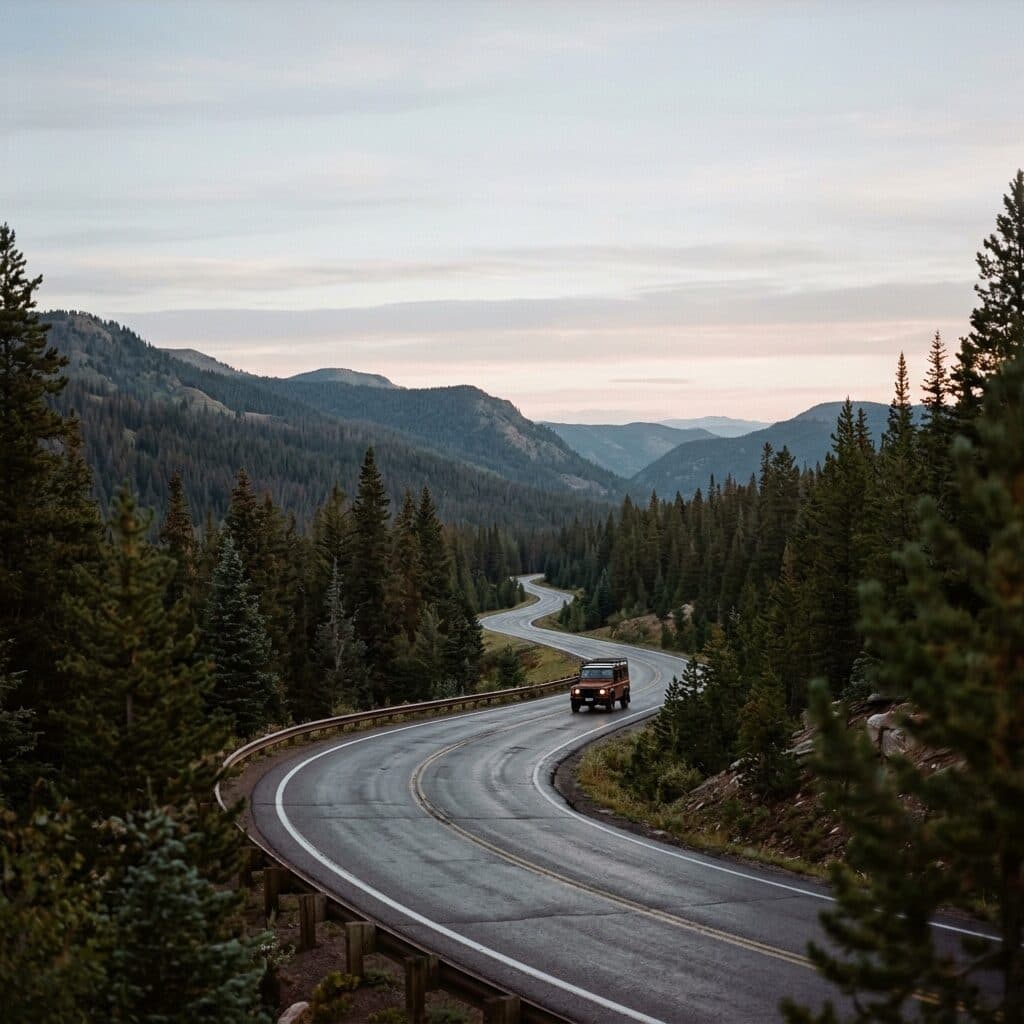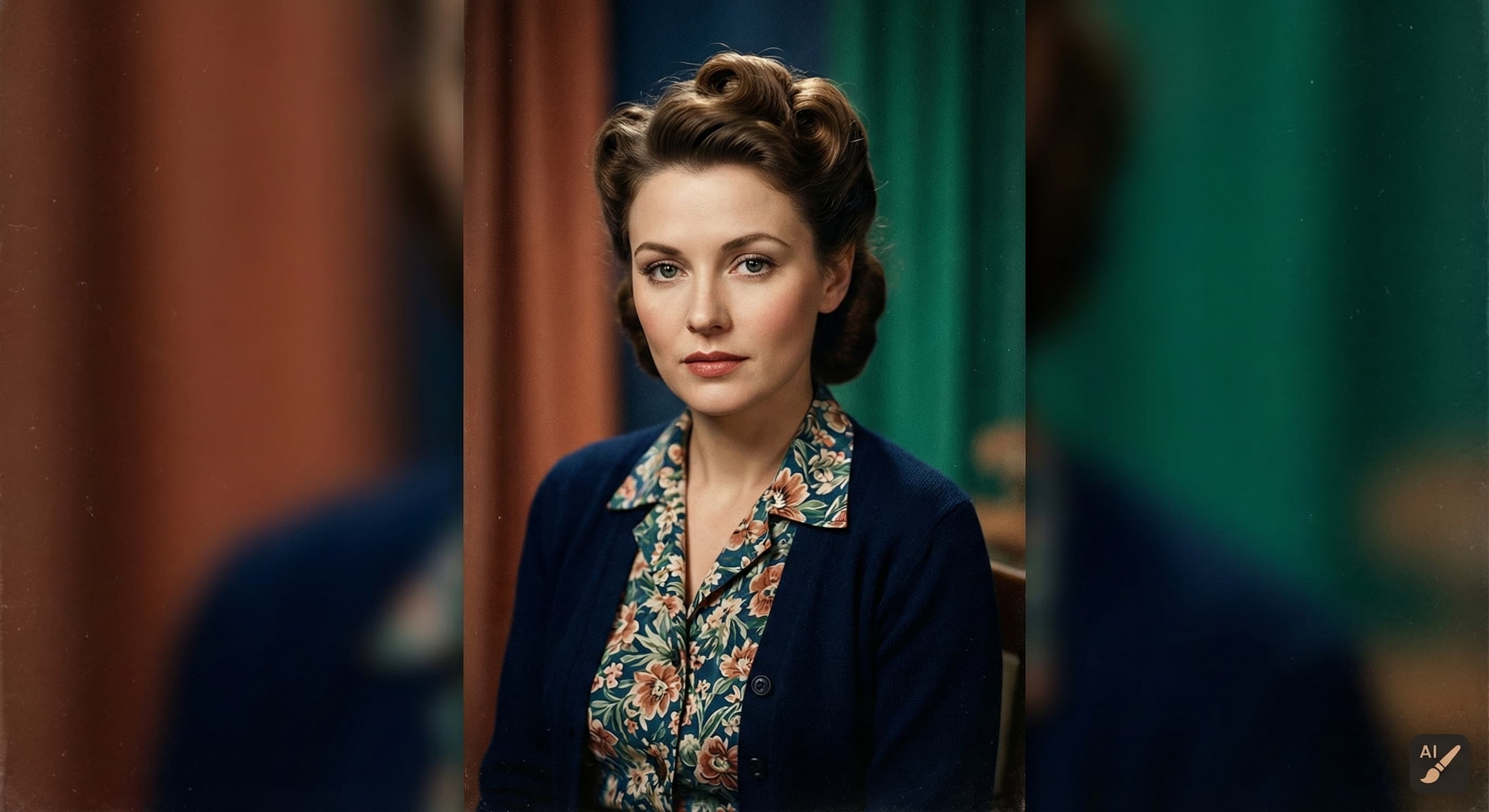
Photo Colorizer
Upload a black and white or faded photo and Made adds natural color to skin, clothing, and scenery. Faces and details stay exactly as they were, at the photo’s own size.
PortraitsExamples
How to use Photo Colorizer
- 1
Upload the photo
Scan or photograph the print and upload it as a JPEG, PNG, or WebP.
- 2
Press Colorize
No settings: the model picks natural colors for skin, clothing, and scenery.
- 3
Compare Before and After
The photo comes back at its own size with the same faces and details, now in color.
- 4
Download the PNG
Save the color version. For tears and scratches, run Photo Restoration first.
Photo Colorizer examples
Real results from Made. Add your own photo in the studio above.
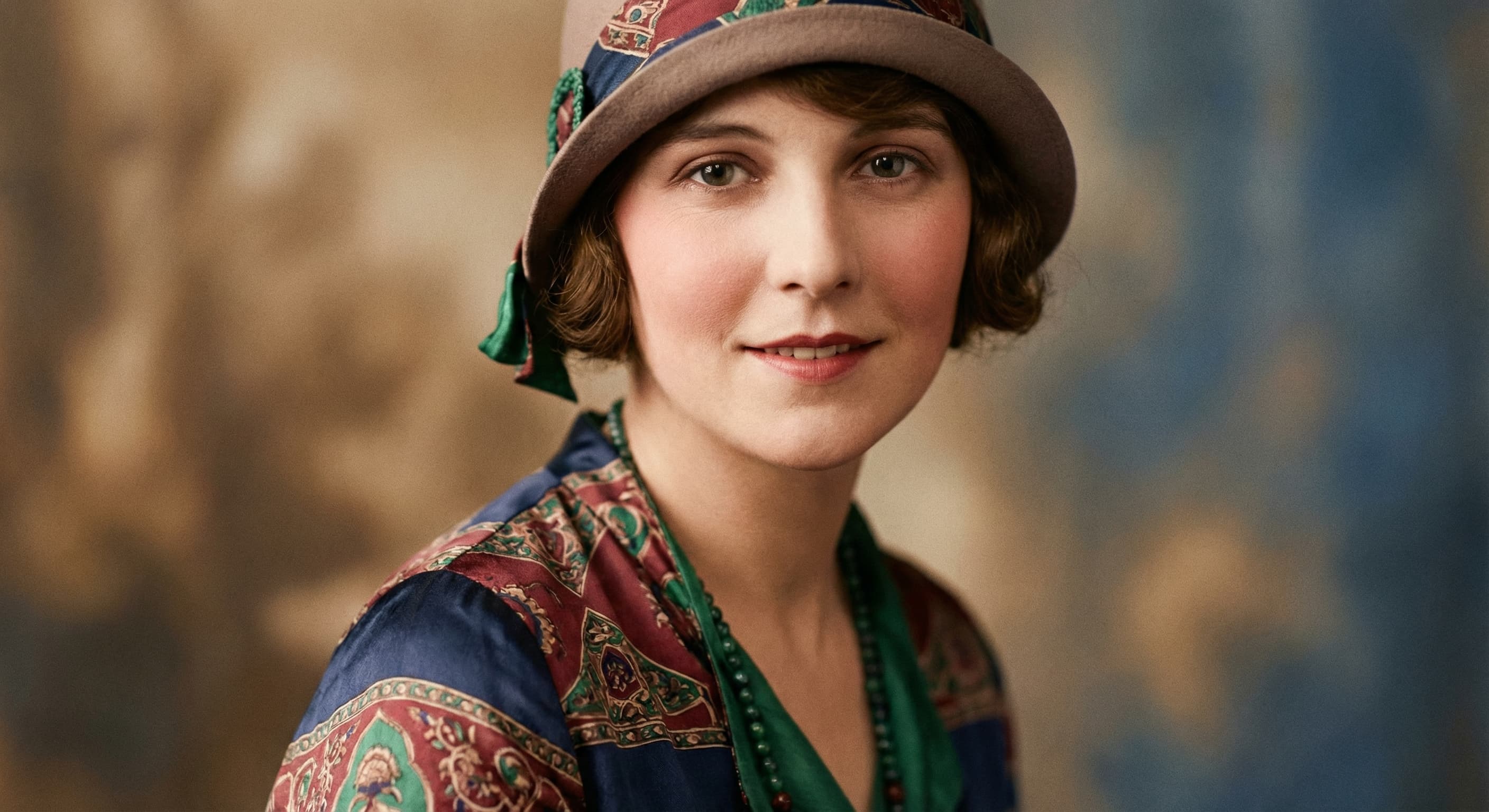
Faded prints
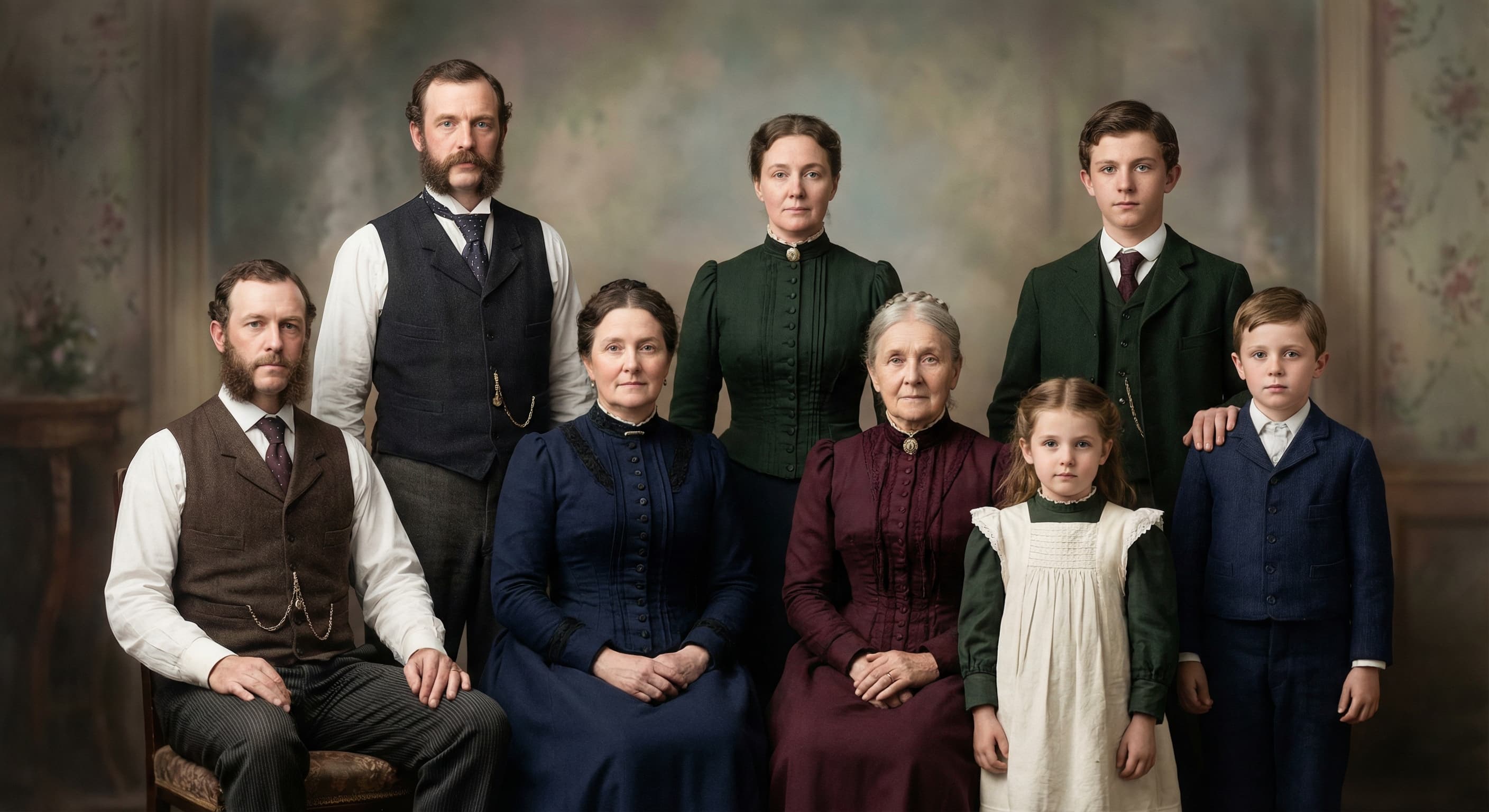
Historical photos
What people use it for
- Family archivesBring color to scanned prints of parents and grandparents so old albums feel present rather than distant.
- Historical photosRender vintage street scenes, portraits, and documents in plausible period color for projects and displays.
- Faded snapshotsRevive color in prints that have yellowed or washed out over decades in a drawer or frame.
- Memorials and giftsPrepare a colorized version of a treasured photo for a tribute, anniversary, or framed print.
Colorize a black and white photo
What it does
- Input
- One JPEG, PNG, or WebP image
- Output
- Full-color PNG at the photo’s own size
- How it works
- Made sends the photo to DDColor on fal.ai, a colorization model that adds color without redrawing the picture, so faces and details stay the person’s own.
- Access
- Sign in to run it. It’s paid in credits, shown before you run it.
Formats and limits
- Input formats
- JPEG, PNG, WebP, HEIC
- Output format
- PNG at the photo’s own size (up to 4,096 pixels on the long side)
- Images per request
- One
- Processing model
- DDColor on fal.ai
- Color accuracy
- Colors are the model’s best guess, not a historical record
Checked against the running tool on 2026-09-29.
Questions about Photo Colorizer
How does AI colorize a black and white photo?
Made sends your photo to DDColor on fal.ai, a model trained only to add color. It predicts plausible colors from the shapes and tones in the picture and paints them onto the original, without redrawing it.
Will faces still look like the person?
Yes. DDColor colors the photo you uploaded rather than generating a new one, so faces, expressions, and details stay exactly as they were.
Are the colors historically accurate?
No. The colors are the model’s best guess, which may differ from what was really there, especially for clothing and cars.
Does it also repair scratches and tears?
No, it only adds color. For tears, scratches, and creases, run the photo through Photo Restoration first, then colorize the result.
What kind of photos work best?
Clear scans with visible detail. Very dark, blurry, or heavily damaged photos give the model less to work with; Unblur Image can help first.
How much does it cost?
About 1 credit a photo, shown before you run it.
More photo fixes
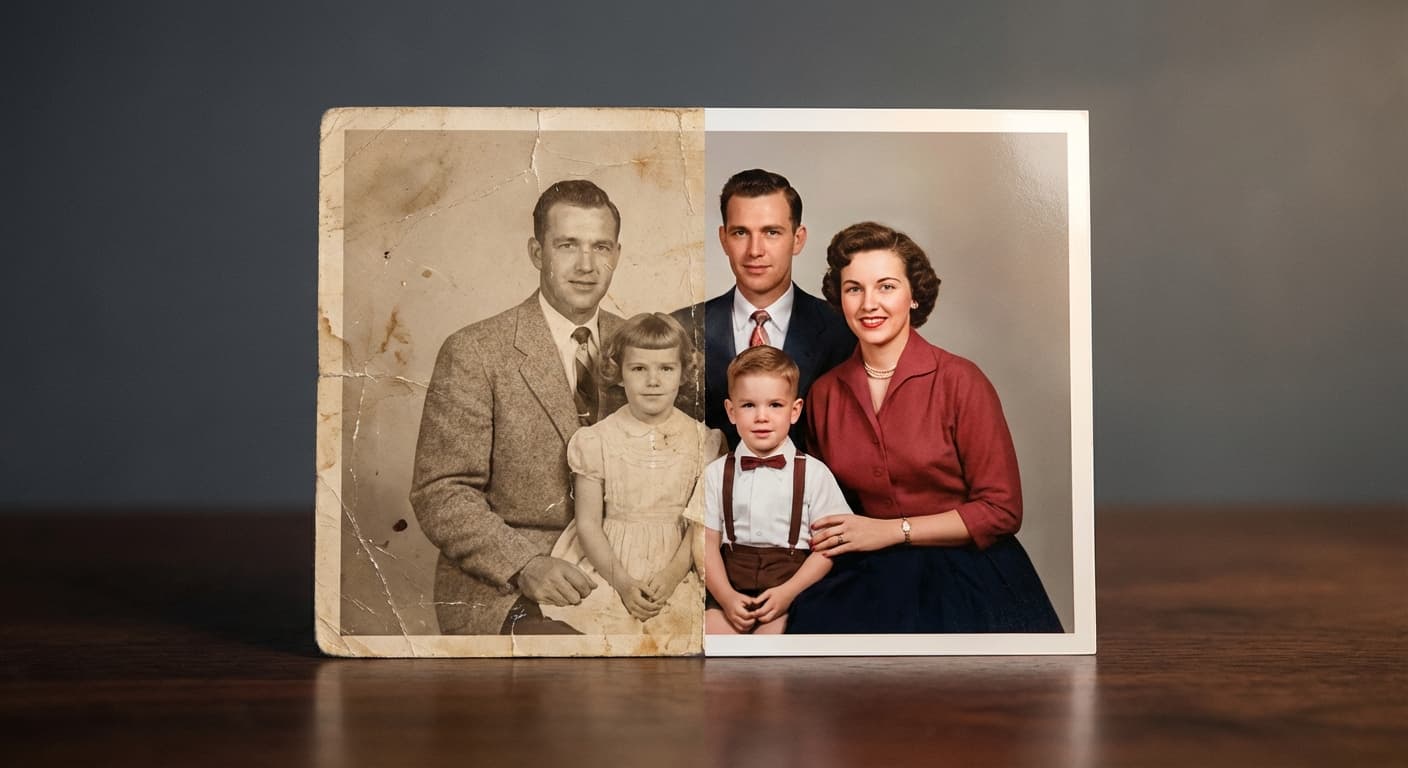
Photo Restoration
Repair scratches, tears and fading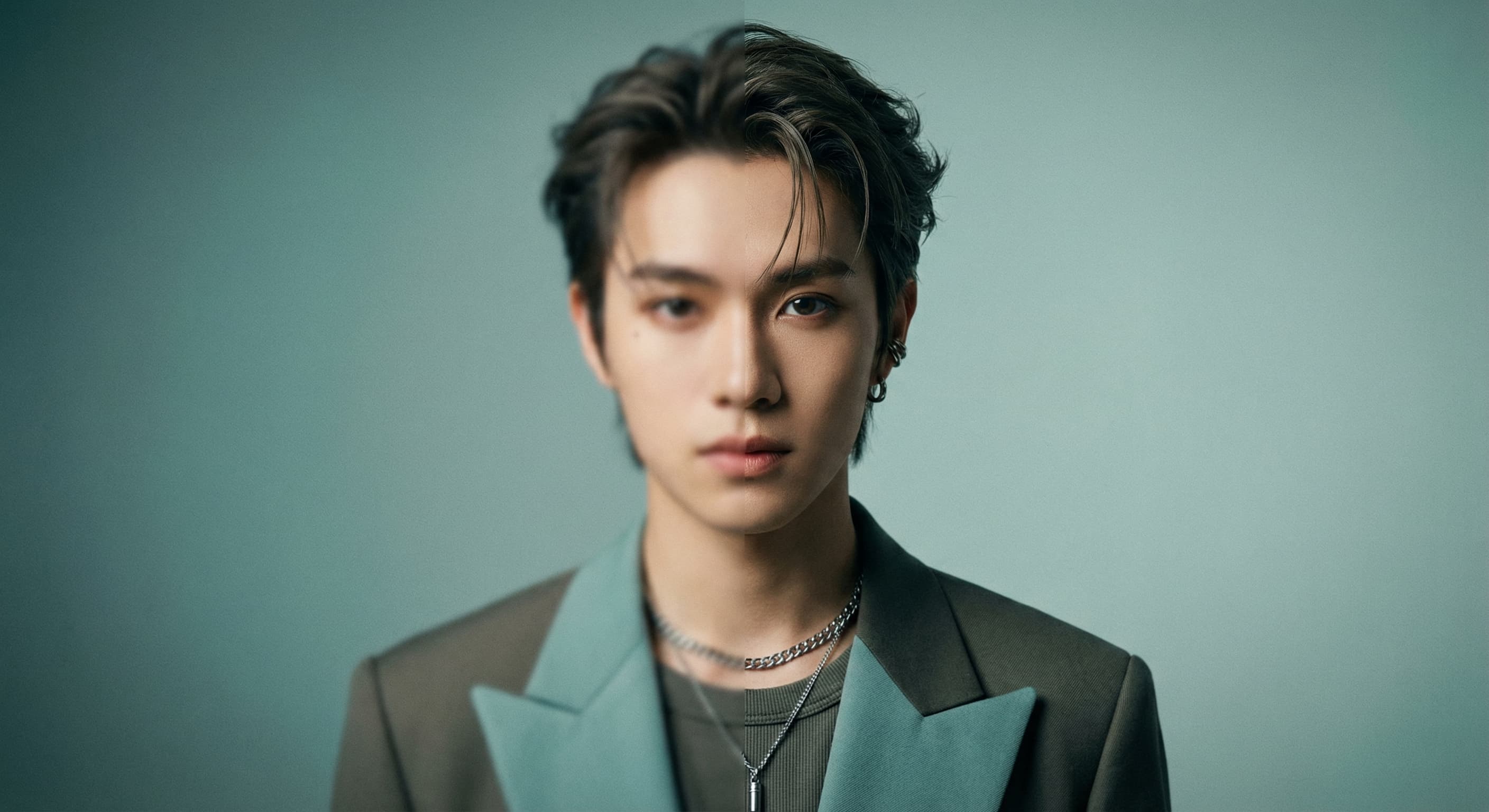
Unblur Image
Sharpen soft and blurry photos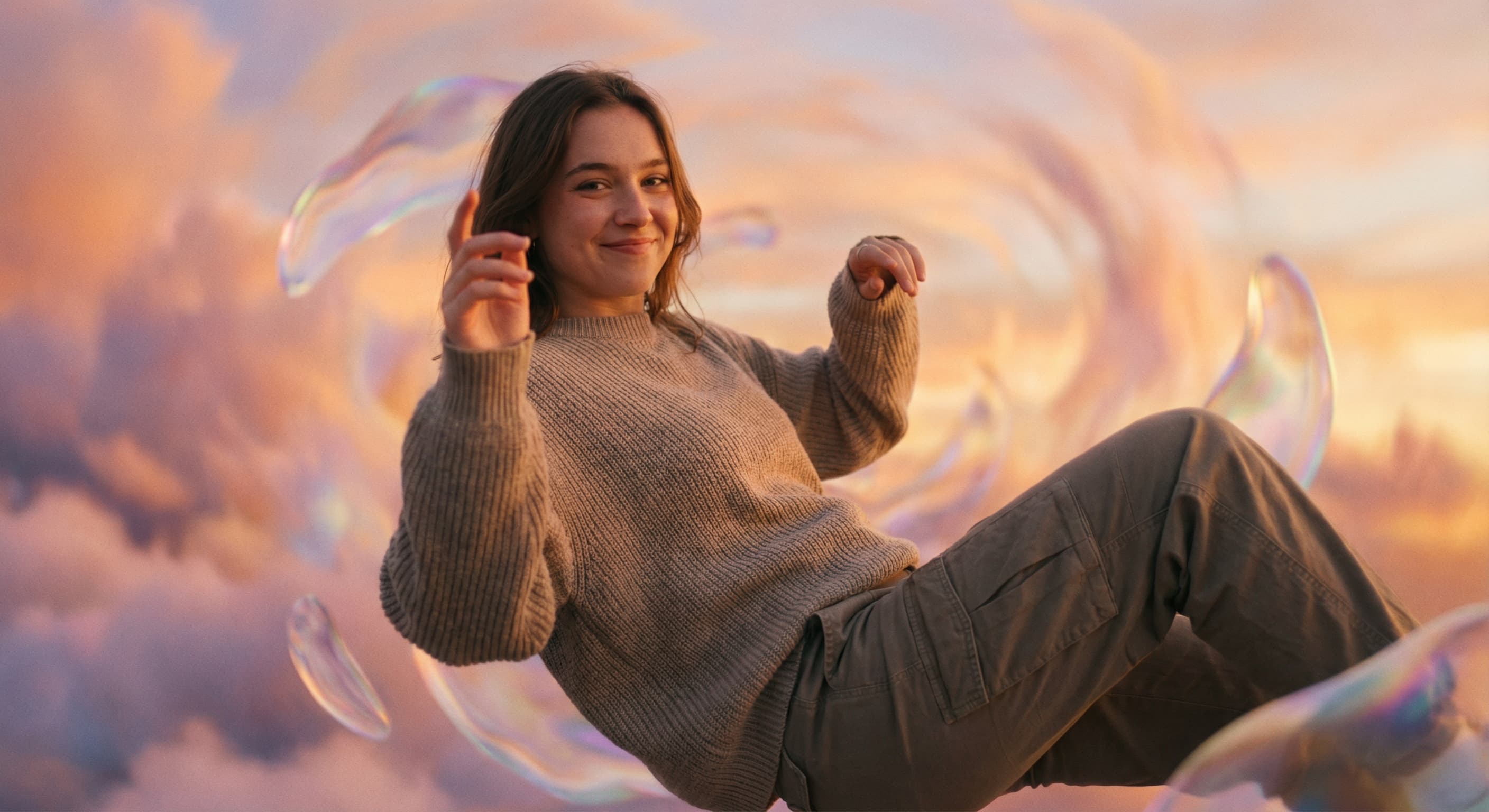
AI Photo Editor
Edit any photo by describing the change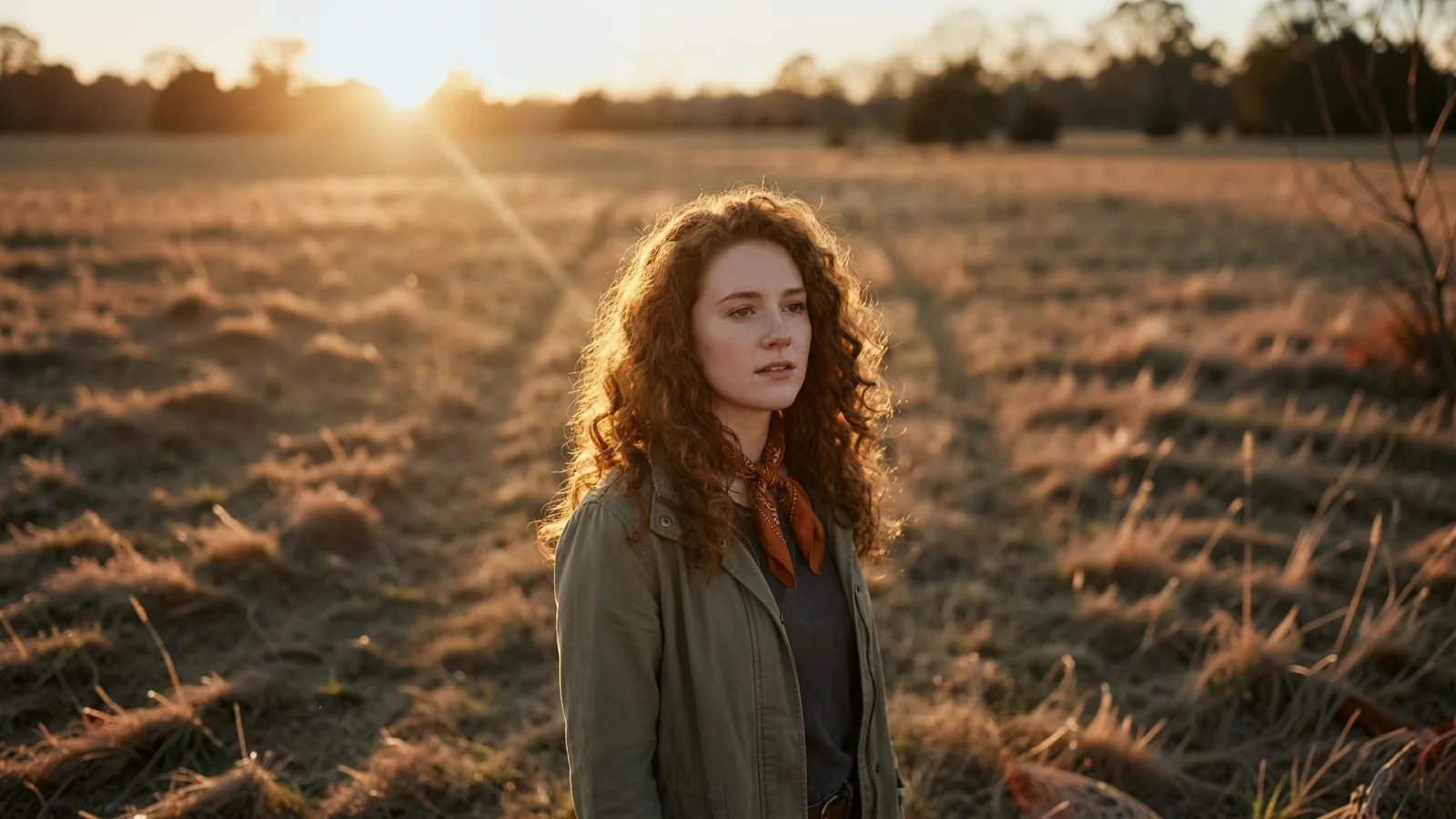
Expand Image
Extend any photo past its edges
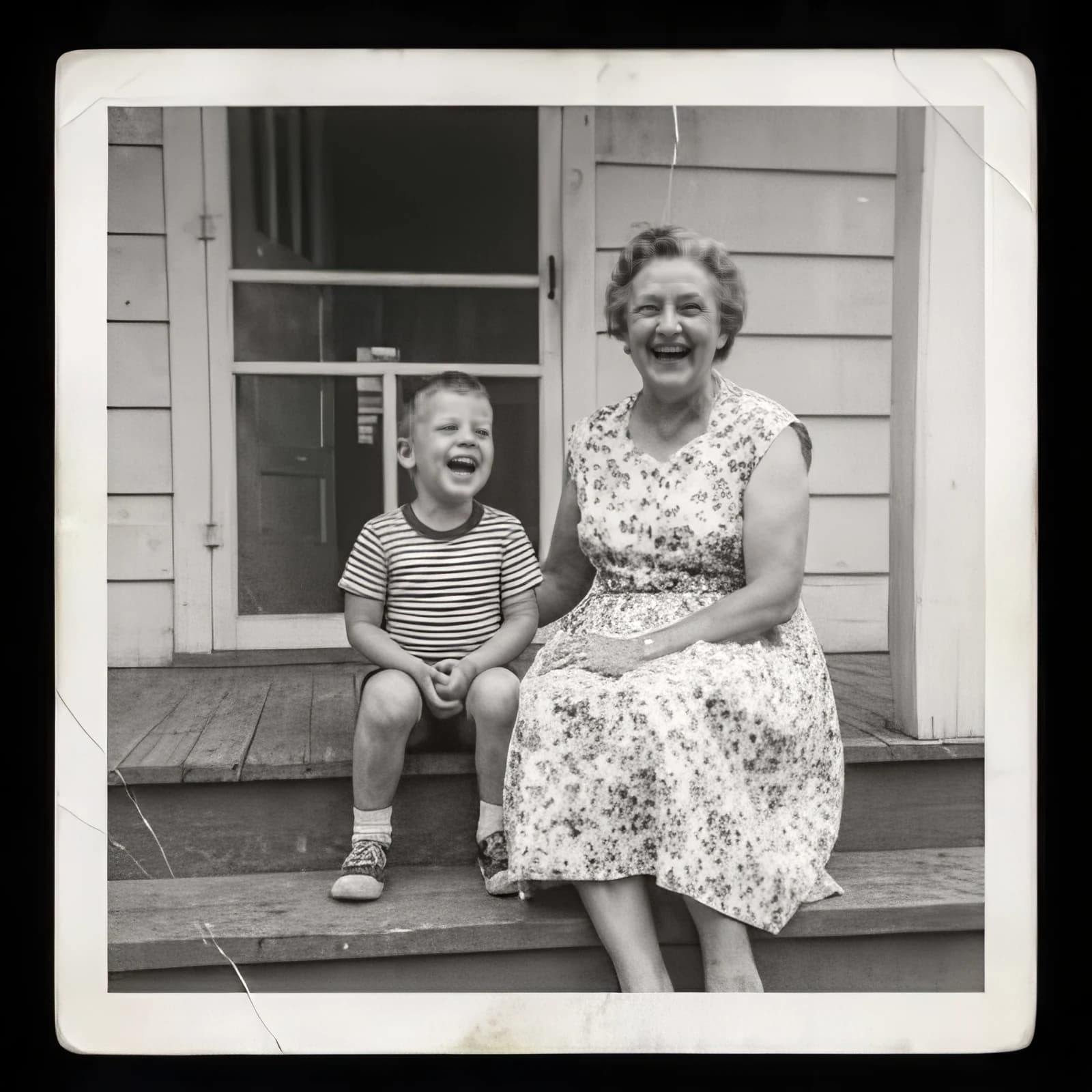
Image Upscaler
Sharpen and enlarge up to 4×
Background Remover
A clean transparent cutout in one step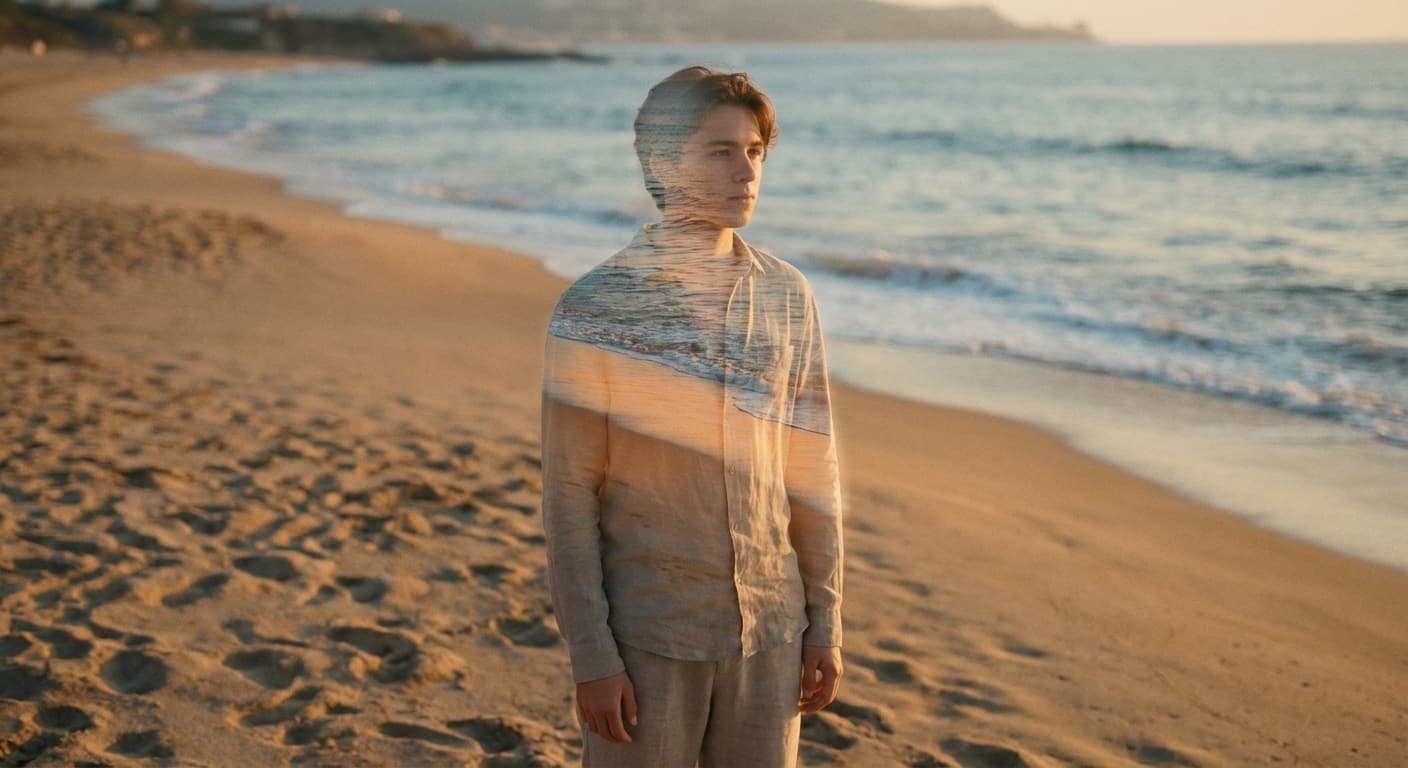
Object Remover
Erase people, cars or clutter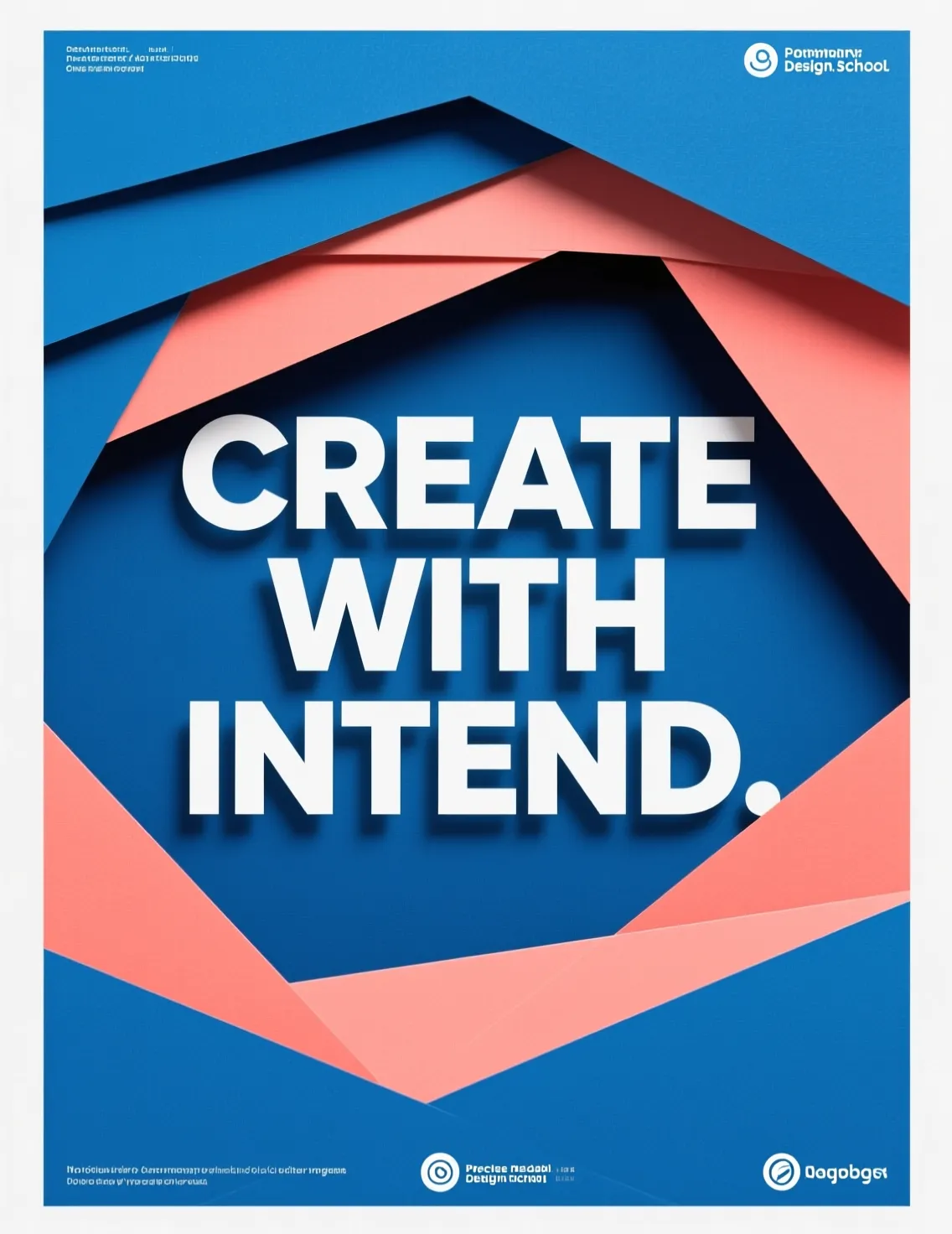
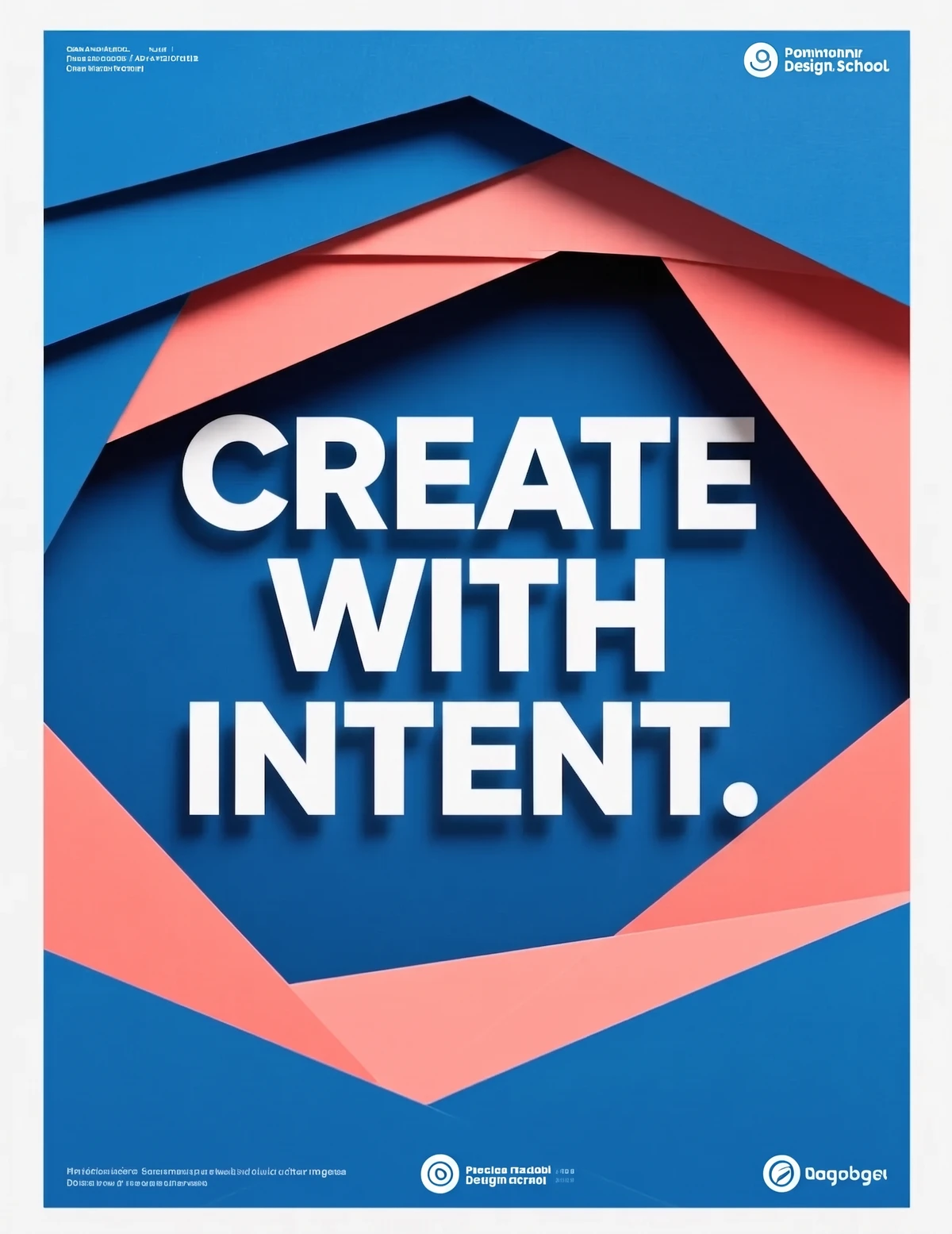
Edit Text
Change the words in any image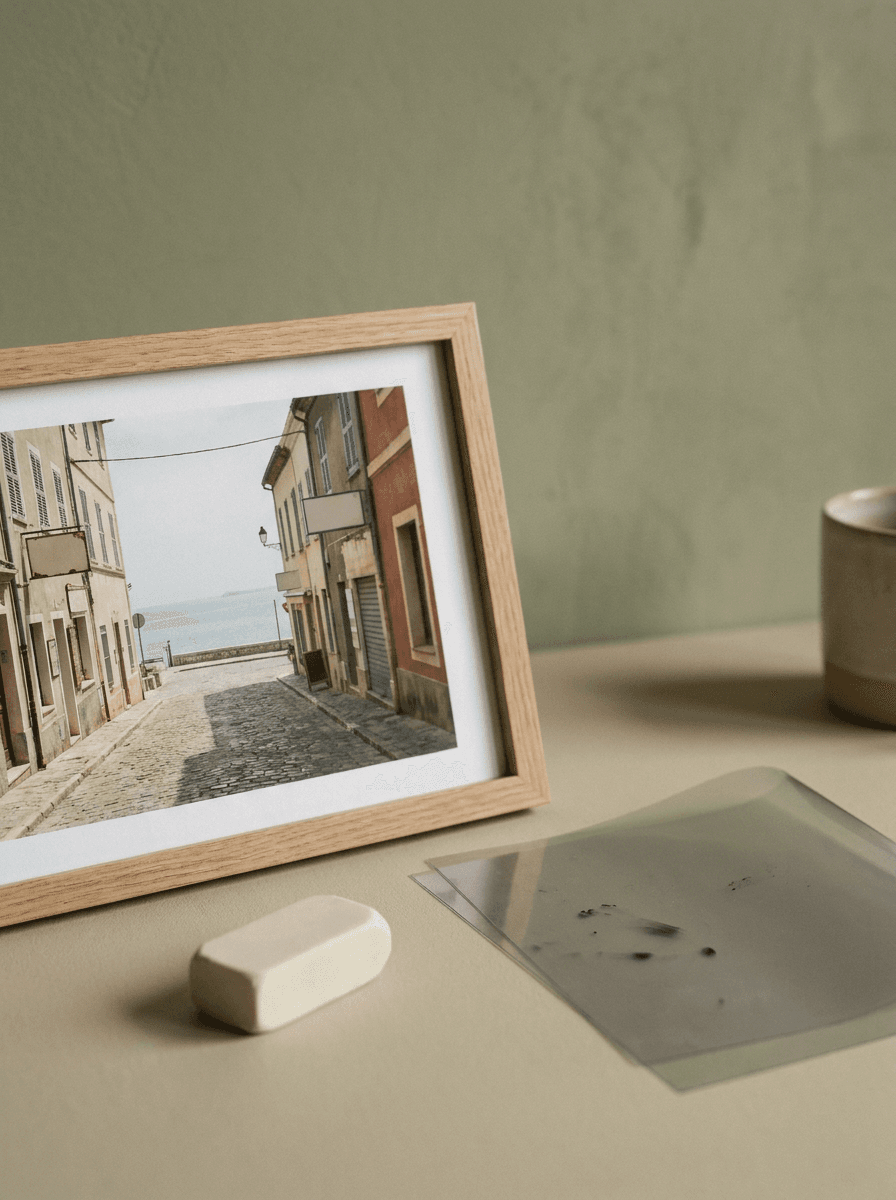
Text Remover
Erase captions, dates and watermarks
Background Changer
Put your subject in a new sceneRelated models
See what each one makes, then open it in Made.