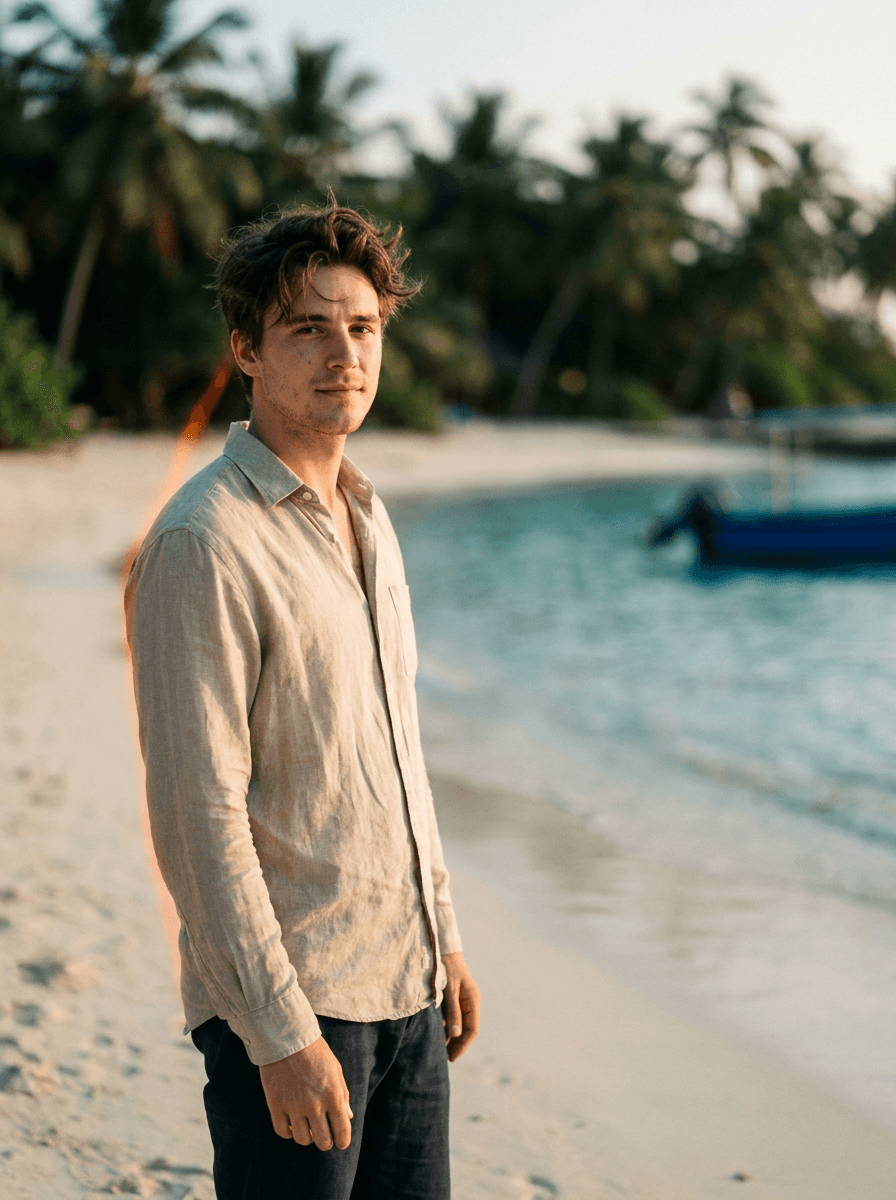
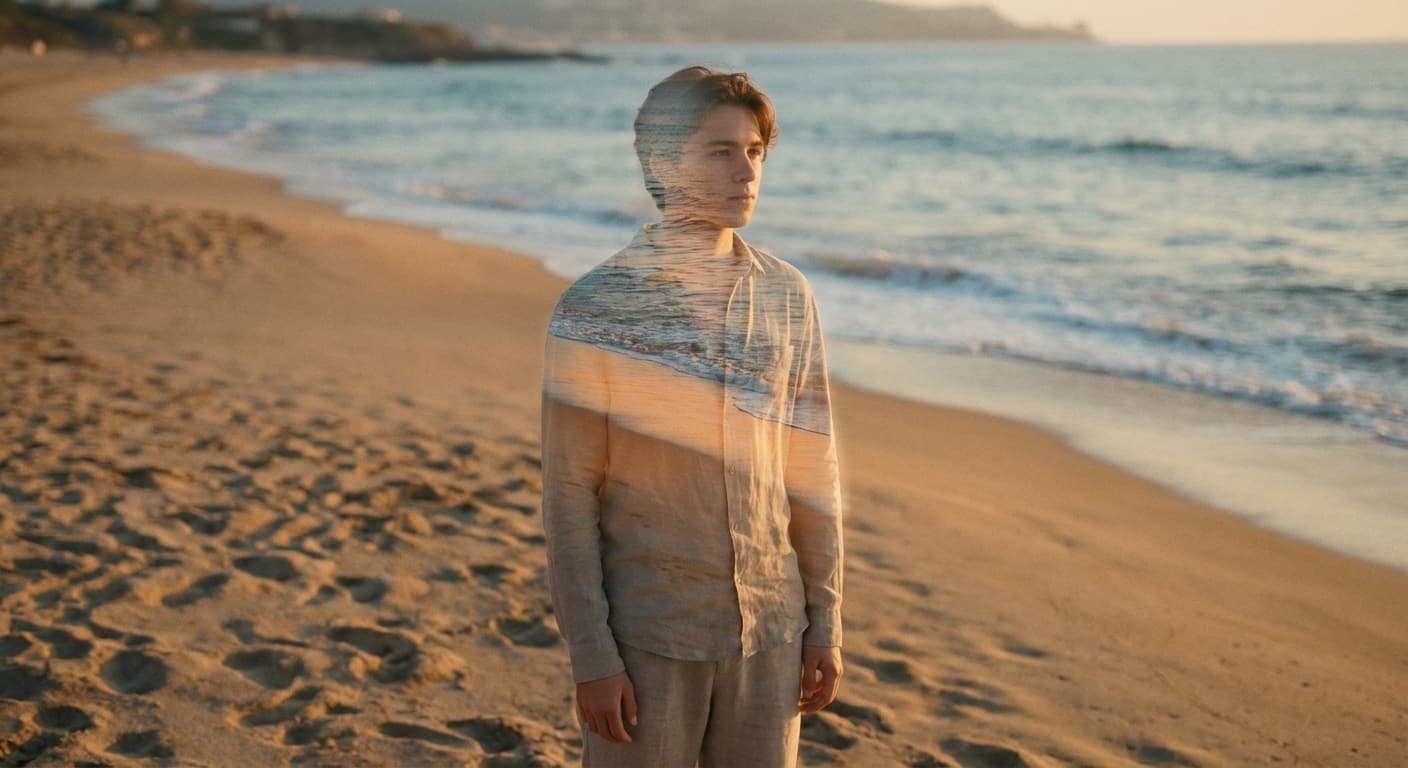
Beach scene
“Change the background to a beach at golden hour.”
Upload a photo and describe the scene you want behind the subject — a beach, a studio backdrop, a city at night. Made replaces the background while keeping the subject as they appear and returns a JPG.
Beach scene“Change the background to a beach at golden hour.”
Choose a JPEG, PNG, or WebP with a clear subject.
Name the setting, time of day, and mood — “a quiet beach at golden hour, soft warm light.”
The model renders the described scene around your subject, keeping the subject as they appear.
Look at hair, shoulders, and contact points to confirm the subject sits naturally in the new scene.
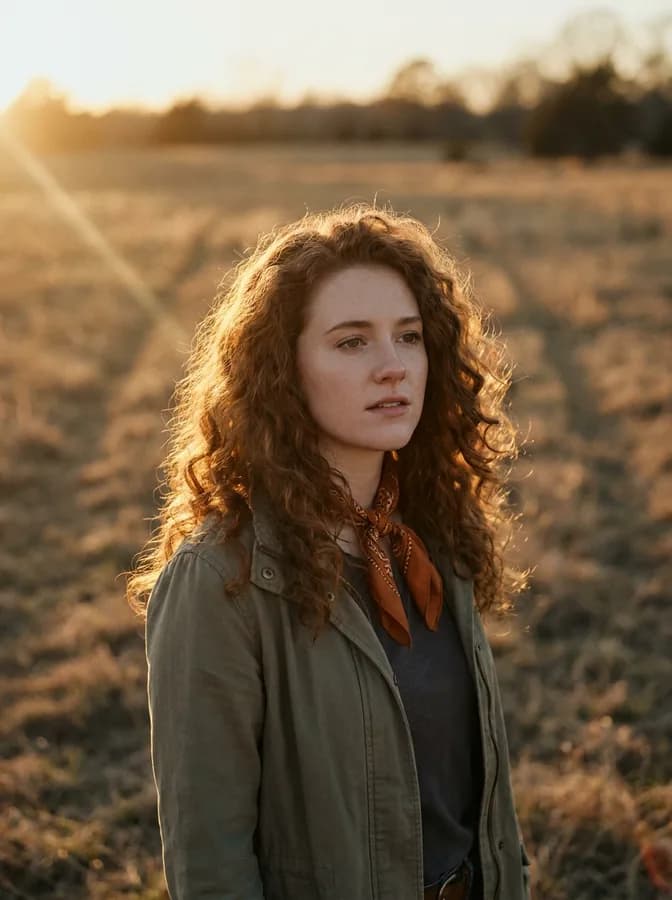
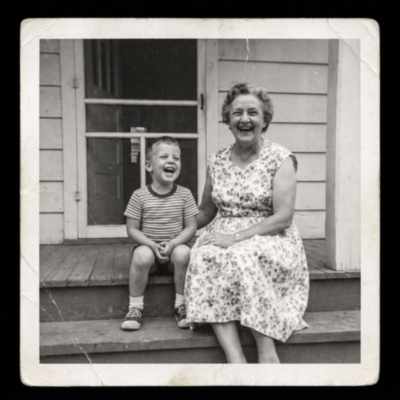
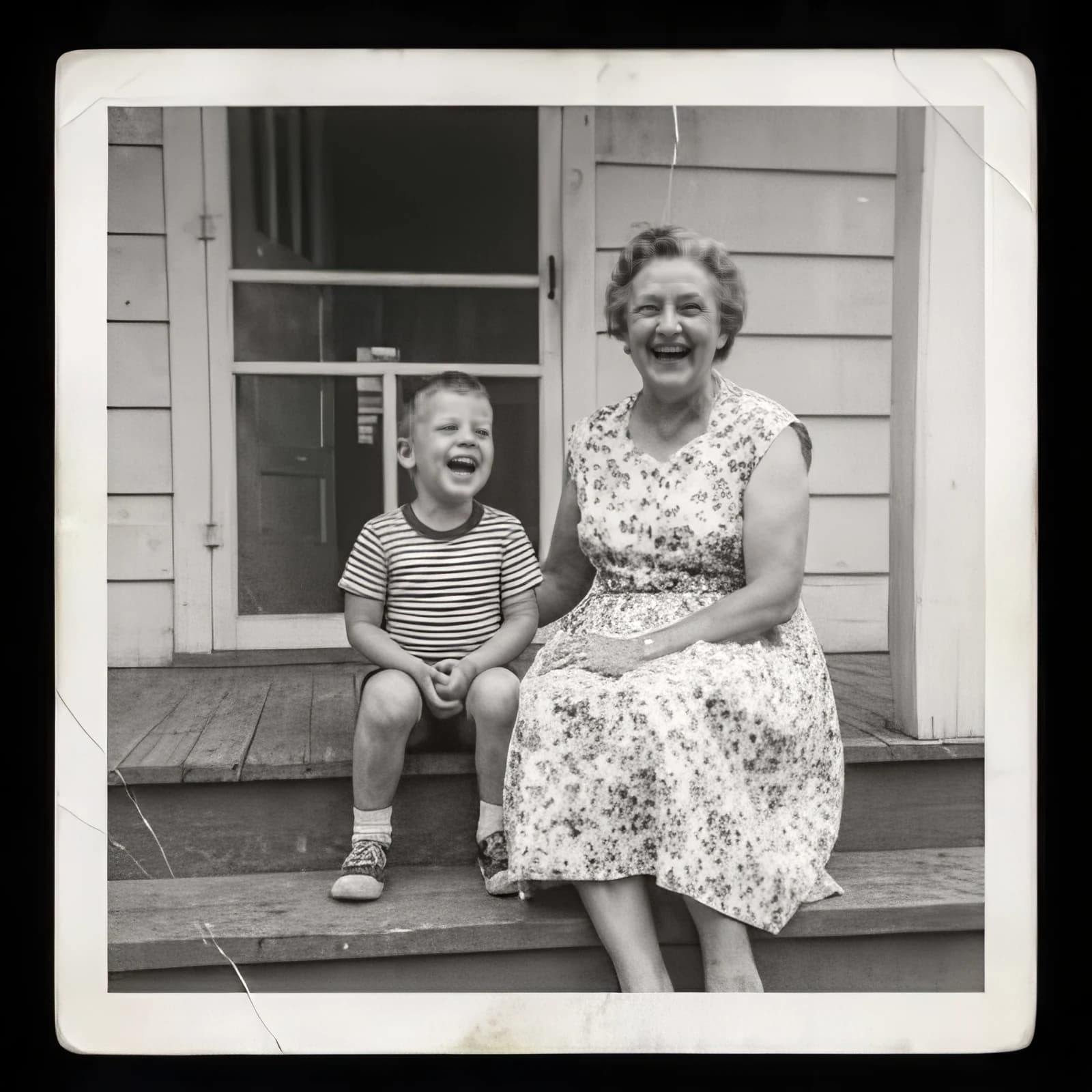
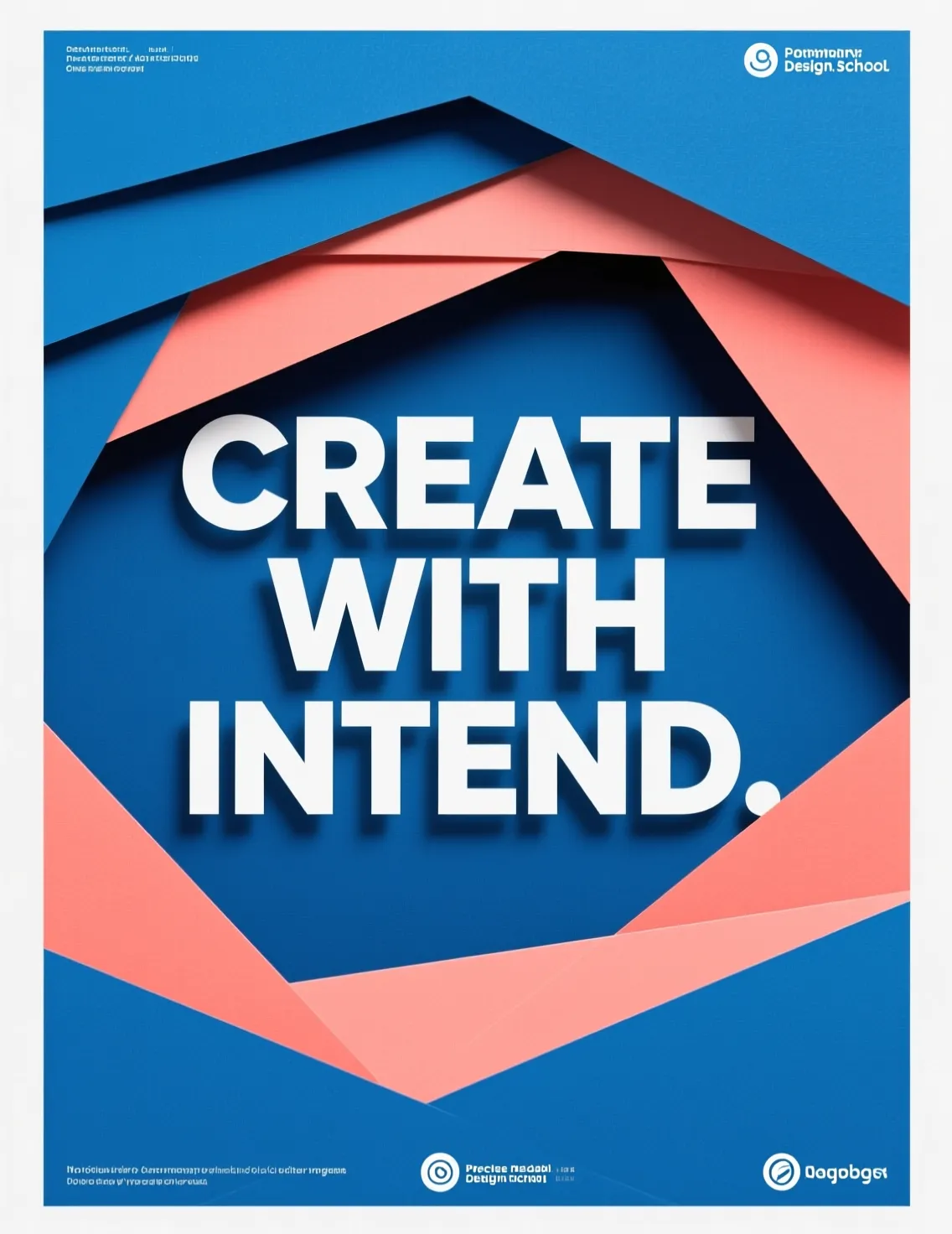
Real results from Made. Use a prompt to load it into the studio above, then add your own photo.
“Change the background to a beach at golden hour.”
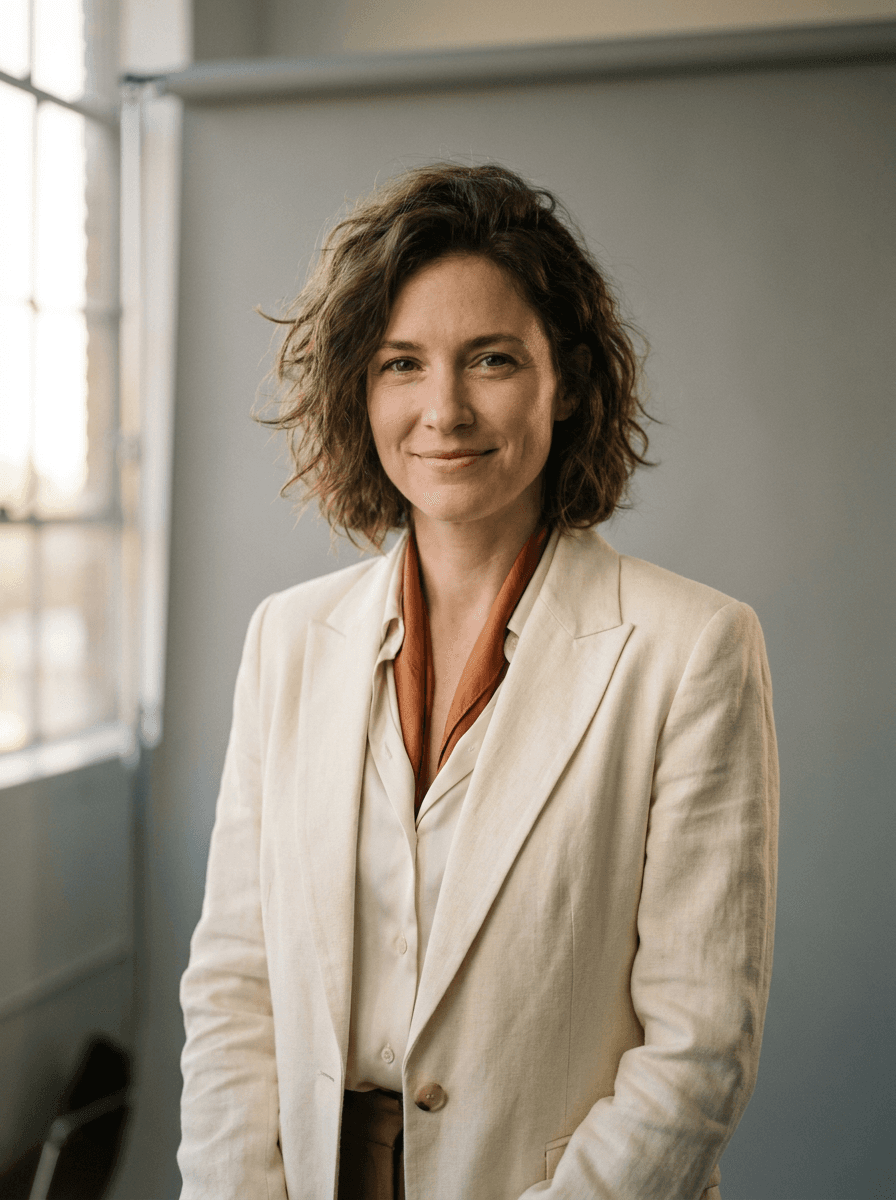
“Put me on a clean grey studio backdrop.”
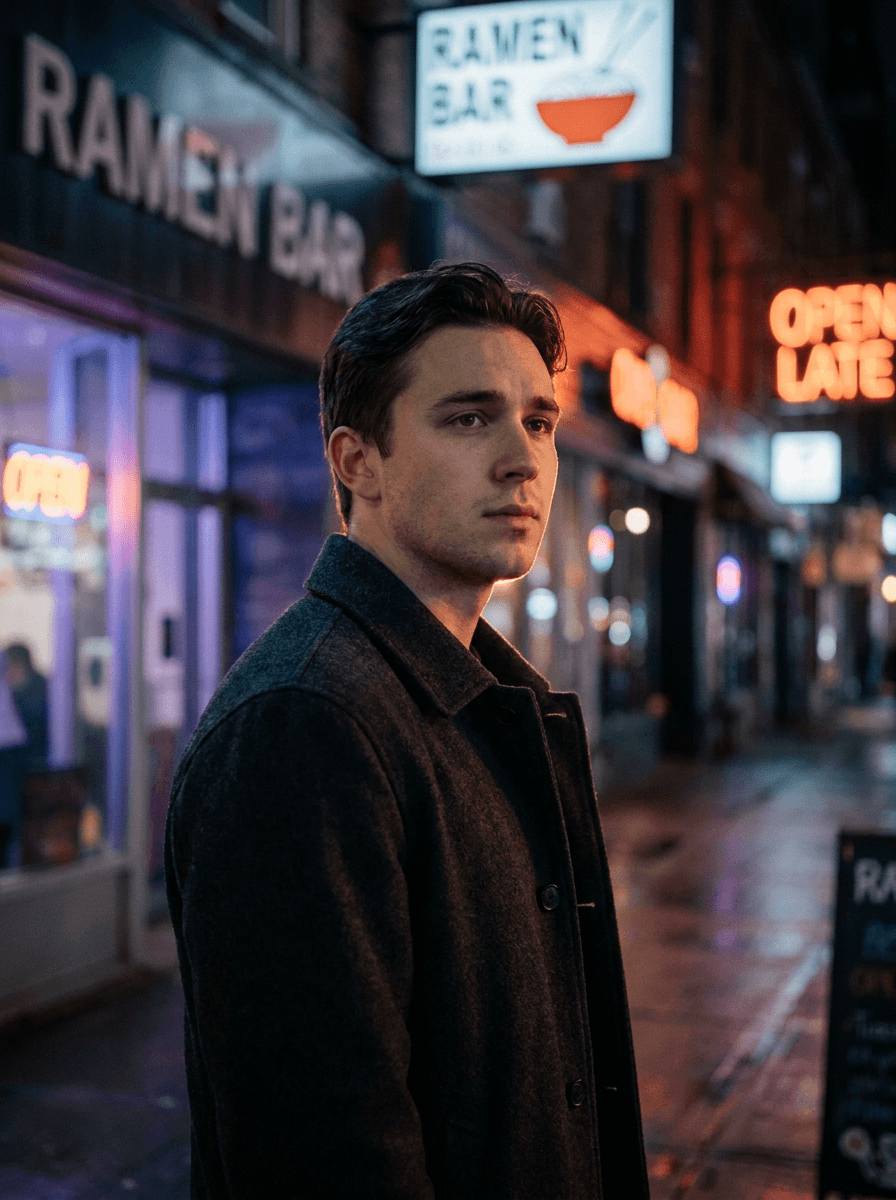
“Replace the background with a neon-lit city street at night.”
Checked against the running tool on 2026-09-03.
Upload the photo and describe the scene you want behind the subject. Made prompts Google’s Nano Banana model on Replicate with your description and returns a JPG with the new background in place — no masking or cutting out required.
A keep-subject instruction is built into the prompt, so the person or object is meant to stay exactly as photographed while only the background is replaced. The edit is still generative, so review the subject — especially hair edges and contact points — before publishing.
Background Changer replaces the background in one step: you describe the new scene and get a finished JPG. Background Remover instead cuts the subject out and returns a transparent PNG, which is the better choice when you want to compose the cutout yourself in another layout.
Anything you can describe in words — a beach at sunset, a plain studio backdrop, a rainy city street, a cozy interior. Including the time of day, lighting, and mood in your description gives the model more to match.
Upload one JPEG, PNG, or WebP per request; the result comes back as a JPG.
The workflow processes one image per request. To apply the same scene to several photos, run the tool once per photo with the same description.
The model renders the scene around the subject as photographed, so a strong mismatch — for example, harsh indoor flash placed into a sunset — can look off. Scenes with lighting similar to your original photo blend most convincingly; check the result and try a different scene description if it looks pasted.
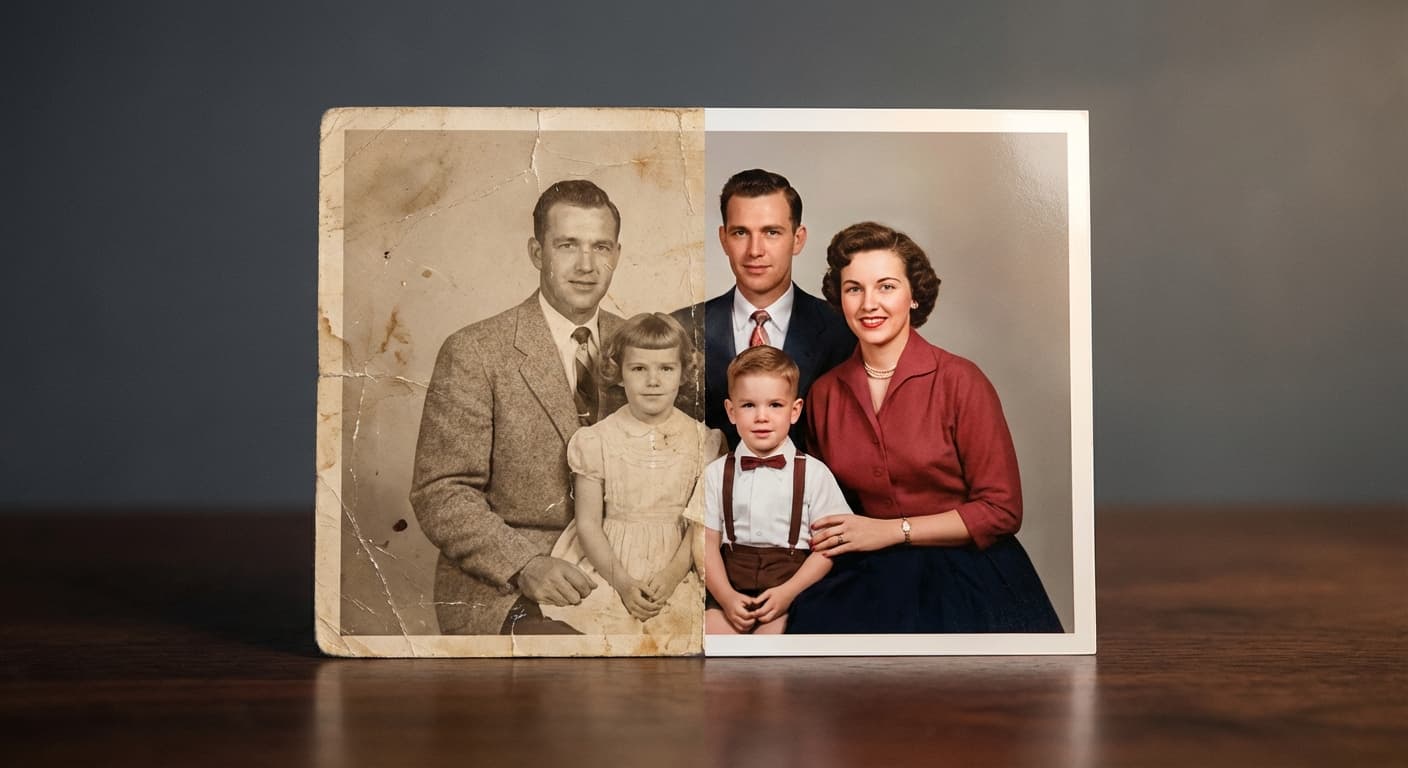
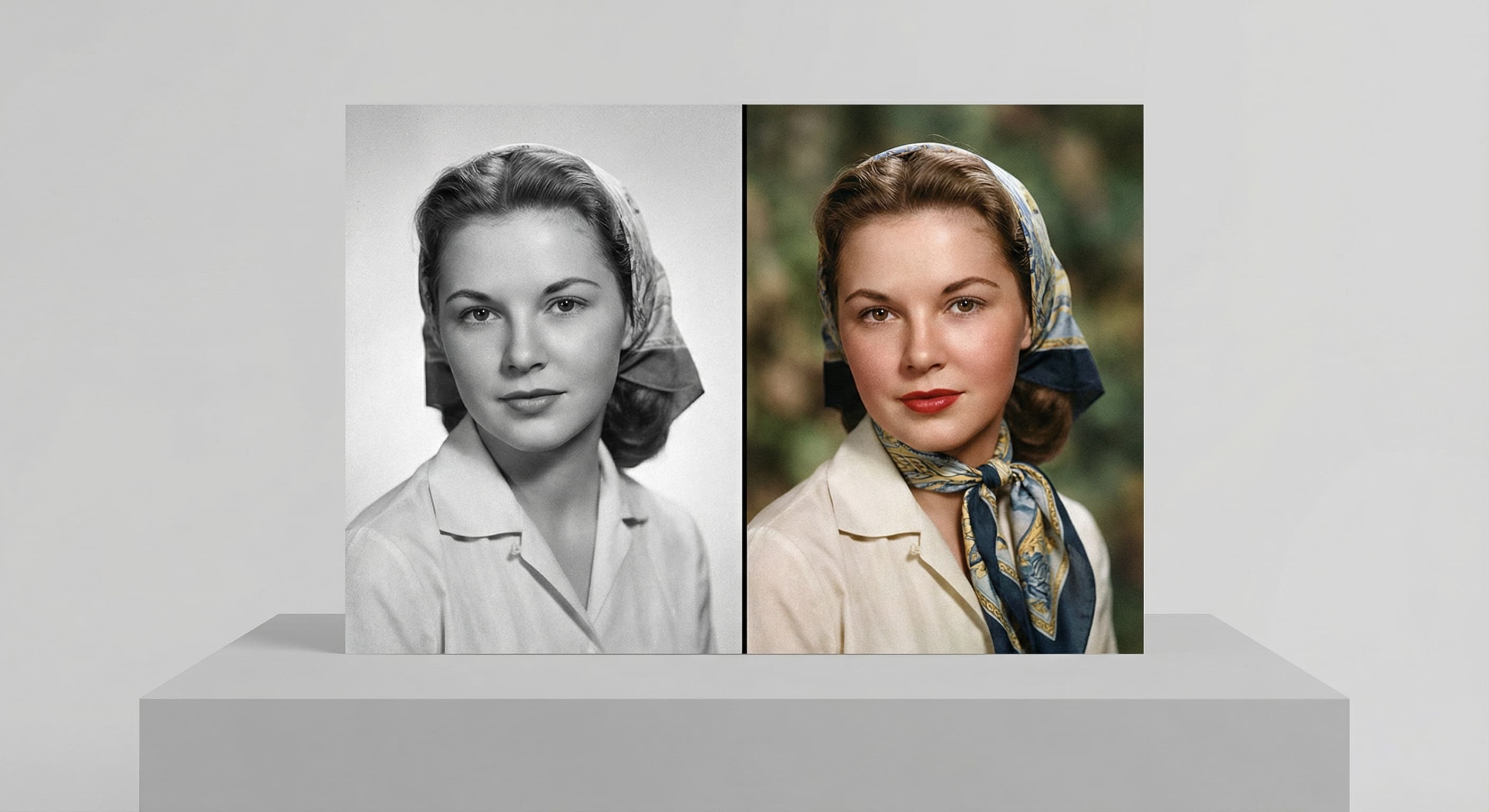
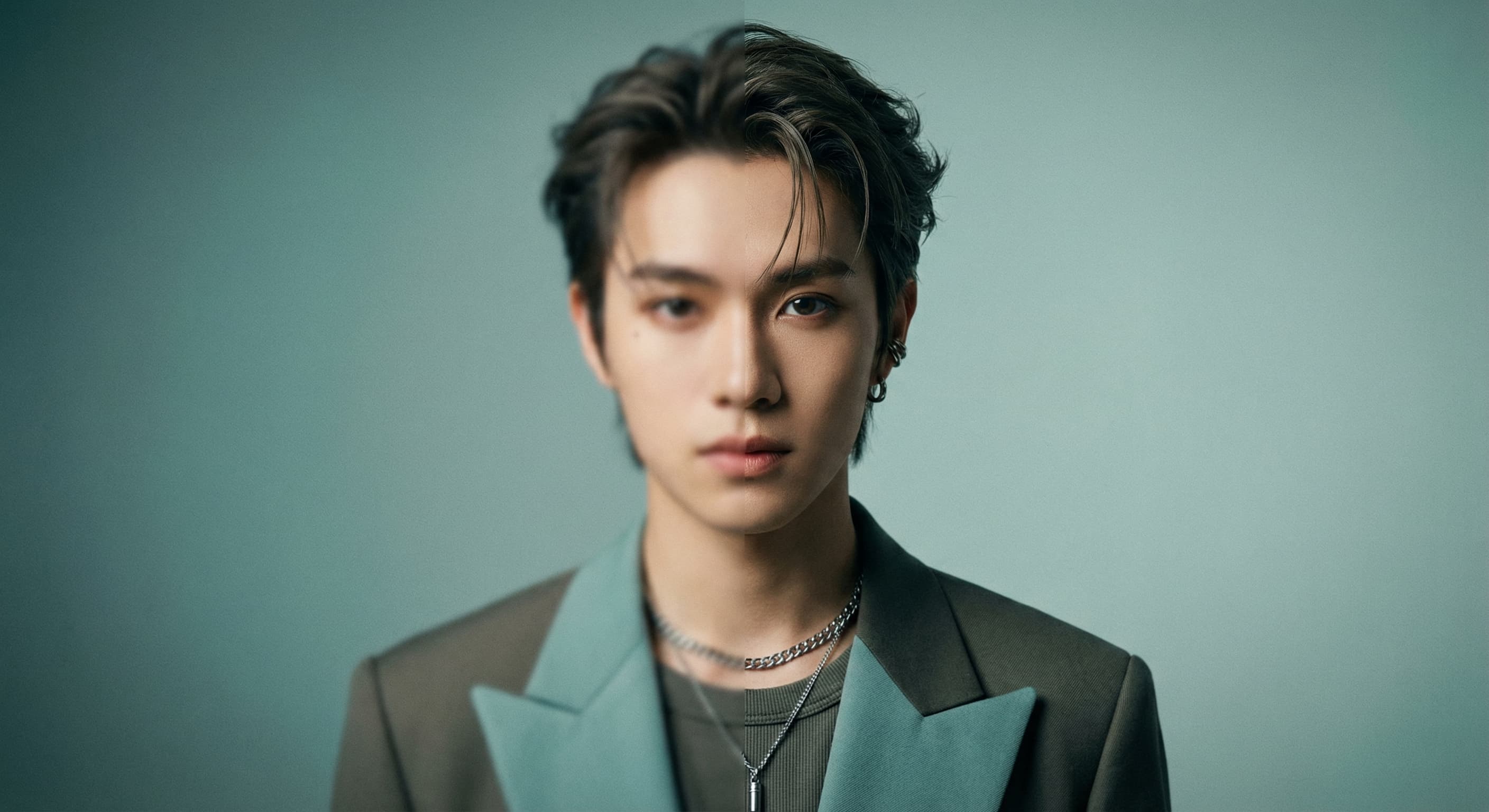
See what each one makes, then open it in Made.