Object Swap
AI Video Object Replacement
Made video toolsSOURCE VIDEONEW LOOK
Turn one video into many
Bring your characters, products, and settings to an existing performance. Start with your own video or recreate a preset below.
Object Swap
Object Swap
Object Swap
Object Swap
Object Swap
Object Swap
Object Swap
Object Swap
Motion Transfer
Motion Transfer
Motion Transfer
Motion Transfer
Motion Transfer
Motion Transfer
Motion Transfer
Motion Transfer
Motion Transfer
Motion Transfer
Motion Transfer
Motion Transfer
Motion Transfer
Motion Transfer
Motion Transfer
Motion Transfer
Motion Transfer
Motion Transfer
Motion Transfer
Motion Transfer
Motion Transfer
Motion Transfer
Motion Transfer
Motion Transfer
Motion Transfer
Motion Transfer
Motion Transfer
Motion Transfer
Motion Transfer
Motion Transfer
Motion Transfer
Motion Transfer
Motion Transfer
Motion Transfer
Motion Transfer
Motion Transfer
Motion Transfer
Motion Transfer
Motion Transfer
Motion Transfer
Motion Transfer
Motion Transfer
Motion Transfer
Motion Transfer
Motion Transfer
Motion Transfer
Motion Transfer
Motion Transfer
Motion Transfer
Motion Transfer
Motion Transfer
Motion Transfer
Motion Transfer
Motion Transfer
Motion Transfer
Motion Transfer
How it works
Give existing footage a new product or visual detail
Video object replacement uses an existing clip as the starting point for a targeted AI edit. Choose the element to change, add a reference image, and describe the replacement. Made uses Kling O3 Edit Pro and includes presets for products, outfits, characters, and backgrounds.
- 01
Upload the original clip
Start with a 3–15 second MP4 or MOV. A clear, visible object with limited obstruction gives the model a better reference.
- 02
Describe the replacement
Add up to four reference images. Choose a preset or Describe an edit, and use @Image1 and @Video1 to identify the object and the desired change.
- 03
Check the generated version
Review placement, motion, lighting, hands, and any product lettering. Compare against the original and download the version you want to use.
Ways to use AI Video Object Replacement
Product variations
Swap the featured object in a short product shot using a reference for the new product.
Outfit changes
Request new clothing while preserving the person’s identity and performance.
Setting changes
Use a location reference to request a different background around the source action.
Reference and prompt ideas
Example reference images and directions to adapt to your own footage.
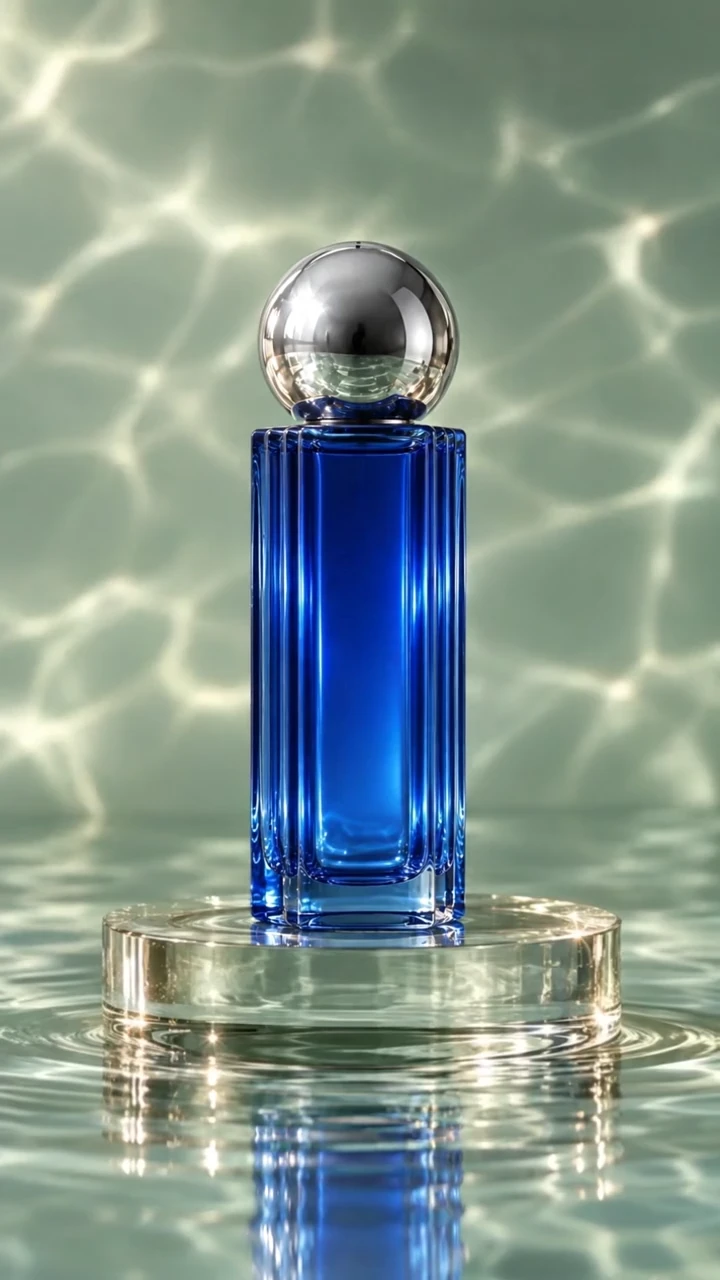
Replace a product
Replace the bottle in @Video1 with the product in @Image1. Keep the original movement, placement, and lighting.

Change clothing
Change the outfit to the clothing in @Image1. Preserve the person’s face and body, with natural fabric movement.

Replace the background
Move the shot into the setting in @Image1 while keeping the subject’s performance and original camera movement.
Frequently asked questions
What can I replace in a video?
You can request changes to a face, character, product, outfit, prop, or background. Choose a preset or describe a custom edit with reference images.
Do I need to draw a mask?
This workflow uses a text description and optional image references rather than a manual mask. Be specific about the target object, especially when similar objects appear in the frame.
How many references can I add?
Object Swap supports up to four reference images. Mention them in your prompt as @Image1, @Image2, and so on. Motion Transfer uses one character reference instead.
Will logos and product text be exact?
Fine lettering, logos, textures, and small design details can change during generation. Review the result closely before using it as a product representation.
Can I edit a long video?
Object Swap accepts 3–15 second clips. Trim a longer video into suitable shots before uploading. The tool does not currently include a timeline or clip trimmer.
Is this free to use?
You can prepare a video and references before signing in. Generation uses your credits. The tool displays an estimated price from the current model catalog; the backend checks the actual clip duration before charging.
Where are completed videos saved?
Completed videos appear in Your videos and your Made library. You can leave the page while a generation runs and return to download the MP4.