Family photo, 1960s
Low-res rescue · 400 × 400 → 1,600 × 1,600 · 8 credits
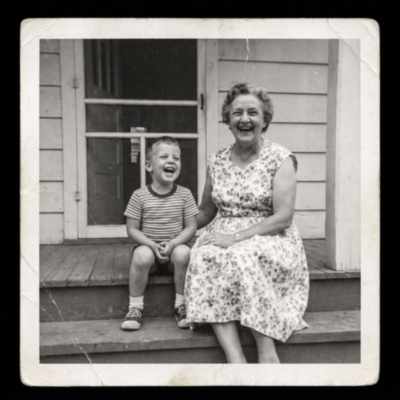
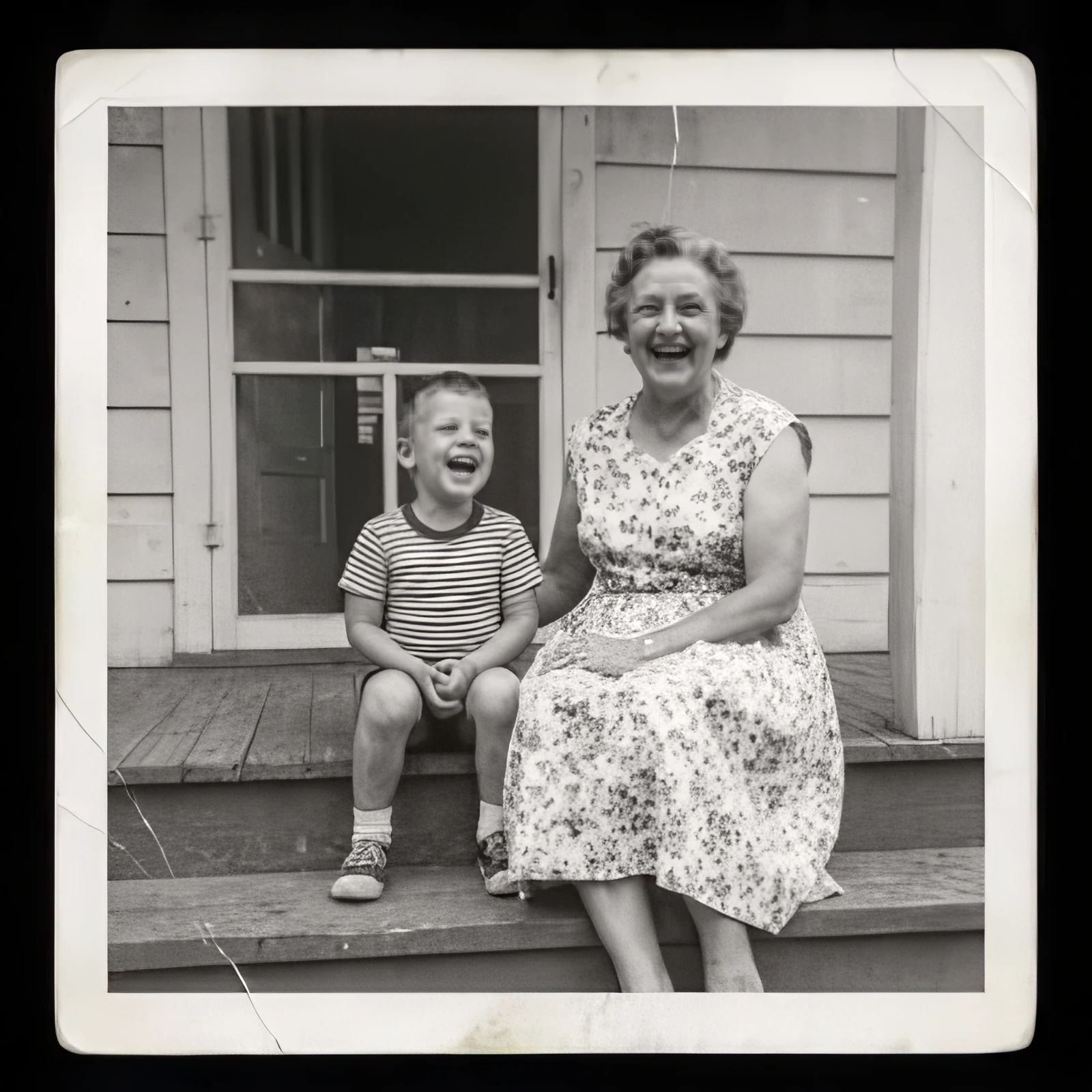
A small, compressed scan. Low-res rescue brought back both faces, the striped shirt, and the print on the dress.
Use Low-res rescueReal results
Drag across any image. Each pair is the file we uploaded and exactly what came back, at the price shown. The sources are shrunk, compressed copies of larger images.
Low-res rescue · 400 × 400 → 1,600 × 1,600 · 8 credits
A small, compressed scan. Low-res rescue brought back both faces, the striped shirt, and the print on the dress.
Use Low-res rescue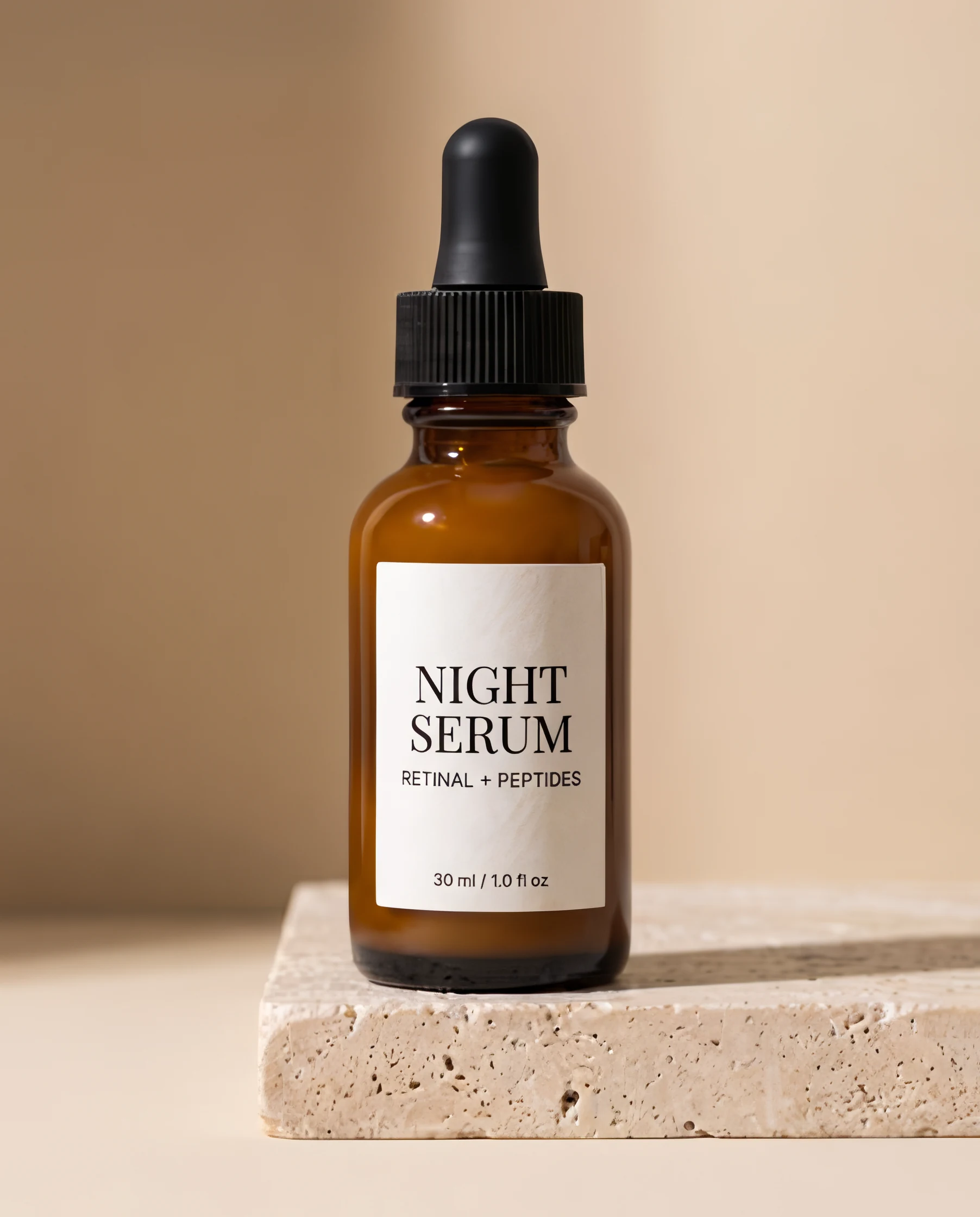
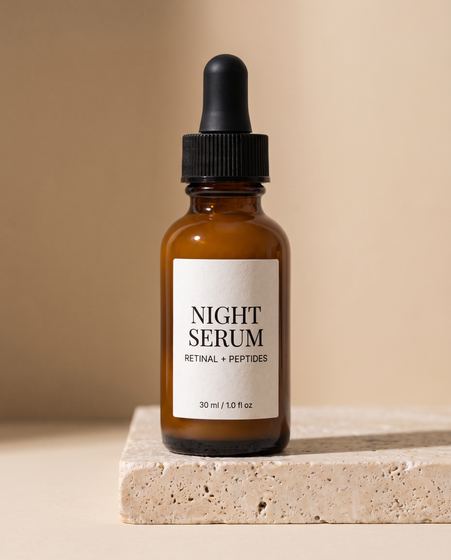
Text & logos · 451 × 560 → 1,804 × 2,240 · 8 credits
Text & logos kept every letter crisp and correct, down to “30 ml / 1.0 fl oz” at the bottom of the label.
Use Text & logos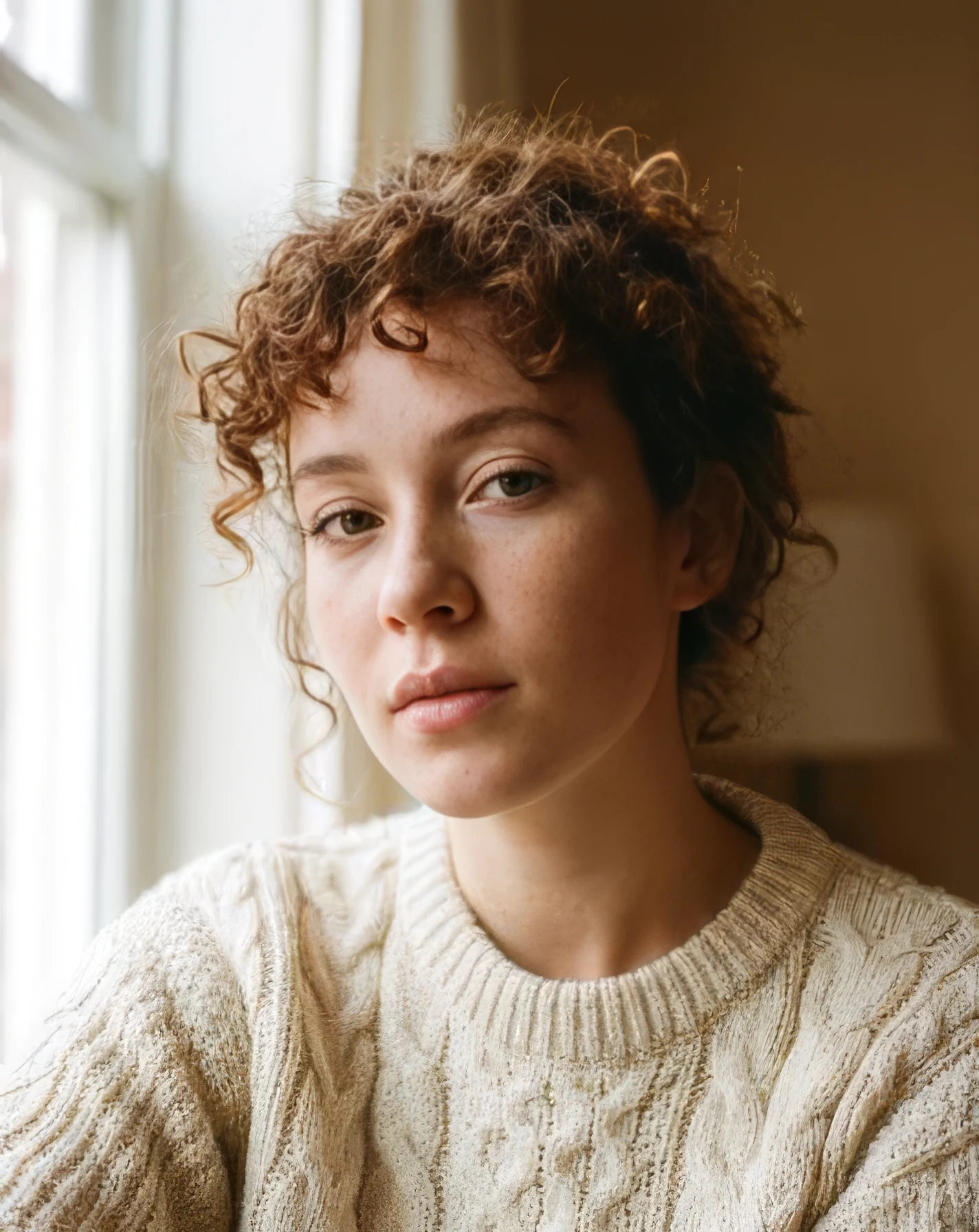
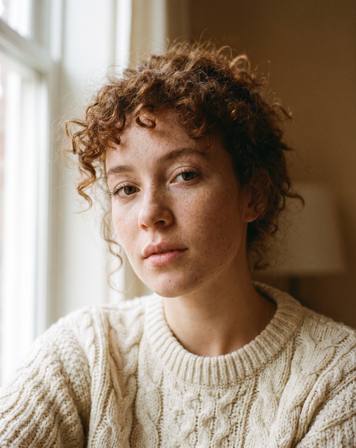
Standard · 356 × 448 → 1,424 × 1,792 · 8 credits
Standard with face recovery: sharp eyes, lashes, and curls. Face recovery also softened some freckles; switch it off to keep them.
Use Standard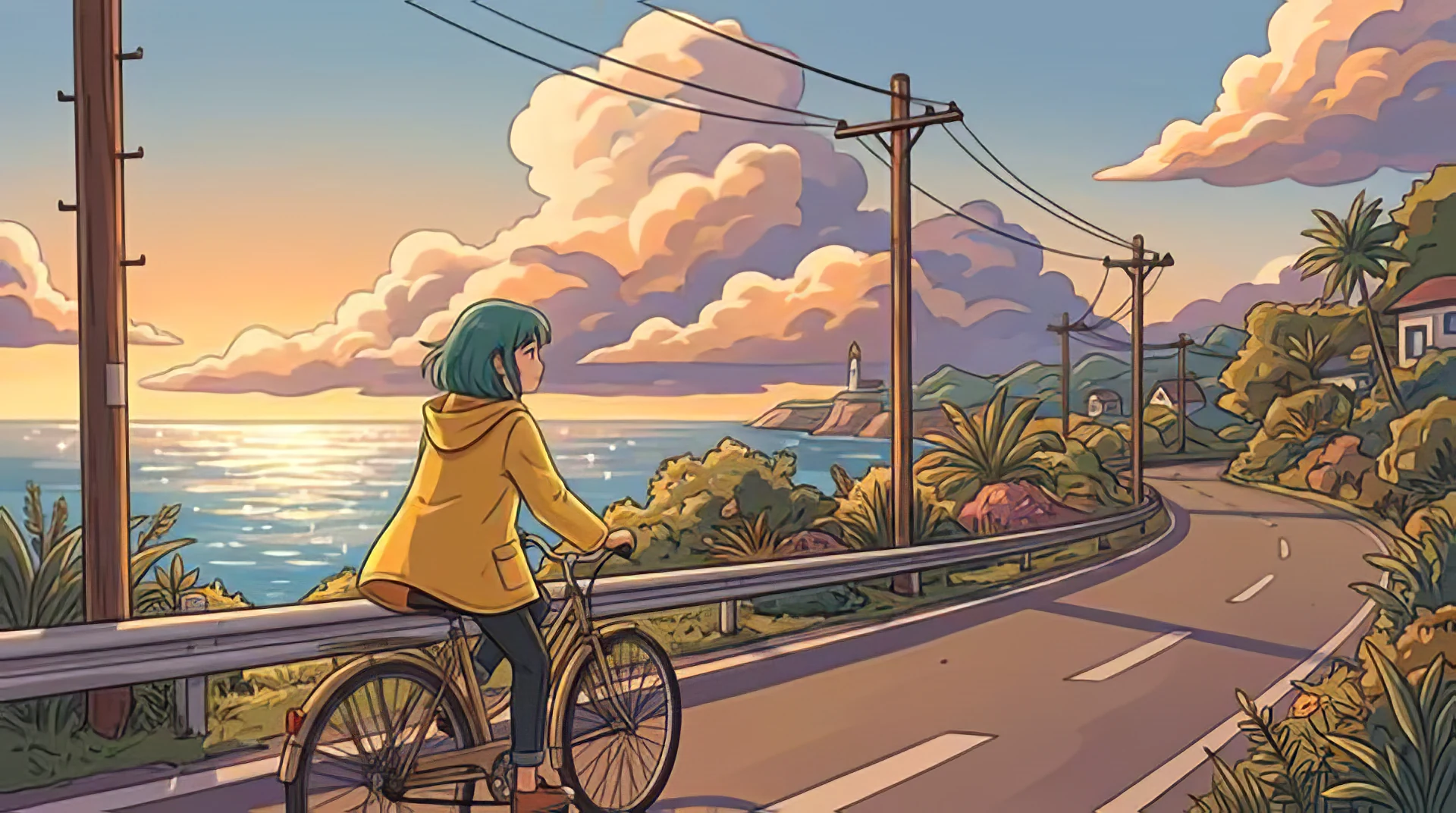
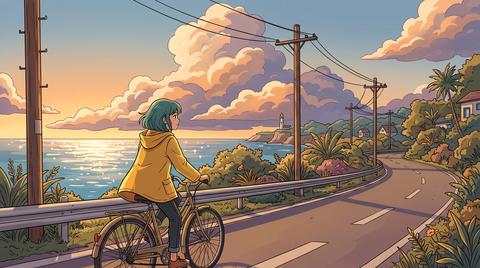
Art & CGI · 480 × 268 → 1,920 × 1,072 · 8 credits
Art & CGI keeps line art clean and flat colors flat, without painting photo texture into them.
Use Art & CGI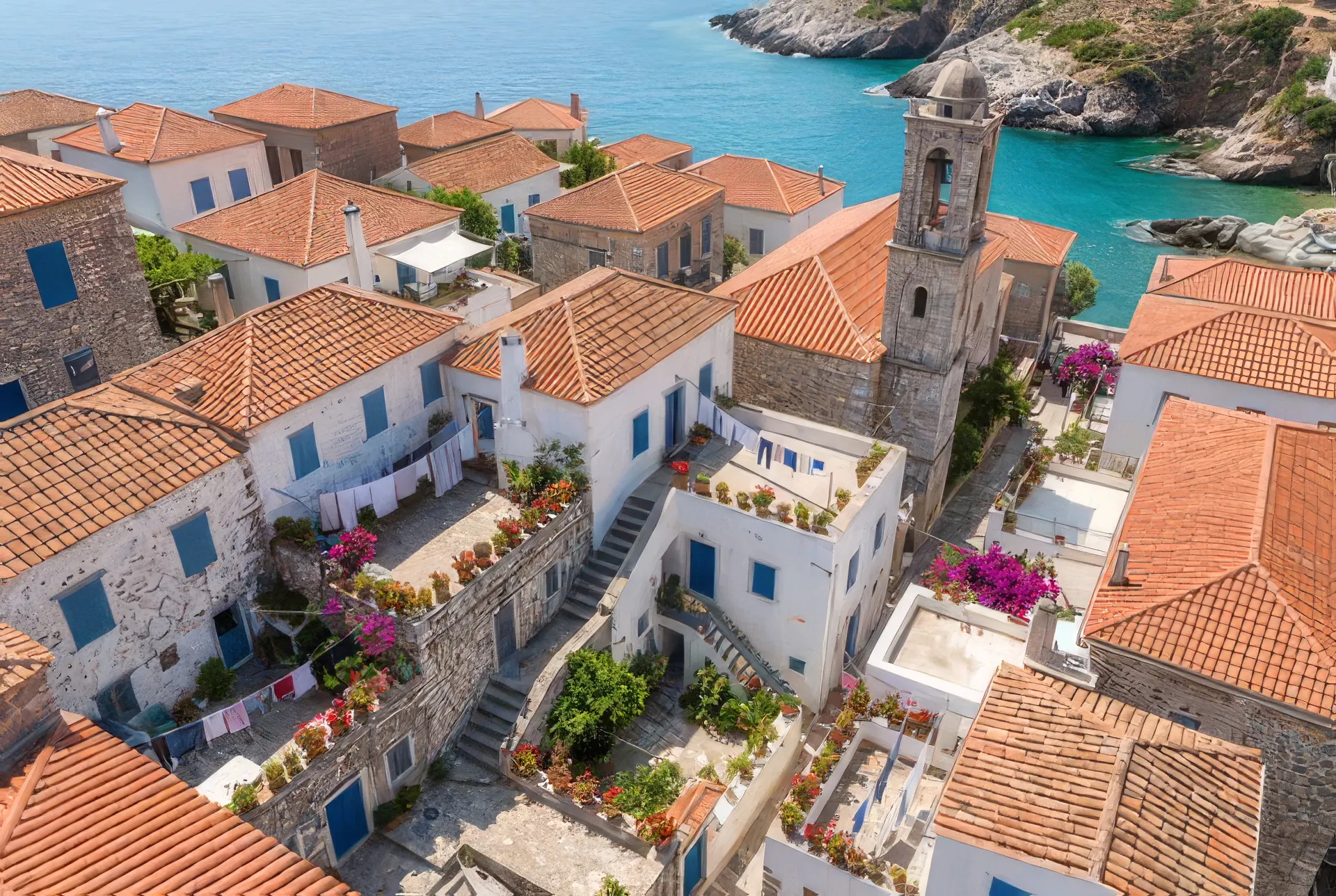
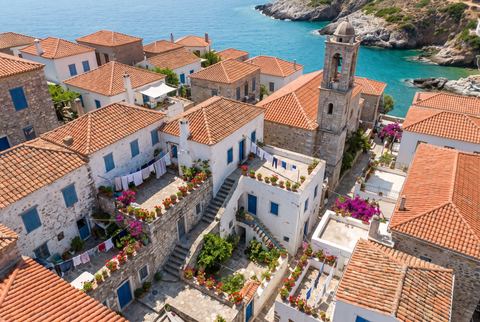
Standard · 480 × 322 → 1,920 × 1,288 · 8 credits
Roof tiles, shutters, laundry lines, and potted plants, from a 480-pixel image.
Use Standard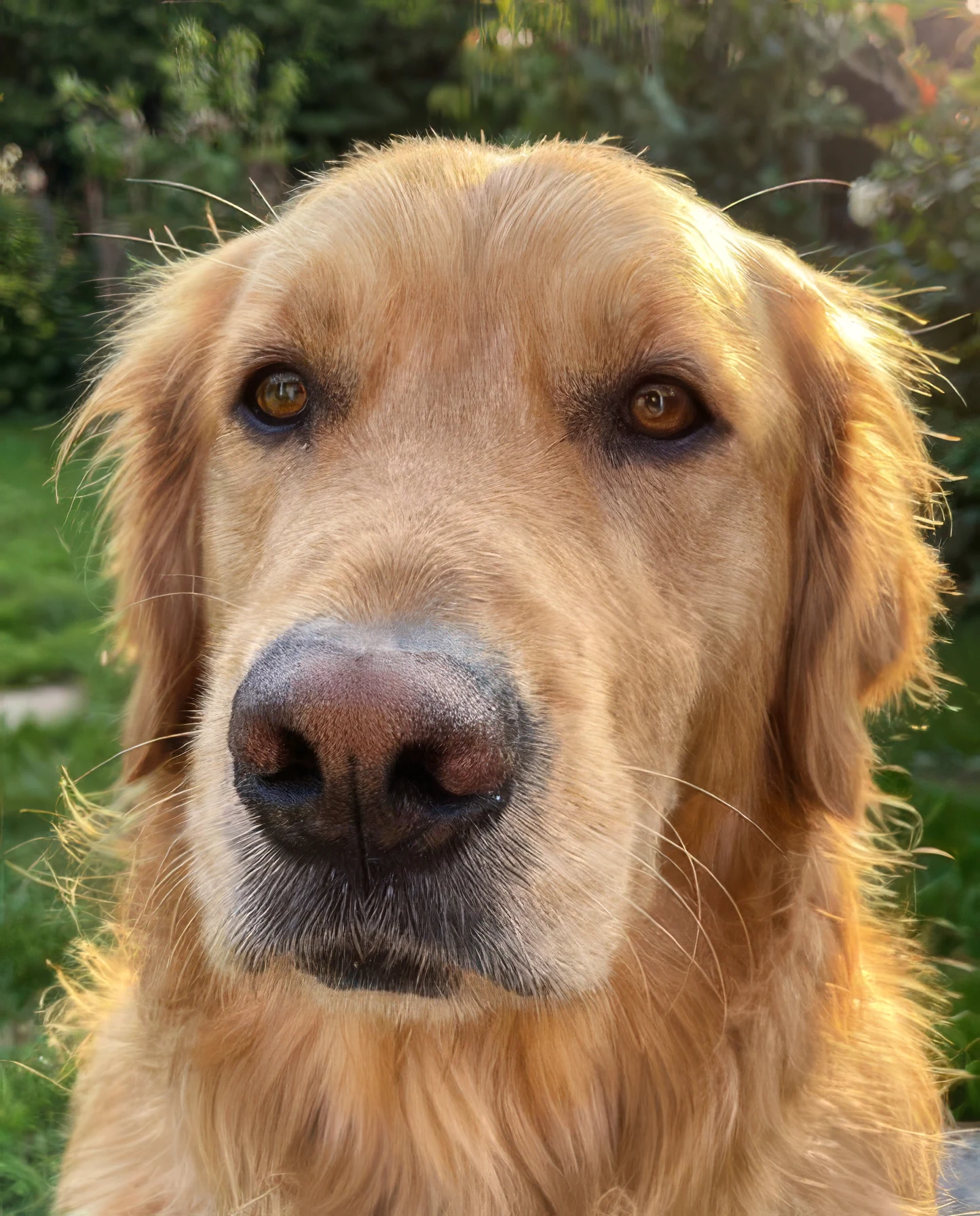
Standard · 361 × 448 → 1,444 × 1,792 · 8 credits
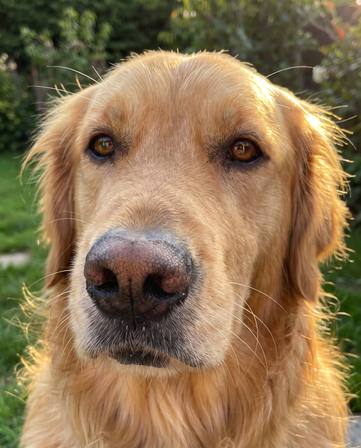
Fur, whiskers, and the texture of the nose, rebuilt from a 361-pixel photo.
Use StandardVideo, up to 4K
SeedVR2 restores each frame and keeps motion steady between them. MP4 or MOV up to 20 seconds, and your audio comes along.
320 × 568 → 1,280 × 2,272 · 4 s · 19 credits
Skin, hair, and the reflections on the bottle, restored frame by frame from a 320-pixel phone video.
Any photo, including iPhone HEIC, or an MP4, MOV, or WebM clip. Longer clips are trimmed to their first 20 seconds. Paste works too. Your file stays in the browser until you upscale.
Choose 2× or 4×. For photos, pick a mode for faces, old photos, text, or art. The finished size and the exact price show before you pay.
Drag across your result to compare it with the original, zoom in on details, then download. Every upscale is saved to your history.
Credits roll over · failed upscales are refunded
| Photo up to 1,200 × 1,200 at 4×Up to 24 MP out | 8 credits |
|---|---|
| 1080p frame at 4×7680 × 4320, 33 MP | 16 credits |
| 12 MP phone photo at 2×8064 × 6048, 49 MP | 24 credits |
| 4 s clip, 270p to 1080p4×, 24 fps | 20 credits |
| 10 s clip, 720p to 1440p2×, 30 fps | 111 credits |
| 20 s clip, 1080p to 4K2×, 30 fps | 498 credits |
The same model at the same price through the Made API. Preflight any job for free with /v1/cost, or pass a job_… ID as the source to upscale something you just generated. Assistants can do it over MCP.
curl -X POST https://www.made.app/api/v1/generations \
  -H "Authorization: Bearer $MADE_API_KEY" \
  -H "content-type: application/json" \
  -d '{"model":"topaz_upscale_image","upscale_factor":4,
       "medias":[{"role":"image","value":"https://example.com/photo.jpg"}],
"params":{"model":"Low Resolution V2"}}'It makes an image 2× or 4× larger in width and height and rebuilds detail as it goes: edges, textures, hair, and small text, instead of just stretching the pixels. Made runs Topaz precision models on fal. You get a new JPG or PNG, and your original is never changed.
8 credits for any result up to 24 megapixels, 16 up to 48 MP, and so on. A photo up to 1,200 × 1,200 costs 8 credits at 4×, and a 12 MP phone photo costs 24 credits at 2×. The exact price shows on the button before you pay, failed upscales are refunded, and unused credits roll over.
Standard fits most photos. Low-res rescue is for small, blurry, or heavily compressed images like thumbnails, old scans, and screenshots of photos. High fidelity is for photos that are already sharp and need to be bigger, since it changes the least. Text & logos keeps labels, signs, packaging, and screenshots legible. Art & CGI is for illustrations, anime, 3D renders, and AI art.
2× doubles the width and height, so the image has 4 times the pixels. 4× gives 16 times the pixels. Use 4× for small images and 2× for images that are already large. Results can be up to 100 megapixels and 16,384 pixels on a side, and the tool greys out any scale that won’t fit.
It is a Topaz pass that restores eyes, skin, and hair in faces. It’s on by default and costs nothing extra. It can smooth very fine skin detail such as light freckles, so switch it off when you want faces to stay closer to the original.
It sharpens soft, low-resolution, and compressed images well. It can’t recover detail the camera never captured, such as heavy motion blur or a missed focus. An upscaler predicts detail, so check faces, small text, and logos before you use the result.
JPG, PNG, or WebP images up to 30 MB and at least 32 pixels on each side. You can also paste an image from your clipboard. Results download as JPG or PNG, whichever you pick.
Most images finish in 15 to 30 seconds. Very large results take longer: a 69-megapixel result took about a minute and a half. You can leave the page, and the result waits in your history.
Yes. Drop an MP4 or MOV here, or open the Video Upscaler. SeedVR2 upscales clips up to 20 seconds, 2× or 4×, up to 4K, and keeps your audio.
Yes. Call the Made API with the model topaz_upscale_image, the same one this page uses, or connect Made to your AI assistant over MCP. Pass a job ID as the source to upscale something you just generated.
Every result is saved to your history on this page and to your Made library, so you can download it again later.
Extend any photo beyond its edges. Pick a new aspect ratio or zoom out, and AI fills in the scene around your original photo.
Open tool →Upload a scan of an old print and Made repairs scratches, tears, fading, and other damage, sharpening the image and recovering lost detail.
Open tool →Upload an image and Made separates the foreground subject from its surroundings, returning a transparent PNG you can reuse in product listings, profiles, and designs.
Open tool →Upload an image, pick a size or type exact pixels, and choose whether Made crops it to fill, fits it inside, or stretches it.
Open tool →