Landscape to Story
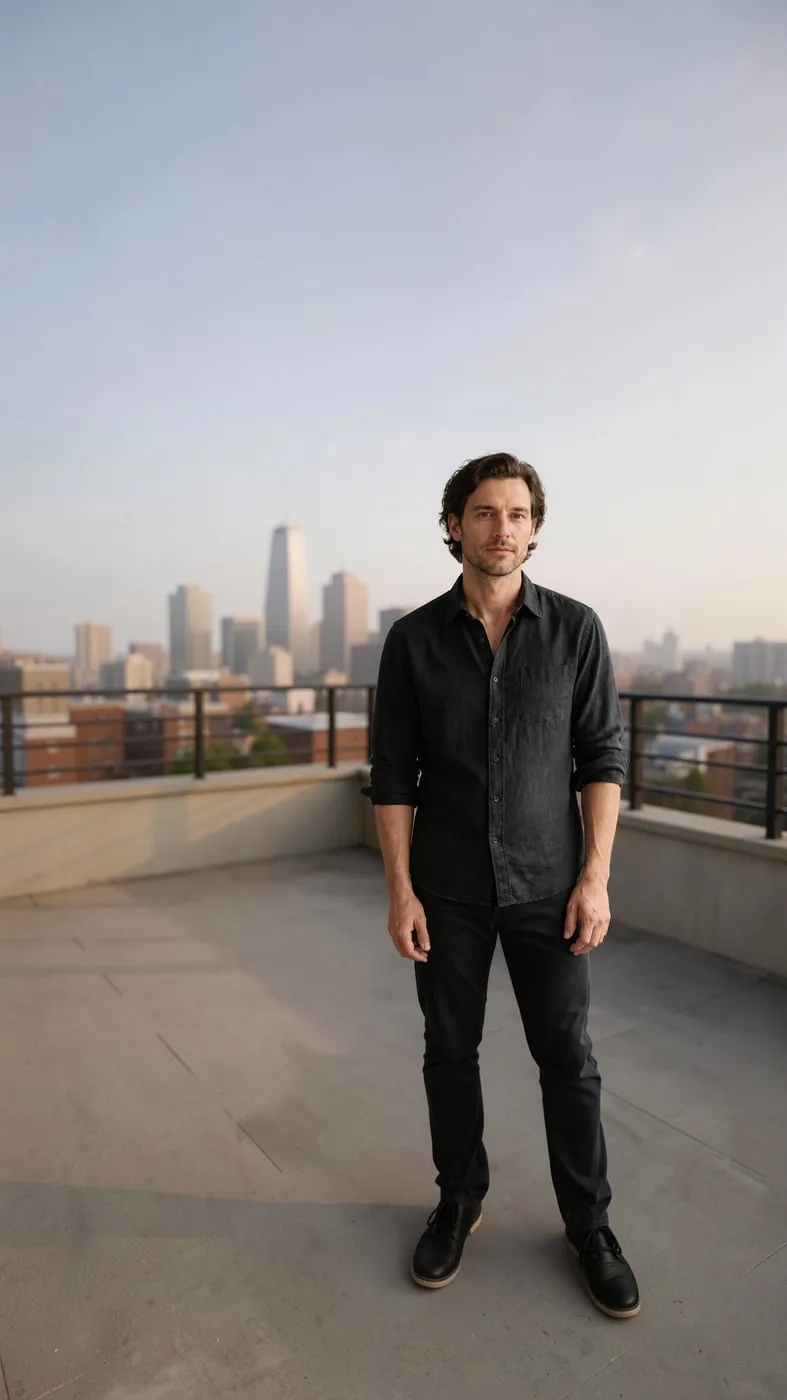
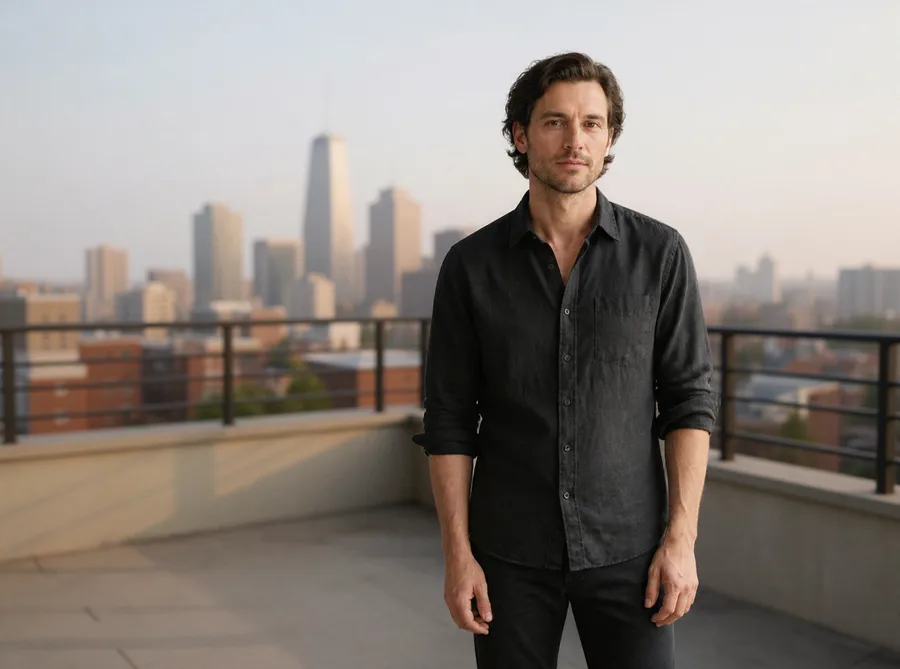
4:3 → 9:16
More sky above, and below the legs, shoes, and rooftop floor that the original frame cut off.
Extend any photo beyond its edges. Pick a new aspect ratio or zoom out, and AI fills in the scene around your original photo.
Runs FLUX.2 [pro] Outpaint: 5 to 7 credits an image, charged only when it succeeds.
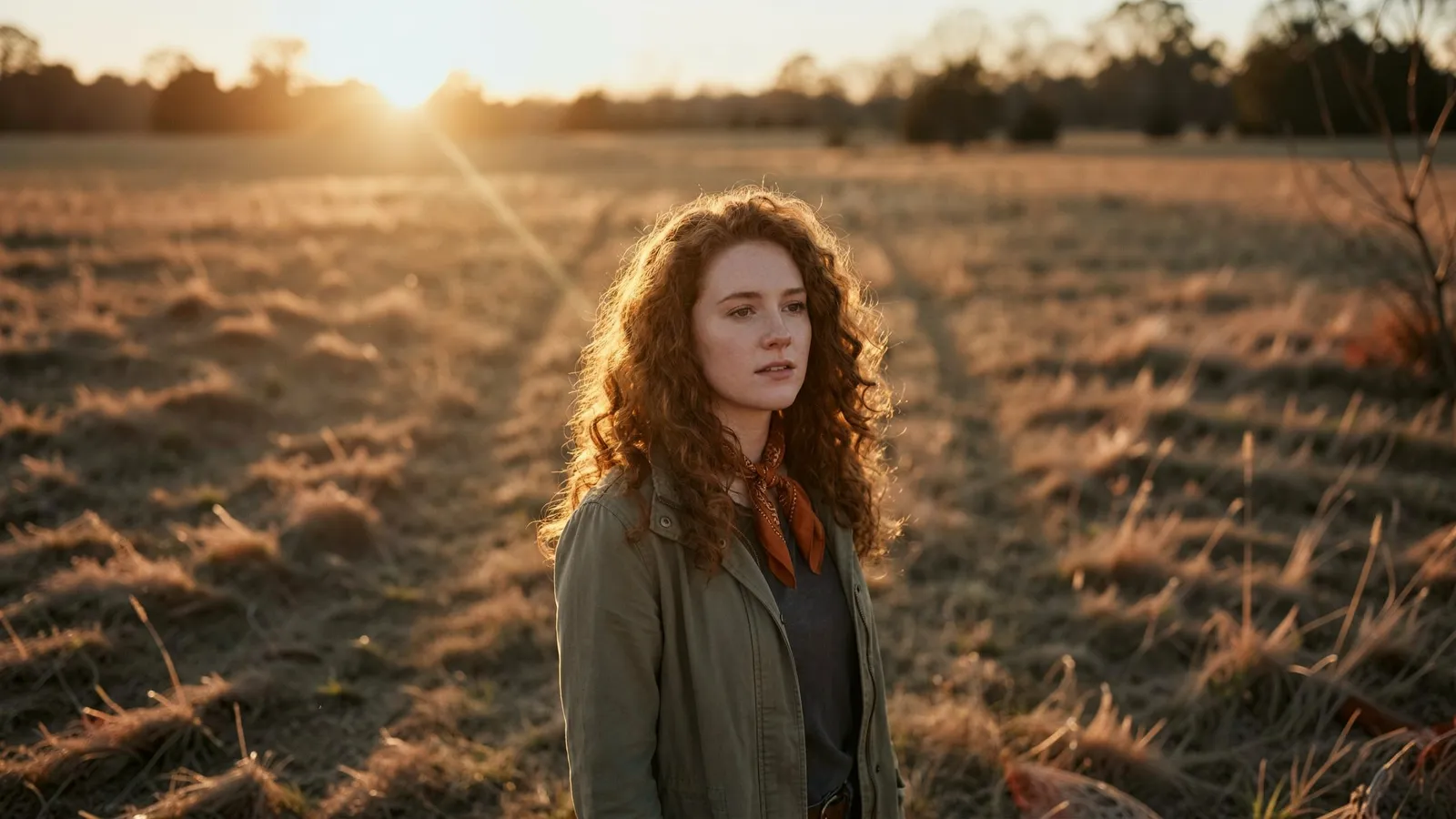
Drop, paste, or choose a JPG, PNG, or WebP at least 256 pixels on each side. Only the area around your photo is generated.
Choose an aspect ratio such as 9:16, 16:9, or 21:9, or zoom out to show more of the scene. Set where the photo sits. No prompt needed.
The price is on the button before you pay. Compare the result with your original frame, then download the JPG or expand it again.
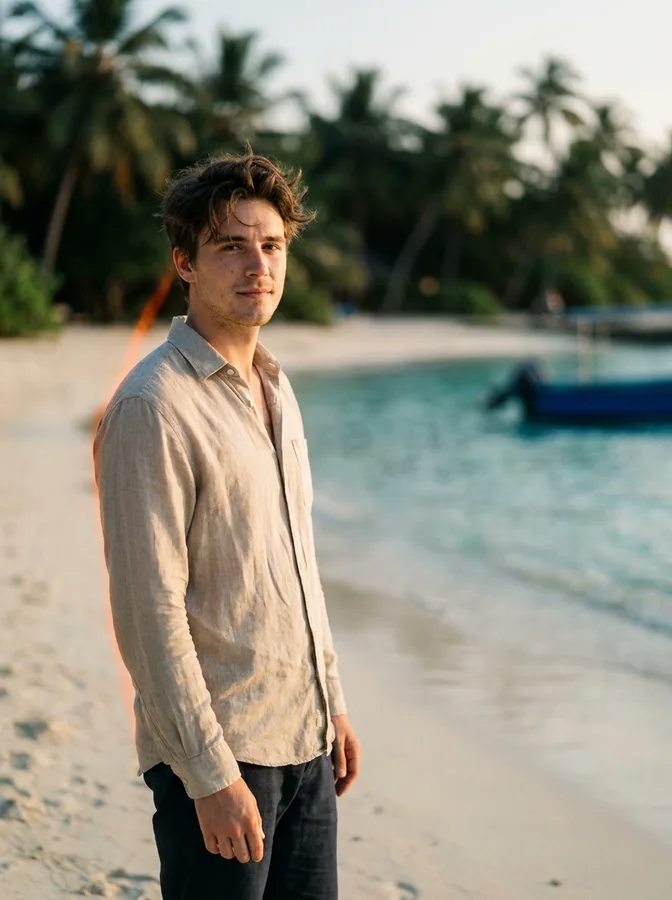
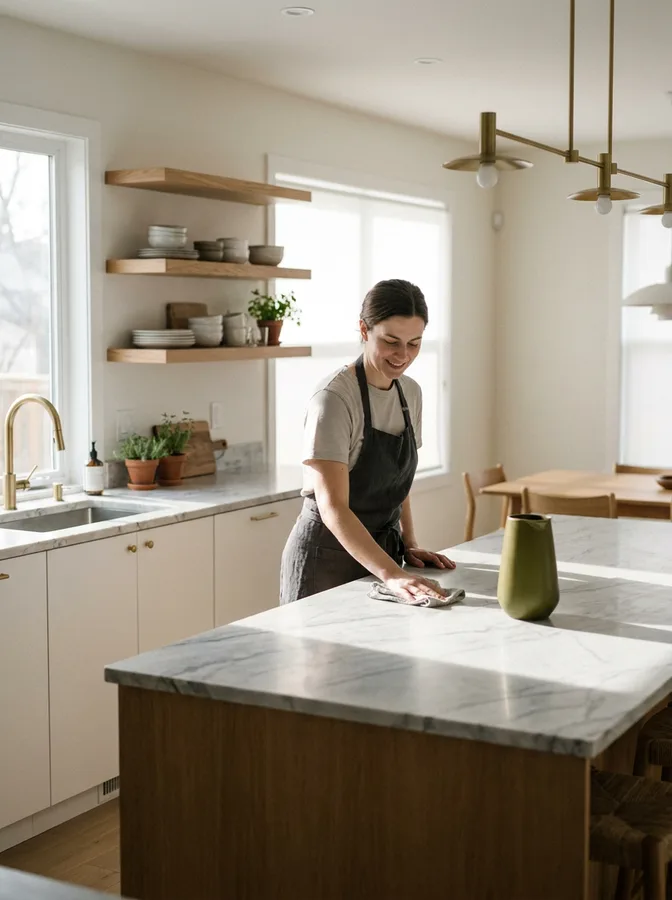
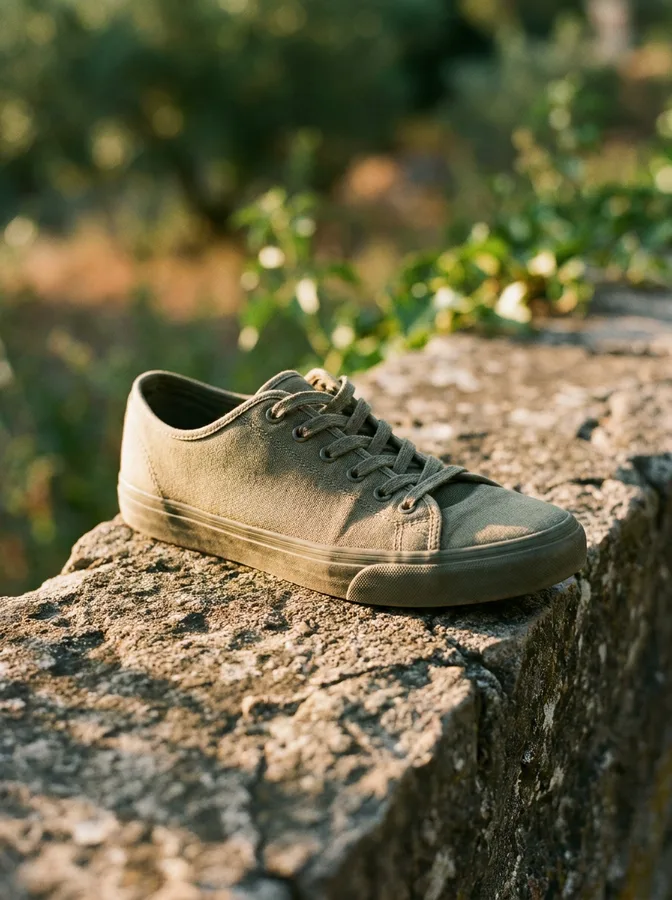
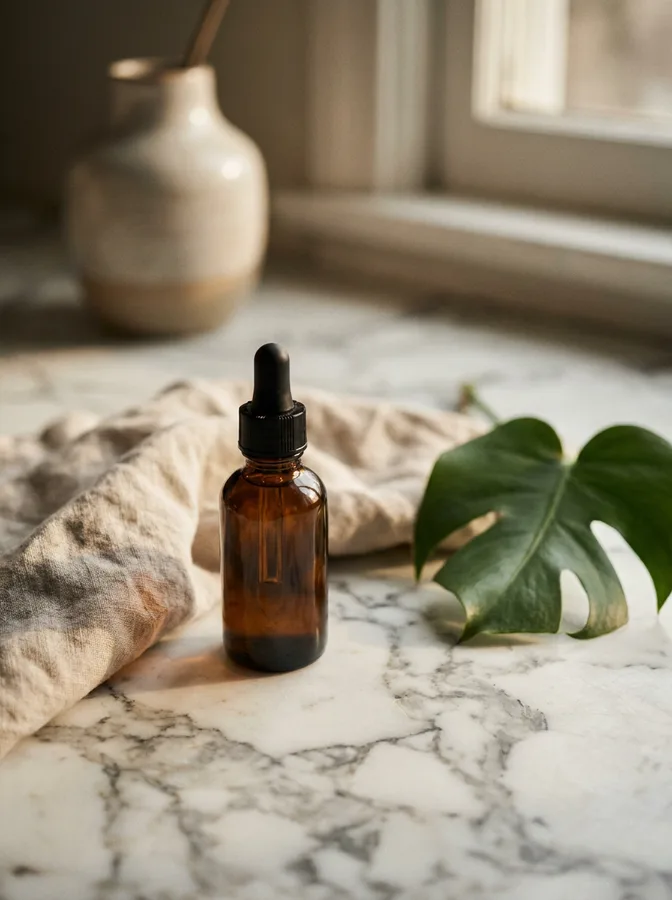
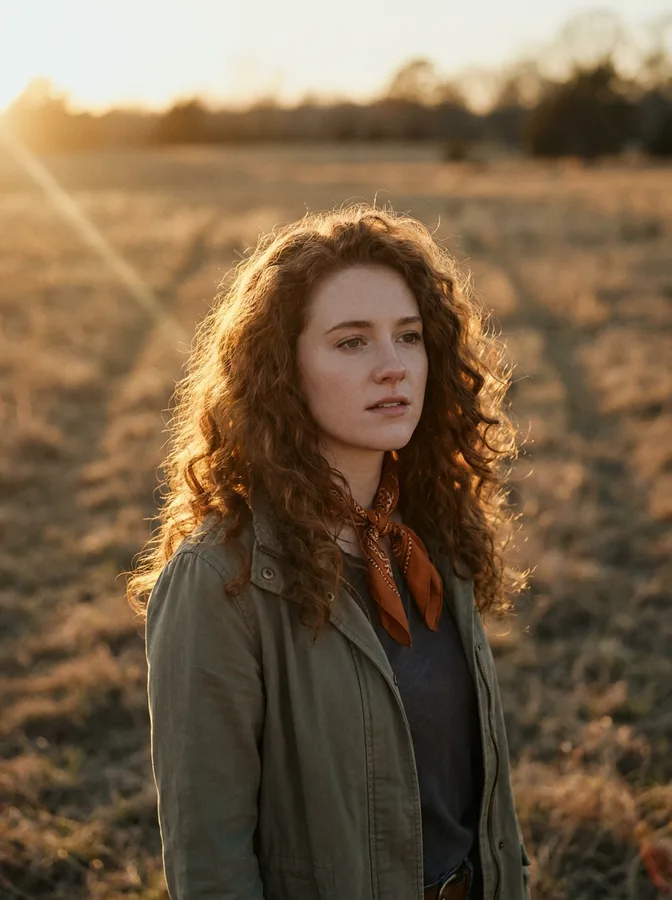
Each result below came from the photo in its corner, through the same model this page runs. The marks show where the original ends and the new scene begins.
4:3 → 9:16
More sky above, and below the legs, shoes, and rooftop floor that the original frame cut off.
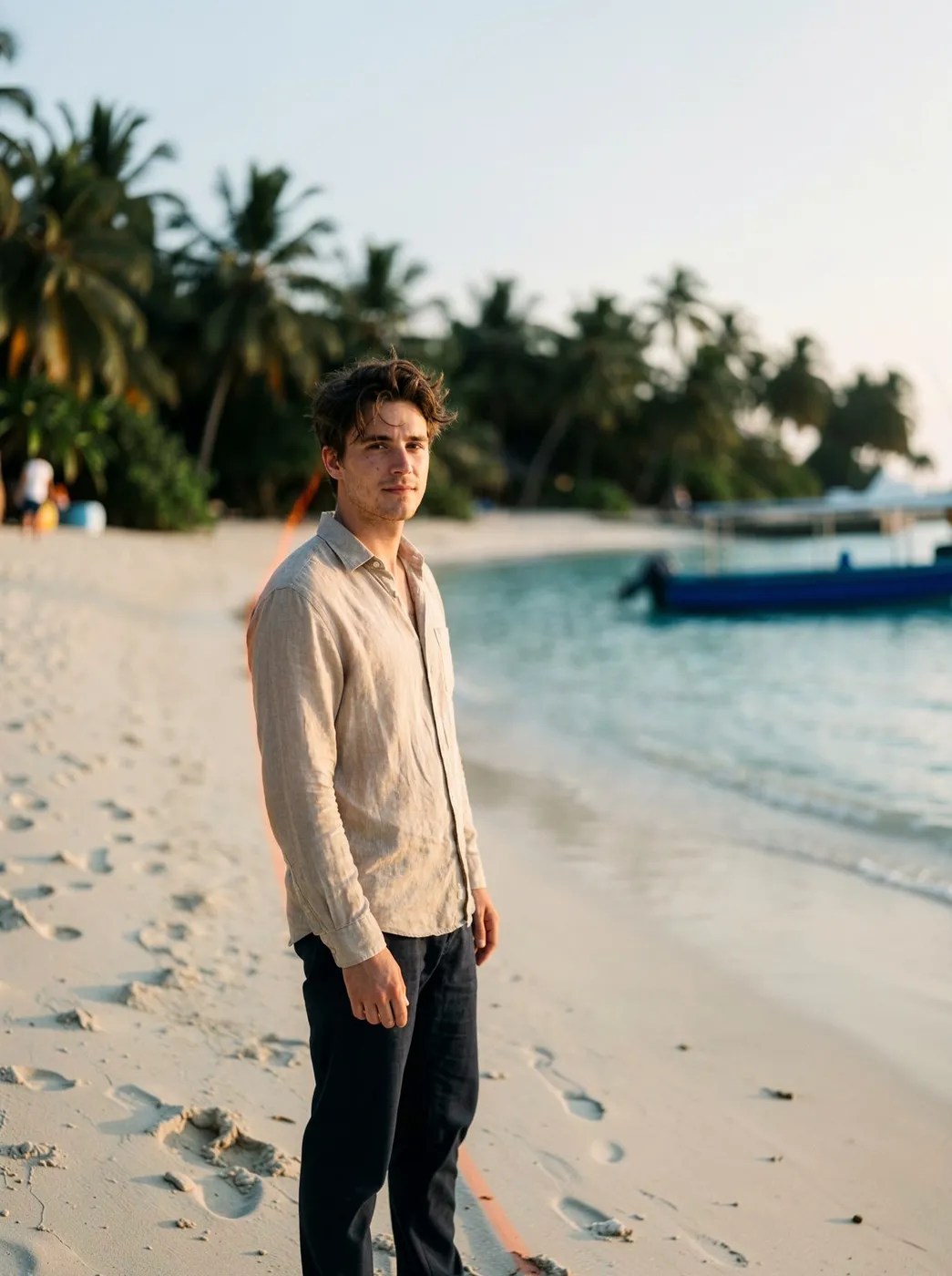
Original ratio, 1.5×
Same 3:4 frame, wider view: more sand, sea, palms, and sky around the original shot.
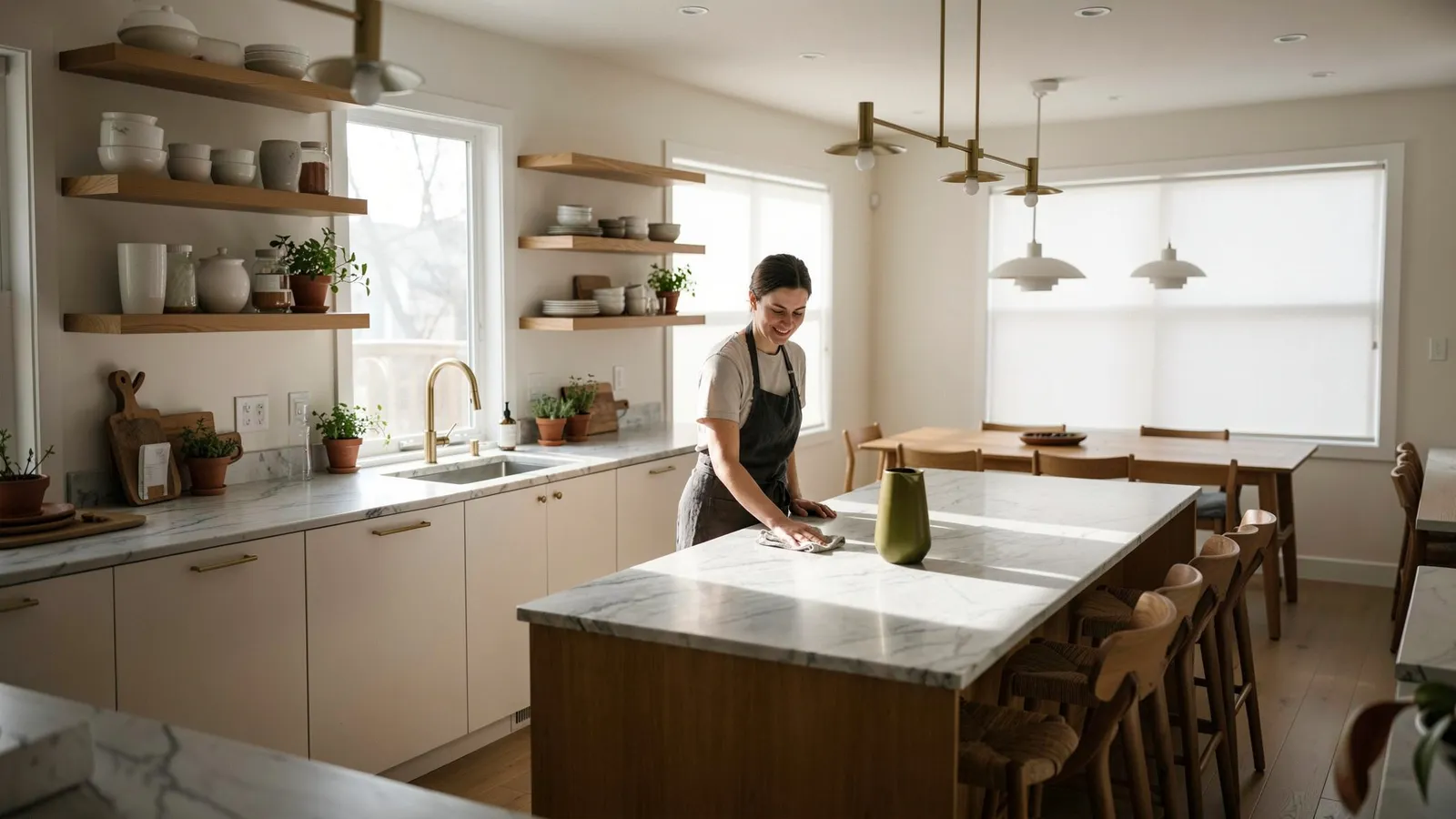
3:4 → 16:9
Shelves, windows, and the dining area continue with matching light and straight lines.
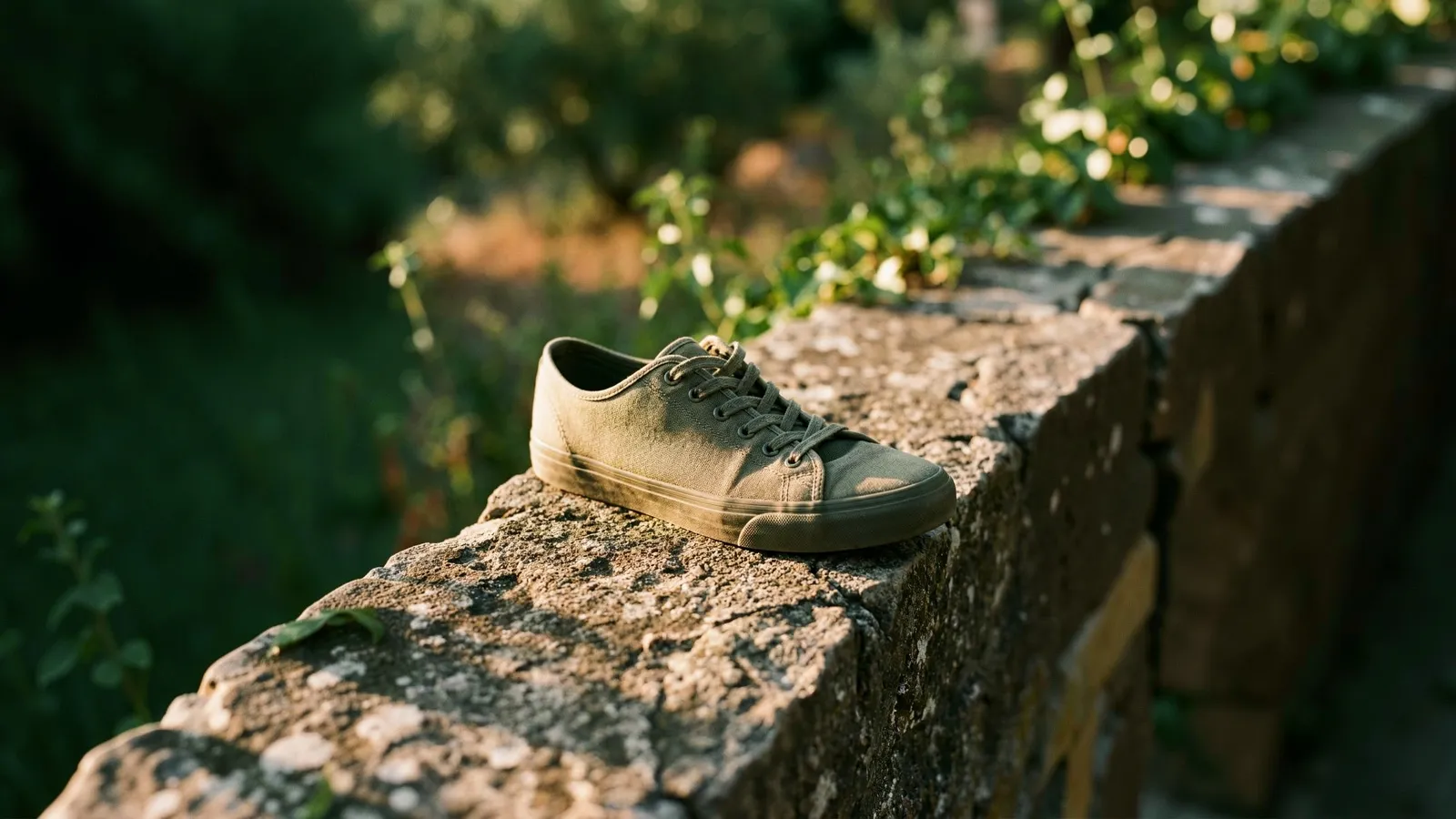
3:4 → 16:9
Room on both sides of the product for a banner, with the wall and foliage carried through.
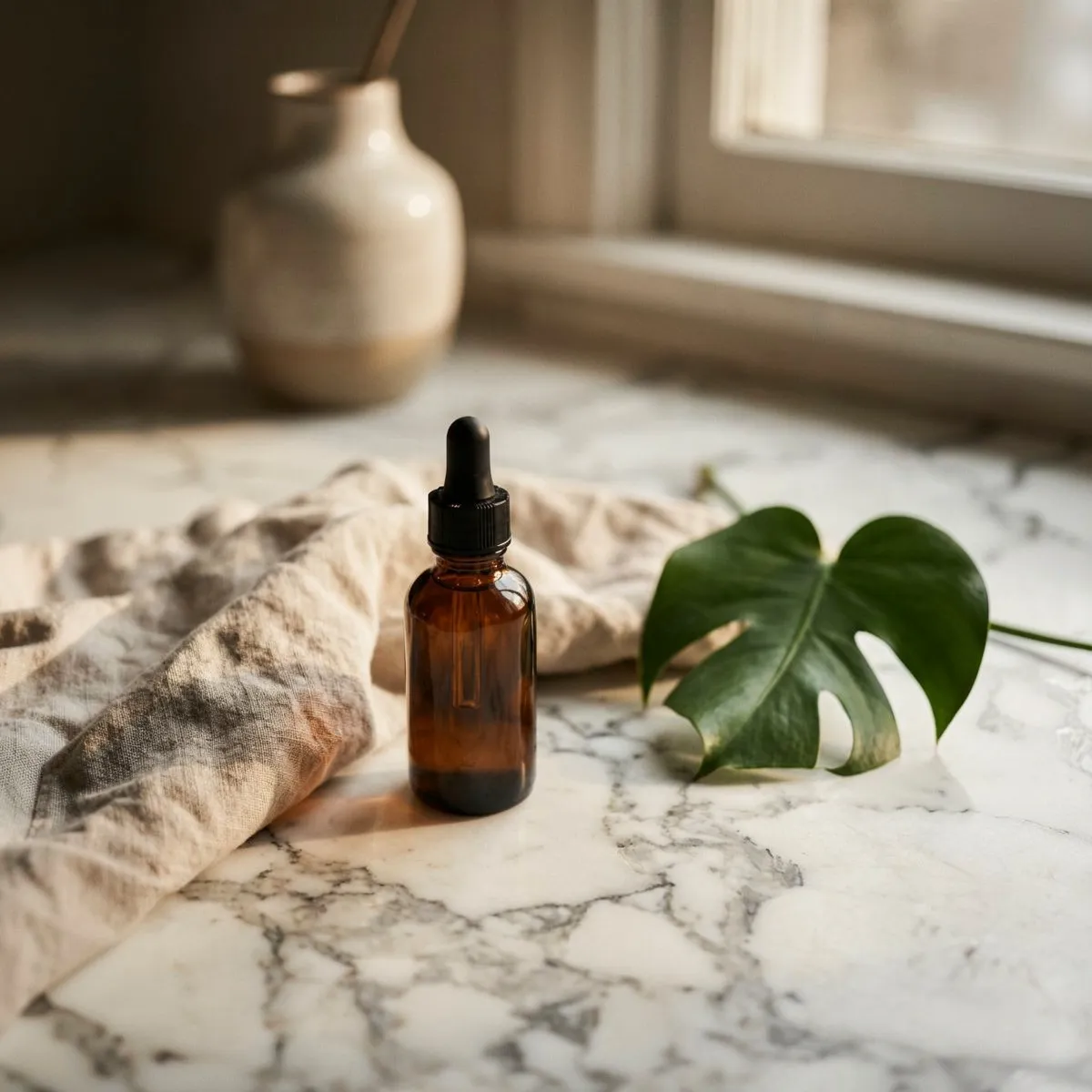
3:4 → 1:1
A square frame for listings and posts, with the marble, cloth, and leaf extended to the sides.
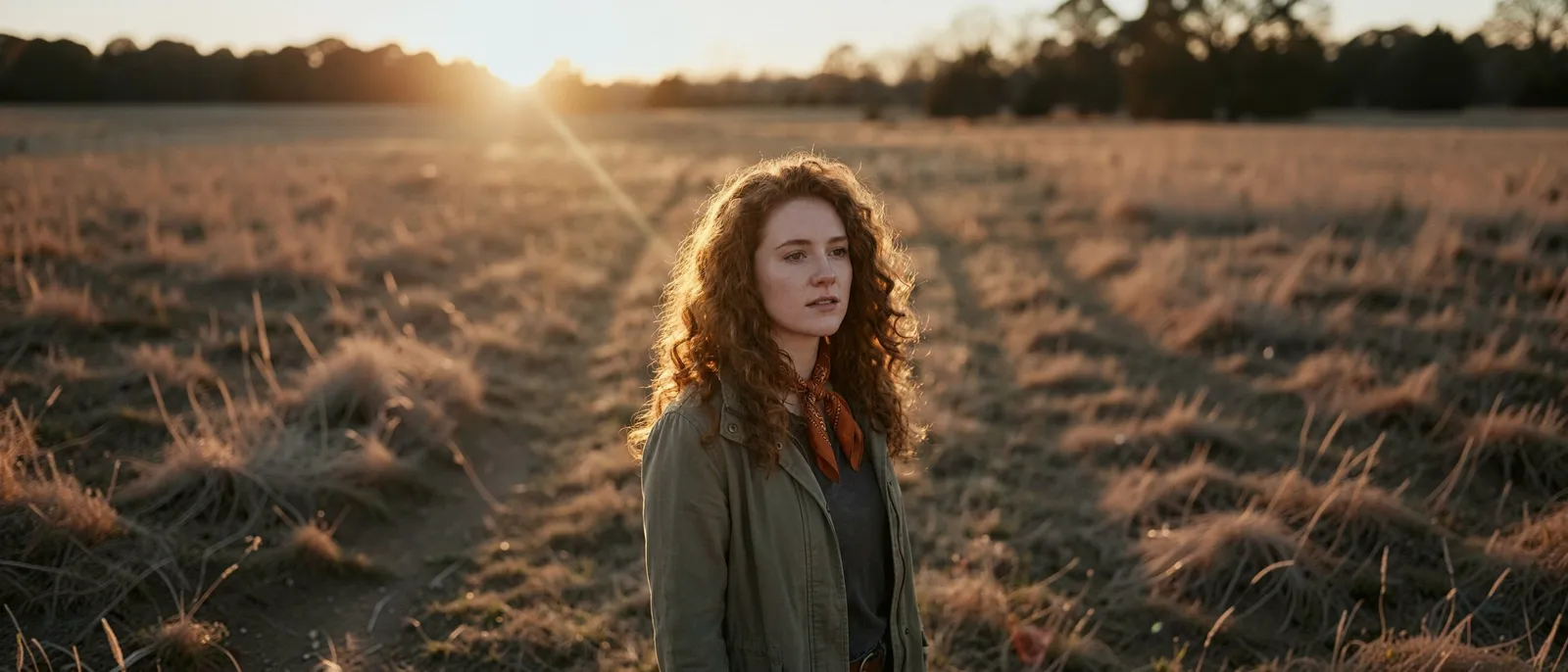
3:4 → 21:9
An ultra-wide frame from a portrait. The photo was scaled to fit the 2560-pixel limit first.
FLUX.2 [pro] reads the light, perspective, and textures in your photo and continues the scene, so floors keep their shadows and horizons stay level.
Reframe the same image as a 9:16 Story, a 16:9 thumbnail, a 21:9 banner, or a square post without cropping into the subject.
The model paints outward from the edges. Your photo keeps its place and size inside the larger canvas; only the new area is invented.
It adds new scenery beyond the edges of a photo, also called outpainting or uncropping, so the image fills a new aspect ratio or a wider view. Your photo stays in the center of the new canvas, or wherever you place it.
An image costs 5 to 7 credits: the price grows with each started megapixel of the finished image, and results are at most 4 megapixels. The exact price is on the Generate button before you pay, and failed generations are refunded.
No. Pick a frame and generate; the model continues what is already in your photo. To add something new to the scene, expand first and then edit the result with an image model in Create.
The model paints outward and keeps your photo in place at its uploaded size. The result is a new JPG, so the original area is re-encoded, and a thin band at each seam is blended to match. The file you uploaded is never modified.
Original, 1:1, 4:5, 3:4, 2:3, 9:16, 16:9, 4:3, 3:2, and 21:9. You can also zoom out 1.5× or 2× on top of any ratio, and choose whether the photo sits in the center, on a side, or in a corner.
Up to 2560 pixels on the longest side and 4 megapixels in total. When a frame would be larger, your photo is scaled down to fit before expanding, and the tool shows the final size before you generate. Use the Image Upscaler afterwards for a bigger file.
JPG, PNG, and WebP files up to 30 MB and at least 256 pixels on each side. Transparent areas are filled with white before expanding. The result is a JPG.
FLUX.2 [pro] Outpaint from Black Forest Labs, run on fal in its fast mode. Most images finish in 10 to 20 seconds.
Text, logos, and signs cut off at the edge usually continue as made-up lettering. Hands, faces, or bodies cut off by the frame can come back distorted, and very large expansions of busy scenes can repeat patterns. Check the new area before you use the image.
Finished images appear under Your expansions on this page and in your Made library, so you can leave the page while one generates.
Image Resizer scales, crops, or pads the pixels you already have. Expand Image generates new content that was never in the photo, so the frame grows without cutting into the subject or adding blank bars.
Upload an image, pick a size or type exact pixels, and choose whether Made crops it to fill, fits it inside, or stretches it.
Open tool →Enlarge photos 2× or 4× with Topaz and get the detail back, or upscale video with SeedVR2. Drop a file to see the exact price before you pay.
Open tool →Upload a photo and describe the scene you want behind the subject — a beach, a studio backdrop, a city at night. Made replaces the background while keeping the subject as they appear and returns a JPG.
Open tool →