made

Made workflow

Remove an unwanted object from a photo

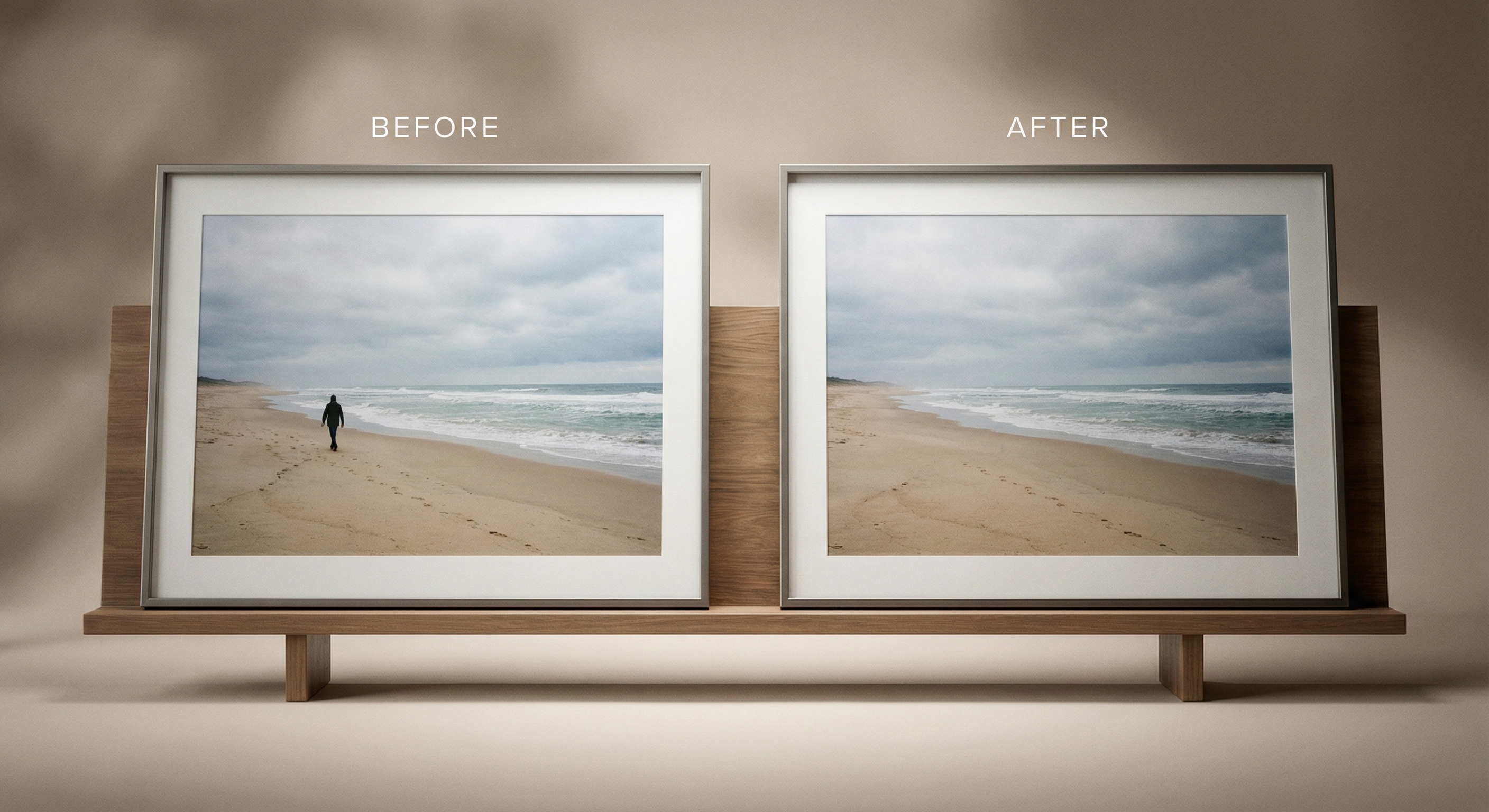
Upload an image and tell Made what to remove — a person, a car, a coffee cup — or brush a mask over the area. Made finds the object, erases it, and fills the space with a background that matches the scene.

What you need to start

JPEG, PNG, or WebP image, plus a text description of the object or a brushed mask

What this tool does

Input
JPEG, PNG, or WebP image, plus a text description of the object or a brushed mask
Output
JPG image with the selected object replaced by AI-generated background
How it works
Made segments the described object with the Lang-SAM model on Replicate, expands the mask for clean edges, then fills the region using a Stable Diffusion inpainting endpoint on RunPod.
Access
You can prepare the request on this page. Sign-in may be required before processing or download, and Made shows the current plan or credit requirement in the workflow.

Specific Object Remover workflows

Original results

Object Remover examples

These examples use media produced for Made. Prompts are included when the production record allows them.

Photo with an unwanted object erased and the background filled in by AI inpainting

AI inpainting

Remove the coffee cup from the table.

Portrait with a background stranger removed from the frame

Photobombers

Remove the person walking behind us.

Product photo cleaned of clutter around the main item

Product cleanup

Remove the cables next to the product.

Interior real estate photo with distracting items removed from the room

Real estate photos

Remove the trash can from this living room photo.

Object removed from a busy scene with the detailed background reconstructed

Busy backgrounds

Remove the car on the left and keep the street intact.

Before-and-after view of a photo with a distracting element erased

Clean final shot

Erase the sign in the background.

Practical ways to use Object Remover

Photobombers and strangers

Describe the person you want removed — “person in the red shirt” — and Made erases them and rebuilds the background behind them.

Product photo cleanup

Remove cables, price tags, and stray props from a product shot before it goes into a listing or ad.

Real estate and interiors

Take clutter, bins, and personal items out of a room photo without reshooting the space.

Travel and social photos

Erase cars, signs, and other distractions so the subject of the shot stays the focus.

How it works

  1. 1

    Upload one image

    Choose a JPEG, PNG, or WebP where the unwanted object is clearly visible.

  2. 2

    Describe or mask the object

    Type what should go — “the iPhone”, “person wearing a red shirt” — or brush a mask over the exact area yourself.

  3. 3

    Let Made detect and erase it

    Made segments the object, then repaints the masked region with background that matches the surrounding scene.

  4. 4

    Inspect the filled area

    Zoom in on the repainted region and its edges before downloading the JPG.

Formats and limits

Input formats
JPEG, PNG, WebP
Output format
JPG
Selection methods
Text description with AI detection, or a brushed/uploaded mask
Processing size
Images are processed at up to 1,024 pixels on the longest side
Edge limitations
One object description per request; auto-detected masks are expanded for clean blending, so detail right next to the object may be repainted
Access
You can prepare the request on this page. Sign-in may be required before processing or download, and Made shows the current plan or credit requirement in the workflow.

Questions, answered

Object Remover FAQ

Need a specific answer? Contact support

Made runs two steps in one operation: a segmentation model locates the object you described and generates a mask, then an AI inpainting model repaints the masked area with background that matches the rest of the scene.