Instagram Image Resizer
Name the Instagram placement — portrait post, square, Story, or Reel cover — and Made resizes your photo to the standard dimensions, cropping or padding it the way you choose instead of letting the app crop it for you.
Exact dimensionsExamples
How to use Instagram Image Resizer
- 1
Upload your photo
Choose a JPEG, PNG, or WebP — ideally at least 1080 pixels wide so Instagram does not upscale it.
- 2
Name the placement
Say “resize this for an Instagram Story” or give the exact dimensions: 1080 × 1920 for Stories and Reels, 1080 × 1350 for portrait posts, 1080 × 1080 for squares.
- 3
Choose crop or pad
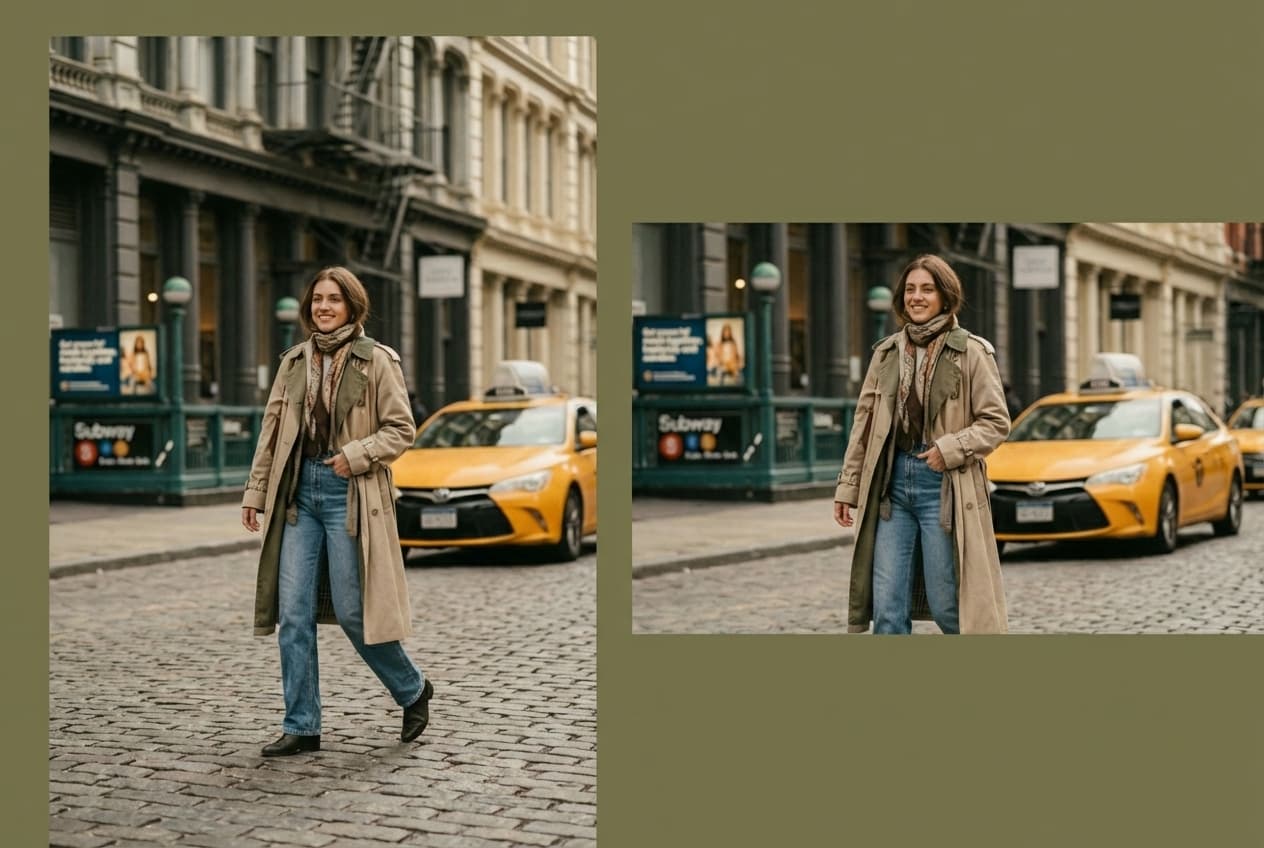
Cover fills the frame by cropping the edges; contain keeps the entire image and pads the rest with a background color you pick.
- 4
Download and post
Save the resized file and upload it to Instagram without the in-app crop surprising you.
Instagram Image Resizer examples
Real results from Made. Add your own photo in the studio above.
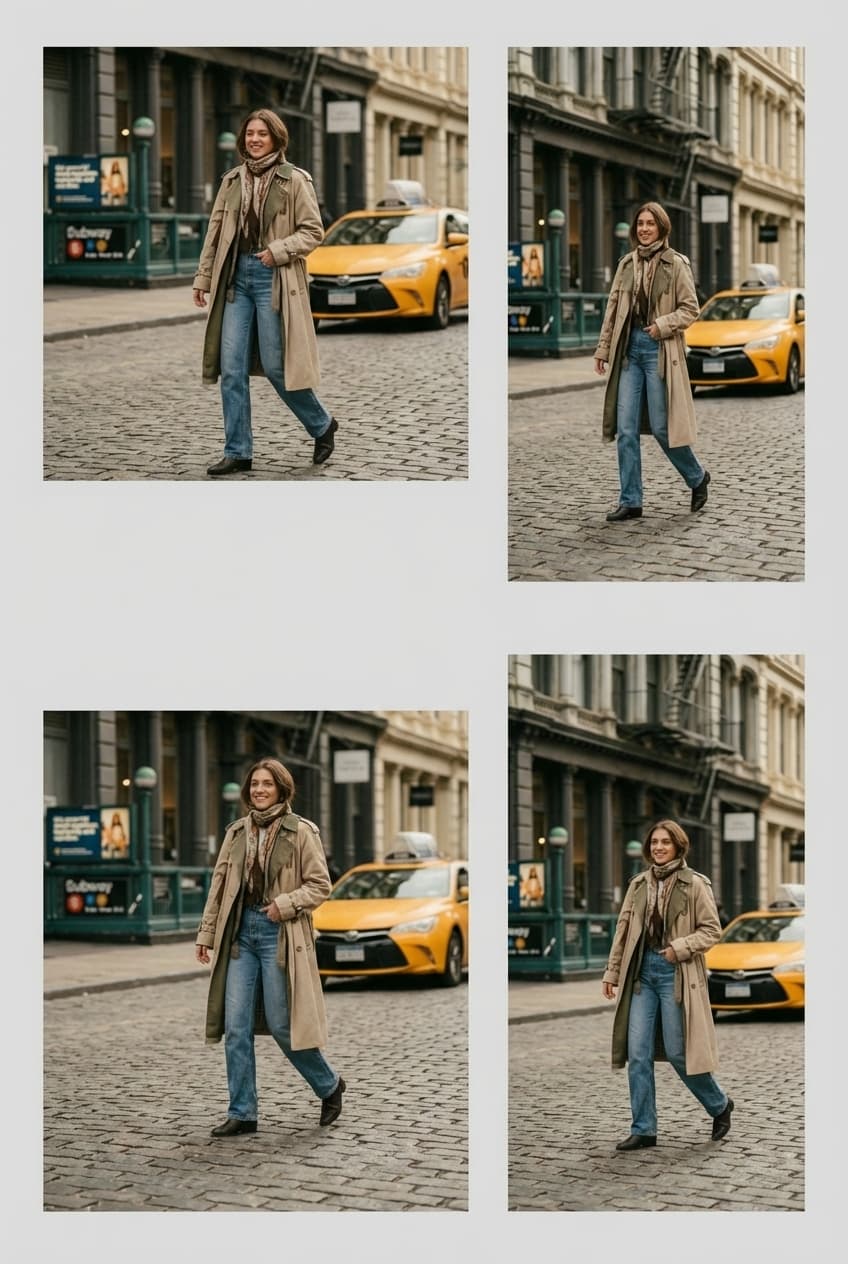
Platform formats
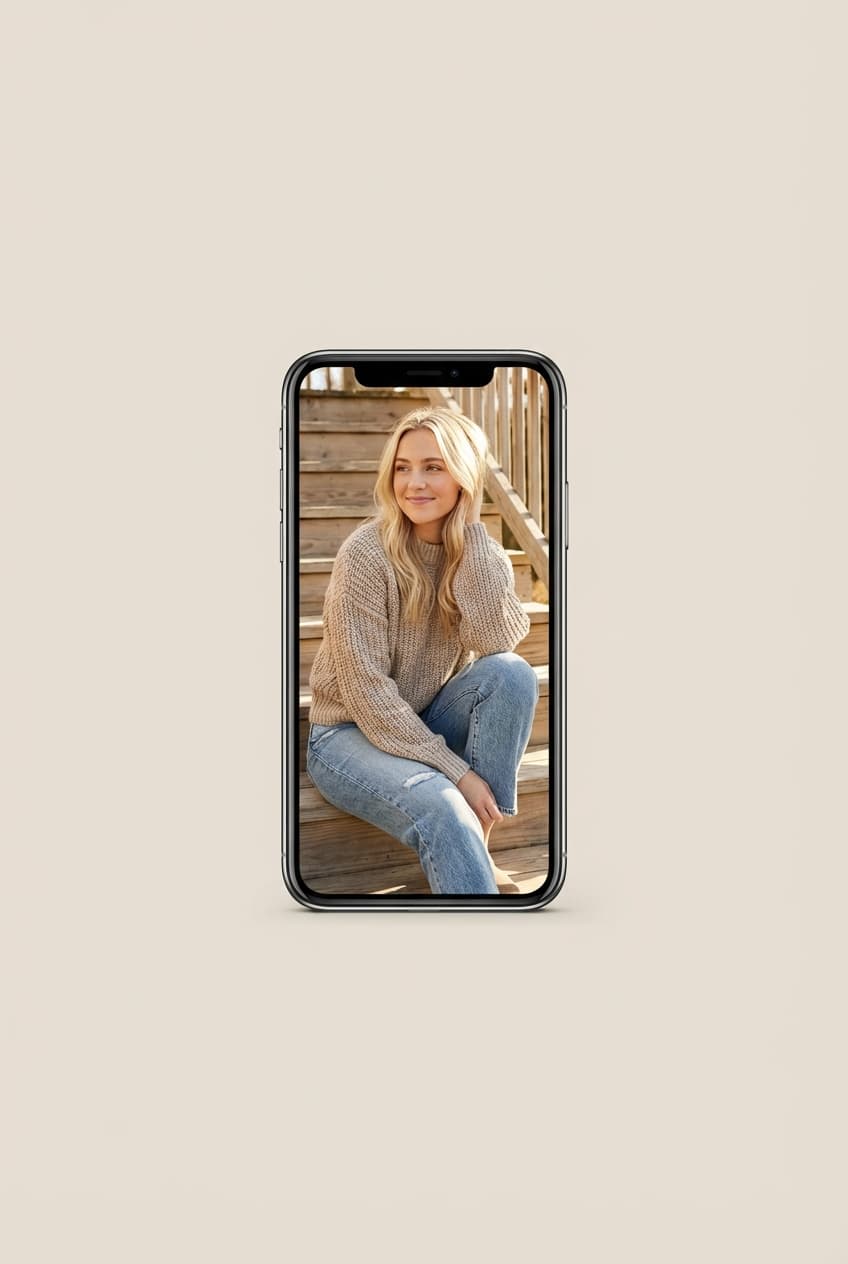
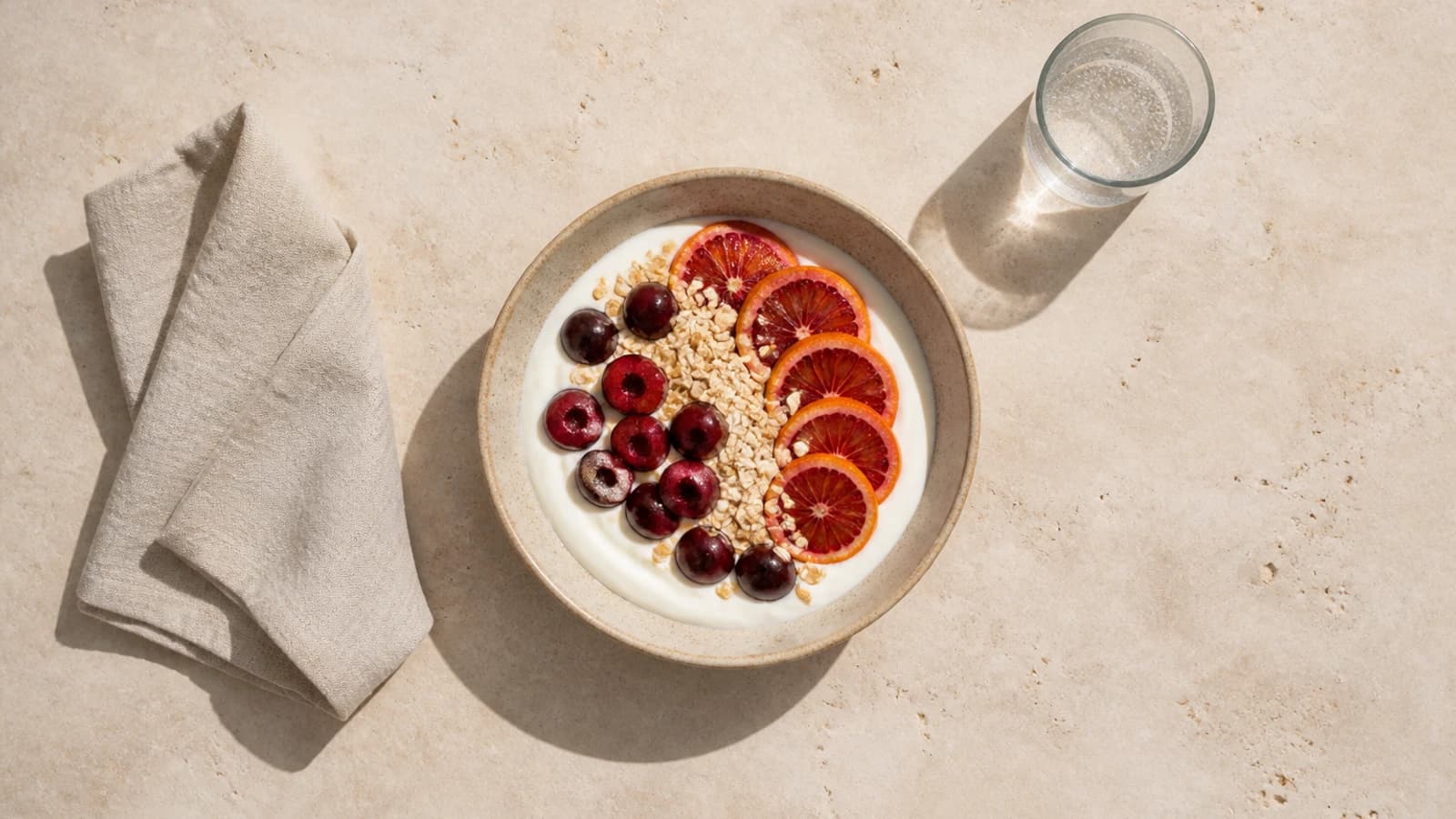
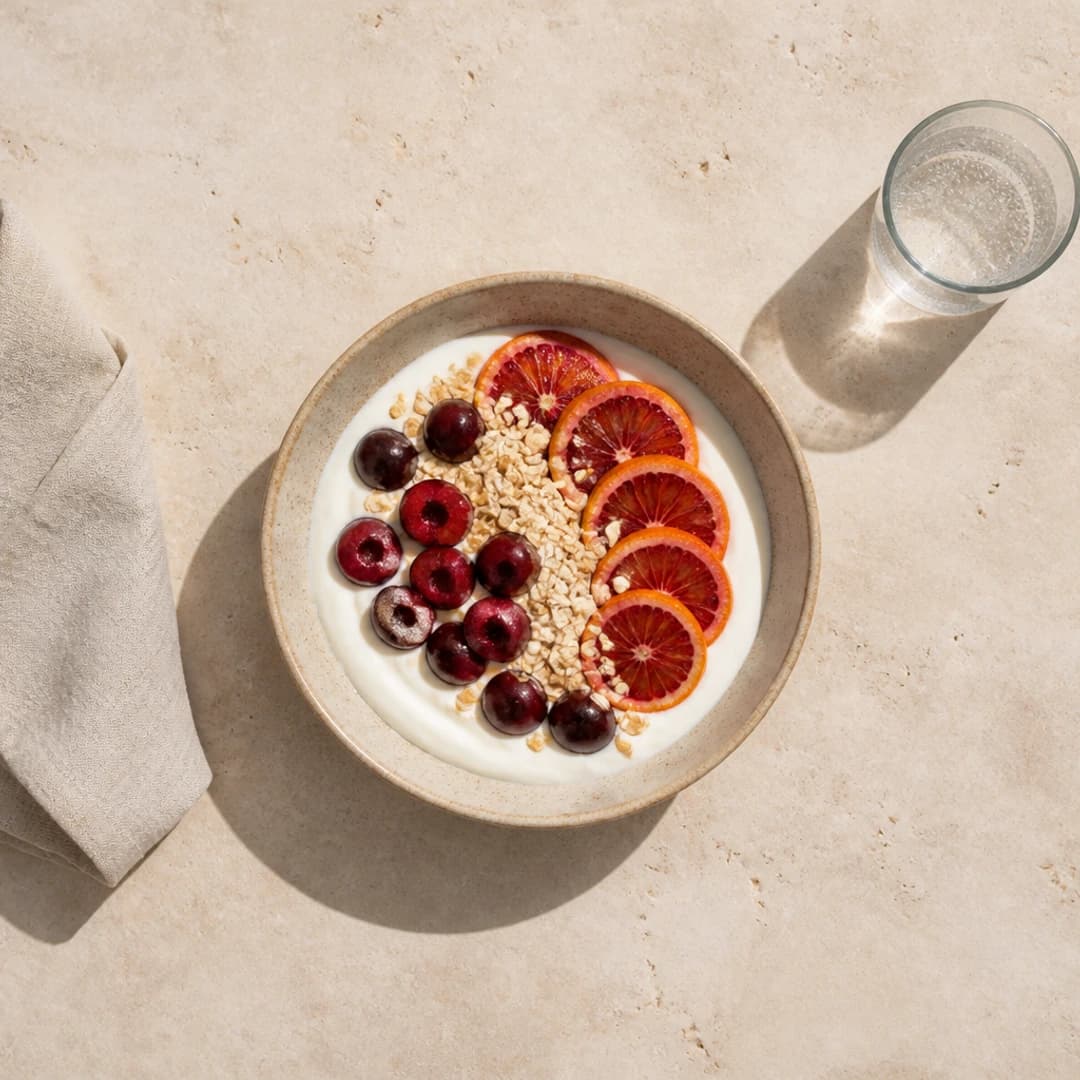
Vertical social post
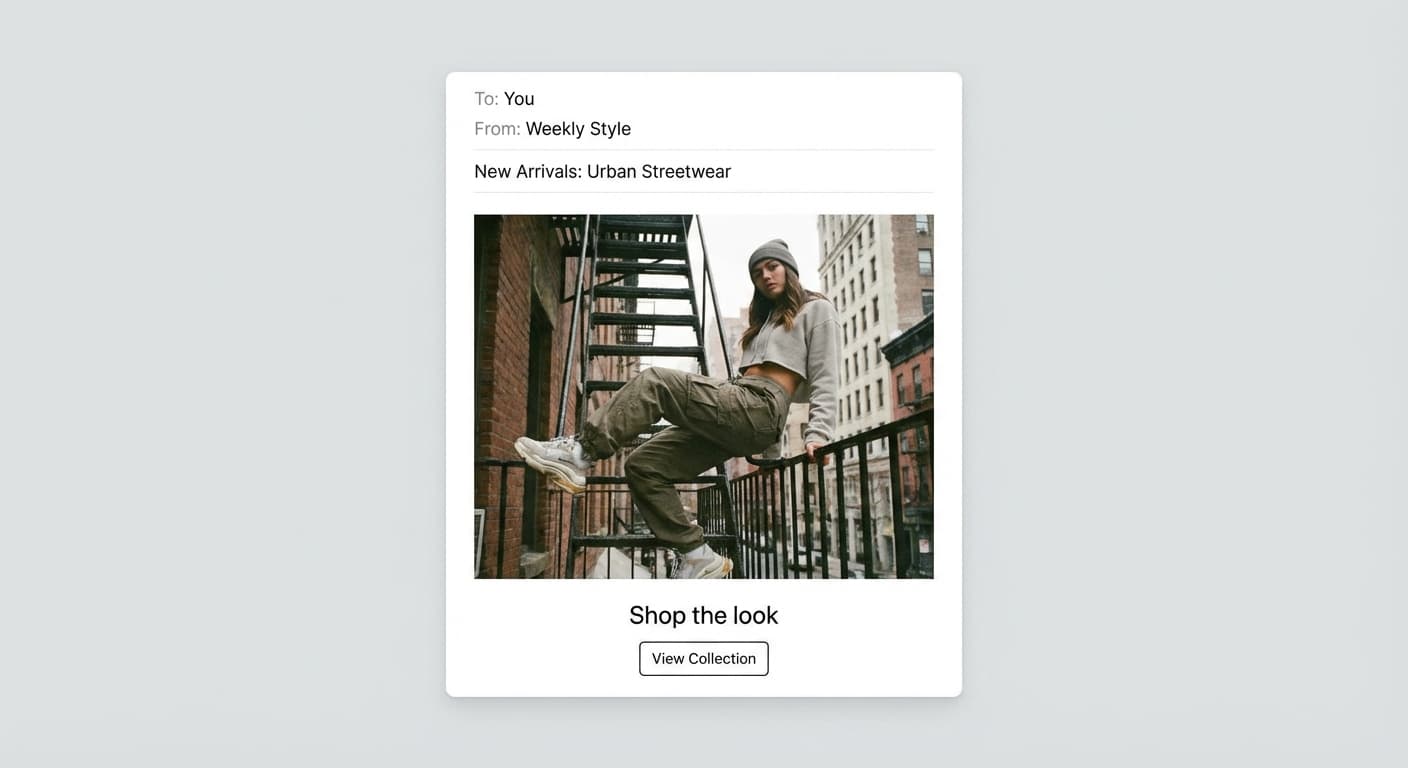
Email-ready dimensions
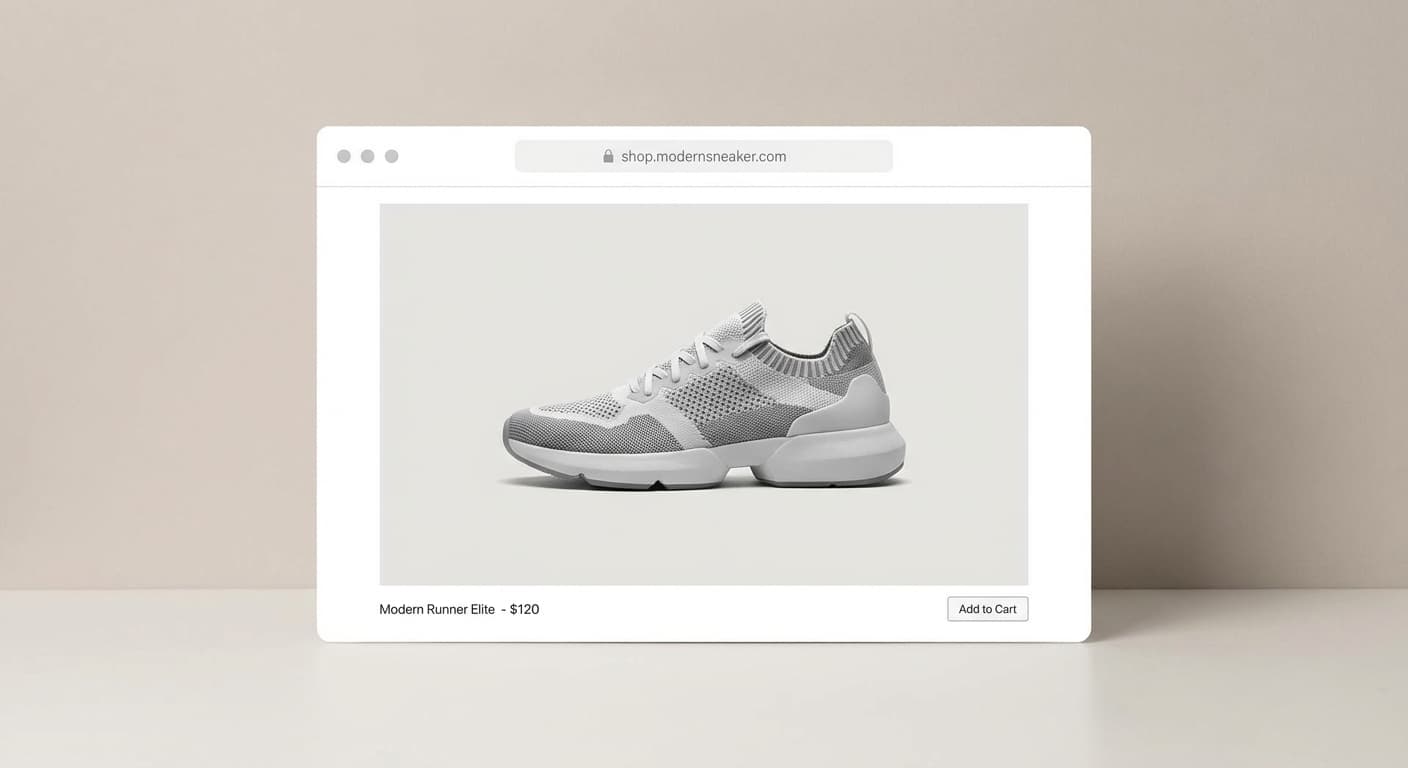
Web placement
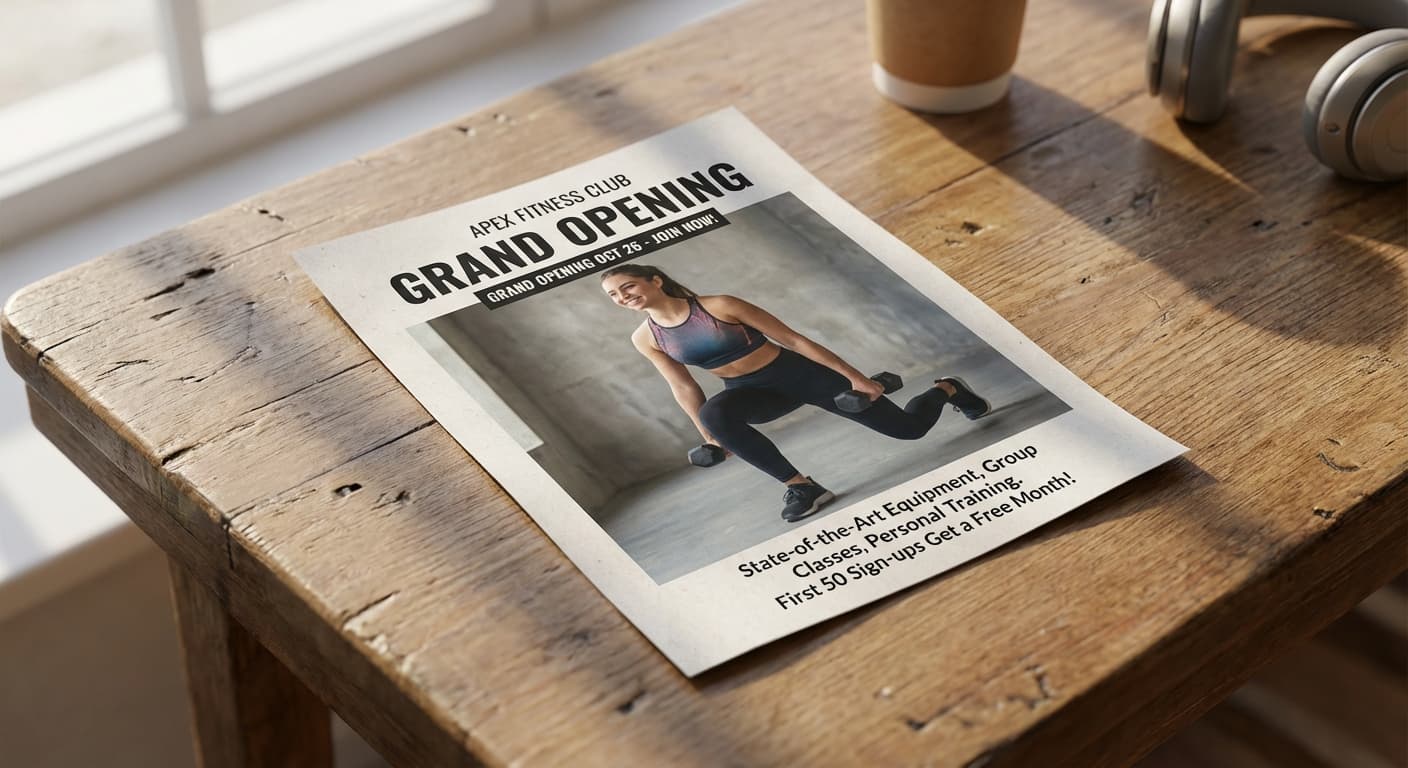
Print layout
What people use it for
- Stories and ReelsPrepare a 1080 × 1920 vertical so the app does not crop your subject into the wrong frame.
- Portrait feed postsUse the full 1080 × 1350 (4:5) canvas — the largest footprint a feed post gets — instead of defaulting to a square.
- Square grid postsCrop to a clean 1080 × 1080 with the subject centered, or pad to keep the whole image.
- Profile picturesCreate an exact square crop and preview it as a circle, the way Instagram will display it.
Resize an image for Instagram
What it does
- Input
- JPEG, PNG, or WebP image
- Output
- JPG, PNG, or WebP at the Instagram dimensions you request
- How it works
- You name the Instagram placement or its exact dimensions and Made resizes deterministically with Sharp — cover crops to fill the frame, contain pads it so nothing is cut off.
- Access
- Set up the request on this page. You sign in to run it, and each run is priced in credits before you start.
Formats and limits
- Input formats
- JPEG, PNG, WebP
- Output formats
- JPG/JPEG, PNG, WebP
- Dimensions
- 1 to 10,000 pixels on each side
- Fit modes
- Contain, cover, fill, inside; padding color is supported
- Batch behavior
- One image at a time, resized in your browser
Checked against the running tool on 2026-09-03.
Questions about Instagram Image Resizer
What are the current Instagram image sizes?
The working standards are 1080 × 1920 (9:16) for Stories and Reels, 1080 × 1350 (4:5) for portrait feed posts, 1080 × 1080 (1:1) for squares, and 1080 × 566 for landscape posts. Instagram scales everything to 1080 pixels wide, so upload at least that.
Should I crop or pad my photo?
Crop (cover) when the subject is centered and edges are expendable — it fills the frame edge to edge. Pad (contain) when nothing can be lost, such as artwork or text; Made fills the leftover space with a background color you choose.
Why does Instagram make my photo blurry?
Usually because the upload was smaller than 1080 pixels wide or heavily compressed, forcing Instagram to upscale and re-compress it. Resize to the exact target dimensions first so the app has nothing to rescale.
Are Story and Reel dimensions the same?
Yes — both use 1080 × 1920 at 9:16. Keep important content away from the very top and bottom, where the interface overlays usernames, captions, and buttons.
Can I make a circular profile picture preview?
Yes. Made’s resize engine can return a circular PNG crop, so you can check exactly what survives inside Instagram’s round profile frame before you upload.
Can I turn a landscape photo into a Story without cropping it?
Padding works, but the better option is often Image Extender, which generates new scenery above and below the photo so the vertical frame is filled without bars.
More Image Resizer options
More photo fixes
Image Upscaler
Sharpen and enlarge up to 4×
AI Photo Editor
Edit any photo by describing the change
Expand Image
Extend any photo past its edges
Background Remover
A clean transparent cutout in one step
Object Remover
Erase people, cars or clutter
Edit Text
Change the words in any image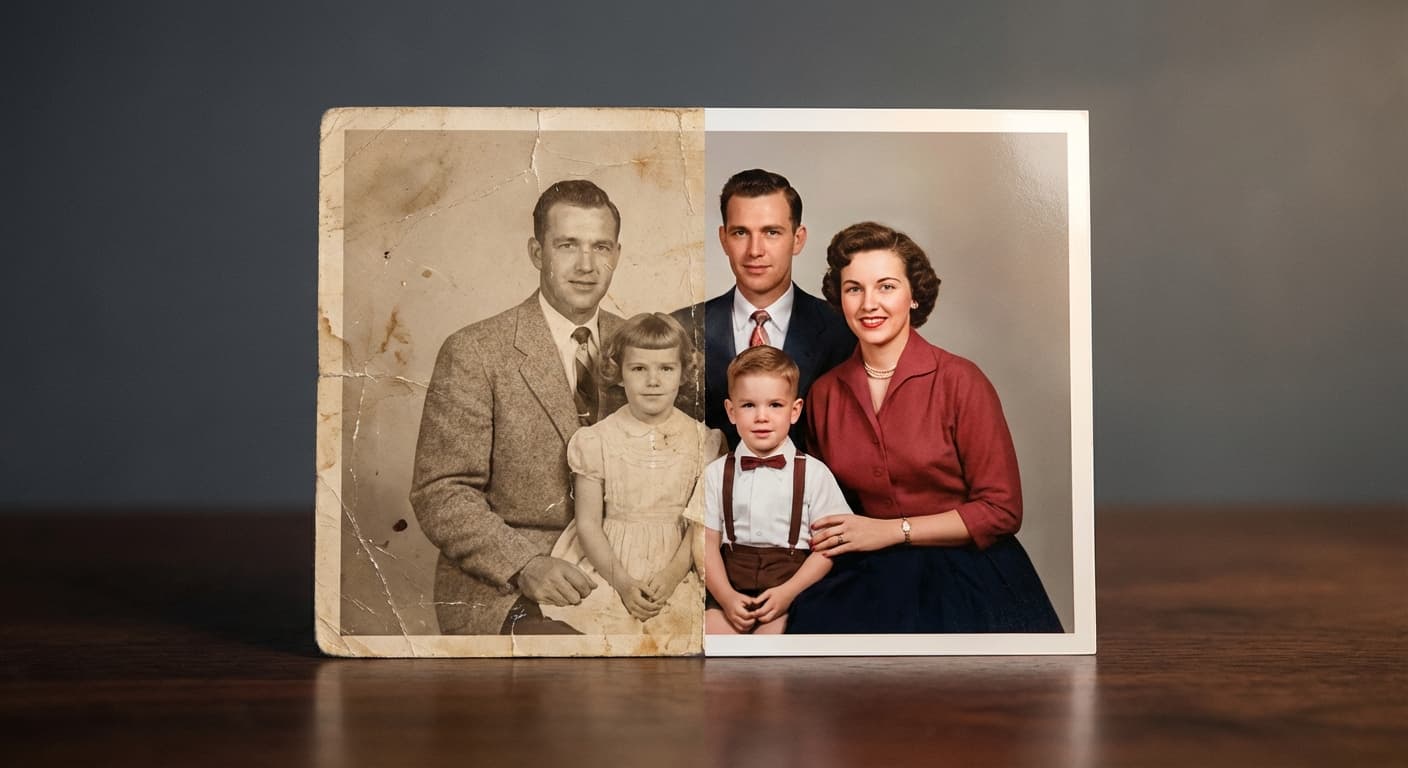
Photo Restoration
Repair scratches, tears and fading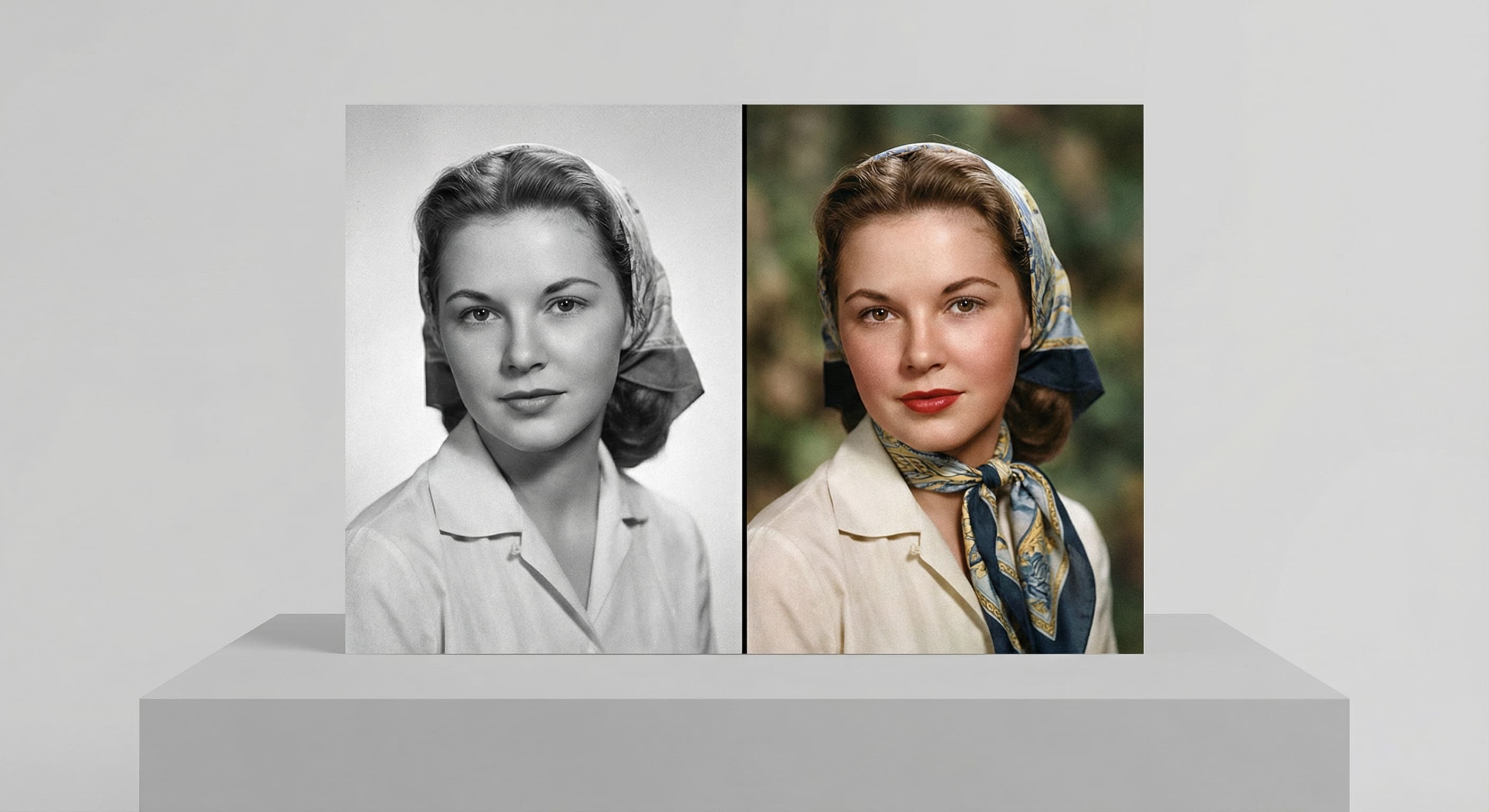
Photo Colorizer
Natural color for black-and-white photos
Unblur Image
Sharpen soft and blurry photos
Text Remover
Erase captions, dates and watermarksRelated models
See what each one makes, then open it in Made.
Tested Instagram Image Resizer workflows
Guides and examples made with this tool.