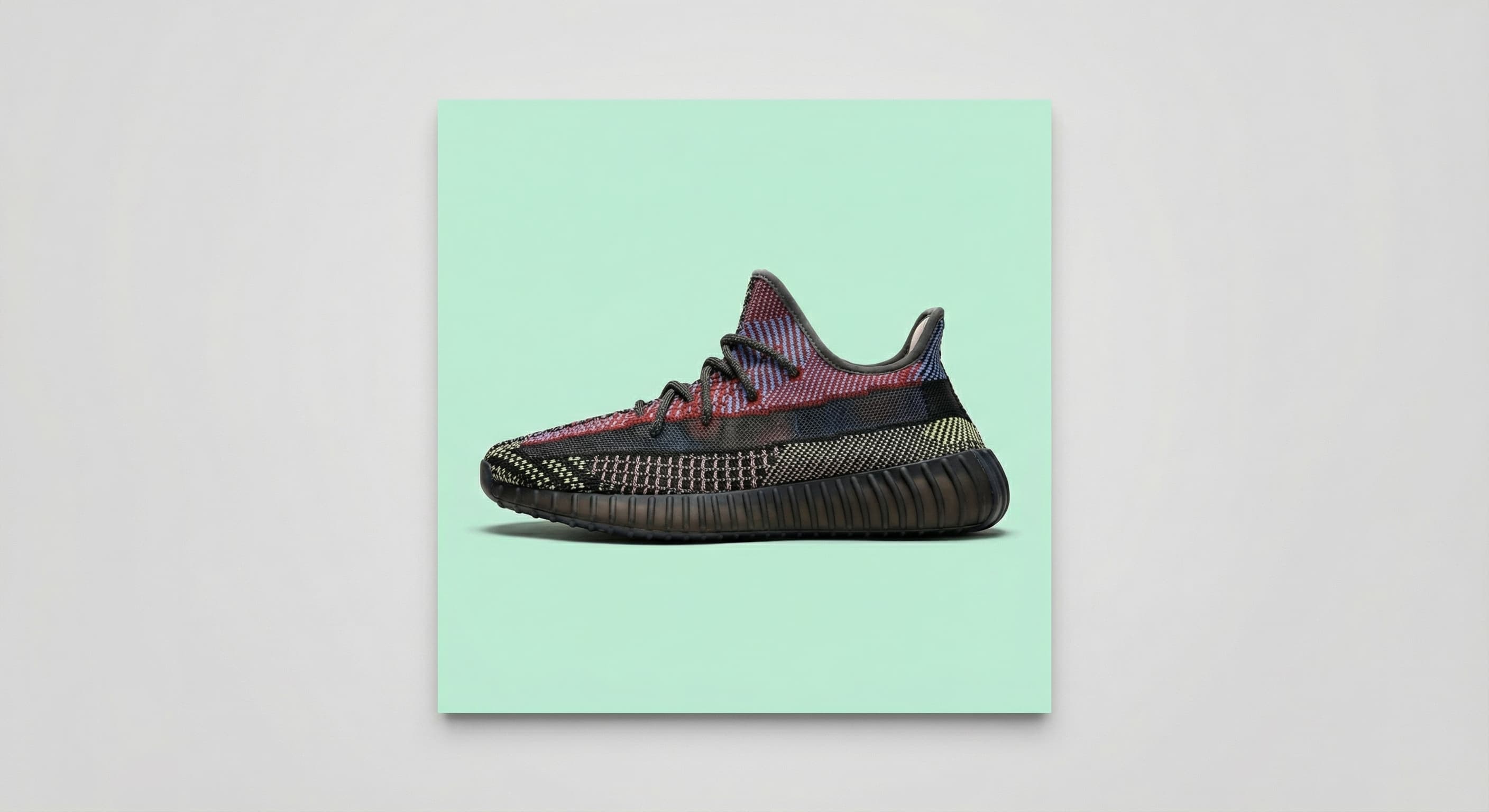
Aspect ratio change
“Expand this square photo to 1080 by 1920 for a story.”
Made workflow
Upload an image, state the dimensions you need, and Made generates new content along the edges so the photo fills the target aspect ratio — turning a square shot into a vertical story or a portrait into a widescreen banner.
What you need to start
JPEG, PNG, or WebP image plus a target width and height (1 to 8,192 pixels per side)
Original results
These examples use media produced for Made. Prompts are included when the production record allows them.
“Expand this square photo to 1080 by 1920 for a story.”
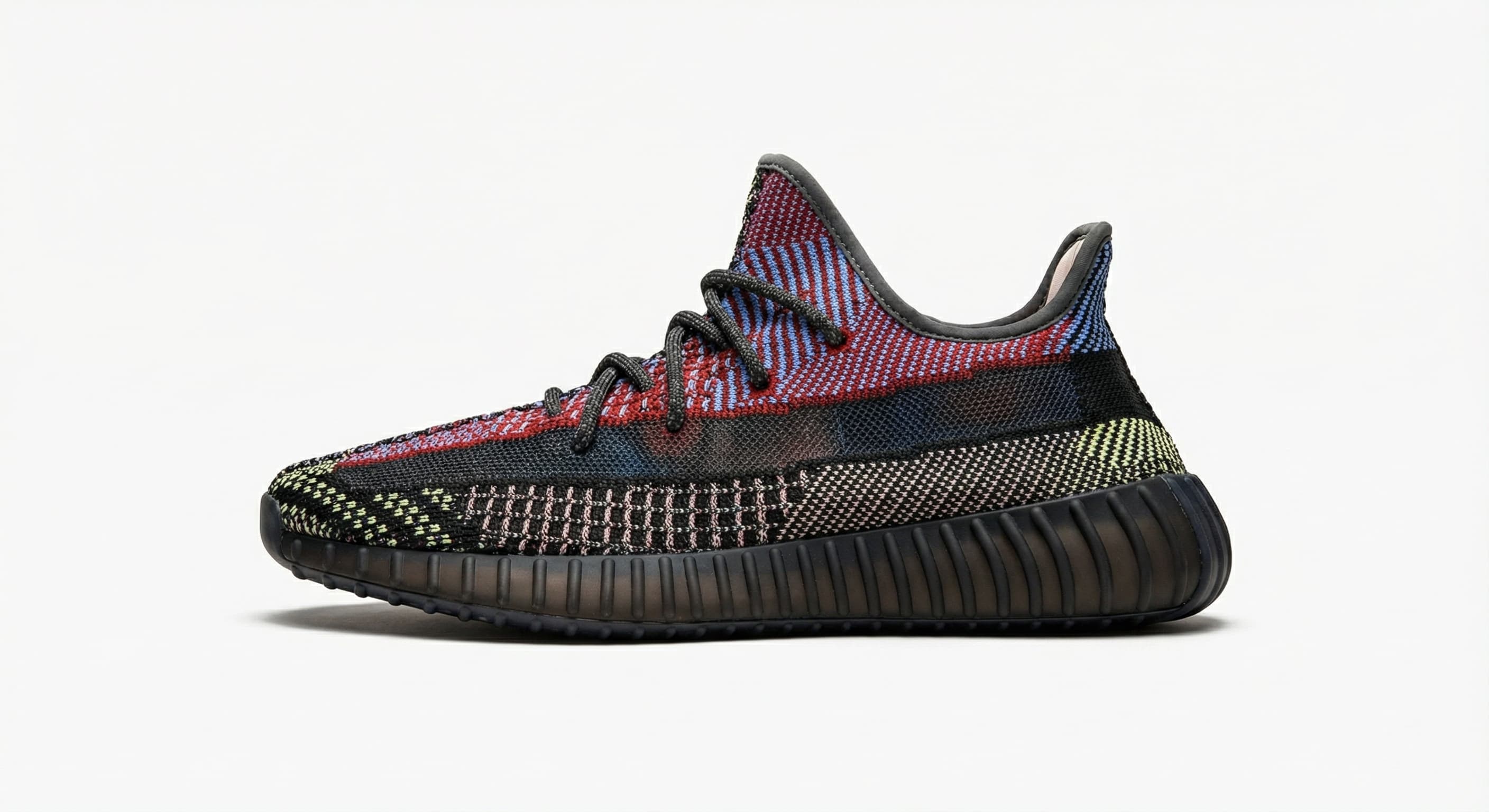
“Extend the image and keep the new edges seamless.”
“Continue the scene beyond the edges of this photo.”
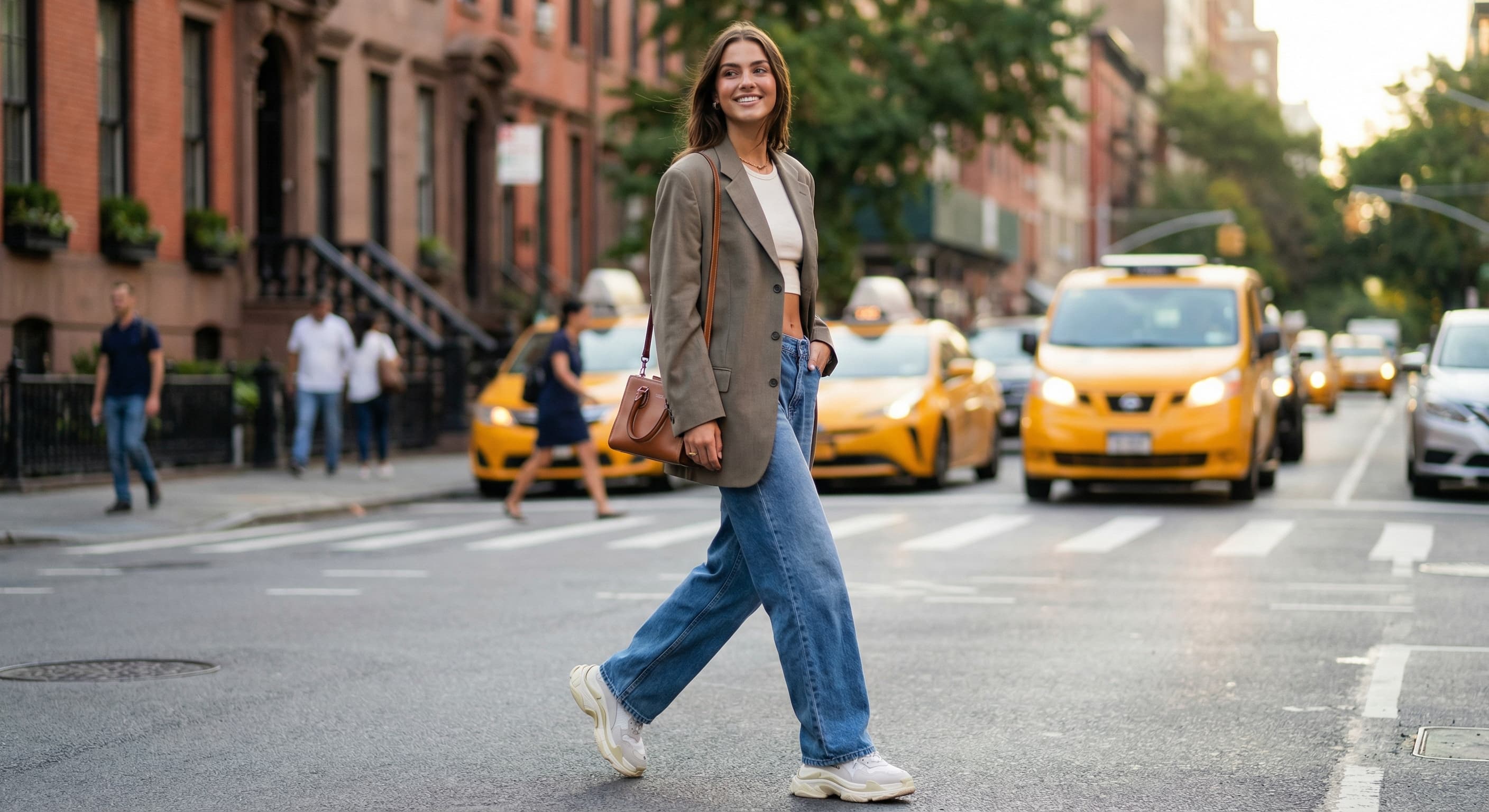
“Make this image vertical for an Instagram story.”
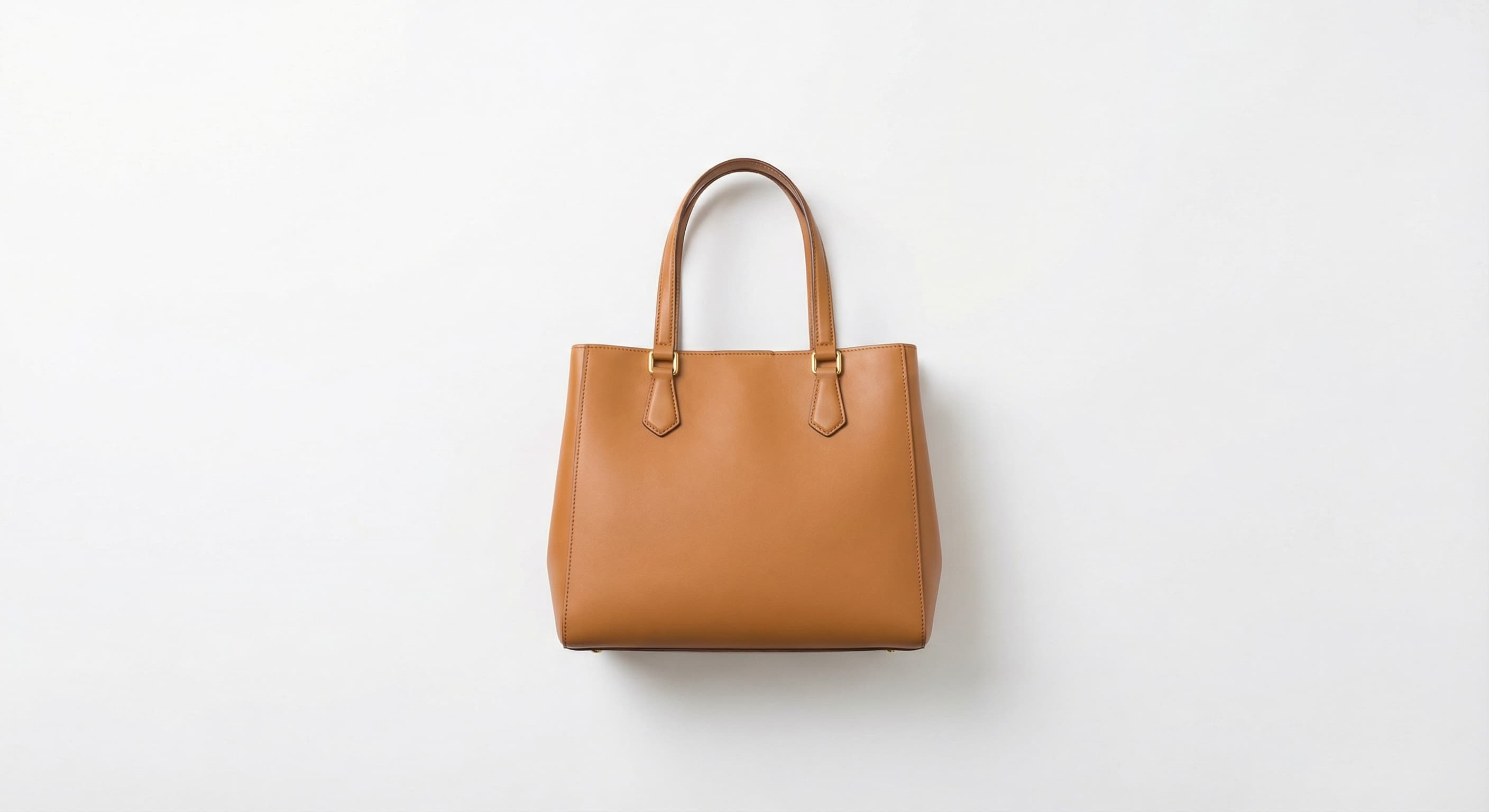
“Expand the background around this product to a wider frame.”
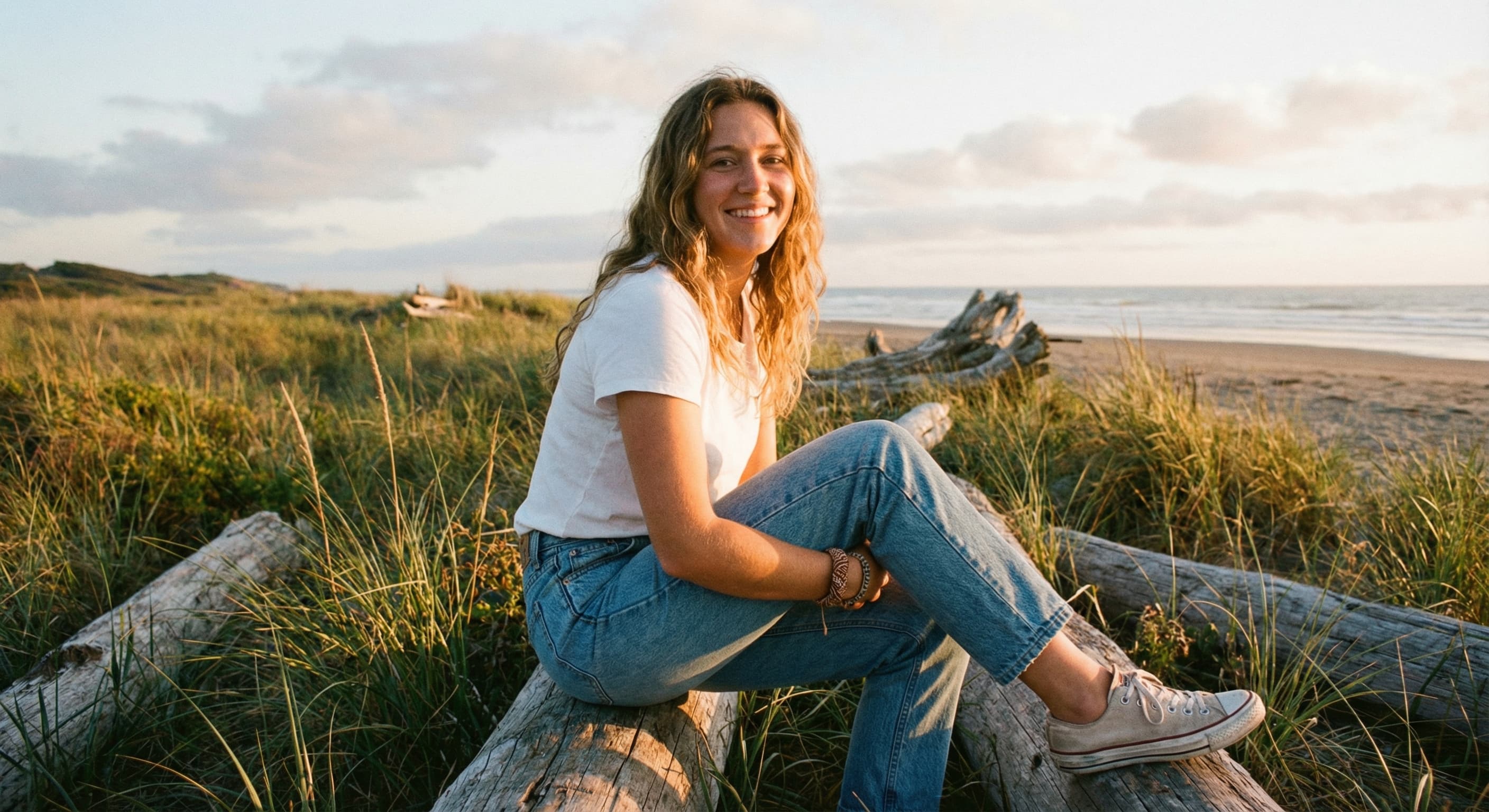
“Extend this image to fit a 16:9 banner layout.”
Turn a square or landscape photo into a 1080 × 1920 vertical without cropping out the subject.
Extend a portrait or square image horizontally to fill a widescreen hero, header, or cover placement.
Generate more of the backdrop around a tightly framed product shot so it fits a wider layout.
Uncrop a photo that was framed too close, adding believable scenery where the frame ended.
Choose a JPEG, PNG, or WebP with a scene that can plausibly continue past its edges.
Give exact dimensions or name the destination, such as “expand this to story format.”
Made works out which direction to expand from the aspect ratios and generates matching content on both sides of that axis.
Inspect where the original ends and the generated area begins, then download the JPEG.
image
Flux Kontext Pro is the lower-cost Kontext workflow for targeted product, portrait, and interior edits where quick iteration matters more than choosing the premium Max tier.
Explore model →image
Google's latest and fastest image AI. State-of-the-art generation with up to 4K resolution and web search grounding for accurate, current visuals.
Explore model →agent
Upload an image or describe the result you need. Made Auto interprets the request, selects an available Made tool, and keeps follow-up edits in one conversation.
Explore model →Upload an image, describe the target dimensions or destination, and choose whether Made should fit, crop, stretch, or pad the result.
Open tool →Upload an image and tell Made what to remove — a person, a car, a coffee cup — or brush a mask over the area. Made finds the object, erases it, and fills the space with a background that matches the scene.
Open tool →Skip the complex menus and toolbars. Edit Images With Text Prompts. Our AI photo editor understands what you want. Type "remove the background" or "make it brighter" and watch it happen instantly.
Open tool →It adds AI-generated content beyond the original borders of a photo — often called uncropping or outpainting — so the image fills a new aspect ratio instead of being cropped or padded with empty space.