The workflow
Use a photo that shows the whole person
Pick a clear photo of one person with the face visible and, ideally, the full body. The preview copies the face, hair, body shape, and outfit from this photo. If the outfit is cut off, the model continues it in the same style, so a full-length photo gives you more control. Use photos of yourself or of people who agreed to it.
Choose the move
Pick a move from the library, such as a dance, a runway walk, or an action combo, or add your own performance. Your clip must be 3–30 seconds, an MP4 or MOV under 64 MB, and between 340 and 3850 pixels on each side. A single performer who stays in frame, with hands and feet visible, is the easiest first test.
Check the preview before animating
The tool quotes and makes a still that puts your person in the move’s first frame: the same pose, camera angle, framing, place, and light as the move. Check the face, outfit, hands, and pose here. If something is wrong, make a new preview; it costs far less than redoing the video.
Animate, then watch the whole clip
Quote the video stage and generate. With your own clip you can keep its original sound. Review the start, the fastest moment, every turn, and the end. Faces, hands, and loose clothing can drift during spins and fast steps even when the first frame looks right.
Recorded Made demonstration
One hallway photo, a posed preview, and the finished dance
This Made-generated person and the rooftop dance from the move library are a recorded September 26, 2026 demonstration. GPT Image 2.5 Flare first made the posed still from the hallway photo; Kling 3 Motion Control Pro then animated it with the dance. Inspect all four files. It is one example, not a measure of how often a result succeeds.
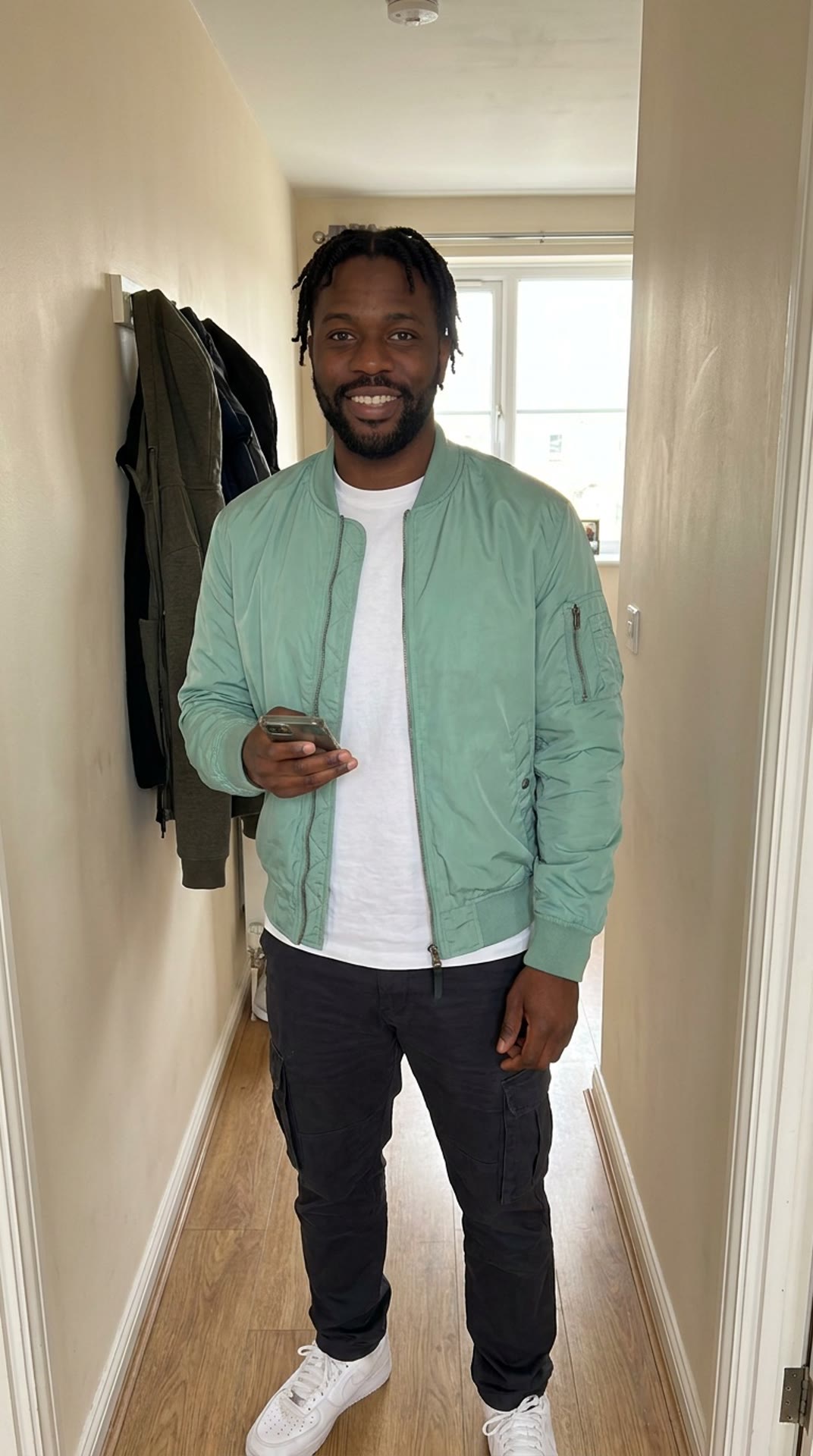
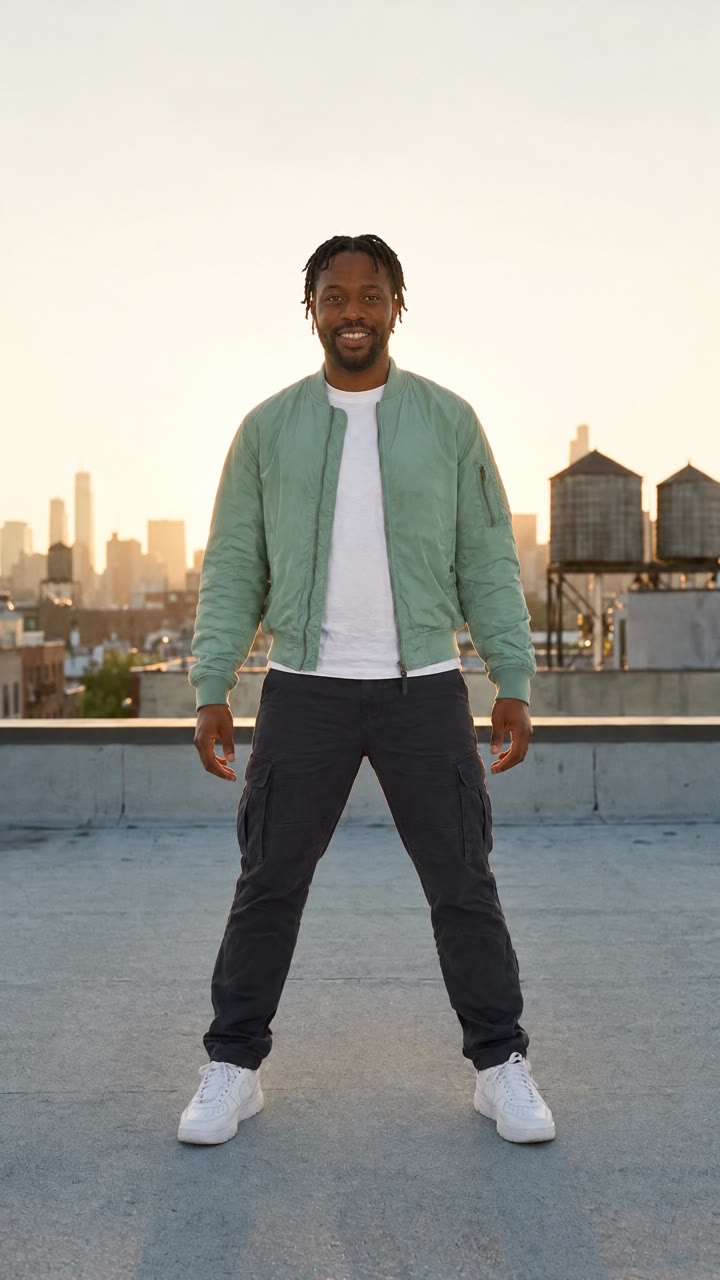
Kling 3 Motion Control Pro · Generated · View the example record and price basis (JSON)
Prompts you can inspect and adapt
Recorded generation prompt
The exact preview prompt the studio used
Made Motion: still.
Image 1 is the first frame of a video. Image 2 is a photo of a person.
Recreate image 1 with the person from image 2 in place of the person in image 1: the same face and identity, hair, skin tone, body shape and age, wearing the outfit from image 2.
They take the exact place and pose of the person in image 1: head, arms, hands, legs and feet, standing or sitting the same way, holding anything the person in image 1 holds. Keep the camera angle, framing, crop, location and lighting of image 1.
If image 2 does not show the whole outfit, continue it naturally in the same style.
Photorealistic, natural skin texture, one person, no text, no borders, no watermark.
Image 1 is the move’s first frame and Image 2 is your photo. The studio builds this prompt for you; you only choose the photo and the move.
Recorded generation prompt
The exact animation prompt
Made Motion: video.
Animate the person in the reference image with the performance in the reference video. Follow every movement, gesture, step and expression with the same timing and pace.
Keep their face, hair, outfit and proportions, and the place and light of the reference image, consistent throughout. Natural motion, coherent hands and face.
The reference image here is the approved preview, not your original photo. This is why checking the preview matters.
How a preview and its motion are priced
One preview image, then the video by the length of the move. Each stage shows its price before it runs.
The preview is one medium-quality image. The video is priced per second of the move, so a 10-second move costs twice a 5-second one.
Price source: Public Motion Transfer catalog · Checked
Each new preview or video is priced again. The studio shows the quote for your photo and move before each stage runs.
What to review before you use the result
| What you see | What to try |
|---|---|
| The preview doesn’t look like the person | Use a sharper, front-facing photo with even light, then make a new preview. Don’t animate a preview you wouldn’t accept as a still. |
| The outfit changes in the preview | Use a photo that shows the whole outfit. When part of it is out of frame, the model has to invent the rest. |
| Hands or limbs blur during fast moves | Choose a move with clearer, slower motion for a first test, and check every spin and crossing. Fast, overlapping limbs are the hardest frames to keep coherent. |
| Your own clip is rejected | Trim it to 3–30 seconds and export it as an H.264 MP4 or MOV under 64 MB, with each side between 340 and 3850 pixels. |
Work with Claude and Made
In Claude, connect Made and ask it to inspect the motion and image-editing catalog before quoting anything. The browser studio runs the preview-then-motion pipeline for you; through the connector, ask the assistant to show you the prepared start frame before it animates.
Conversation starter
Ask your assistant
Use Made to put the person in my attached photo into the dance in my attached video. First make a still that places them in the video’s opening frame and show it to me with its credit quote. After I approve it, inspect the current catalog for Kling 3 Motion Control Pro, quote a video that follows the move’s timing, and generate one result.If the connected client doesn’t expose these models or the upload path, open Video Motion Transfer with the same files. The studio quotes both stages before they run.
Questions about this workflow
Can I use my own dance video?
Yes. Add a 3–30 second MP4 or MOV under 64 MB with one clear performer. You can keep its original sound. Library moves are ready to use without uploading anything.
Does it keep the photo’s background?
No. The preview uses the place, camera angle, and light of the move’s first frame, and puts your person into it. For a video in your own setting, film or choose a move recorded there.
Why are there two charges?
The preview and the video are separate generations. The small preview lets you catch a wrong face or outfit before paying for the motion video.