The workflow
Write down the details that define the character
Choose a clear source image and list the features you will judge: silhouette, head-to-body proportions, palette, hairstyle, shoes, and asymmetric details. For example, state which sleeve has a stripe. A list of visible design constraints is more useful than asking for “perfect consistency” without saying what to preserve.
Generate and review the turnaround
Open Character Turnaround, add the character reference, and request front, three-quarter, side, and back views. Inspect the sheet before animating. The model invents surfaces hidden in the original image; a plausible back view is not evidence of your intended design. Correct those details in a new instruction or an image editor.
Prepare one approved image for motion
Choose or create a single full-body view, not the entire multi-panel sheet. Keep the face, hands, and feet visible. The Motion Transfer studio is built for a photo of one person and prompts for a photorealistic preview; it is not a style-preserving cartoon animation control. For a stylized character, inspect the available image-to-video or motion model through Made’s catalog and test its fit separately.
Review the preview before animating
For a human character, open Motion Transfer with the approved JPG, PNG, or WebP under 10 MB. Pick a library move or add a 3–30 second MP4 or MOV under 64 MB. The tool quotes and generates a still that puts your person in the move’s first frame. Check identity, outfit, and pose there; then quote and animate it. Compare the design at the start, largest turn, and end of the video.
Recorded Made demonstration
A reference photo, a posed preview, and the finished move
This Made-generated person and rooftop dance are a recorded September 26, 2026 demonstration of the current Motion Transfer workflow. GPT Image 2.5 Flare first made the posed still; Kling 3 Motion Control Pro then animated it. Inspect all four files. This example was not generated from the turnaround recipe below and does not measure consistency across a series of clips.
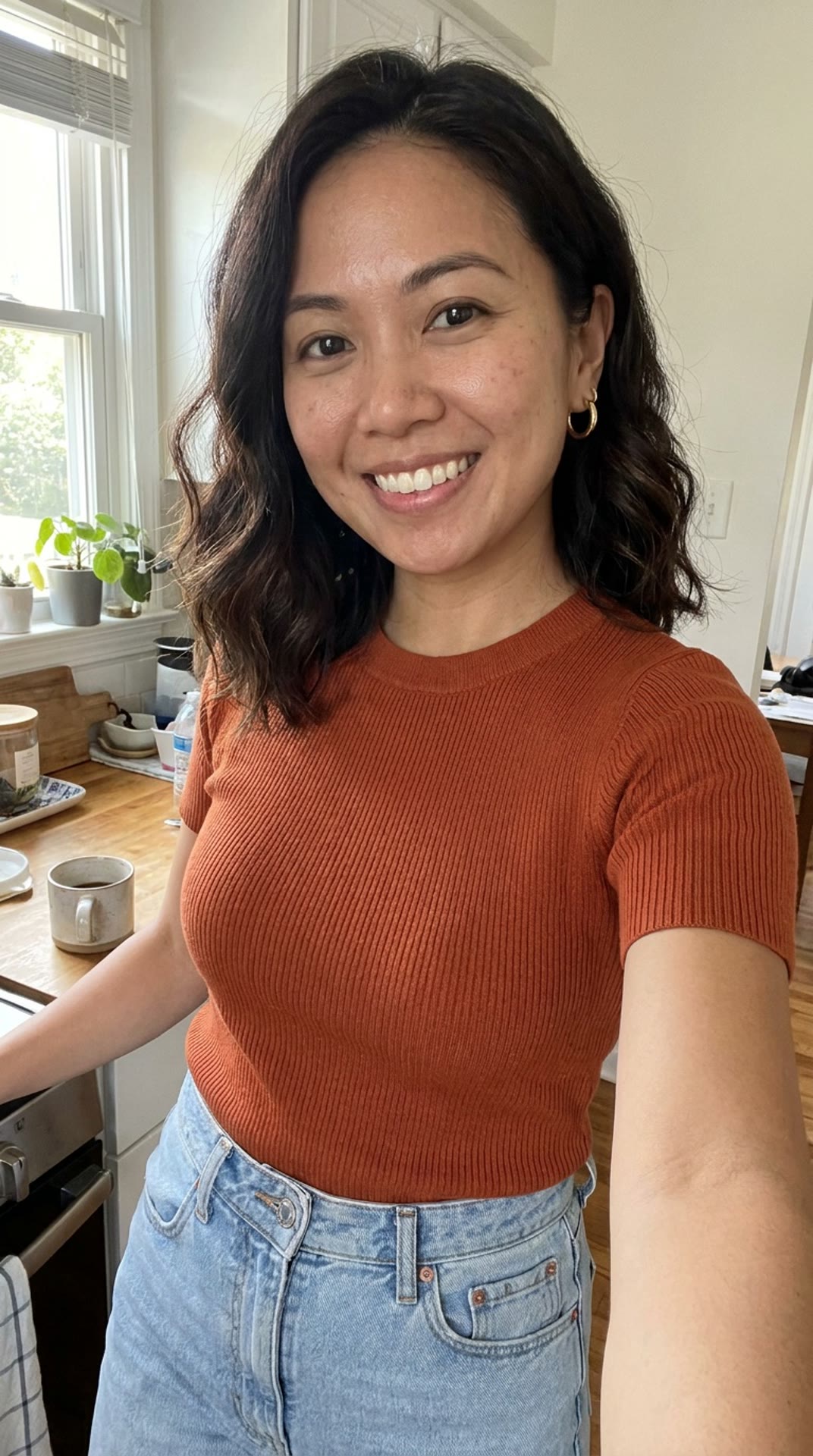
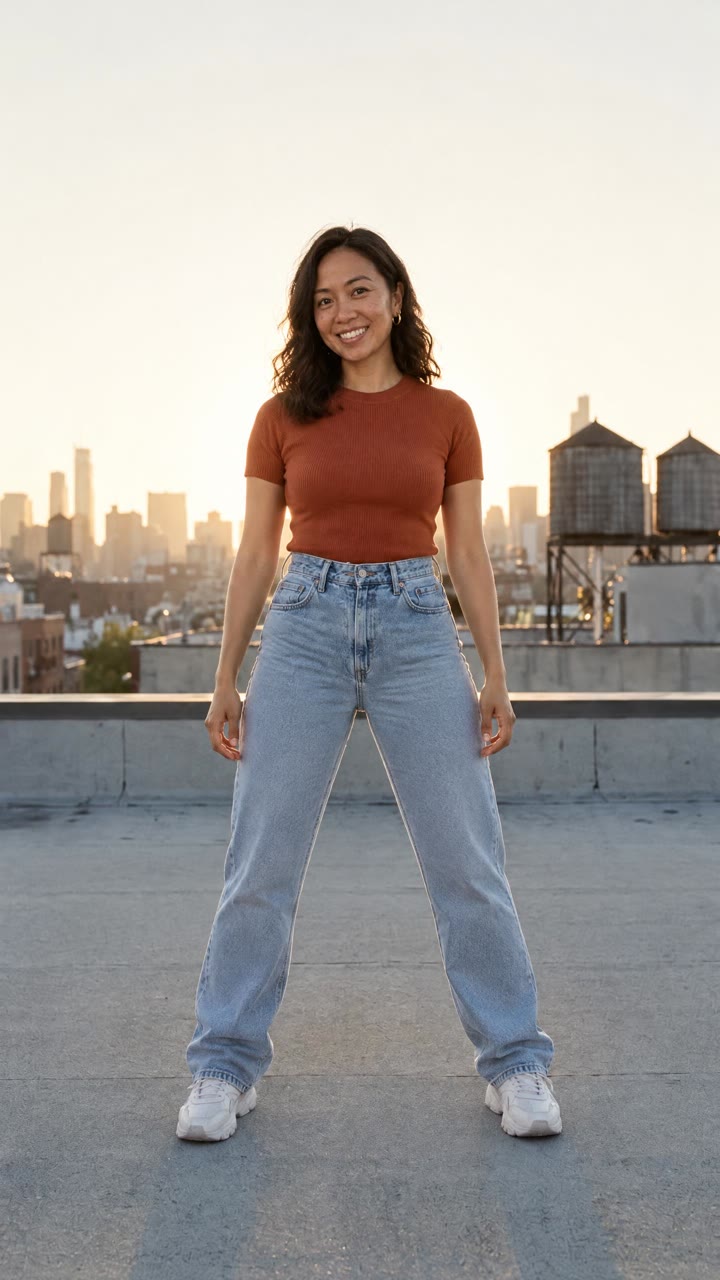
Kling 3 Motion Control Pro · Generated · View the example record and price basis (JSON)
Prompts you can inspect and adapt
Prompt recipe to adapt
Build a reviewable turnaround
Create a character turnaround from this reference: front, three-quarter, side, and back views, full body, spaced apart on a plain light-gray background. Keep the same head-to-body proportions, silhouette, face, hairstyle, outfit, shoes, materials, and color palette in every view. Use a neutral standing pose and even lighting. The left sleeve has one white stripe; the right sleeve has none. No props, no text, no extra character designs.Replace the sleeve detail with the real asymmetric features of your design. Hidden sides are generated interpretations that need your approval.
Recorded generation prompt
The exact animation prompt used by the studio
Made Motion: video.
Animate the person in the reference image with the performance in the reference video. Follow every movement, gesture, step and expression with the same timing and pace.
Keep their face, hair, outfit and proportions, and the place and light of the reference image, consistent throughout. Natural motion, coherent hands and face.
The reference image in this instruction is the generated preview, after the person has been placed into the source move. The studio builds this prompt automatically.
Preview plus five-second motion: 89 credits
5-credit preview + 5 seconds × 16.8 credits/second = 89 credits
On October 14, 2026, the live Motion Transfer catalog returned a 5-credit medium-quality preview at 1440 × 2560 with two reference images and 84 credits for five seconds of motion. One preview plus one video therefore totals 89 credits. This is a dated estimate, not the historical bill for the example.
Price source: Public Motion Transfer catalog · Observed
The turnaround and any design revisions are separate image-generation jobs with their own model and settings. Get those quotes separately rather than treating 89 credits as the full design-to-video workflow. The Motion Transfer studio quotes its preview and video stages before they run. Repeating either stage consumes its quoted credits again.
What to review before you use the result
| What you see | What to try |
|---|---|
| The back view invents costume details | Specify what the back should contain and compare it against the front. If a detail matters for modeling or production, draw or annotate it explicitly before making more views. |
| Several figures appear in the animation | Use a single character view as the motion reference. Keep the turnaround sheet as a design-review document rather than feeding its whole multi-panel layout into the one-image motion input. |
| The face or costume changes during a turn | Use a clearer reference, reduce the first test’s motion complexity, and review extreme poses. Fine identity details and occluded features can drift even when the starting frame is convincing. |
| The preview changes a stylized design | The browser studio’s preview prompt is photorealistic and person-focused. For a cartoon or nonhuman design, choose a suitable model from the image-to-video catalog and review a small test instead of assuming this studio preserves that style. |
Work with Claude and Made
Connect Made in Claude to separate the design and video steps. Ask the assistant to quote the turnaround first, show it for review, then inspect a suitable motion model for one approved view. For the browser’s person workflow, include its posed preview before animation. Use actual returned asset identifiers instead of describing a previous result from memory.
Conversation starter
Ask your assistant
Use Made to create a turnaround of my attached character with front, three-quarter, side, and back views. Inspect the image-editing catalog and quote that step first. After I review the design, prepare one approved full-body view. Inspect the current motion or image-to-video catalog for a model suited to this character’s style and quote a five-second test. Keep the approved reference asset attached to the video request. Show me any newly prepared start frame before animating it.Choose tools and input fields from the connected catalog. A multi-step conversation does not make a trained identity model; review the actual reference and video at each stage.
Questions about this workflow
Should I upload the whole turnaround to Motion Transfer?
Use one approved view of the person. The studio places that person into a move’s first frame before animation. Keep the sheet for checking design details; use the model catalog to choose a suitable path for stylized or nonhuman characters.
Is a generated turnaround an exact modeling blueprint?
No. It is a visual reference with generated interpretations of unseen surfaces. Lock dimensions, proportions, and construction details in your modeling or drawing workflow when exactness matters.
Does the reference guarantee the same face in every video?
No. It gives the model a shared visual anchor. Pose, occlusion, lighting, and fine details can still vary, so compare all clips to the approved design before using them together.