The workflow
Record a clear, continuous performance
Prop up the camera and keep the outfit visible. A full-body shot gives the model useful context for hems, sleeves, and shoes. Avoid starting with a hand or prop covering most of the clothing. The source can be up to 60 seconds, while the section re-dressed in one run is at most 10 seconds.
Pick a small set of distinct looks
Choose ready-made looks, write a short outfit description, or add a clothing photo. Start with three visually different silhouettes or colors so each transition reads clearly. A text look is limited to 160 characters; a photo must be JPG, PNG, or WebP under 10 MB.
Set the range and change speed
Drag the filmstrip to choose the part that changes. Select a pace and choose whether your original outfit stays in the rotation. Pace is fitted to whole video frames, so the achieved changes per second can differ from the named speed on a 24 fps source. Inspect the displayed plan and price for your clip.
Generate, watch, and download
Read the quote before starting. Keep the page available while the browser rebuilds the video. Watch for unstable garment edges, hands crossing clothes, missing frames, and jumps between outfits. Check the downloaded video and source audio; Quick Change changes clothing, not your music timing.
Recorded Made demonstration
Three looks from the same living-room take
This real Quick Change example was generated on October 3, 2026 from a Made-generated sample clip. It uses trench coat, red slip dress, and leather jacket, with the original outfit included. The recorded 24 fps plan changes frames 18–138: 91 generated frames and three try-ons. Its achieved pace is 12 changes per second.
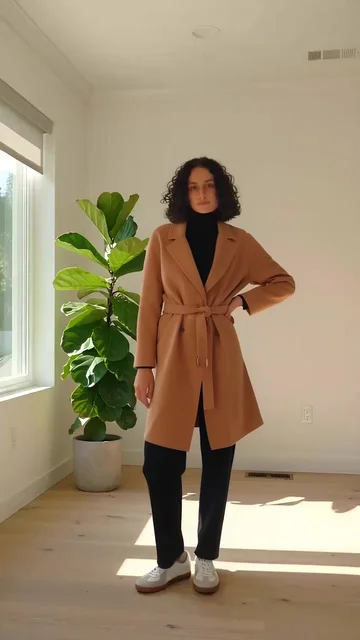
Ideogram V4.5 Edit · Generated · View the example record and price basis (JSON)
Prompts you can inspect and adapt
Recorded looks
Three ready-to-use outfit descriptions
1. A belted camel trench coat over a black turtleneck and black tailored trousers.
2. A red satin midi slip dress with thin straps.
3. A black leather biker jacket over a plain white t-shirt and black straight-leg jeans.
Add these as separate looks, or choose Trench coat, Red slip dress, and Leather jacket from the presets. The tool builds the frame-edit instructions for you.
Recorded generation prompt
What the tool asked for the trench try-on
Change only the outfit: the person now wears a belted camel trench coat over a black turtleneck and black tailored trousers. Keep the face, head angle, hair, pose, hands, legs, shoes, body shape, the room, the lighting and the camera framing exactly the same.This is the actual first-stage instruction. The later frame edits use the generated outfit crop as their reference; the tool runs those steps automatically.
The recorded plan: a 100-credit estimate
3 try-ons × 3 credits + 91 changed frames × 1 credit = 100 credits
On October 14, 2026, the live catalog returned 3 credits for each low-quality try-on and 1 credit for each very-low-quality frame edit. Applying those rates to the recorded example’s three looks and 91 generated frames gives 100 credits. This is a dated Made estimate, not the provider bill paid when the demonstration was made.
Price source: Public Quick Change catalog · Observed
A faster pace does not simply multiply the price by changes per second. Price follows the exact frame plan: source frame rate, selected range, original-outfit rotation, and number of looks all matter. Shorten the changed stretch or include your original outfit to reduce generated frames. The studio quotes the actual run before it starts.
What to review before you use the result
| What you see | What to try |
|---|---|
| The pacing is different from the button label | Outfit changes must land on complete frames. At 24 fps, a two-frame beat produces 12 changes per second. Use the preview and quoted plan to judge your actual source. |
| The outfit is hard to recognize | Choose more distinct colors or a slower pace. Keep descriptions focused on garments, material, and fit rather than asking for new poses or scenery. |
| Clothes flicker around hands or hair | Test a shorter, clearer part of the take with less overlap. The model edits each frame, so fine edges and occluded details still need review even when most surrounding pixels stay unchanged. |
| You want one new outfit for the entire shot | Use Video Object Replacement with “Change an outfit” for a continuous generative clothing edit. Quick Change is built for rotating looks over a selected stretch. |
Work with Claude and Made
Use Claude to plan your looks, then run the frame sequence in Quick Change. The browser tool owns the filmstrip, frame extraction, look rotation, and final video assembly. Generating one edited image through MCP does not reproduce that sequence.
Conversation starter
Ask your assistant
Help me plan a Quick Change video from one full-body take. Write three distinct outfit descriptions, each under 160 characters, preserving my shoes. Make the silhouettes and colors easy to distinguish at a fast pace. I will add the looks to Made Quick Change and review its frame-based quote before generating.For a separate still-photo try-on followed by a newly generated clip, the Made connector supports image and video generation. That is a different workflow from re-dressing the frames of your existing take.
Questions about this workflow
Does every frame in a 60-second upload get edited?
No. Choose a stretch from 0.5 to 10 seconds for changes. Frames outside that stretch remain from the source, and frames assigned to your original outfit do not require a clothing edit.
Can I use a photo of my own clothing?
Yes. Add a clear clothing photo as a look. A product shot, flat lay, or worn garment reference can specify the clothes; inspect the result for fit, texture, and small design differences.
Does it preserve every pixel outside the clothes?
Ideogram is designed to return unedited pixels unchanged, and Quick Change asks it to edit only clothes. The model still decides which area to edit. Review face, hair, hands, shoes, and background instead of treating the prompt as a pixel-lock guarantee.