The workflow
Add clean product photos
Click Product and upload up to 3 photos of the same product, as JPG, PNG or WebP under 16 MB, or use Import a product link to bring them in from your store page. Both need a Made account; you can pick a sample product before signing in. The photos go to the model as @Image1 to @Image3, so a second or third angle can help in moves that show the sides, such as Orbit.
Switch to Video and pick a Motion style
Set Output to Video, click the style chip to open Choose a look, and select Motion under Quick styles. Hypermotion bursts ingredients and droplets around the product, then whips the camera around it. Orbit circles the product on a pedestal. Macro glides across its surface, then pulls back to show all of it. Color pop drops it onto a bright backdrop. Typography animates words around it. These styles show no person, so the Avatar slot reads Avatar not used.
Add direction, and words only for Typography
Direction is optional, up to 1,500 characters, and is added to the style’s prompt: a setting, props, or how the clip should end. Only Typography puts words on screen, and only the words you put in double quotes, such as "Cedar" "Fig" "Slow evenings". The other Motion styles allow no words besides the product’s own label.
Set length and resolution, then review the whole clip
Pick 5, 8 or 10 seconds, 480p or 720p, and 1–4 variations. Generate shows the price first; longer clips and 720p cost more. Watch the full clip and pause mid-move: labels, caps and edges can warp during a fast camera move even when the first second looks right.
Recorded Made demonstration
A soda can in a slow-motion citrus burst
This recorded example from September 26, 2026 used the Hypermotion style on the Field Fizz Sparkling Yuzu sample can. It was made with the studio’s own prompt and the same model, Seedance 2.5 reference-to-video at 480p for 5 seconds, run on the provider directly rather than through the browser tool. The clip shown is a web-sized copy. The can is a Made-generated sample with a short label, so it doesn’t show how a real logo or dense fine print holds up, and one clip says nothing about how often a result works.
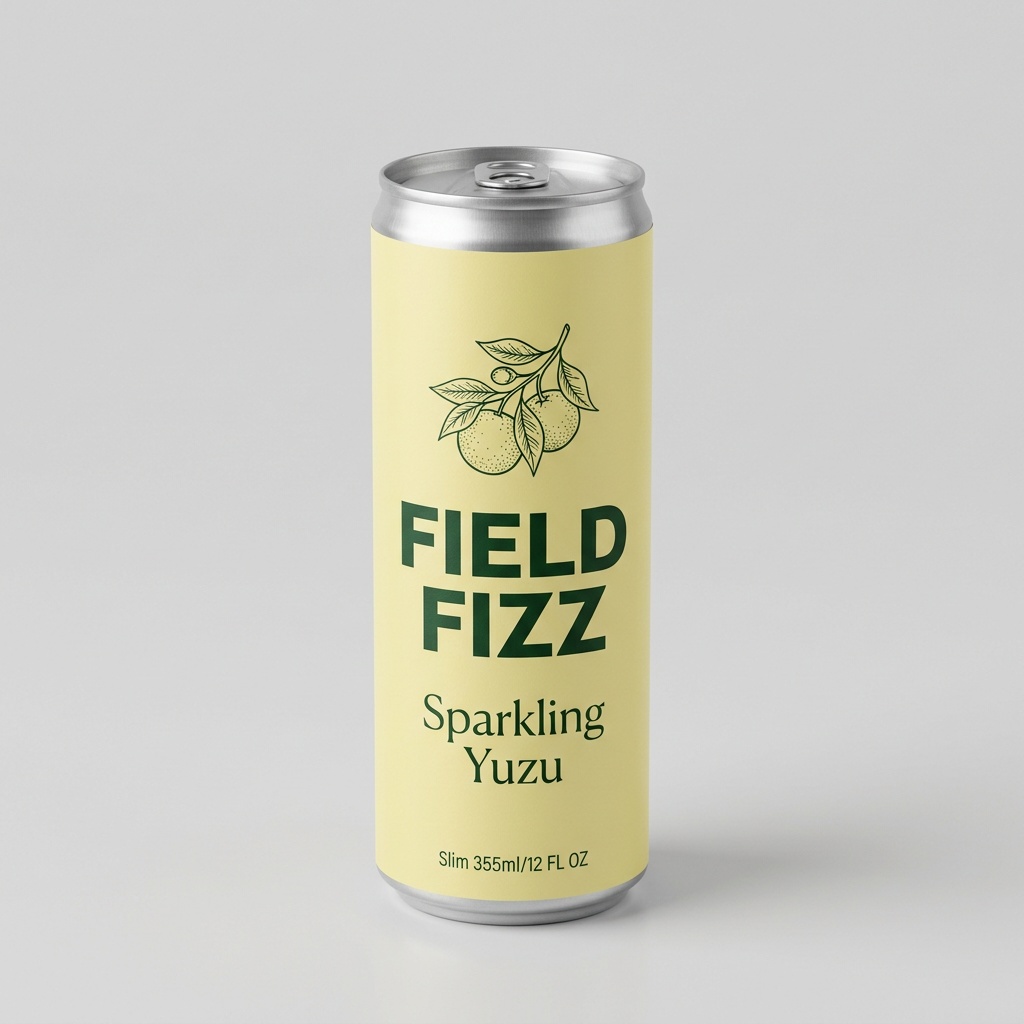
Seedance 2.5 reference-to-video · Generated · View the example record and price basis (JSON)
Prompts you can inspect and adapt
Recorded generation prompt
The exact Hypermotion prompt
The product stands at the center as ingredients and droplets burst around it in slow motion, then the camera whips around it in one fluid move. Glossy, high-energy commercial.
@Image1 is the product. Keep the product exactly as shown: the same shape, proportions, colors, materials, closure and every printed word or label. Never add, remove, or change labels, logos, or text on it, and never add a label to a product that has none.
No words, captions or logos anywhere except the product's own label.
Never invent reviews, ratings, prices, awards, or product claims.
The studio builds this from the style and your photos; you only pick the style. With 2 or 3 photos, the product line reads “@Image1 to @Image3 show the same product from different angles.”
Prompt recipe to adapt
Add a setting and an ending
On wet black slate with a few drops of water around the base. End on a slow push-in to the front label.Type this in the direction box with Hypermotion, Orbit or Macro. It is added after the style’s prompt. Motion styles are written for the product alone; for a person holding it, use a UGC style.
Prompt recipe to adapt
Words for Typography
"Sparkling" "Real yuzu" "Ice cold"Only Typography uses quoted words, animating each phrase in bold type around the product. Keep phrases short, and check the spelling in every frame.
How a product video is priced
By the clip length (5, 8 or 10 seconds) and resolution (480p or 720p), times the number of variations. The total appears on Generate before you run it.
Seedance 2.5 is priced per second, and 720p costs more per second than 480p. Each variation is a separate clip, so four cost four times one.
Price source: Made price sheet · Checked
Signed in, Generate shows the exact quote for your settings and checks your balance before anything starts. 5 seconds at 480p is the default and the lowest-priced setting, so test a style there before a longer or sharper version. Failed generations are refunded, and each new run is priced again.
What to review before you use the result
| What you see | What to try |
|---|---|
| The label warps or letters change mid-move | Try Orbit or Macro, which move more slowly than Hypermotion, use a sharper photo with the label facing the camera, and add a second angle. Check frames in the middle of the move, not only the first and last. |
| A second product or stray objects appear | Add “only one product in frame” and keep props in the direction simple. The prompt guides the model; it doesn’t lock the result. |
| Words appear that you didn’t ask for | Outside Typography, the prompt allows no words besides the product’s own label. Regenerate, and keep quoted phrases out of the direction for other styles. |
| The clip looks soft | Choose 720p instead of 480p. It costs more per second, and Generate shows the new price before you run it. |
Work with Claude and Made
Through the Made connector, Claude can check the catalog for Seedance 2.5 reference-to-video, attach your product photo and run the same kind of prompt. The connector doesn’t include Marketing Studio’s Motion presets or sample products, so paste the style’s wording or adapt the recorded prompt above.
Conversation starter
Ask your assistant
Use Made to make a 5-second vertical product video from my attached photo. Check the catalog for Seedance 2.5 reference-to-video and use 480p at 9:16. Prompt: the product stands at the center as ingredients and droplets burst around it in slow motion, then the camera whips around it in one fluid move; glossy, high-energy commercial. @Image1 is the product; keep its shape, colors and every printed word exactly. No words anywhere except the product’s own label. Show me the price first, then make one video and return the link.If the client doesn’t list this model or can’t attach your photo, use Marketing Studio with the same photo; it builds the full prompt for you.
Questions about this workflow
Does the video include a person?
No. Motion styles show the product alone. For a person holding or talking about the product, use a UGC style in the same studio.
Can I add my own text?
Only with Typography: put each word or phrase in double quotes and it is animated around the product. In the other Motion styles, the prompt allows no words besides the product’s own label.
Which settings should I start with?
5 seconds at 480p, the defaults. Check that the style suits your product, then make the 8 or 10 second or 720p version.
Are there more art-directed product videos?
Yes. The Templates tab has 30 Motion templates, such as Splash Rise and Turntable. They make a first frame with Nano Banana Pro, animate it with Seedance 2.5, and offer 5, 8 or 10 seconds at up to 1080p.