Log inUpgrade

HeyGen Video prompts that actually ran

Every prompt below was generated with HeyGen Video in Made, and the output next to it is what came back — not a curated stock image. Copy a prompt as a starting point, then use the guide underneath to adapt it.

Original results

HeyGen Video prompts and their outputs

These examples use media produced for Made. Prompts are included when the production record allows them.

Action and sound

“Phone video held at water level on the end of a wooden dock, 0.5x ultra-wide: a golden retriever sprints down the planks, leaps high off the edge and snaps a tennis ball out of the air before belly-flopping into the lake, a huge splash sprays across the lens, people on the dock scream and cheer, paws thudding on wood and water crashing. Overcast summer afternoon, handheld wobble.”
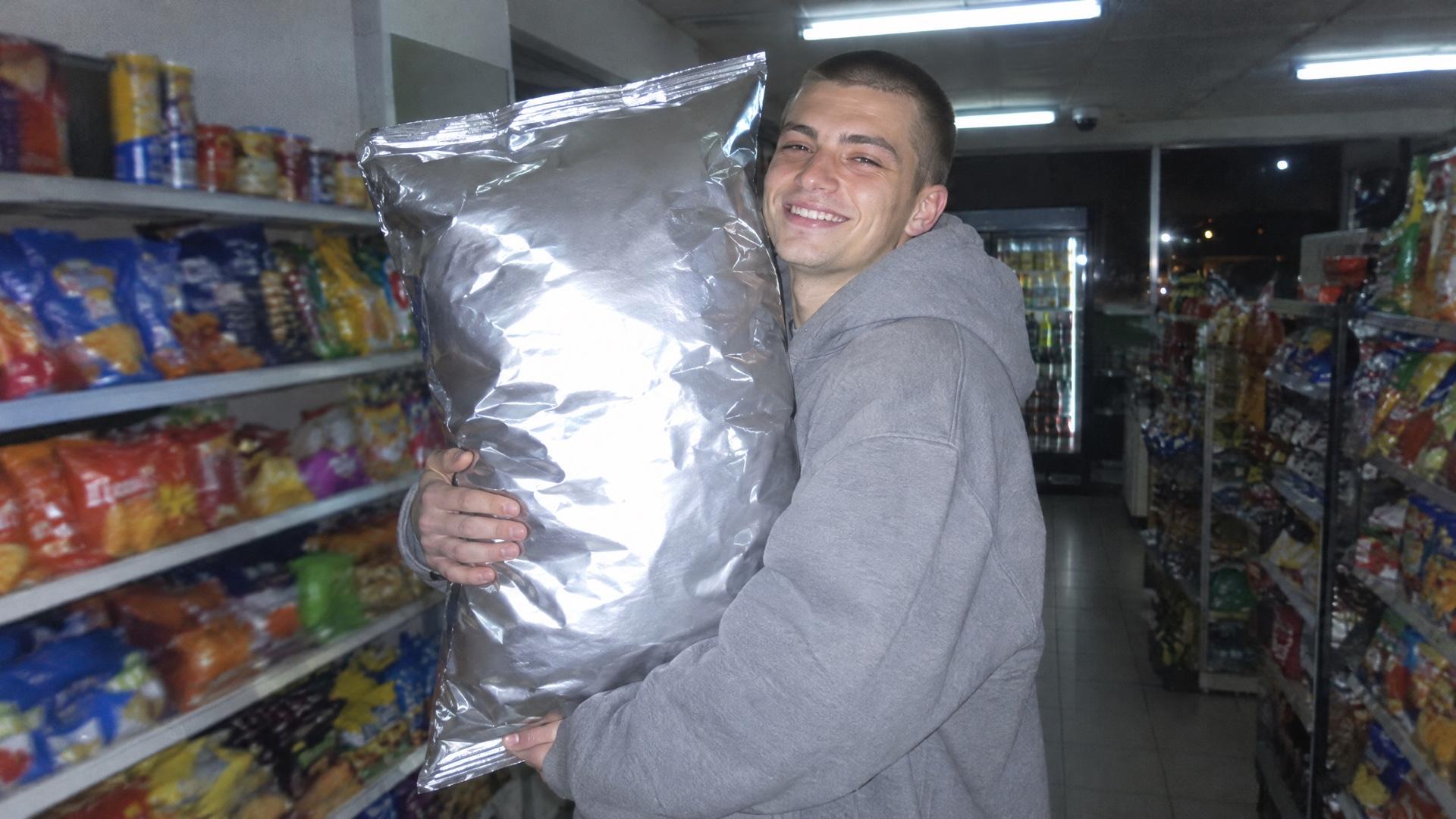
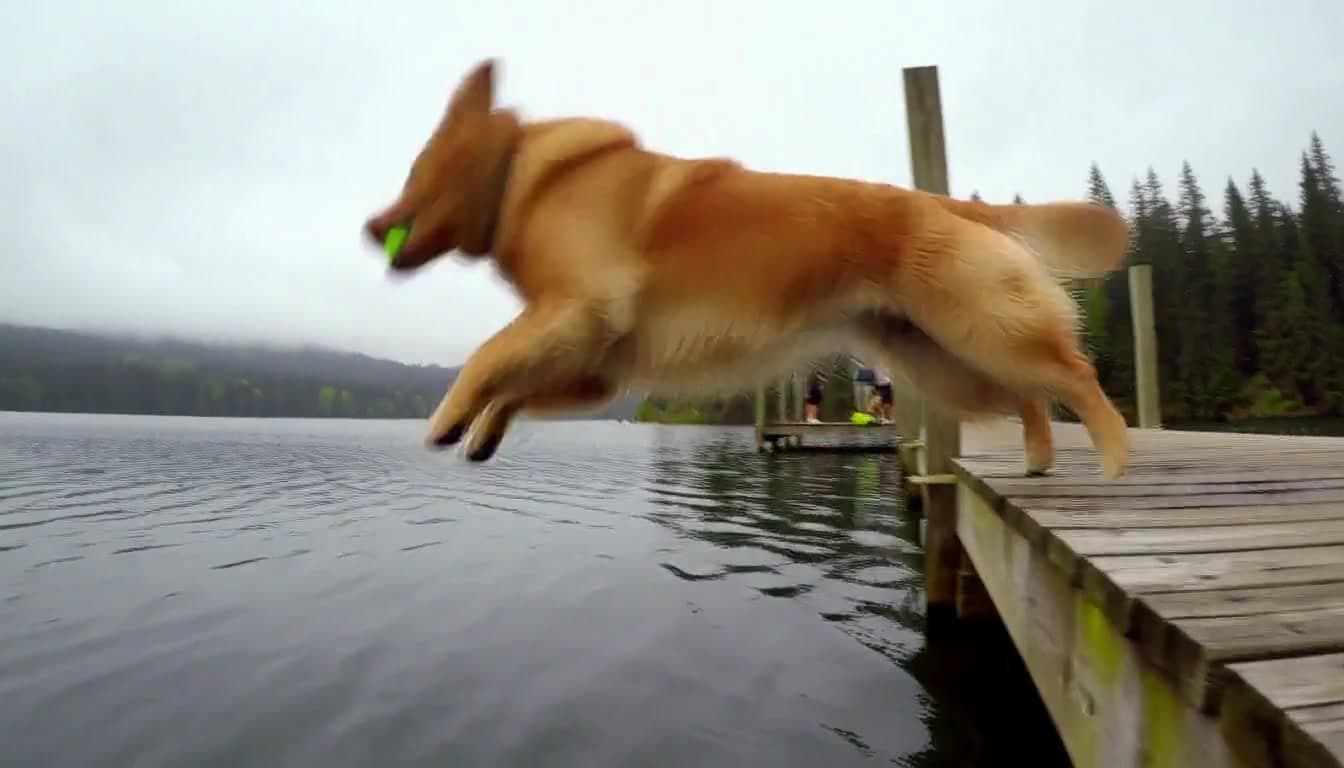
Image-to-video with a spoken line

“He lifts the giant bag of chips and shakes it next to his ear, the chips rattle loudly inside, he raises his eyebrows and says to the camera "bro, it's half air", then cracks up laughing. The bag stays the same huge size the whole time. Store fridges hum, a friend laughs behind the phone. Handheld phone camera with a slight wobble, direct flash.”

10 second scene

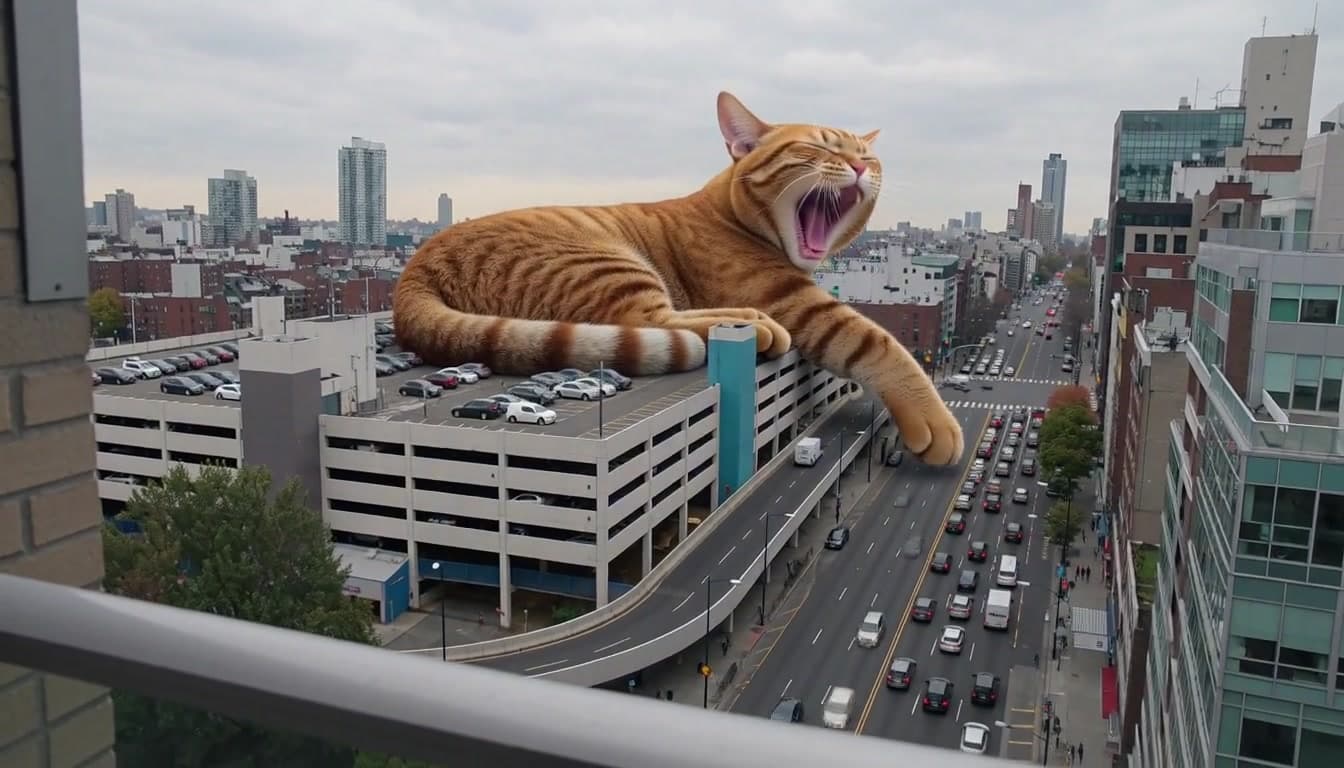
“Shaky phone video filmed from an apartment balcony across the street: a ginger tabby cat the size of a building lies curled up asleep across the roof of a multi-storey parking garage while tiny cars creep around its tail. A delivery van honks, the giant cat's ear twitches, it opens one eye, yawns enormously and slowly stretches a paw over the exit ramp as the person filming whispers "no way, no way". Overcast afternoon, city traffic hum, wind on the mic.”

Flash photo of a guy in a grey hoodie hugging a giant bag of chips in a convenience store at night, the start frame for a HeyGen Video clip

Start-frame control

“Use this image as the opening composition.”

A frame from the HeyGen Video dock clip, the golden retriever mid-leap with the ball in its mouth

Frame from the action clip

“A single frame from the clip above, straight from HeyGen Video.”

A frame from the HeyGen Video giant cat clip, mid-yawn with a paw over the parking garage ramp

Frame from the 10 second scene

“A single frame from the clip above, straight from HeyGen Video.”

How to write a HeyGen Video prompt

  1. 1

    Choose text or image input

    Write a prompt on its own, or add a start image to animate it. HeyGen Video uses the image as the first frame.

  2. 2

    Write what we hear

    Name the sounds, and put any line someone says in quotes. Every clip comes with sound.

  3. 3

    Set format and length

    Pick 21:9, 16:9, 4:3, 1:1, 3:4, or 9:16 for text-to-video, and any length from 5 to 15 seconds.

  4. 4

    Draft at 768p, finish at 1080p or 2K

    Clips start at 768p. Switch to 1080p or 2K for the take you keep.

What HeyGen Video responds well to

Prompt for these jobs

  • Short social clips that need sound: voices, reactions, and room noise come with every video
  • Bringing a phone photo to life while keeping the face and the place from the photo
  • A line someone says, written in quotes in the prompt
  • Drafting at 768p, then finishing the keeper at 1080p or 2K

Check the output for

  • Sound is always on, with no silent mode. Image-to-video takes a first frame only, with no end frame, and follows its framing, so the aspect ratio setting applies to text-to-video only.
  • Props and moves can drift: in one of our image-to-video takes the giant chip bag shrank mid-clip, and a cannonball prompt came back as a front flip. Saying the prop stays the same size fixed the bag on the next takes.
  • 1080p and 2K cost more per second than 480p and 768p, so draft at 768p, the default.

Iteration is cheap here: HeyGen Video costs from 0.2 credits / second, so rewriting a prompt and rerunning it is a normal part of the workflow, not a budget decision. See the full HeyGen Video pricing breakdown.

Questions, answered

HeyGen Video prompts FAQ

Need a specific answer? Contact support

It is HeyGen’s video model, built on MiniMax H3 and post-trained by HeyGen. It turns a prompt or a start image into a 5 to 15 second clip with sound.

More tested prompts across all models live in the prompt library, and the full HeyGen Video capability rundown is on the model page.