The workflow
Build the character
Open AI Influencer, sign in, and stay on Create influencer. Under “Describe who you want”, type a brief of up to 400 characters and tap Generate for three castings, then pick the one to keep shaping. It becomes your live sketch: with Live on, each tile you change (Character type, Gender, Style, Build, Hairstyle, Ethnicity, Age, Skin color, Eye color, Features, Outfit, Vibe) redraws it as one edit of that first sketch, so the face holds. The box becomes “Describe a change” for edits in words, and earlier looks stay in a row underneath to go back to.
Choose the vibe on purpose, then keep them
The Vibe tile also sets the portrait’s expression: Playful draws them mid-laugh, Edgy with a confident stare, Deadpan with a straight face. Later photos start from those pictures, so pick the look your feed needs. Tap Generate to draw the final portrait, from the sketch when there is one; Redraw if it’s off, then Keep them. Give them a name (up to 60 characters) and, optionally, who they are, then Save character. They’re saved to your account for this studio, Made Ads and the other tools.
Make posts and stories
Switch to Make with them and open Photo. Pick a scene group such as Lifestyle, Fashion, Beauty, Fitness or Travel and a scene, or describe your own in up to 300 characters. Choose Their outfit or Dressed for the scene, then a format: Post 2:3 (1024 × 1536), Story 9:16 (1440 × 2560) or Square 1:1 (1024 × 1024). Write the expression and the clothes into your own scenes; otherwise the photo tends to repeat the portrait’s face.
Add clips and trends for Reels
Clip makes a 9:16 still of them in a place, then five silent seconds of one move on Kling 3 Pro: pick What they do and Where, or type your own (a move up to 200 characters). Keep the move and change the place each post, and add music when you post. Trend puts them into a one-person move such as Rooftop groove, Runway walk or Product reveal: a still in the move’s first frame, then Kling 3 Motion Control copies every move. Leave Keep the trend’s sound on to keep its audio.
Recorded Made demonstration
Valentina: one portrait, two posts and a runway trend
Valentina is one of the example characters in the studio’s Explore tab. Her portrait and posts (September 26, 2026) and her trend (October 5) were made with GPT Image 2.5 Flare at medium quality and Kling 3 Motion Control Pro, the studio’s models, called on fal directly with the studio’s prompts as they were then, not through the browser studio. The portrait was drawn in one step from a written look rather than through the live sketch. The posts use the Street style and Fashion week scenes with Dressed for the scene, so each picks its own clothes. No scene named an expression, and every picture keeps the portrait’s poised, closed-mouth look. The runway move has no sound, so the trend is silent. It’s one example, not a measure of how often a face holds.
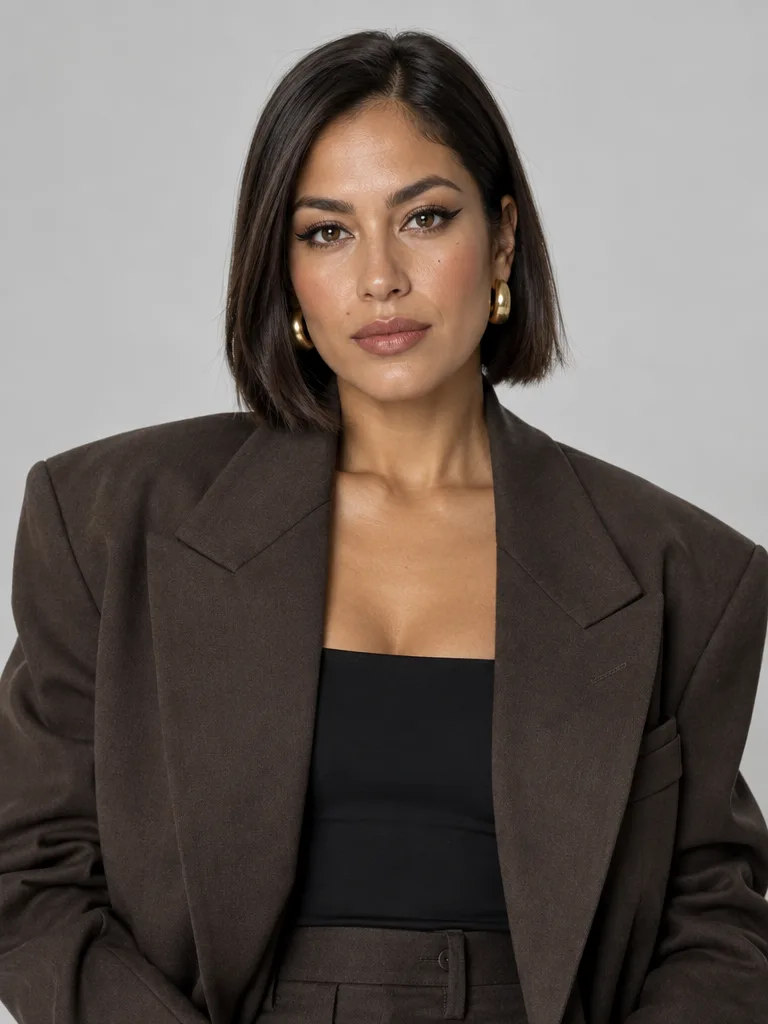
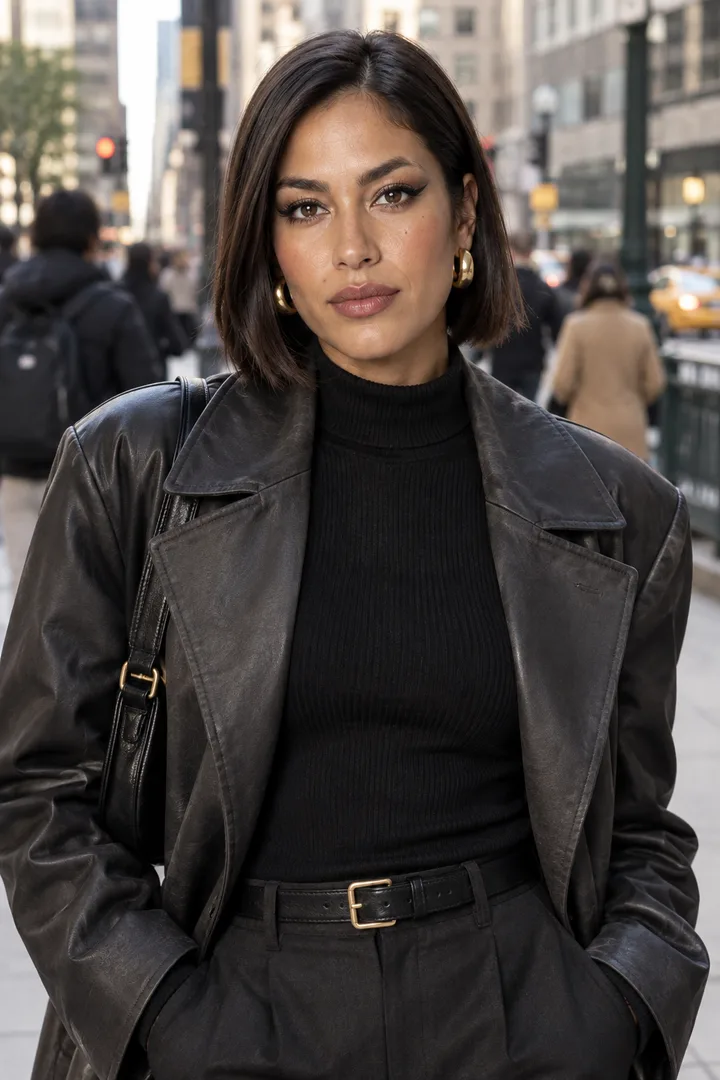
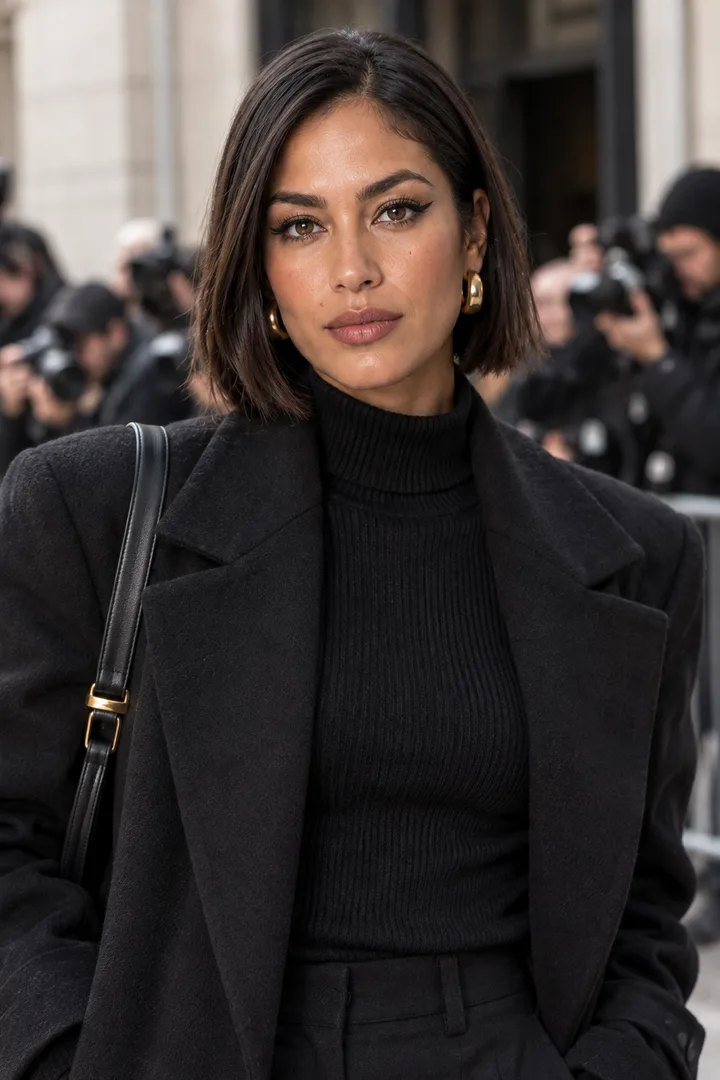
GPT Image 2.5 Flare and Kling 3 Motion Control Pro · Generated · View the example record and price basis (JSON)
Prompts you can inspect and adapt
Recorded generation prompt
The prompt behind the Street style post
AI influencer photo.
Style: Photoreal.
Image 1 is the character reference. Show the exact same person — the same face and facial structure, skin tone and texture, eye color, hair, and every distinctive mark such as freckles, vitiligo, piercings, tattoos or scars — posing on a busy downtown sidewalk in a statement outfit, street-style photo.
Everyday clothing that suits the scene and covers the torso, unless the scene describes the outfit.
Candid social-media photo, natural light, realistic skin texture, shallow depth of field.
One single image, no collage or split screen. No text, no logos, no watermark.
The scene line is the studio’s Street style preset, word for word, and the clothing, finish and last lines are the ones Photo sends today with Dressed for the scene. Today’s prompt opens with “Made AI Influencer: photo.” and names the character. The studio writes all of it; you only pick or type the scene.
Prompt recipe to adapt
Scenes that set the expression
at a corner café table by the window, holding a flat white in both hands and looking up at the camera with a soft closed-mouth smile, morning light, a candid phone photo

walking out of a subway station at night, mid-stride, with a cool, unsmiling look straight into a friend’s camera flash, city lights blurred behind, a real phone photo, no readable signs

in a bright bathroom holding a small unbranded amber serum bottle next to her cheek and laughing, soft window daylight, real skin texture, a still from a phone video
Type one scene at a time into the box under the scene presets. Each names an expression, the light and what they hold, so posts don’t all repeat the portrait’s face. Clothes named in a scene replace their saved outfit. Change “her” to fit your character.
How an AI influencer is priced
Step by step: each sketch and the portrait while you build, then each photo, clip or trend you make. Every Generate button shows its price before it runs.
Sketches are low-quality images and each later change is one edit of the first sketch; a brief makes three castings, priced as three sketches. The portrait and photos are medium quality, and a photo’s price depends on its format and on how many of the character’s pictures go in. A clip is a still plus five seconds of video; a trend is a still plus the move, priced by its length.
Price source: Public AI Influencer price catalog · Checked
Going back to an earlier look reuses that sketch instead of drawing a new one. A step that doesn’t finish isn’t charged. If the price changes between the button and the run, the studio asks before going on.
What to review before you use the result
| What you see | What to try |
|---|---|
| Every post has the same expression | Write the expression into the scene: “a soft closed-mouth smile”, “laughing”, “a cool, unsmiling look”. The portrait’s Vibe carries into photos that don’t say otherwise. |
| The face drifts between posts | Open the character, tap Reference views, then Draw views: full body from every side and the face from three angles. Photos and videos then use the face and front views too, which can raise the price. Compare each post with the portrait before you publish. |
| A sketch or photo is turned down | The studio doesn’t make sexual content or anything involving minors, and the model’s own safety check can decline an edit; a declined step isn’t charged. Try a smaller change or a plainer scene. |
| Text or a logo shows up | The studio asks for no text or logos, but check signs, screens and products anyway. Ask for “no readable signs” and unbranded props, then make the photo again. |
Work with Claude and Made
Every saved character has an id that any Made generation, Claude and other MCP clients can take, so the connector can make more photos of a character you already kept. Designing the character (tiles, castings, the live sketch and the portrait) and the two-step Clip and Trend run in the studio, not through the connector.
Conversation starter
Ask your assistant
Use Made to make three Instagram posts of my saved AI influencer. Here is the example request Made gave me for her: [paste it]. Write three scenes under 300 characters, each naming her expression, outfit and light. Check the current catalog for GPT Image 2.5 Flare, show me the prompts and the price, then generate one 2:3 image per scene with her character attached.In the studio, Use in… → API and MCP shows the character’s id, and Copy an example request copies a request to paste. If the connected client doesn’t expose the model or your character, use Photo in the studio instead.
Questions about this workflow
Do I need to sign in?
Yes, to sketch, keep a character and make photos, clips or trends. You can look through the examples in Explore and the builder’s tiles before signing in, and the settings you picked wait for you after sign-in.
Can the influencer be me?
Yes. Under Create influencer, tap Start from a photo and add a photo of yourself or of someone who agreed, then confirm that when you keep them. Made checks photos for anyone who looks under 18 and for nudity, not for who someone is.
Are the sizes right for Instagram?
Post is 1024 × 1536 (2:3), Story 1440 × 2560 (9:16) and Square 1024 × 1024 (1:1). Instagram can crop a 2:3 post in the feed, so check the framing in its crop step, or use Square for the grid.
Can I use the same character in other tools?
Yes. A kept character is one of your Made characters. On their page, Use in… offers Make an ad, Motion transfer, Outfit swap, Face swap, Effects and Ask the agent, among others.