The workflow
Upload your landscape video
Open AI Reframe and tap “Upload a video”, or drop the file on the page. It takes MP4, MOV, WebM or MKV from 2 seconds to 10 minutes and under 4 GB. The video opens in your browser and isn’t uploaded. The first time you upload on Made, the Media upload agreement asks you to tick two boxes and tap “I agree, continue”. For a video longer than 10 minutes, cut the moments out first with AI Clipper.
Pick 9:16
Under Format, 9:16 is already selected: it’s the shape for Reels, TikTok and Shorts, and the file comes out 1080 × 1920. 4:5 is for feed posts and 1:1 is square. A video that’s already that shape or taller is used whole.
Choose captions
Under Captions, pick Pop (the default), Highlight, Karaoke, Impact, Clean or None. Pop, Highlight, Karaoke and Impact also take a color: Yellow, Blue, Pink or White. Captions come from the transcript of the sound, so a video with no speech gets none.
Generate
Tap Generate. The button shows the price, which follows the video’s length: the only paid step is transcribing the sound, so a video with sound needs you signed in. The bar shows “Finding who’s talking”, then “Rendering”. Keep the tab open: the faces are found and the file is made on your device. With more than one person, the cut lands just before each new speaker’s first word.
Check it and download
Your landscape video plays with the frame drawn on it, beside the vertical cut. Scrub through it and check that every face stays inside the frame, then tap Download 9:16 (on a phone, Download). Signed in, the file is also saved to Assets. Switch to 4:5 or another caption style and Generate again to render a new version without transcribing the sound again.
Recorded Made demonstration
A walk across the frame, kept in a 9:16 crop
This is a real AI Reframe run from November 12, 2026, made by the tool itself in Chrome. The clip is 8 seconds of 16:9 video at 480p that Made generated with Seedance 2.5: Noor, an AI-generated woman, not a real person, strolls along a harbour wall from the left edge of a locked-off shot to the right third. It has no sound track, so the tool had nothing to transcribe and no captions to add. Format was 9:16 and Captions Pop, the tool’s defaults, and the file came back 1080 × 1920. From 1.3 seconds to the end the vertical frame follows her across the shot and she stays inside it, where a crop fixed in the middle would lose her at both ends. For the first 1.3 seconds she is only entering at the left edge, so the tool keeps the whole frame over a blurred copy and then cuts to the crop. At 5 seconds her bag is clipped by the left edge, because the frame centres on her face. Cropped from 480 lines up to 1920, the picture is soft at full size. A first try at a wider shot of the same walk found no face, since hers was too small, and gave the whole frame over a blur.
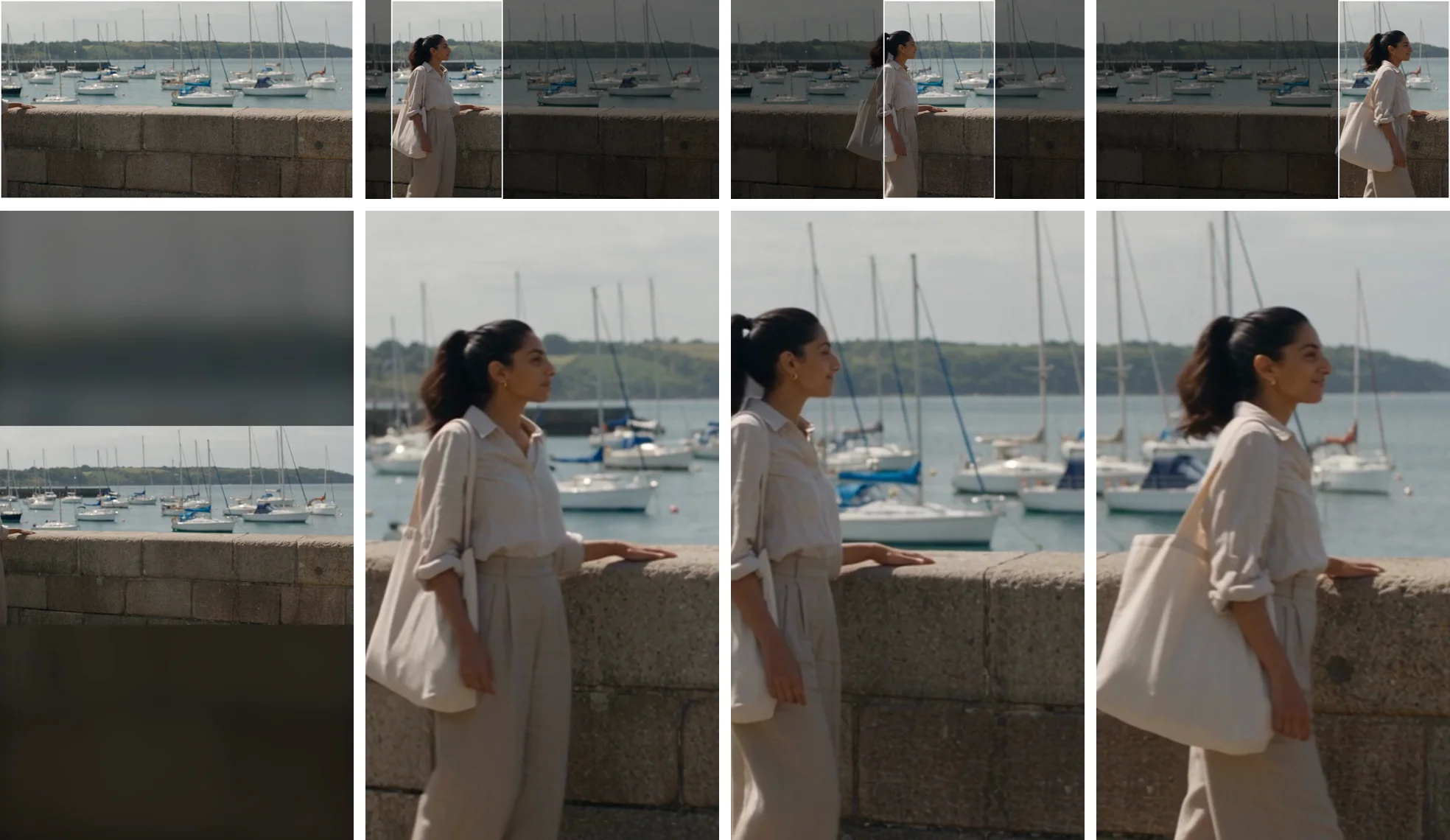
AI Reframe (face tracking in the browser) · Generated · View the example record and price basis (JSON)
Prompts you can inspect and adapt
Recorded settings
What the tool used for this run
Format: 9:16 (Reels, TikTok, Shorts)
Captions: Pop
Caption color: Yellow
Source: harbour-walk.mp4, 0:08, 854 × 480, no sound track
AI Reframe takes no prompt. These are the choices on screen when Generate was tapped, the ones the tool opens with, and the clip as the tool read it. With no sound track there was nothing to transcribe, so no captions were drawn.
How AI Reframe is priced
By the length of your video, for transcribing its sound: who says what, and when. Finding the faces, the framing and the file are made on your device. The total appears on Generate once your video is in.
The transcript is charged by the length of the video, so a video twice as long costs about twice as much. The format and the caption style don’t change it, and a new format or caption style for a video already transcribed renders again without another charge. A video with no sound track has nothing to transcribe.
Price source: AI Reframe’s public price · Checked
Before any sound is sent, the tool checks that your balance covers the whole video and stops if it doesn’t. If transcribing a part fails, that part is refunded.
What to review before you use the result
| What you see | What to try |
|---|---|
| It says “No faces turned up, so the whole frame is kept” | The tool found no face, often because it’s small in a wide shot, turned away or in the dark, so the vertical file is your whole frame across the middle over a blurred copy. Use footage where the face is larger in frame. In the example, a wide shot of the same walk failed this way and a closer one worked. |
| The first moments show the whole frame on a blur | Until a face is found, the tool keeps the whole frame. A person walking in from the edge is framed once their face is in the shot, as in the example’s first 1.3 seconds. Trim the clip to start when they’re in. |
| Part of the person is cut off | The frame is the full height of your video and centres on the face, so a bag, an arm or a second person beside them can fall outside it. Check the frame drawn on your video before you download, and try 4:5, which keeps more of the width. |
| The cut follows the wrong person | With sound, the transcript says who speaks when and the tool matches each voice to a face. If it says the voices couldn’t be matched, or no speech turned up, it follows whose lips move instead. Clear speech with one person at a time works best. |
| Your video is refused | Use an MP4, MOV, WebM or MKV between 2 seconds and 10 minutes and under 4 GB. If the browser can’t decode it, try an H.264 MP4 in a current browser. For a longer video, use AI Clipper first. |
| The download is silent | Some browsers can’t carry the sound into the file, and the tool says so. Chrome or Safari keeps it. If the browser can’t make an MP4 at all, the file comes out as WebM. |
Questions about this workflow
Does it crop or add picture at the sides?
It crops. The vertical frame is the full height of your video, moved left and right to keep the person in it. Nothing is generated. When no face is found, it shows the whole frame across the middle over a blurred copy instead.
What sizes do I get?
9:16 comes out 1080 × 1920, for Reels, TikTok and Shorts. 4:5 is 1080 × 1350 for feed posts, and 1:1 is 1080 × 1080. The file is an H.264 MP4 with your video’s sound, or WebM in a browser that can’t make MP4.
Does it work with two people talking?
Yes, that’s what it’s built for: a podcast, an interview or a stream. The transcript says who speaks when, and the frame cuts to that person just before their first word, holding through a short reply or a pause.
Does my video get uploaded?
No. The video stays in your browser, where the faces are found and the file is made. Only the sound is sent, to be transcribed. Signed in, the finished file is saved to your Assets.
Can it reframe a video with no people in it?
It frames faces only. A video of a product, a car or a view gets the whole frame over a blurred copy in 9:16. Through the Made connector, compose_video can crop the middle of it instead.
Work with Claude and Made
Through the Made connector in Claude, compose_video reframes one clip to 9:16 on Made’s editor, without a browser: fit cover fills the vertical frame by cropping the middle, and contain keeps the whole frame with bars above and below. It doesn’t look for faces or follow anyone, so it suits a clip whose subject stays in the middle. Claude quotes the price before running it.
Conversation starter
Ask your assistant
Use Made to turn my attached landscape video into a 9:16 vertical video for Reels and TikTok with compose_video: one clip, aspect ratio 9:16, fit cover, keep the sound. Show me the price first.For footage where the person moves around or more than one person talks, use AI Reframe with the same video: it follows the face and cuts to the speaker.