AI background changer
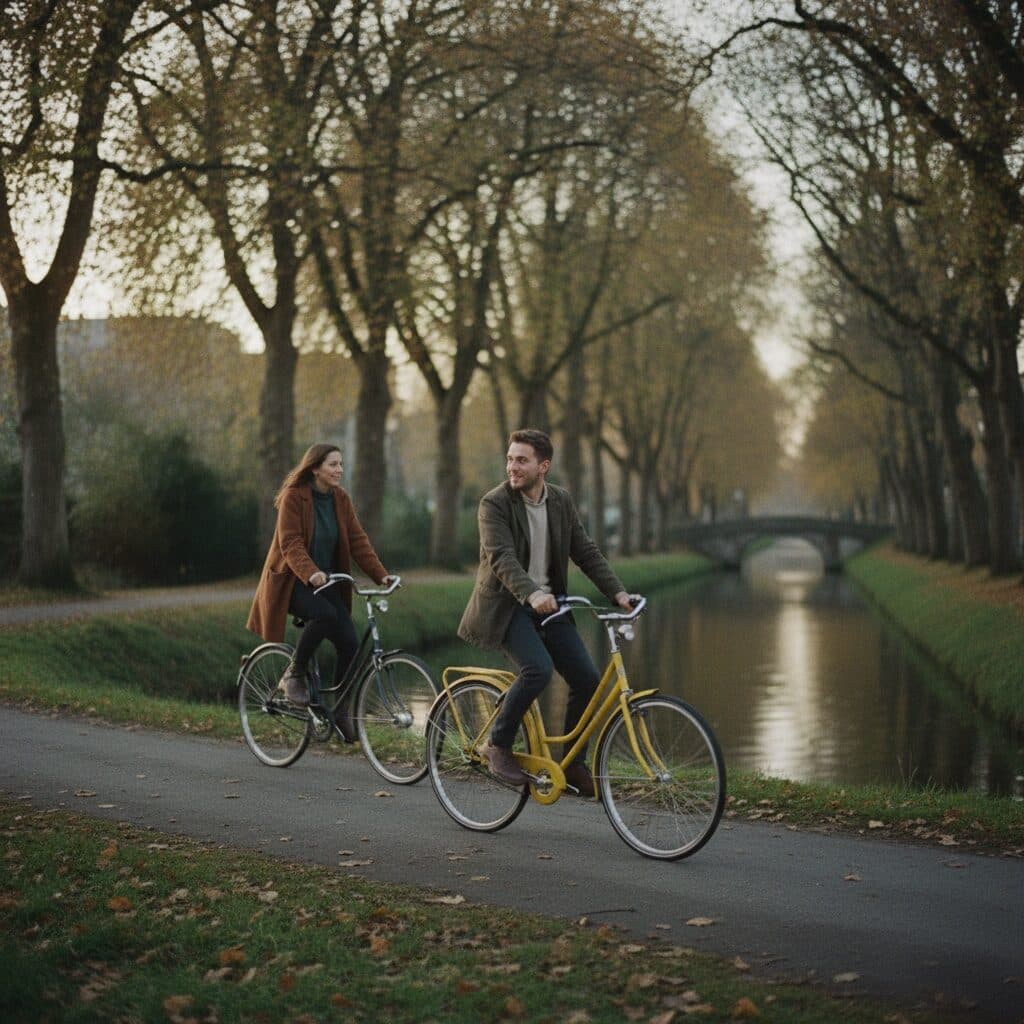
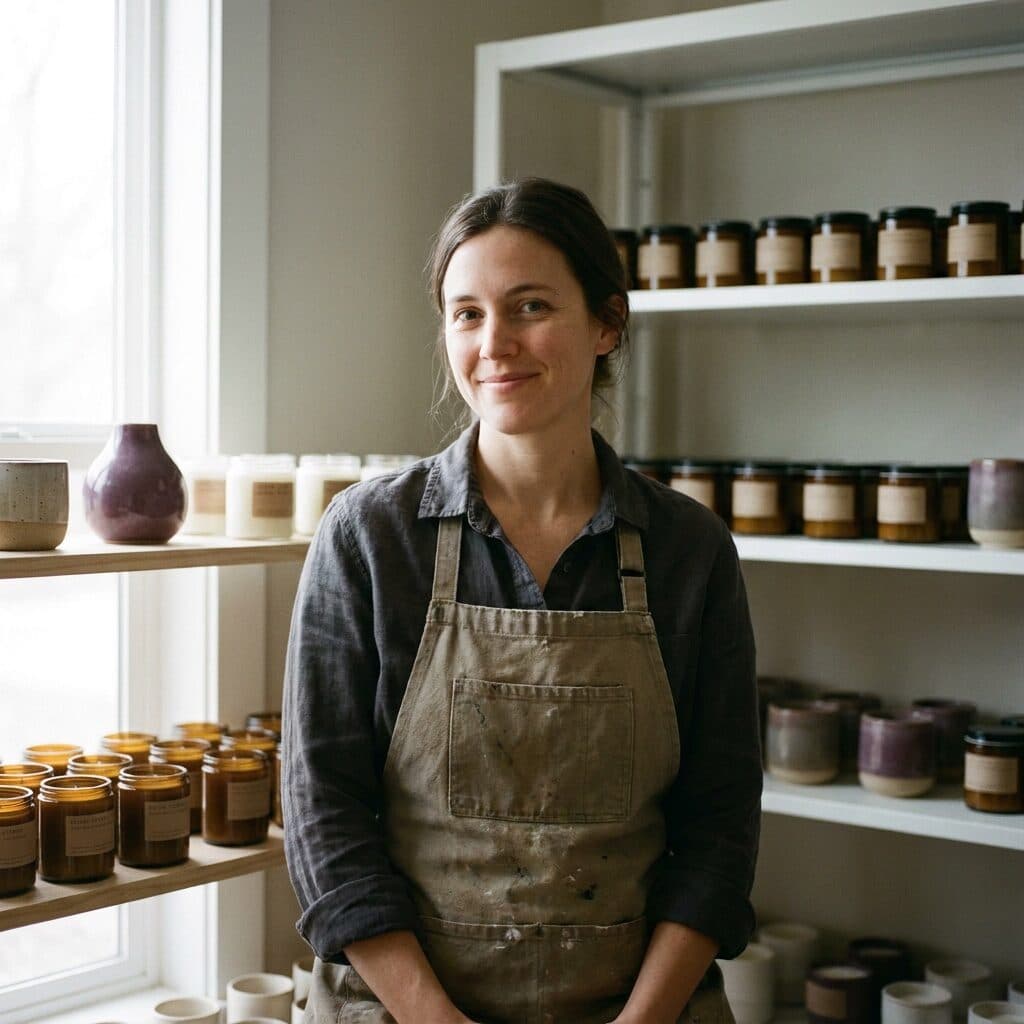
Upload a photo and describe the scene you want behind the subject — a beach, a studio backdrop, a city at night. Made replaces the background while keeping the subject as they appear and returns a PNG.
Runs in the tool. You sign in to run it, see the price before you start, and failed runs are refunded.

How to use Background Changer
- 1
Upload one photo
Choose a JPEG, PNG, or WebP with a clear subject.
- 2
Describe the new scene
Name the setting, time of day, and mood — “a quiet beach at golden hour, soft warm light.”
- 3
Let Made replace the background
The model renders the described scene around your subject, keeping the subject as they appear.
- 4
Check the edges and lighting
Look at hair, shoulders, and contact points to confirm the subject sits naturally in the new scene.
Background Changer examples
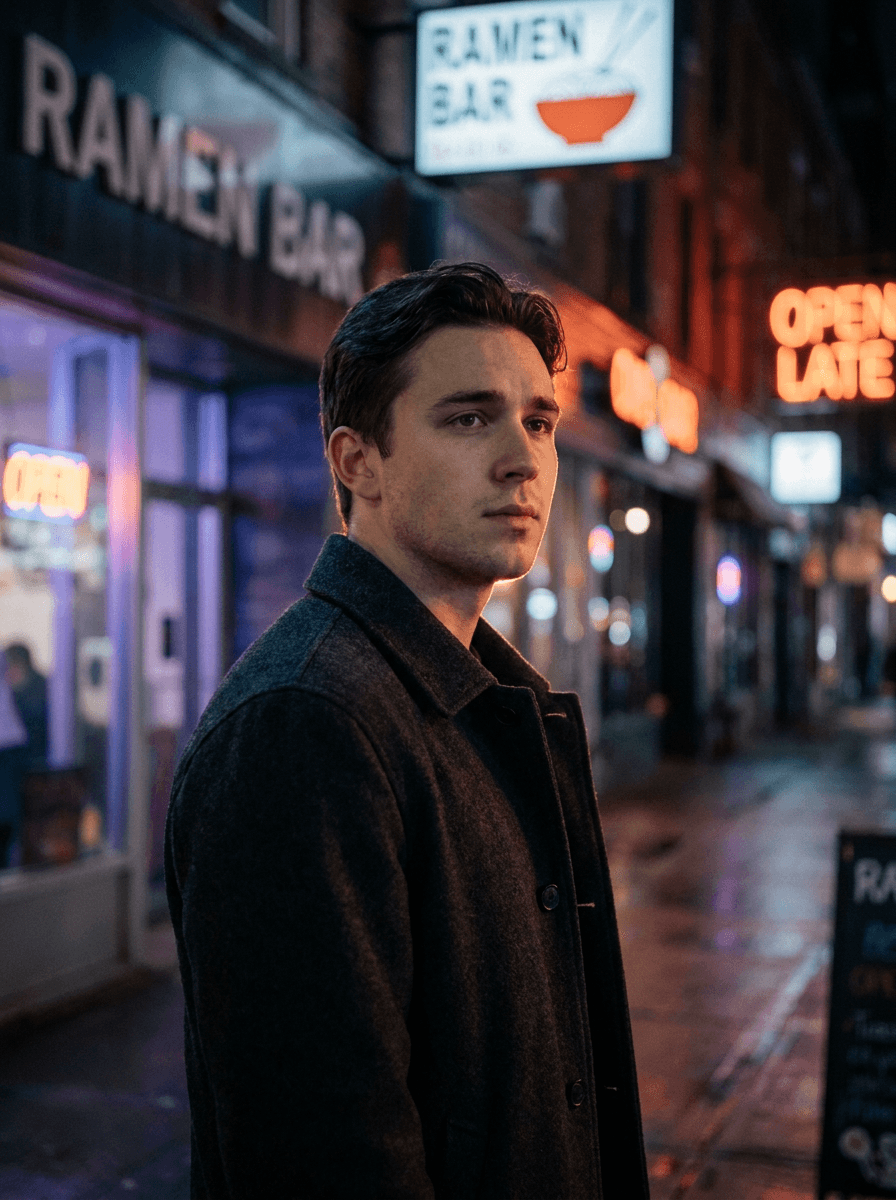
Real results from Made. Use a prompt to open it in Background Changer, then add your own photo.
What people use it for
- Portraits in better settingsMove a good photo of yourself out of a cluttered room and into a scene worth posting.
- Consistent profile photosPut team or profile photos on a matching studio-style backdrop without a studio.
- Travel-style shotsPlace a portrait in a landscape or city scene described entirely in words.
- Seasonal and themed postsReuse one strong photo across holiday, seasonal, or campaign backgrounds.
Change the background of a photo
What it does
- Input
- One JPEG, PNG, or WebP photo, plus a description of the new background scene
- Output
- PNG with the described background behind your unchanged subject
- How it works
- Made sends your photo and scene description to GPT Image 2.5 Flare; a keep-subject instruction is built into the prompt so the subject stays as they appear.
- Access
- Runs in the tool. You sign in to run it, see the price before you start, and failed runs are refunded.
Formats and limits
- Input formats
- JPEG, PNG, WebP
- Output format
- PNG
- Images per request
- One
- Subject handling
- A keep-subject instruction is built into the prompt so the subject stays as photographed
- Processing model
- GPT Image 2.5 Flare
Checked against the running tool on 2026-10-20.
Questions about Background Changer
How do I change the background of a photo?
Upload the photo and describe the scene you want behind the subject. Made sends it to GPT Image 2.5 Flare with your description and returns a PNG with the new background in place — no masking or cutting out required.
Will my subject change?
A keep-subject instruction is built into the prompt, so the person or object is meant to stay exactly as photographed while only the background is replaced. The edit is still generative, so review the subject — especially hair edges and contact points — before publishing.
How is this different from Background Remover?
Background Changer replaces the background in one step: you describe the new scene and get a finished PNG. Background Remover instead cuts the subject out and returns a transparent PNG, which is the better choice when you want to compose the cutout yourself in another layout.
What backgrounds can I ask for?
Anything you can describe in words — a beach at sunset, a plain studio backdrop, a rainy city street, a cozy interior. Including the time of day, lighting, and mood in your description gives the model more to match.
What formats are supported?
Upload one JPEG, PNG, or WebP per request; the result comes back as a PNG.
Can I change the backgrounds of several photos at once?
The workflow processes one image per request. To apply the same scene to several photos, run the tool once per photo with the same description.
Will the lighting on my subject match the new scene?
The model renders the scene around the subject as photographed, so a strong mismatch — for example, harsh indoor flash placed into a sunset — can look off. Scenes with lighting similar to your original photo blend most convincingly; check the result and try a different scene description if it looks pasted.
More photo fixes
Background Remover
A clean transparent cutout in one step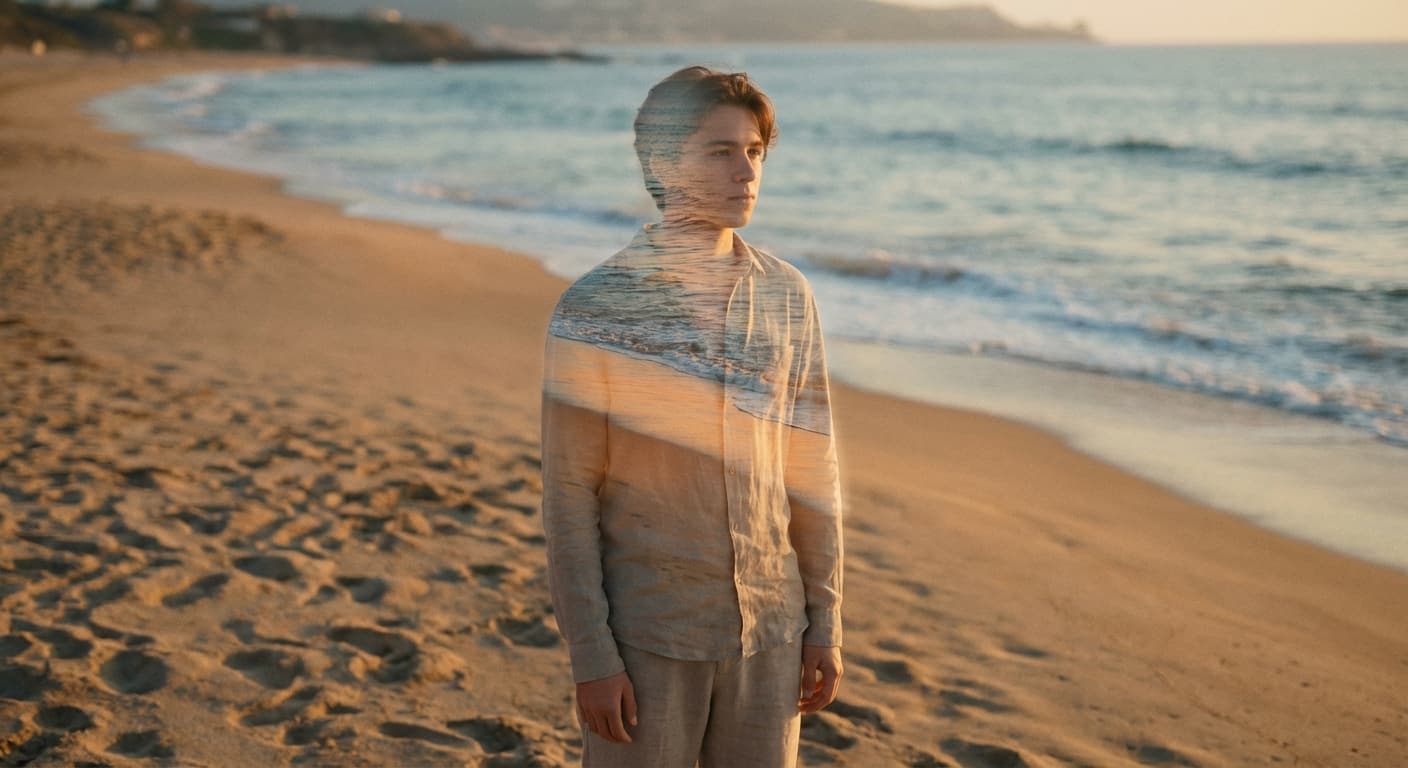
Object Remover
Erase people, cars or clutter
AI Photo Editor
Edit any photo by describing the change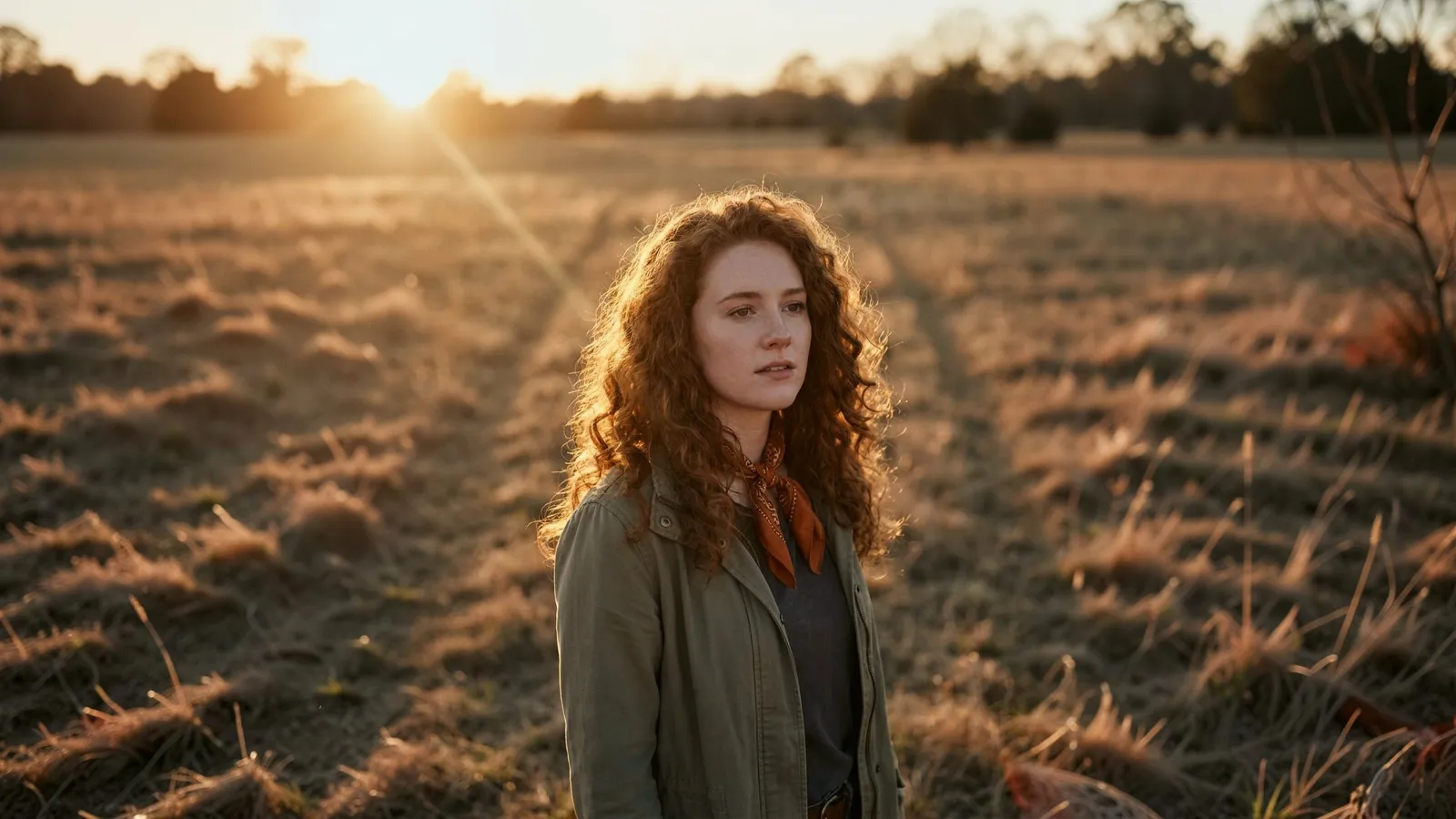
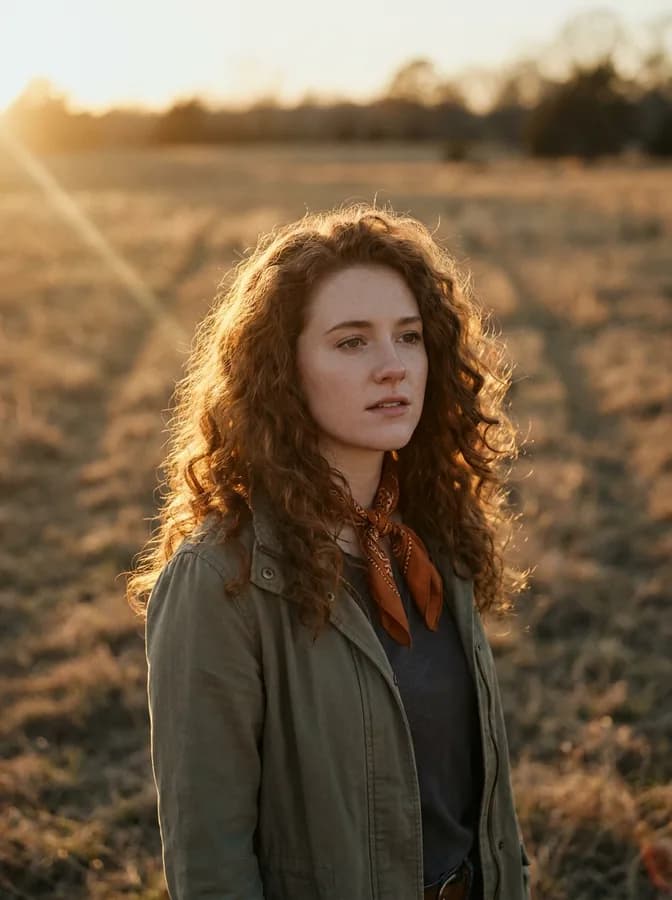
Expand Image
Extend any photo past its edges
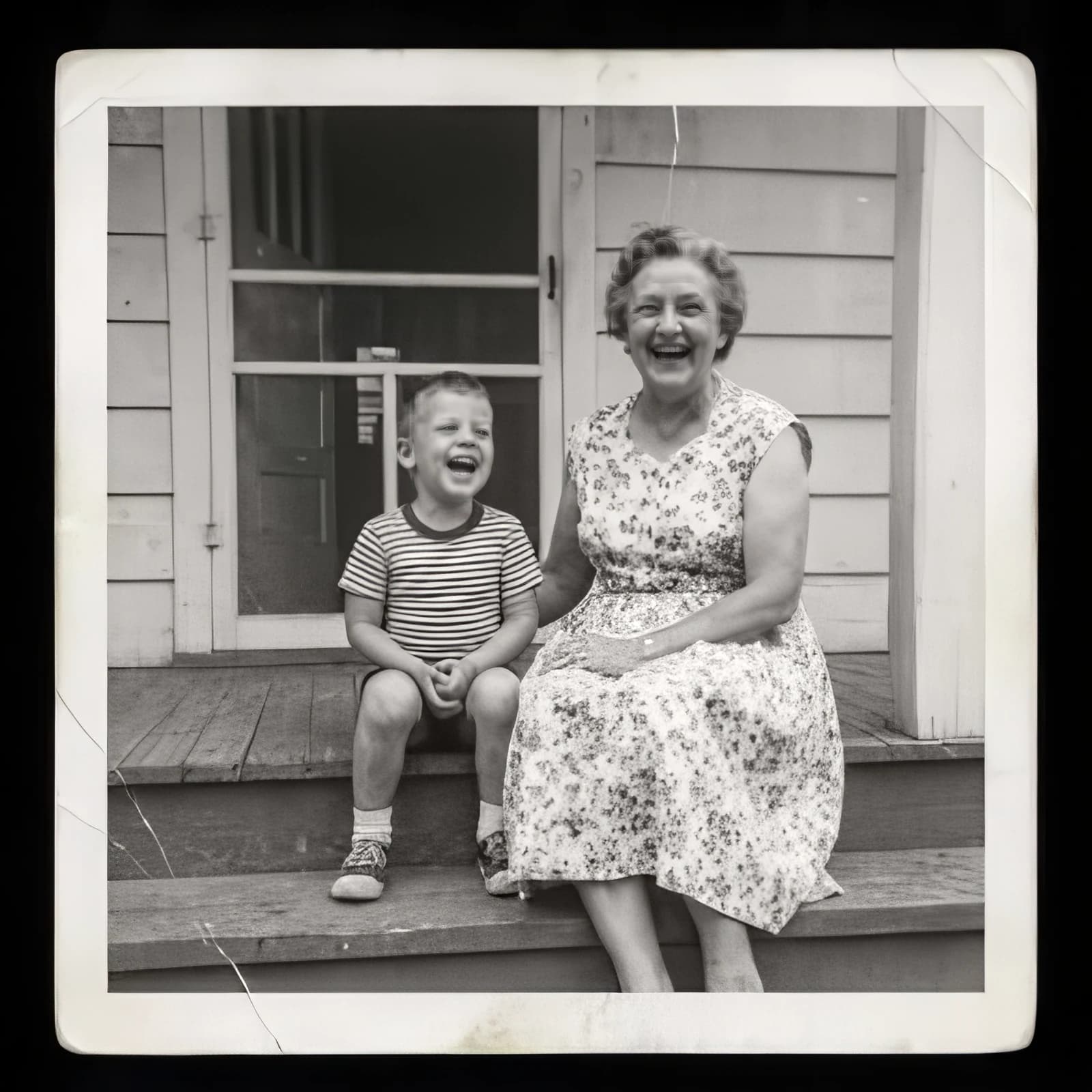
Image Upscaler
Sharpen and enlarge up to 4×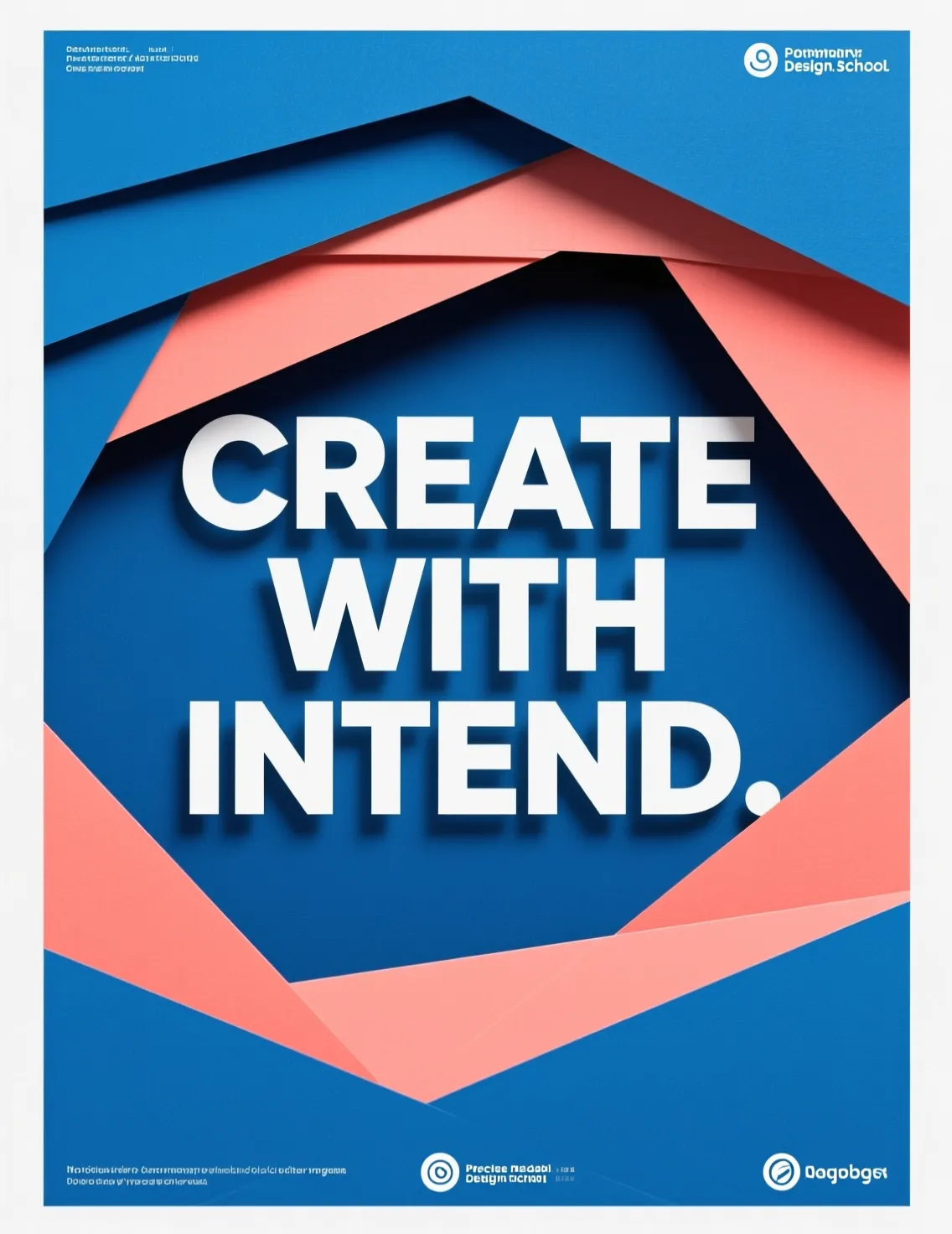
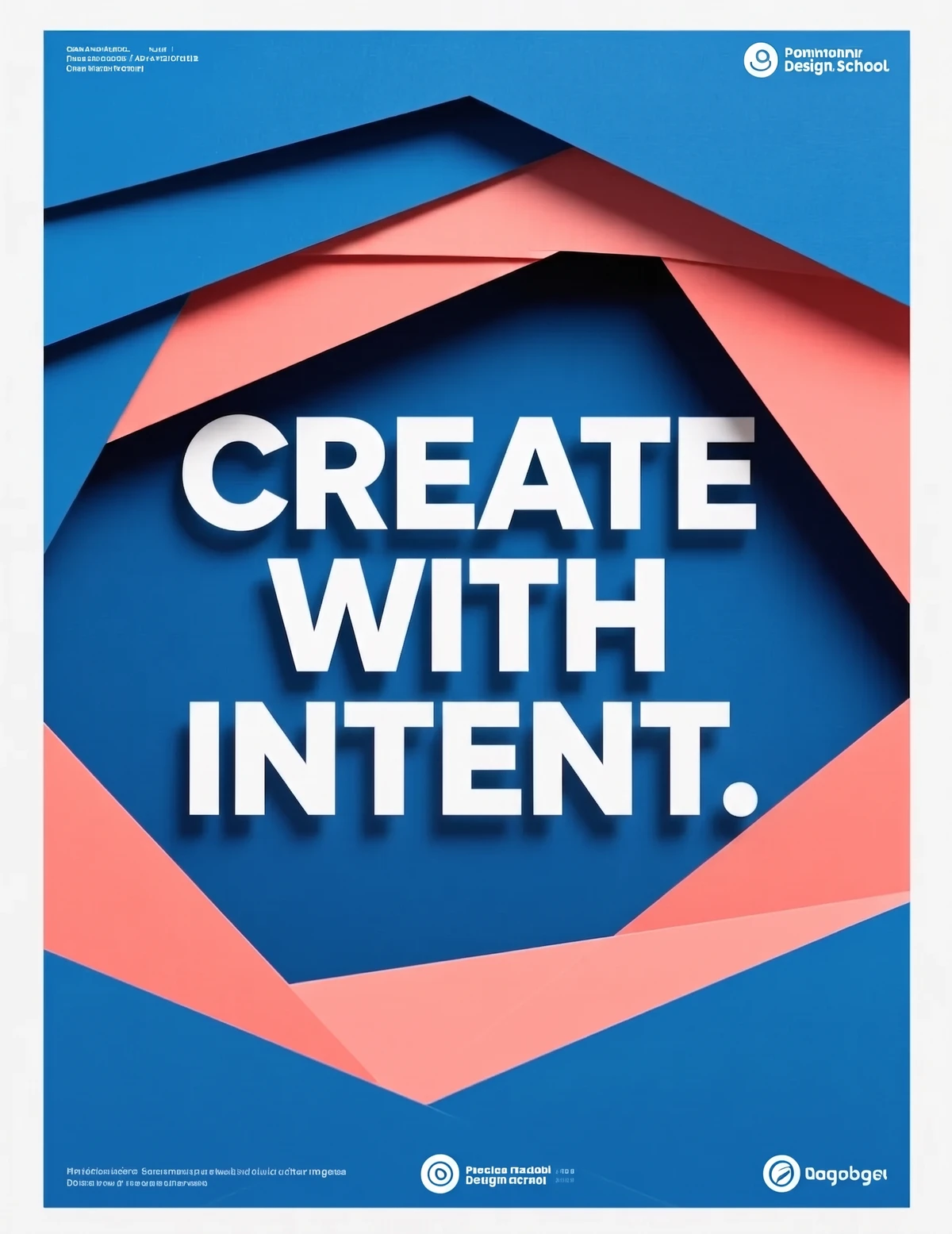
Edit Text
Change the words in any image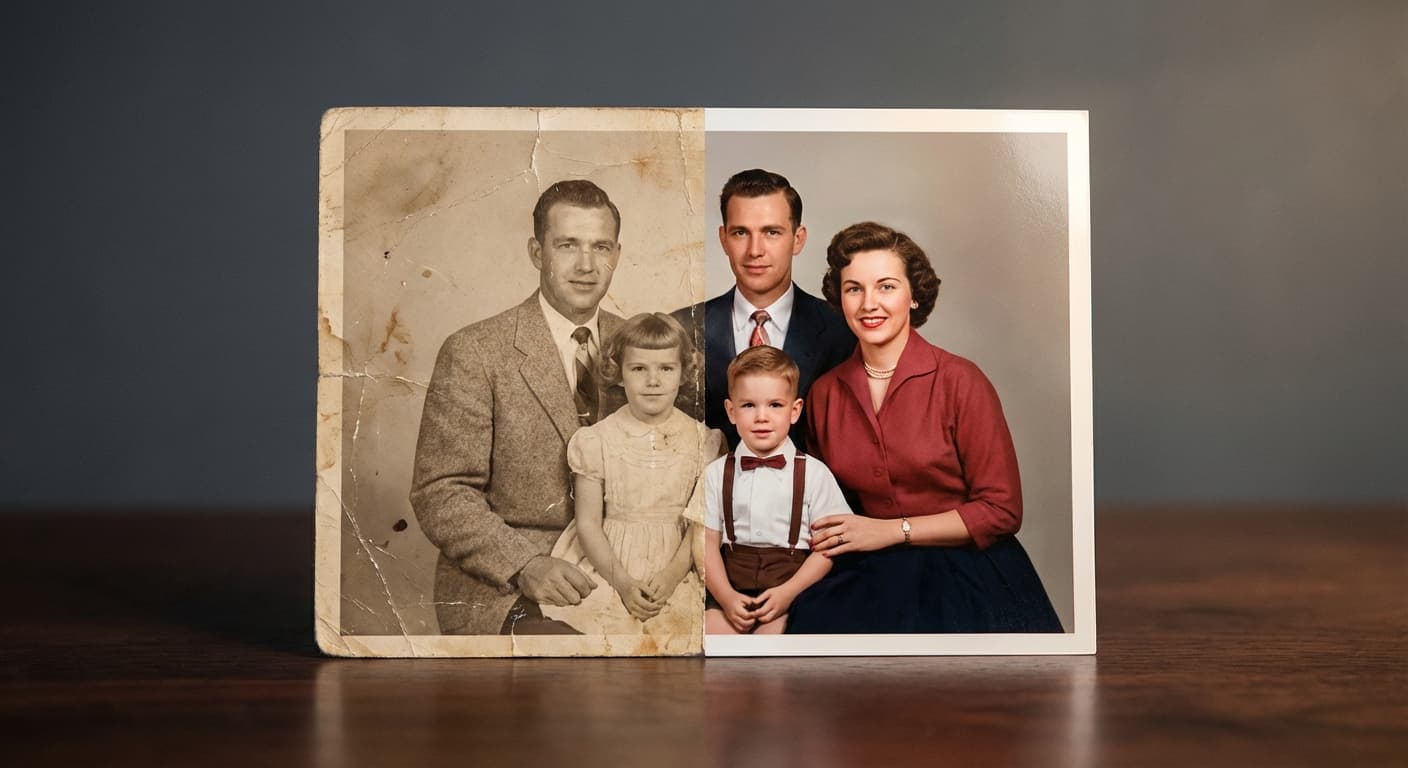
Photo Restoration
Repair scratches, tears and fading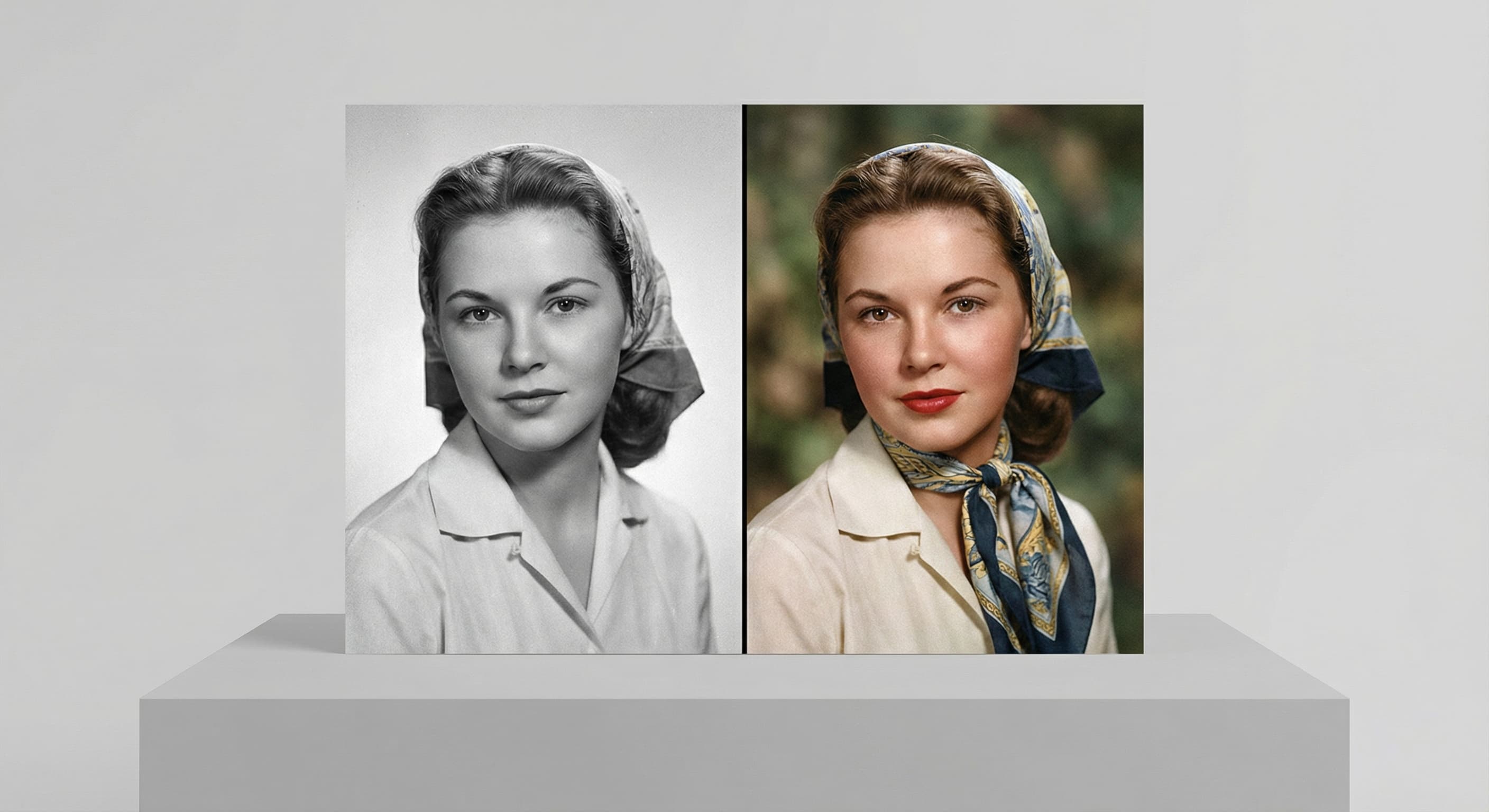
Photo Colorizer
Natural color for black-and-white photos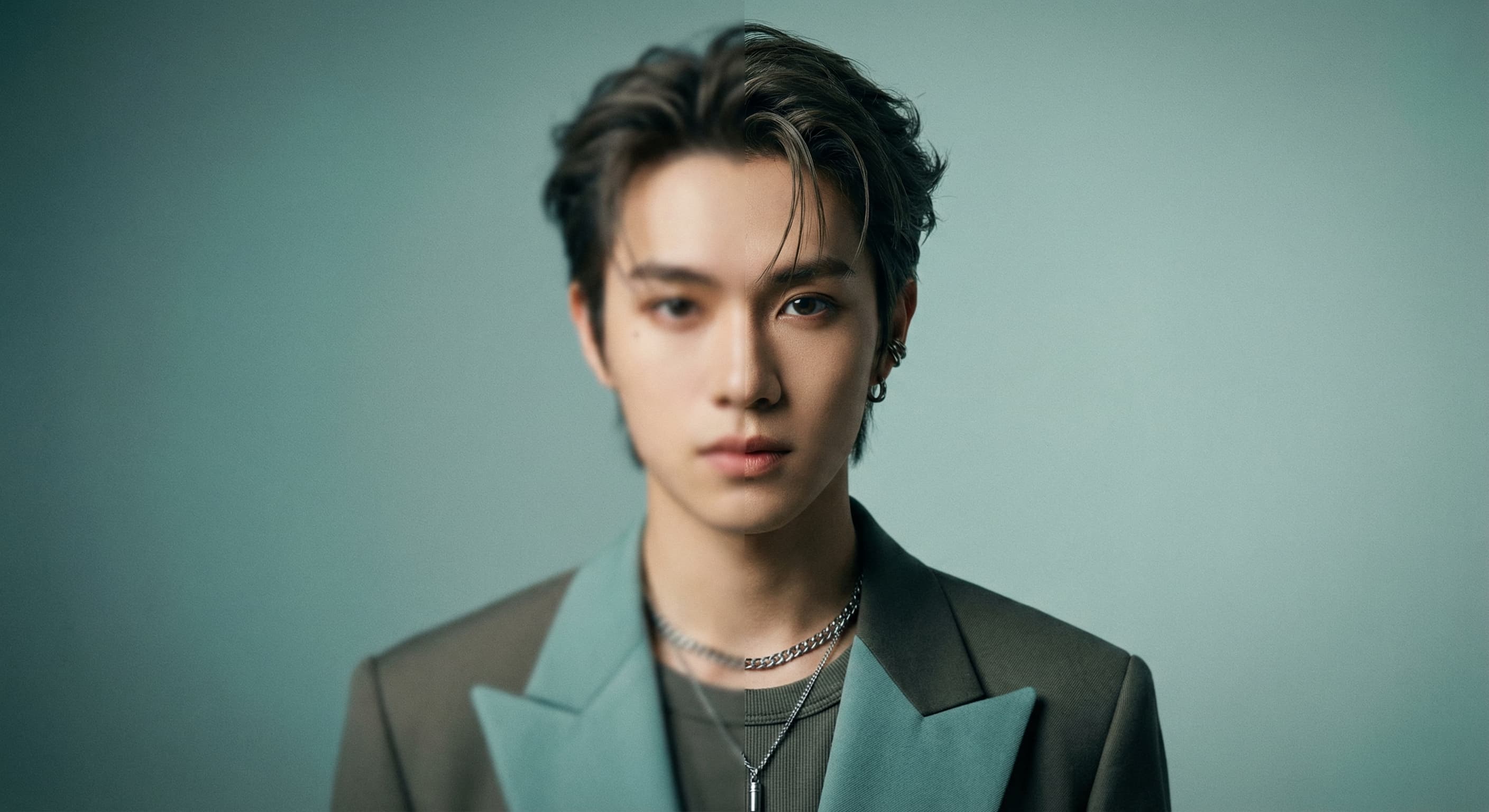
Unblur Image
Sharpen soft and blurry photos
Text Remover
Erase captions, dates and watermarksRelated models
See what each one makes, then open it in Made.