Photo Restoration
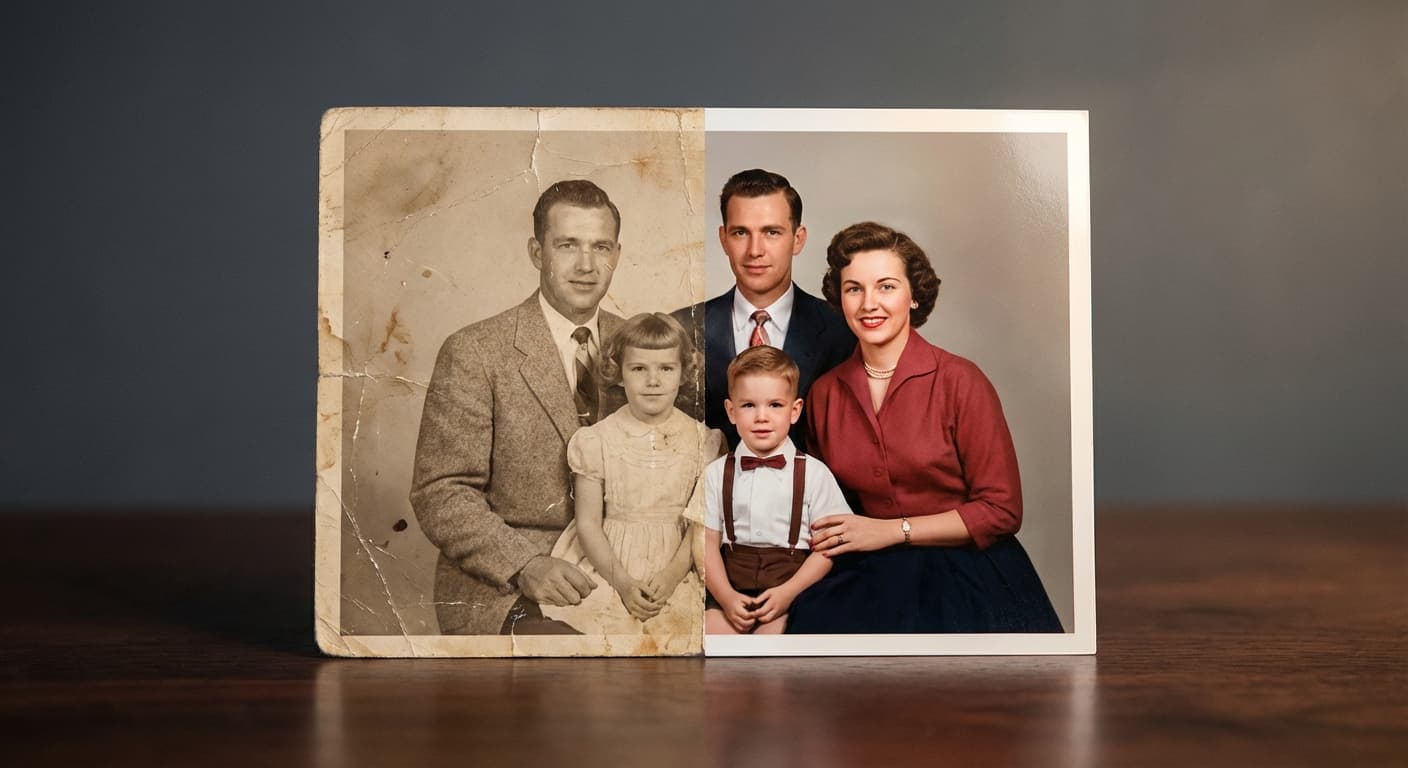
Upload a scan of an old print and Made repairs scratches, tears, fading, and other damage, sharpening the image and recovering lost detail.
Runs in the tool. You sign in to run it, see the price before you start, and failed runs are refunded.
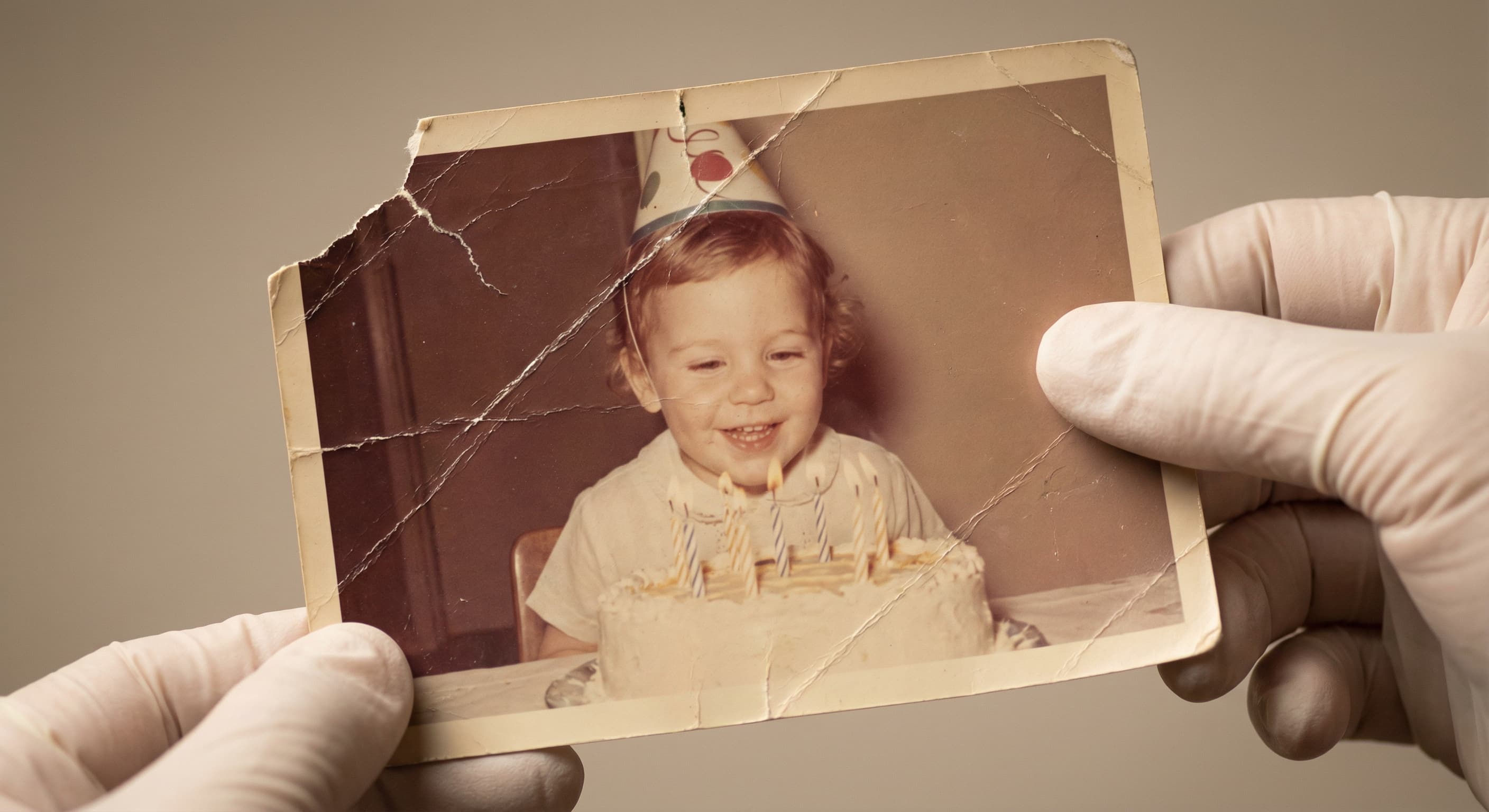
How to use Photo Restoration
- 1
Scan the original
Photograph or scan the print as flat and evenly lit as possible, and keep the original file.
- 2
Upload the scan
Choose the JPEG, PNG, or WebP scan and note any specific damage you want addressed.
- 3
Let Made restore it
The edit model repairs damage, corrects fading, and sharpens the image.
- 4
Compare against the original
Check faces and important details against your scan before sharing or printing the result.
Photo Restoration examples
Real results from Made. Use a prompt to open it in Photo Restoration, then add your own photo.
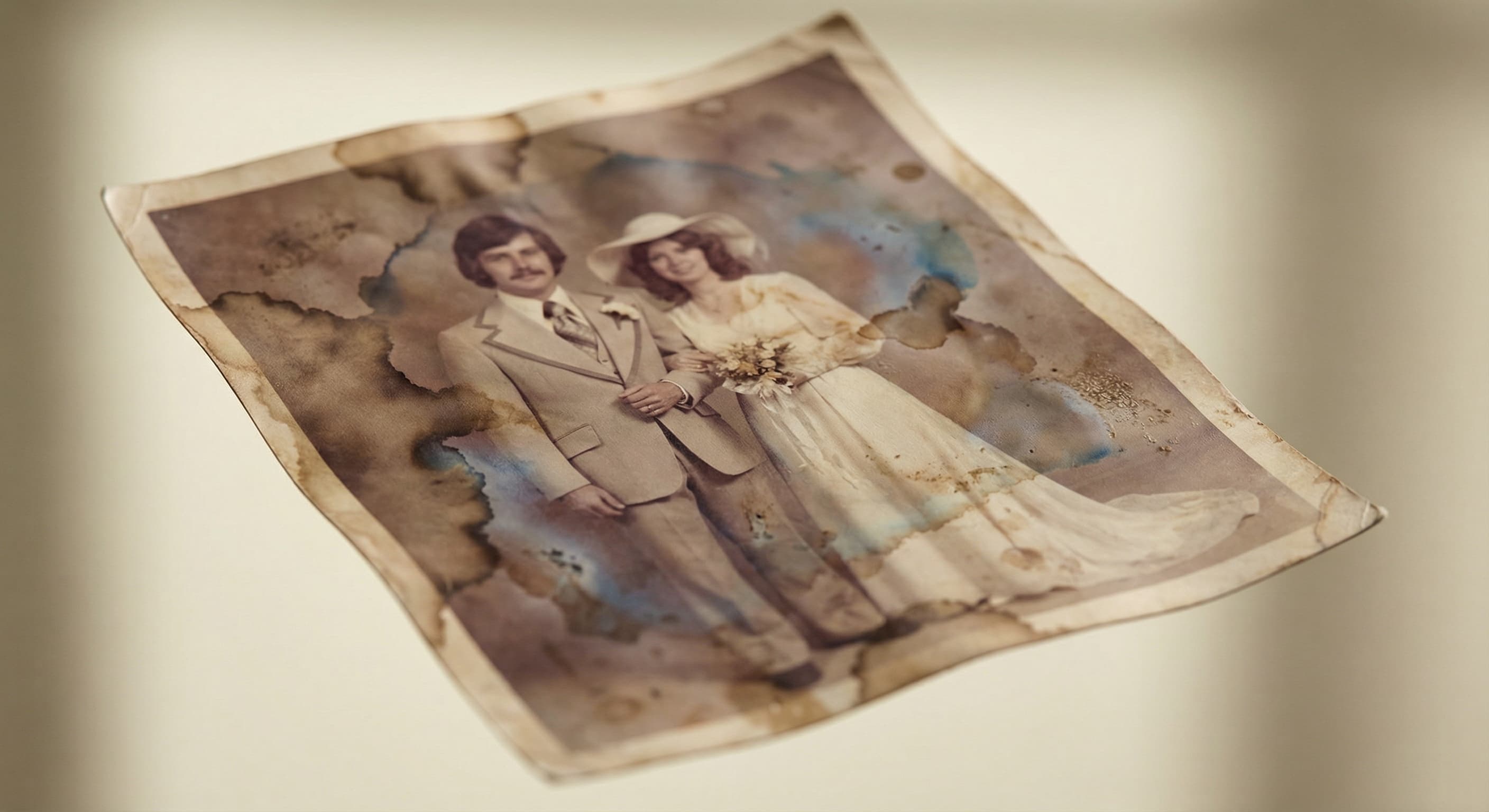
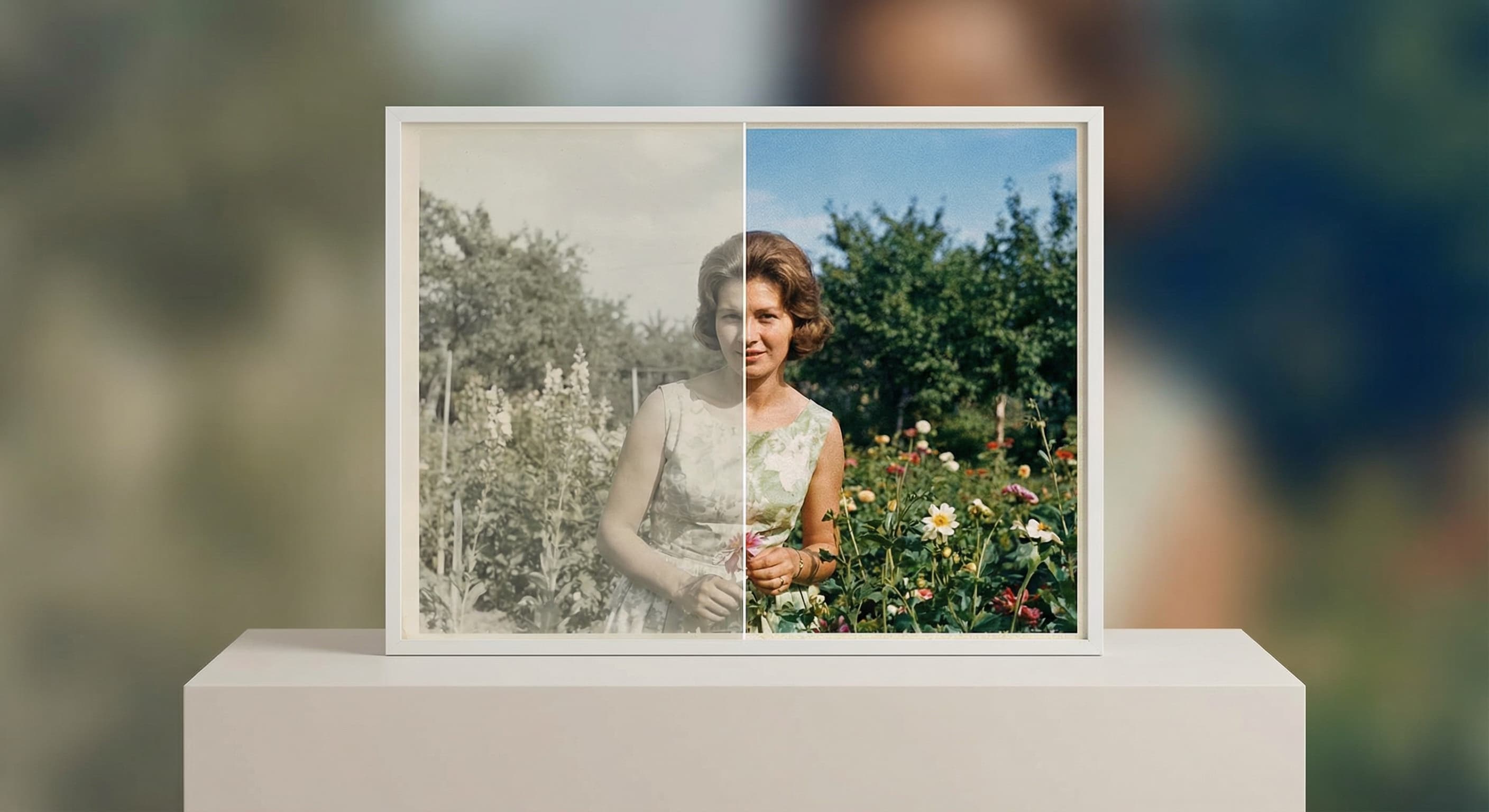
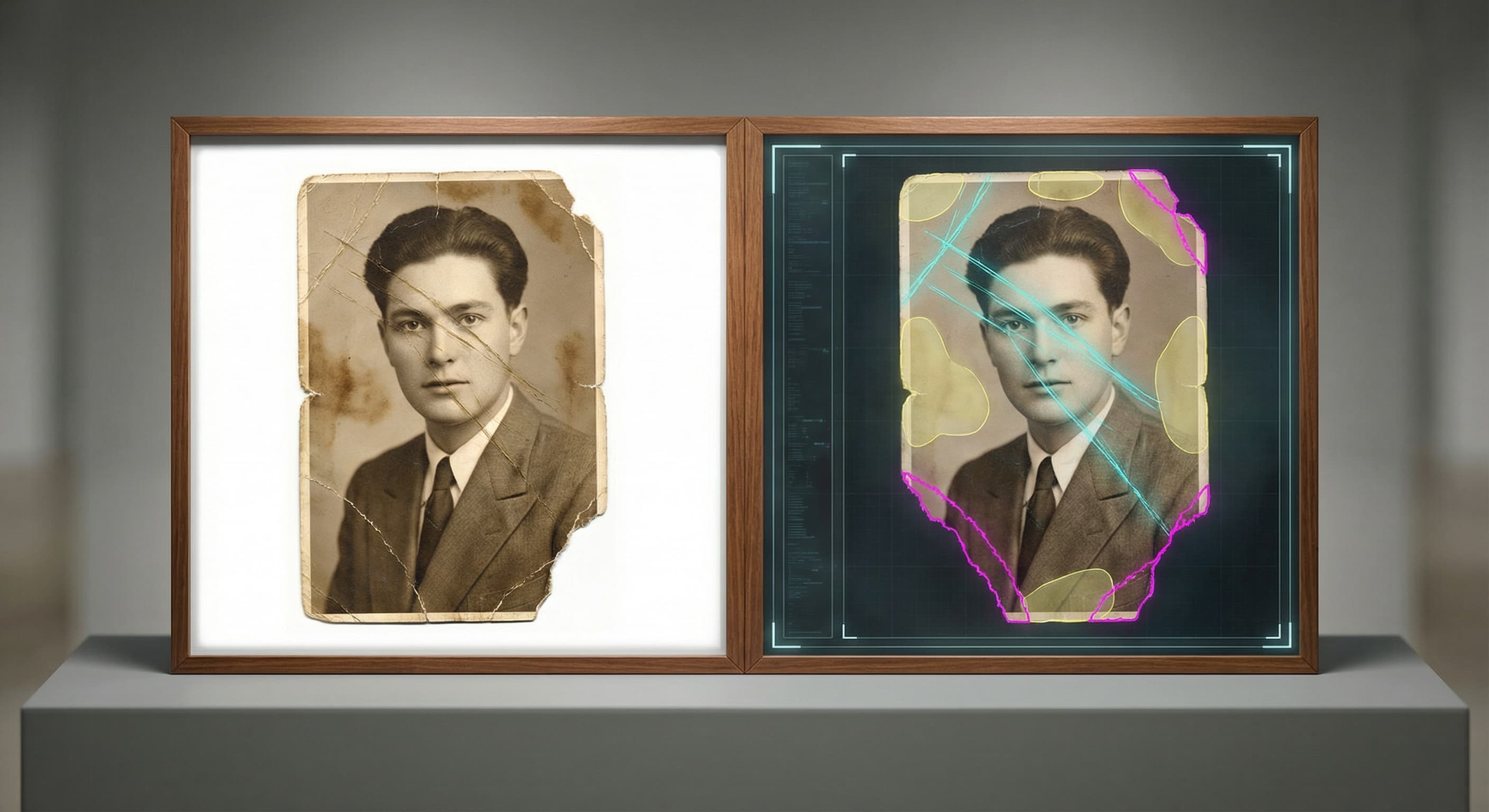
What people use it for
- Family archivesRepair scanned prints of parents and grandparents before sharing them or printing new copies.
- Scratched and torn printsRemove scratches, creases, and tears from photos that were stored loose or in old albums.
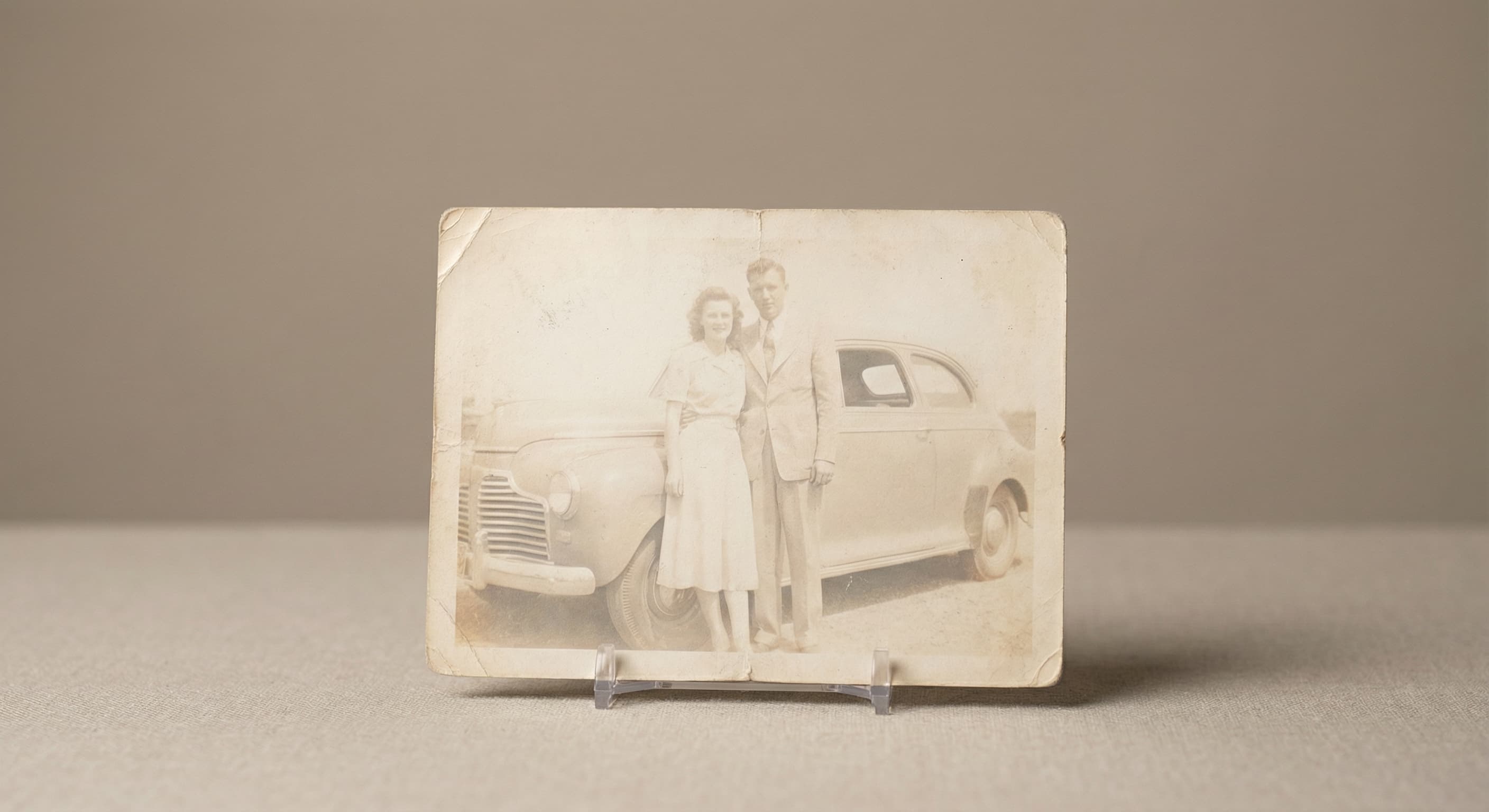
- Faded and discolored photosBring back contrast and color in prints that have yellowed or washed out over decades.
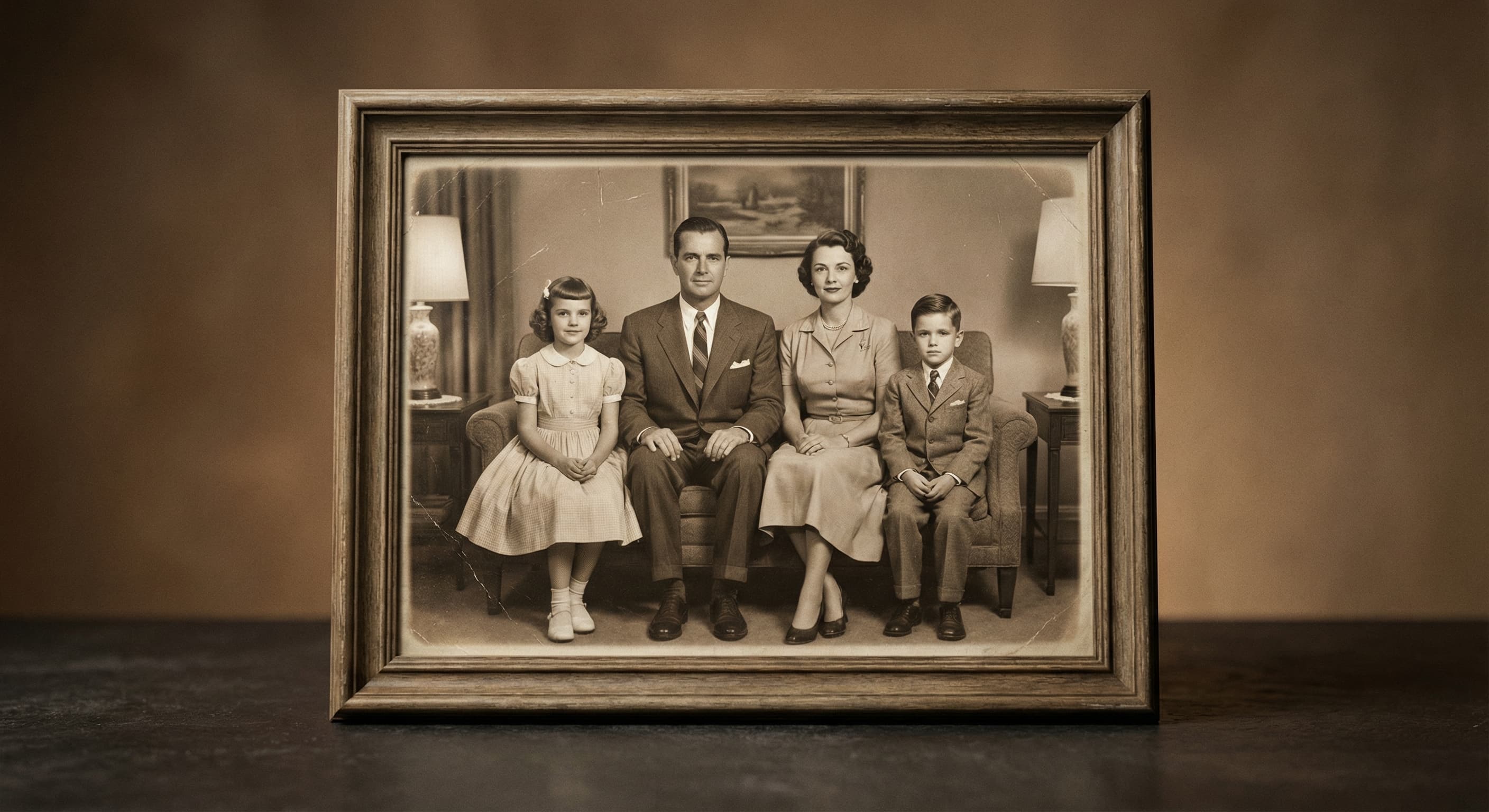
- Memorials and anniversariesPrepare a clean, presentable version of an old photo for a tribute, slideshow, or framed gift.
Restore an old or damaged photo
What it does
- Input
- One JPEG, PNG, or WebP scan of the photo, plus an optional note about the damage
- Output
- PNG image with damage repaired, fading corrected, and detail sharpened
- How it works
- Made sends your scan and instruction to GPT Image 2.5 Flare and returns a PNG; inputs over 1,536 pixels are downscaled first.
- Access
- Runs in the tool. You sign in to run it, see the price before you start, and failed runs are refunded.
Formats and limits
- Input formats
- JPEG, PNG, WebP
- Output format
- PNG
- Images per request
- One scan plus one text instruction
- Large-input handling
- Inputs over 1,536 pixels on either side are downscaled before editing
- Nature of restoration
- Generative — recovered detail is plausible reconstruction, not a guaranteed record; archive the original scan
Checked against the running tool on 2026-10-20.
Questions about Photo Restoration
How does AI photo restoration work?
You upload a scan of the damaged print and Made sends it, with a restoration instruction, to GPT Image 2.5 Flare. The model repairs scratches, tears, and fading, sharpens the image, and returns the restored version as a PNG.
Is the recovered detail authentic?
No — restoration is generative. Where the original information is destroyed, the model reconstructs detail that is plausible, not guaranteed authentic. Always archive the original scan, and treat restored faces and fine details as an interpretation rather than a historical record.
What kinds of damage can it repair?
The workflow handles common print damage: scratches, tears, creases, fading, discoloration, and general wear, along with softness from age. Mentioning the specific damage in your request helps direct the repair.
What should I upload?
One JPEG, PNG, or WebP scan per request. Scan or photograph the print flat and evenly lit, and use the least compressed file you have. Scans over 1,536 pixels on either side are downscaled before editing.
Can it colorize a black-and-white photo?
This page focuses on repair — damage, fading, and sharpness. To add color to a black-and-white print, use the Colorize Photo tool, either before or after restoring the damage.
What format is the result?
Made returns the restored image as a PNG.
Should I restore first or upscale first?
Restore first. Repair the damage at the scan’s native size, then run the result through Image Upscaler if you need a larger file for printing.
More photo fixes
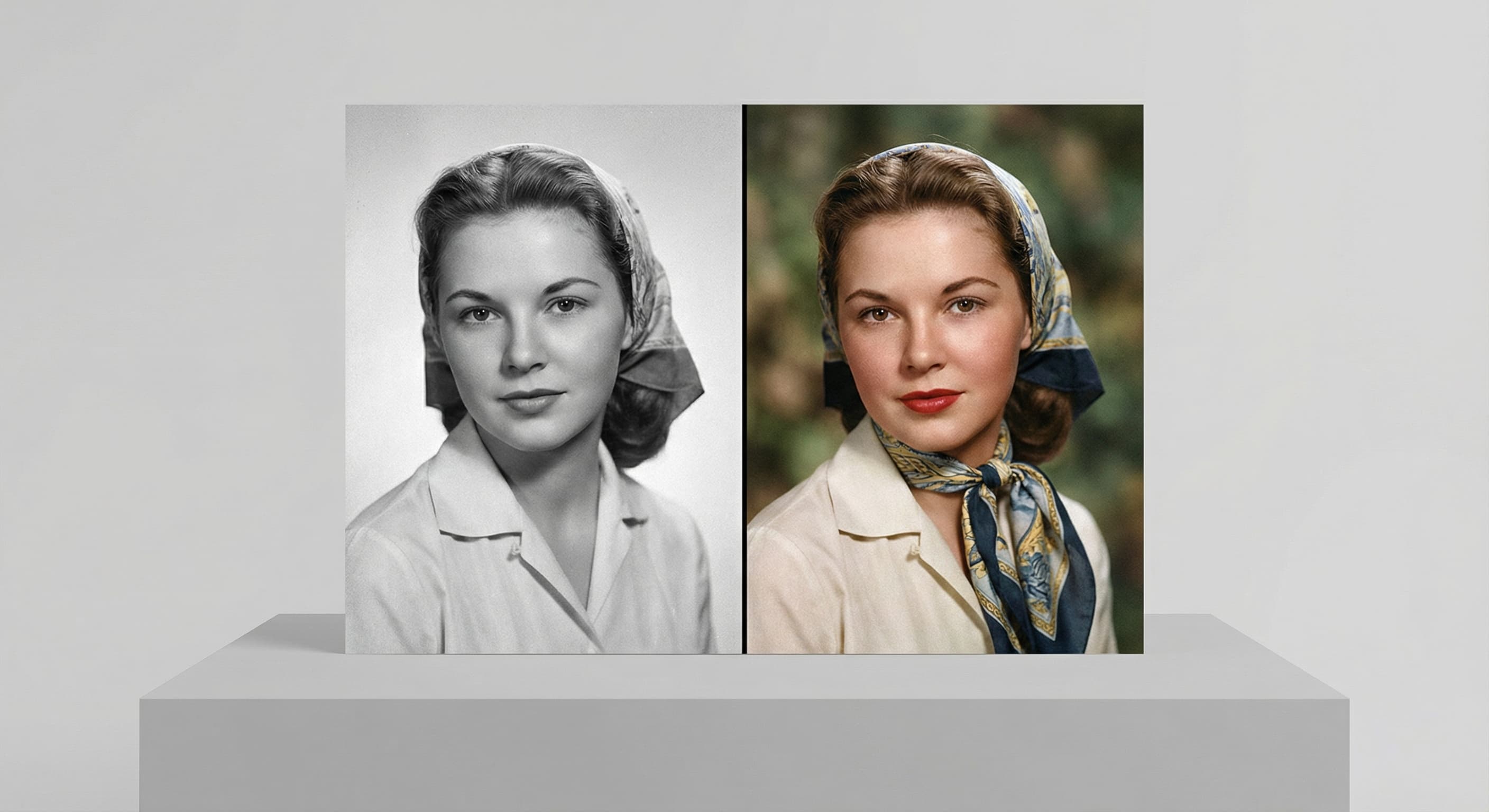
Photo Colorizer
Natural color for black-and-white photos
Unblur Image
Sharpen soft and blurry photos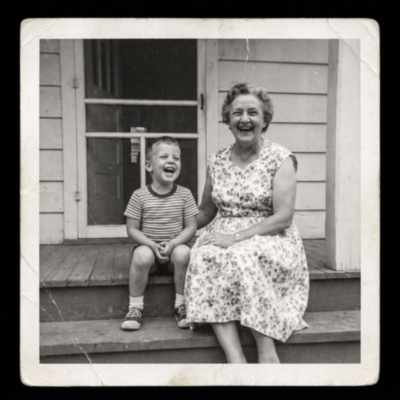
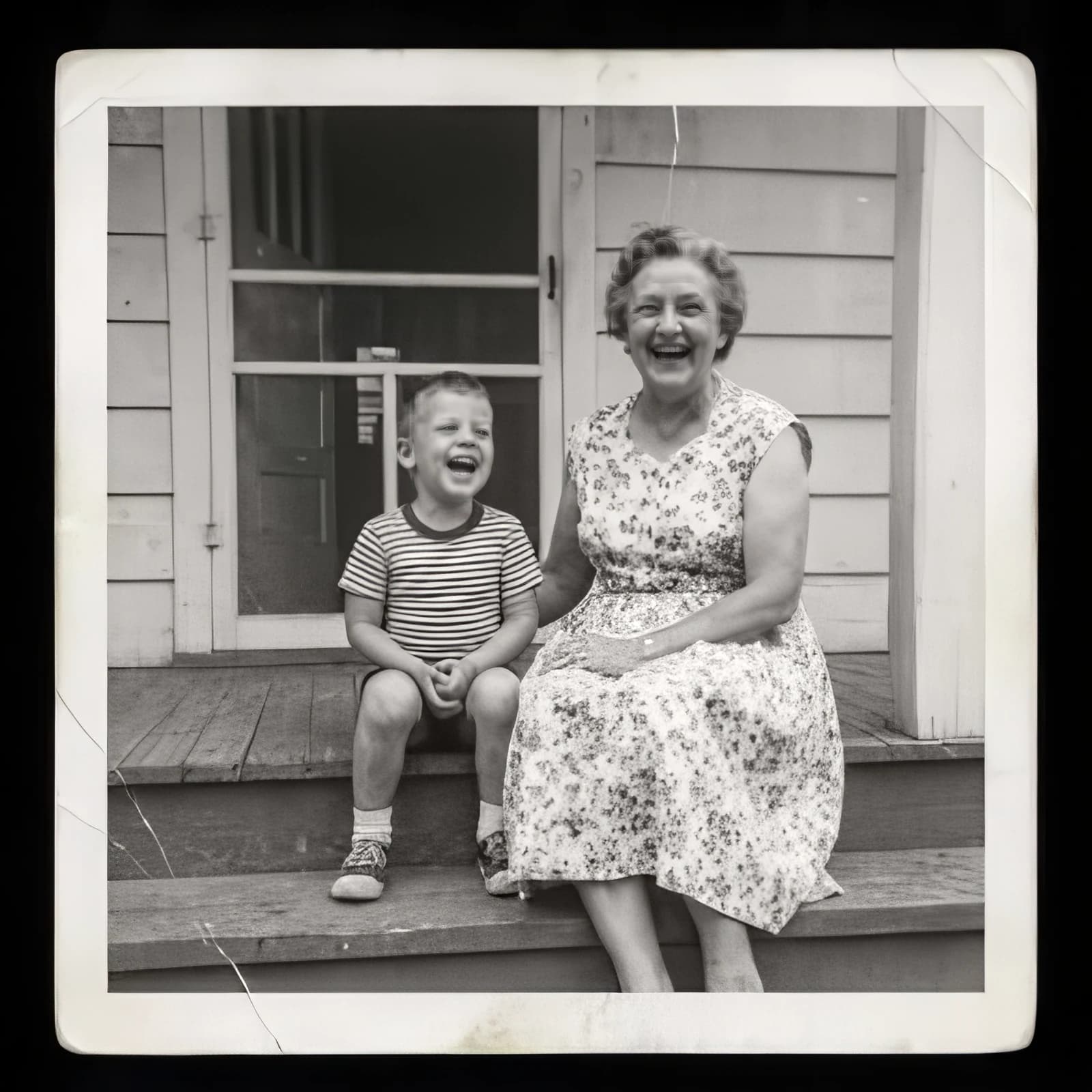
Image Upscaler
Sharpen and enlarge up to 4×
Expand Image
Extend any photo past its edges
Background Remover
A clean transparent cutout in one step
Object Remover
Erase people, cars or clutter
Edit Text
Change the words in any image
Text Remover
Erase captions, dates and watermarks
Background Changer
Put your subject in a new scene
Lighting Changer
Golden hour, studio or neon lightRelated models
See what each one makes, then open it in Made.