Lighting Changer
Upload a photo and describe the light you wanted — golden hour warmth, clean studio softbox, moody low-key shadows, or simply a brighter exposure. Made relights the image and returns a PNG.
Runs in the tool. You sign in to run it, see the price before you start, and failed runs are refunded.
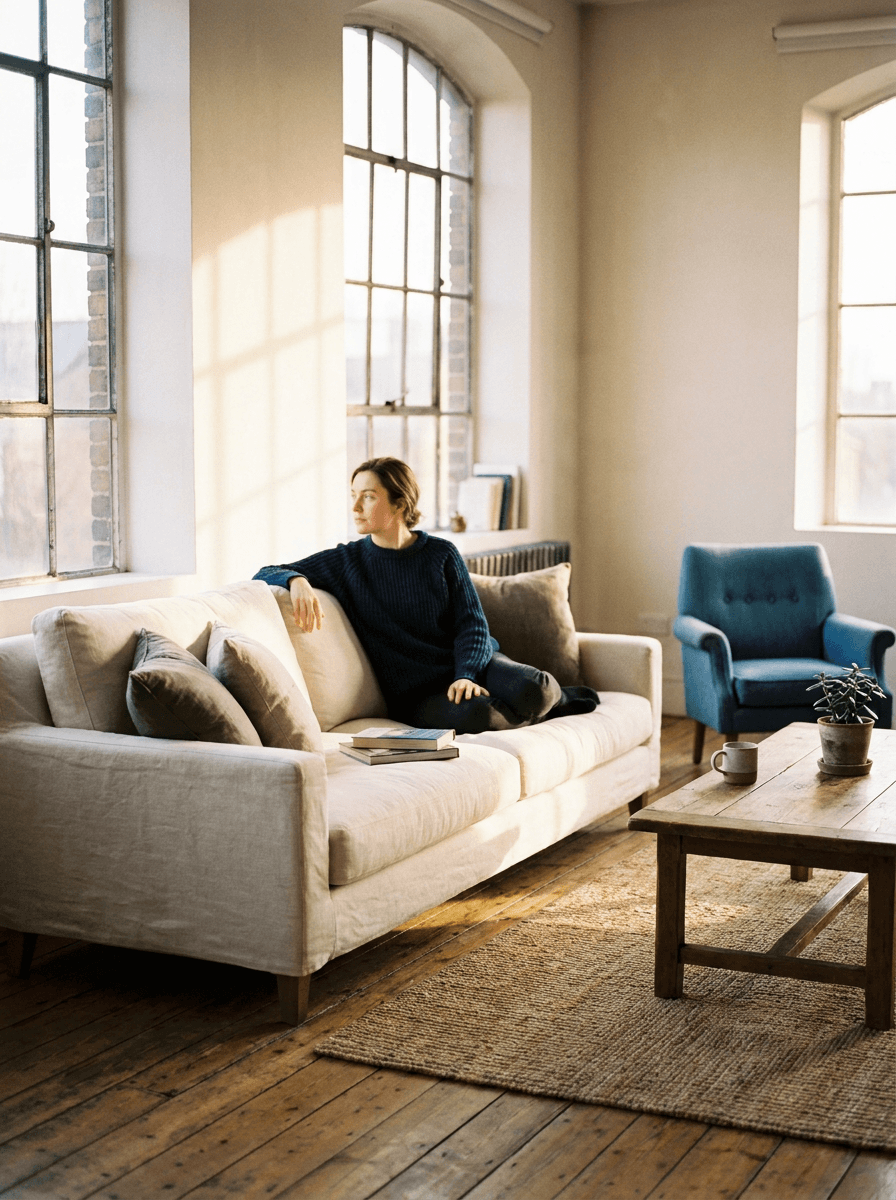
How to use Lighting Changer
- 1
Upload one image
Choose a JPEG, PNG, or WebP — portraits, products, and interiors all work.
- 2
Describe the light
Name the style and direction: “warm golden hour from the left,” “soft even studio light,” or “brighter, natural exposure.”
- 3
Let Made relight it
The edit model adjusts the light, shadows, and color temperature across the image to match your description.
- 4
Compare and refine
Check skin tones and shadow edges against the original, then re-run with a tweaked instruction if the mood isn’t right.
Lighting Changer examples
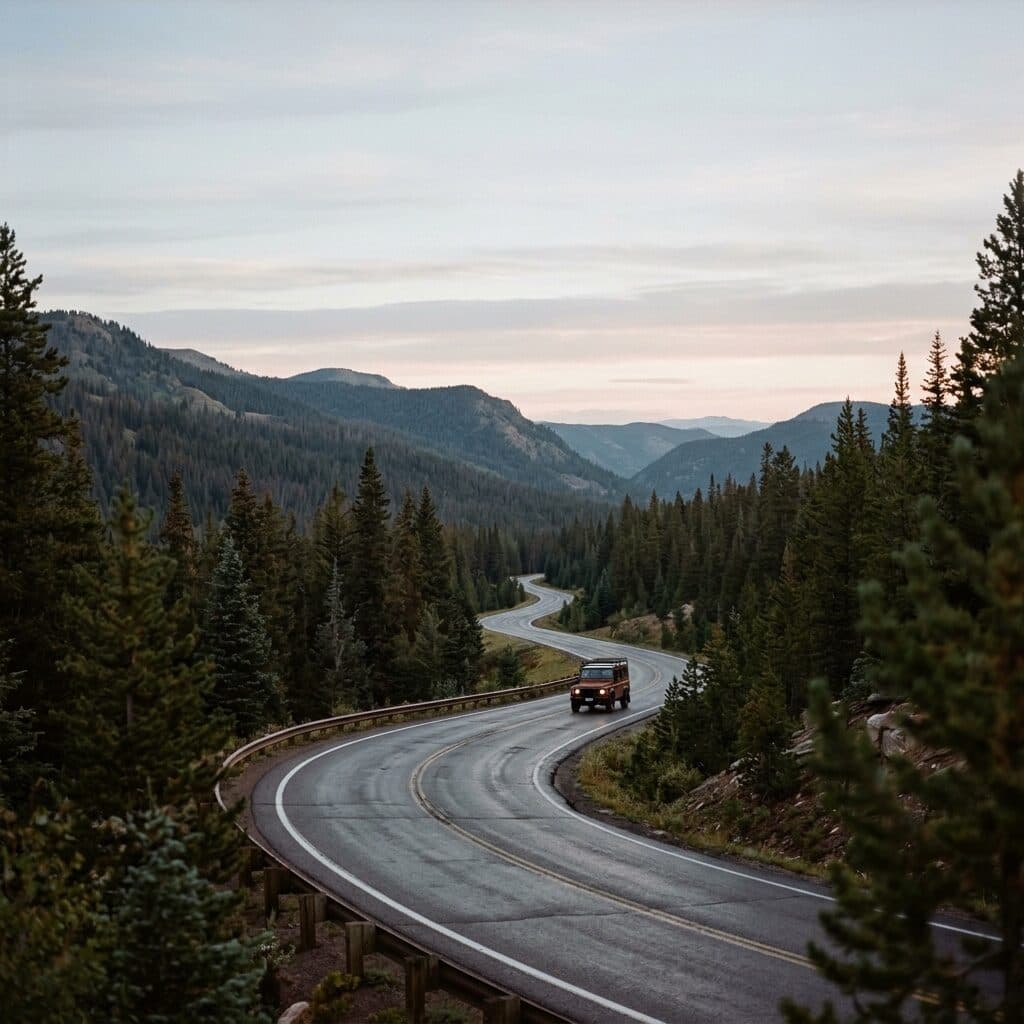
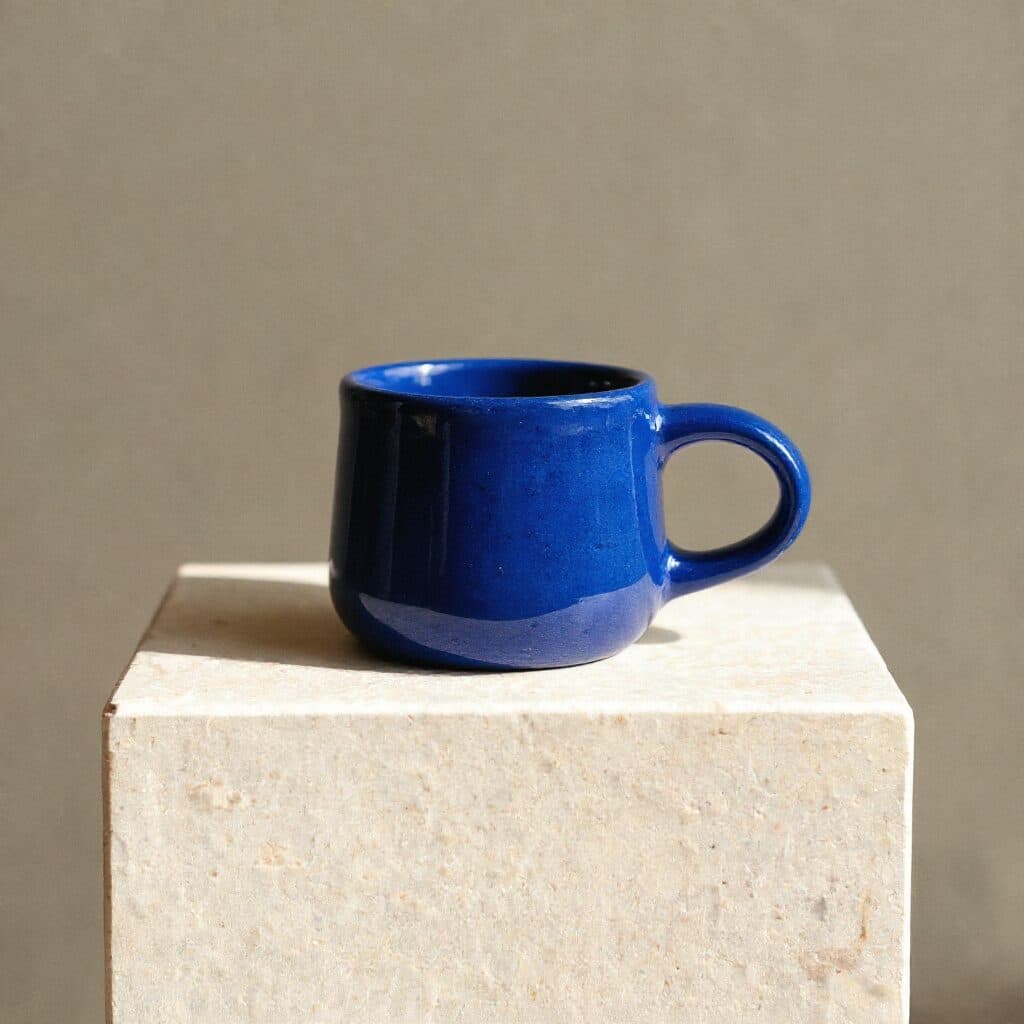
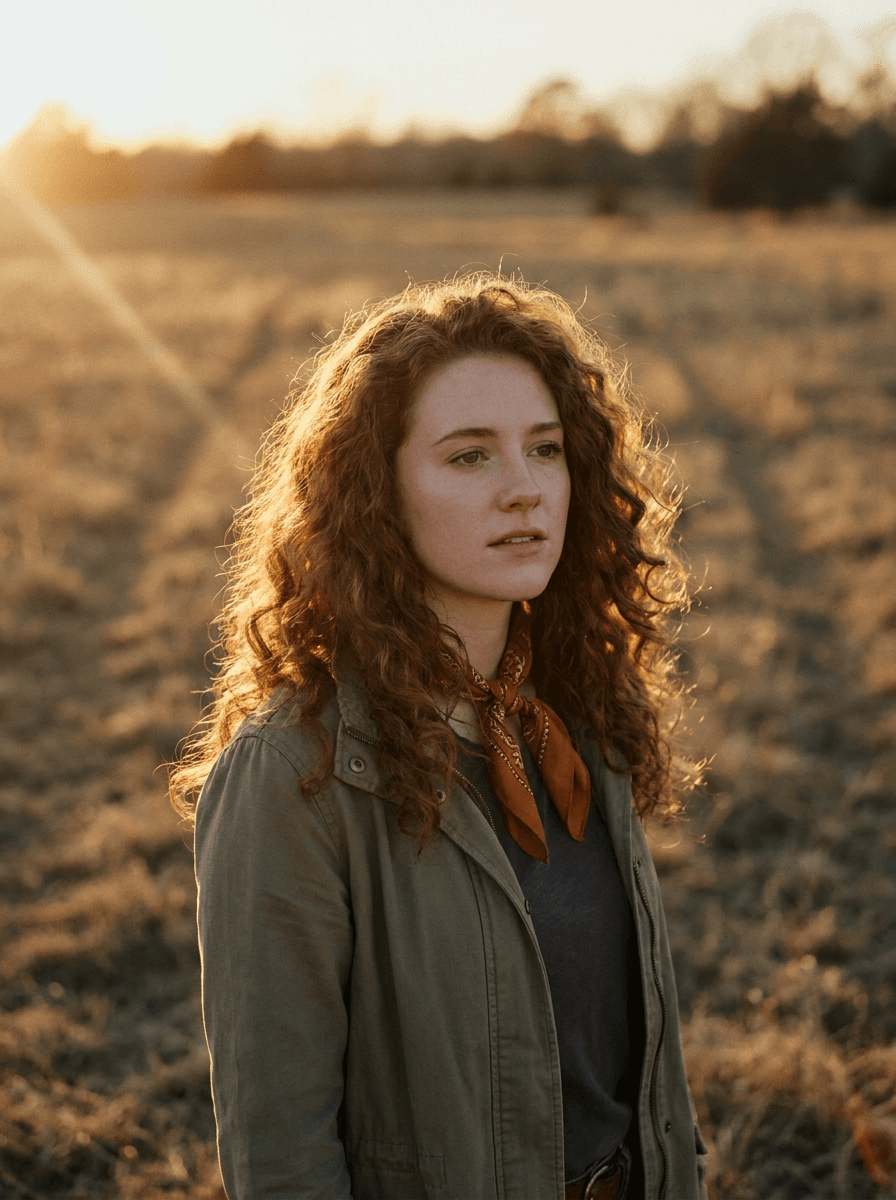
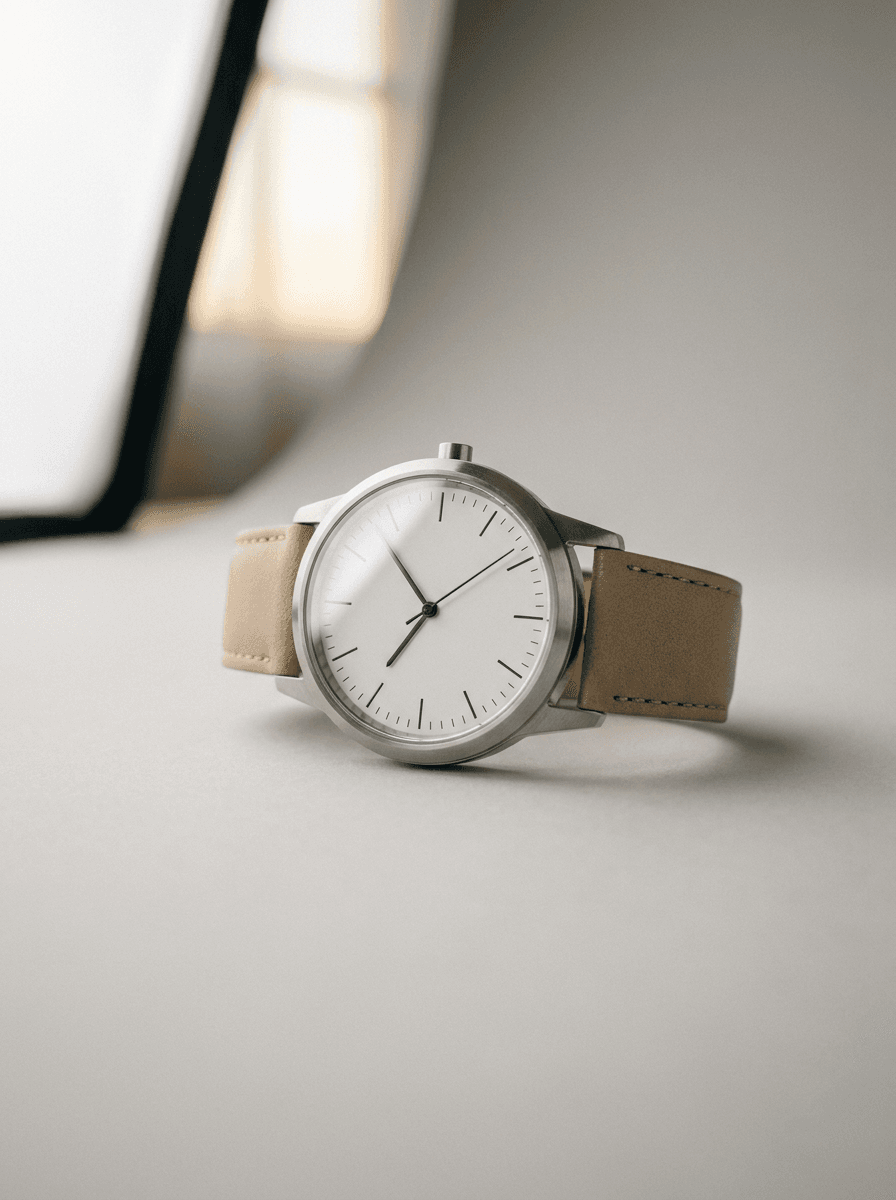
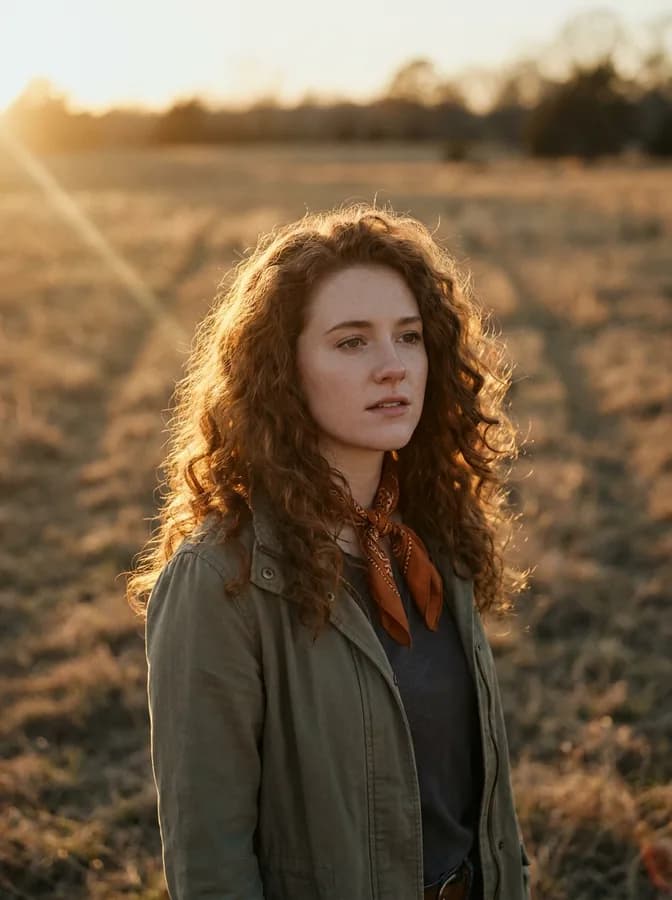
Real results from Made. Use a prompt to open it in Lighting Changer, then add your own photo.
What people use it for
- Rescue underexposed shotsBrighten photos taken in dim rooms or against a bright window without the washed-out look of a simple exposure slider.
- Golden hour on demandGive a midday photo the warm, low-angle light of sunset for a softer, more flattering result.
- Studio-quality product lightRelight a product photographed at home so it reads like a clean softbox setup for listings and ads.
- Set a moodShift a portrait toward moody low-key shadows or bright airy light to match the tone of the post or campaign.
Change the lighting in a photo
What it does
- Input
- JPEG, PNG, or WebP image plus a description of the lighting you want
- Output
- PNG image relit according to your instruction
- How it works
- Made sends your image and the lighting instruction to GPT Image 2.5 Flare and returns a PNG.
- Access
- Runs in the tool. You sign in to run it, see the price before you start, and failed runs are refunded.
Formats and limits
- Input formats
- JPEG, PNG, WebP
- Output format
- PNG
- Images per request
- One, with one written instruction
- Processing size
- Inputs larger than 1,536 pixels on a side are downscaled before editing
- Result review
- Relighting is a generative edit — check faces, text, and fine detail, and re-run with a refined instruction if needed
Checked against the running tool on 2026-10-20.
Questions about Lighting Changer
How do I change the lighting in a photo?
Upload the photo and describe the lighting you want in plain language — “golden hour from the left,” “soft studio light,” “brighten this dark shot.” Made sends the image and instruction to an AI edit model that relights the scene and returns a PNG.
Can it fix an underexposed photo?
Yes. Ask Made to brighten the exposure and the model relights the scene rather than just raising brightness, which helps dark areas recover without the flat, washed-out look of a global adjustment. Review the result, since generated detail in very dark regions is inferred.
What lighting styles can I ask for?
Anything you can describe: golden hour, overcast softness, studio softbox, hard dramatic side light, moody low-key shadows, neon night tones, or a specific light direction. The edit follows your written instruction, so specific descriptions give more predictable results.
Will relighting change other parts of the photo?
It can — this is a generative edit of the whole image, not a filter, so shadows, reflections, and background tones shift with the new light. Check faces, text, and fine detail, and re-run with a note like “keep everything else unchanged” if too much moved.
How is this different from the AI Photo Retouch tool?
Change Lighting is aimed at the light itself — direction, warmth, exposure, and mood. AI Photo Retouch covers broader cleanup like skin, blemishes, and general polish. Both are instruction-driven edits, so pick the page that matches your goal for better suggested prompts.
What formats are supported?
Upload one JPEG, PNG, or WebP per request with one instruction. Made returns a PNG.
Does it work on large images?
Inputs larger than 1,536 pixels on a side are downscaled before editing. If you need a bigger file for print or delivery, upscale the relit result with Image Upscaler.
More photo fixes
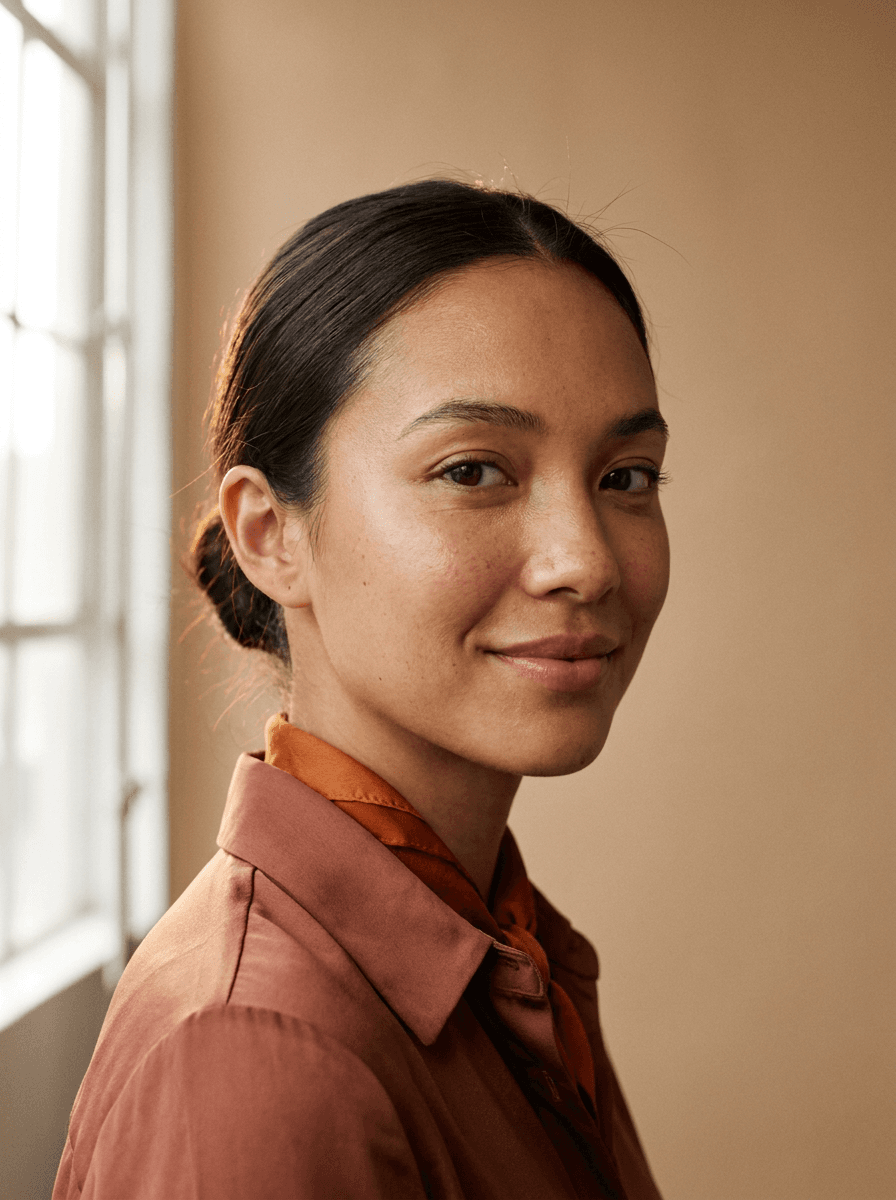
AI Photo Retouch
Retouch skin, hair and details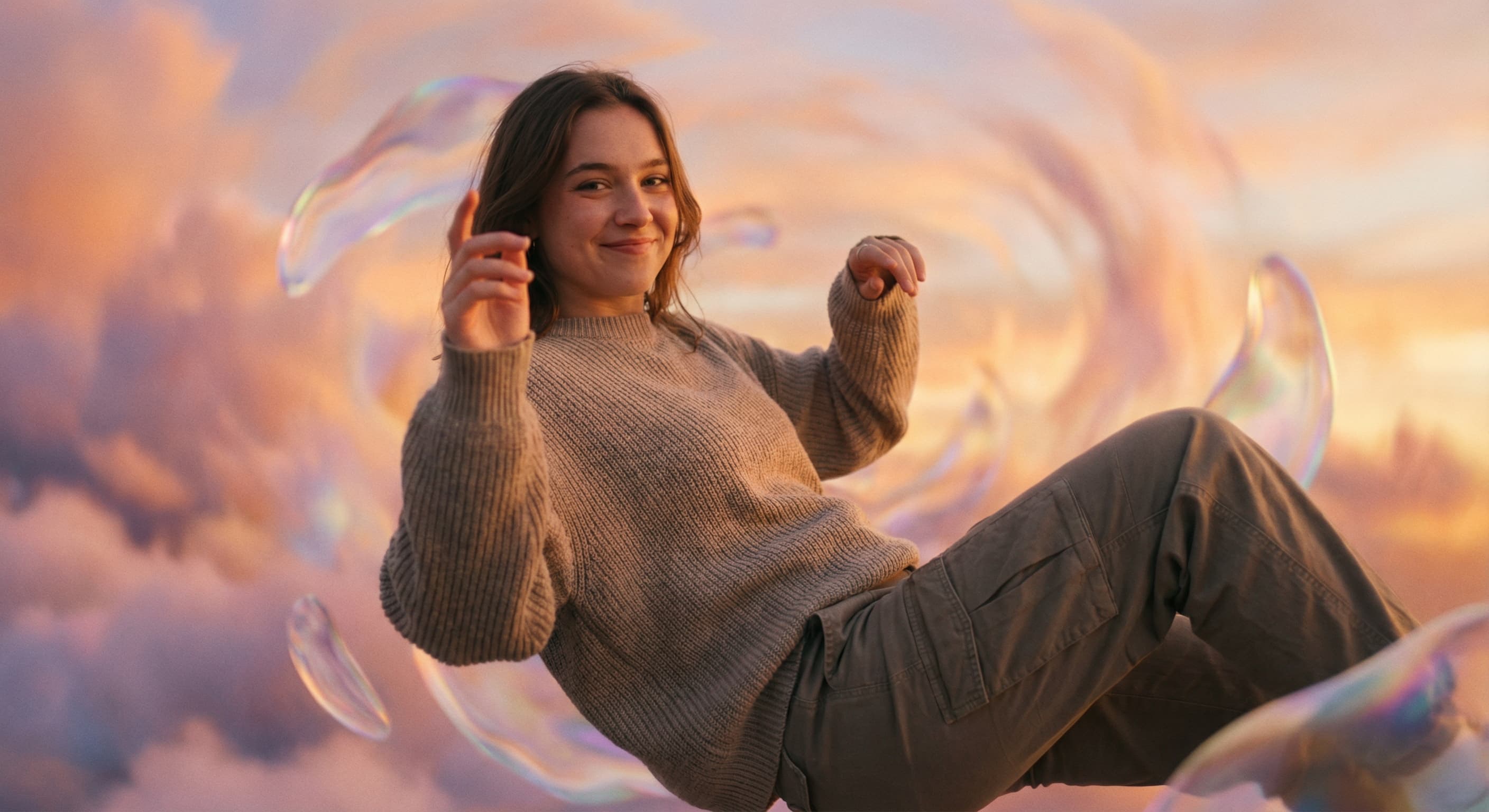
AI Photo Editor
Edit any photo by describing the change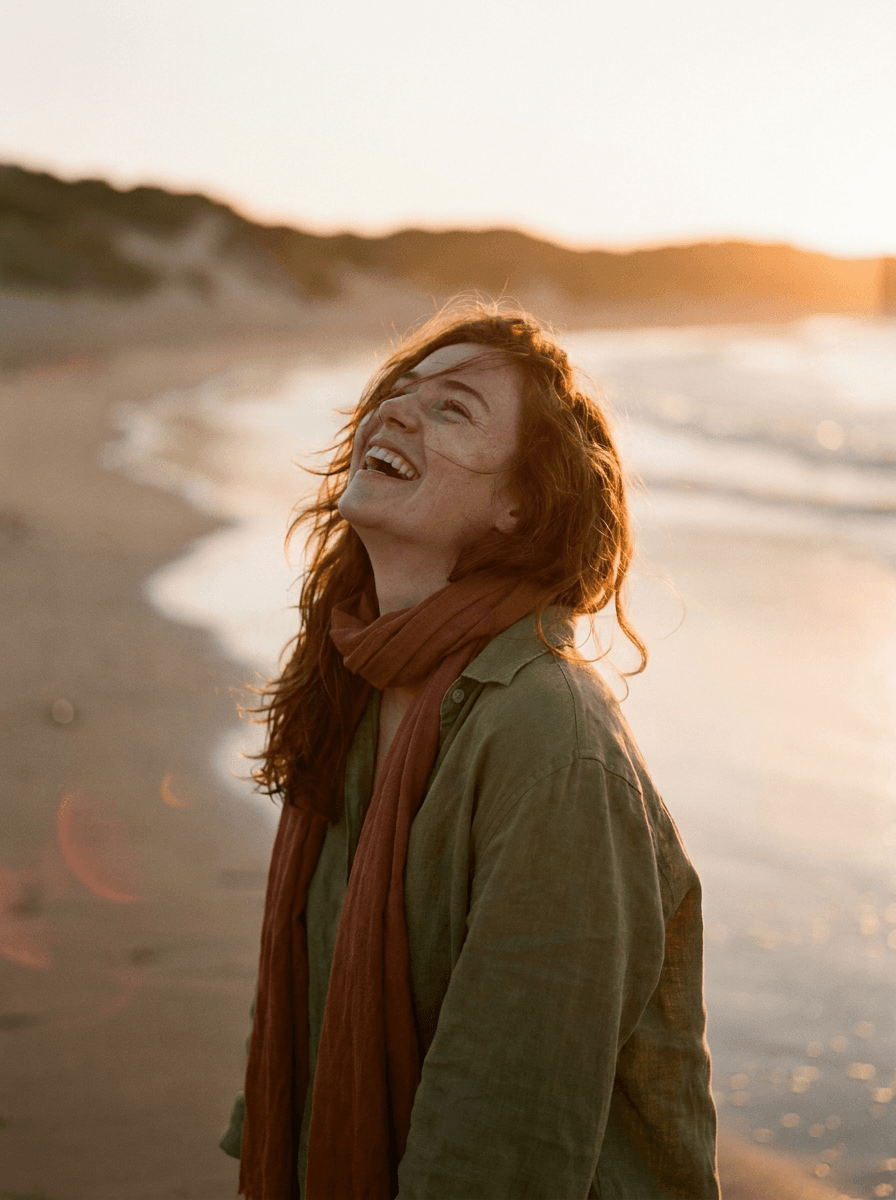
Background Changer
Put your subject in a new scene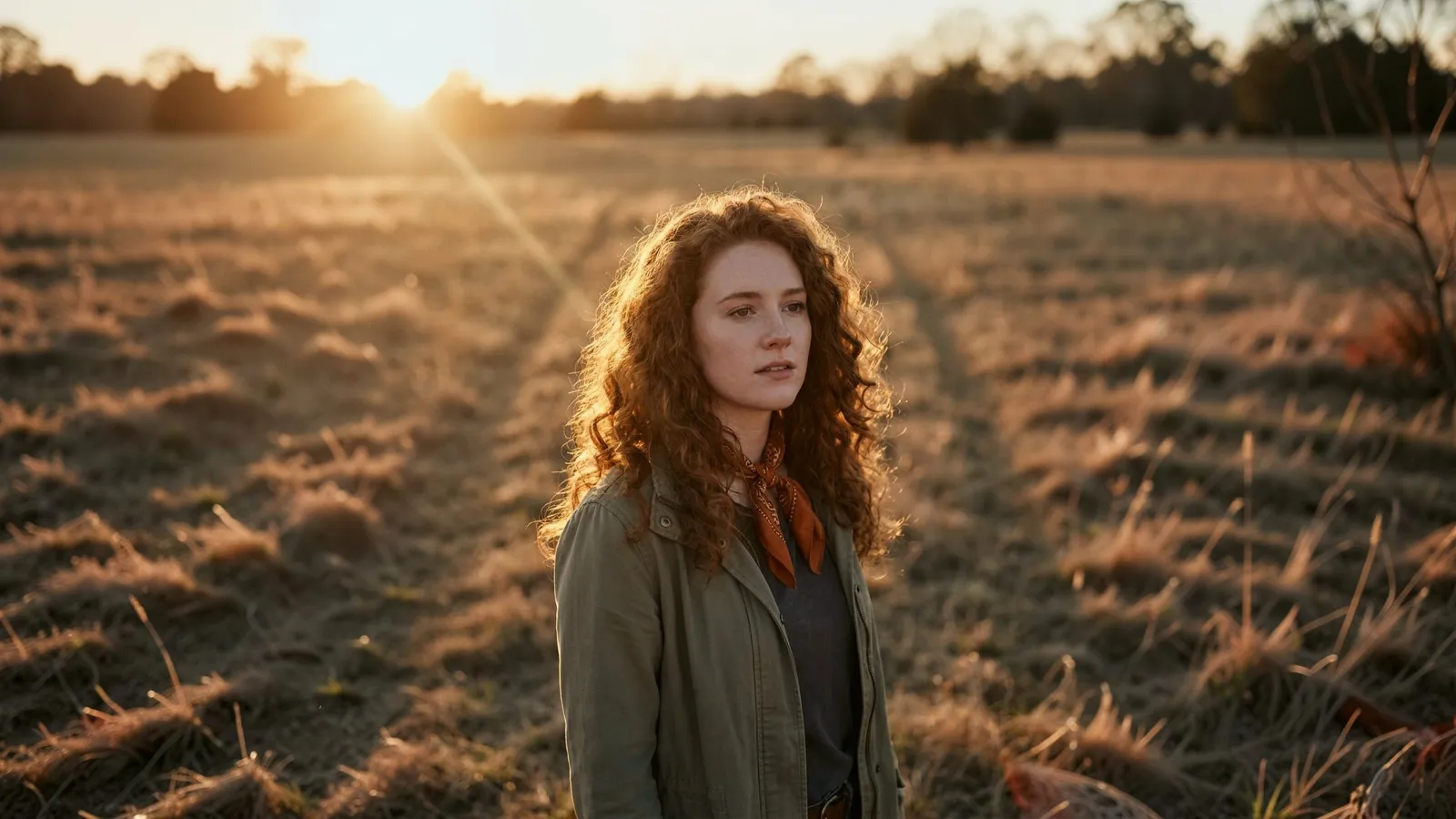
Expand Image
Extend any photo past its edges
Image Upscaler
Sharpen and enlarge up to 4×
Background Remover
A clean transparent cutout in one step
Object Remover
Erase people, cars or clutter
Edit Text
Change the words in any image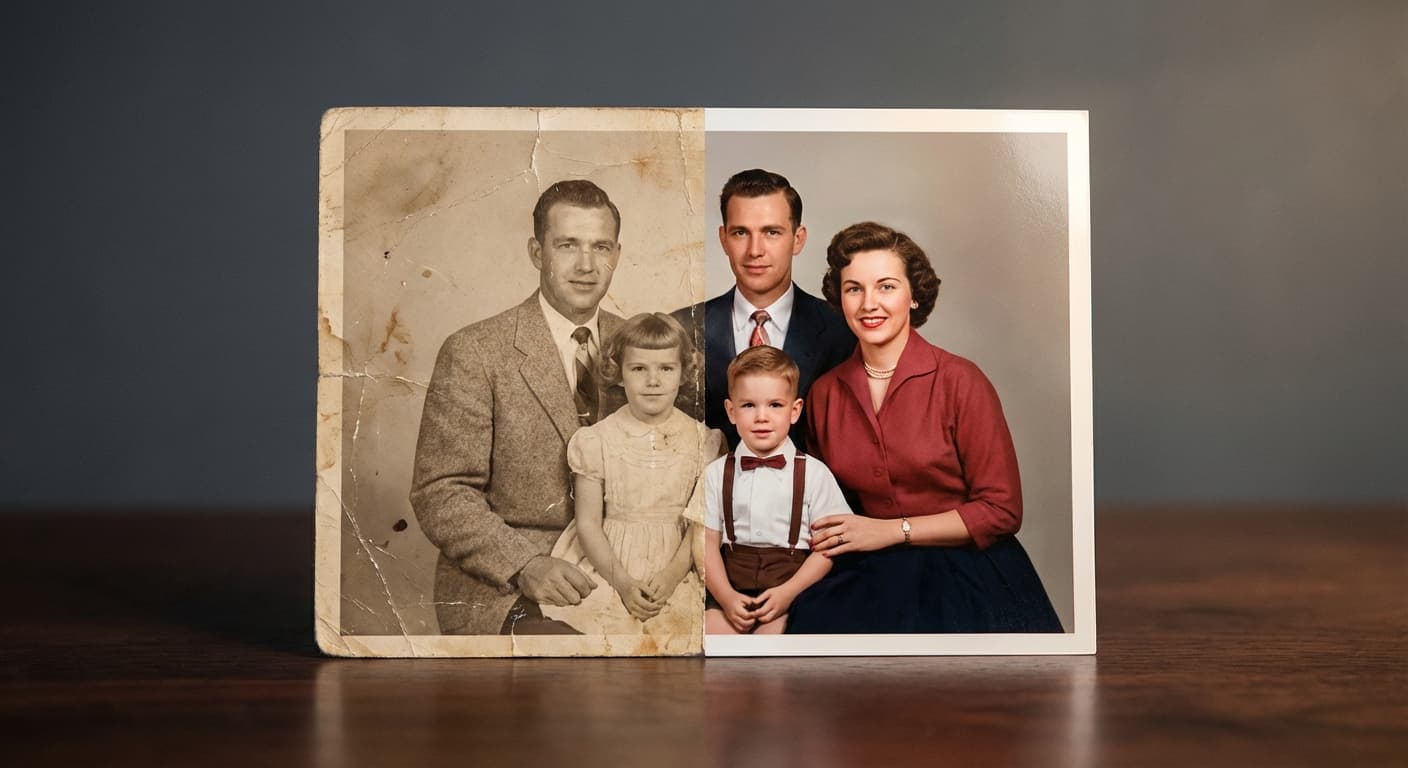
Photo Restoration
Repair scratches, tears and fading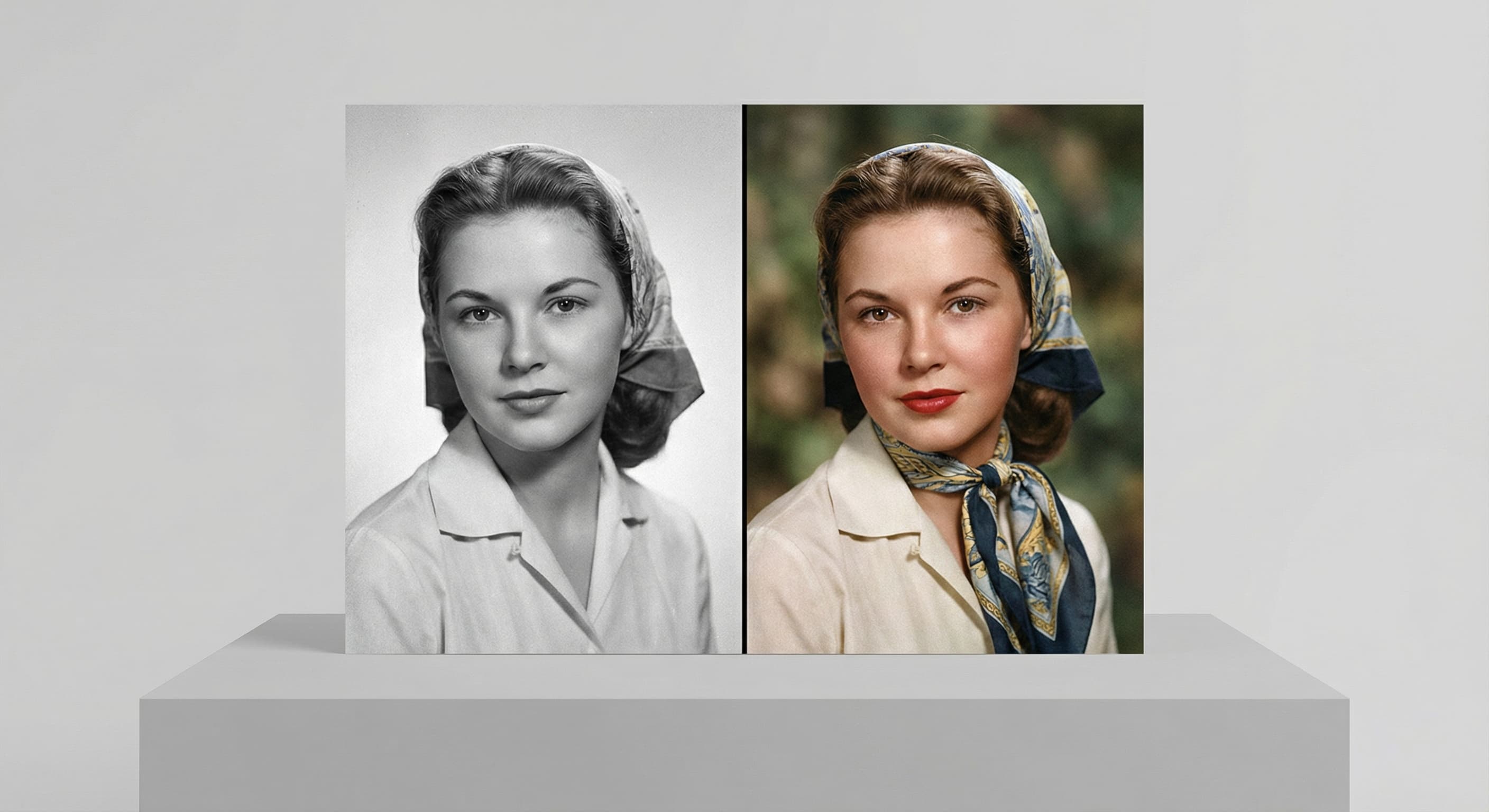
Photo Colorizer
Natural color for black-and-white photosRelated models
See what each one makes, then open it in Made.