AI Photo Retouch
Upload a photo and write the retouching instruction — clean up skin, tame stray hairs, remove glare or blemishes. Made applies professional-grade retouching and returns a PNG.
Runs in the tool. You sign in to run it, see the price before you start, and failed runs are refunded.
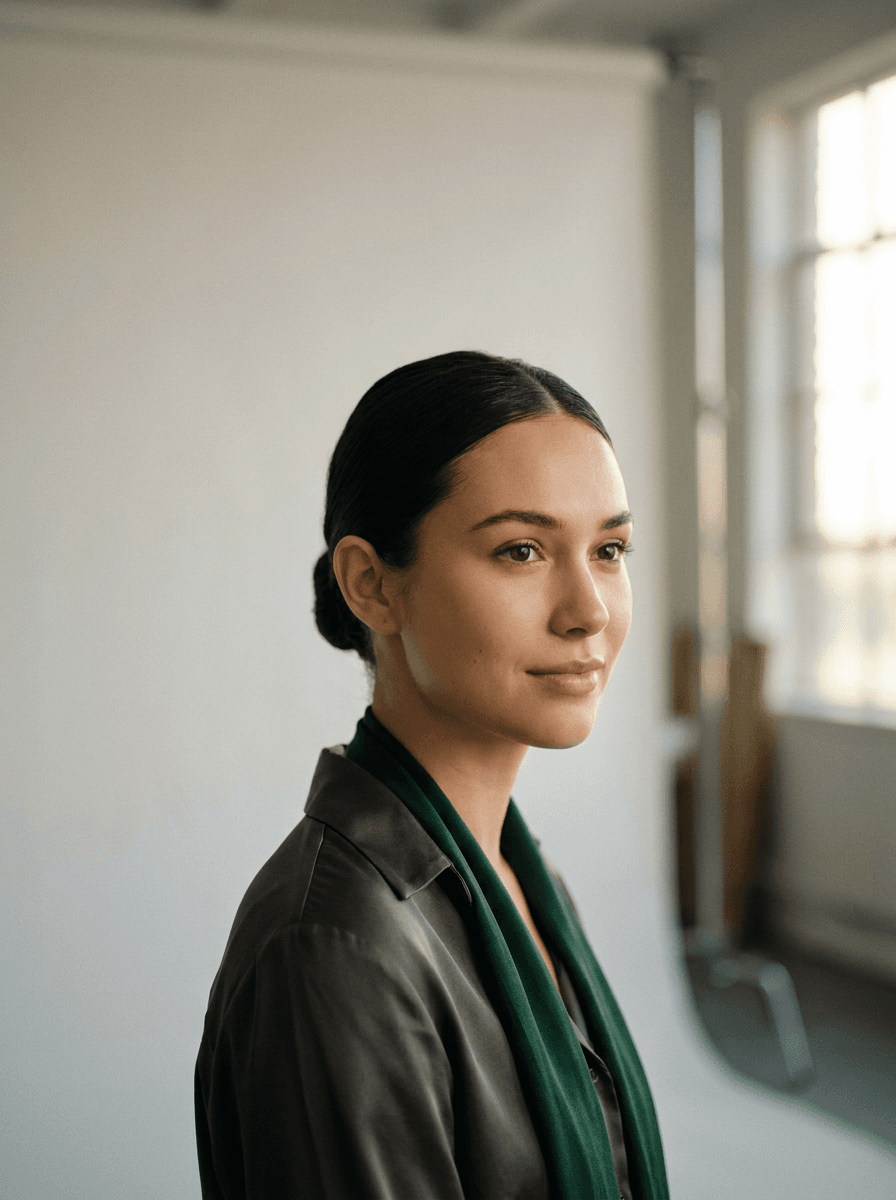
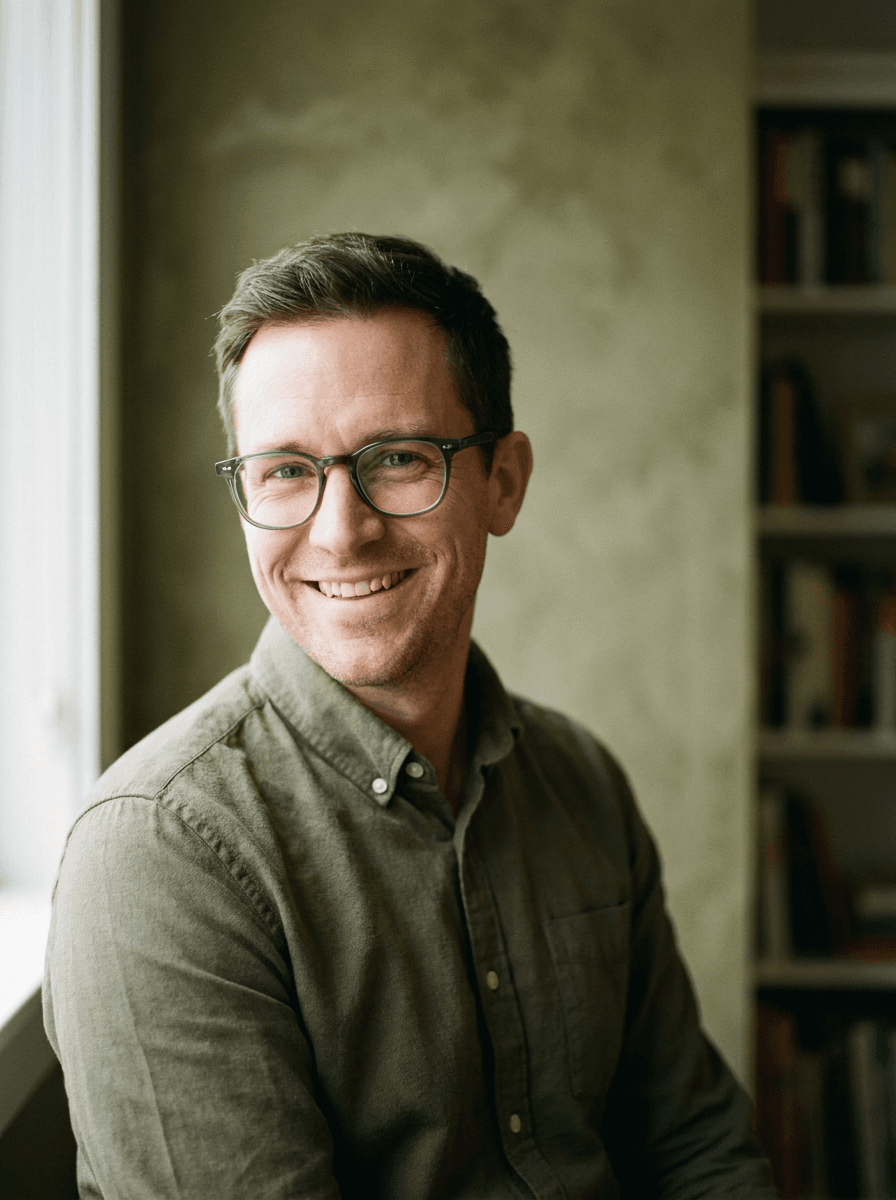
How to use AI Photo Retouch
- 1
Upload the photo
Choose a JPEG, PNG, or WebP where the area to retouch is clearly visible.
- 2
Write the instruction
Be specific about what to fix and what to keep: “remove the forehead shine, keep the skin texture natural.”
- 3
Let Made retouch it
The photo and instruction go to GPT Image 2.5 Flare, which applies the edit.
- 4
Compare before and after
Check the retouched area and the rest of the face for unintended changes, then download the PNG.
AI Photo Retouch examples
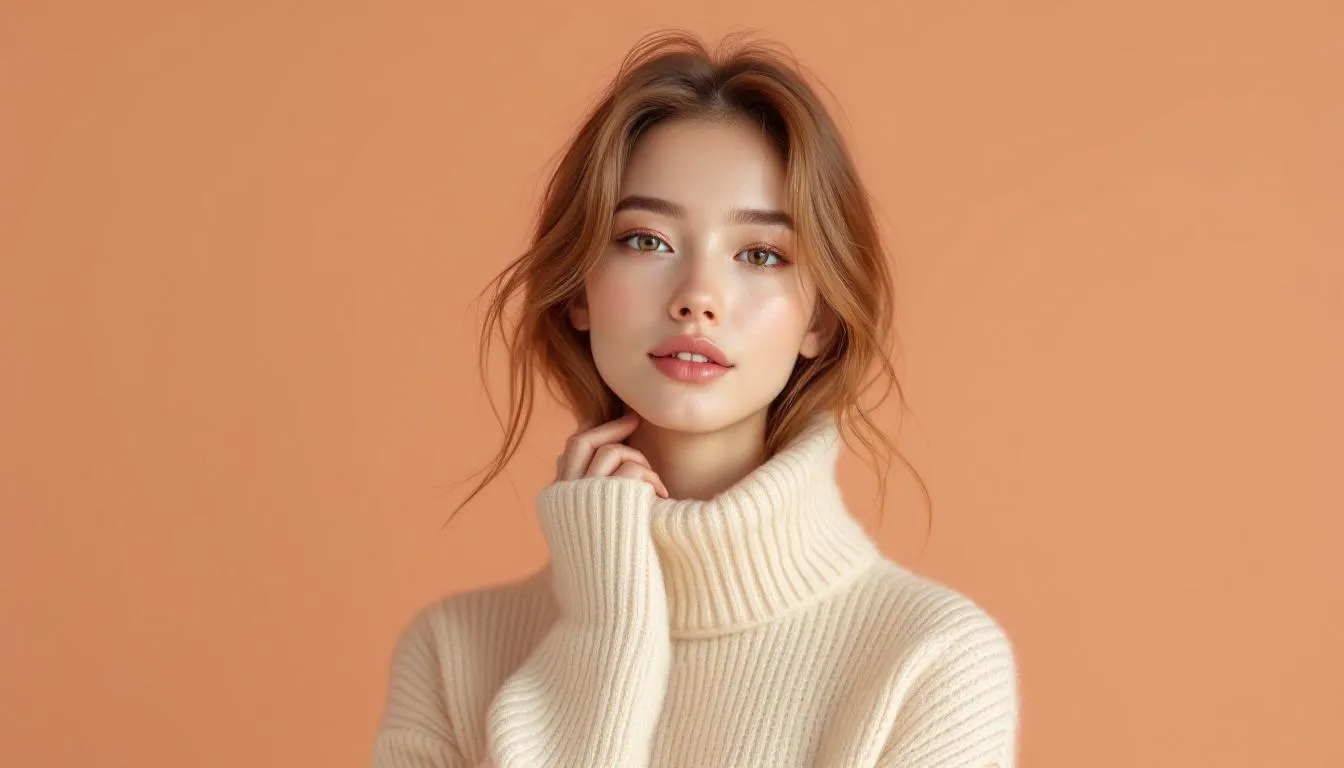
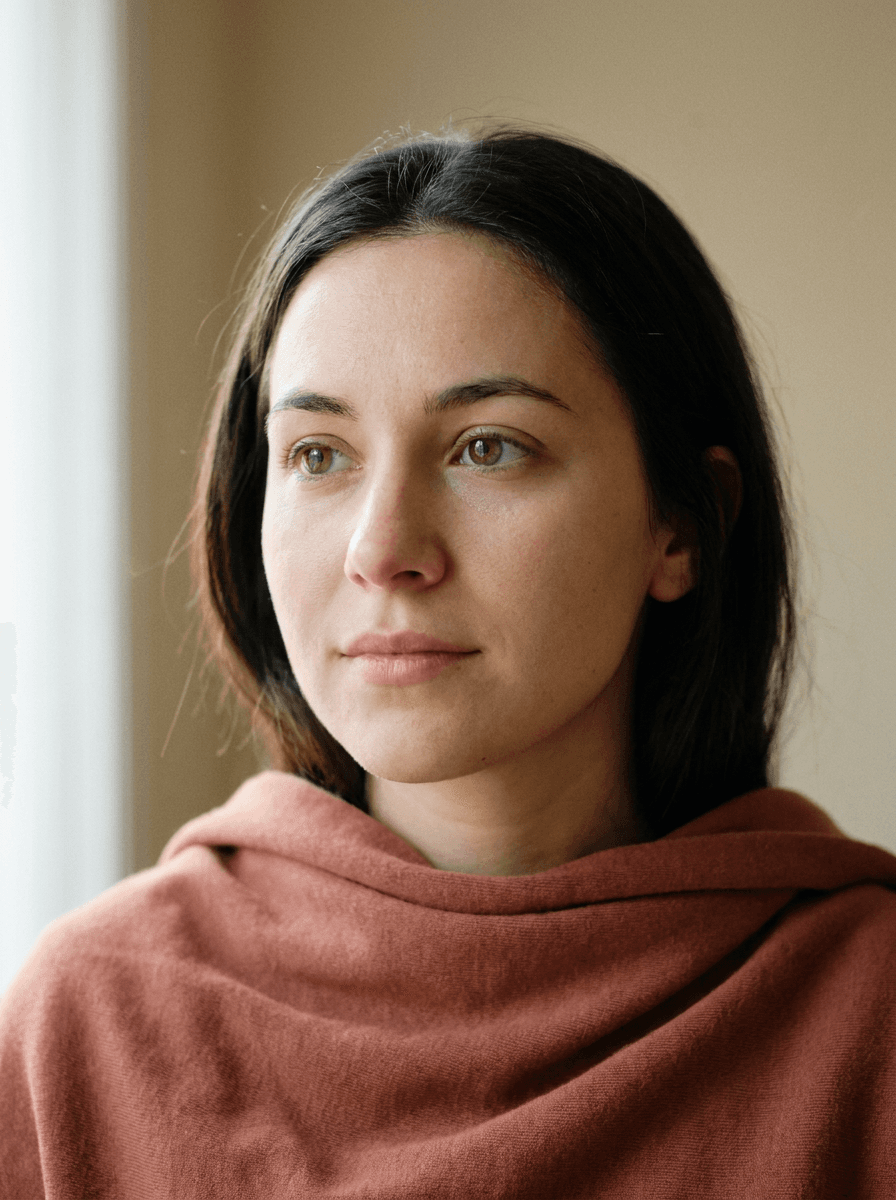
Real results from Made. Use a prompt to open it in AI Photo Retouch, then add your own photo.
What people use it for
- Headshots and profilesClean up skin, stray hairs, and shine in a professional photo while keeping it recognizably you.
- Glasses glare and reflectionsDescribe the glare and where it sits, and the model removes it while keeping the eyes natural.
- Subtle beauty editsAsk for specific, restrained changes — softened under-eye circles, evened skin tone — instead of a heavy filter.
- Last-minute fixesRescue an otherwise perfect photo from one blemish, smudge, or shiny patch before posting.
Retouch a photo by describing the edit
What it does
- Input
- One JPEG, PNG, or WebP photo, plus your written retouching instruction
- Output
- Retouched PNG
- How it works
- Made sends your photo and instruction to GPT Image 2.5 Flare; inputs above 1,536 pixels are downscaled before retouching.
- Access
- Runs in the tool. You sign in to run it, see the price before you start, and failed runs are refunded.
Formats and limits
- Input formats
- JPEG, PNG, WebP
- Output format
- PNG
- Images per request
- One photo plus one written instruction
- Large-input handling
- Inputs above 1,536 pixels are downscaled before retouching
- Processing model
- GPT Image 2.5 Flare
Checked against the running tool on 2026-10-20.
Questions about AI Photo Retouch
What is AI photo retouching?
It applies the kinds of edits a professional retoucher would make — cleaning up skin, taming stray hairs, removing glare and blemishes, subtle beauty adjustments — from a written instruction instead of manual brushwork. You describe the fix; the model applies it.
How does Made retouch the photo?
Made sends your photo and your written retouching instruction to GPT Image 2.5 Flare, which applies the edit and returns a PNG.
What kinds of edits can I ask for?
The workflow is built for retouching-style requests: skin cleanup, stray or flyaway hairs, glare on glasses or skin, blemish removal, and subtle beauty edits. Keep each instruction focused for the most controlled result.
How do I write a good retouching instruction?
Name the exact area and the change, and state what should not change: “remove the shine on my forehead, keep the skin texture and everything else the same.” Specific, bounded instructions produce more restrained edits than broad ones like “make me look better.”
What resolution and format is the result?
The result is a PNG. Inputs above 1,536 pixels are downscaled before retouching, so very large uploads come back smaller than the source.
How is this different from Acne Remover?
Acne Remover is set up for breakouts: a plain request works, and it keeps natural skin texture on its own. AI Photo Retouch follows your written instruction, so it covers a wider range of fixes but relies on how you describe them. For breakouts specifically, Acne Remover is the more targeted tool.
Will retouching change my face?
The instruction directs the model to the specific fix, but the edit is generative, so compare the result against the original — especially eyes, skin texture, and facial proportions — before using it anywhere official.
More photo fixes
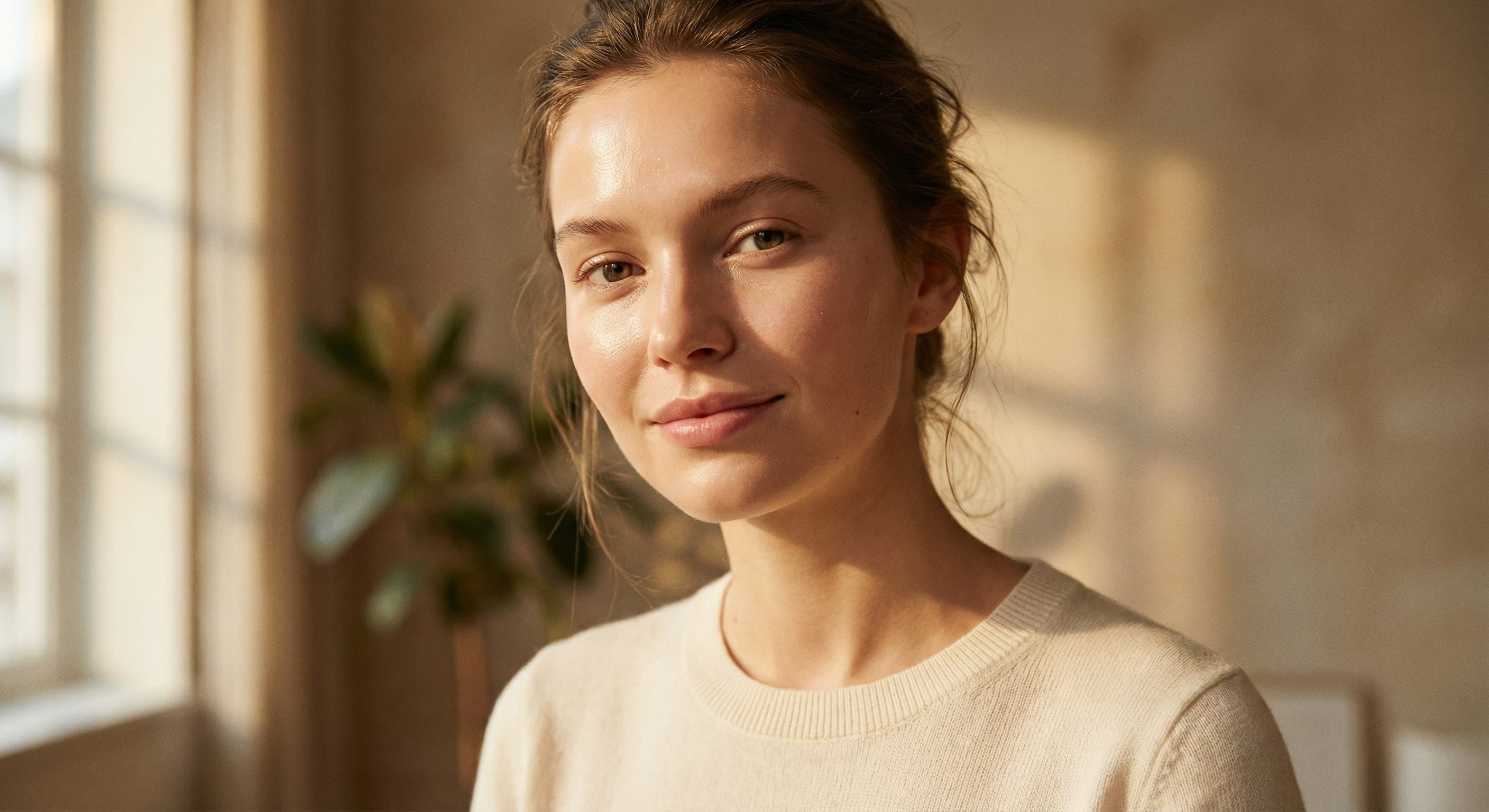
Acne Remover
Clear blemishes, keep skin texture
AI Photo Editor
Edit any photo by describing the change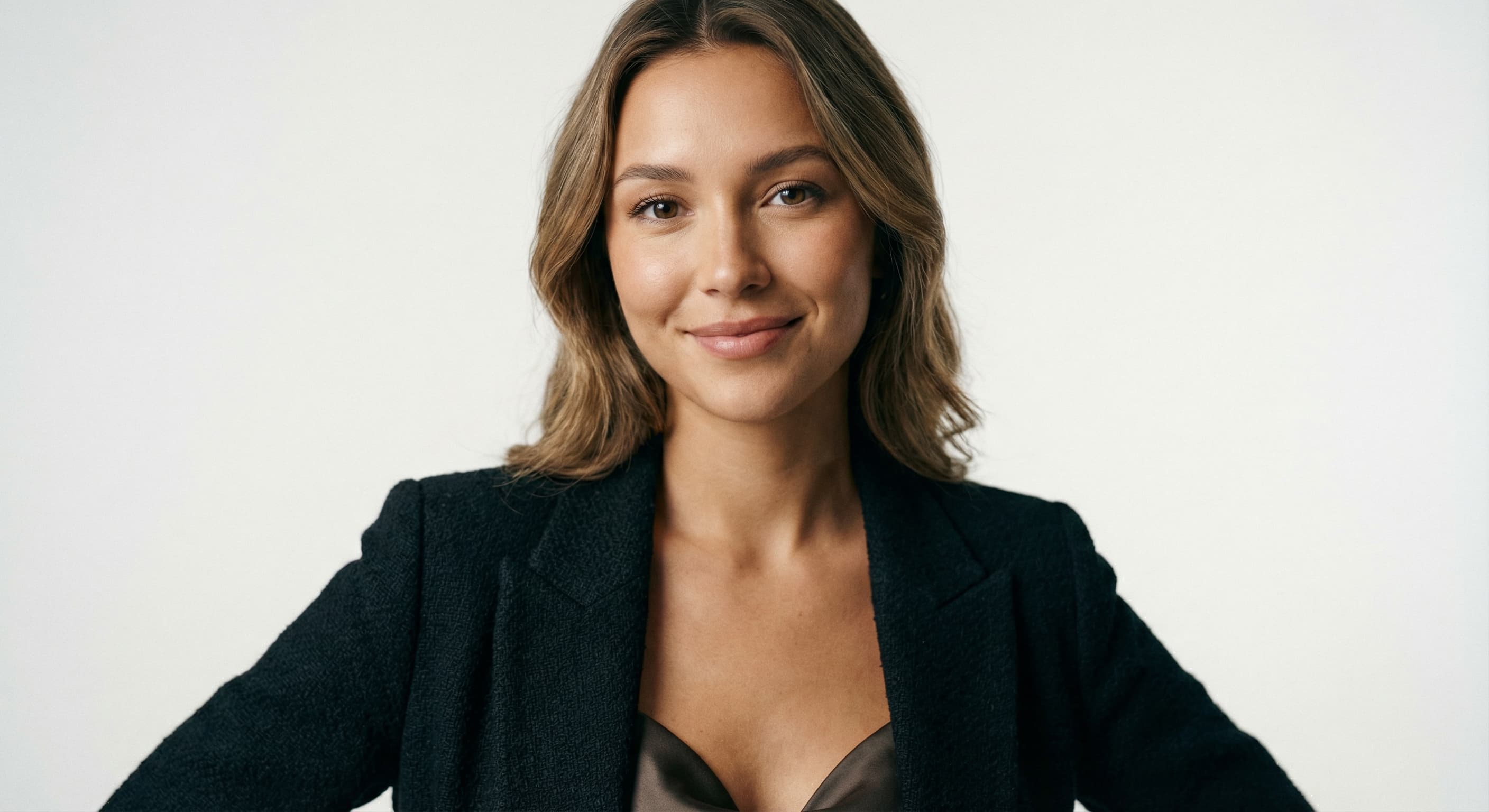
AI Headshot Generator
Studio headshots from a casual photo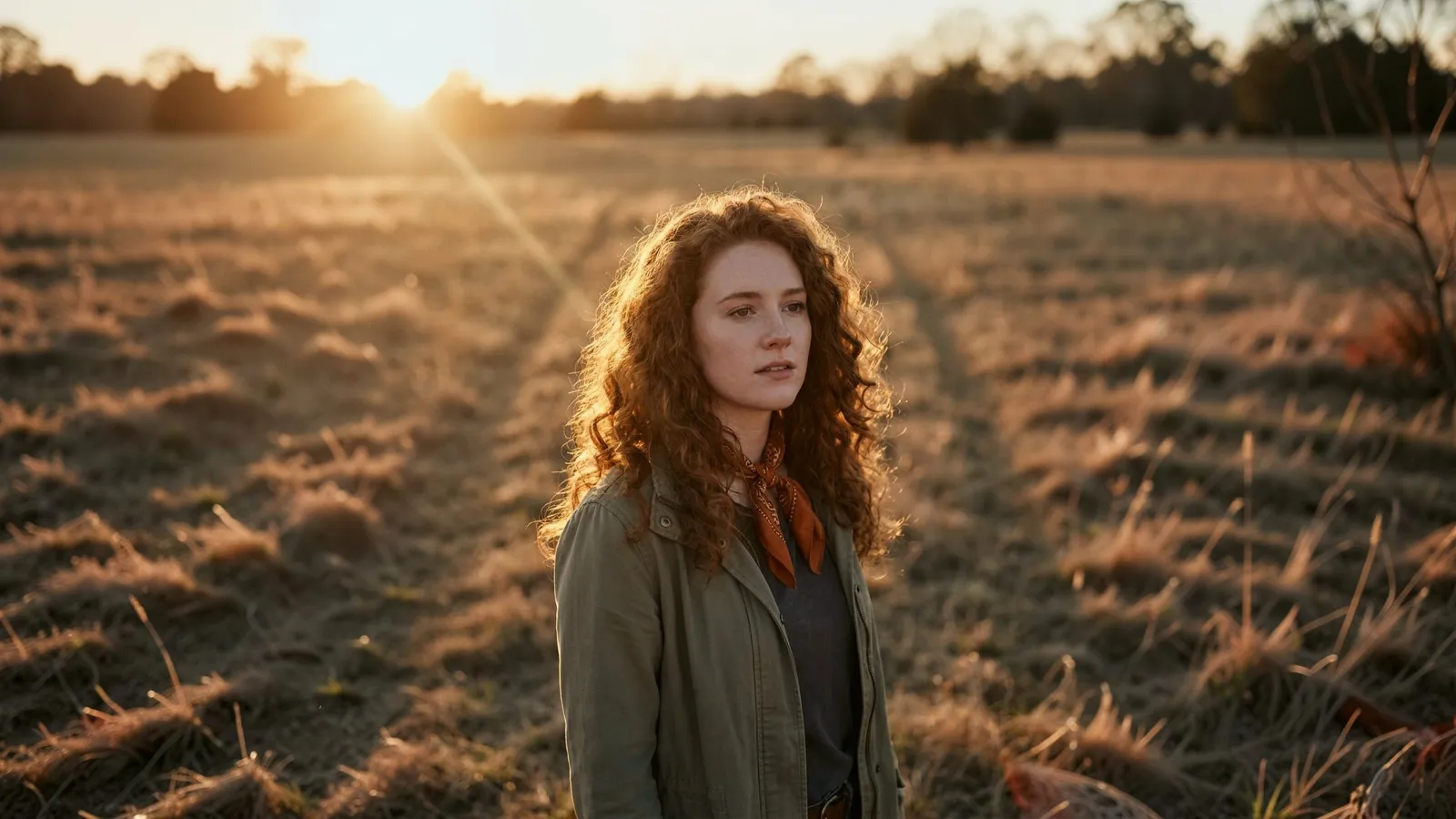
Expand Image
Extend any photo past its edges
Image Upscaler
Sharpen and enlarge up to 4×
Background Remover
A clean transparent cutout in one step
Object Remover
Erase people, cars or clutter
Edit Text
Change the words in any image
Photo Restoration
Repair scratches, tears and fading
Photo Colorizer
Natural color for black-and-white photosRelated models
See what each one makes, then open it in Made.