The workflow
Pick a clip with a place for the object
The easiest clip has a steady camera and a floor, table or shelf in view for most of it, so the object has somewhere to rest. Open Object Swap and tap Add original video. Choose an MP4 or MOV from 4 seconds to 3 minutes. A longer clip is cut to its first 3 minutes. Over 30 seconds, it’s made in parts, one after another, so it takes longer.
Add a photo of the object
Tap Add characters, products, or clothing and choose a photo of the object: JPG, PNG or WebP, under 10 MB. One object on a plain background, with its whole shape in view, works best. The first photo is @Image1, and you can add up to 30, so another angle can go in as @Image2. A photo is optional here: you can describe the object in words instead, but a photo gives it the look you want.
Say where it goes
Describe your edit is required for this edit. Write the object as @Image1, say where it goes in the frame and what it rests on, say that it’s new and nothing is replaced or removed, and say what stays the same, like the people, their moves and the camera. Naming the surface and the side of the frame matters most, because there’s no object in your clip to copy a place from. The recipe below is a starting point.
Check the price and generate
Tap Generate. The button shows the price, and Object Swap checks it again before it starts. If you aren’t signed in, you sign in first, and your clip, photo and words wait for you. The video goes to the top of Assets, usually in about 10 minutes, and you’re told when it’s ready.
Check the object frame by frame
Play the result, then pause on the first frame, the middle and the last. Look at the object’s size next to things you know, its shadow against the shadows around it, and whether it rests on its surface instead of floating. Check that it keeps the same size and spot all the way through, that anyone passing close doesn’t change it, and that nothing else in the shot went missing. Then compare the moves with your original.
Recorded Made demonstration
A duffel bag added to an athlete’s warm-up
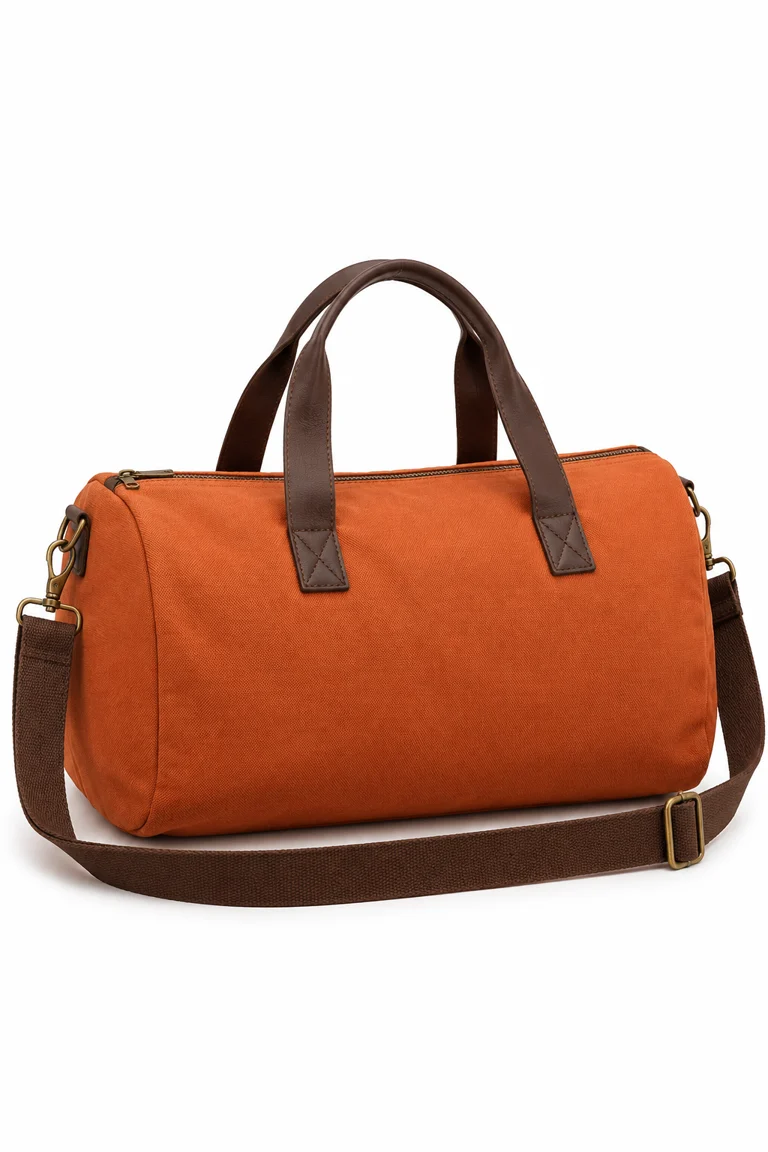
This is a real Object Swap run from November 12, 2026. The clip is “The warm-up”, a 5-second Made example: an AI-generated athlete, not a real person, shuffles and pumps his arms in a concrete gym, with no bag anywhere in the shot. The photo is a duffel bag that Made generated, on white, with no one in it. The request is exactly what Object Swap builds for this clip, this photo and the typed line, sent through Made’s API from a script rather than clicked through the browser. The bag shows up on the floor at the left, a step from his feet, and stays the same size, shape and spot through all 120 frames. It rests on the concrete: a soft shadow falls to the right, the way his own shadow does, and a faint reflection shows in the polished floor. His feet pass close to it and never touch it. The bench, the window, the hills and the athlete’s watch are as before, so nothing was replaced. Three things to know. No hand touches the bag in this clip, so it doesn’t show hand contact. The shoulder strap lay across the front in the photo but hangs at the bag’s sides here, because the model decided how it lies. And the take is made again, not copied: his moves are the same kind as the original’s but time differently, and in the last frame he has a knee raised where the original returns to standing. The clip has no sound, so none comes back. It’s one run, not a measure of how often an added object holds.
Object Swap (Seedance 2.5 Edit, upscaled 2×) · Generated · View the example record and price basis (JSON)
Prompts you can inspect and adapt
Prompt recipe to adapt
Say where the new object goes
Add the plant from @Image1 to @Video1, standing on the table at the right of the frame. The plant is new: nothing in the clip is replaced or removed. Keep it the same size and in the same spot for the whole clip, resting on the table with a soft shadow that matches the light. Keep the people, their moves, the place and the camera exactly as they are in @Video1.Type it under Describe your edit. Swap “the plant” and “the table” for your object and its surface, and say which side of the frame. Your first photo is @Image1.
Recorded generation prompt
What Object Swap sent for this example
Add the duffel bag from @Image1 to @Video1, standing upright on the floor at the left of the frame, a step away from the man’s feet. The bag is new: nothing in the clip is replaced or removed. Keep it the same size and in the same spot for the whole clip, resting on the concrete with a soft shadow that matches the sunlight. Keep the man, his moves, the bench, the window and the camera exactly as they are.

Preserve the source shot duration, camera movement, timing, and all elements not explicitly selected for editing.
The first paragraph is what was typed. Object Swap added the last line, which it adds to every edit.
How adding an object is priced
By the length of your clip, plus the 2× upscale of the result. The total appears on Generate before you run it.
The edit is priced per second of your clip, rounded up to a whole second, and the upscale by the size and length of the result. Your object photos and what you type don’t change the price.
Price source: Public video-editor catalog · Checked
Add your clip to see its exact price on Generate. Before the run starts, Object Swap checks the price again; if it came out higher than the button showed, it stops and asks you to try again. If the provider it was priced on fails, a backup provider can take the run at its own price, which can be higher. A run that fails is refunded.
What to review before you use the result
| What you see | What to try |
|---|---|
| The object looks too big, too small or like it’s floating | Say how big it is next to something in the scene, like “about as tall as his knee”, and what it rests on, like “standing on the floor with a soft shadow”. Then check the first and last frames. |
| The object changes shape or disappears partway | Use a photo that shows the whole object on a plain background, add another angle as @Image2, and say “keep it the same size and in the same spot for the whole clip”. Over 30 seconds a clip is made in parts, so look closely where one part ends and the next starts. |
| Something already in the shot was replaced | Say that the object is new and that nothing is replaced or removed, and name what stays. If you do want to swap something that’s already there, use the guide to replacing a product in a video instead. |
| You want it in someone’s hand | This guide’s example didn’t test hands, so check the fingers and the grip in your result. Say which hand holds it and how, use a photo that shows how it’s held, and pick a clip where that hand is empty. |
| The person moved differently from your clip | The clip is made again, so the moves follow your original but can differ. Add “Keep every move at the same moments as in @Video1”, and check the last second, where the example drifted. |
| Your clip is refused | Use an MP4 or MOV of at least 4 seconds. A very narrow or very wide video can’t be edited; crop it closer to 9:16 or 16:9. |
Questions about this workflow
Can AI add an object to a video that doesn’t have it?
Yes. Object Swap edits your whole clip, so the new object appears in every frame and sits in the scene with its own shadow. Watch the whole result: hands, feet and moves that pass close to the object are the hardest parts.
How is adding an object different from replacing a product?
Replacing changes something that’s already in the shot, so the new item takes over its place, size and the way hands hold it. Adding puts in something that wasn’t there, so nothing in the clip shows where or how big it should be. You say that in your words, and you tell Object Swap that nothing is replaced.
Do I need a photo of the object?
No. Describe your edit is the only thing required, so you can describe the object in words. A photo of it on a plain background gives the object its look, and you can add up to 30 photos.
Does the video keep its sound?
Yes. Object Swap puts your clip’s original sound back on the result. The example clip has none, so its result has none.
Do I need to sign in?
Yes, to generate. You can add your video, photo and words first; if you sign in from Generate, Object Swap keeps them for you.
Can I do this on my phone?
Yes. On a phone, this guide’s button opens Object Swap with its controls showing. If you close them, tap Start generating.
Work with Claude and Made
With the Made connector, Claude can run the same kind of edit on a clip and an object photo you attach: it looks up Made’s video-editing models, writes the instruction, shows you the price and runs it after you say yes, if your client lets you attach a video.
Conversation starter
Ask your assistant
Use Made to add the object in my attached photo to my attached video, standing on the table at the right of the frame. The object is new, so replace and remove nothing. Keep it the same size and in the same spot for the whole clip, with a soft shadow that matches the light, and keep the people, their moves and the camera as they are. Check the catalog for a video-editing model that takes a video and an image, then show me the price and the prompt before generating one result.Object Swap needs the clip and a line saying what to change. If your client can’t attach a video, use Object Swap with the same files.