The workflow
Open Object Swap on Motion
Use the button on this guide. It opens Object Swap on its Motion mode, shown as Motion beside Swap and Style, and titled Motion Swap. Motion keeps the moves of your clip and takes everyone you see from your photos.
Add a clip with the same number of dancers
Tap Add a video to copy and choose an MP4 or MOV from 4 to 15 seconds. A longer clip is cut to its first 15 seconds. Pick a clip where every dancer is in view from the first frame, with the dancers kept apart; Motion copies who stands where, the steps and the camera.
Add one photo for each dancer, left to right
Tap Add who performs and choose the photos: JPG, PNG or WebP, under 10 MB each, one person per photo, with the face clear. Motion gives them to the dancers from left to right as the dancers first appear, so add the photo of the person on the left first. The first photo is @Image1, and you can add up to 9. Use photos of yourself and of people who agreed to it.
Say what must stay, then generate
Anything to change (optional) can stay empty. Motion takes the room from your first photo, so if you want the clip’s room and framing, say so in one line, like the recipe below. Then tap Generate. The button shows the price, and Motion Swap checks it again before it starts. The video goes to the top of Assets, usually in about 10 minutes, and you’re told when it’s ready.
Watch the whole dance, person by person
Play it at full speed, then pause at the start, in the middle and at the end. Check that each person is in the place you gave them, with their own face, hair and clothes, and that nobody swaps places. Look at every hand, and at the fastest steps, where faces and hair can blur.
Recorded Made demonstration
Three people from three photos, in a three-dancer routine
This is a real Motion Swap run from November 13, 2026 (UTC). The clip is an 8-second routine that Made generated: three dancers in an empty rehearsal room, a man on the left and two women, with a step to the side, an arm wave, a knee bend and a point at the camera. The three photos are Kofi, Maya and Amara, example people from Made’s AI Influencer tool, who aren’t real people. The photos were added in the order Kofi, Maya, Amara, and the request is exactly what Motion Swap builds for them, sent through Made’s API from a script rather than clicked through the browser. In the result, Kofi dances on the left, Maya in the middle and Amara on the right, in the clip’s room and framing, head to toe, with the same moves at the same moments and the clip’s own sound. Nobody swapped places in the frames checked. A first run with nothing typed gave the right people in the right places, but replaced the room with the grey backdrop of the first photo, framed the three tighter so their hands and feet left the frame, and blurred the faces in the knee bends. The one typed line fixed the room and the framing. What still shows: the faces are small, so the likeness is looser than in the photos (Kofi’s lighter patches of skin are gone, and Maya’s hair is shorter and tidier than in her photo), the hair blurs for about a second in the knee bends, and the feet are bare because no photo shows feet. It’s two runs, not a measure of how often a group dance holds.
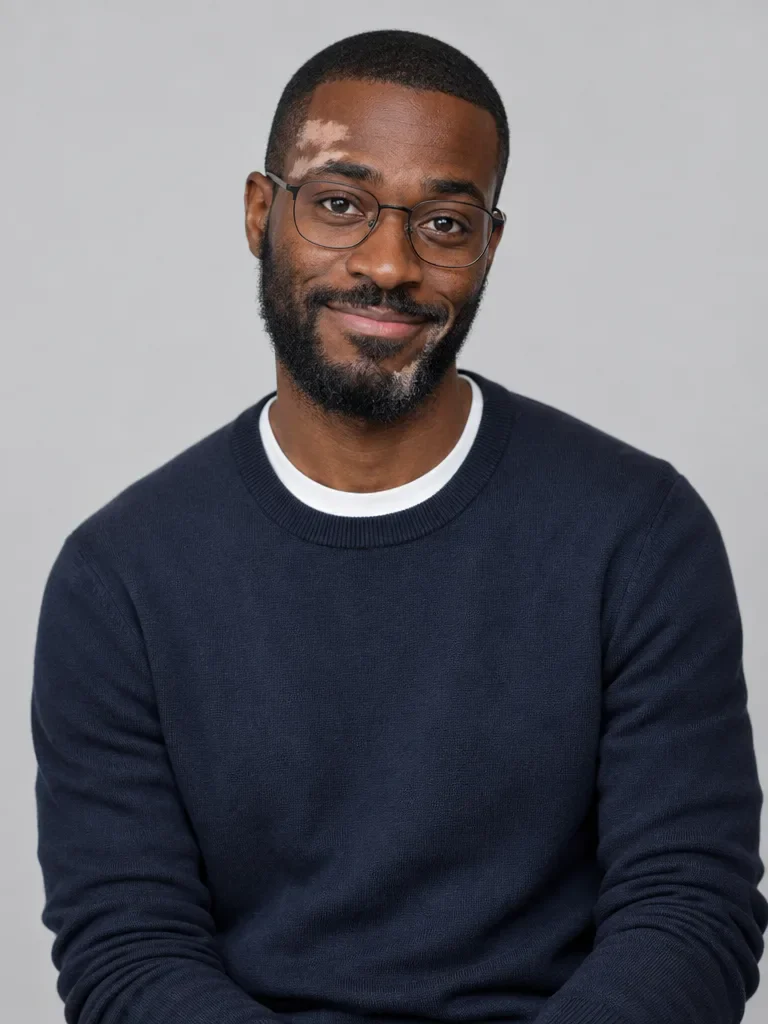
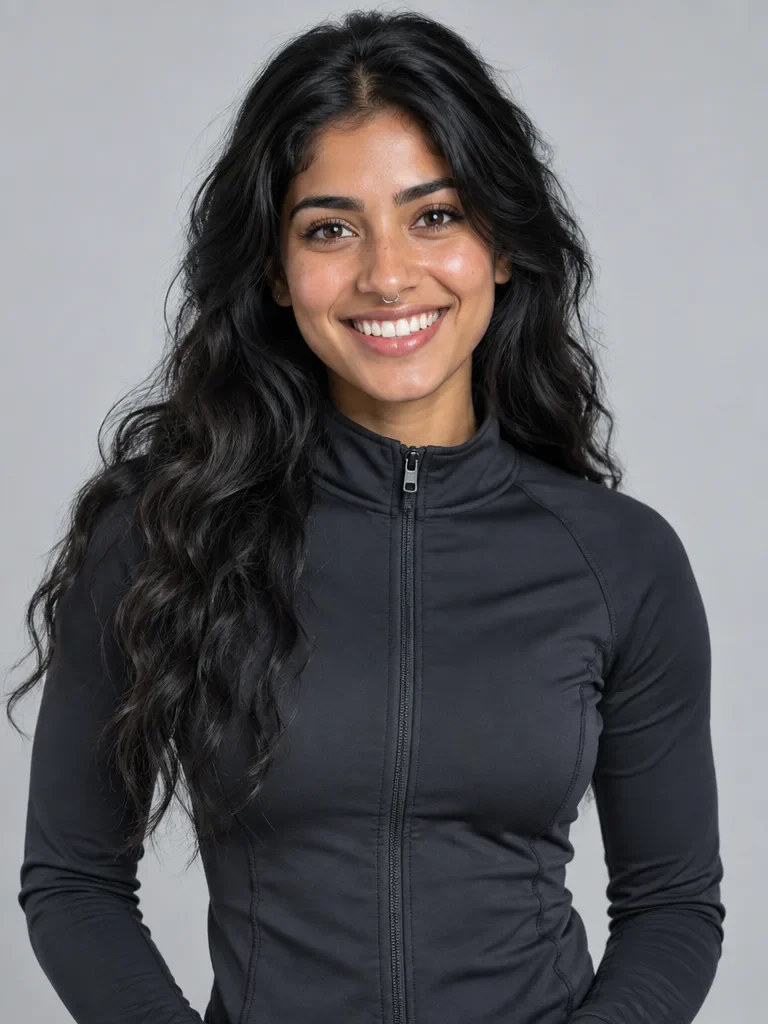
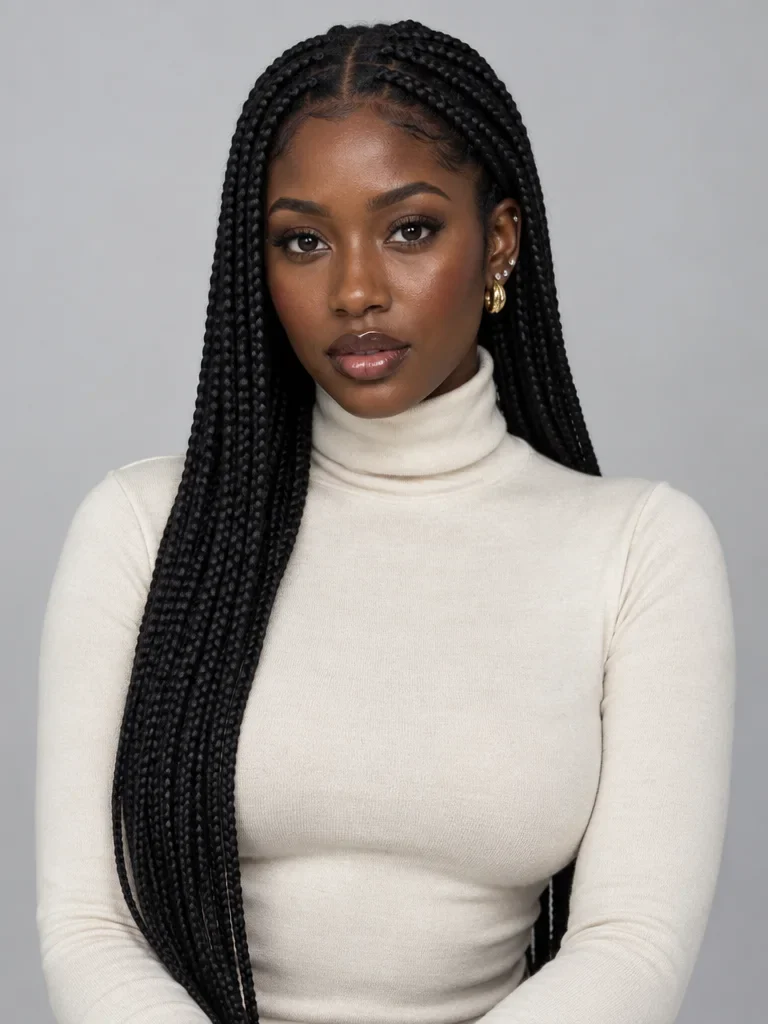
Motion Swap (Seedance 2.5 Motion, upscaled 2×) · Generated · View the example record and price basis (JSON)
Prompts you can inspect and adapt
Prompt recipe to adapt
Keep the room and the framing
Keep the room from @Video1 and keep all three dancers head to toe in frame exactly as in @Video1. Keep every face and hand sharp, even in the fastest steps.Type it under Anything to change (optional). Change “all three” to the number of dancers in your clip. Your first photo is @Image1 and the clip is @Video1.
Recorded generation prompt
What Motion Swap sent for this example
Made Remix: motion.
TASK
A new video in which the people in @Image1 to @Image3 performs @Video1. @Video1 gives only the choreography and the camera: every movement, step, gesture, head turn and change of expression, where each one is in the frame, the camera position and moves, the cuts and the timing. Everything that is seen comes from the photos.

PHOTOS
@Image1 to @Image3 are who performs, one per photo, given to the people in @Video1 from left to right as they first appear. Each keeps their own face, hair, skin tone, body shape, age, clothes and accessories in every shot and never trades places with another. If @Video1 has more people than photos, the others stay as figures in the scene, dressed to fit the place.
The place is the one in @Image1, seen from each camera angle of @Video1 and continued naturally past the photo's edges. If @Image1 shows no real place (a plain wall, a studio backdrop or a cut-out), keep the place from @Video1.

MATCH
Beat for beat with @Video1: the same actions at the same moments and speed, the same framing and positions on screen, the same number of shots. If a photo shows only part of someone, continue them naturally in the same style. Nothing of the original people in @Video1 is seen.
Every shot framed exactly like @Video1: same camera distance, height and lens, same headroom, each performer the same size and place in frame (head to toe if @Video1 is). The photos never set framing.
Each pose at full size: same stance width, arm angles and hand positions at the same moment, whatever the performer's age or build.

LOOK
The light and colour of @Image1. Faces and hands stay the same from the first frame to the last, feet meet the ground, clothes and hair move with the body. No split screens, borders, captions or logos.
Keep the bright rehearsal room with the tall window from @Video1, and keep all three dancers head to toe in frame exactly as in @Video1. Keep every face and hand sharp, even in the knee bends.
Only the last line was typed. Motion Swap wrote the rest, and it counted the photos for you: three photos, “the people in @Image1 to @Image3”, handed to the dancers from left to right.
How a Motion Swap is priced
By the length of your clip, plus the 2× upscale of the result. The total appears on Generate before you run it.
The edit is priced per second of your clip, rounded up to a whole second, and the upscale by the size and length of the result. The number of photos and what you type don’t change the price.
Price source: Public video-editor catalog · Checked
Add your clip to see its exact price on Generate. Before the run starts, Motion Swap checks the price again; if it came out higher than the button showed, it stops and asks you to try again. If the provider it was priced on fails, a backup provider can take the run at its own price, which can be higher. A run that fails is refunded.
What to review before you use the result
| What you see | What to try |
|---|---|
| The room changed, or the dancers are framed tighter than your clip | Motion takes the room from your first photo. Add a line under Anything to change (optional): “Keep the room from @Video1 and keep all three dancers head to toe in frame exactly as in @Video1.” In the example, that line brought back the room and the feet. |
| The right people are in the wrong places | Photos go to the dancers from left to right as the dancers first appear in your clip. Remove the photos and add them again in that order, the person on the left first. Dancers who cross over or hide each other early in the clip are harder to tell apart, so pick a clip where they stay apart. |
| There are more dancers than photos | The dancers without a photo stay in the scene as figures, dressed to fit the place. To give everyone a face, add one photo for each dancer, up to 9. |
| Faces blur or hair smears in fast steps | Use a clip with slower steps, or add “Keep every face and hand sharp.” In the example, the knee bends still blurred the hair for about a second, so look at the fastest moment before you post. |
| The likeness is loose | The smaller the dancers are in the clip, the less of each face the model has to work with. Use a clip where they’re closer to the camera, and photos where the face is clear and nothing covers it. |
| Your clip is refused or cut short | Use an MP4 or MOV from 4 to 15 seconds. A longer clip is cut to its first 15 seconds. A very narrow or very wide video can’t be used; crop it closer to 9:16 or 16:9. |
| A photo shows only part of someone | Motion continues them in the same style, so the rest of them is the model’s guess. A photo that shows the whole person, shoes included, gives you more control over what they wear. |
Questions about this workflow
Can AI make a dance video of my friends from their photos?
Yes, with a clip to copy. Motion Swap copies the moves, the camera and the sound of a clip of people dancing, and puts the people from your photos in place of the dancers, one photo for each. You don’t need a video of your friends dancing; you need photos of them and a dance clip.
How many people can be in it?
Up to 9 photos. Give one photo for each dancer in your clip, in the order they stand from left to right. If the clip has more dancers than photos, the others stay as figures in the scene.
Which photo goes with which dancer?
Motion gives the photos to the dancers from left to right as they first appear in the clip: the first photo you add to the dancer on the left, and so on. Check the finished video to see that each person is where you meant them to be.
Is this the same as Video Motion Transfer?
No. Video Motion Transfer puts one person from one photo into a move, in two stages. Motion Swap takes several people at once and keeps your clip’s room, camera and sound. For one person, use the Video Motion Transfer guide linked below.
Does the video keep the music?
Yes. Motion Swap puts your clip’s own sound back on the result.
Can I use photos of real friends?
Only with their OK. Use photos of yourself and of people who agreed, and don’t make a video that pretends someone did something they didn’t.
Do I need to sign in?
Yes, to generate. You can add your clip and photos first; if you sign in from Generate, Motion Swap keeps them for you.
Work with Claude and Made
With the Made connector, Claude can run the same kind of edit: its catalog lists Seedance 2.5 (Motion), which takes one video and up to 9 photos. Claude shows you the price and runs it after you say yes, if your client lets you attach a video.
Conversation starter
Ask your assistant
Use Made to make a dance video from my attached clip, where three people dance. Use Seedance 2.5 (Motion) with my three attached photos, left to right as the dancers first appear, each person keeping their own face, hair and clothes. Keep the clip’s room, framing, moves and sound. Show me the price and the prompt before generating one result.If your client can’t attach a video, use Motion Swap in Object Swap with the same files. Face swap, recast and motion transfer aren’t in the ChatGPT app.