The workflow
Add your clip
Open Recast. The Motion Library sits beside the composer, but for your own footage tap “Add a reference video to edit” and choose an MP4 or MOV. Recast Pro takes 4–30 seconds and Recast Lite 4–15; a longer clip is trimmed to that limit from its start before upload. A clip under 4 seconds, or one far narrower or wider than 9:16 or 16:9, is refused. A clip where the person stays in frame with the face visible is the easiest first test.
Add one photo of the new person
Under Attachments, tap “Add your characters, products or clothes” and choose one photo: JPG, PNG or WebP under 10 MB. It shows as @Image1. A photo from the waist up, or head to toe, gives Recast the face, the hair and the outfit to use. Use a photo of yourself or of an adult who agreed.
Say who changes
Tap the button beside Generate for Options, then Prompt. Name the person in your clip by what they wear or where they are, say what comes from @Image1 and what stays, then tap Save. With nothing typed, Recast sends a general instruction to swap in your attachments, which is enough for a clip with one person but not for a group.
Pick Recast Pro, check the price, generate
Choose Recast Pro in the menu at the top of the composer: it keeps your clip’s original sound. Recast Lite makes new audio and stops at 15 seconds. Resolution starts at 480p, with 720p and 1080p under Options. Generate shows the price, and Recast checks it again before starting. If you aren’t signed in, you sign in first, and your clip, photo and prompt wait for you.
Check the result in Assets
The video goes to the top of Assets, usually in about 10 minutes, and Made tells you when it’s ready. Play it with the sound on. Check the face when the head turns, the hands, the mouth on fast words, and anything the photo doesn’t show, such as glasses, a watch or headphones.
Recorded Made demonstration
A podcast host, replaced from one photo
This is a real Recast Pro run from November 12, 2026. The clip is Theo, an AI-generated man from Lip Sync Studio’s preset faces, not a real person, talking at a podcast desk for 8 seconds with his own sound. It went in as an uploaded clip, not a Motion Library trend. The photo is Lucien, a man Made generated for its AI Influencer examples, and the prompt is the one typed under Options → Prompt, shown below. The request is exactly what Recast builds for that clip, photo and prompt at 480p, sent through Made’s API from a script rather than clicked through the browser. Lucien replaces Theo in every frame: the copper bowl cut, a curled moustache where the beard was, the mint plaid suit and bow tie. The hand gesture, the head moves and the mouth shapes land on the same frames, and the original sound is kept unchanged. His headphones and watch were part of his outfit, which now comes from the photo, so they’re gone. At 480p the face looks soft at full size. It’s one run, not a measure of how often a recast holds.
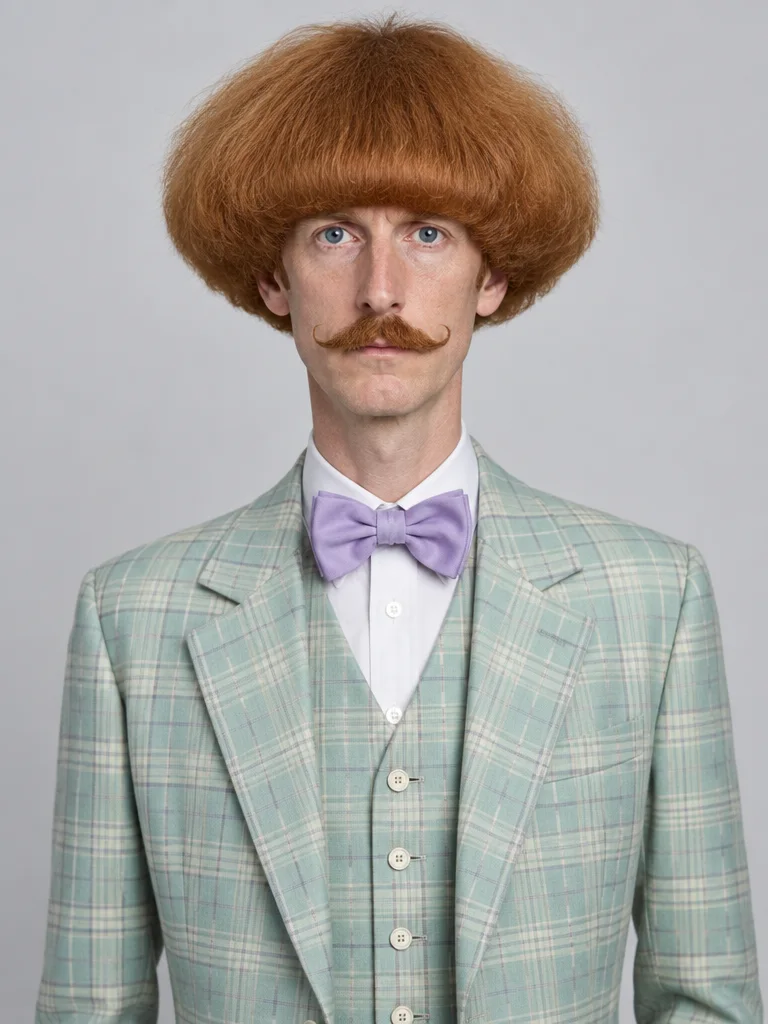
Recast Pro (Seedance 2.5 Edit) · Generated · View the example record and price basis (JSON)
Prompts you can inspect and adapt
Prompt recipe to adapt
Name who changes in your clip
Replace the person in @Video1 with the person in @Image1: their face, hair, facial hair, skin tone, body shape and outfit. Keep every move, gesture, expression and mouth movement at the same moments. Keep the place, the lighting, the framing and the camera exactly as in @Video1, and leave anyone else as they are.Add it under Options → Prompt. When more than one person is in frame, swap “the person” for what they wear or where they are, such as “the man in the black T-shirt”.
Recorded generation prompt
What Recast sent for this run
Made Recast: video.
Replace the man in the black T-shirt in @Video1 with the man in @Image1: his face, hair, facial hair, skin tone, body shape and outfit. Keep every move, gesture, expression and mouth movement at the same moments. Keep the studio, the microphone, the lighting, the framing and the camera exactly as in @Video1.

Preserve the source shot duration, camera movement, timing, and all elements not explicitly selected for editing.
The middle is what was typed under Options → Prompt. Recast Pro adds the first and last lines to every prompt.
How a recast is priced
By your clip length, Recast Pro or Recast Lite, and the resolution you choose. The total appears on Generate before you run it.
480p is the default and costs the least; 720p and 1080p cost more per second. The clip is rounded up to a whole second, and a trimmed clip is priced on the part that’s sent. Your photo doesn’t change the price.
Price source: Public video-editor catalog · Checked
Add your clip to see its exact price on Generate. Before the run starts, Recast checks the price again; if it came out higher than the button showed, it stops and asks you to try again instead of charging more. A run that fails is refunded.
What to review before you use the result
| What you see | What to try |
|---|---|
| Only part of the person changed | Say in the prompt that the face, hair, body shape and outfit all come from @Image1, and use a photo that shows the outfit. To change only the face on purpose, use Face Swap. |
| The wrong person changed | Name the person by what they wear or where they are at the start, and add “leave anyone else as they are”. Check every person in the result. |
| Something they wore is gone | The outfit comes from your photo, so things it doesn’t show, like headphones or a watch, can disappear. Use a photo that shows what the person should wear. |
| Your clip was cut short | Recast Pro takes up to 30 seconds and Recast Lite up to 15; a longer clip is trimmed to that limit from its start. Switch to Pro, or split the video and recast each part. |
| The sound is different | Recast Lite makes new audio with the video. Use Recast Pro to keep your clip’s original sound. |
| Your clip is refused | Use an MP4 or MOV of at least 4 seconds. A very narrow or very wide video can’t be edited; crop it closer to 9:16 or 16:9. |
Work with Claude and Made
Recast runs in the tool. With the Made connector in Claude, you can ask for the same edit: Claude can look up the Seedance 2.5 edit model in Made’s catalog and quote a recast of a clip and photo you supply, if your client offers that model and a way to upload.
Conversation starter
Ask your assistant
Use Made to replace the man in my attached podcast clip with the person in my attached photo: face, hair, body and outfit. Check the current catalog for the Seedance 2.5 edit model and its video and image inputs. Keep every move, the mouth movements, the studio, the camera and the original sound. Show me the price and the prompt before generating one result at 480p.If your client doesn’t offer the edit model or a way to upload, use Recast with the same files.
Questions about this workflow
Should I use Face Swap or Recast?
Face Swap changes only the face and is set up to keep the person’s hair and clothes; it takes clips of 2–15 seconds. Recast changes the whole person from one photo: face, hair, body and outfit. Recast Pro takes 4–30 seconds.
Does it keep the moves and the sound?
Recast Pro keeps your clip’s original sound and follows its moves, gestures and mouth shapes. Recast Lite generates audio with the video, so the sound can change.
Can I replace one person in a group clip?
Yes. Name that person in the prompt by what they wear or where they are, and say that everyone else stays as they are. Then check every person in the result.
Can I start from a trend instead of my own clip?
Yes. Pick a trend in the Motion Library and tap Recreate, then put your photo in its place. The guide to recreating a trending video with yourself walks through it.
Do I need to sign in?
Yes, to generate. You can add your clip, photo and prompt first; if you sign in from Generate, Recast keeps them.