Image to Layers
Upload a flat image and Made splits it into a clean background and up to 15 separate layers, each one named and on a transparent background. Hide a layer to see what is behind it, then download a ZIP of PNGs or one layered PSD.
You sign in to run it, see the price before you start, and failed runs are refunded.
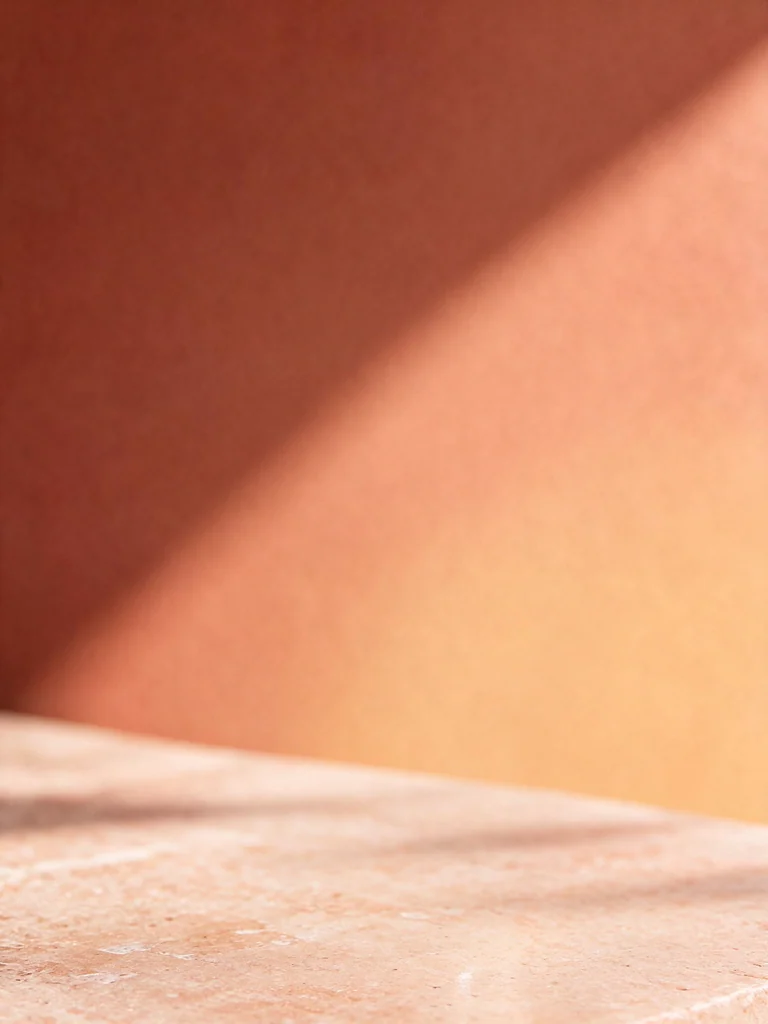
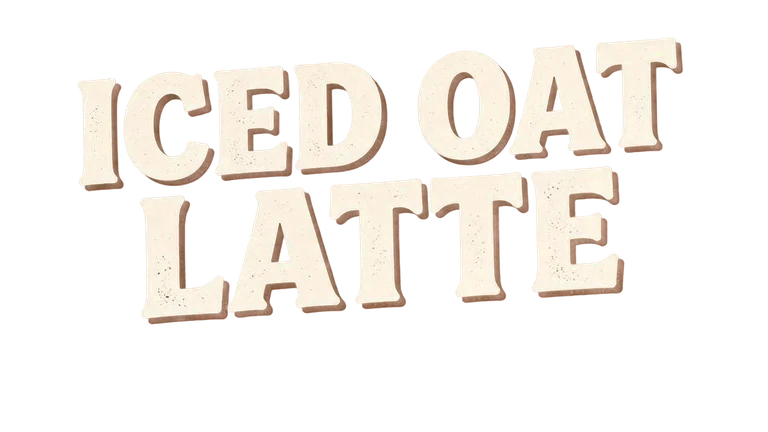
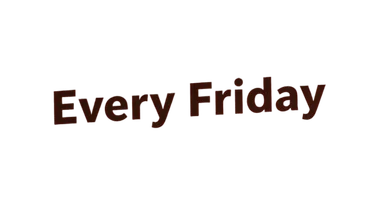

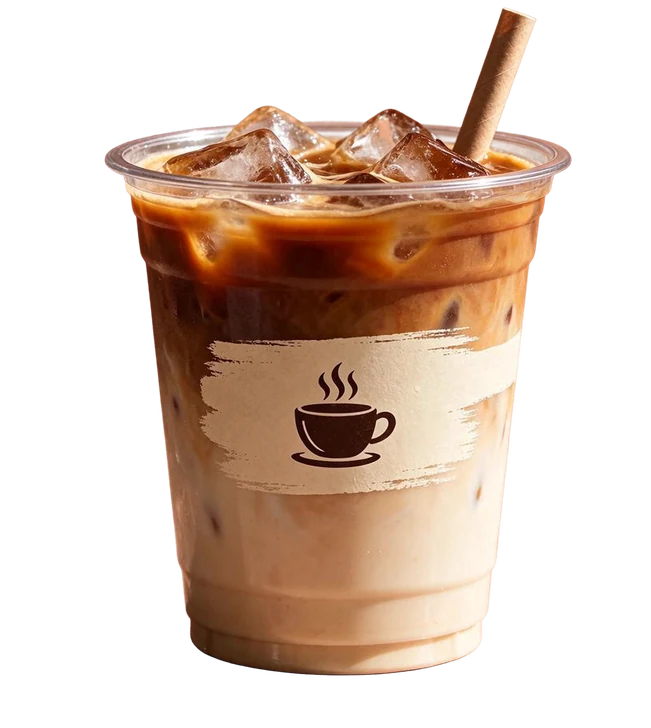
Press a layer to hide it and see what is behind it.
The headline, the tagline, the sticker, the cup and two groups of beans, each on its own layer, over the rebuilt wall.
A real result: hide a layer, see what is behind it.
How to split an image into layers
- 1
Add your image
Upload a JPG, PNG or WebP up to 10 MB. Posters, product photos, screenshots and AI images all work.
- 2
Pick the detail
Choose how many layers you want, and say what to separate if you only need some parts. The price is on the Generate button before you start.
- 3
Download your layers
In about a minute the layers appear stacked as they sit in the picture. Hide any of them to check, then download a ZIP of PNGs or one layered PSD.
What the layers are for
A flat image has no parts to change. Once it is split, each part is a file of its own.
Change one thing in a design
Swap a headline, move a product or recolor a sticker without making the poster again.
Pull objects out of a photo
Every part is a transparent PNG, ready for a mockup, a collage or a sticker sheet.
Edit an AI image
AI images arrive flat. Split one, then replace the background or move things in your editor.
Reuse parts across designs
Keep the cup and drop the poster. The background layer is rebuilt without it.
Choose how much to separate
A picture with fewer parts comes back with fewer layers than the most you ask for. Naming what to separate narrows it further.
Simple: up to 5 layers
The main parts: a headline, a product, a sticker, the background. The quickest way to take a design apart.
Standard: up to 9 layers
Most of what is in the picture, down to a second headline or a pair of glasses on a table.
Detailed: up to 15 layers
The small things too, for busy posters and scenes with many objects.
What to expect
The split is generated, not traced. It is built to be checked.
Hidden areas are drawn in
The background is rebuilt where parts were, and a part is completed behind whatever covered it. Compare against your original.
Text comes as pictures
Words are cut out as layers of their own and the text it read is shown beside them, but they are not live type.
Crowded scenes separate less cleanly
Foliage, crowds and overlapping objects come out as groups. Pick Detailed, or name the parts you need.
What goes in, what comes out
- Input
- JPG, PNG or WebP up to 10 MB, at least 512 × 512 pixels in all, with sides no more than 16 times apart. A larger picture is scaled to 4096 pixels on its long side in your browser before it goes up.
- Output
- A background image with the parts taken out, and up to 15 layers as transparent PNGs, each named and in its place in the picture.
- Downloads
- Every layer as a ZIP (with a layers.json that records each name and position), one layered PSD, or any single layer as a PNG.
- Detail
- Simple up to 5 layers, Standard up to 9, Detailed up to 15, besides the background.
- Instructions
- Optional. Say what to separate, such as “the person, the sign and each vase”.
- Model
- Seedream 5.5 Layerize, run by Made.
Questions about image to layers
How do I split an image into layers?
Open the tool, add your image, pick the detail and press Generate. When the layers appear, hide any of them to check the result, then download them as a ZIP of PNGs or a layered PSD.
How many layers will I get?
Up to 5, 9 or 15, depending on the detail you pick, plus the background. A picture with fewer parts comes back with fewer layers, so a simple logo may give you three.
Does it work on photos and AI-generated images?
Yes. It takes any JPG, PNG or WebP: posters, product photos, screenshots, illustrations and images from AI generators. Results are cleanest when the parts are distinct, such as a product on a plain background.
What happens to the area behind each part?
The model draws it in. The background layer is rebuilt with the parts taken out, and a part that was covered by another is completed. Because it is generated, the rebuilt areas can differ from what was really there, so check them.
Can I say which parts to separate?
Yes. Add an instruction such as “the person and the chalkboard sign” and the model separates those first. Leave it empty and it picks the main parts itself.
Is the text editable?
Text is cut out as its own layer, and the words it read are shown beside the layer and saved in layers.json. The layer is a picture, not live type. To change the words, use Edit Text, or retype them over the layer in your editor.
What can I download?
A ZIP with every layer as a PNG and a layers.json, one layered PSD with each layer named and in place, or a single layer as a PNG.
What are the limits on the image?
JPG, PNG or WebP up to 10 MB, at least 512 × 512 pixels in all, with sides no more than 16 times apart. A larger picture is scaled to 4096 pixels on its long side in your browser before it goes up.
Which AI model splits the image?
Seedream 5.5 Layerize from ByteDance, run by Made. It reads the picture, takes its parts out one by one, names each part and rebuilds the background behind them.
How long does it take?
About a minute for most pictures. The result keeps running if you leave the page, and it is waiting in the tool when you come back on the same device.
How much does it cost?
The price depends on the detail you pick and shows on the Generate button before you pay. A run that fails is refunded. There is no subscription.