AI Product Photography
Upload a plain product shot and describe the setting — a marble counter, an outdoor lifestyle scene, a studio gradient. Made rebuilds the scene around your unchanged product and returns a PNG.
Runs in the tool. You sign in to run it, see the price before you start, and failed runs are refunded.
How to use AI Product Photography
- 1
Upload one product photo
Choose a JPEG, PNG, or WebP where the product is clearly visible — a plain background works well.
- 2
Describe the scene
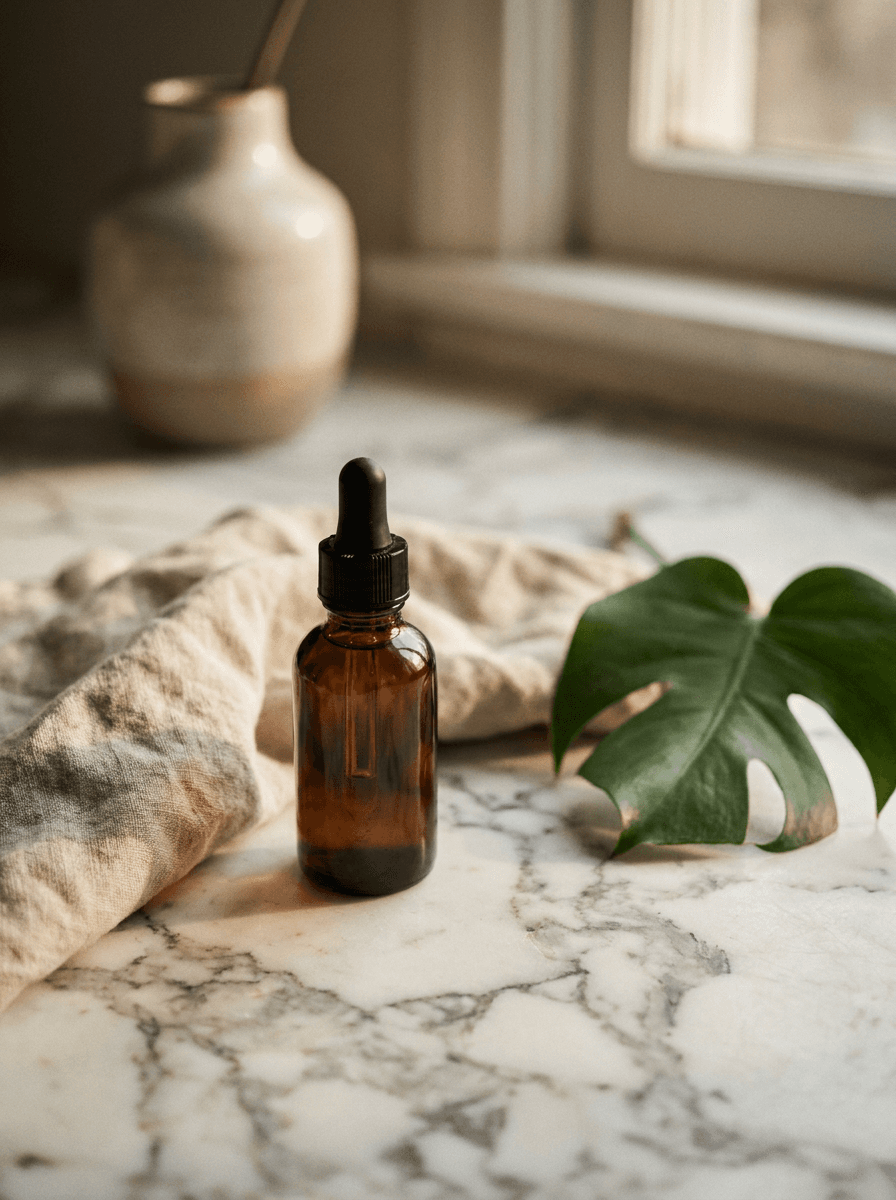
Name the surface, setting, props, and lighting: “white marble counter, soft morning light, eucalyptus stems nearby.”
- 3
Let Made stage the product
The model renders the described scene around your product, keeping the product as photographed.
- 4
Polish for the listing
Check the label, edges, and shadows, then pair with Image Upscaler for a larger delivery file if needed.
AI Product Photography examples
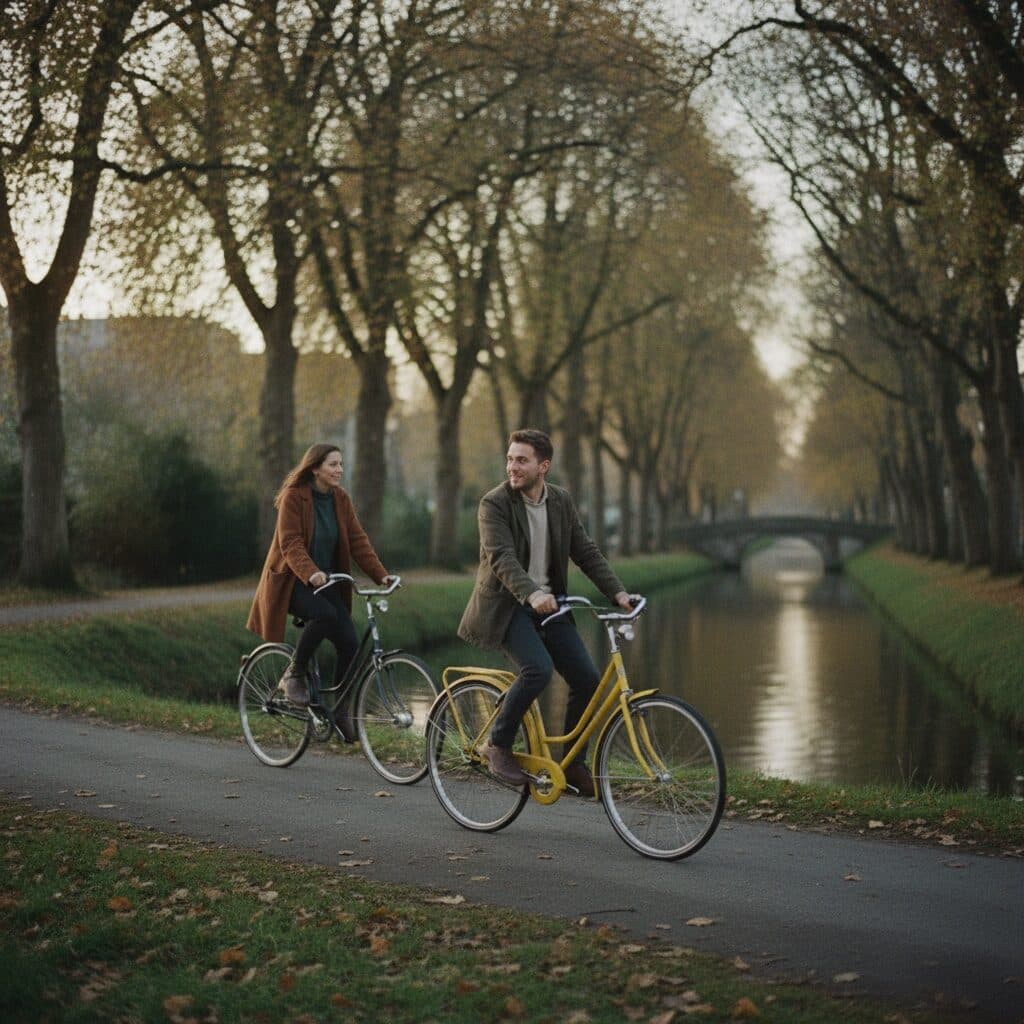
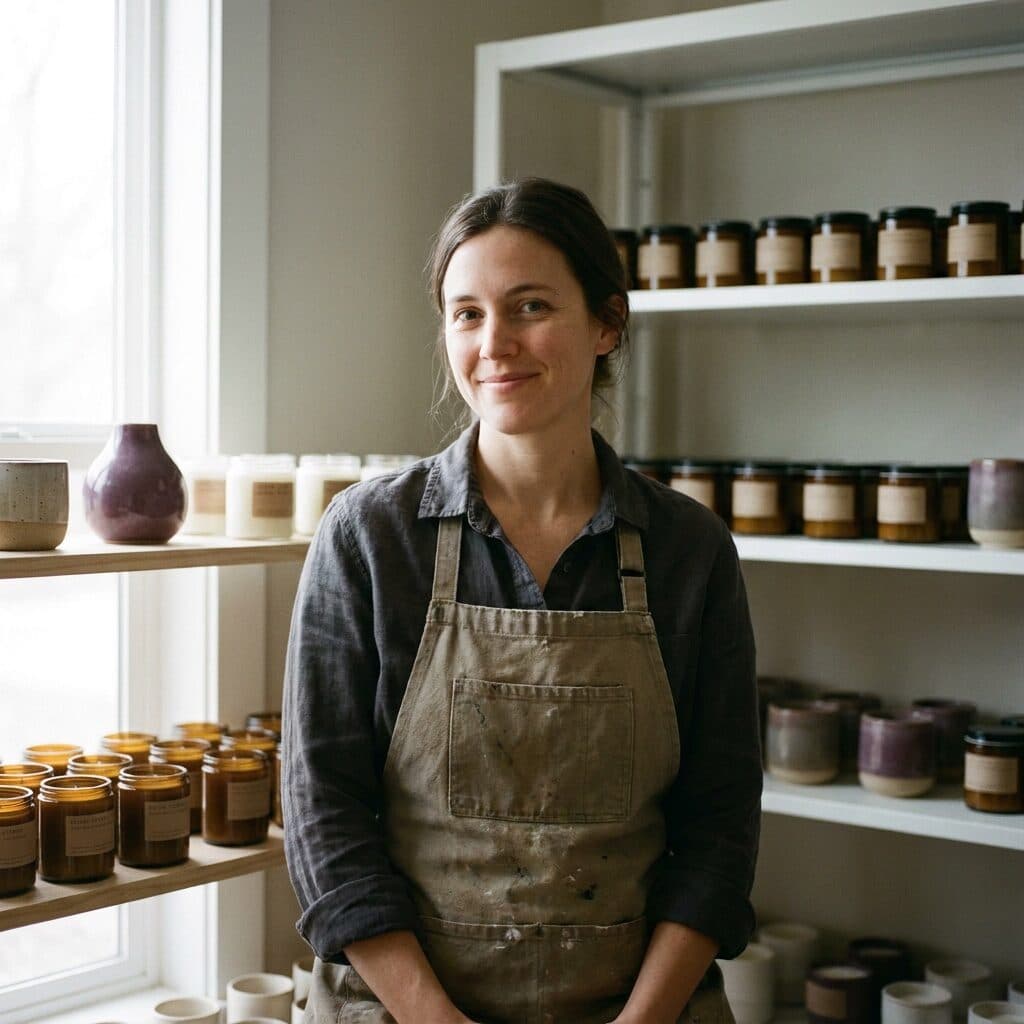
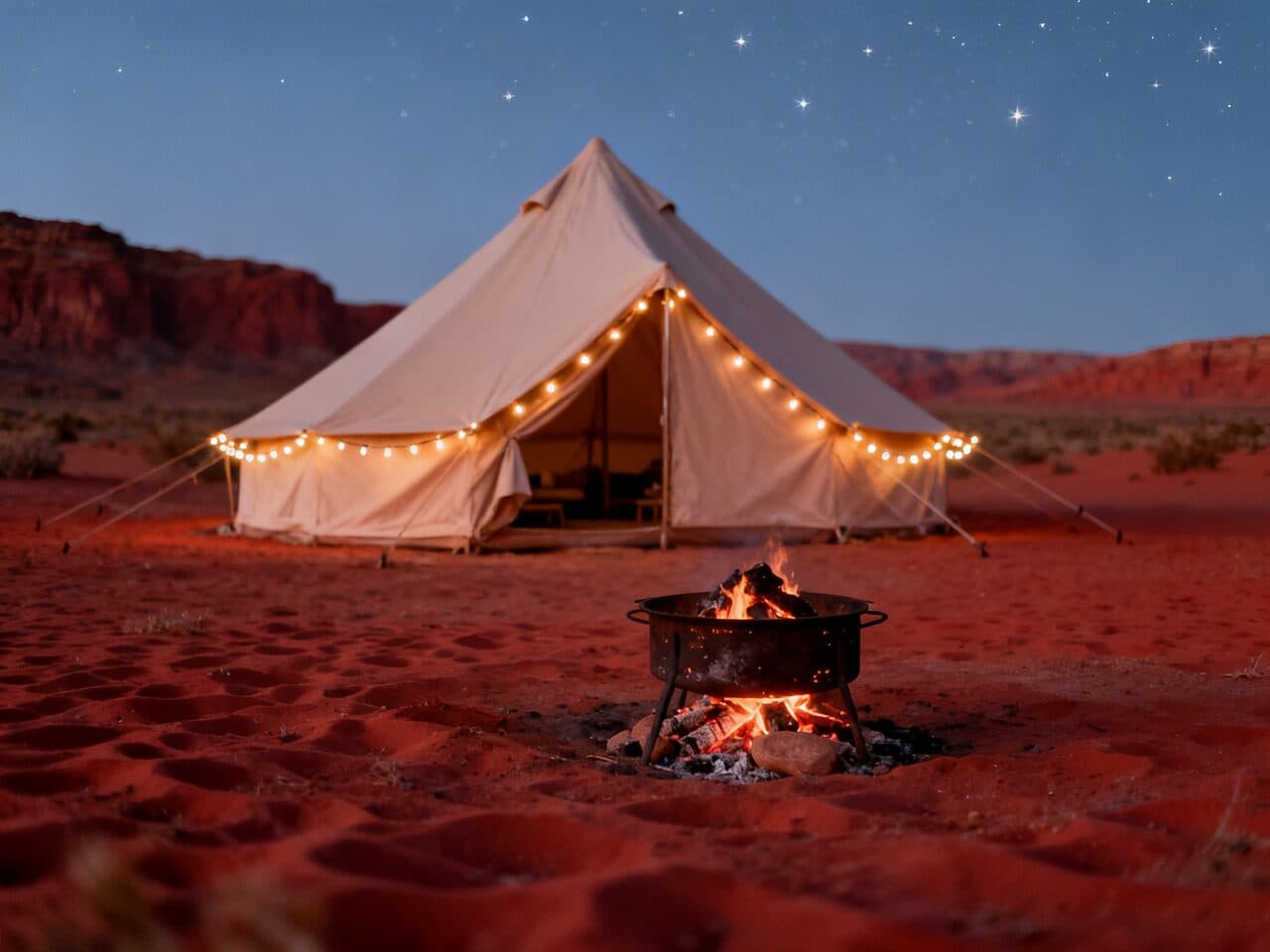
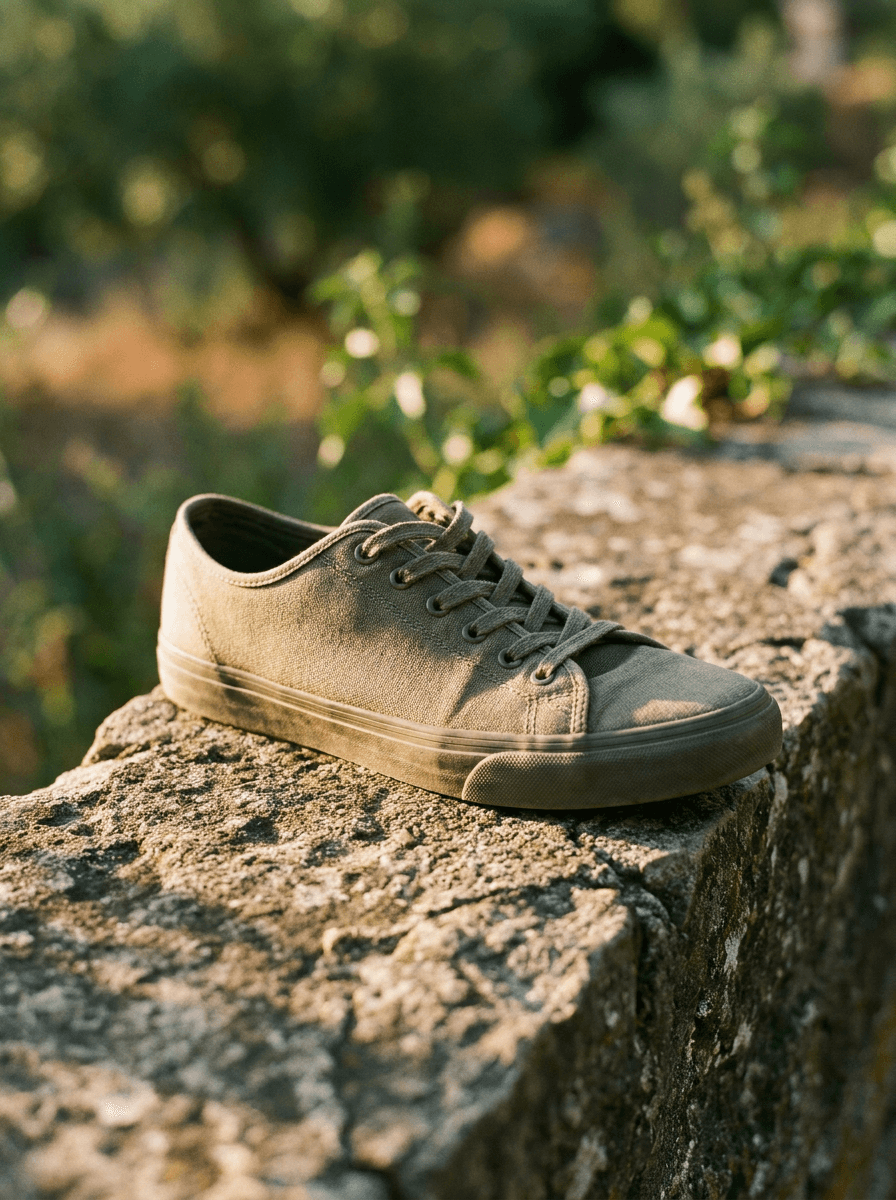
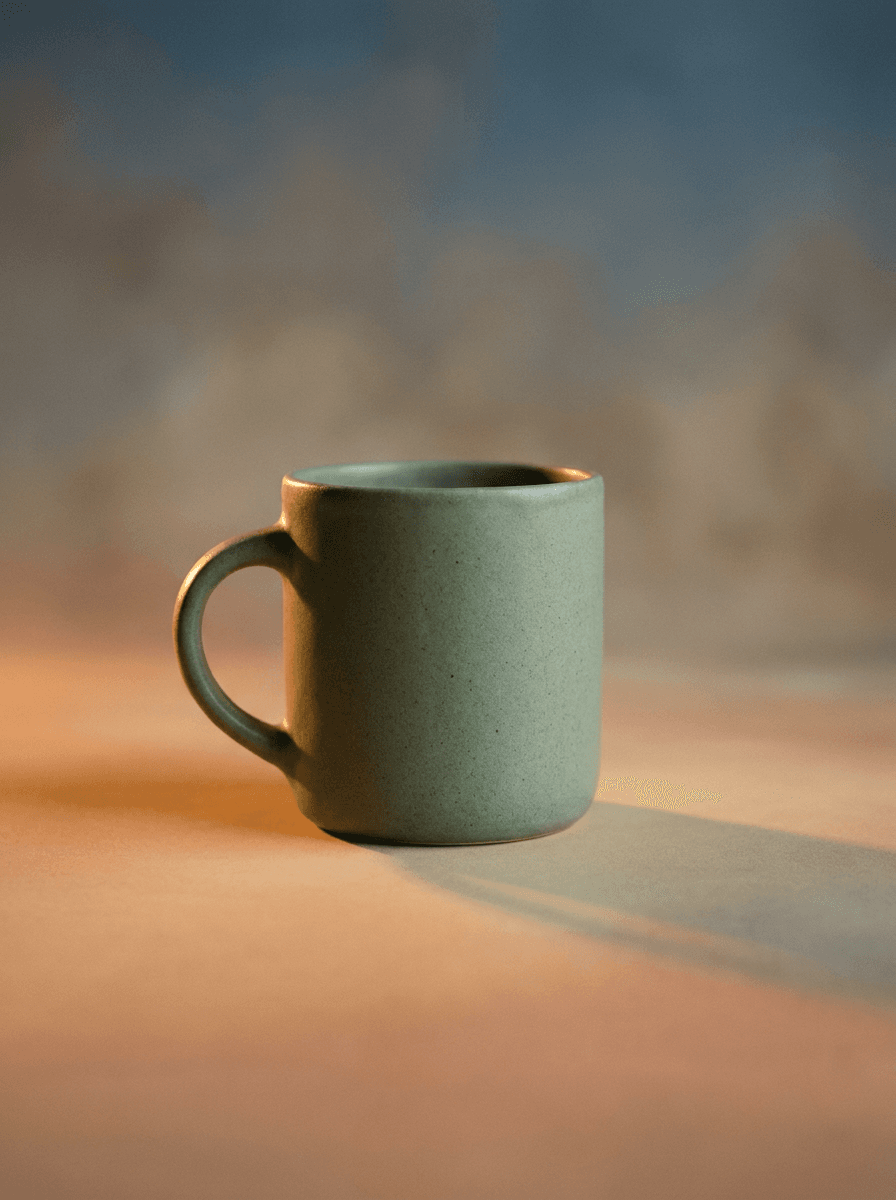
Real results from Made. Use a prompt to open it in AI Product Photography, then add your own photo.
What people use it for
- Ecommerce listingsTurn a phone photo of your product into a staged hero image without booking a photographer.
- Seasonal campaignsRestage the same product shot across holiday, summer, and launch scenes described in words.
- Social and ad creativeProduce varied lifestyle contexts for one SKU to test which setting performs best.
- Catalog consistencyPlace products from different photo sources onto one consistent described backdrop.
Stage a product photo in a styled scene
What it does
- Input
- One JPEG, PNG, or WebP product photo, plus a description of the scene you want
- Output
- PNG of your unchanged product staged in the described scene
- How it works
- Made sends your photo and scene description to GPT Image 2.5 Flare; a keep-subject instruction is built into the prompt so the product stays as photographed.
- Access
- Runs in the tool. You sign in to run it, see the price before you start, and failed runs are refunded.
Formats and limits
- Input formats
- JPEG, PNG, WebP
- Output format
- PNG
- Images per request
- One
- Product handling
- A keep-subject instruction is built into the prompt so the product stays as photographed
- Processing model
- GPT Image 2.5 Flare
Checked against the running tool on 2026-10-20.
Questions about AI Product Photography
What is AI product photography?
It turns a plain product shot into a styled product scene without a photoshoot. You upload one photo of the product, describe the setting you want — a marble counter, an outdoor lifestyle scene, a studio gradient — and Made renders that scene around your product and returns a PNG.
How does it work?
Made sends your photo and scene description to GPT Image 2.5 Flare. A keep-subject instruction is built into the prompt, so the model replaces the background while the product itself stays as photographed.
Will my product look different in the result?
The workflow is designed to preserve the product exactly as photographed and change only the scene. The render is still generative, so inspect the label, logo placement, shape, and contact shadows before using the image in a listing.
What kind of source photo works best?
A clear, well-lit shot of the product — a simple phone photo on a plain background is a good start. Upload one JPEG, PNG, or WebP per request; the staged result comes back as a PNG.
What scenes can I describe?
Any setting you can put into words: kitchen counters, bathroom shelves, outdoor lifestyle scenes, seamless studio backdrops with gradient lighting. Include the surface, props, and lighting in your description for the most art-directed result.
How do I make the result listing-ready?
Stage the scene here, then run the result through Image Upscaler for a larger delivery file. If a marketplace requires a pure white or transparent background instead of a scene, use Background Remover to produce a clean cutout.
How is this different from Background Changer?
It is the same one-step scene replacement, focused on products: this page is about staging merchandise in sellable settings, while Background Changer covers general photos of people and subjects. If your subject is a product for a store, ad, or catalog, start here.
More ad and product tools
Background Remover
A clean transparent cutout in one step
Image Upscaler
Sharpen and enlarge up to 4×
Background Changer
Put your subject in a new scene New
NewVideo Ads
A proven ad with your product and avatar
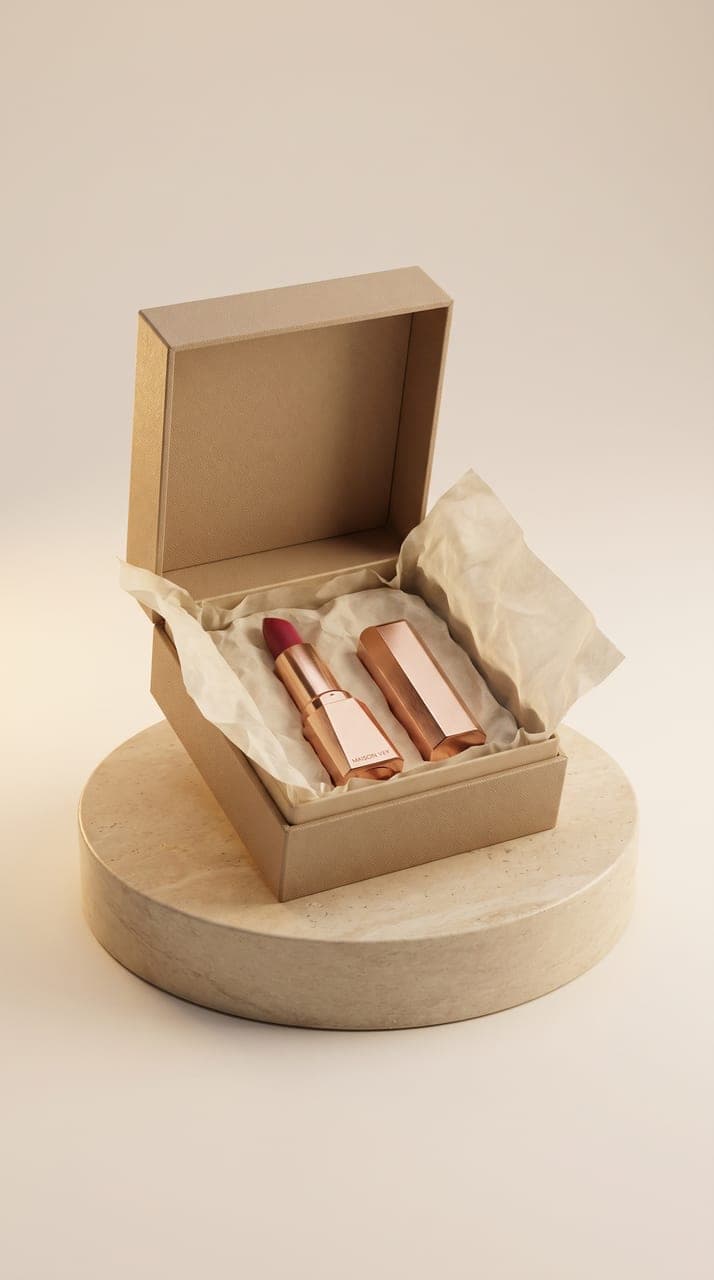
Marketing Studio
Product shots, ads and UGC from one product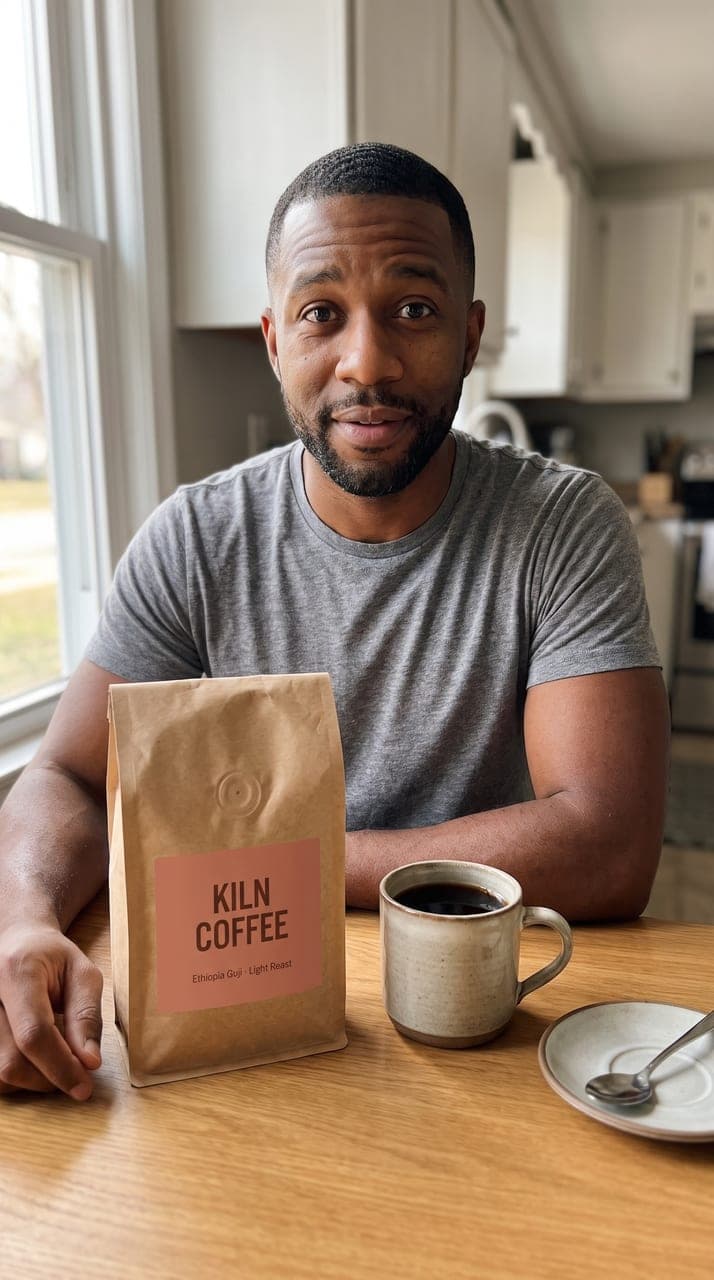
Made Ads
Video ads made for you, posted and tracked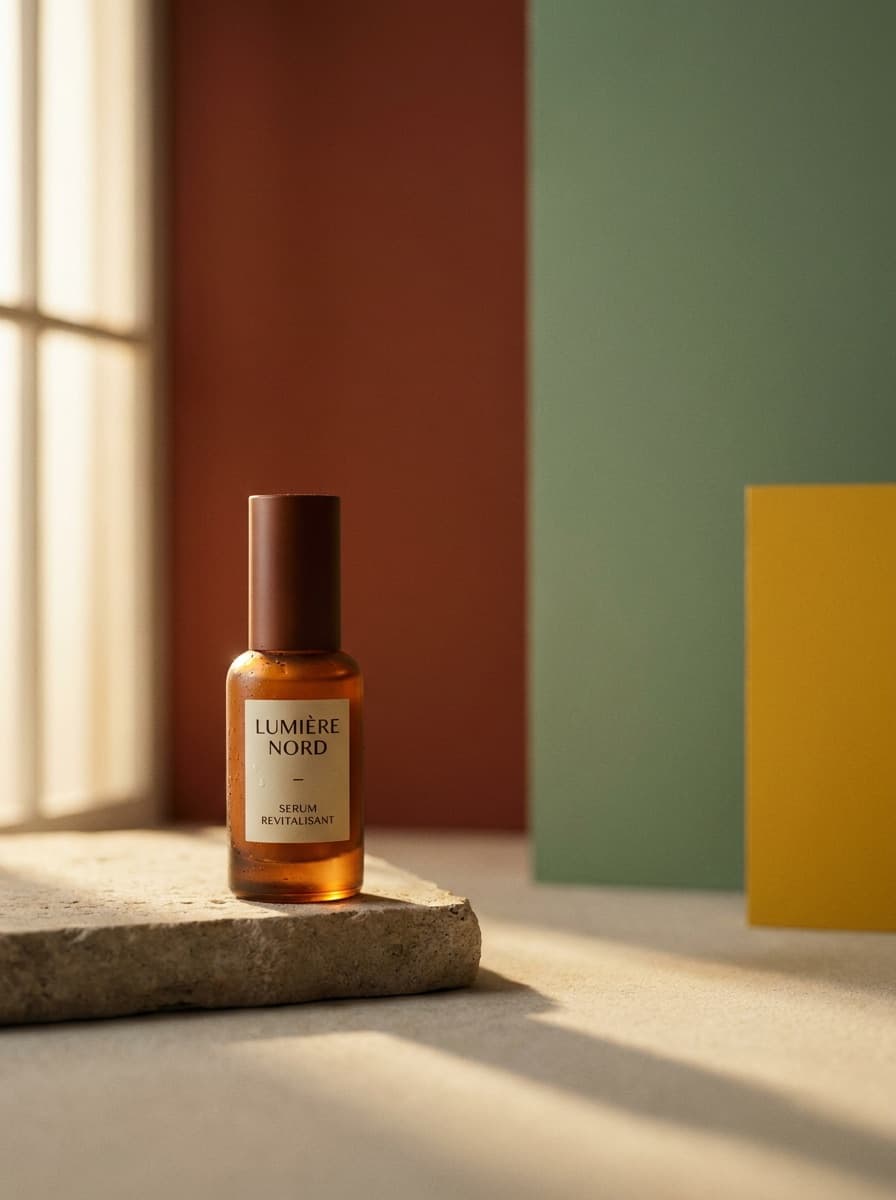
AI Ad Generator
Ad creative from one product photo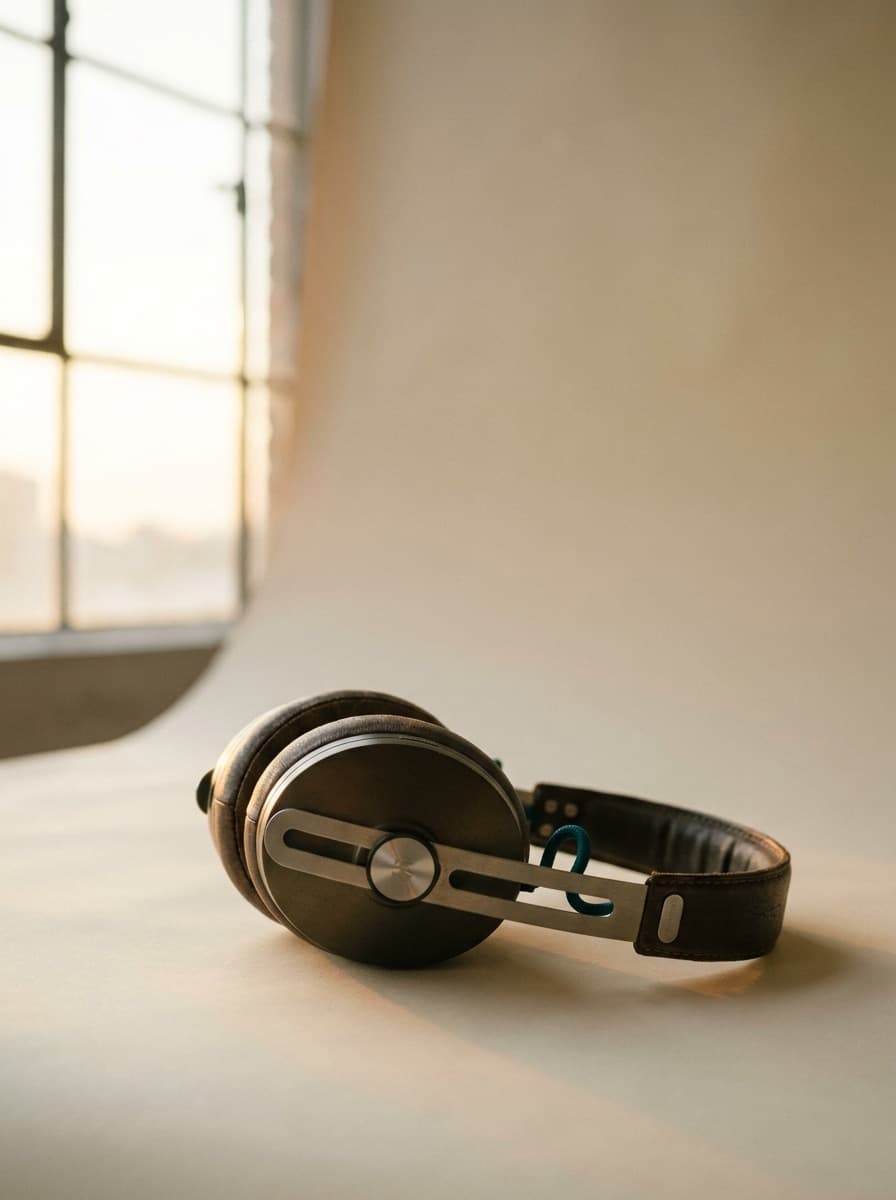
Product Packshot Maker
Clean packshots on a seamless backdrop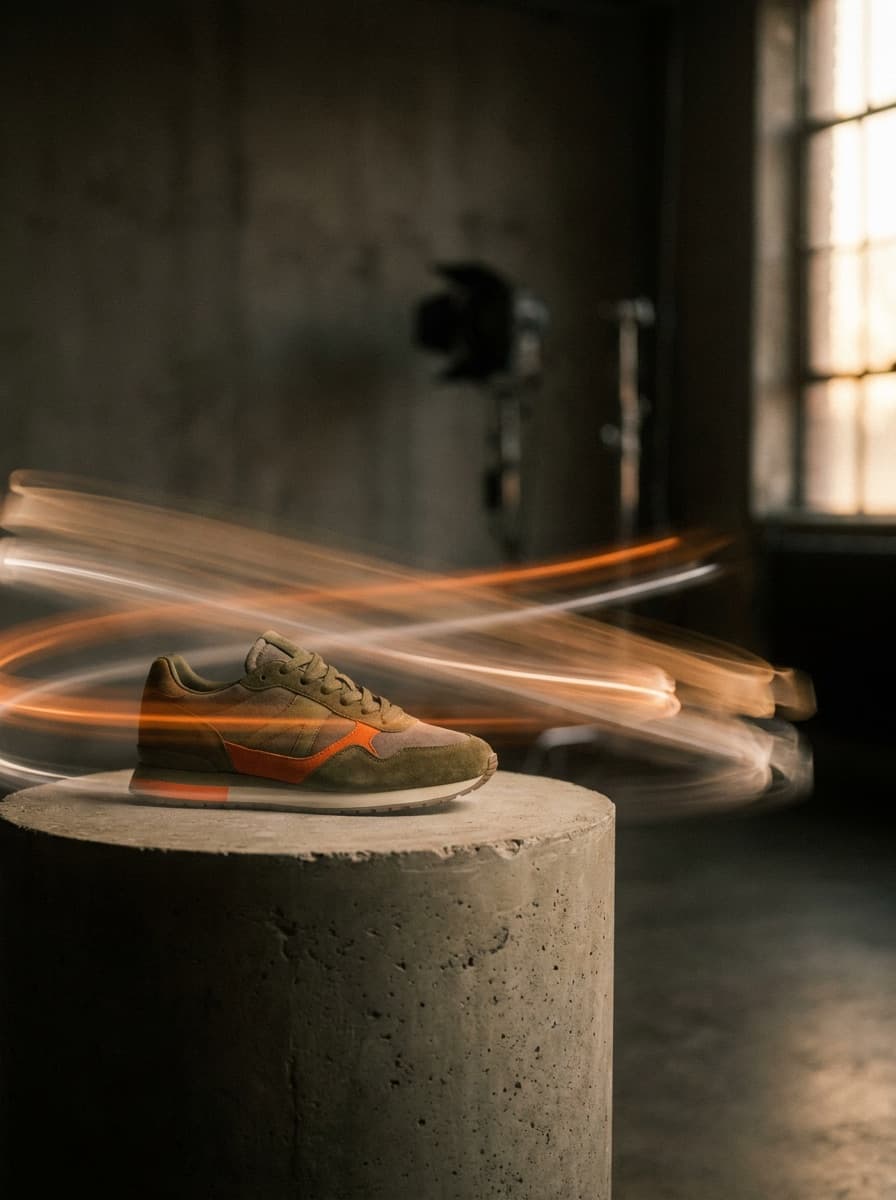
360 Product Video Maker
Spin any product into a showcase clip
AI Photoshoot Generator
A full photoshoot from one photoRelated models
See what each one makes, then open it in Made.