The workflow
Open Object Swap on its outfit edit
Use the button on this guide. It opens Object Swap with its outfit edit already chosen, so the clip and one photo are enough. Opened any other way, Object Swap needs the change in words under Describe your edit, like the recipe below.
Add the video
Tap Add original video and choose an MP4 or MOV from 4 seconds to 3 minutes. A longer clip is cut to its first 3 minutes. Over 30 seconds, it’s made in parts, one after another, so it takes longer. Pick a clip where the clothes are in view for most of it.
Add a photo of the new outfit
Tap Add characters, products, or clothing and choose a photo of the outfit: JPG, PNG or WebP, under 10 MB. Show the outfit on its own or worn, with nothing covering it. A product photo, like the flat-lay in the example, works. The first photo is @Image1, and you can add up to 30.
Say what stays, then generate
Describe your edit is optional on the outfit edit. Use it to name the person when there are several, or to say what stays, like “Keep her white sneakers.” If the clip has a big move, like a walk up to the camera, ask it to keep the framing; the example needed that line. Then tap Generate. The button shows the price, and Object Swap checks it again before it starts. The video goes to the top of Assets, usually in about 10 minutes, and you’re told when it’s ready.
Watch the whole clip
Play it at full speed, then pause on the turns, the hands crossing the clothes, the back of the outfit and the last second. Compare the framing with your original. Check that anyone else kept their own clothes, and look closely at buttons, prints and logos before you post.
Recorded Made demonstration
A fit-check reel in a new outfit, from one flat-lay photo
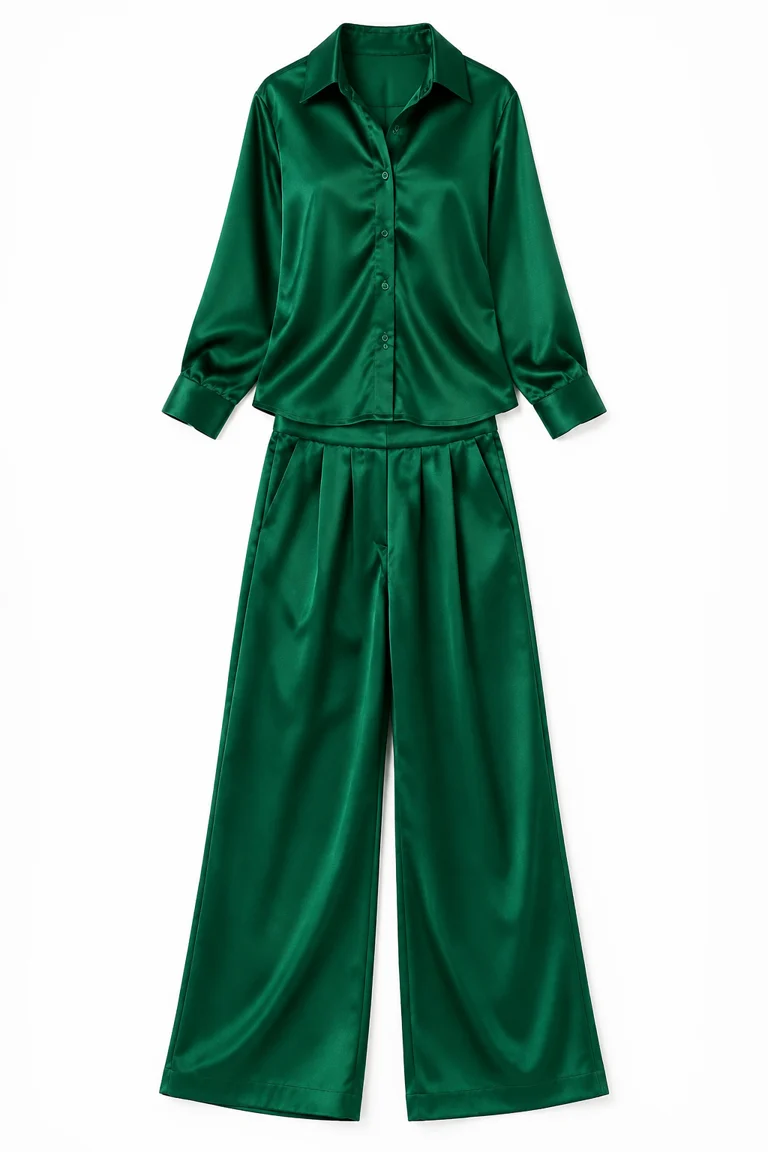
This is a real Object Swap run from November 12, 2026. The clip is an 8-second fit-check reel that Made generated. Anika, a woman who isn’t a real person, walks up a brownstone sidewalk in a white T-shirt and jeans. She turns all the way around and puts a hand on her hip. The outfit photo is a flat-lay of a green satin shirt and trousers, also made by Made, with no one in it. The request is exactly what Object Swap builds from this guide’s link, with one line typed under Describe your edit. It was sent through Made’s API from a script rather than clicked through the browser. She wears the green set in every frame: the walk, the back of the turn, the hair swing and the pose. Her face, hair and white sneakers stay the same, and so do the street and the sound. A first run with nothing typed changed the clothes just as well, but it reframed the shot. She started close to the camera, the walk up the sidewalk was gone, and her feet stayed out of frame. The typed line asking to keep the framing fixed that. The buttons and cuffs are drawn by the model to match the photo. It’s two runs, not a measure of how often an outfit change holds.
Object Swap (Seedance 2.5 Edit, upscaled 2×) · Generated · View the example record and price basis (JSON)
Prompts you can inspect and adapt
Prompt recipe to adapt
Name who changes and what stays
Change the outfit of the woman on the left in @Video1 to the clothes in @Image1. Keep the framing, the camera distance and every move exactly as in @Video1, and keep her face, hair and shoes. Everyone else keeps their own clothes.Type it under Describe your edit. With this guide’s link, it’s added to the outfit edit’s own instruction; opened any other way, it’s the whole instruction. Your first photo is @Image1.
Recorded generation prompt
What Object Swap sent for this example
Change the main person's outfit in @Video1 to the clothing in @Image1. Preserve the person's face, identity, body proportions, expression, and performance. Match natural fabric movement, folds, occlusion, and lighting while preserving the original background.

Keep the framing and camera distance of @Video1 exactly: she walks up from far down the sidewalk and stays in frame from head to toe. Keep her white sneakers.

Preserve the source shot duration, camera movement, timing, and all elements not explicitly selected for editing.
Only the middle paragraph was typed. Object Swap wrote the rest: the outfit edit’s instruction first, and the line it adds to every edit last.
How an outfit change is priced
By the length of your clip, plus the 2× upscale of the result. The total appears on Generate before you run it.
The edit is priced per second of your clip, rounded up to a whole second, and the upscale by the size and length of the result. Your outfit photos and what you type don’t change the price.
Price source: Public video-editor catalog · Checked
Add your clip to see its exact price on Generate. Before the run starts, Object Swap checks the price again; if it came out higher than the button showed, it stops and asks you to try again instead of charging more. A run that fails is refunded.
What to review before you use the result
| What you see | What to try |
|---|---|
| The shot looks closer, or a move is missing | Add a line under Describe your edit: “Keep the framing and camera distance of @Video1 exactly.” Name the move too, like “she walks up from far down the sidewalk”. In the example, that line brought back the walk-in. |
| The wrong person changed, or everyone did | Name the person under Describe your edit, the way you’d point them out: “the woman in the white T-shirt on the left”. Add “Everyone else keeps their own clothes.” |
| The face or hair changed too | Use a photo of the outfit on its own, like the flat-lay in the example, and add “Keep her face and hair exactly as they are.” |
| Shoes or a bag you wanted to keep changed | Say what stays under Describe your edit: “Keep her white sneakers and her bag.” Leave those items out of the outfit photo. |
| You want the outfit to change every few frames | That’s the outfit-change trend. Use Quick Change, which rotates several looks over part of one take. Object Swap puts one outfit on the whole clip. |
| Your clip is refused | Use an MP4 or MOV of at least 4 seconds. A very narrow or very wide video can’t be edited; crop it closer to 9:16 or 16:9. |
Work with Claude and Made
With the Made connector, Claude can run the same kind of edit on a clip and an outfit photo you attach: it looks up Made’s video-editing models, writes the instruction, shows you the price and runs it after you say yes, if your client lets you attach a video.
Conversation starter
Ask your assistant
Use Made to change the outfit of the woman in my attached video to the clothes in my attached photo. Keep her face, hair, shoes, every move, the framing, the camera and the original sound. Check the catalog for a video-editing model that takes a video and an image, then show me the price and the prompt before generating one result.Object Swap’s outfit edit needs no writing: the clip, the photo and Generate. If your client can’t attach a video, use Object Swap with the same files.
Questions about this workflow
Can AI change the clothes in a whole video, not just one frame?
Yes. Object Swap edits your whole clip, so the new outfit follows the person’s moves, turns and the camera. Watch the whole result: fast turns, hands crossing the clothes and big moves toward the camera are the hardest parts.
What photo of the outfit should I use?
A clear photo of the outfit on its own or worn, with nothing covering it, like a product or flat-lay photo. JPG, PNG or WebP under 10 MB. You can add up to 30 photos.
Does the video keep its sound?
Yes. Object Swap puts your clip’s original sound back on the result.
Is this the same as an outfit-change trend video?
No. Object Swap puts one new outfit on the whole clip. For the trend where the outfit switches every few frames, use Quick Change.
Do I need to sign in?
Yes, to generate. You can add your video and photo first; if you sign in from Generate, Object Swap keeps them for you.
Can I do this on my phone?
Yes. On a phone, this guide’s button opens Object Swap with its controls showing. If you close them, tap Start generating.