The workflow
Open Earth zoom out
Open Earth zoom out in Video Effects. The Effect box at the top plays it, with Change beside it to pick another effect. Earth zoom is there too: it runs the other way, from space down to the person.
Add one photo of the person
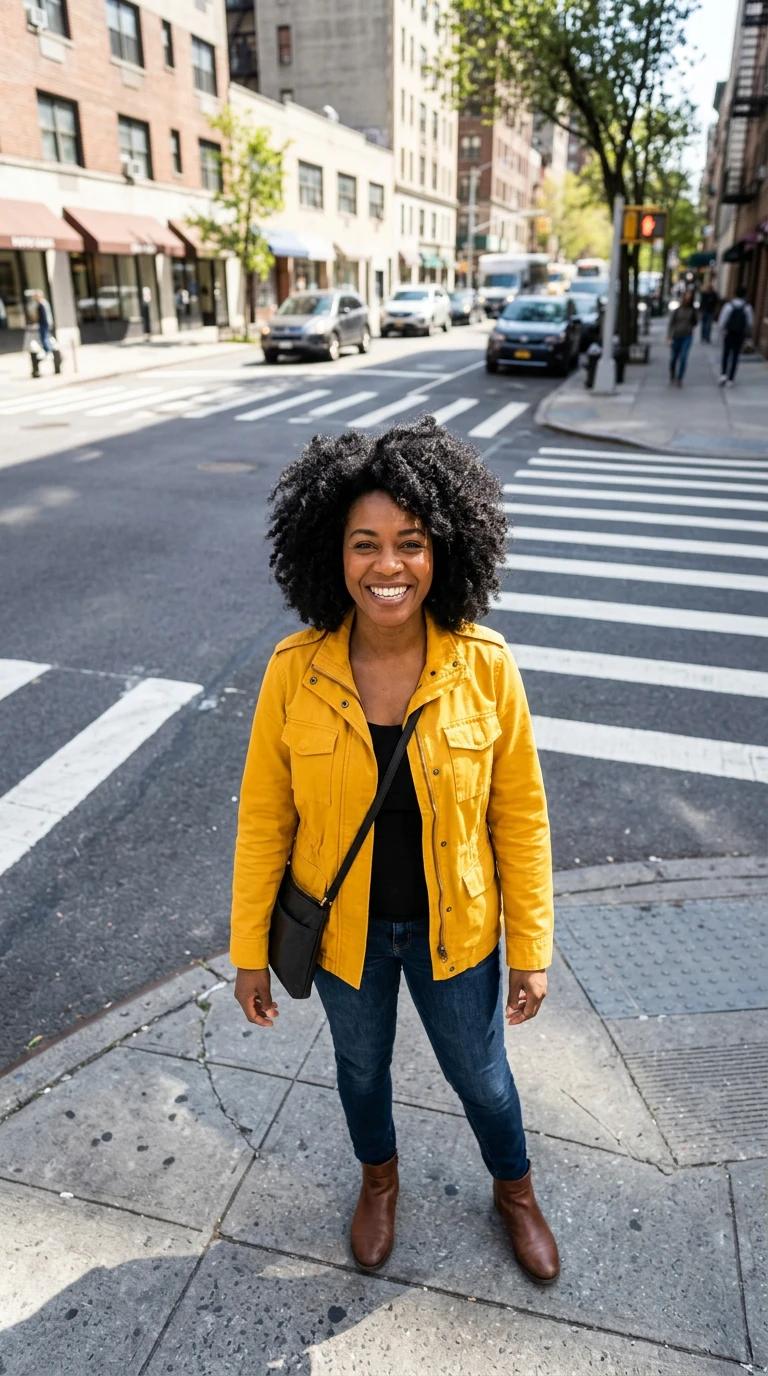
Tap the Character box and choose a photo: JPG, PNG or WebP, under 10 MB and under 40 megapixels. On a phone, tap Add a character. A high-angle photo works best: the person outdoors, looking up at a camera above them, on a street, a square or in a park. The move starts in the photo’s own place, close on the person, so use one where the face is sharp. Use your own photo or one of an adult who agreed.
Add a prompt if you like, then pick the size
Switch on Prompt to add your own direction, up to 1,800 characters, such as “at sunset” or “ending on Earth at night with city lights”. It goes after the effect’s own move; it doesn’t replace it. Resolution starts at 480p, with 720p and 1080p. Aspect ratio starts at 9:16 for Reels and TikTok, with 16:9, 1:1, 4:3 and 3:4. On a phone, these are under Options.
Generate, then watch the whole clip
Tap Generate. Above it the tool says 8-second video, and the button shows the price. If you aren’t signed in, you sign in now, and your images and settings are kept. The video shows up under Generations when it’s ready. Watch it to the end: check the face in the first seconds, and the moment the city turns into the planet.
Recorded Made demonstration
One street photo, pulled back to the whole planet
This is a real Earth zoom out run from November 12, 2026, at the tool’s default settings: 480p, 9:16, no prompt. The photo is a woman on a city street corner, shot from above as she smiles up at the camera. Made generated her with Nano Banana 2 for the Earth zoom example; she isn’t a real person. The request is exactly what Video Effects builds for Generate, sent through Made’s API from a script rather than clicked through the browser. The clip starts closer than the photo, on her face and yellow jacket, then pulls back over the crosswalk, the rooftops and the city grid, and shows the whole Earth from about 5 seconds. Around 4 seconds the city fades into a view of the Americas from space instead of climbing through the clouds. The last 3 seconds hold on the shrinking planet, and at 480p the city looks soft. It came back with sound the model made. It’s one run, not a measure of how often the effect holds.
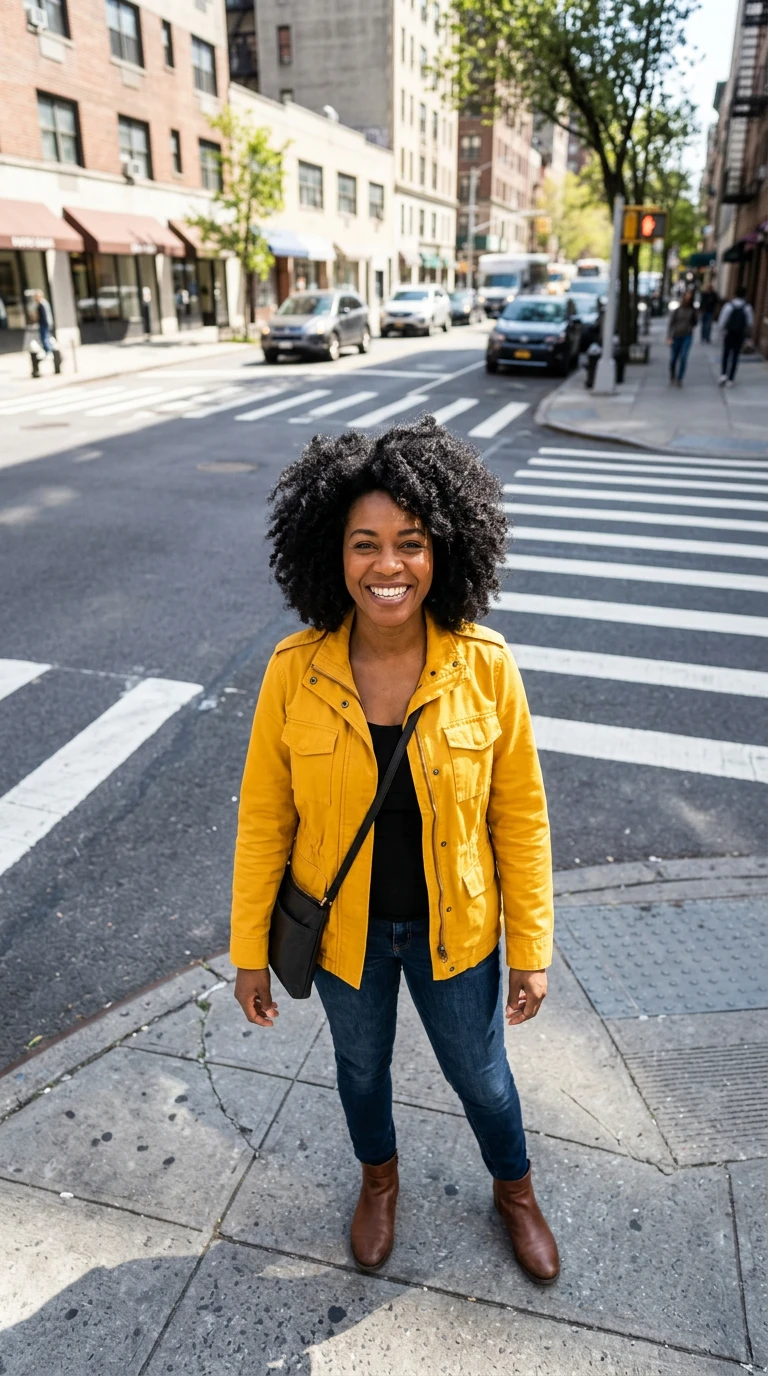
WAN 3.0 Prime (Reference to Video) · Generated · View the example record and price basis (JSON)
Prompts you can inspect and adapt
Recorded generation prompt
What Video Effects sent for this run
Made Effects: earth-zoom-out. Create a 8-second cinematic video.
Image 1 is the main subject. Preserve their identity, outfit, colors, and recognizable details. An object or product may also be the main subject.
Use the environment in Image 1 as the starting scene.
Motion direction: Start close on the subject at street level as they look up at the camera. The camera pulls straight up and away in one unbroken move: above the rooftops, over the city grid, up through the clouds, until the curve of the Earth and then the whole planet hang in black space. Smooth, accelerating, seamless, realistic detail at every altitude.
Do not add captions, watermarks, or invented logos.
Video Effects wrote all of it; nothing was typed. It tells the model to keep the person and start in the photo’s own place, then gives Earth zoom out’s move, which is the same for every photo.
Prompt recipe to adapt
Change the light and the ending
At sunset, ending on Earth at night with city lights.Switch on Prompt and type a line like this. Video Effects adds it after the move as extra direction, so the pull-back to space stays.
How an Earth zoom out video is priced
By the resolution you pick. Every Earth zoom out clip is 8 seconds, so 720p costs more than 480p, and 1080p more than 720p. Generate shows the price before you run it.
The price is per second of video at the resolution you pick, and the length is fixed. Your photo, the prompt and the shape don’t change it.
Price source: Video Effects’ public rate catalog · Checked
Add your photo to see the exact price on Generate. If the price changed by the time you tap it, nothing runs: the tool says so and shows the new price for another tap.
What to review before you use the result
| What you see | What to try |
|---|---|
| The city turns into the planet too fast | The model can fade the city into the view from space instead of climbing through the clouds, as in the example above. Generate again for another take. A prompt asking for a slow climb through thick clouds may help, but it isn’t a fix every time. |
| The place on the way up isn’t yours | The move always passes over rooftops and a city grid, so a beach or forest photo can turn into a city on the way up. Start from a street or a square, or name the place in the prompt, like “over a seaside town”. |
| The face looks off at the start | The clip starts close on the person, so a small or blurry face in your photo gets blown up. Use a sharp photo where the face fills more of the frame, still taken from above. |
| Your photo won’t upload | Use a JPG, PNG or WebP under 10 MB and under 40 megapixels. iPhone HEIC photos are converted for you. |
| The video didn’t finish | Video Effects says so beside Generate. Tap Generate again, or try another photo. |
Questions about this workflow
What’s the difference between Earth zoom and Earth zoom out?
Earth zoom out starts on the person and pulls back until the whole planet is in view. Earth zoom runs the other way: it starts in space and dives down to the person at street level. Both make an 8-second clip from one photo.
How long is an Earth zoom out video?
Each clip is 8 seconds, and the length can’t be changed. For a longer video, put the clip together with others in a video editor.
Can I make it horizontal for YouTube?
Yes. Set Aspect ratio to 16:9 before you generate. 1:1, 4:3 and 3:4 are there too.
Do I need to sign in?
Yes, to generate. You can open the effect, add your photo and set the options first; when you sign in, your images and settings are kept.
Work with Claude and Made
The Earth zoom out preset lives in Video Effects. With the Made connector in Claude, you can ask for the same kind of clip: Claude can find the WAN 3.0 Prime reference-to-video model in the catalog, use your photo as the reference image, write the pull-back as the prompt and quote it, if the connected client can upload your photo.
Conversation starter
Ask your assistant
Use Made to turn my attached photo into an 8-second vertical video at 480p. Start close on me at street level as I look up at the camera, then pull straight up and away in one unbroken move: above the rooftops, over the city grid, up through the clouds, until the whole Earth hangs in black space. Keep my face and outfit. Check the catalog for the WAN 3.0 Prime reference-to-video model and its inputs, and show me the price before generating one video.For the exact Earth zoom out direction and settings, use Video Effects with the same photo. If the client can’t upload a photo, use the tool.