The workflow
Add one photo
Open Photo to Anime and, under Photo, tap Upload image (on a phone, Upload a photo), or paste a picture from your clipboard. It takes JPG, PNG or WebP up to 20 MB, and an iPhone photo in HEIC format is converted for you. A photo longer than 2,048 pixels on its long side is scaled down before it uploads. A sharp photo with the face large and facing the camera, in even light, gives the cleanest character.
Pick a look
Under Try, tap Anime portrait, Soft anime look or Bold anime look. The tap fills the Prompt box with a sentence, such as “Turn this photo into an anime-style portrait illustration.” You can send it as it is or change the words. The Prompt box says Optional: if you leave it empty, the tool asks for “Turn my photo into anime art” and picks the look itself.
Tap Generate
Generate shows the price before it runs. If you aren’t signed in, you sign in first and your photo and prompt wait for you. While it works the button reads “Making it…”, and the picture appears in Generations beside the tool when it’s done.
Compare it with your photo
Put the picture next to your photo and check the face first: the eyes, the mouth, the hair and anything you wear on your face or ears, such as glasses or earrings. Then look at the hands, the clothes and the background. The tool redraws all of it, so some details will have changed.
Do the next photo the same way
The tool takes one photo per run and doesn’t remember the last one. For a series, add your next photo of the same person and tap the same chip. The Do it again section below shows two scenes of one character made exactly this way.
Recorded Made demonstration
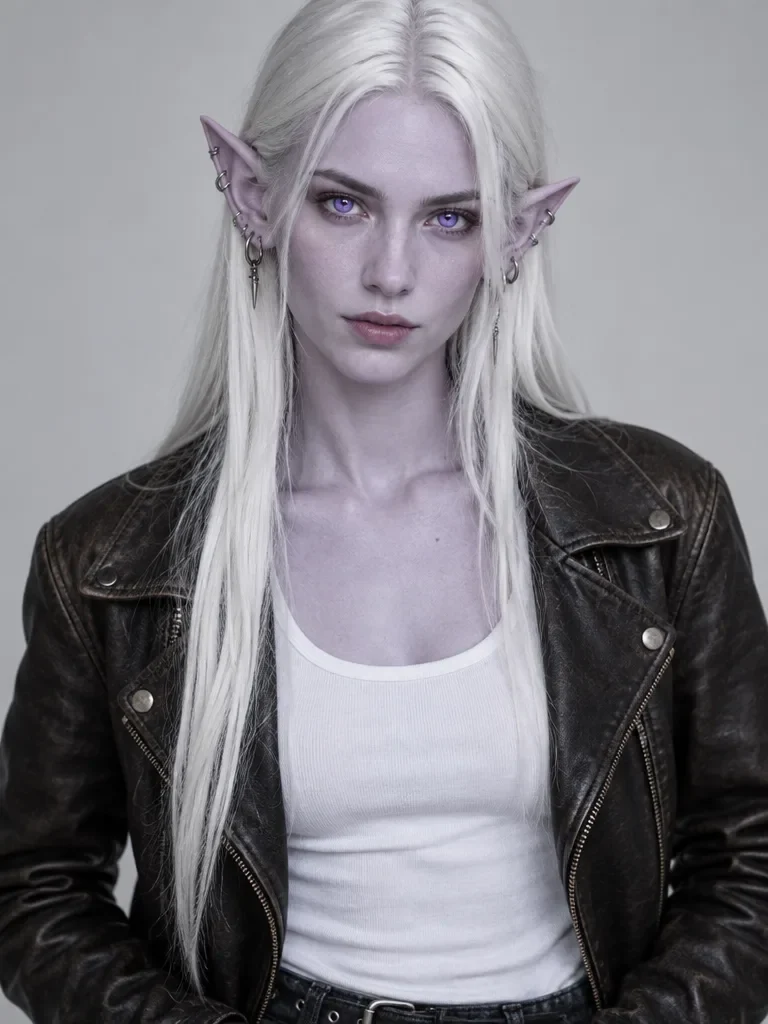
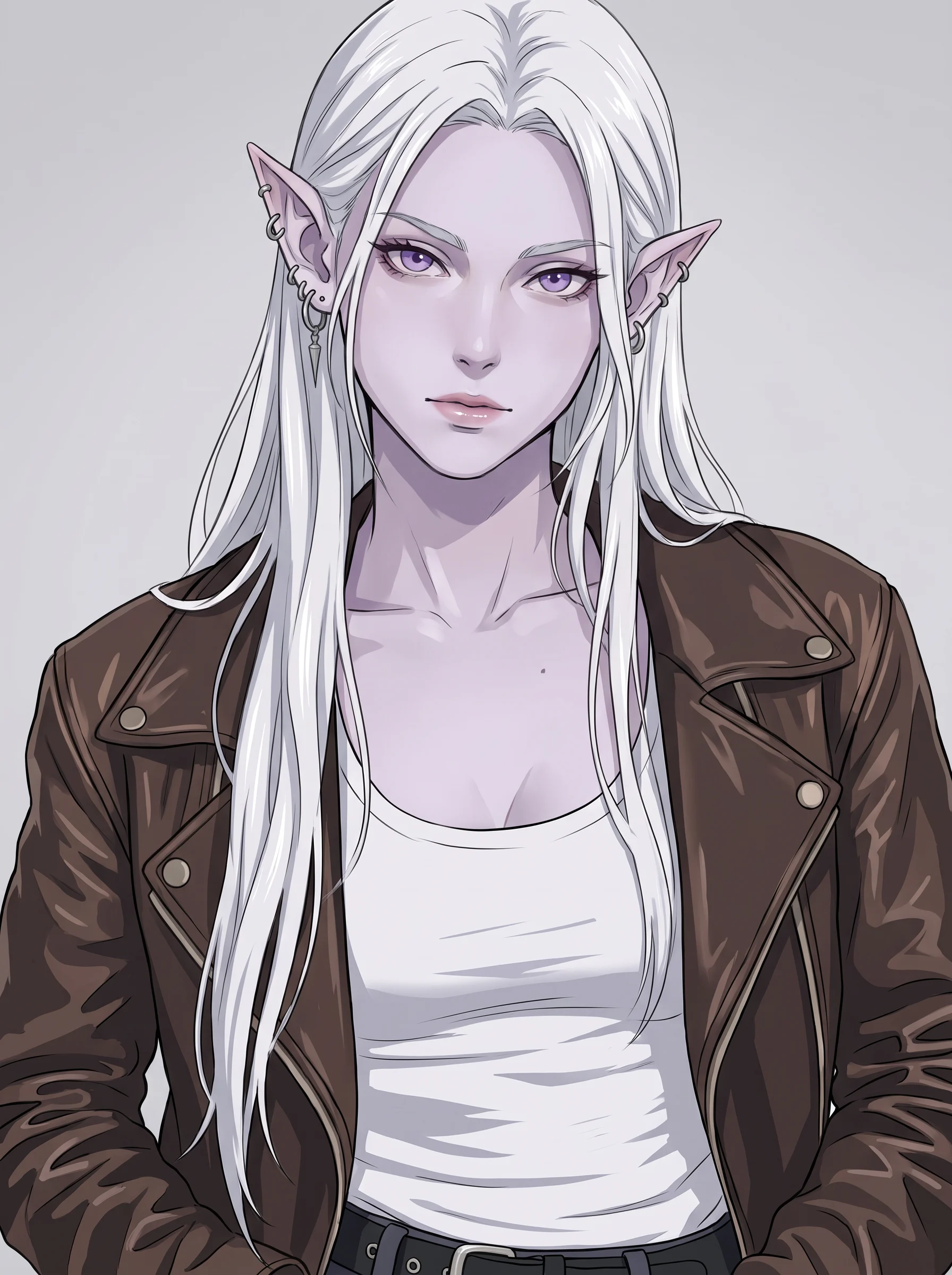
A character with long white hair and ear hoops, as an anime portrait
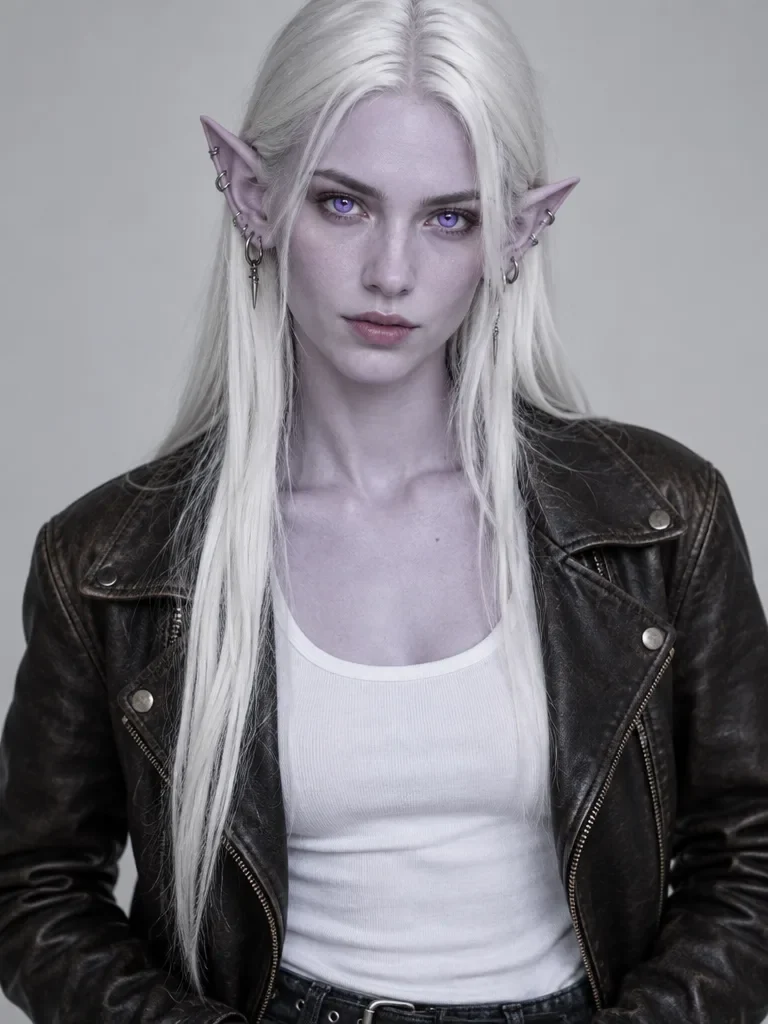
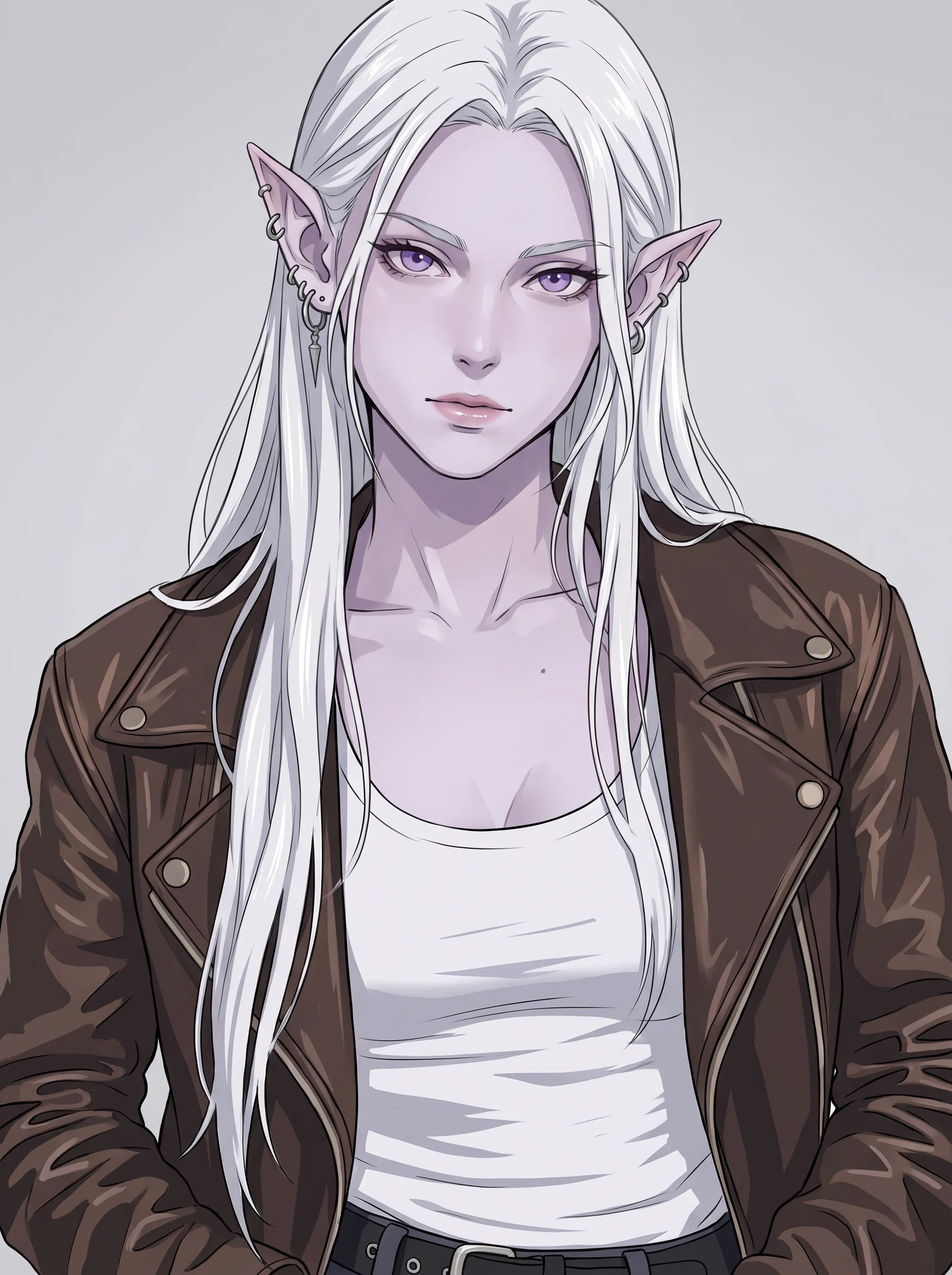
This is a real Photo to Anime run from November 20, 2026. The photo is an AI Influencer example Made generated, a made-up adult with long white hair, pointed ears, violet eyes and a row of silver hoops and a spike earring in each ear, in a brown leather jacket over a white top on a plain gray backdrop. They are not a real person. The picture is exactly what the tool builds for that photo and the sentence behind its Anime portrait chip, sent through Made’s API from a script rather than tapped through the browser. It came back at 1,792 × 2,400 pixels from a 768 × 1,024 photo, in the same 3:4 shape. I looked at both next to each other. It is clearly anime: clean black ink outlines, flat shading on the skin and hair, and big, soft eyes. The character carries over: the white hair with its center parting, the pointed ears, the violet eyes, the ear hoops and the dangling spike earring, the jacket with its studs and the white top, and the small mark below the collarbone. Both hands stay in the jacket pockets, as in the photo, so this run doesn’t show how hands come out. What changed: the leather of the jacket becomes painted folds, and the mouth and nose are drawn more simply than in the photo. One run, not a measure of how every photo turns out.
Nano Banana Pro (Photo to Anime) · Generated · View the example record and price basis (JSON)
Do it again: the same character in every picture
Photo to Anime starts from the photo you give it each time and keeps nothing from the run before. What keeps a series on model is two things you control: photos of the same character, and the same sentence under Try. Each run is its own picture in Generations, and your earlier ones stay there.
A second scene of the same character
Add your next photo of the same person, tap the same chip, and Generate. The example below is exactly this: the same character on a rooftop with a guitar, run with the same Anime portrait sentence. Photos in the same kind of light keep the colors closest.
Another look from the same photo
Go back to your original photo and tap Soft anime look or Bold anime look instead. Each run starts from the photo, so you can put the looks side by side before you pick one for the whole series. Those two chips weren’t run for this guide.
Straight from Assets
Open the finished picture in Assets, tap Use in another tool and choose where it goes next. Animate opens it in the AI Video Generator as the start frame. The picture stays in Assets as it was.
Recorded Made demonstration
The same character on a rooftop with a guitar
This is a real run from November 20, 2026, with the same Anime portrait sentence as the example above. The photo is a second AI Influencer example of the same made-up character, made from their portrait: they sit on a rooftop at sunset with an acoustic guitar, in a dark knit sweater and loose trousers. It went through Photo to Anime the same way, and came back at 1,696 × 2,528 pixels from a 720 × 1,080 photo, in the same shape. It is the same character: the white-blonde hair, pointed ears, violet eyes, the same hoops and spike earrings, and the silver rings on the same fingers. Both hands keep their fingers around the guitar, and its frets, strings and tuning pegs stay. The first picture’s skin was lavender and the hair white; here the skin and hair are warmer because the photo is lit by sunset. The background is a soft painted city rather than flat color, so this one is less flat-shaded than the first. One run, not a measure of how every scene turns out.
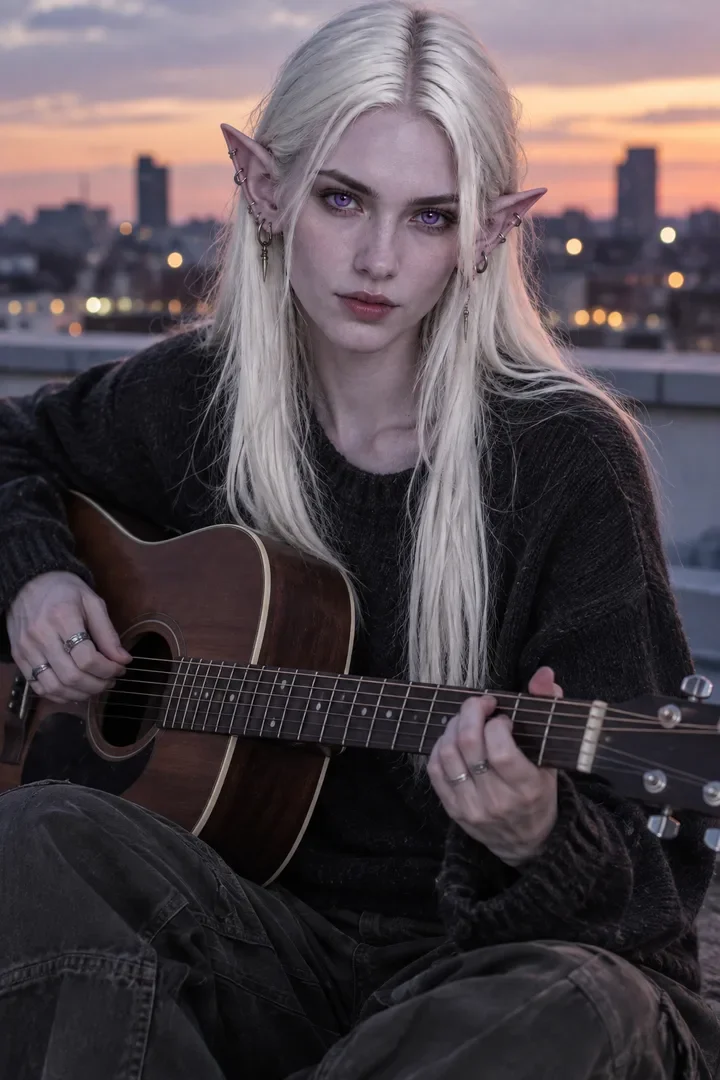
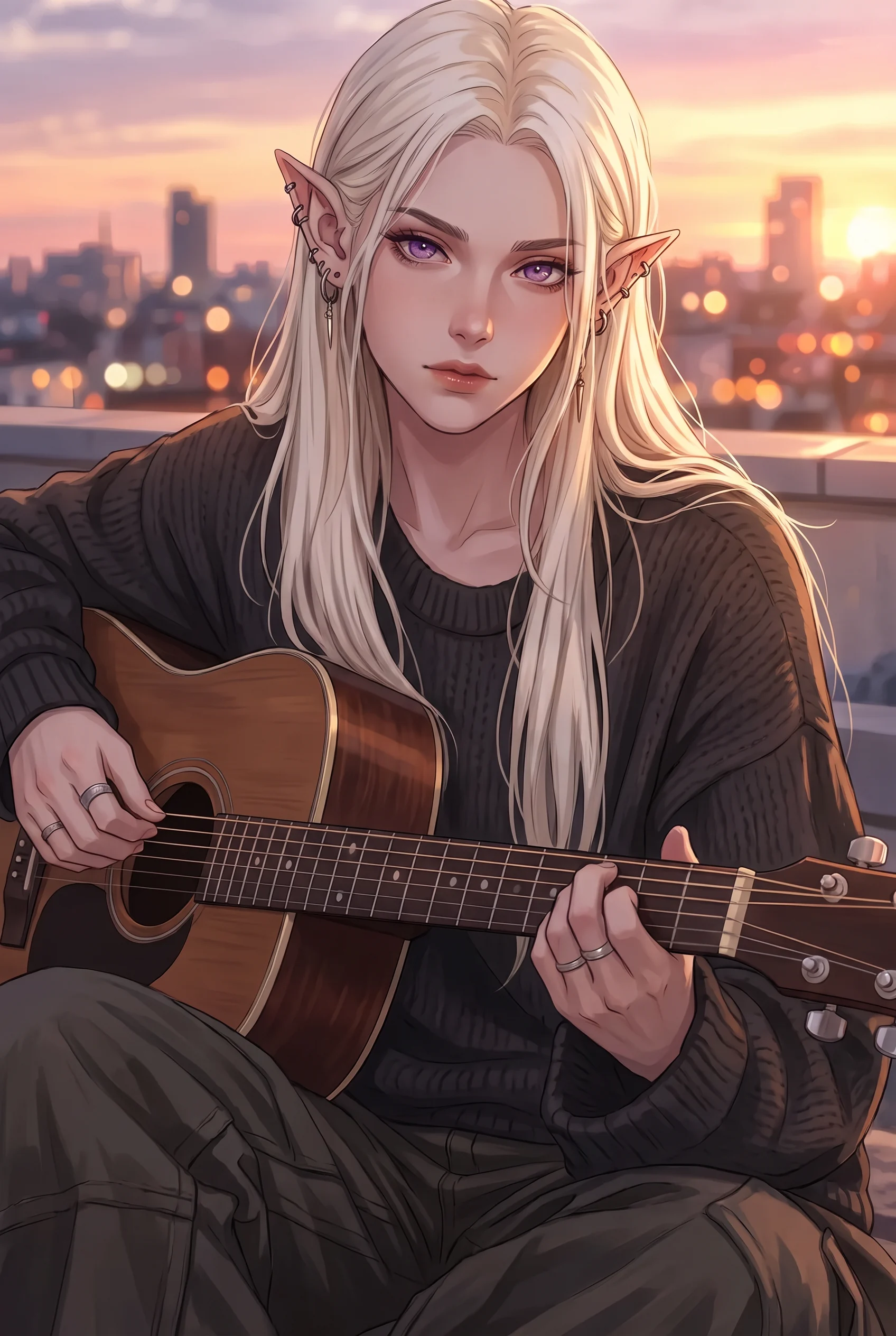
Nano Banana Pro (Photo to Anime) · Generated · View both example records (JSON)
What creators make next
Make the picture move
AI Video Generator
In Assets, open your anime picture, tap Use in another tool, then Animate. The AI Video Generator opens with the picture as the start frame, on Veo 3.1 Lite with a stock prompt, so open the Model menu if you want Seedance 2.5, which takes 4 to 30 seconds and opens at 480p, and type what should move. A video model redraws every frame, so look for the drawn style holding from the first frame to the last; no anime clip was made for this guide.
Make the picture sharper or bigger
Image Upscaler
It takes JPG, PNG or WebP up to 30 MB, 2× or 4×, and has an Art & CGI mode for illustrations, anime, renders and AI art. The example’s 1,792 × 2,400 picture fits both: 2× is 3,584 × 4,800.
Make the whole clip anime instead
Object Swap, Style mode
If you have a video rather than a picture, Style mode restyles the whole clip, with the same Anime look as one of its tiles. Clips can run from 4 seconds to 3 minutes.
Prompts you can inspect and adapt
Prompt recipe to adapt
A starting point for your own photo
Turn this photo into an anime-style portrait illustration with [the look you want, such as clean linework, soft cel shading or big expressive eyes].Put the look you want in the brackets. Only the chip sentence below was run for this guide, so check what your own wording does on your photo.
Recorded generation prompt
The Anime portrait chip
Turn this photo into an anime-style portrait illustration.The sentence behind the Anime portrait chip, sent as it is: the tool adds no other words to it. The second scene in Do it again uses the same sentence.
Chip sentence, not run for this guide
The Soft anime look chip
Restyle this photo as a soft, watercolor-toned anime illustration.For a softer, watercolor-toned anime picture. Check how it comes out on your photo.
Chip sentence, not run for this guide
The Bold anime look chip
Redraw this photo in a bold anime style with clean linework and cel shading.For heavier linework and cel shading. Check how it comes out on your photo.
How an anime picture is priced
Per picture: one image each time you press Generate. The total appears on Generate before you run it.
The tool always runs at 2K and makes one image per press, so changing the look or the words in the Prompt box doesn’t change the price.
Price source: Nano Banana Pro price sheet · Checked
Before the run starts, the tool checks the price again; if it came out higher than the button showed, it stops and asks you to press Generate again. If the provider it was priced on fails, a backup provider can take the run at its own price, which can be higher. A run that fails is refunded.
What to review before you use the result
| What you see | What to try |
|---|---|
| It doesn’t look enough like me | Anime redraws the face, so a likeness can shift. Start from a sharp photo, facing the camera, with your face large and evenly lit, and run it again from the original: each run draws it a little differently. You can also add the features that matter to the sentence, such as your glasses or your hair, though that wording wasn’t run for this guide. |
| Hair, skin or eye color changed | The picture follows the light in your photo. In the second scene below the same character’s hair and skin came out warmer than in the first, because that photo was lit by a sunset. For a series in one color, use photos in similar light, or say the color in the sentence and check the result. |
| Small details disappeared or changed | Fine texture, writing, patterns and small objects are redrawn and get simpler. Hands and strings can also change in a busy photo, so zoom in on them. If something must stay exact, such as a logo or lettering, add it again after the anime picture is made. |
| The background looks painted, not flat | The whole picture is redrawn, so a detailed photo background can come back as a soft painted scene instead of flat color. For a plainer look, start from a photo with a simple backdrop. |
| Several people in one photo | The tool takes one photo at a time and draws everyone in it. This guide tested one person, so look at every face in a group photo, or do one person per photo. |
| Use a JPG, PNG, or WebP image | Save or export the photo in one of those formats. HEIC photos from an iPhone and other common picture formats are converted for you; a file that isn’t a picture can’t be used. |
| Images can be up to 20 MB | Make the file smaller before you add it. A photo longer than 2,048 pixels on its long side is already scaled down for the upload, so a smaller export loses nothing. |
| The run failed | The tool shows why, and a run that fails is refunded. Try again, or try another photo. |
Questions about this workflow
Is this an anime filter?
No. A filter changes the colors of your photo. Here an AI image model redraws the whole picture from your photo, so the pose and layout stay but every part is drawn again. That is why it looks like a drawing, and why small details change.
Will the anime version look like me?
Usually the face is recognizable, but it is redrawn, not copied. In the example the hair, ears, eye color and every earring carried over, while the mouth and nose came out simpler. A sharp, front-facing photo works best, and you should compare it with your photo before you use it as an avatar.
Can’t ChatGPT do this too?
Many AI chat apps, ChatGPT included, can restyle a photo you upload as anime. Photo to Anime is the same job as one step: one photo, a look to tap, one picture back in your photo’s shape, and from there you send it on to Animate or an upscaler. Use whichever suits you; compare the faces either way.
Can I ask for the style of a specific anime or studio?
Describe the look instead: clean linework, soft cel shading, big expressive eyes, a watercolor tone. Don’t name a studio, a show or its characters. The tool works from your description of the look.
Can I make the effect stronger or softer?
There is no strength control. You change the effect with your words, or with the chips: Soft anime look is watercolor-toned and Bold anime look asks for heavier linework and cel shading. Neither was run for this guide, so check them on your photo.
Do I have to describe my photo?
No. The tool looks at the photo. The Prompt box is optional and you only say the look. With it empty, the tool asks for “Turn my photo into anime art”.
Can I use it as a profile picture?
Yes, the result is one image in your photo’s shape. The example came back at 1,792 × 2,400 pixels, so you can crop it square around the face.
What about a video?
Photo to Anime makes a picture. To turn a whole clip into anime, see the guide on turning a video into anime. To make a clip from your anime picture, send it to Animate, as below.
Work with Claude and Made
Photo to Anime runs in the tool. With the Made connector in Claude, you can ask for the same edit: Claude can find Nano Banana Pro in Made’s catalog, take your photo as the image to edit, quote the price and generate, if your client offers a way to upload.
Conversation starter
Ask your assistant
Use Made to turn my attached photo into an anime-style portrait illustration. Use Nano Banana Pro with my photo as the image to edit, at 2K and the photo’s own shape. Show me the price before generating one image.If your client doesn’t offer a way to upload, use Photo to Anime with the same photo.