The workflow
Pick one clear photo of yourself
Open the AI Photoshoot Generator and tap “Upload image” (on a phone, tap Upload). Choose a photo of yourself, or of someone who agreed: JPG, PNG or WebP up to 20 MB, and iPhone HEIC photos are converted first. Pick a sharp, front-lit photo with your face fully in view and nothing covering it. Every look in the set starts from this picture, so its quality sets the ceiling.
Type the first look
In the box, describe the shoot in one or two sentences: the kind of shoot, the place, what you wear, your pose, where you look and the light. Start by saying what stays: “Keep my face, hair and build exactly as in the photo.” The chips Street editorial, Studio session and Location shoot fill the box with a starting sentence you can edit. Name real places and clothes. Leave the places to change, not the person.
Tap Generate
Generate shows the price; tap it. If you aren’t signed in, you sign in first and your photo and words are kept. A card appears in Generations at once and says Waiting, then Generating. The looks in the example took between one and two and a half minutes each. When it’s done, the card shows your look in the same shape as your photo.
Check it is you, then build the set
Compare the face with your photo: the eyes, nose, mouth, hairline, beard or freckles. Your photo stays in the box, so change only the place, clothes and light in your words and Generate again. Each Generate is its own look with its own price, so keep the ones that work and write over the ones that don’t. A set of three places, such as a street, a seaside and an indoor room, is enough for a feed or a profile.
Take a look further
Open a favourite look as the start frame in the AI Video Generator to animate it: tap “Add a start frame” and describe what moves; it opens on Seedance 2.5 at 4 seconds and 480p. Or open it in the Image Upscaler to make it larger, 2× or 4×, from a JPG, PNG or WebP up to 30 MB.
Recorded Made demonstration
One portrait, three looks in three places
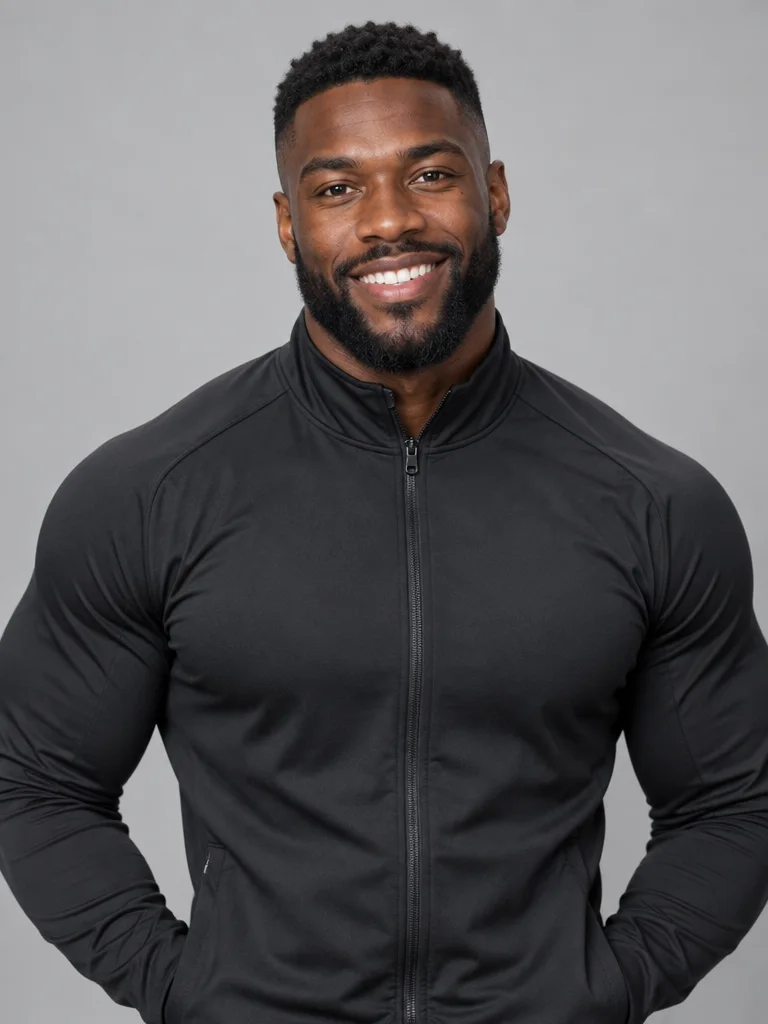
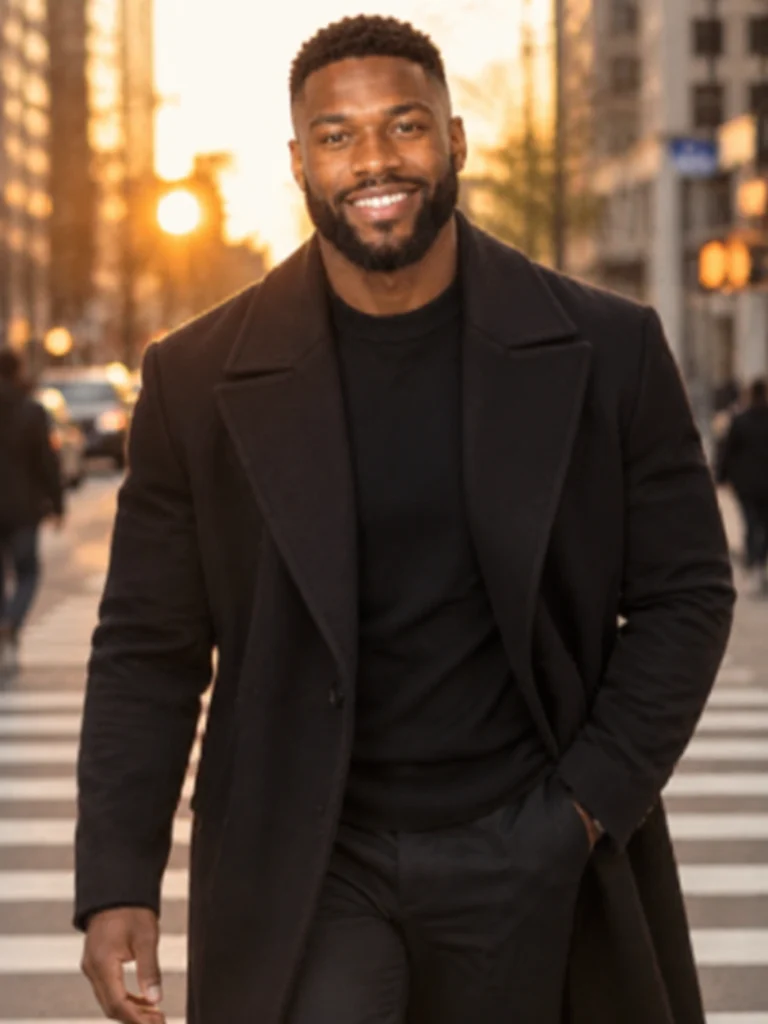
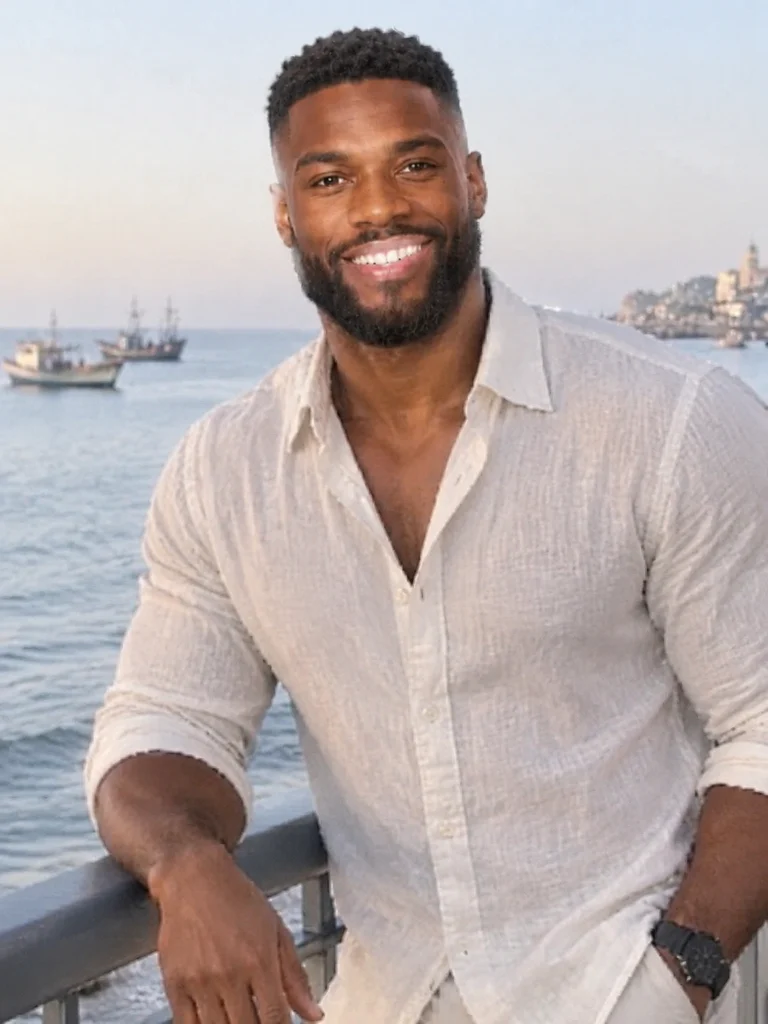
This is a real run from November 19, 2026. The photo is Marcus, a fictional man Made generated for its AI Influencer examples, not a real person, standing in for you: a studio portrait, 768 × 1024, sent as it is. Three prompts, each for one place, went through the tool’s own request: GPT Image 2.5 Flare at its lowest quality, one photo, the photo’s shape and the typed words with nothing added. The request is what the tool sends, sent through Made’s API from a script rather than clicked through the browser. In all three, his face, beard, short hair, build and bright smile stay recognisably his, and the place, clothes and light change: a long coat on a city crosswalk at golden hour, a linen shirt on a seaside promenade, a knit sweater in an old library. The hand in view looks right in each look, with the other hand in a pocket. They are not perfect: the street and seaside looks are softer than the library one, the sky over the sea is hazy, a watch appears on his wrist in the seaside look, and he smiles at the camera in all three although the prompts asked for a half-smile, a look past the camera and a calm look. The portrait’s grin carries over unless you write the expression into the prompt. It is one set, not a measure of how often a face holds.
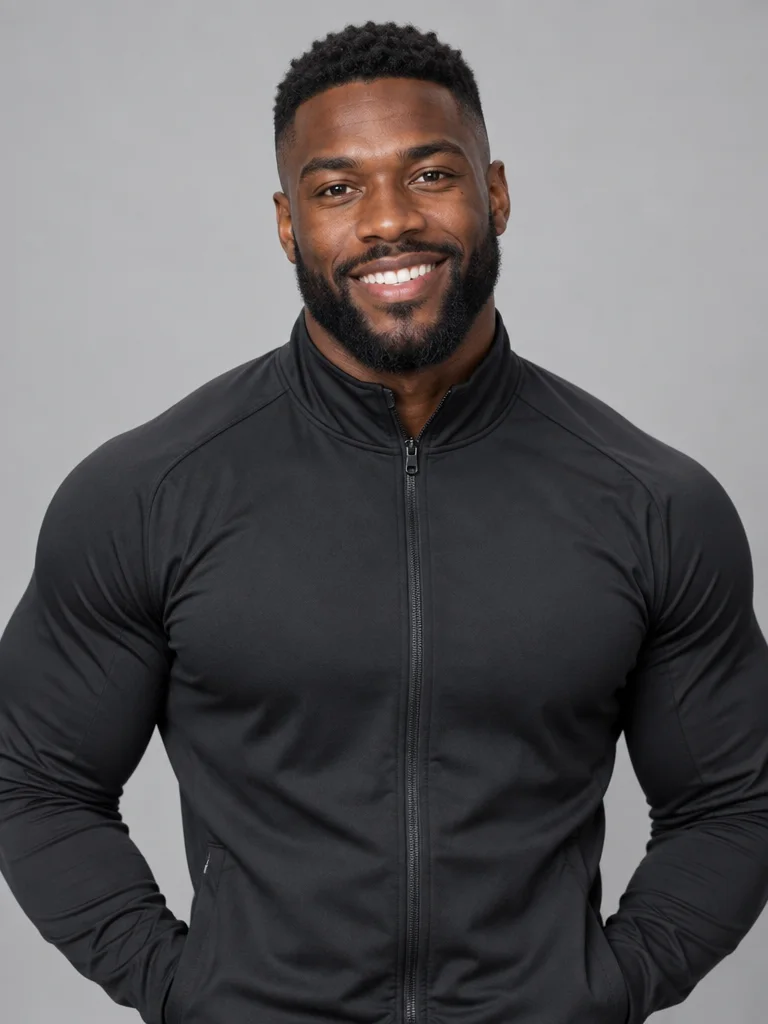
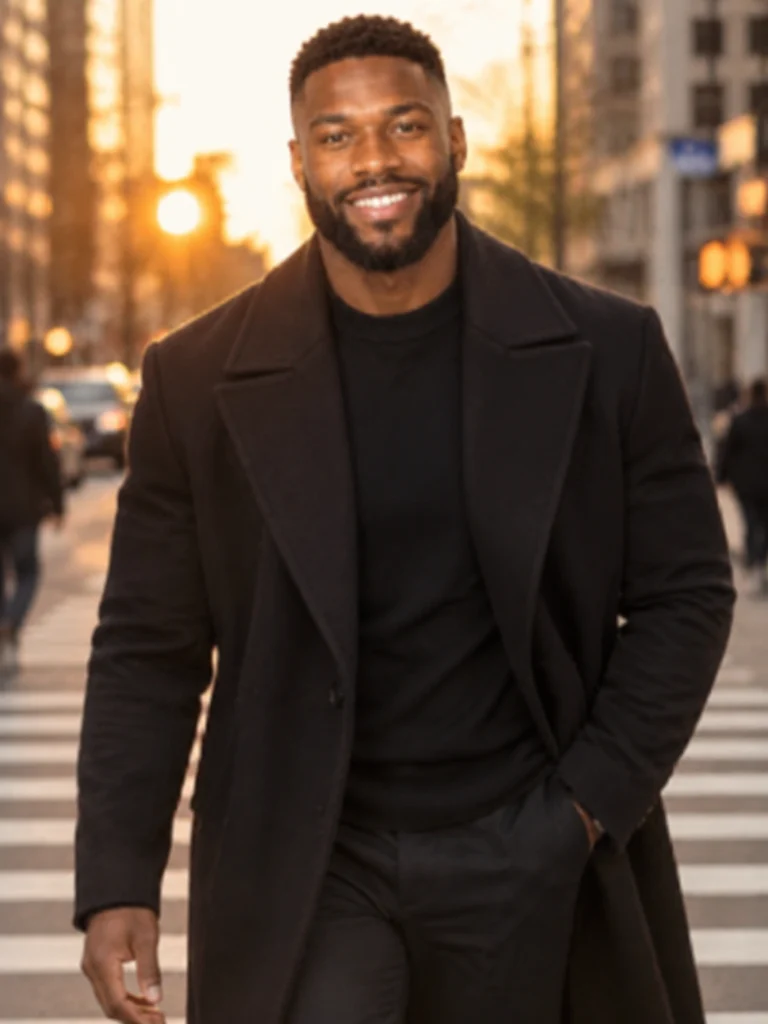
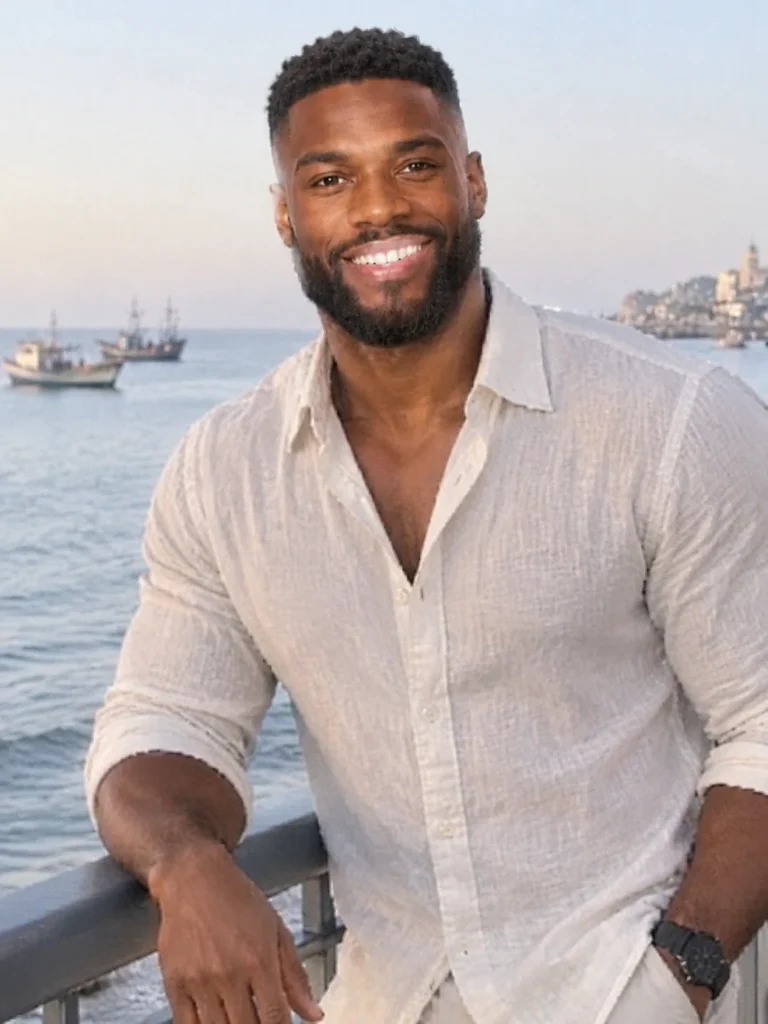
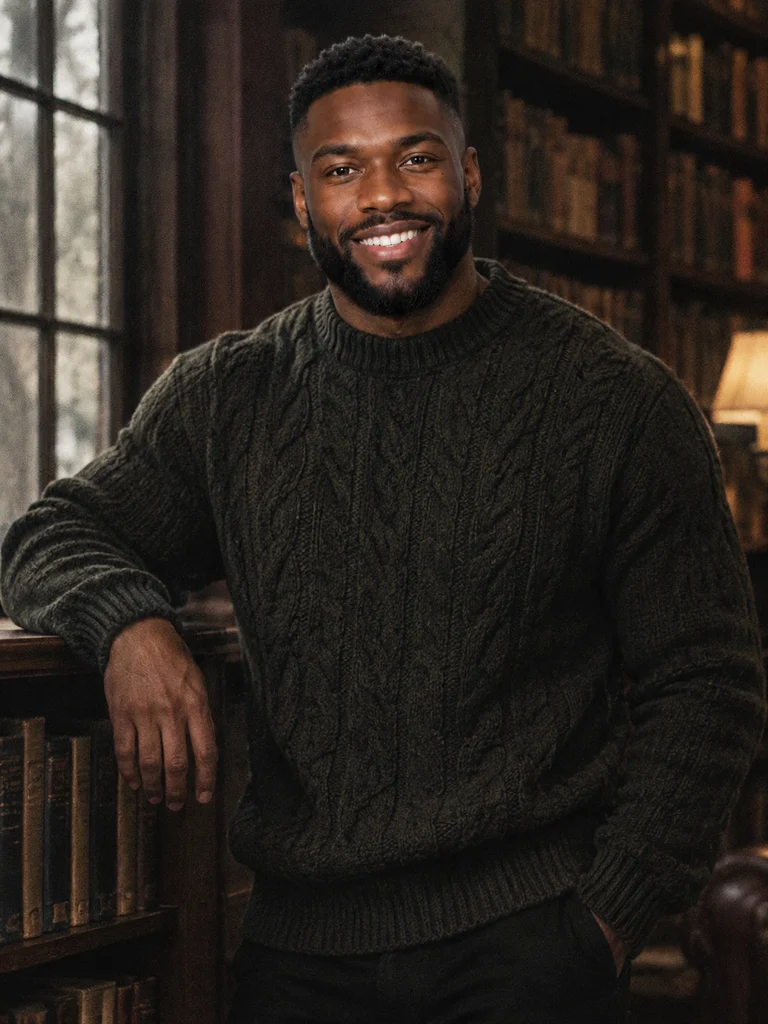
GPT Image 2.5 Flare · Generated · View the example record and price basis (JSON)
Prompts you can inspect and adapt
Recorded generation prompt
Look 1: the street editorial prompt
Re-stage this photo as a street-style editorial shot on a city crosswalk at golden hour. Keep his face, beard, hair and build exactly as in the photo. He walks toward the camera in a long tailored overcoat, one hand in his pocket, with a relaxed half-smile. Shot like a fashion magazine street photo, shallow depth of field, low sun behind him.The tool sends what you type as it is, with nothing added. The first sentence says what stays, the rest says what changes: the place, the clothes, the pose and the light.
Recorded generation prompt
Look 2: the location prompt
Make this a location shoot on a seaside promenade in the early morning. Keep his face, beard, hair and build exactly as in the photo. He leans on the railing in a loose linen shirt with the sleeves rolled up, laughing and looking just past the camera, the sea and a few fishing boats behind him. Soft morning light, a candid travel-magazine photo.Same photo, same “Keep his face, beard, hair and build” sentence, a new place. Only the second half changes from look to look.
Recorded generation prompt
Look 3: the indoor prompt
Shoot this like a moody indoor editorial in an old library. Keep his face, beard, hair and build exactly as in the photo. He stands by a tall window with one hand resting on a bookshelf, in a chunky knit sweater, looking calmly into the camera. Soft window light from the side, deep shadows, a fine film grain.The last look of the set. Soft side light and a closed room gave the sharpest of the three.
Prompt recipe to adapt
A prompt to adapt for your own photo
Shoot this like a [kind of shoot] in [a real place]. Keep my face, hair and build exactly as in the photo. I [one pose or action] in [what I wear], [where I look: into the camera / just past it], [one expression]. [Light: soft window light / low sun / overcast daylight], [how it should feel].Fill the brackets and keep the second sentence word for word. Name where you look and one expression: the photo’s own expression tends to repeat otherwise.
How an AI photoshoot is priced
One price for each look you generate, shown on the Generate button before it runs. A set of three looks is three Generates.
The tool runs one image model at its lowest quality, and a look made from one photo is priced by its output size, which follows your photo’s shape.
Price source: AI Photoshoot Generator · Checked
Made checks the price again before the run starts; if it came out higher than the button showed, it stops and asks you to press Generate again. If the provider it was priced on fails, a backup provider can take the run at its own price, which can be higher. A look that fails is refunded.
What to review before you use the result
| What you see | What to try |
|---|---|
| The face drifts in a look | Start the prompt with what stays: “Keep my face, hair and build exactly as in the photo.” Change one place or one outfit at a time, and try a sharper, front-lit photo. Some drift is possible, especially with a strong restyle, so compare every look with your photo before you post it. |
| Every look has the same expression | The photo’s expression carries over unless you write another one in. Name where you look and one expression: “laughing, looking just past the camera”, “a calm, unsmiling look into the lens”. |
| A look is soft or small | The tool runs at its lowest quality, so a look is a draft you can use and then make larger. Open it in the Image Upscaler (2× or 4×), and check faces, hands and any text at full size. |
| Your photo isn’t accepted | Use a JPG, PNG or WebP up to 20 MB; the tool says “Use a JPG, PNG, or WebP image.” or “Images can be up to 20 MB.” Export a larger file again at a smaller size, and use one photo, since the tool takes only one. |
| Text, a logo or a strange hand shows up | Ask for “no readable signs” and plain clothes, then generate that look again. Check hands and anything in them at full size before you post. |
Questions about this workflow
Can I really do an AI photoshoot with one photo?
Yes. The AI Photoshoot Generator edits straight from one photo of you, so there is no training on ten or twenty selfies. Each Generate makes one new look, and you build a set by typing a new place each time.
Will the people in the looks look like me?
Usually the face, hair and build hold when you say what must stay and you start from a sharp, front-lit photo. They can drift, especially with a strong restyle, so compare each look with your photo. A look that doesn’t read as you is not worth posting: write it again with one change.
How many looks can I make from one photo?
As many as you like. The photo stays in the tool, and each Generate is one look with its own price. There’s no fixed set size.
Can I make AI photos of me in different locations?
Yes. Name a real place, the light and what you wear, such as a seaside promenade in the early morning or an old library by a window. The example set is a city crosswalk, a seaside and a library.
Can I turn a look into a video or make it bigger?
Yes. For a clip, add the look as the start frame in the AI Video Generator, which opens on Seedance 2.5 at 4 seconds and 480p. To make it larger, use the Image Upscaler at 2× or 4×.
Whose photos can I use?
Your own, or someone who agreed. Don’t make photoshoots of other people or public figures without their permission.
Work with Claude and Made
With the Made connector in Claude, you can ask for the same kind of set: Claude can find GPT Image 2.5 Flare in Made’s catalog, quote one edit from the photo you supply, and generate a look for each place you write. Each look is its own generation with its own price.
Conversation starter
Ask your assistant
Use Made to make a photoshoot of me from my attached photo. Check the catalog for GPT Image 2.5 Flare and use it as an edit with my photo attached. Write three prompts for three different places (a street at golden hour, a seaside in the morning, an old library), each starting with “Keep my face, hair and build exactly as in the photo”, and each naming where I look and my expression. Show me the prompts and the price of each, then generate one look per prompt.If your client can’t attach your photo, use the AI Photoshoot Generator with the same photo and words.