The workflow
Add your photo as the start frame
Open the AI Video Generator. Tap “Add a start frame” in the composer (on a phone, the + button) and choose your photo: JPG, PNG or WebP up to 25 MB. iPhone HEIC photos are turned into JPEGs on your phone first. The video begins on this exact picture, so use a sharp one with the subject in frame and some room around them to move. Use a photo you own, of yourself or of someone who agreed.
Say what moves
Type the prompt in the composer. Describe what happens after the photo, not the photo itself: one simple action, what the camera does, and one sound. Short clips do best with one action. Seedance 2.5 also takes a second photo as the End frame, if you want the clip to land on a picture you choose.
Check the settings
The chips under the prompt show what you’ll get. Aspect ratio starts on Auto, which keeps your photo’s shape; you can pick 21:9, 16:9, 4:3, 1:1, 3:4 or 9:16 instead. Duration starts at 4 seconds and goes up to 30 on Seedance 2.5. Resolution starts at 480p, with 720p and 1080p. Sound is on; tap it for a silent clip. To try another model, open the Model menu.
Generate, then watch it through
Tap Generate; the button shows the price. If you aren’t signed in, you sign in first and your prompt is kept. A card appears in the tool right away and the video plays there when it’s done; the example took under five minutes. Watch it with the sound on and look at faces, hands and anything moving fast. If it’s off, change one thing in the prompt and generate again.
Recorded Made demonstration
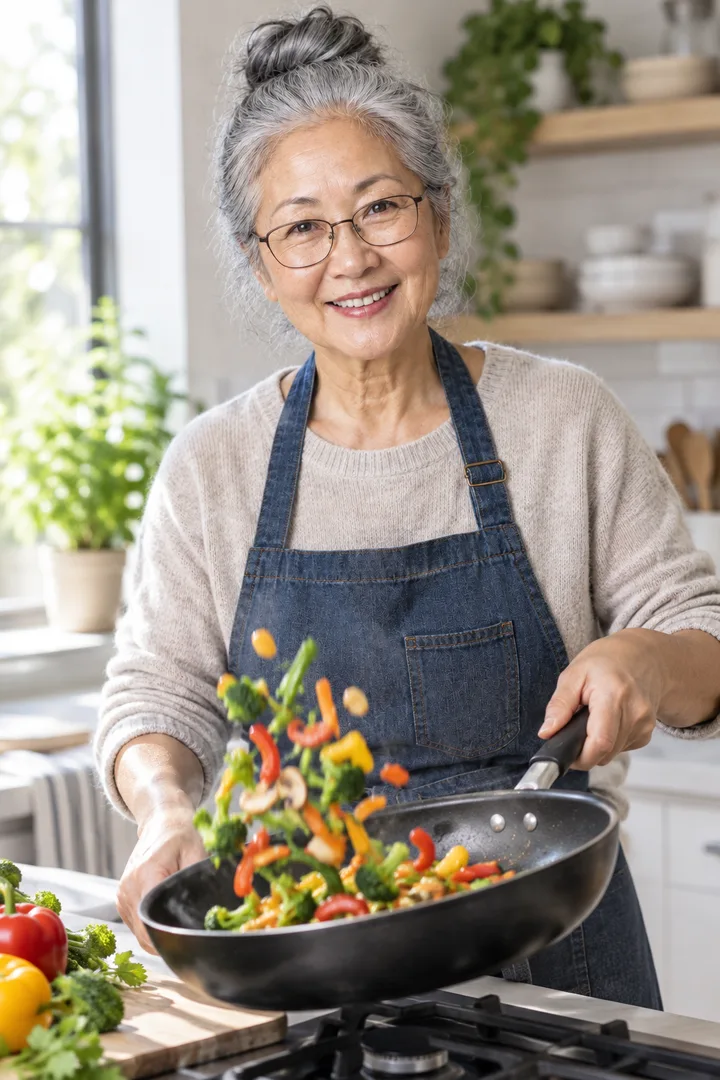
A cooking photo, tossed into motion
This is a real run from the evening of November 12, 2026 (US time). The photo is Hye-jin, a fictional woman Made generated for its AI Influencer examples, not a real person, tossing vegetables in a pan with some still in the air. It went in as the start frame with the prompt below and every other setting as the tool opens: Seedance 2.5, 4 seconds, 480p, Auto shape and Sound on. The request is exactly what the tool sends for that photo and prompt, sent through Made’s API from a script rather than clicked through the browser. The vegetables drop into the pan, she tosses them once more, catches them and smiles at the camera, while her face, glasses, apron and the kitchen stay the same and the camera holds still. The clip kept the photo’s tall 2:3 shape and came with sound Seedance made for it. On the second toss the pan rises higher than a real one would, and at 480p it looks soft at full screen. It’s one run, not a measure of how often a clip turns out this well.
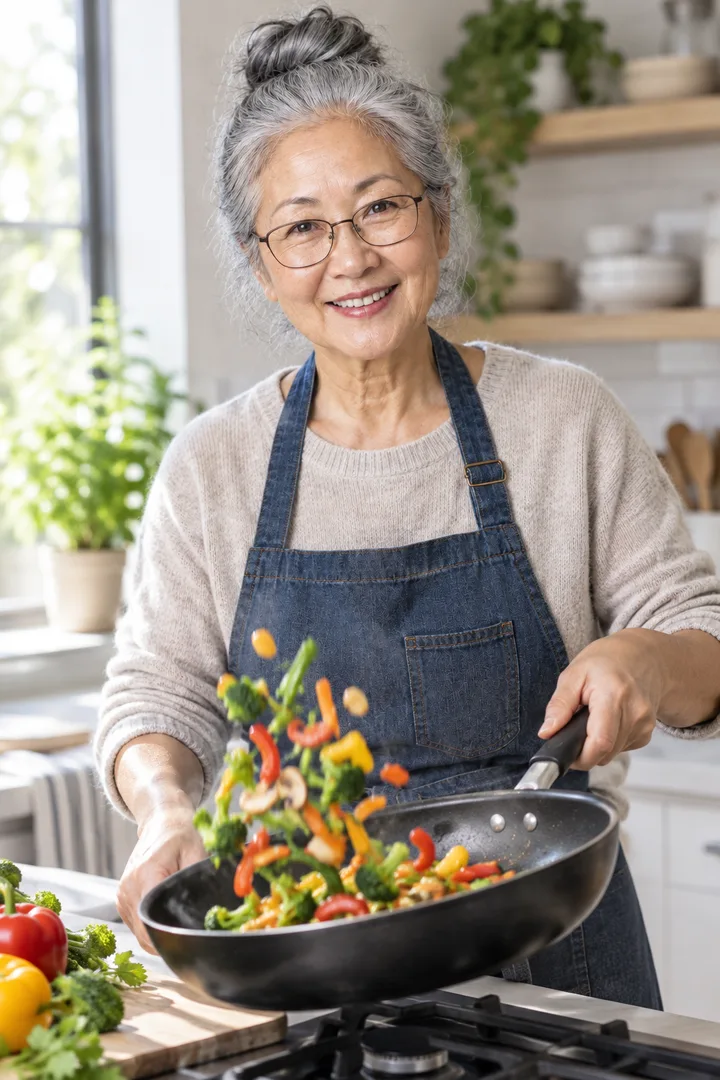
Seedance 2.5 · Generated · View the example record and price basis (JSON)
Prompts you can inspect and adapt
Recorded generation prompt
What was typed for this run
The vegetables in the air fall back into the pan. She gives the pan one more toss, catches them, then looks up at the camera and smiles. The camera stays still. Sound: the pan sizzling.The tool sends what you type as it is, with nothing added. The photo already shows the person and the kitchen, so the prompt only says what moves, the camera and the sound.
Prompt recipe to adapt
A prompt for your own photo
The [person or thing in the photo] [one simple action, such as turns to the camera and smiles]. [Something small that moves, such as hair in the wind or steam rising]. The camera [stays still / slowly pushes in]. Sound: [one sound that fits the place].Fill in the brackets. Keep to one action for a 4 second clip; for a longer one, add a second action and raise Duration.
How a photo-to-video clip is priced
By the model, the length in seconds and the resolution. The total appears on Generate before you run it.
Seedance 2.5 is priced per second, and 720p and 1080p cost more per second than 480p. Sound doesn’t change its price, and neither does your photo.
Price source: Made price sheet · Checked
The defaults, 4 seconds at 480p, are the lowest-priced setting, so try your photo and prompt there before a longer or sharper clip. Generate checks your balance before anything starts, and a run that fails is refunded.
What to review before you use the result
| What you see | What to try |
|---|---|
| The video barely moves | Name one clear action and a camera move, such as “she turns to the camera and laughs; the camera slowly pushes in”. A prompt that only describes the photo gives the model nothing to do. |
| The face or hands change | Use a sharp photo where the face is large and the hands are visible, keep the action simple, and add “the camera stays still”. Fast moves are where faces and fingers slip. |
| Too much happens for the length | Four seconds fits one action. Cut the prompt to one, or raise Duration and keep the actions in order. |
| The shape isn’t what you wanted | Auto keeps your photo’s shape. For a Reels or TikTok clip, pick 9:16 under Aspect ratio, or start from a vertical photo. |
| It looks soft | The default is 480p. Choose 720p or 1080p under Resolution; Generate shows the new price before you run it. |
| The sound is wrong or not wanted | Say the sound you want after “Sound:” in the prompt, or tap Sound to switch it to Silent. |
Questions about this workflow
Will the video look like my photo?
It starts on your photo, so the first frame is your picture. After that the model moves things, so faces and small details can drift, most of all in fast moves. Simple actions and a still camera keep it closest.
How long can the video be?
Seedance 2.5, the model the tool opens on, makes 4 to 30 seconds; 4 is the default. Other models in the Model menu have their own lengths, shown when you pick them.
Can I choose how the video ends?
Yes, on Seedance 2.5. Add a second photo after the first and it becomes the End frame, so the clip moves from one picture to the other.
Does it work on a phone?
Yes. On a phone, tap + to add the photo from your camera roll, type the prompt and tap Generate. iPhone HEIC photos are converted for you.
Can I make the person in my photo talk?
For a person saying words you choose, in sync with their mouth, use Lip Sync Studio instead. The guide to making a talking video from one photo walks through it.
Do I need to sign in?
Yes, to generate. You can add your photo and type the prompt first; if you sign in from Generate, your prompt is kept.
Work with Claude and Made
With the Made connector in Claude, you can ask for the same clip: Claude can find Seedance 2.5 in Made’s catalog, use your photo as the start frame, and quote the run before it starts, if your client offers a way to attach the photo.
Conversation starter
Ask your assistant
Use Made to turn my attached photo into a 4-second video. Check the catalog for Seedance 2.5 and use my photo as the start image, at 480p. Prompt: the vegetables in the air fall back into the pan; she gives the pan one more toss, catches them, then looks up at the camera and smiles; the camera stays still; sound: the pan sizzling. Show me the price first, then make one video and give me the link.If your client can’t attach the photo, use the AI Video Generator with the same photo and prompt.