Photo to Anime
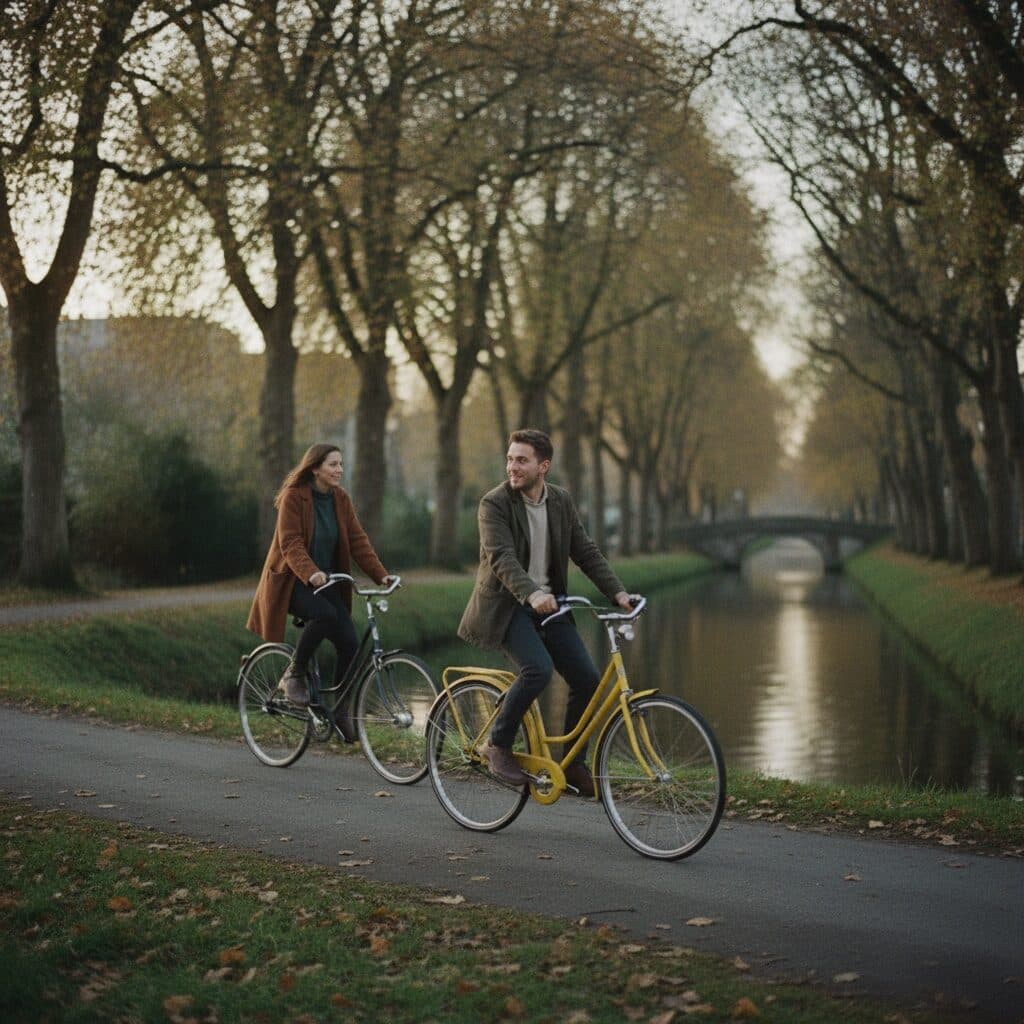
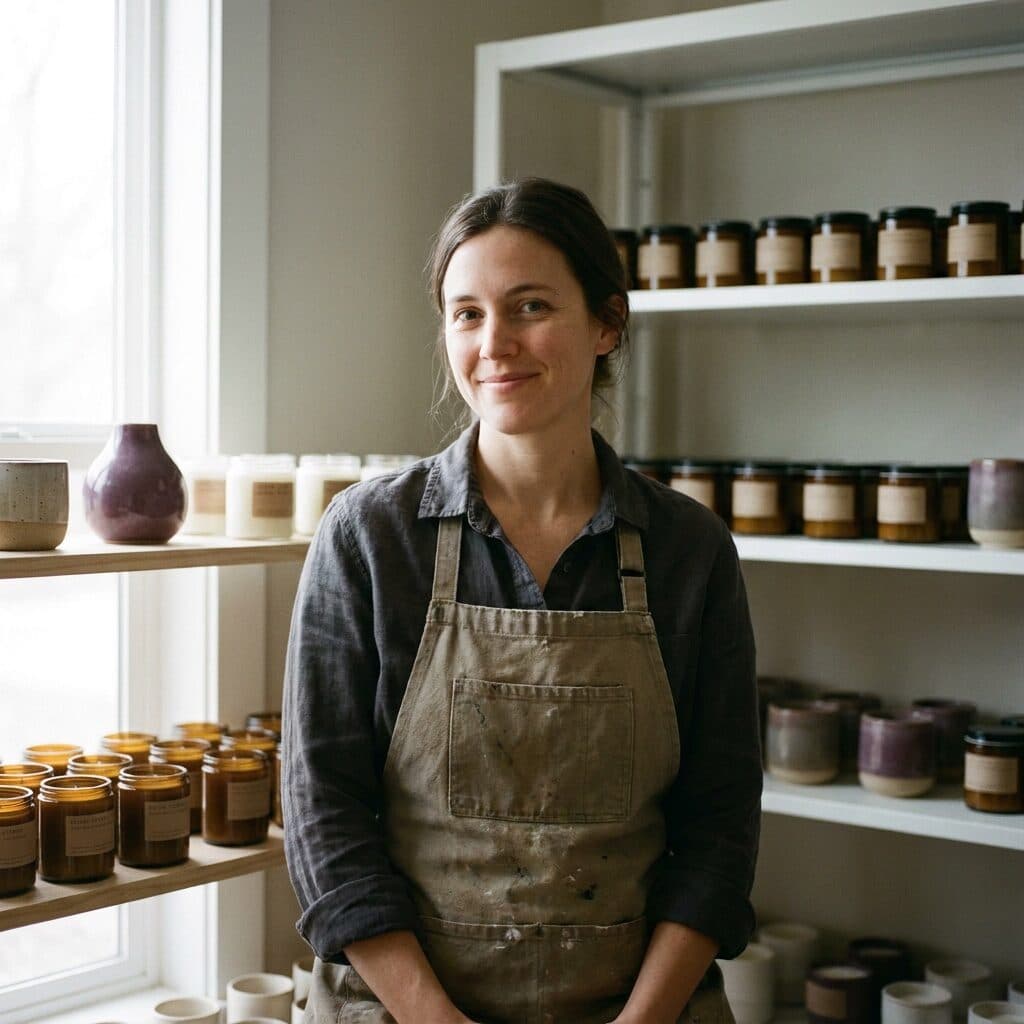
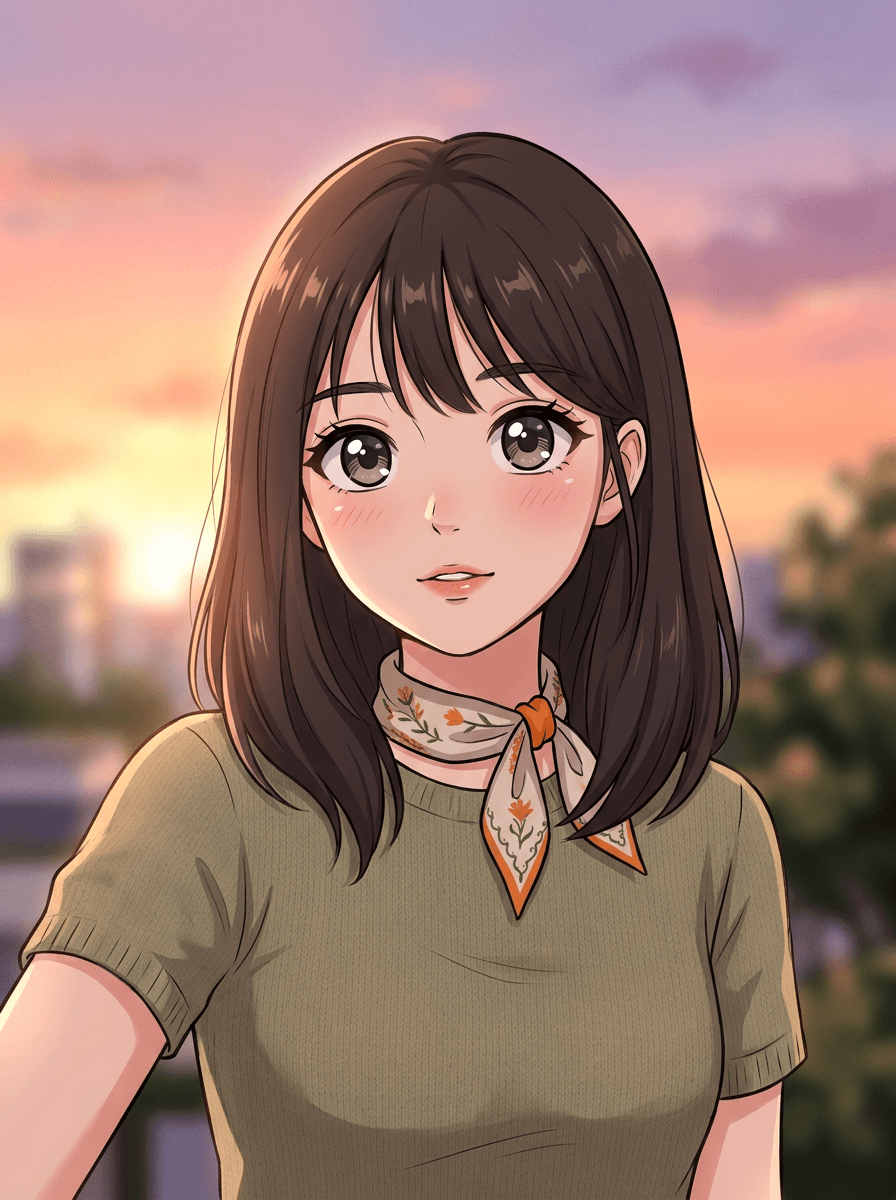
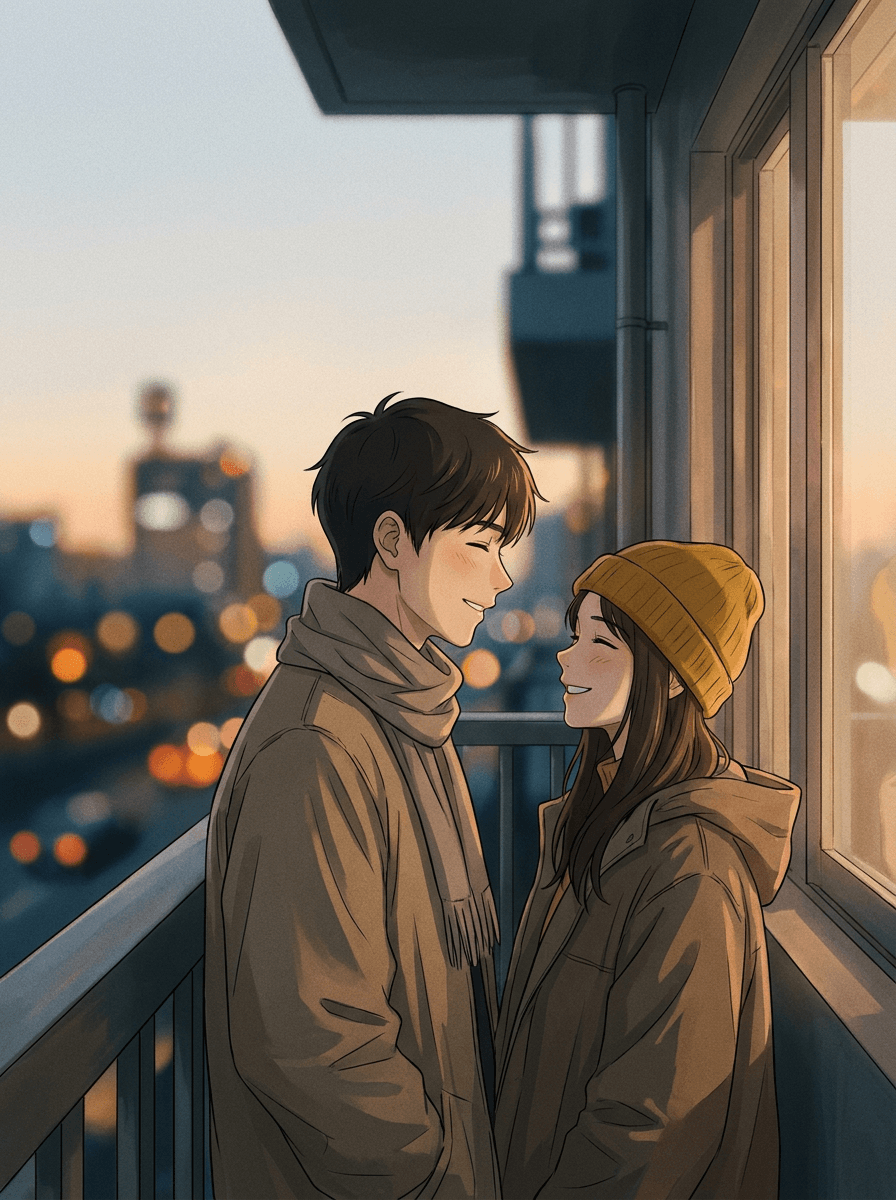
Upload a photo and Made redraws it as an anime-style illustration — expressive eyes, clean linework, and cel-shaded color — while the composition, subjects, and layout stay the same.
Runs in the tool. You sign in to run it, see the price before you start, and failed runs are refunded.
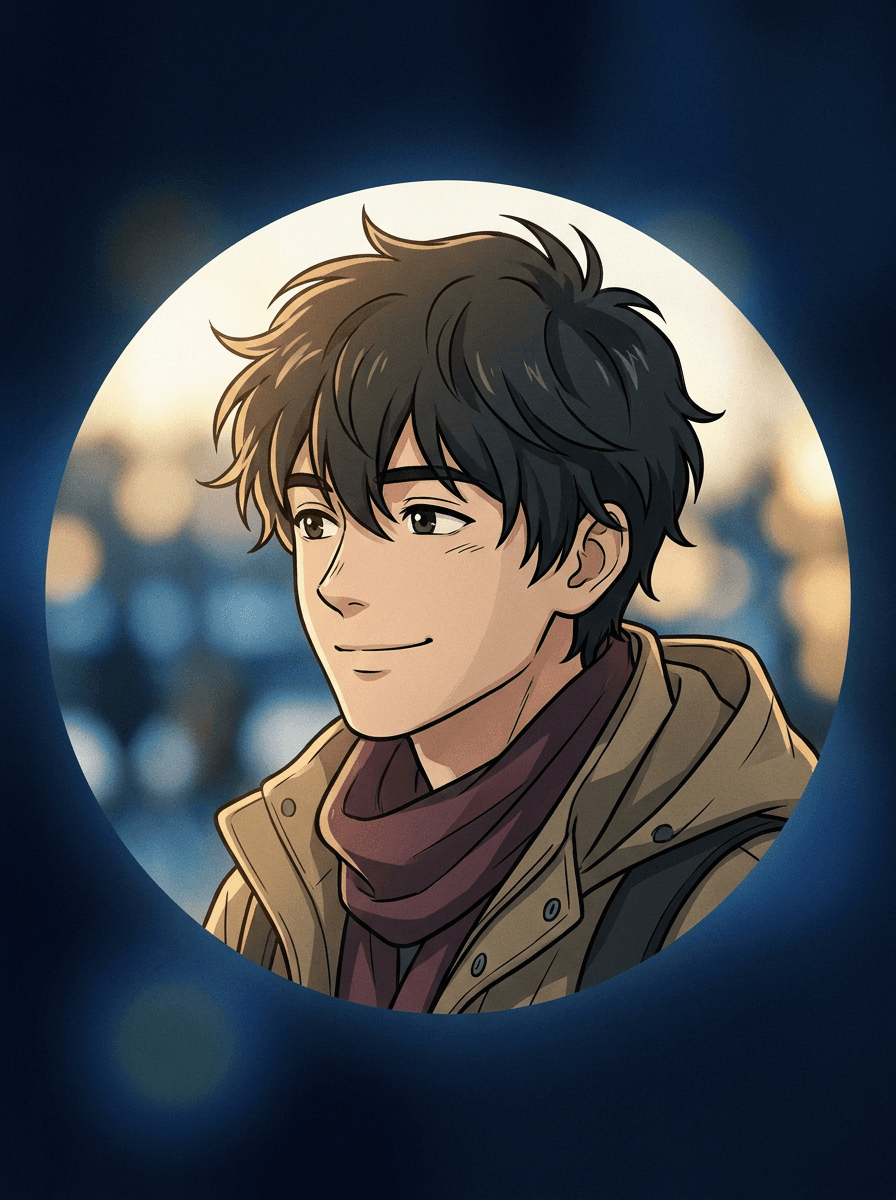
How to use Photo to Anime
- 1
Upload a photo
Choose a JPEG, PNG, or WebP — a clear, well-lit portrait gives the strongest result.
- 2
Ask for anime style
Say “turn this into anime art,” and add direction if you want it — soft and painterly, or bold with cel shading.
- 3
Set the intensity
The 0.7 default gives a clear anime look; go toward 0.3 to keep more of the photo or toward 0.95 for a fully redrawn illustration.
- 4
Review and iterate
Check that the likeness and details carried over, then download the JPG or re-run with a refined description.
Photo to Anime examples
Real results from Made. Use a prompt to open it in Photo to Anime, then add your own photo.
What people use it for
- Anime avatarsTurn a selfie into an anime-style profile picture for social accounts, gaming, and communities.
- Couple and friend artRestyle a photo of two or more people as a single anime illustration — everyone keeps their pose and position.
- Gifts and printsAn anime version of a meaningful photo makes a personal gift, phone wallpaper, or small print.
- Character referencesUse an anime-styled version of yourself as a starting reference for original characters, cosplay planning, or commissions.
Turn a photo into anime art
What it does
- Input
- JPEG, PNG, or WebP image
- Output
- JPG image restyled as an anime illustration
- How it works
- Made prompts Google’s Nano Banana model on Replicate to restyle the whole image in an anime aesthetic while keeping the same composition, subjects, and layout; style intensity is adjustable from subtle (0.3) to strong (0.95), with a 0.7 default.
- Access
- Runs in the tool. You sign in to run it, see the price before you start, and failed runs are refunded.
Formats and limits
- Input formats
- JPEG, PNG, WebP
- Output format
- JPG
- Images per request
- One
- Processing model
- Google Nano Banana on Replicate
- Style intensity
- Adjustable from 0.3 (subtle) to 0.95 (strong); default 0.7
Checked against the running tool on 2026-09-03.
Questions about Photo to Anime
How does photo to anime AI work?
You upload a photo and Made prompts Google’s Nano Banana model on Replicate to restyle the whole image in an anime aesthetic. The composition, subjects, and layout stay the same, and the result comes back as a JPG.
Will the anime version still look like me?
Your pose, position, and framing are preserved, and distinguishing features like hair and clothing usually carry over. Anime styles redraw facial features by convention, and results vary per run — lower the intensity toward 0.3 if you want the result closer to the photo.
Can I ask for the style of a specific anime studio or show?
Describe the aesthetic generically instead — “soft watercolor anime,” “bold cel-shaded anime,” “90s retro anime look.” The tool works from your visual description, not from named studios, shows, or characters.
How is this different from Photo to Cartoon?
Both use the same restyle workflow. This page is tuned for anime illustration — expressive eyes, clean linework, cel shading — while Photo to Cartoon covers general western-cartoon and comic looks. Choose whichever matches the art style you’re after.
Does it work on group photos and pets?
Yes. The whole image is restyled at once, so groups, couples, and pets are all redrawn in place with the same layout as the original photo.
Can I control how strong the anime effect is?
Yes. Style intensity is adjustable from 0.3 (a subtle stylization that keeps most of the photo) to 0.95 (a fully redrawn illustration), with 0.7 as the default.
What file do I get back?
A JPG of the anime-styled image. Each request processes one JPEG, PNG, or WebP image; re-run with a different description or intensity to explore variations.
More style tools
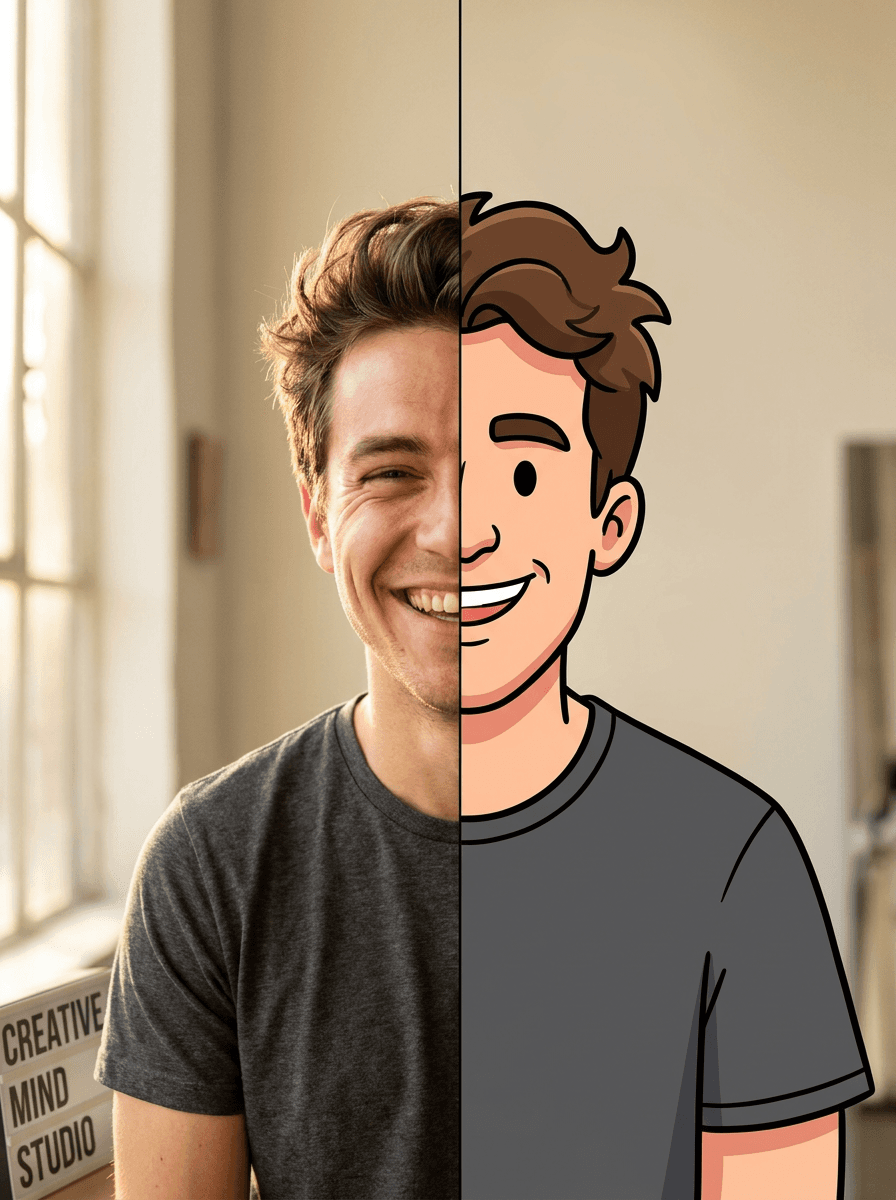
Photo to Cartoon
Your photo as a cartoon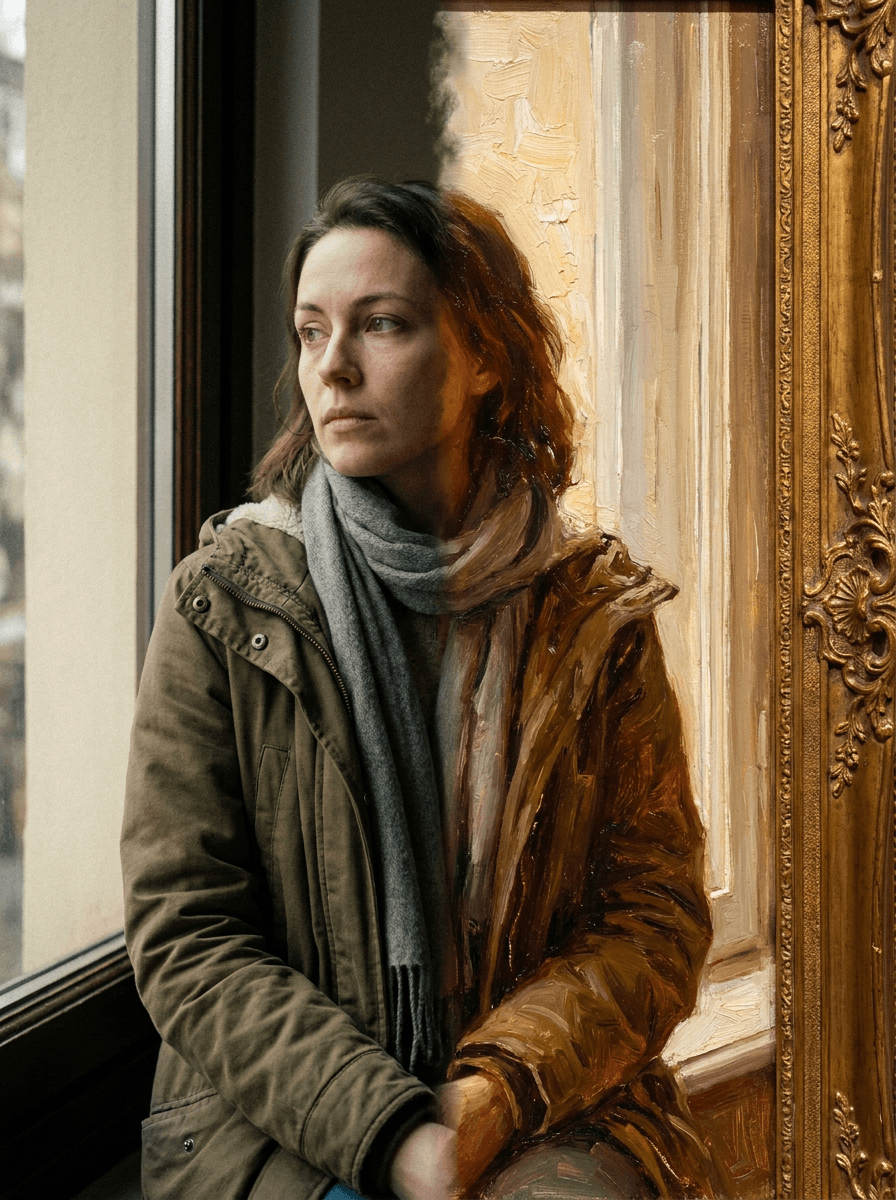
Photo to Painting
Your photo as an oil or watercolor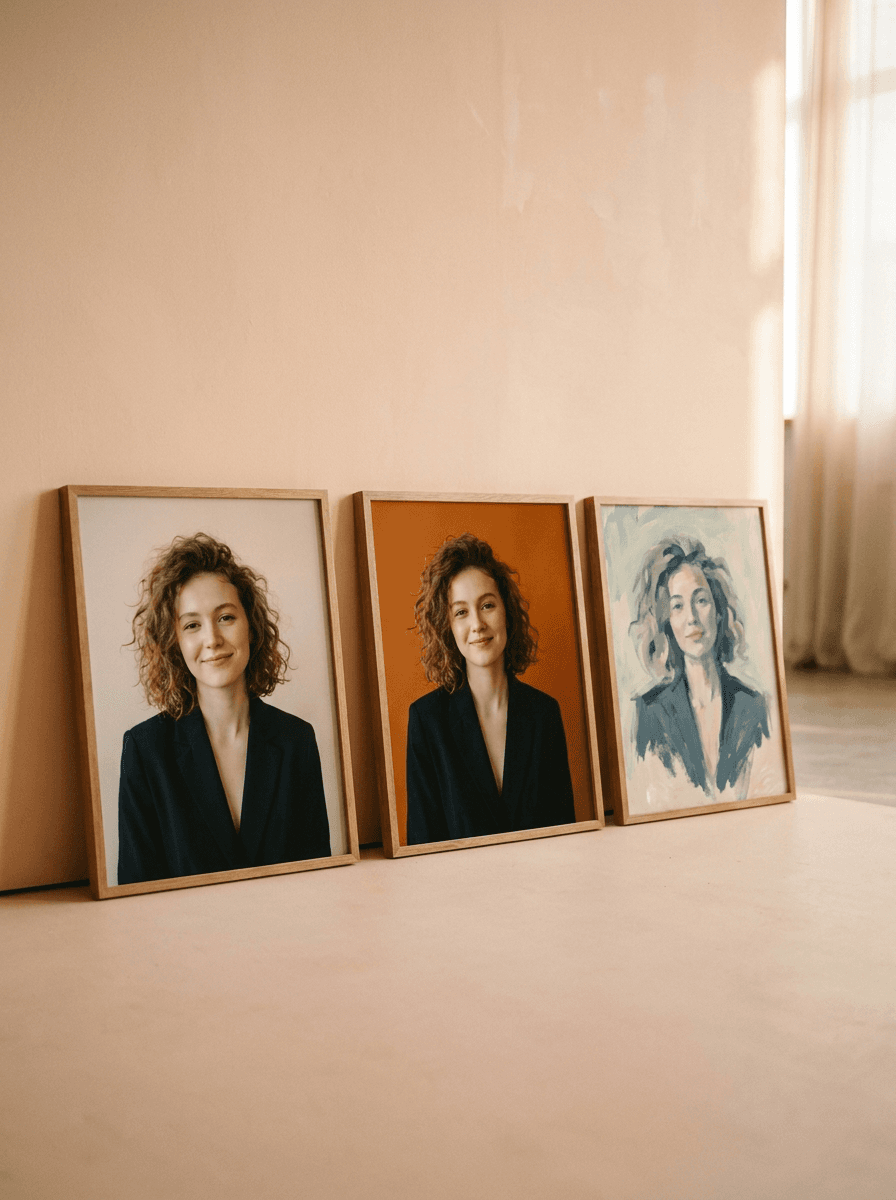
Profile Picture Maker
A sharper profile picture in any style
 +
+ New
NewOutfit Swap
Try on any outfit from one photo
AI Clothes Changer
Change your outfit with a prompt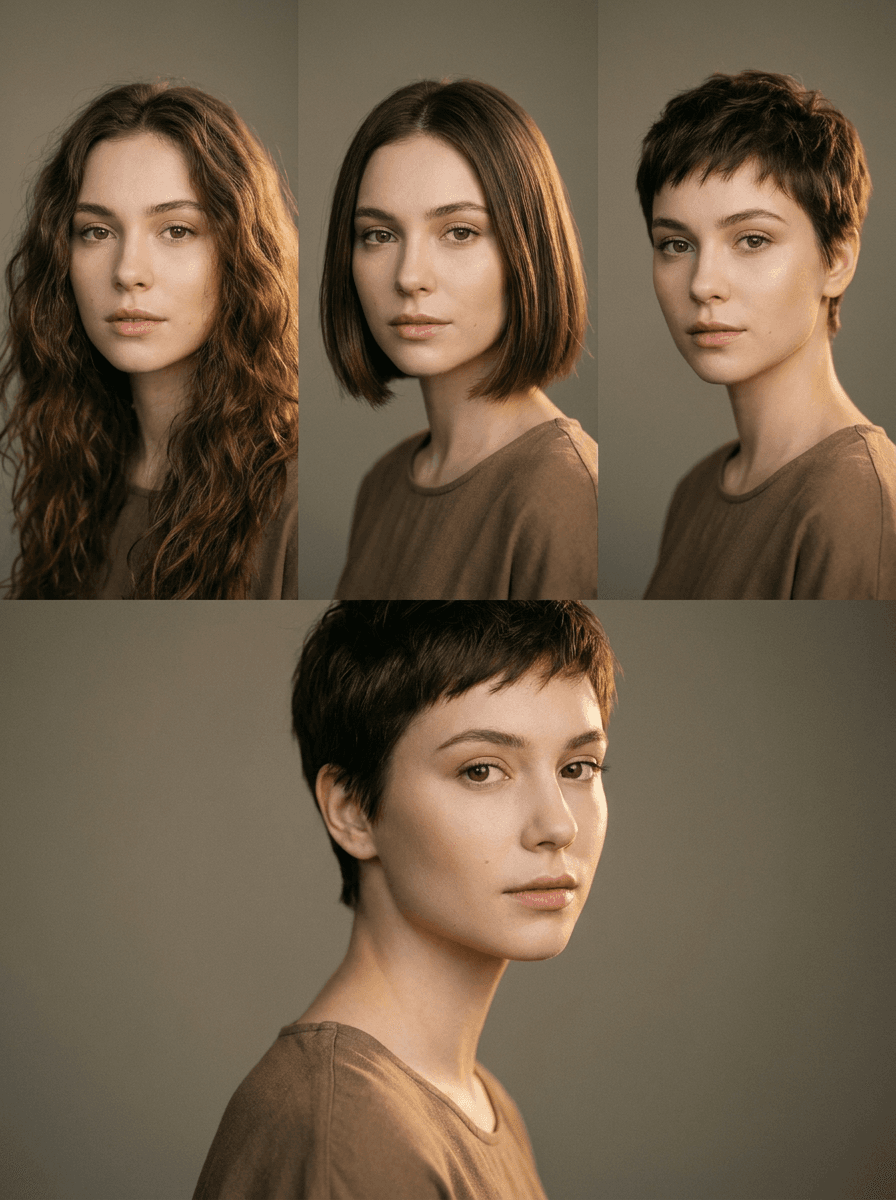
AI Hairstyle Changer
Try any haircut on your photo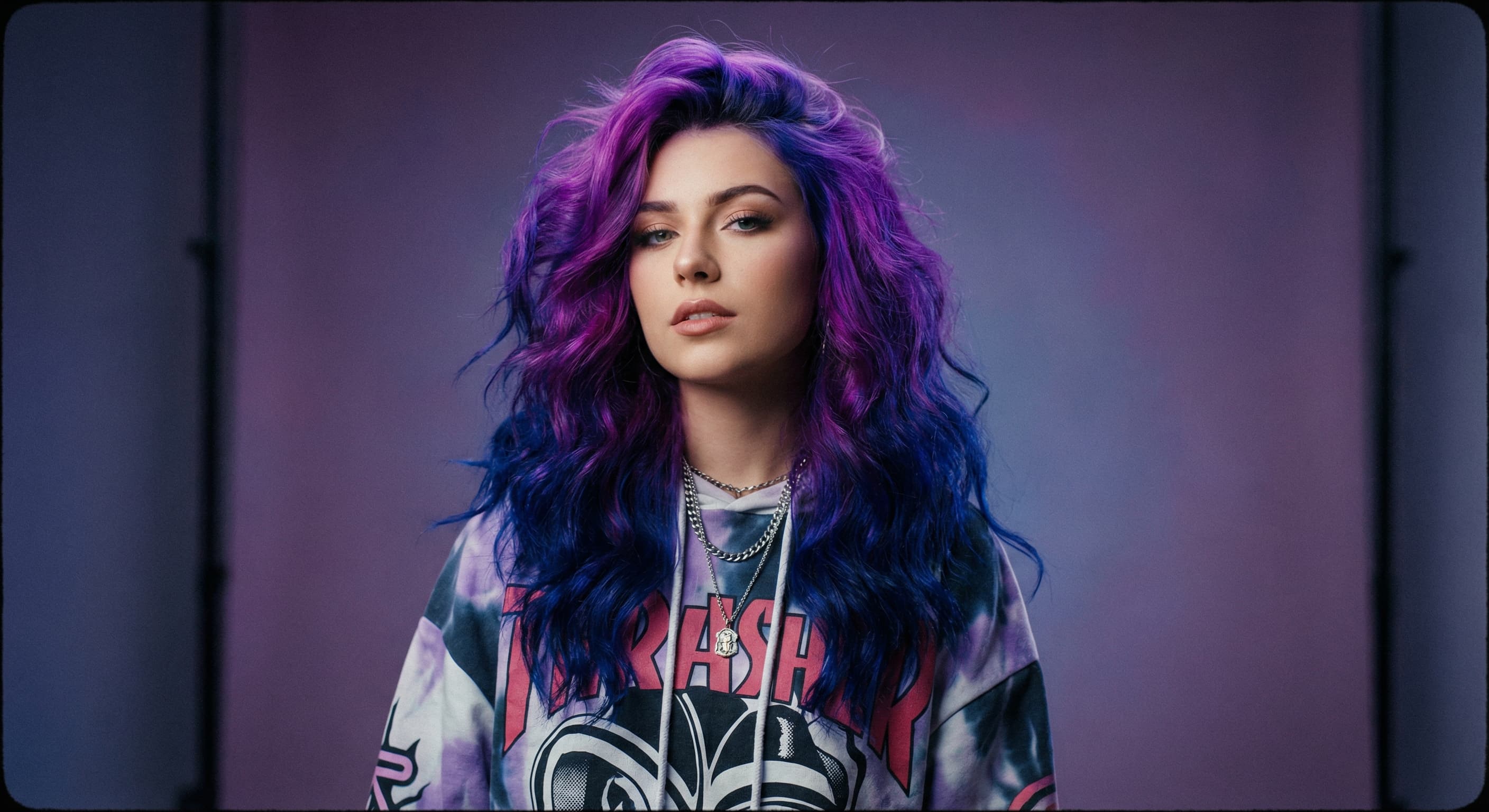
Hair Color Changer
Try any hair color on your photo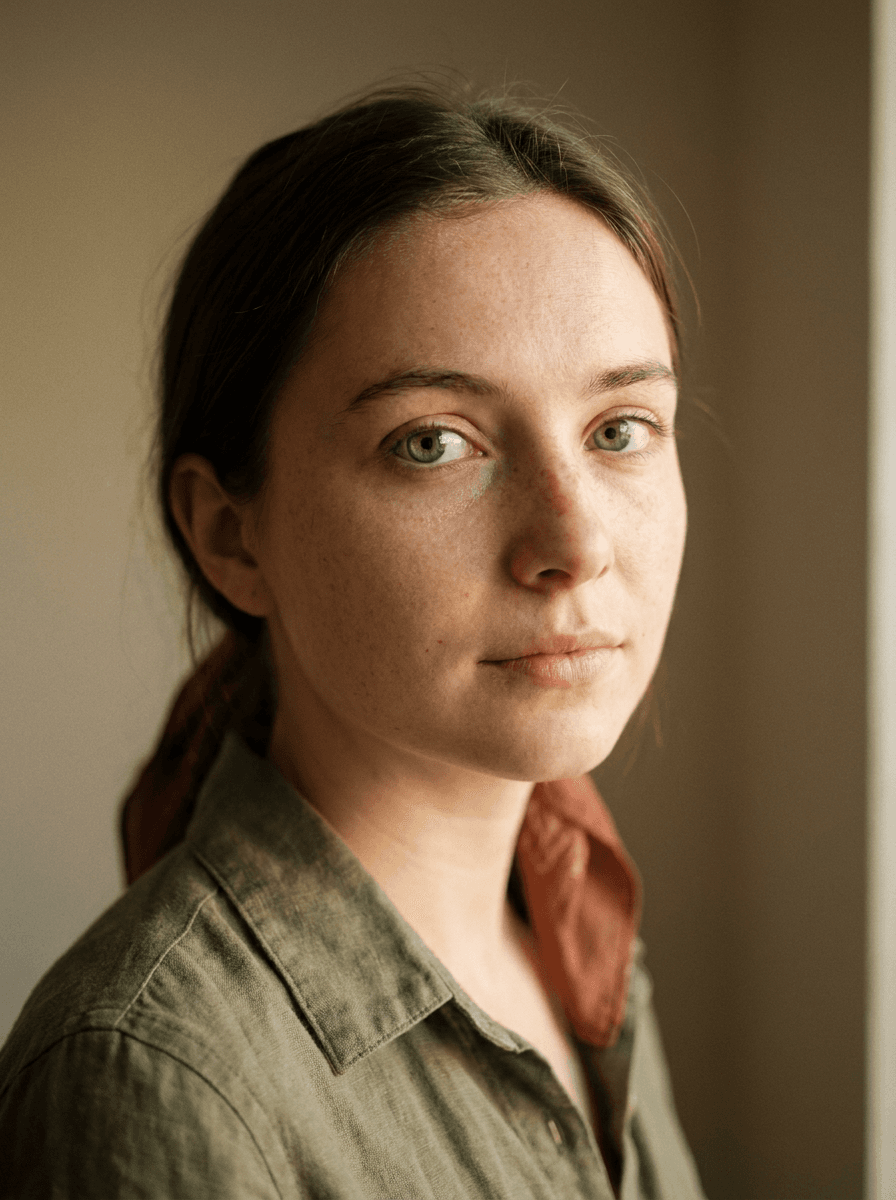
Eye Color Changer
Change eye color naturally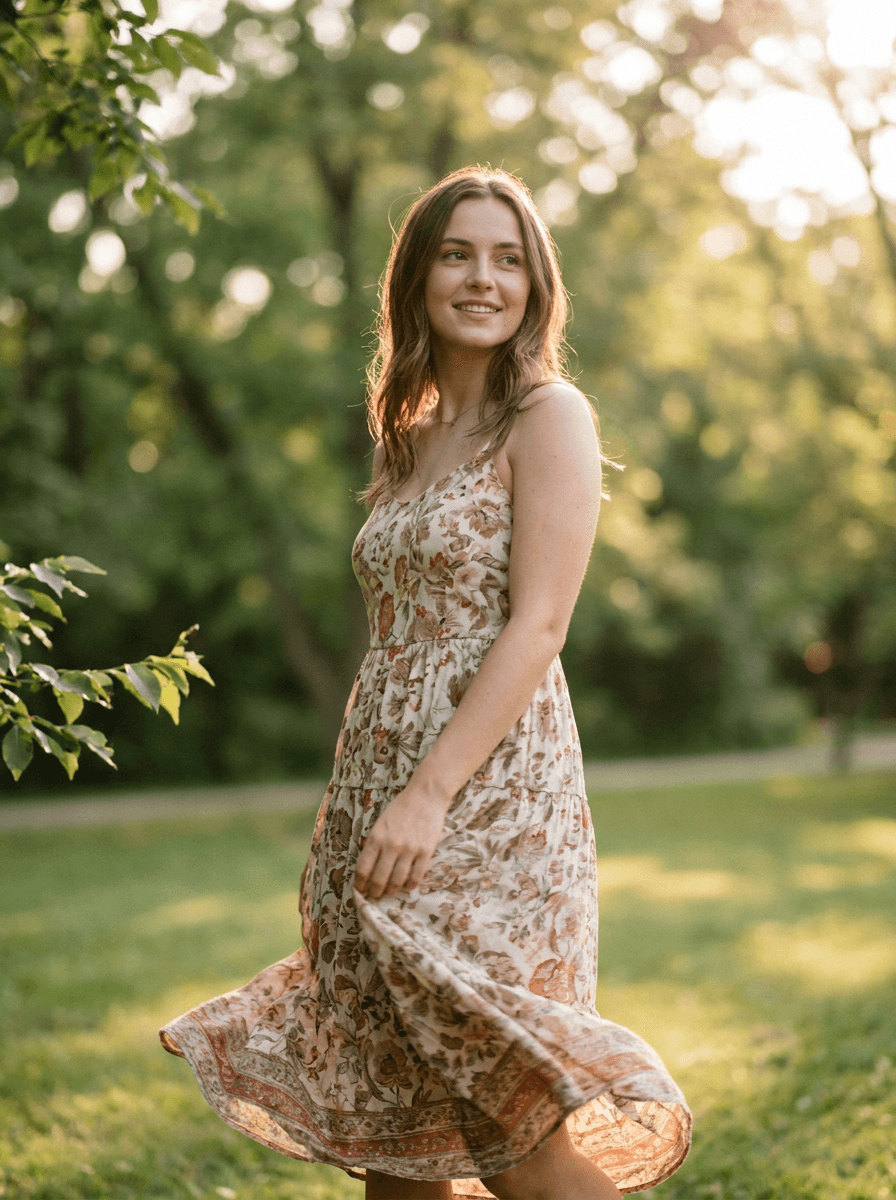
AI Stylist
Mix wardrobe pieces into a new look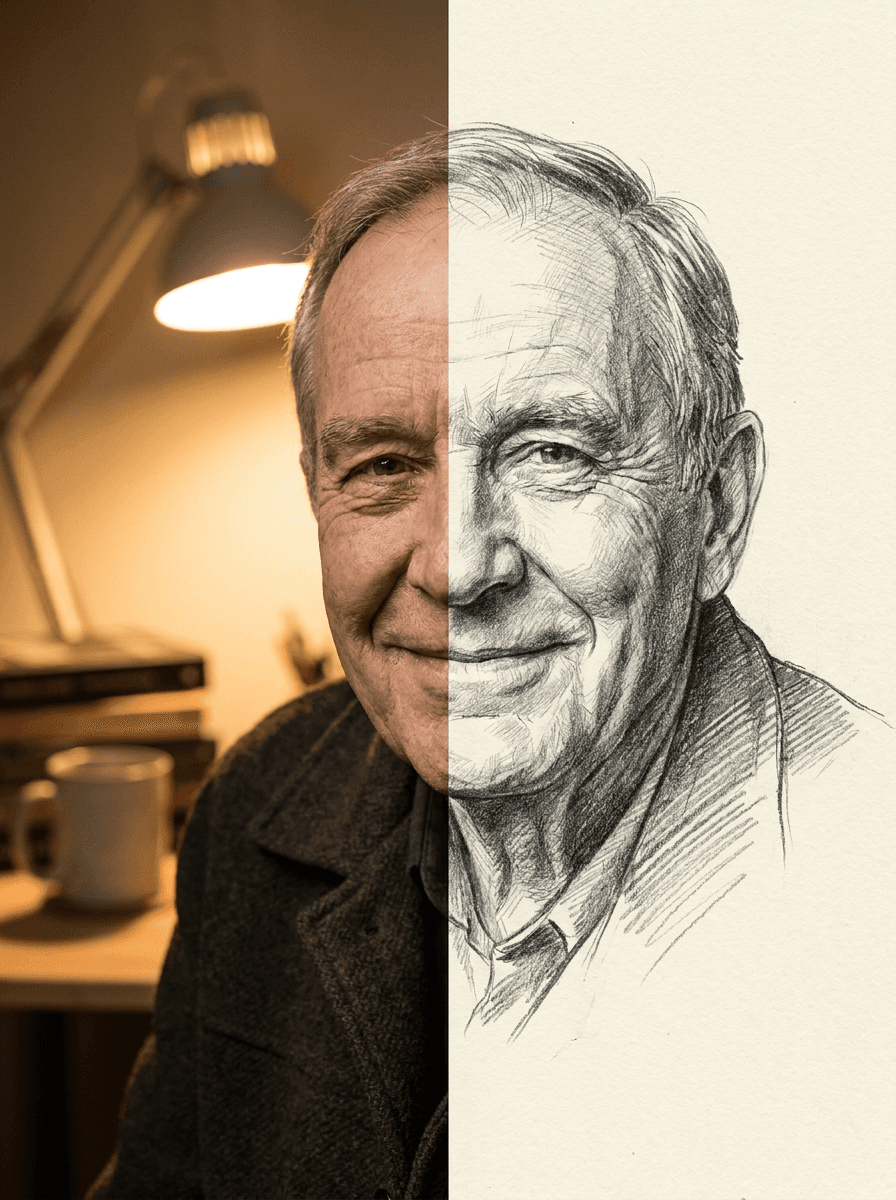
Photo to Sketch
Your photo as a pencil sketchRelated models
See what each one makes, then open it in Made.