Hair Color Changer
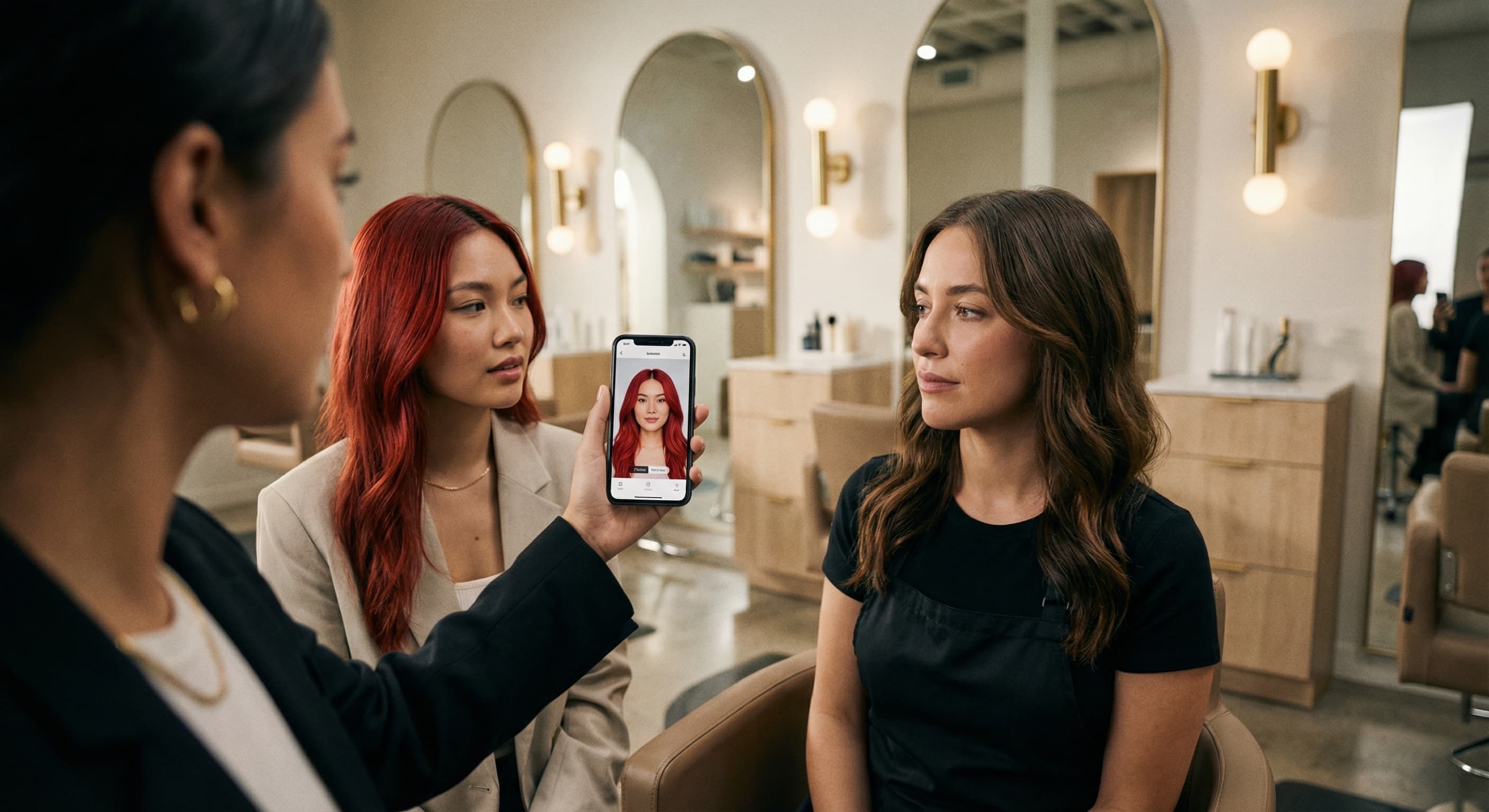
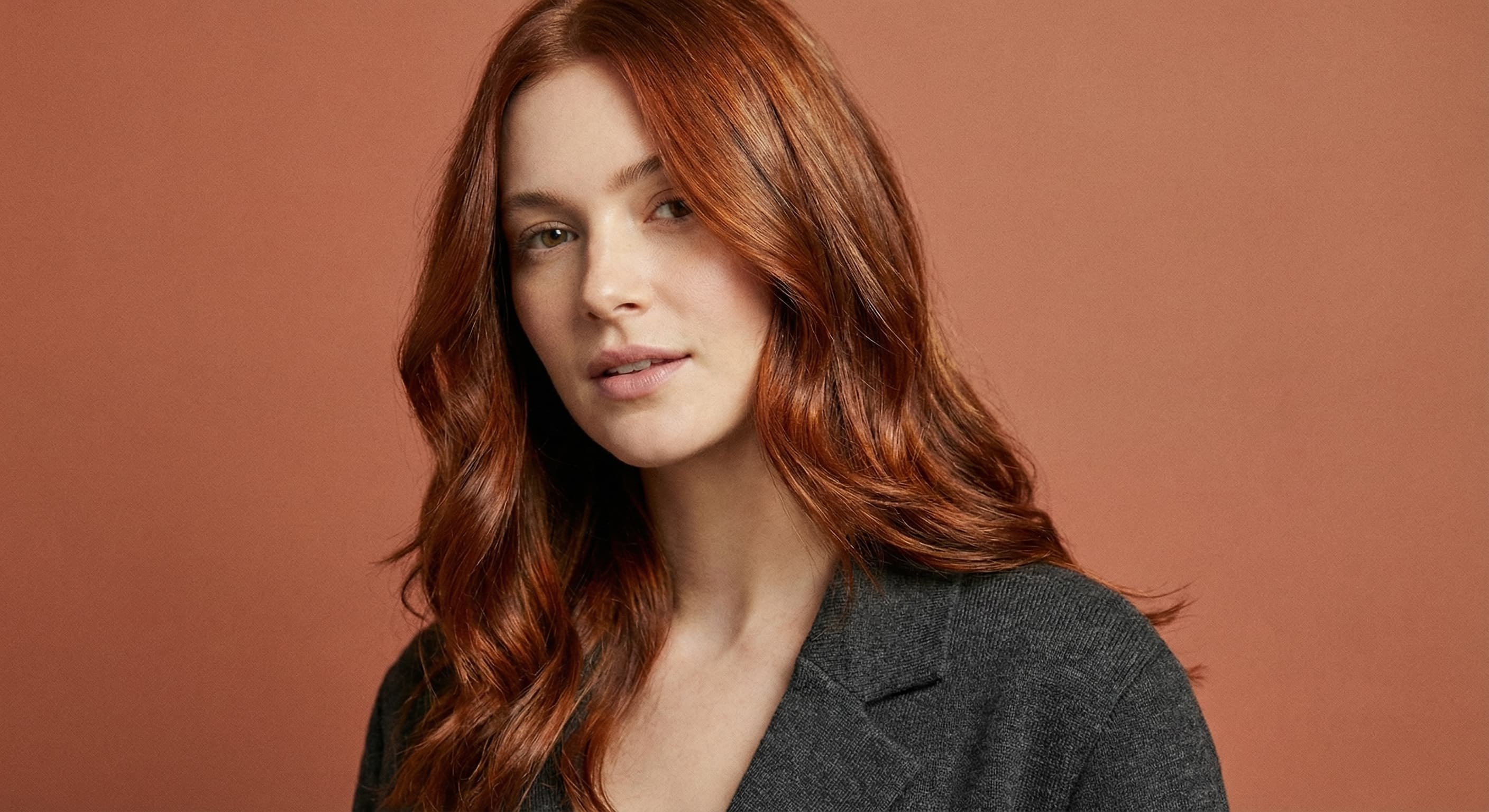
Upload a photo and name the shade — honey blonde, copper red, jet black, pastel pink. Made recolors your hair while your face, cut, pose, and background stay the same, so you can compare shades before booking a salon visit.
Runs in the tool. You sign in to run it, see the price before you start, and failed runs are refunded.
How to use Hair Color Changer
- 1
Upload a clear photo
Choose a JPEG, PNG, or WebP where your hair is clearly visible and well lit.
- 2
Name the shade
Be specific — “warm honey blonde,” “cool ash brown,” “copper red” — rather than just “lighter.”
- 3
Let Made recolor your hair
Made changes the hair color while your cut, face, pose, and background stay unchanged.
- 4
Compare and re-run
Try a few shades on the same photo, then download the PNGs you want to keep or show your stylist.
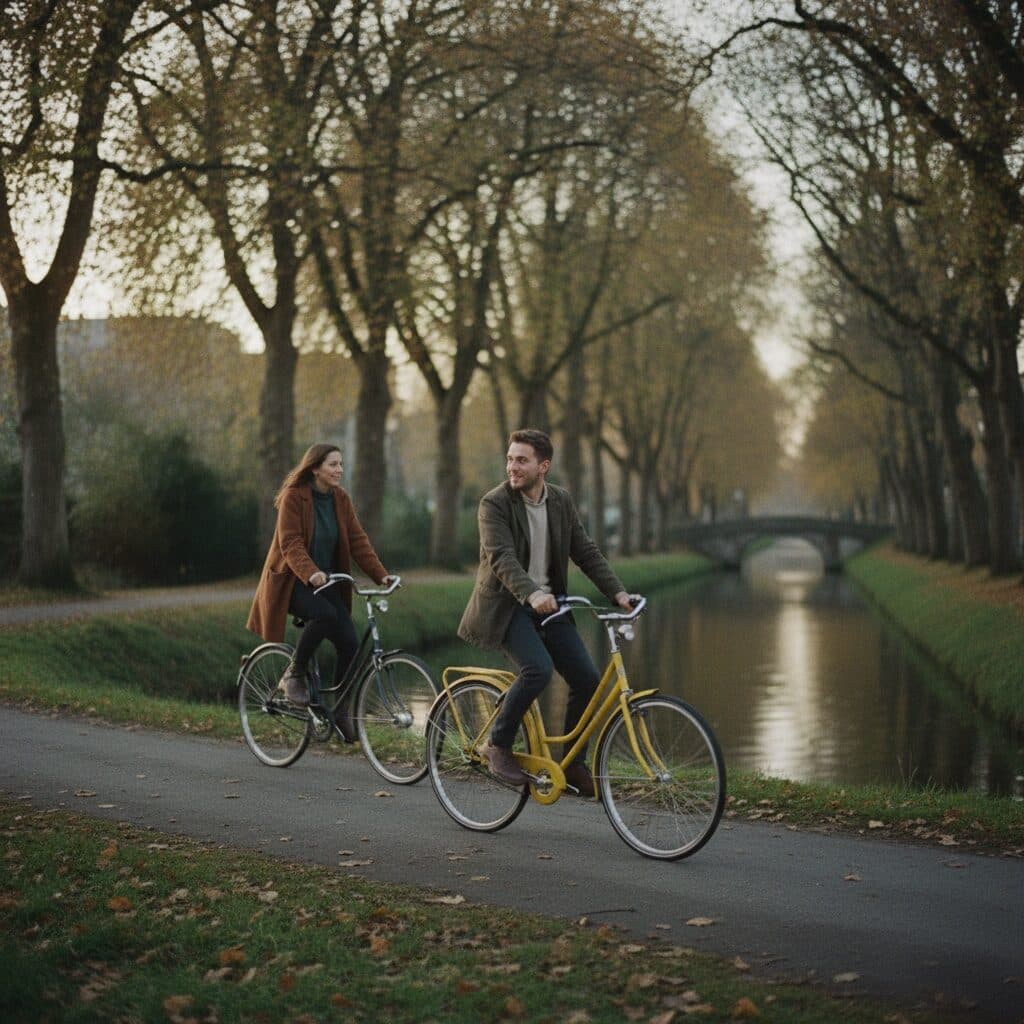
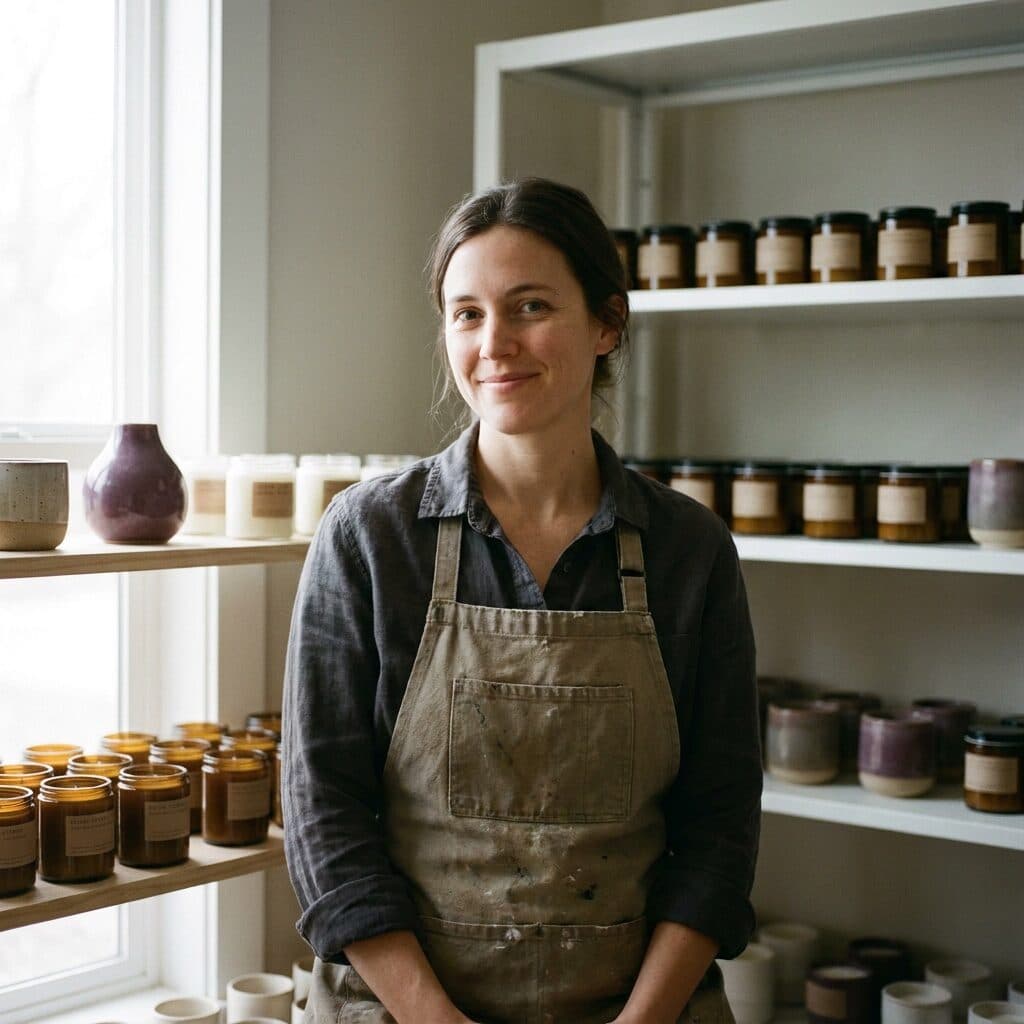
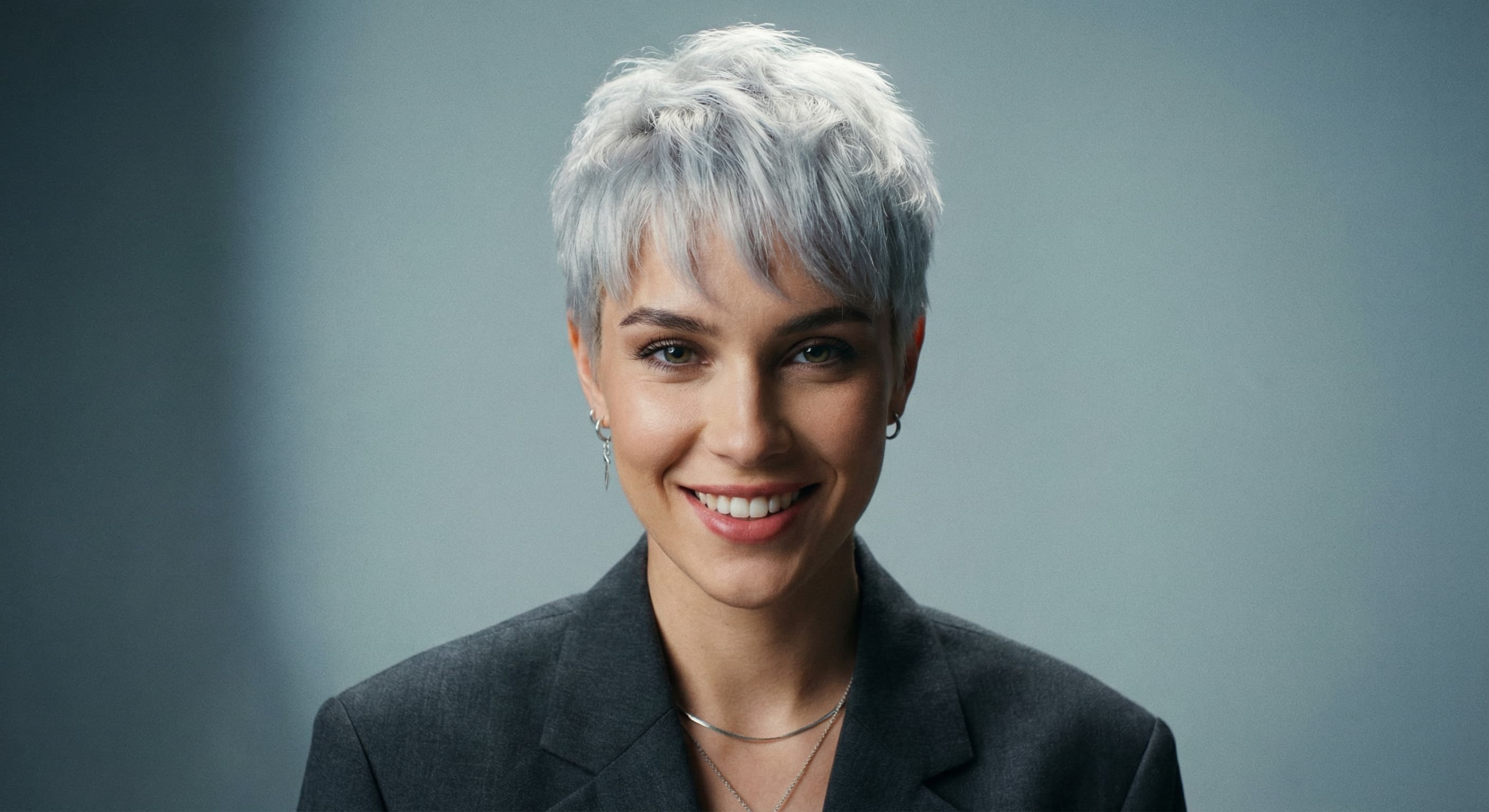
Hair Color Changer examples
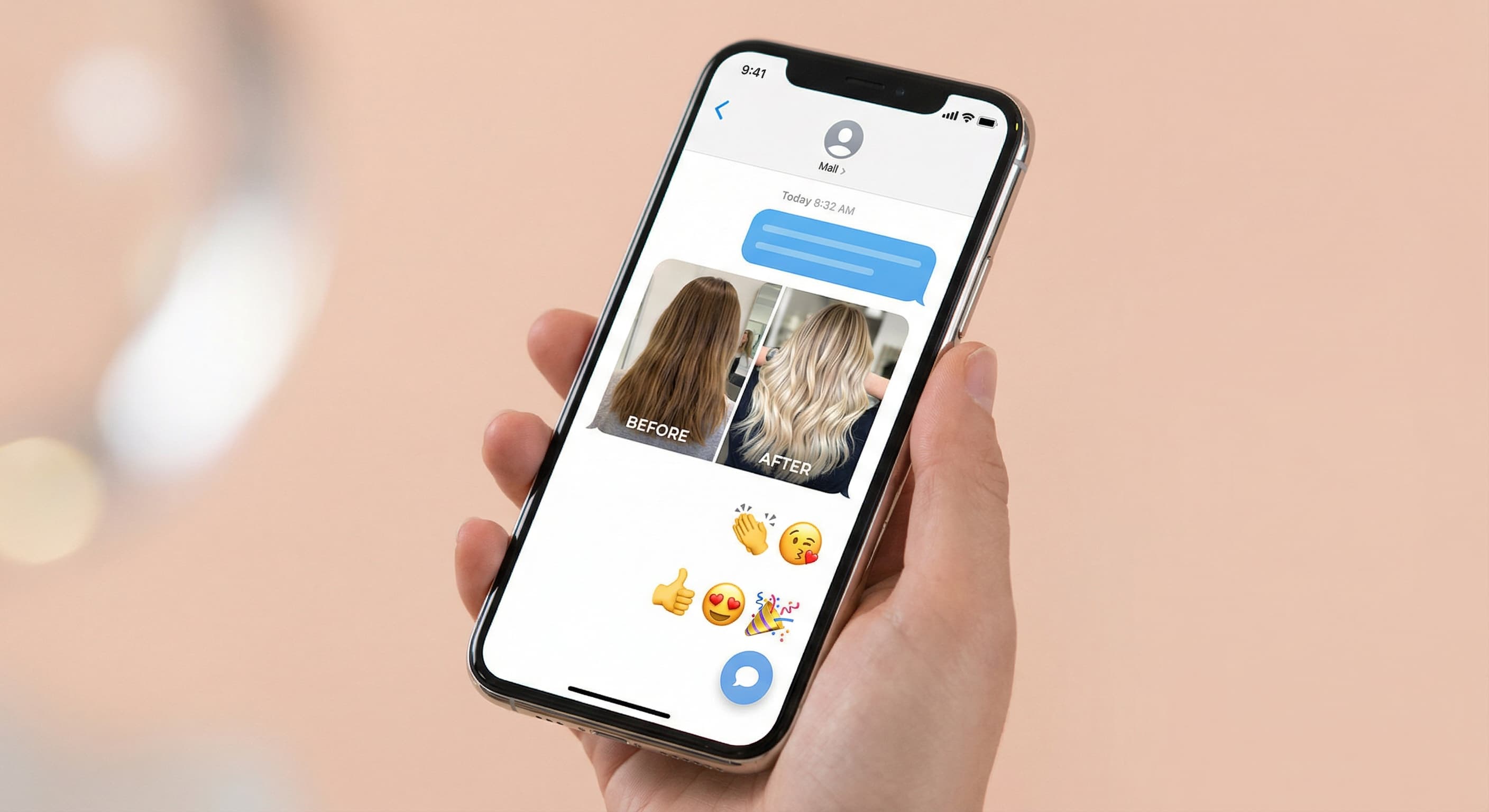
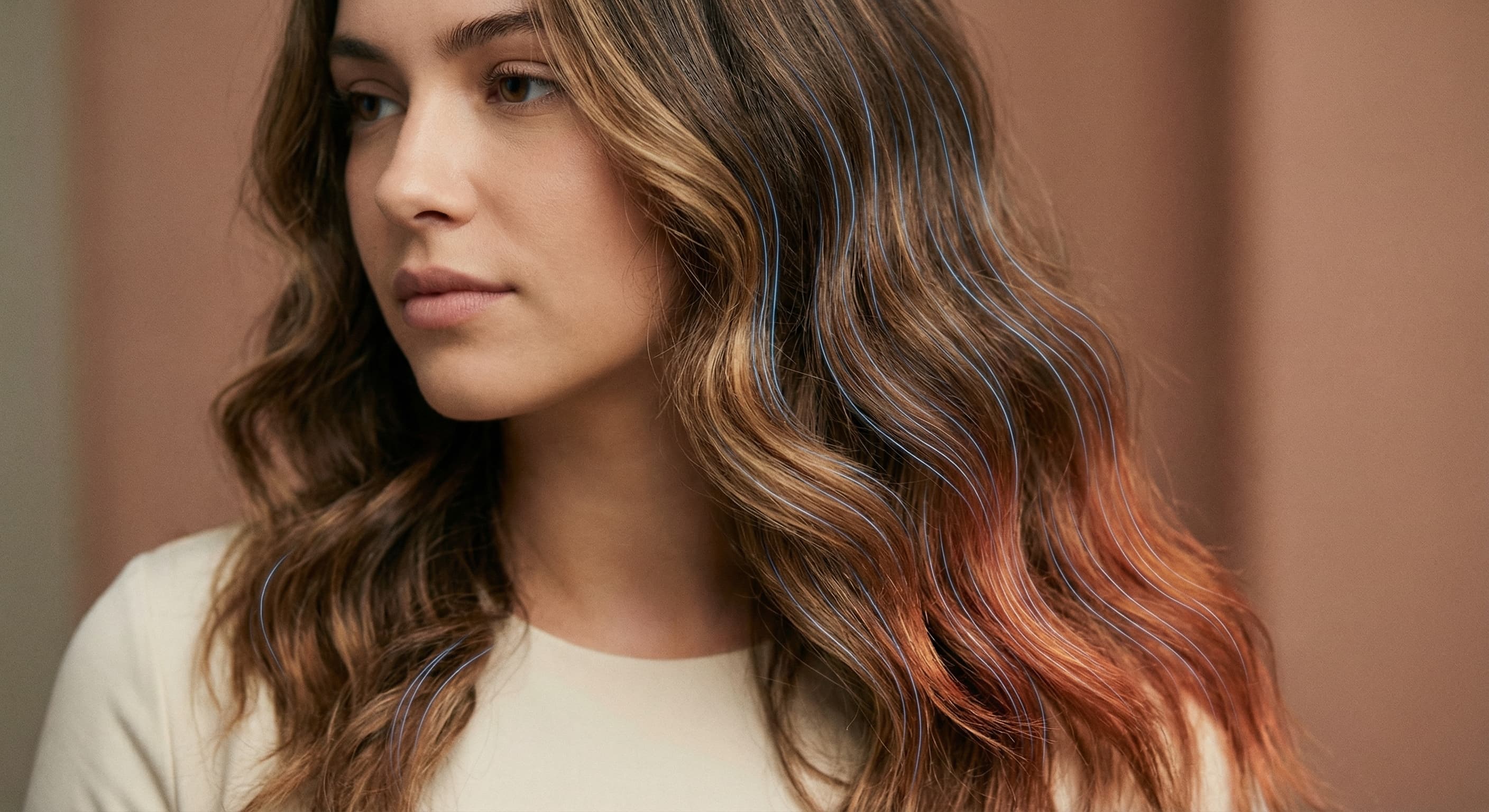
Real results from Made. Use a prompt to open it in Hair Color Changer, then add your own photo.
What people use it for
- Salon previewsSee a shade on your own hair, in your own photo, before committing to a color appointment — and send the PNG to your colorist as a reference.
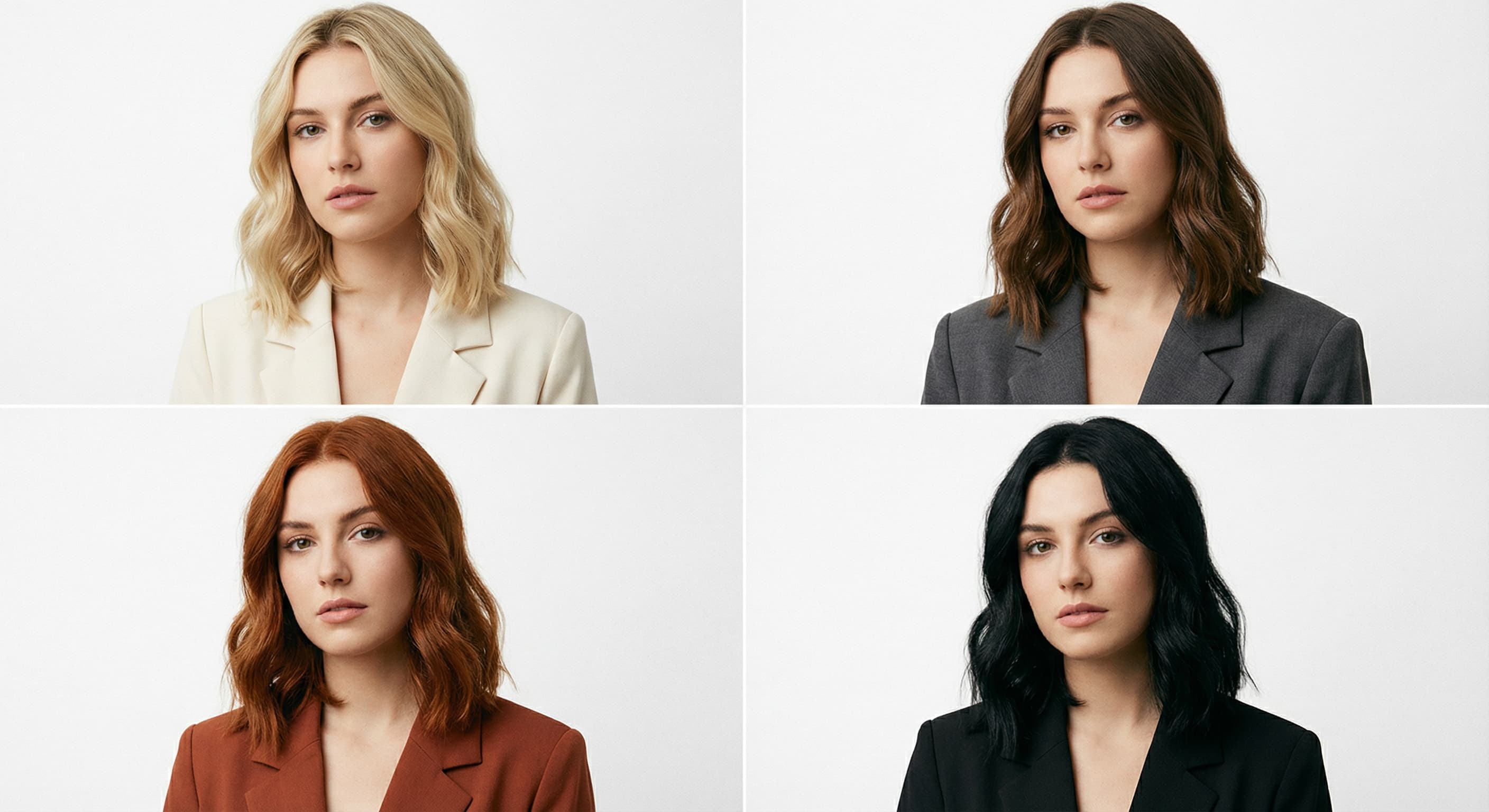
- Comparing shadesRun the same photo through several descriptions — honey blonde, ash blonde, platinum — and compare the results side by side.
- Bold color trialsPastel pink, silver, blue, or split-dye looks are a big commitment in real life. Preview them on a photo first.
- Subtle adjustmentsTest a shade one or two levels warmer, cooler, lighter, or darker than your current color to plan a low-risk change.
Preview a new hair color on your photo
What it does
- Input
- JPEG, PNG, or WebP photo of a person, plus a text description of the hair color
- Output
- PNG image with the subject’s hair in the described shade
- How it works
- Made sends your photo and the color change you describe to GPT Image 2.5 Flare; the built-in prompt keeps the background, pose, and position unchanged and asks for a natural, realistic result.
- Access
- Runs in the tool. You sign in to run it, see the price before you start, and failed runs are refunded.
Formats and limits
- Input formats
- JPEG, PNG, WebP
- Output format
- PNG
- Images per request
- One
- Processing model
- GPT Image 2.5 Flare
- Edit scope
- The hair color changes; the built-in prompt keeps the background, pose, and position unchanged
Checked against the running tool on 2026-10-20.
Questions about Hair Color Changer
How does a hair color changer work?
You upload a photo and describe the shade you want. Made sends it to GPT Image 2.5 Flare with that change, and the built-in prompt keeps the background, pose, and position unchanged while asking for a natural, realistic recolor.
Can I try both natural and bold colors?
Yes. The shade is whatever you describe — natural blondes, brunettes, and reds work the same way as pastel pink, silver, or blue. For bold shades, naming the exact tone (“pastel lavender,” “deep teal”) gives more predictable results.
What is the difference between this and the AI Hairstyle Changer?
The Hair Color Changer keeps your current cut and changes only the shade. The AI Hairstyle Changer changes the cut, length, and shape. If you want a new cut and a new color at once, use the Hairstyle Changer and include the color in your description.
Will my skin tone or the background change?
The built-in prompt preserves the background, pose, and position and limits the change to what you described. As with any generative edit, review the edges around the hairline before sharing, and re-run if anything outside the hair shifted.
Will the salon result match the preview exactly?
Treat the preview as a direction, not a guarantee. Real color depends on your starting shade, hair condition, and your colorist’s process, and generated results also vary slightly per run. The PNG works well as a reference to bring to the appointment.
Can I compare several shades at once?
Each request recolors one image with one description. To compare shades, run the same photo several times — once per shade — and line up the downloaded PNGs.
What file do I get back?
A PNG of the recolored photo. Each request accepts one JPEG, PNG, or WebP image.
More style tools
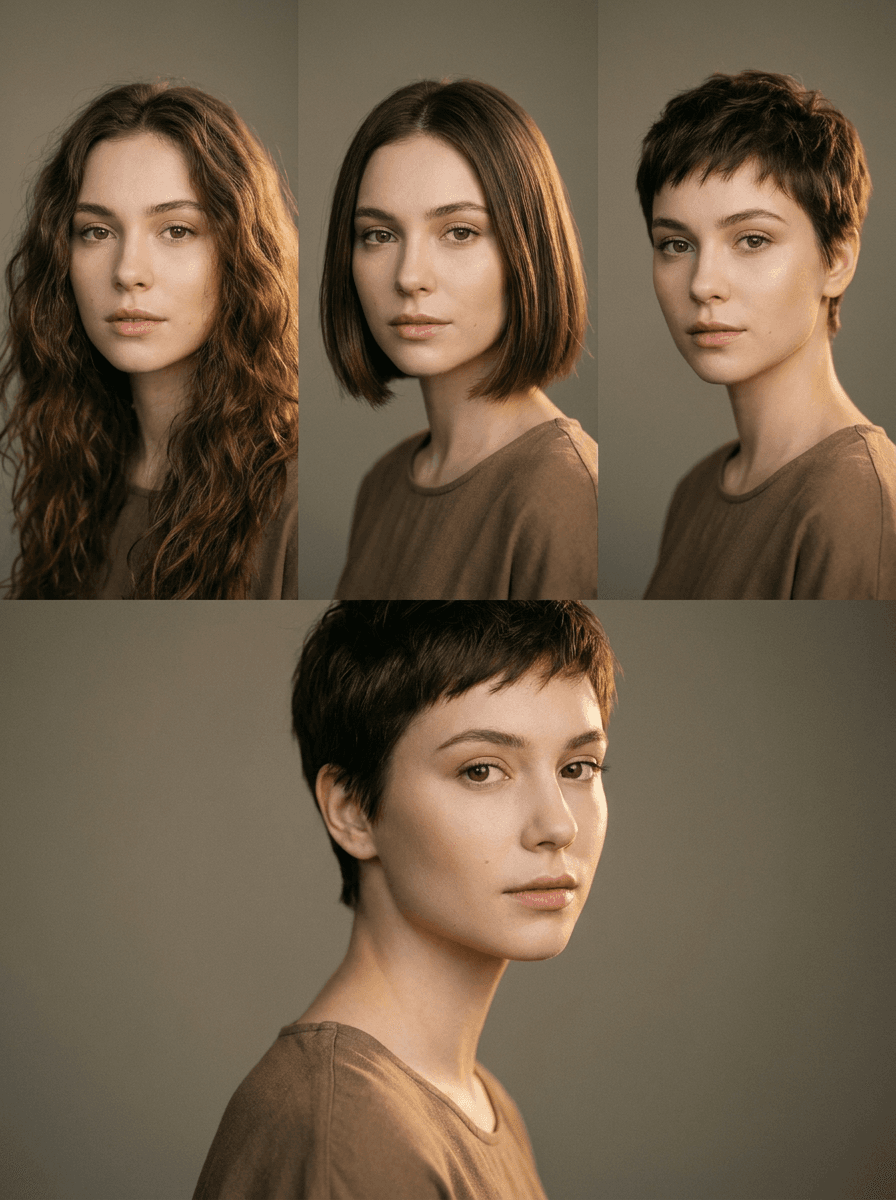
AI Hairstyle Changer
Try any haircut on your photo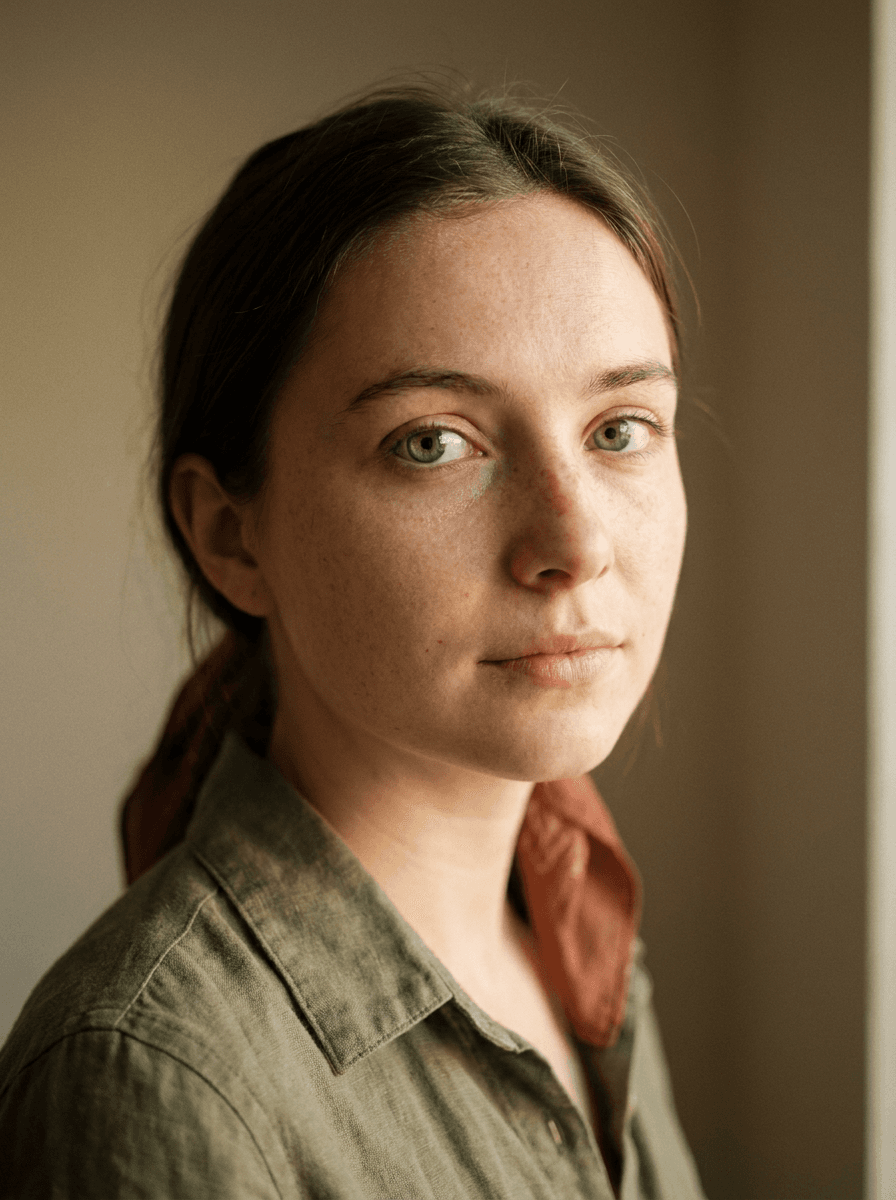
Eye Color Changer
Change eye color naturally
AI Photo Editor
Edit any photo by describing the change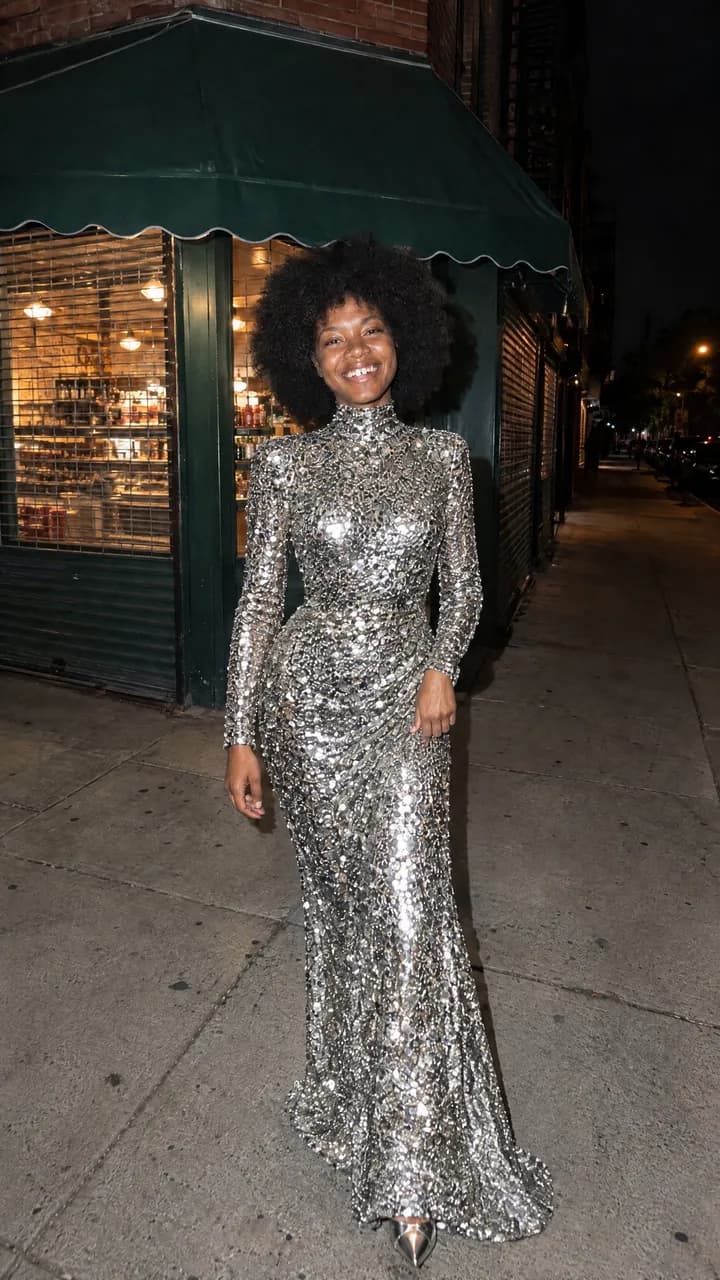
 +
+ New
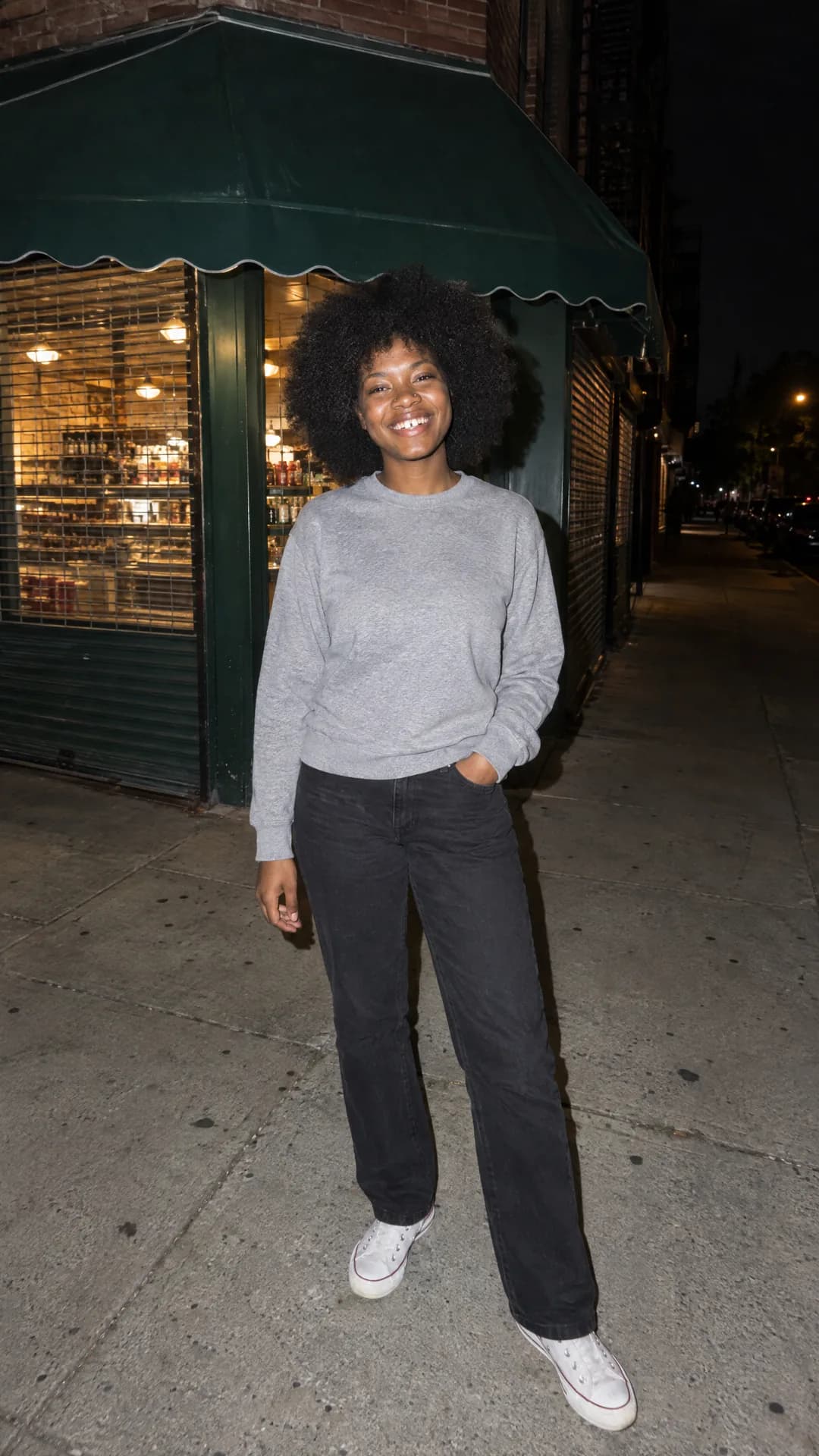
NewOutfit Swap
Try on any outfit from one photo
AI Clothes Changer
Change your outfit with a prompt
AI Stylist
Mix wardrobe pieces into a new look
Photo to Anime
Your photo as an anime illustration
Photo to Cartoon
Your photo as a cartoon
Photo to Painting
Your photo as an oil or watercolor
Photo to Sketch
Your photo as a pencil sketchRelated models
See what each one makes, then open it in Made.