AI sketch generator
Upload a photo and Made redraws it as a hand-drawn sketch — graphite pencil, soft charcoal, or clean line art — while the composition, subjects, and layout stay exactly where they were.
Runs in the tool. You sign in to run it, see the price before you start, and failed runs are refunded.
How to use Photo to Sketch
- 1
Upload a photo
Choose a JPEG, PNG, or WebP with a clear subject — strong contrast and simple backgrounds convert most cleanly.
- 2
Pick the sketch style
Say which look you want: graphite pencil, soft charcoal, ink lines, or minimal line art.
- 3
Set the intensity
Keep the 0.7 default for a clear drawing look, or move toward 0.3 to retain more photo detail and 0.95 for a fully redrawn sketch.
- 4
Review and download
Check the linework around faces and edges, then download the JPG or re-run with an adjusted style description.
Photo to Sketch examples
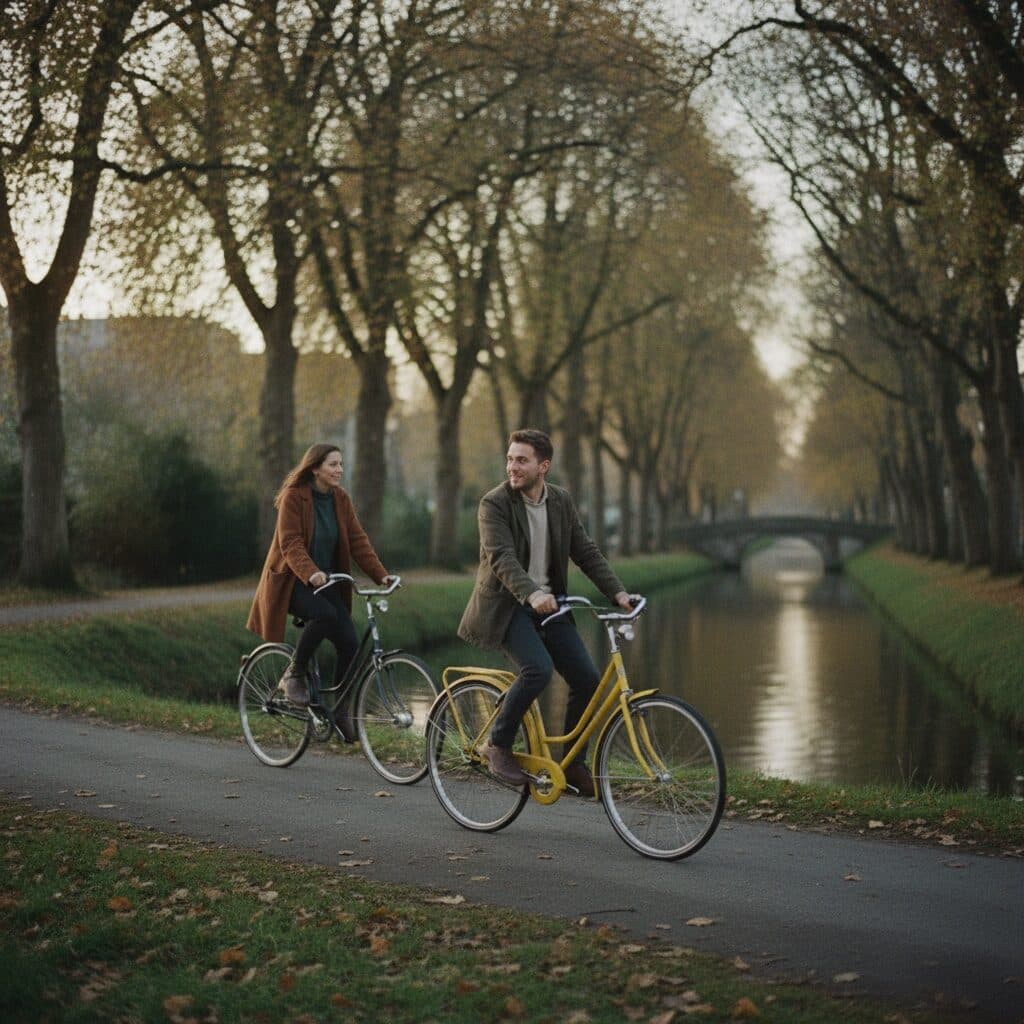
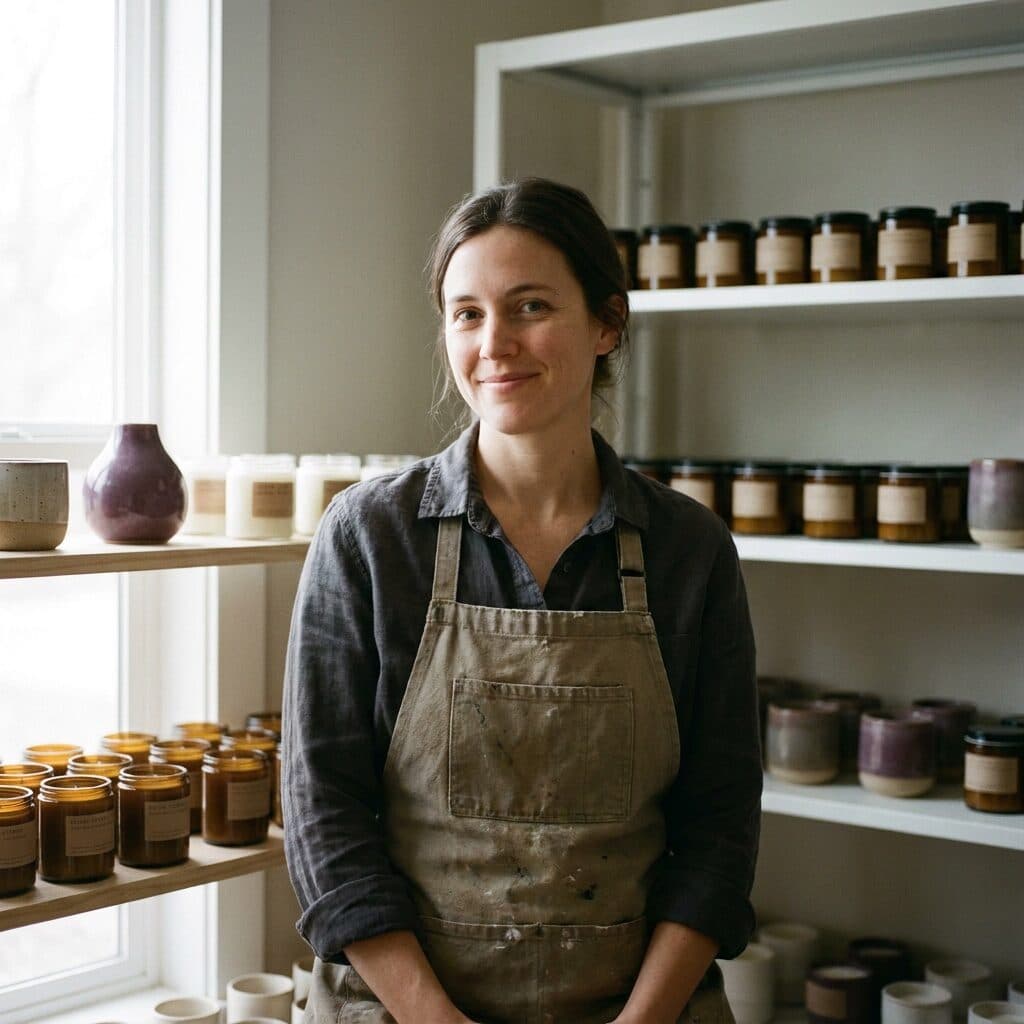
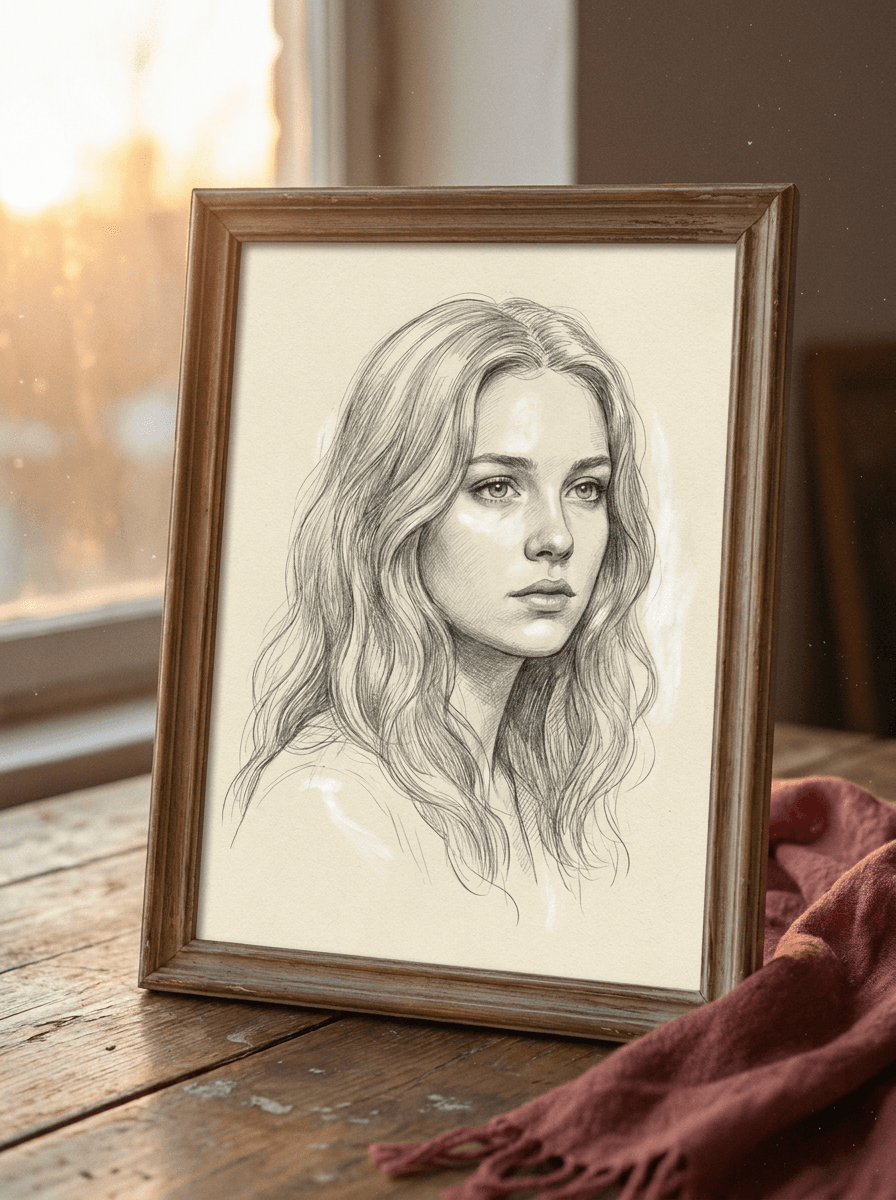
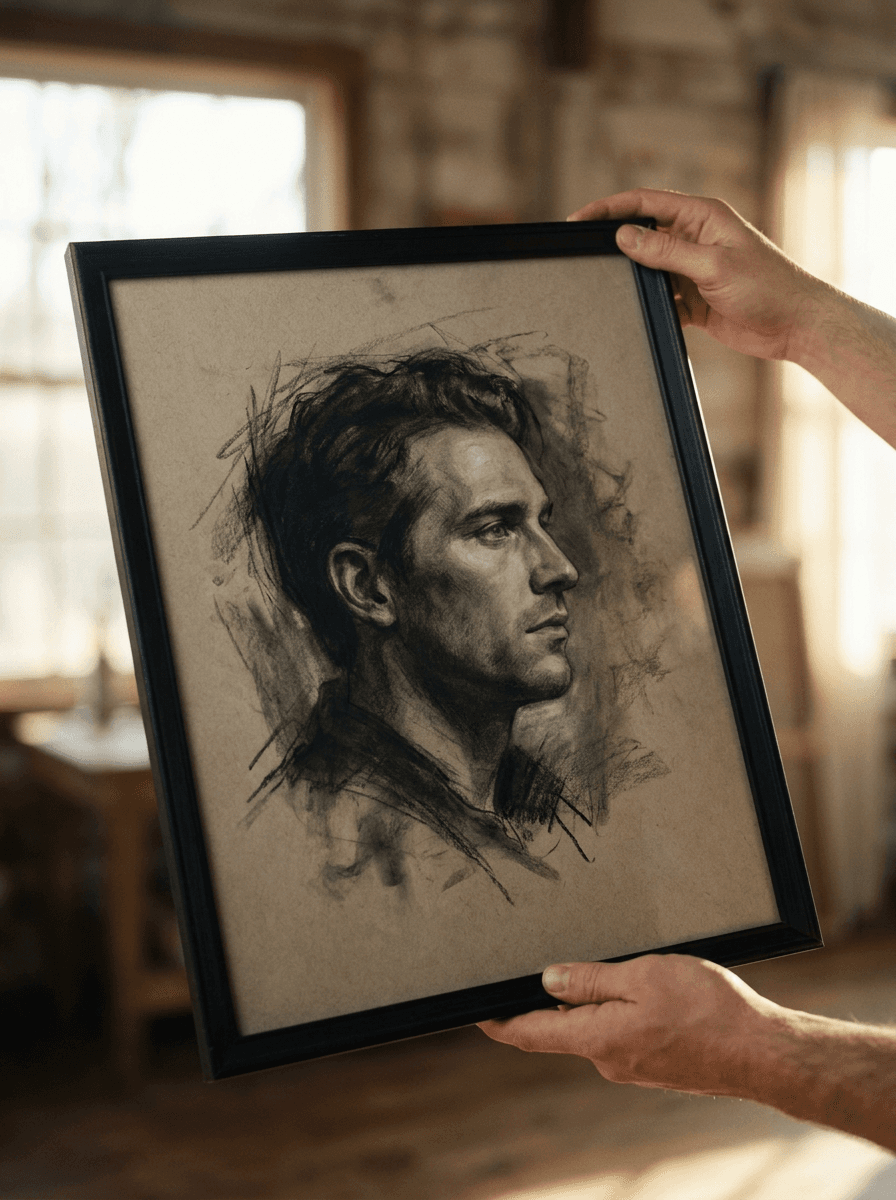
Real results from Made. Use a prompt to open it in Photo to Sketch, then add your own photo.
What people use it for
- Portrait giftsA pencil-sketch version of a portrait or couple photo prints well and reads as a hand-made gift.
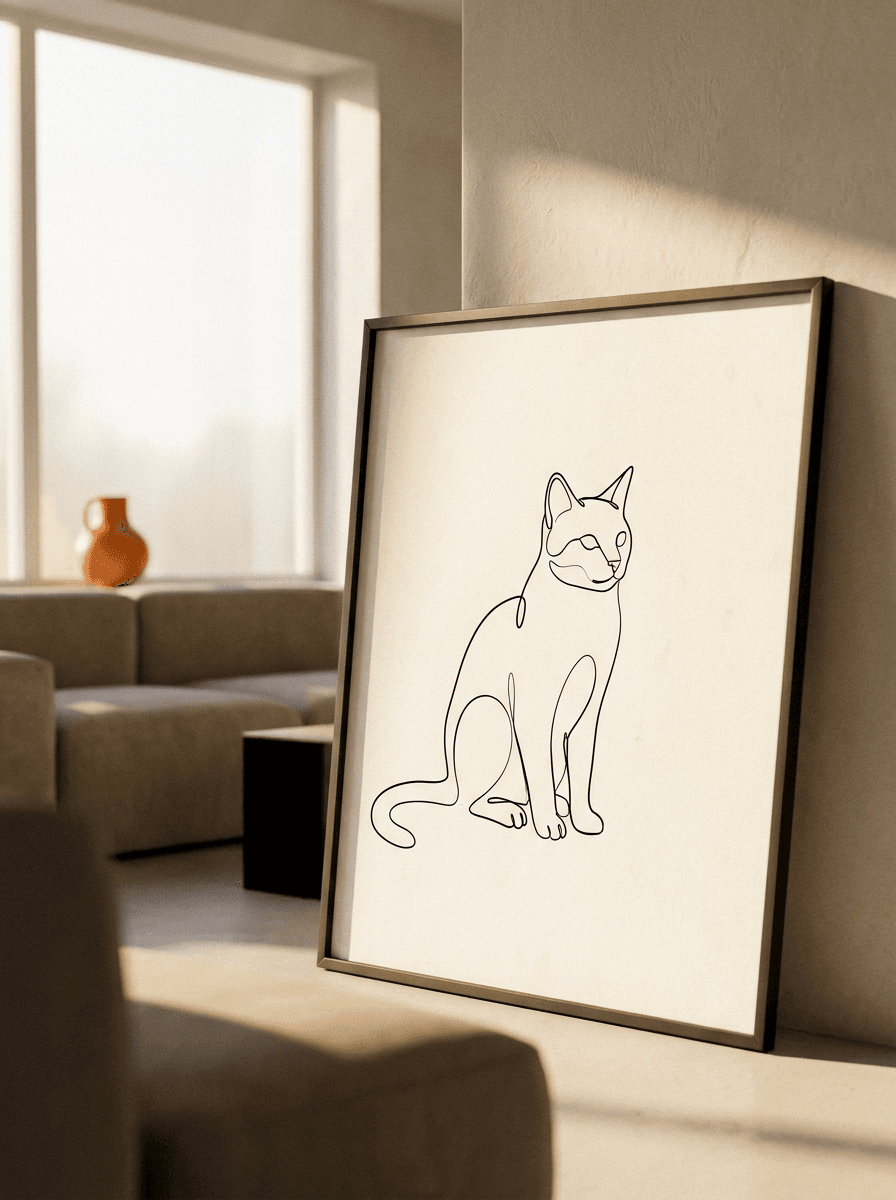
- Minimal line-art decorConvert a photo of a person, pet, or building to clean line art for framed prints and minimalist wall decor.
- Design and tattoo referencesTurn a reference photo into linework or a sketch as a starting point for illustrations, logos, or tattoo discussions.
- Social and profile artA charcoal or pencil version of a profile photo stands out from ordinary photography without changing the pose.
Turn a photo into a sketch
What it does
- Input
- JPEG, PNG, or WebP image
- Output
- JPG image restyled as a sketch or drawing
- How it works
- Made prompts Google’s Nano Banana model on Replicate to restyle the whole image as a sketch while keeping the same composition, subjects, and layout; style intensity is adjustable from subtle (0.3) to strong (0.95), with a 0.7 default.
- Access
- Runs in the tool. You sign in to run it, see the price before you start, and failed runs are refunded.
Formats and limits
- Input formats
- JPEG, PNG, WebP
- Output format
- JPG
- Images per request
- One
- Processing model
- Google Nano Banana on Replicate
- Style intensity
- Adjustable from 0.3 (subtle) to 0.95 (strong); default 0.7
Checked against the running tool on 2026-09-03.
Questions about Photo to Sketch
How do I turn a photo into a sketch?
Upload the photo and name the drawing style you want — pencil, charcoal, or line art. Made prompts Google’s Nano Banana model on Replicate to restyle the whole image while keeping the same composition, subjects, and layout, and returns a JPG.
Which sketch styles can I choose?
Anything you can describe: detailed graphite pencil, soft smudged charcoal, ink hatching, or clean minimal line art. The style comes from your description, so you can also mix directions like “loose pencil sketch with light shading.”
Will the sketch match my photo’s composition?
Yes — the workflow keeps the same composition, subjects, and layout, so everything stays where it was in the photo, just redrawn. Fine detail is interpreted by the model and varies per run, so review faces and small elements.
Can I make the effect lighter or heavier?
Yes. Style intensity is adjustable from 0.3, which keeps the result close to the photo with light sketch treatment, to 0.95 for a fully redrawn drawing; the default is 0.7.
What is the difference between Photo to Sketch and Photo to Painting?
Both restyle the full image with the same workflow. This page produces drawing looks — pencil, charcoal, line art — while Photo to Painting produces painted looks like oil, watercolor, and impressionist styles. Pick the medium you want the result to imitate.
Is the result good enough to print?
The result is a JPG at the tool’s output resolution, and sketch styles generally print cleanly at typical frame sizes. For large prints, run the result through Image Upscaler first and check the linework up close.
What file do I get back?
A JPG of the sketched image. Each request processes one JPEG, PNG, or WebP image; run again with a different style description to compare pencil, charcoal, and line-art versions.
More style tools
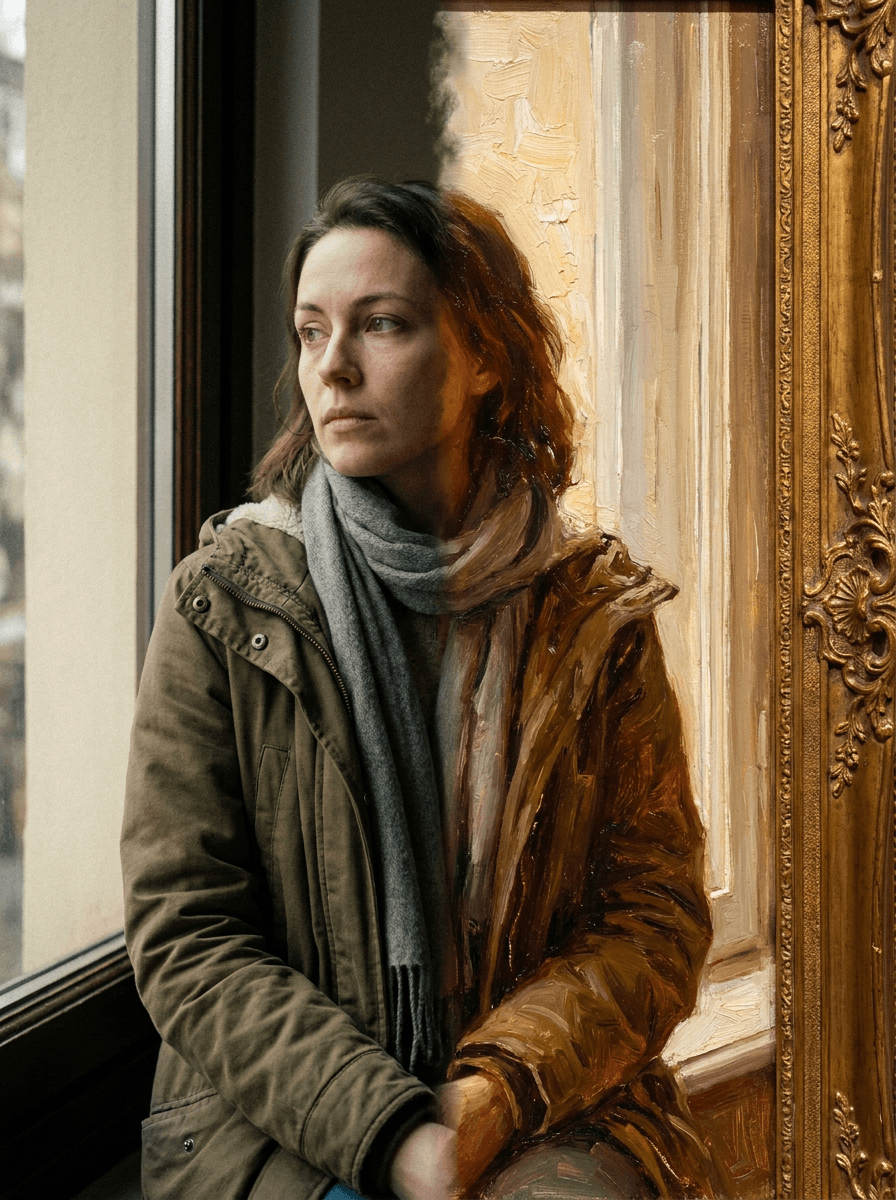
Photo to Painting
Your photo as an oil or watercolor
Photo to Cartoon
Your photo as a cartoon
Photo Colorizer
Natural color for black-and-white photos
 +
+ New
NewOutfit Swap
Try on any outfit from one photo
AI Clothes Changer
Change your outfit with a prompt
AI Hairstyle Changer
Try any haircut on your photo
Hair Color Changer
Try any hair color on your photo
Eye Color Changer
Change eye color naturally
AI Stylist
Mix wardrobe pieces into a new look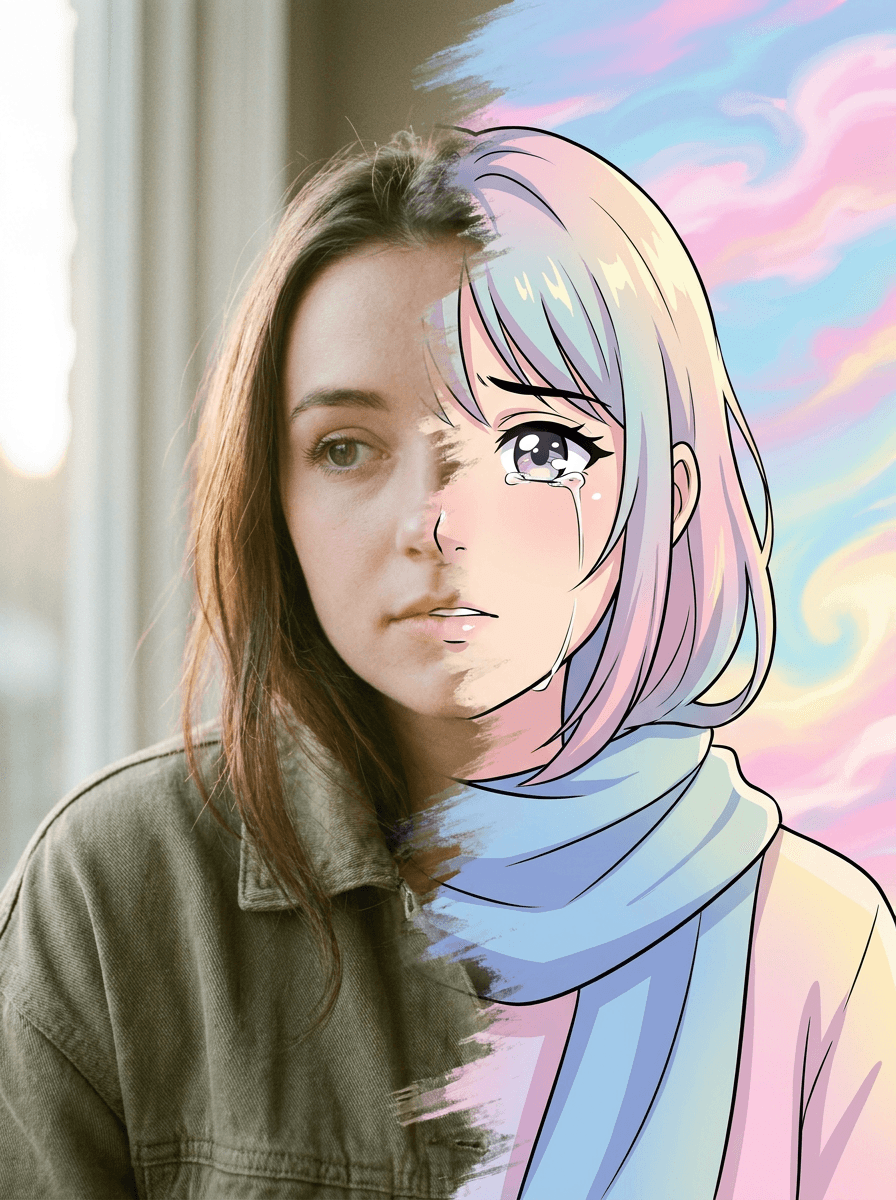
Photo to Anime
Your photo as an anime illustrationRelated models
See what each one makes, then open it in Made.