Eye Color Changer
Upload a portrait and name the eye color — green, blue, hazel, amber, or something creative like violet. Made recolors the eyes while your face, expression, pose, and background stay the same.
Runs in the tool. You sign in to run it, see the price before you start, and failed runs are refunded.

How to use Eye Color Changer
- 1
Upload a portrait
Choose a JPEG, PNG, or WebP where the eyes are open, visible, and reasonably close to the camera.
- 2
Name the color
Describe the shade — “natural green,” “light grey-blue,” “deep amber” — and add “subtle” or “vivid” if you have a preference.
- 3
Let Made recolor the eyes
Made changes the eye color while keeping your face, expression, pose, and background unchanged.
- 4
Zoom in and review
Check both eyes up close for a consistent, believable result, then download the PNG or re-run with a refined description.
Eye Color Changer examples
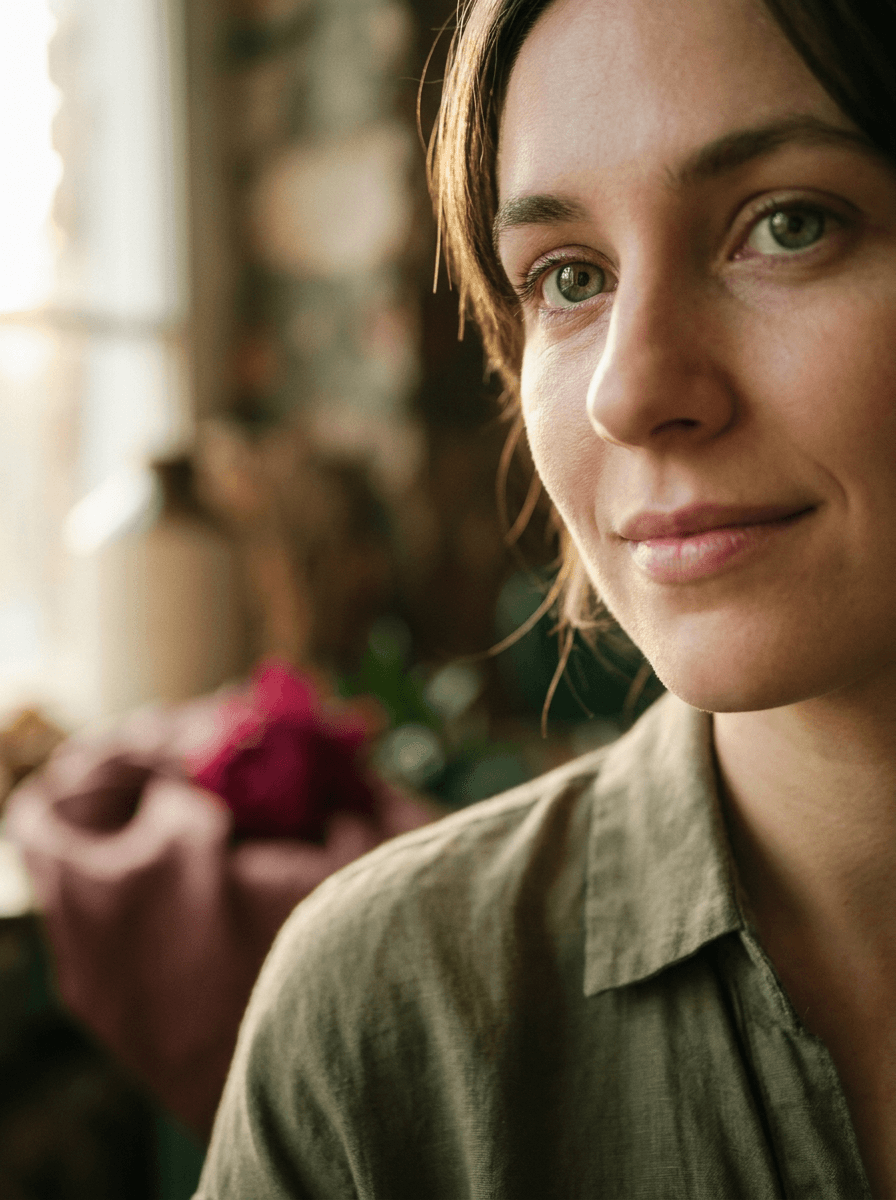
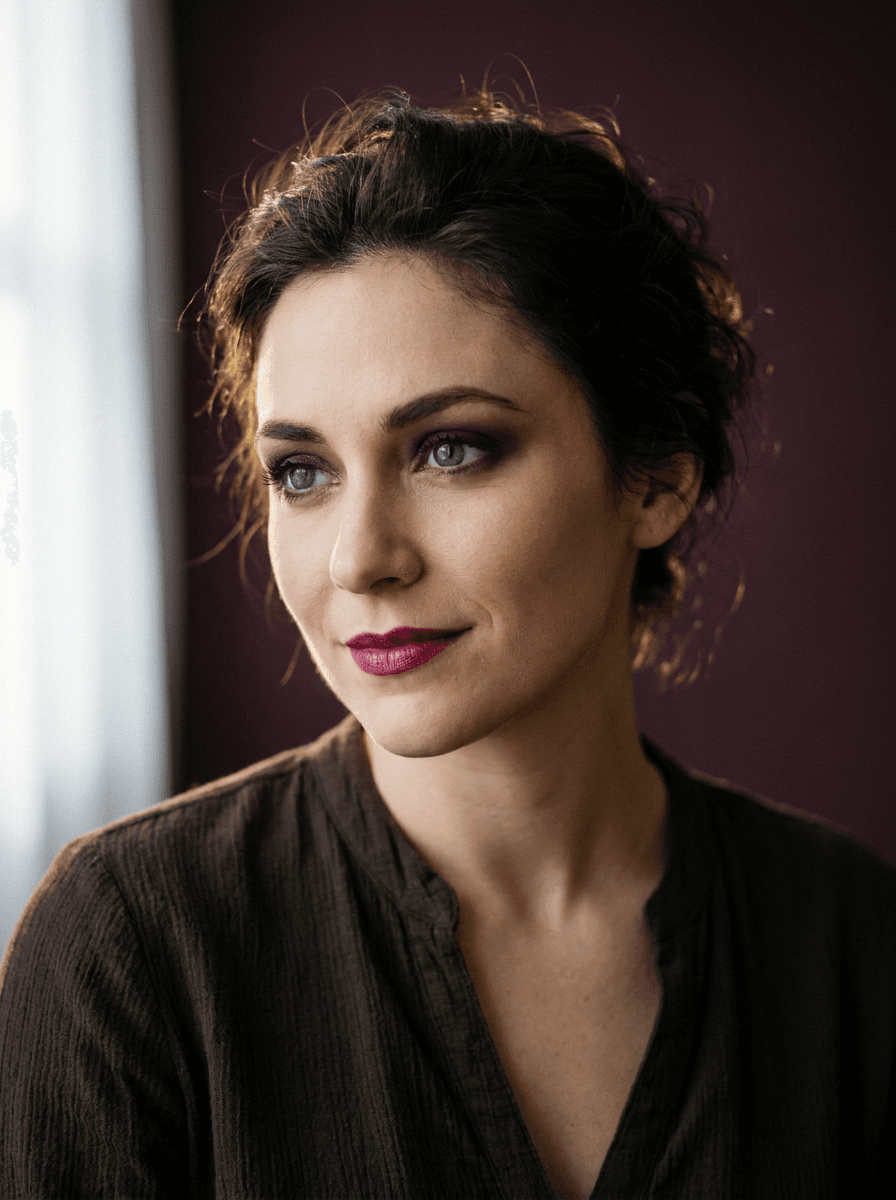
Real results from Made. Use a prompt to open it in Eye Color Changer, then add your own photo.
What people use it for
- Colored-contact previewsSee how green, blue, grey, or hazel would read on your face before ordering colored contact lenses.
- Character and costume looksPreview creative colors — violet, amber, red — for cosplay, character art references, or themed shoots.
- Comparing natural shadesRun the same portrait with a few natural colors to see which suits your complexion and hair.
- Creative portraitsGive an editorial or profile portrait a distinct look with an unexpected but subtle eye color shift.
Change the eye color in a photo
What it does
- Input
- JPEG, PNG, or WebP portrait, plus a text description of the eye color
- Output
- PNG image with the subject’s eyes in the described color
- How it works
- Made sends your photo and the color change you describe to GPT Image 2.5 Flare; the built-in prompt keeps the background, pose, and position unchanged and asks for a natural, realistic result.
- Access
- Runs in the tool. You sign in to run it, see the price before you start, and failed runs are refunded.
Formats and limits
- Input formats
- JPEG, PNG, WebP
- Output format
- PNG
- Images per request
- One
- Processing model
- GPT Image 2.5 Flare
- Edit scope
- The eye color changes; the built-in prompt keeps the background, pose, and position unchanged
Checked against the running tool on 2026-10-20.
Questions about Eye Color Changer
How does an eye color changer work?
You upload a portrait and describe the eye color you want. Made sends it to GPT Image 2.5 Flare with that change, and the built-in prompt keeps the background, pose, and position unchanged while asking for a natural, realistic result.
Can I try unusual colors, not just natural ones?
Yes. Natural shades like green, blue, hazel, and amber work the same way as creative colors like violet, red, or silver — the color is whatever you describe. For creative shades, saying whether you want it subtle or vivid helps.
Will the eyes still look realistic?
The workflow asks the model for a natural result, and simple recolors on clear, well-lit eyes usually hold up. Zoom in to check both eyes match and that the detail in the iris still reads believably; results vary per run, so re-run if one eye looks off.
Does anything else in the photo change?
The built-in prompt limits the edit to your described change and preserves the background, pose, and position. As with any generative edit, give the rest of the face a quick review before sharing.
How is this different from the Hair Color Changer?
Both use the same subject-preserving workflow, but each is tuned to one request: this page recolors the eyes, the Hair Color Changer recolors the hair. Each run applies one described change to one photo.
What photos work best?
Portraits where the eyes are open, in focus, and large enough in the frame to show iris detail. Heavy shadows, sunglasses, closed eyes, or very small faces give the model little to work with.
What file do I get back?
A PNG of the edited portrait. Each request accepts one JPEG, PNG, or WebP image; to compare several colors, run the tool once per shade.
More style tools
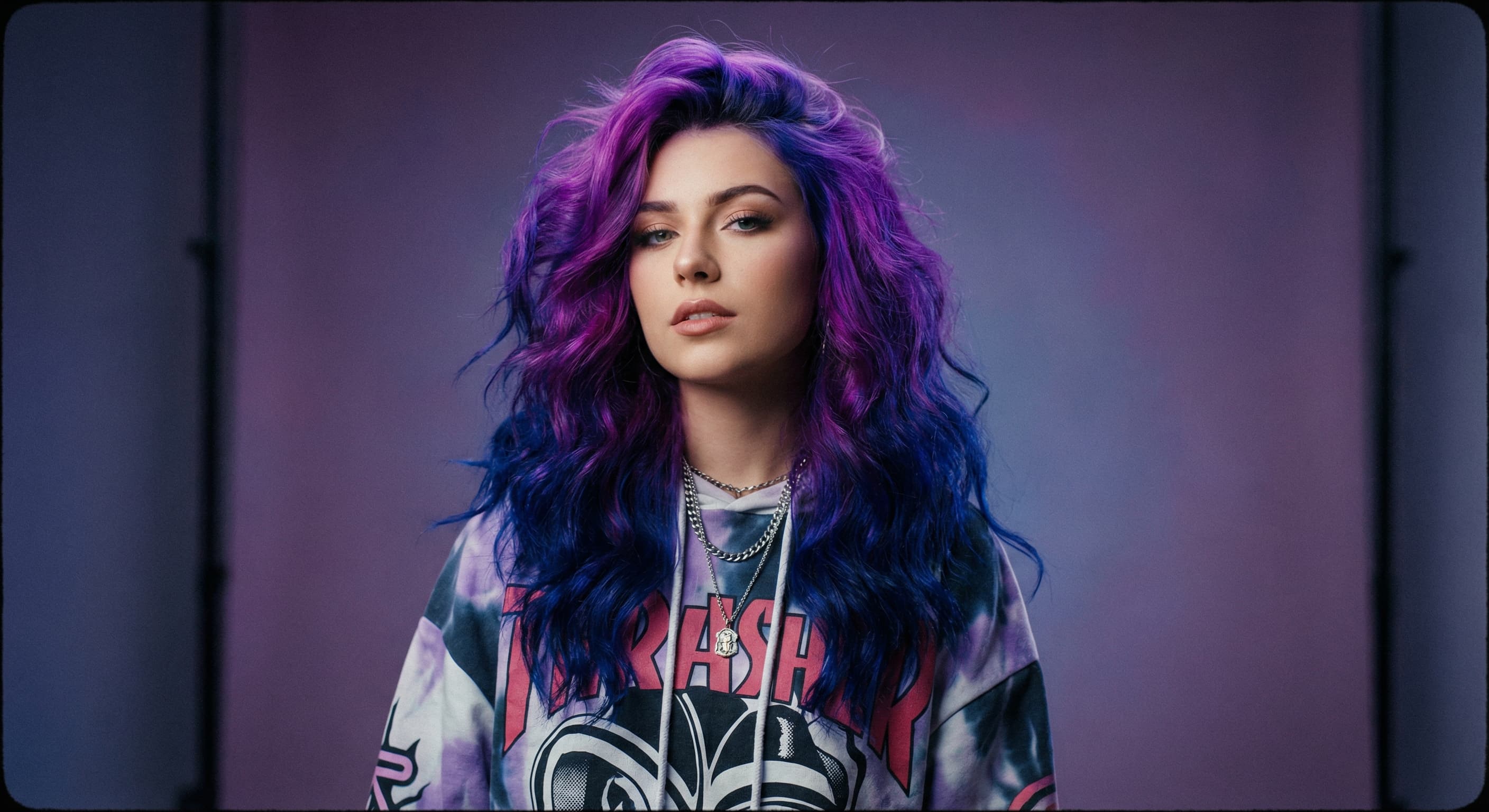
Hair Color Changer
Try any hair color on your photo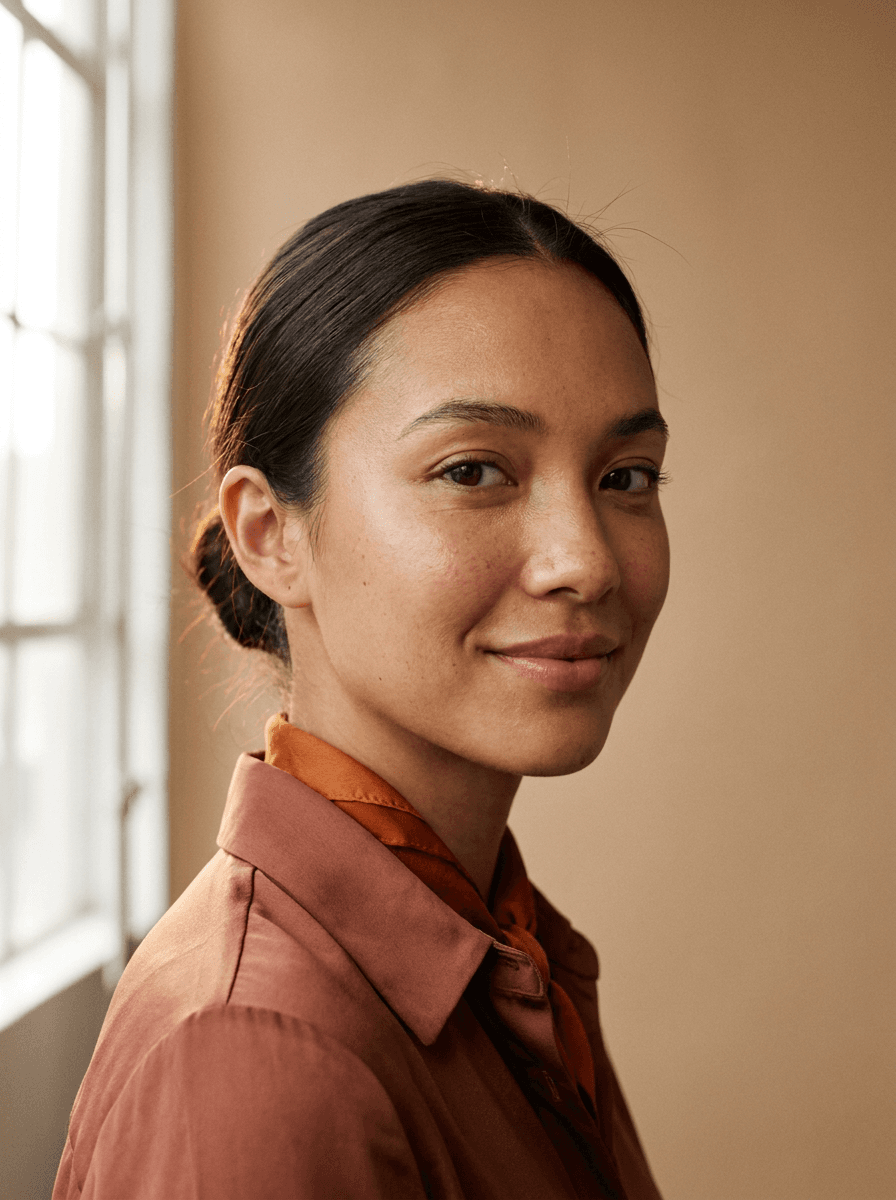
AI Photo Retouch
Retouch skin, hair and details
AI Photo Editor
Edit any photo by describing the change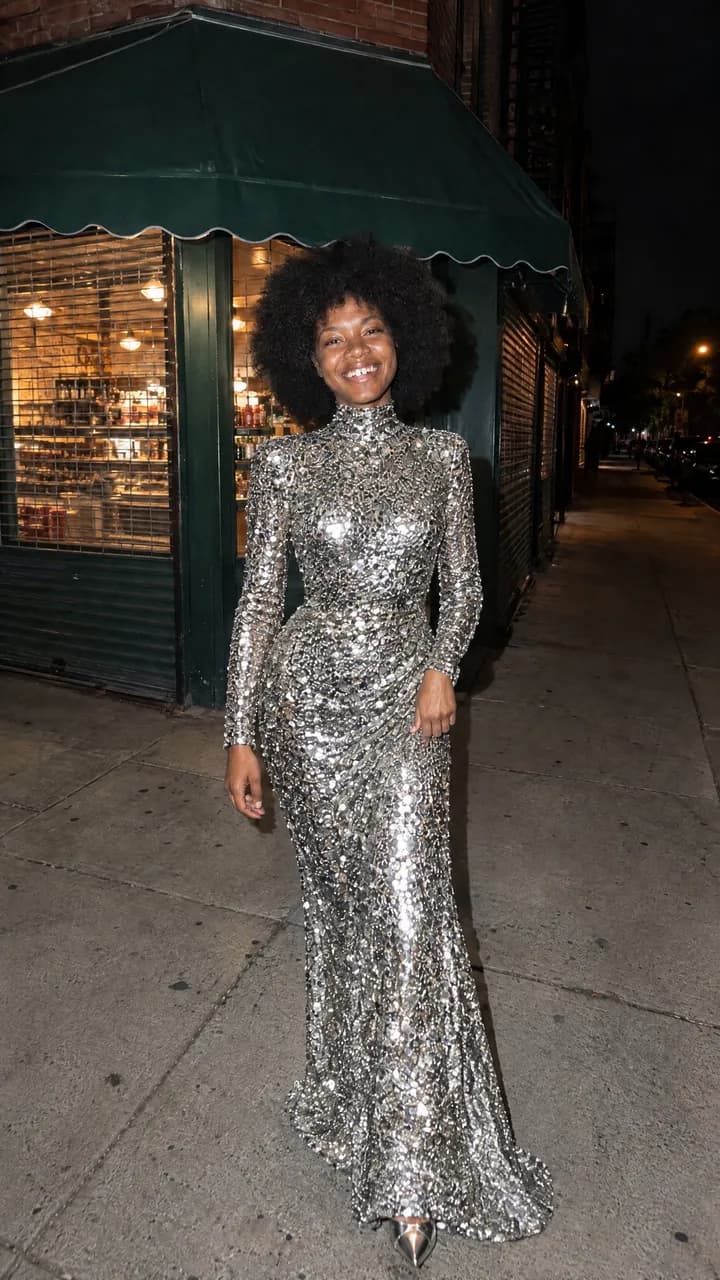
 +
+ New
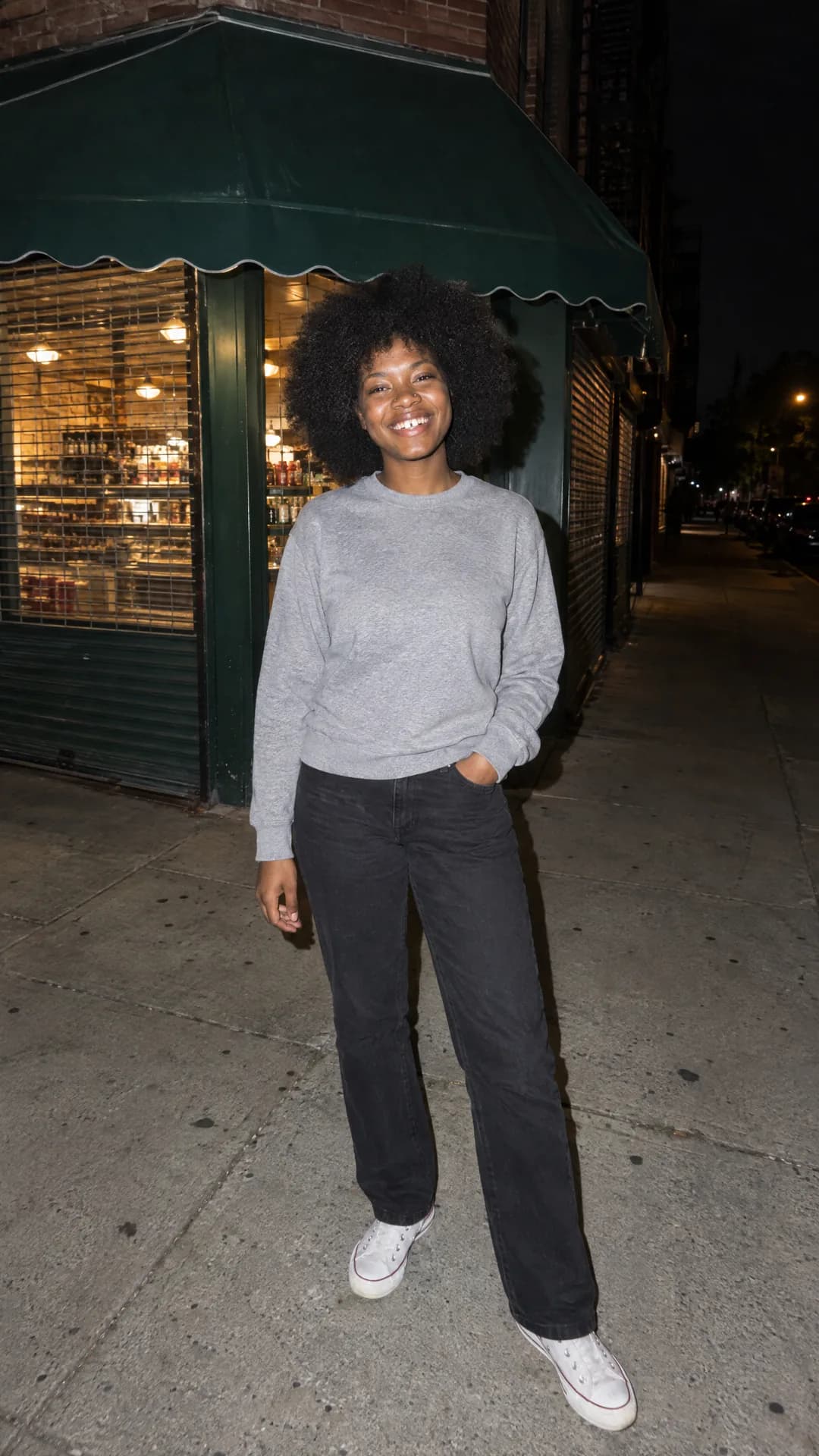
NewOutfit Swap
Try on any outfit from one photo
AI Clothes Changer
Change your outfit with a prompt
AI Hairstyle Changer
Try any haircut on your photo
AI Stylist
Mix wardrobe pieces into a new look
Photo to Anime
Your photo as an anime illustration
Photo to Cartoon
Your photo as a cartoon
Photo to Painting
Your photo as an oil or watercolorRelated models
See what each one makes, then open it in Made.