The workflow
Add one photo
Open Photo to Painting and, under Photo, tap Upload image (on a phone, Upload a photo), or paste a picture from your clipboard. It takes JPG, PNG or WebP up to 20 MB, and an iPhone photo in HEIC format is converted for you. A photo longer than 2,048 pixels on its long side is scaled down before it uploads. A sharp photo with the face large in the frame and good light paints best.
Pick a painting style
Under Try, tap Oil painting, Watercolor or Impressionist. The tap fills the Prompt box with a sentence, such as “Turn this photo into a classic oil painting with visible brushstrokes.” You can edit it or type your own style and mood. The Prompt box says Optional: if you leave it empty, the tool asks for “Turn my photo into a painting” and picks the look itself.
Tap Generate
Generate shows the price before it runs. If you aren’t signed in, you sign in first and your photo and prompt wait for you. While it works the button reads “Making it…”, and the painting appears in Generations beside the tool when it’s done.
Check faces, hands and details
Zoom in on the eyes, the mouth and the hands, and compare them with your photo. The painting keeps the layout, but it redraws every part. Writing on signs or clothes, fine patterns and small objects are the first things to change.
Try another style from the same photo
For a different look, go back to your original photo and tap another style under Try. Each run is a new painting made from the original, so you can put oil, watercolor and impressionist side by side before you choose one.
Recorded Made demonstration
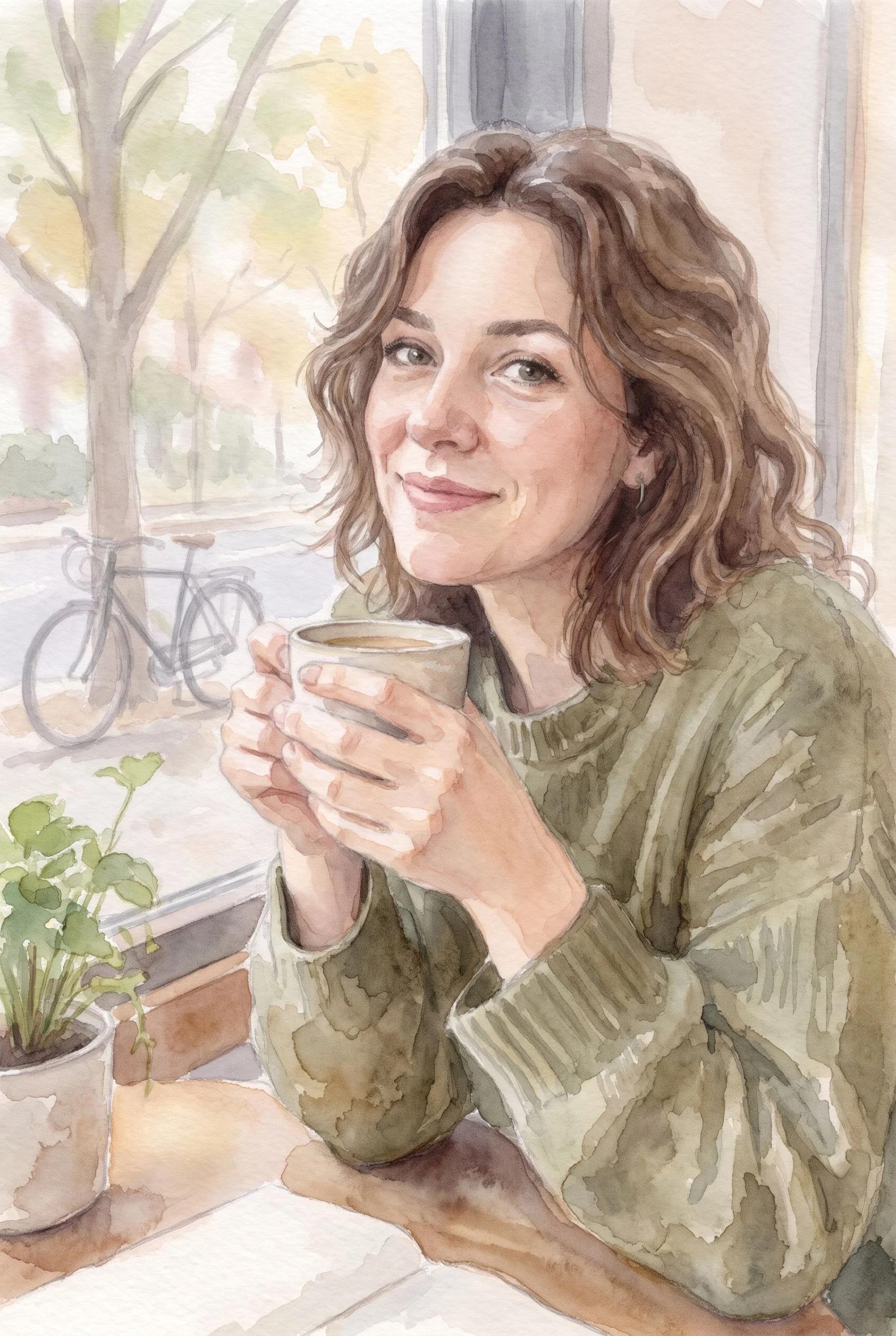
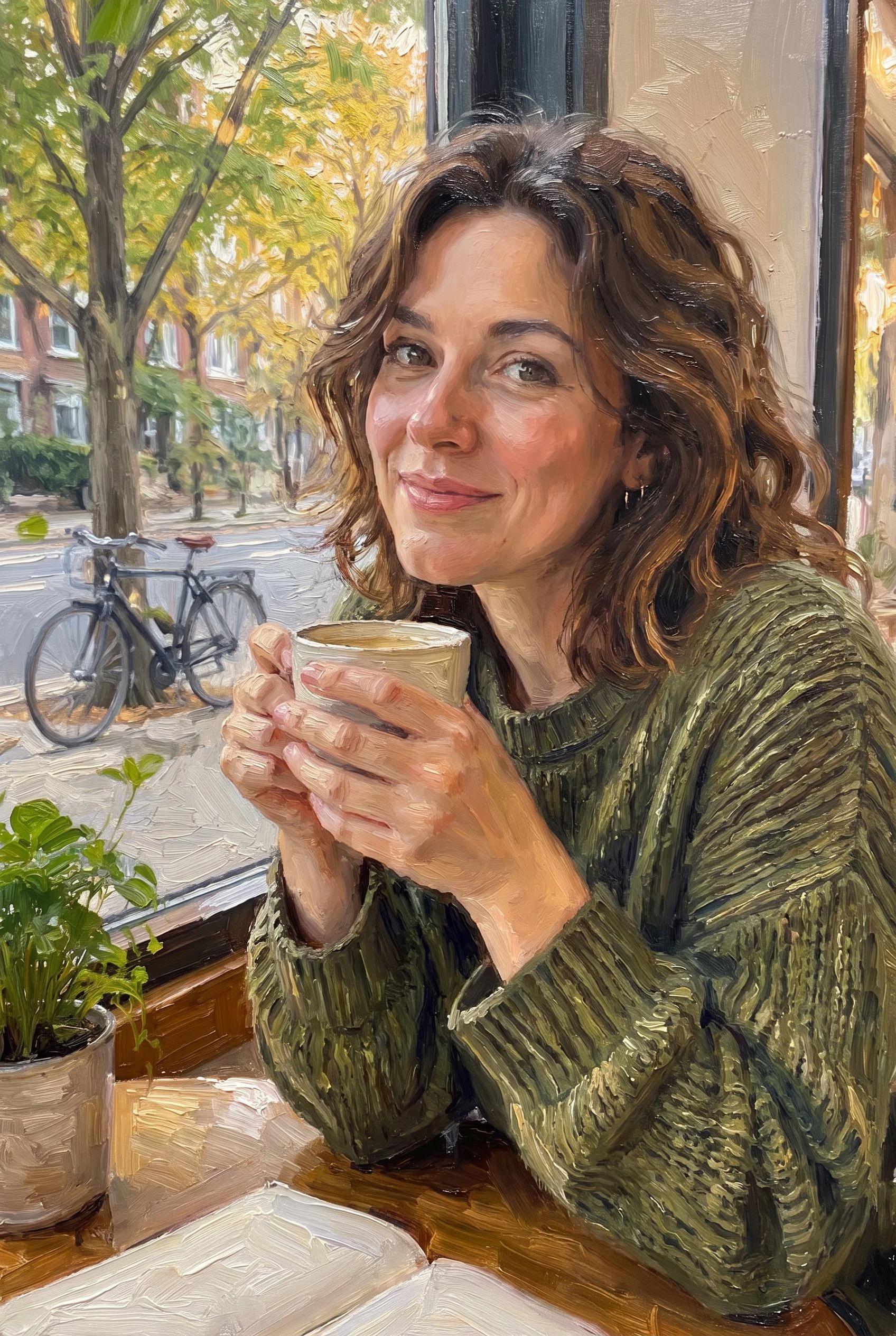
A woman at a café window, as an oil painting and as a watercolor
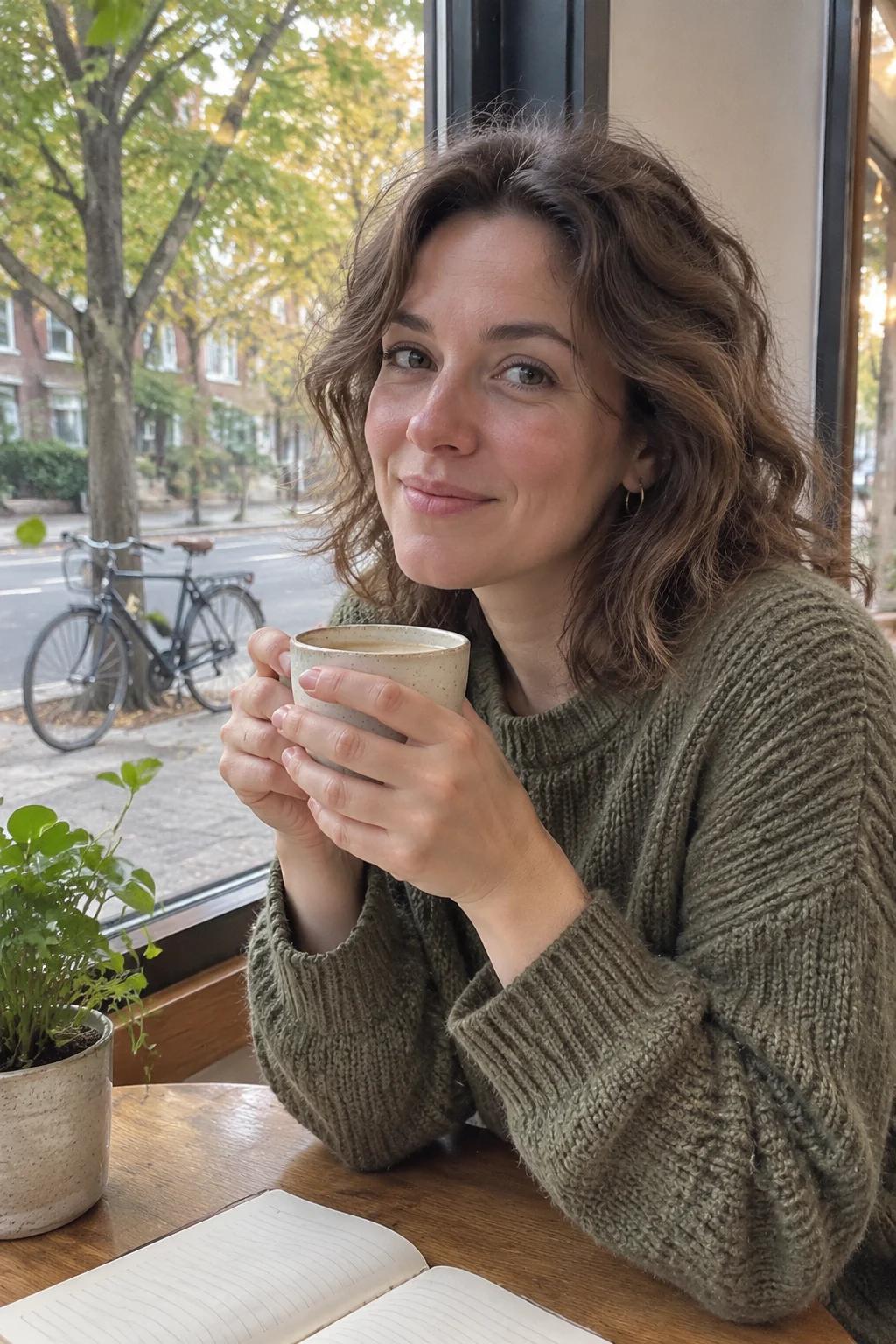
These are real Photo to Painting runs from November 12, 2026. The photo is a made-up adult Made generated for this guide, not a real person: a woman in a knit sweater holding a mug with both hands at a café window, a bicycle and trees outside. Each painting is exactly what the tool builds for that photo and the sentence behind its chip (Oil painting, then Watercolor), sent through Made’s API from a script rather than tapped through the browser. Both came back at 1,696 × 2,528 pixels from a 1,024 × 1,536 photo, in the same shape. I looked at both next to the photo and at close crops of the hands. In both, her face is recognizable (eyes, half smile, hair, earring) and she holds the mug with the same pose and fingers on both hands. The oil version makes her skin a little rosier and paints the sweater’s knit as heavy strokes. The watercolor is paler and softer: the street behind her washes into pale shapes and only the bicycle keeps an outline, the sweater turns into blotches of wash, and the notebook lines are gone. What both lost: the speckle on the mug, the notebook lines, the spokes and most of the leaves outside. Two runs, not a measure of how every photo paints.
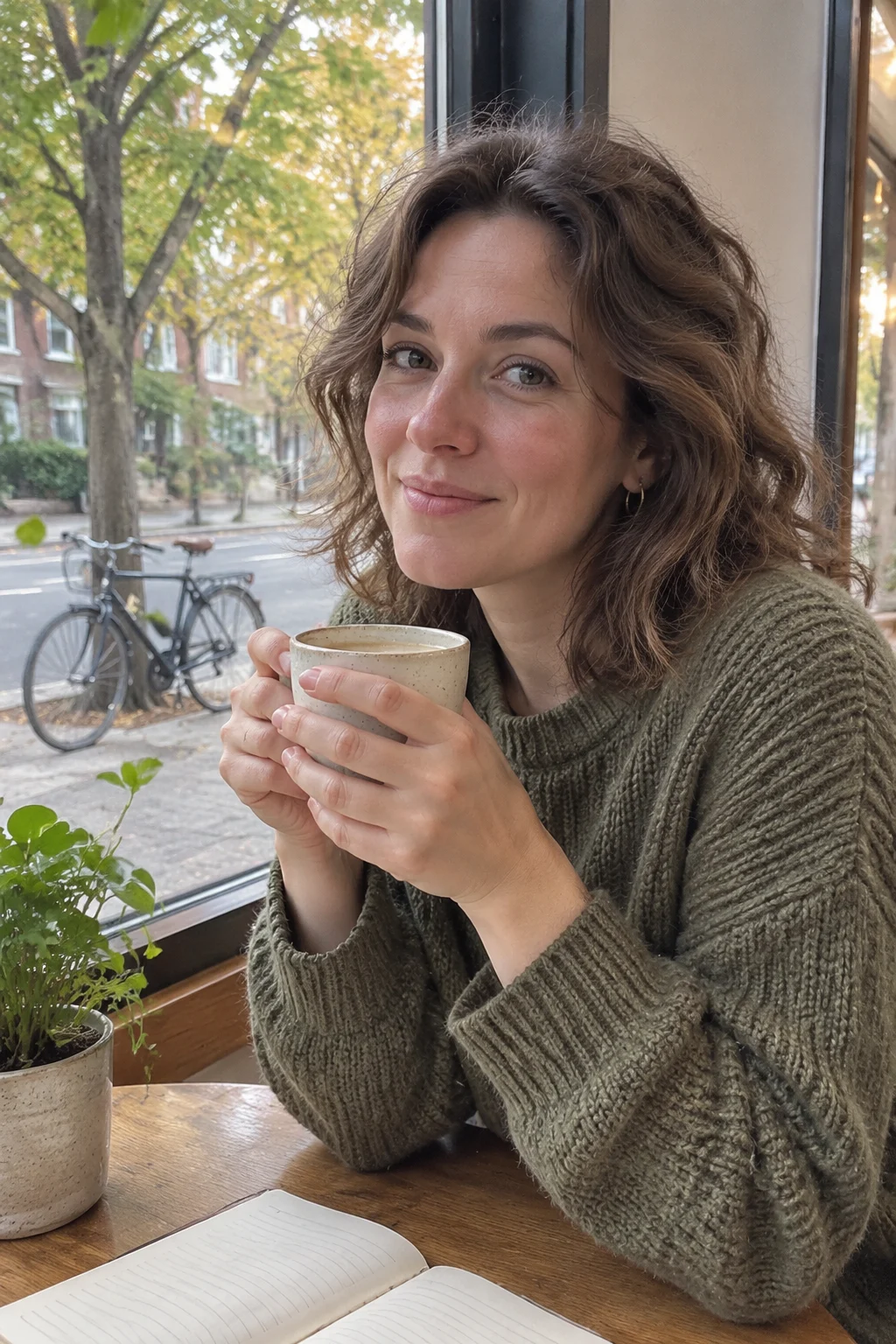
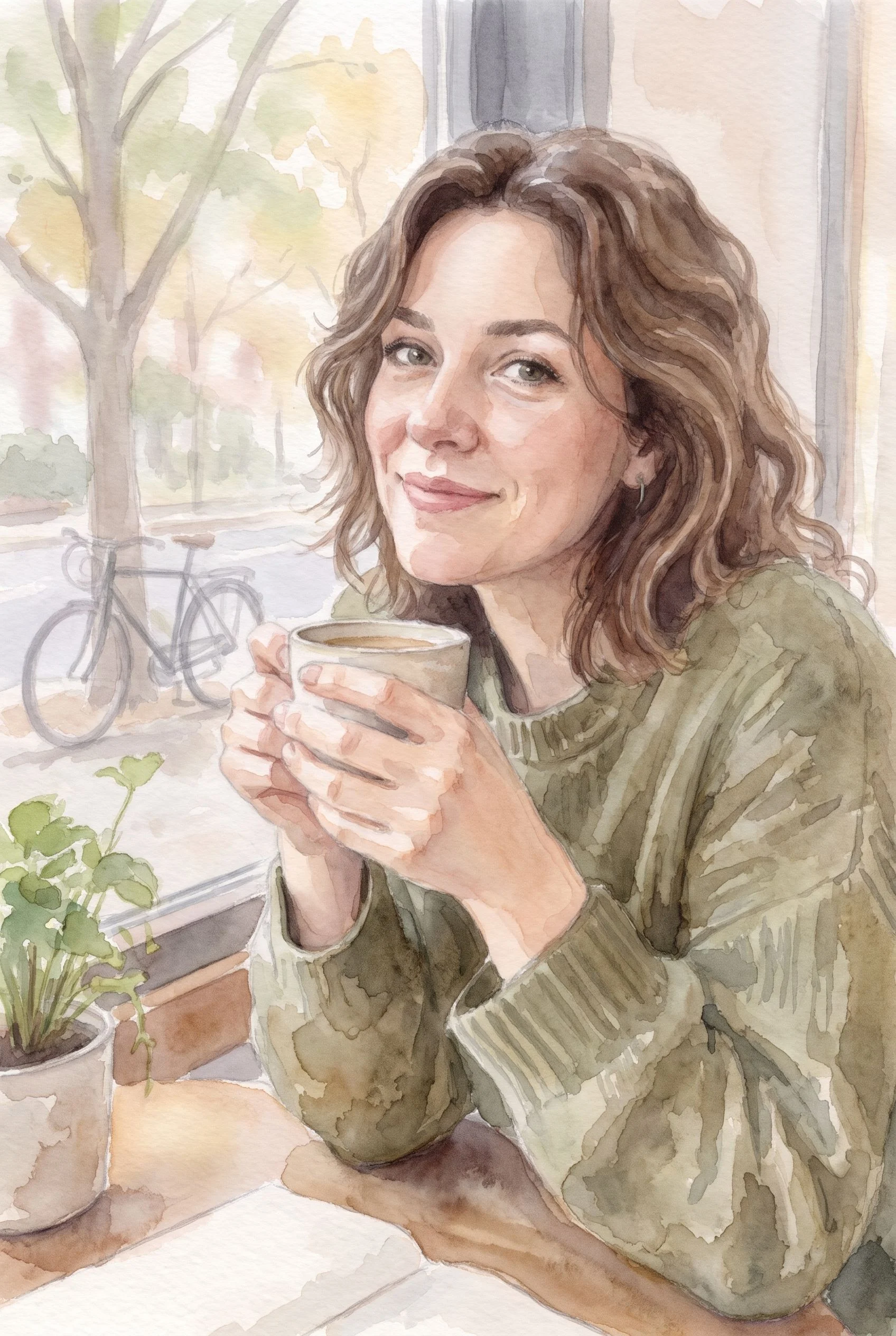
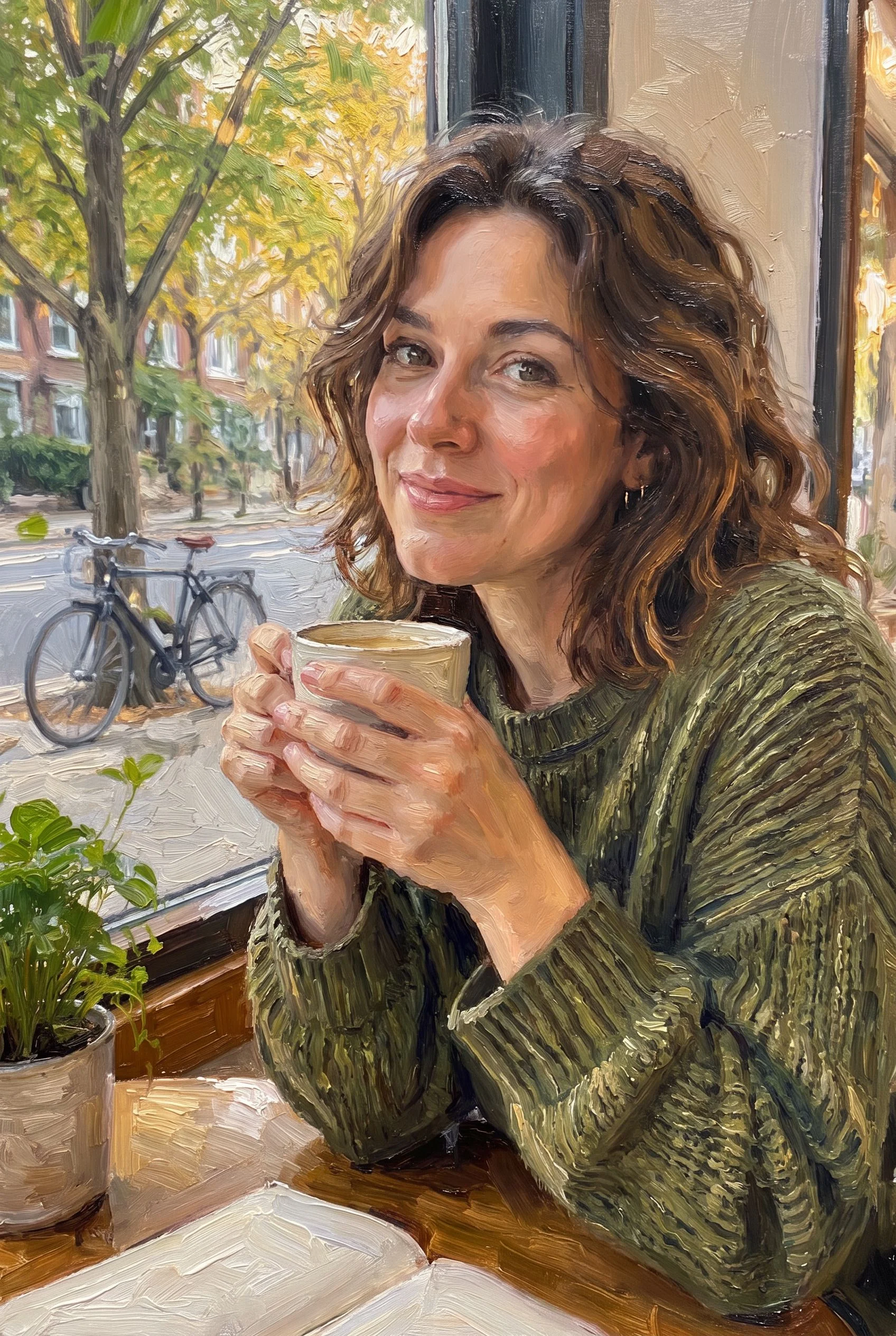
Nano Banana Pro (Photo to Painting) · Generated · View the example record and price basis (JSON)
Prompts you can inspect and adapt
Prompt recipe to adapt
A starting point for your own photo
Turn this photo into a [style] painting with [brushwork or look].Put your style and the look you want in the brackets, such as “impressionist” and “loose, dappled brushwork”. Only the two chip sentences below were run for this guide, so check what your own wording does.
Recorded generation prompt
The Oil painting chip
Turn this photo into a classic oil painting with visible brushstrokes.The sentence behind the Oil painting chip, sent as it is: the tool adds no other words to it.
Recorded generation prompt
The Watercolor chip
Restyle this photo as a soft watercolor painting.The sentence behind the Watercolor chip, sent as it is, for the second painting in the example.
How a painting is priced
Per painting: one image each time you press Generate. The total appears on Generate before you run it.
The tool always runs at 2K and makes one image per press, so a style change doesn’t change the price. In the example, the oil painting and the watercolor were quoted the same.
Price source: Nano Banana Pro price sheet · Checked
Before the run starts, the tool checks the price again; if it came out higher than the button showed, it stops and asks you to press Generate again. If the provider it was priced on fails, a backup provider can take the run at its own price, which can be higher. A run that fails is refunded.
What to review before you use the result
| What you see | What to try |
|---|---|
| The face doesn’t look like the person | The painting redraws the face, so a likeness can shift. Start from a sharp photo where the face is large and well lit, and run it again from the original: each run paints it a little differently. Put the painting next to the photo before you use it. |
| Small details disappeared | Mug patterns, notebook lines, fine knit, leaves and writing turn into brush strokes. That is part of how a painting looks. For a photo with lettering you need to keep, don’t paint it, or add the text again afterwards. |
| A hand or finger looks wrong | Zoom in on the hands. In the example the fingers held, but a painted hand can still come out loose or wrong. Count the fingers, then run it again from the original, or use a photo where the hands are open and in clear light. |
| Use a JPG, PNG, or WebP image | Save or export the photo in one of those formats. HEIC photos from an iPhone and other common picture formats are converted for you; a file that isn’t a picture can’t be used. |
| Images can be up to 20 MB | Make the file smaller before you add it. A photo longer than 2,048 pixels on its long side is already scaled down for the upload, so a smaller export loses nothing. |
| The run failed | The tool shows why, and a run that fails is refunded. Try again, or try another photo. |
Questions about this workflow
Which painting styles can I choose?
Under Try there are three: Oil painting, Watercolor and Impressionist. You can also type your own style in the Prompt box. For this guide only the oil painting and watercolor sentences were run, so check any other style on your own photo.
Will the painting look like me?
Usually the face is recognizable, but it is repainted, not copied: in the example the eyes, smile and hair stayed, while the skin came out a little rosier in oil and paler in watercolor. A sharp, front-facing photo works best, and you should compare the faces before you share it.
Do I have to describe my photo?
No. The tool looks at the photo. The Prompt box is optional, and you only say the style. With it empty, the tool asks for “Turn my photo into a painting”.
Can I paint a photo with several people in it?
The tool takes one photo at a time, and everyone in it is painted together. This guide tested one person, so look at every face and hand in a group photo.
Is it a filter?
No. An AI image model repaints the whole picture from your photo, so the layout stays but every part is redrawn. That is why the brush strokes look real, and why small details change.
Can I make it bigger or print it?
The tool makes one image in your photo’s shape; the example came back at 1,696 × 2,528 pixels. For a large print, look at it at full size first.
Work with Claude and Made
Photo to Painting runs in the tool. With the Made connector in Claude, you can ask for the same edit: Claude can find Nano Banana Pro in Made’s catalog, take your photo as the image to edit, quote the price and generate, if your client offers a way to upload.
Conversation starter
Ask your assistant
Use Made to turn my attached photo into a classic oil painting with visible brushstrokes. Use Nano Banana Pro with my photo as the image to edit, at 2K and the photo’s own shape. Show me the price before generating one image.If your client doesn’t offer a way to upload, use Photo to Painting with the same photo and style.