The workflow
Start from a clean image of the building
Use one image with the whole building in frame: a hand sketch with firm lines, a photo of a card or foam model, a screenshot from your 3D or drawing app, or a photo of a real building. Draw or shoot it from the angle you want the render from, with straight verticals, since the model keeps the camera angle it is given. Sketch a person or two at the base so the model reads the scale. Leave signs and lettering off the drawing.
Upload it to AI Exterior Design
Open AI Exterior Design and tap Upload image (Upload a photo on a phone), then choose the file: JPG, PNG or WebP, up to 20 MB. On a computer you can also drag it in or paste it. The tool takes one image per run, and anything larger than 1536 pixels on the long side is shrunk before it uploads, so crop to the building rather than sending a whole sheet with notes around it.
Say what it is and what it should become
Type in the Prompt box. Say that the image is a sketch or a model and that you want a photorealistic render of the same building. Then name what must stay (the shape, the number of floors, the window grid, the balconies, the roofline, the angle) and what to add: facade materials, glass, the street or landscape around it, and the time of day. The Try chips (Modern facade, Paint and siding, Landscaping) are for restyling a house photo; and if you leave the box empty, the tool sends its default facade makeover instead of a render.
Generate, then check it against your drawing
Tap Generate; the button shows the price. If you aren’t signed in, you sign in now and your image and prompt wait for you. The tool checks the exact price after the upload and asks you to press Generate again if it came out higher. The render appears under Generations, in the same shape as your image. Count the floors, windows and balconies against your original, look for bent lines and odd lettering, and run it again with a sharper prompt if something moved.
Recorded Made demonstration
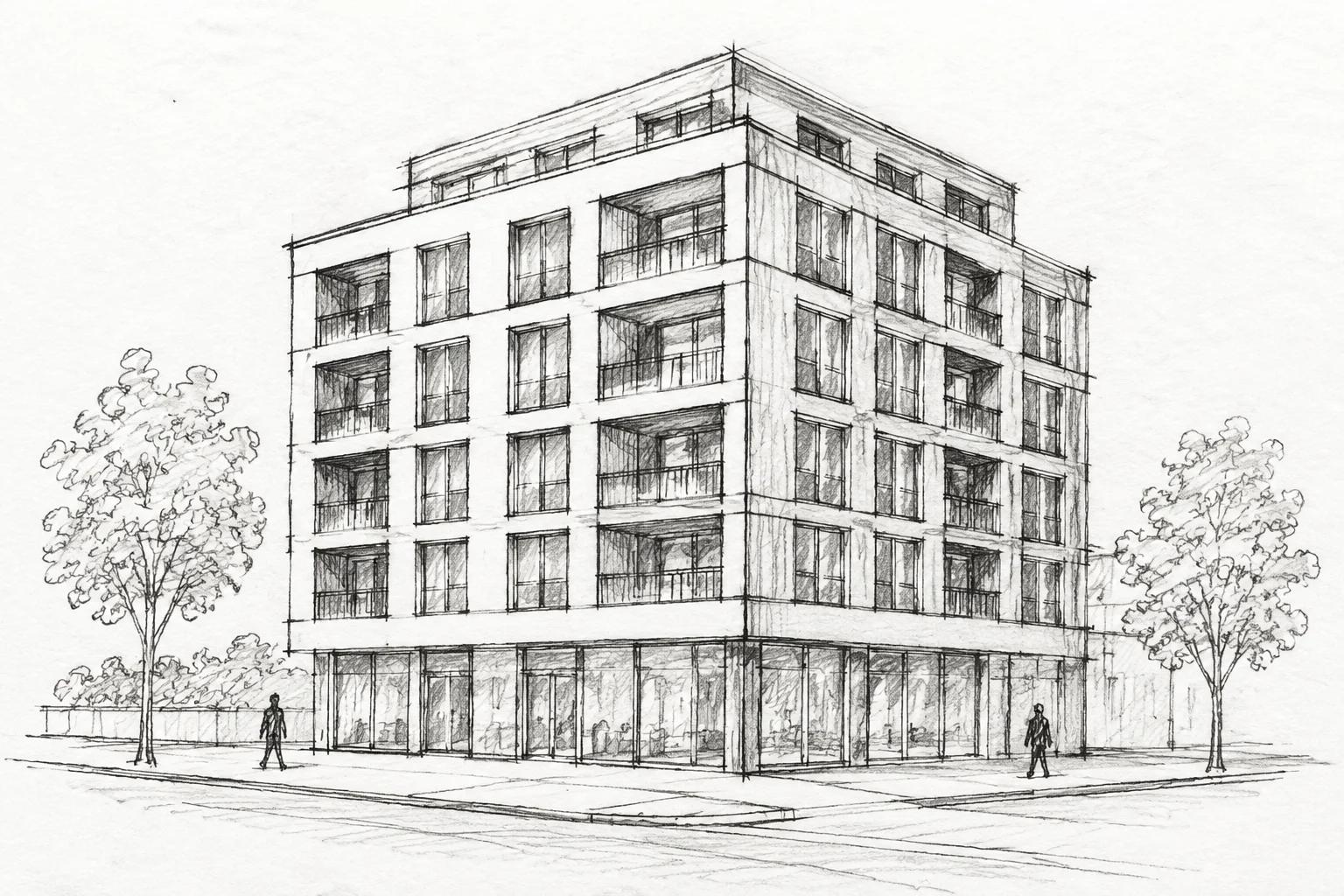
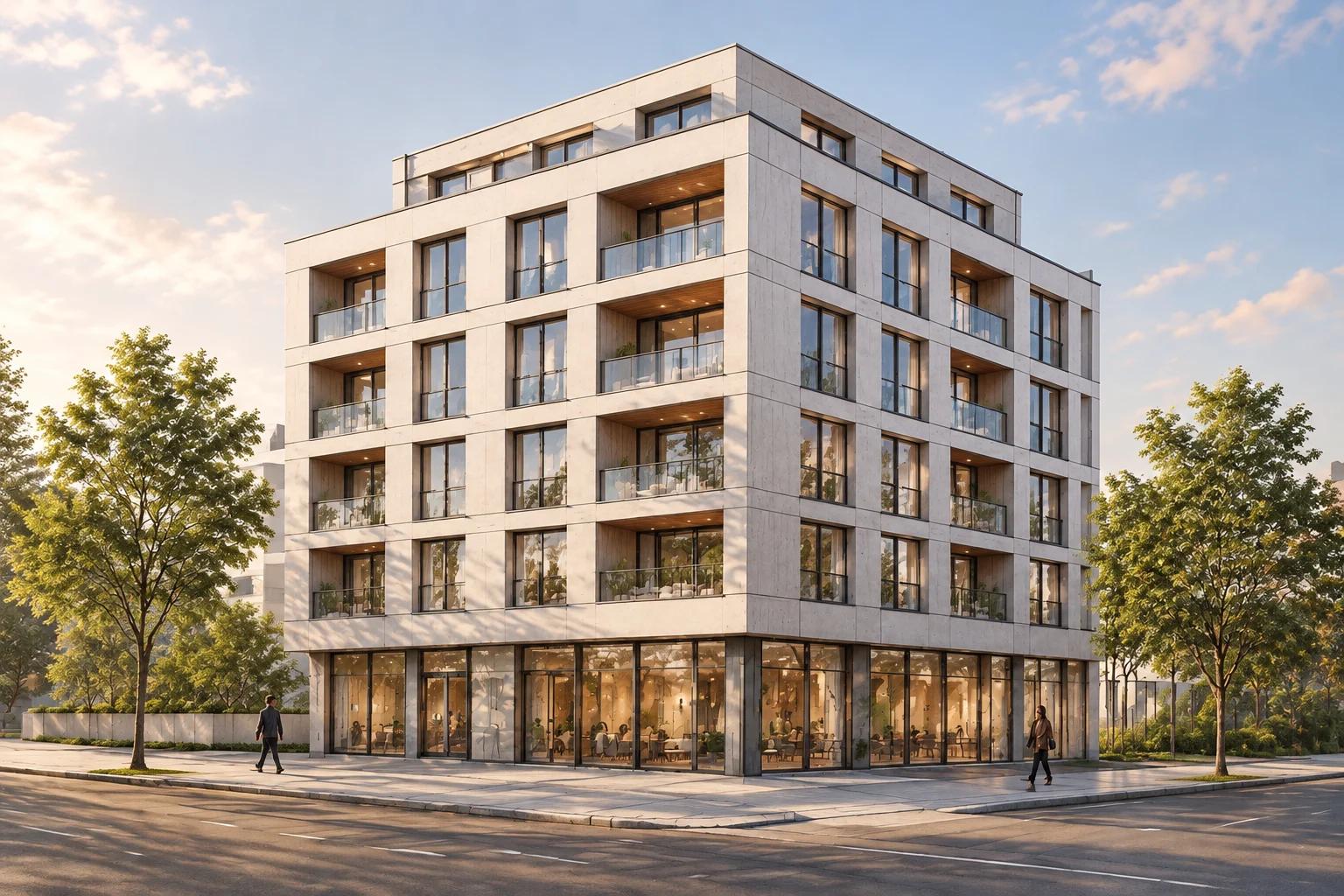
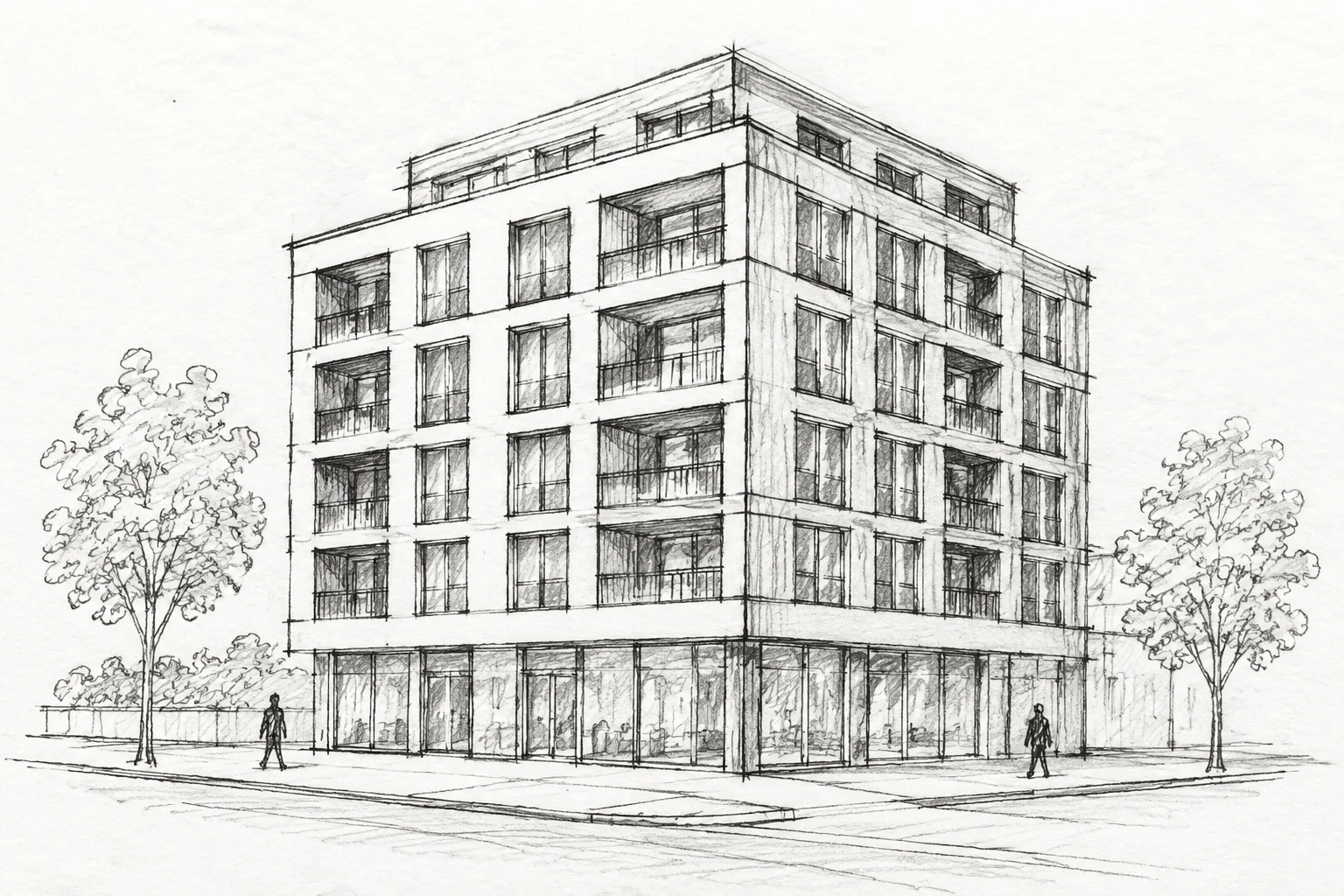
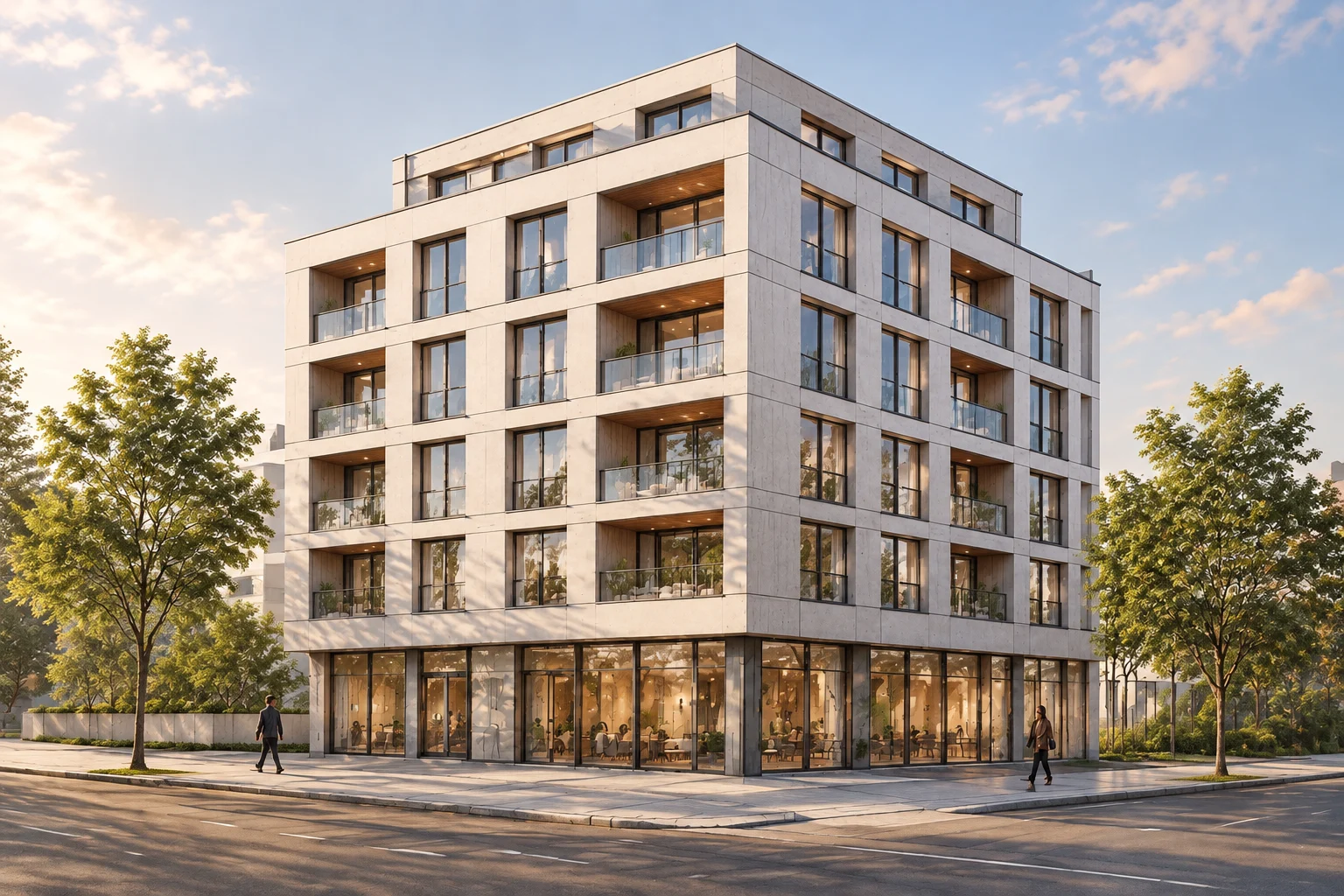
A pencil sketch of a six-storey corner building, as a daylight render
The input is a hand-drawn concept sketch of a made-up apartment building on a street corner, generated with Made for this guide; it is not a real building or address. It went through AI Exterior Design’s own request (GPT Image 2.5 Flare at the tool’s low quality setting, 1536 × 1024, the sketch’s shape) with the prompt below, sent from a script rather than clicked through the browser. The render kept the corner massing, the glass ground floor, four balcony floors with the balconies in the same bays on each face, and the set-back top floor. Up close, the shopfront interiors are soft and smeared and the two people on the pavement are small and plain. It shows one view in daylight; it doesn’t show a tall tower, a messy sketch, or how two views of the same building match.
GPT Image 2.5 Flare · Generated · View the example record and price basis (JSON)
Prompts you can inspect and adapt
Recorded generation prompt
The exact prompt behind the example
Turn this sketch into a photorealistic architectural render of the same building. Keep its shape, number of floors, window grid, balconies and roofline exactly as drawn. Facade in pale concrete with warm wood balcony soffits and clear glass, a street with trees and a few people walking, soft late-afternoon daylight. Photo taken from the same angle as the sketch.Typed into the Prompt box as it is. AI Exterior Design adds nothing to it, so say what must stay as well as what to change. The Open AI Exterior Design button above opens the tool with this prompt filled in.
Prompt recipe to adapt
From a model photo or a screenshot
Turn this photo of a white card model into a photorealistic render of the finished building. Keep the same shape, number of floors, window openings and roofline, and the same camera angle. Dark brick facade with bronze window frames, a flat green roof, a quiet street with a few trees and people for scale, overcast daylight. Straight vertical lines. No signs or lettering on the building.Swap the materials and setting for yours. Asking for straight vertical lines and no lettering heads off two common faults.
Prompt recipe to adapt
The same building at dusk
Same building, same angle, same materials, shown at dusk: warm light on in most windows, a deep blue sky, streetlights on, wet pavement reflecting the shopfronts. Keep every floor, window and balcony exactly where it is.Run it on your original image again, not on the render, and change only the light. Each run is separate, so compare the two results side by side.
How a render is priced
Per render: one image in, one image out, at the tool’s fixed settings. The price appears on Generate before you run it.
AI Exterior Design always runs GPT Image 2.5 Flare at its low quality setting with one image. Your image’s shape picks the output size, and the price on the button already covers every shape.
Price source: GPT Image 2.5 Flare on the Made price sheet · Checked
After the upload the tool checks the exact price; if it came out higher than the button showed, it stops and asks you to press Generate again. If the provider it was priced on fails, a backup provider can take the run at its own price, which can be higher. A run that fails isn’t charged.
What to review before you use the result
| What you see | What to try |
|---|---|
| A floor, a window or a balcony moved or disappeared | Name the counts in the prompt (“six storeys, five windows across the front”) and say “exactly as drawn”. Darken faint lines in the sketch, then run it again on the original image. |
| Lines bend or the building leans | Start from a drawing or photo with straight verticals and ask for “straight vertical lines”. The model keeps the angle it is given, so a wide-angle phone photo from close up stays distorted. |
| Signs or lettering on the facade are garbled | Leave signs, names and numbers out of the drawing and the prompt, and ask for “no lettering on the building”. Add real signage afterwards in a design app. |
| The scale looks wrong | Draw a person or a car at the base, and say how many floors and roughly how tall each one is. On a very tall tower, don’t expect an exact floor count at this size; crop to the part that matters. |
| It restyled the building instead of rendering it | The prompt box was probably empty, so the tool sent its facade-makeover default. Type your own prompt that says the image is a sketch or a model and asks for a photorealistic render of the same building. |
Questions about this workflow
Can it turn a hand sketch into a realistic render?
Yes. The example above is a pencil sketch rendered in one run. Firm lines, one clear view and a prompt that names what must stay give the closest match; faint or messy lines leave the model more to invent.
Is the render accurate enough to build from or to price?
No. It is a concept picture for talking about a design. It isn’t to scale, and the model can move or drop floors, openings and details. Measured drawings and engineering come from your architect or builder.
Can I make a render of a building that exists only as an idea?
AI Exterior Design needs an image to start from, so draw a quick sketch or block it out in any 3D app first. To start from words alone, use Made’s AI Image Generator instead.
Can I get several views or materials of the same building?
One image per run. Upload each view as its own run, and change one thing at a time in the prompt, such as the material or the light. Details can differ between runs, so check them side by side.
Does it work on a phone?
Yes. On a phone, tap Upload a photo to choose the image, type the prompt and tap Generate. The render appears under Generations on the same page.
Work with Claude and Made
Through the Made connector in Claude, an assistant can run the same edit: upload your sketch, call generate with GPT Image 2.5 Flare and the image attached, quote the price, then run it. The tool picks the output size from your image’s shape; through the connector, name the size that matches it.
Conversation starter
Ask your assistant
Use Made to turn my attached sketch into a photorealistic render with GPT Image 2.5 Flare at low quality, 1536x1024. Keep the building’s shape, number of floors, window grid, balconies, roofline and camera angle exactly as drawn. Pale concrete facade, wood balcony soffits, clear glass, a street with trees and a few people, late-afternoon daylight, no lettering on the building. Show me the price before generating one image.If your client can’t attach an image, use AI Exterior Design with the same sketch and prompt.