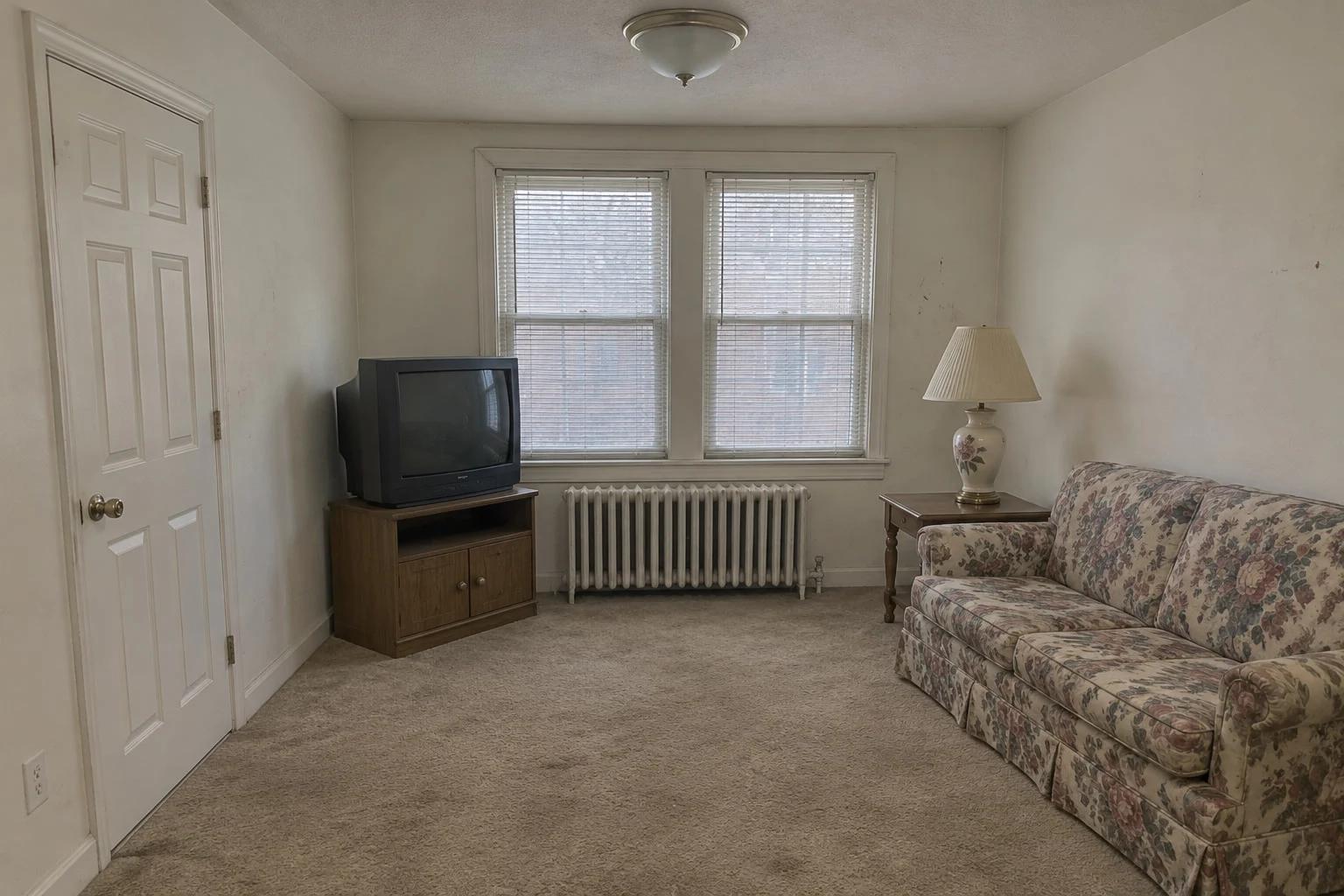
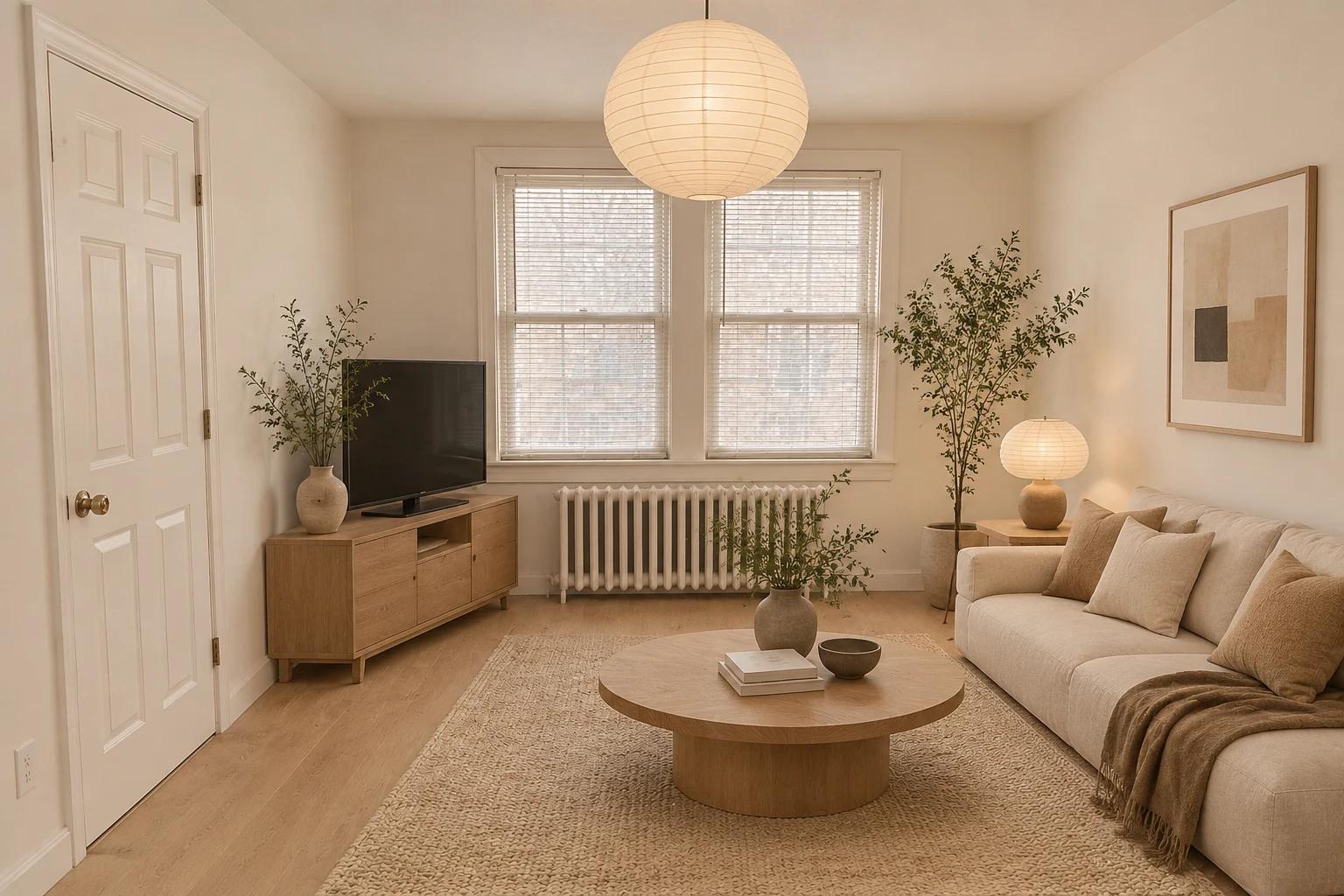
The workflow
Take the photo
Stand in a corner at about chest height so the floor, two walls and the windows are in the frame. Turn the lights on or shoot by day: a dim, grainy photo gives the model less to keep. Clear what you don’t want carried over, and keep mirrors out of the frame if you can.
Upload it
Open AI Interior Design and tap “Upload image” (on a phone, Upload), or paste the photo from your clipboard. It takes one JPG, PNG or WebP up to 20 MB; an iPhone HEIC photo is turned into a JPEG for you. Photos over 1,536 pixels on the long side are scaled down before the edit.
Say the style, the pieces and what stays
Type in the Prompt box. Name one style, then the floor, walls, main furniture and lighting, and end with what must stay: “Keep the door, the windows and the room’s layout where they are.” The chips under Try (Try a style, Stage an empty room, Swap the furniture) fill in a starting prompt. With the box empty, the tool sends “Redesign this room”.
Check the price and generate
Generate shows the price. If you aren’t signed in, you sign in first, and your photo and prompt wait for you. Before the run starts, the price is confirmed again; if it came out higher than the button showed, nothing runs until you press Generate again. A run that fails isn’t charged.
Compare it with your photo
The new picture appears under Generations when it’s ready; this example took about half a minute. Put it next to your photo and check the doors, windows, radiators and outlets, then the furniture: legs, lamps, and plants in their pots. If something moved, run it again and name that thing in the “keep” sentence.
Recorded Made demonstration
A dated living room, redesigned in Japandi style
This is a real AI Interior Design run from November 12, 2026. The before photo is not a real home: Made generated it first with GPT Image 2.5 Flare as an ordinary phone photo of a dated living room, with beige carpet, a floral sofa, an old TV and a radiator. The prompt is the one shown below, and the request is exactly what the tool sends for that photo and prompt, sent through Made’s API from a script rather than clicked through the browser. The door kept its six panels, knob and hinges in the same place, both windows and their blinds stayed, and so did the radiator and the outlet by the door. The carpet became a light oak floor and a wool rug, the sofa a low linen one, the ceiling light a paper pendant, and a round oak coffee table, plants and a print were added. The TV cabinet stands on its legs. Weak points: the tree in the far corner has a trunk that runs on below its pot to the floor, the radiator’s valve moved to the other end, and the light is warmer than in the photo. It’s one run, not a measure of how often a redesign holds.
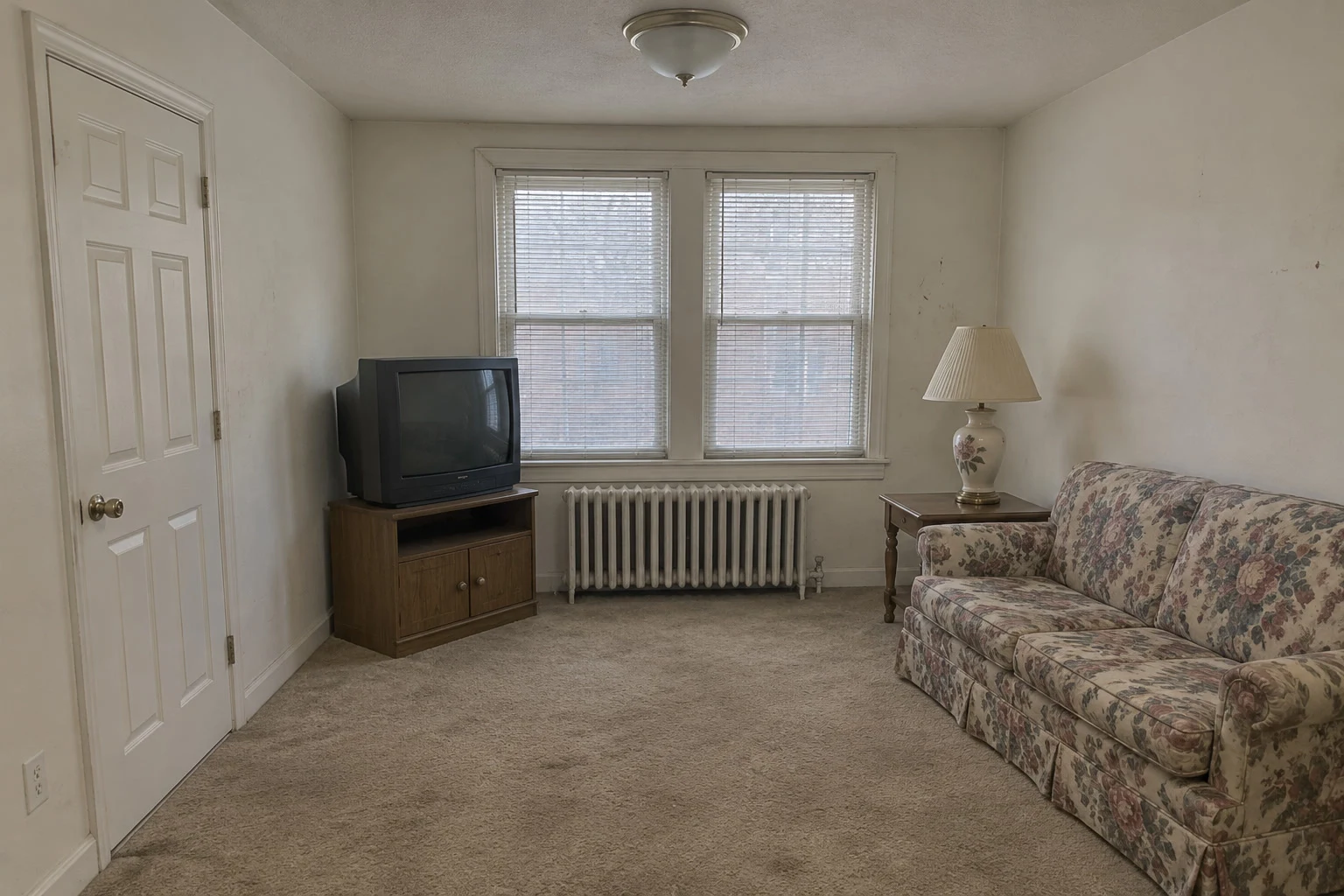
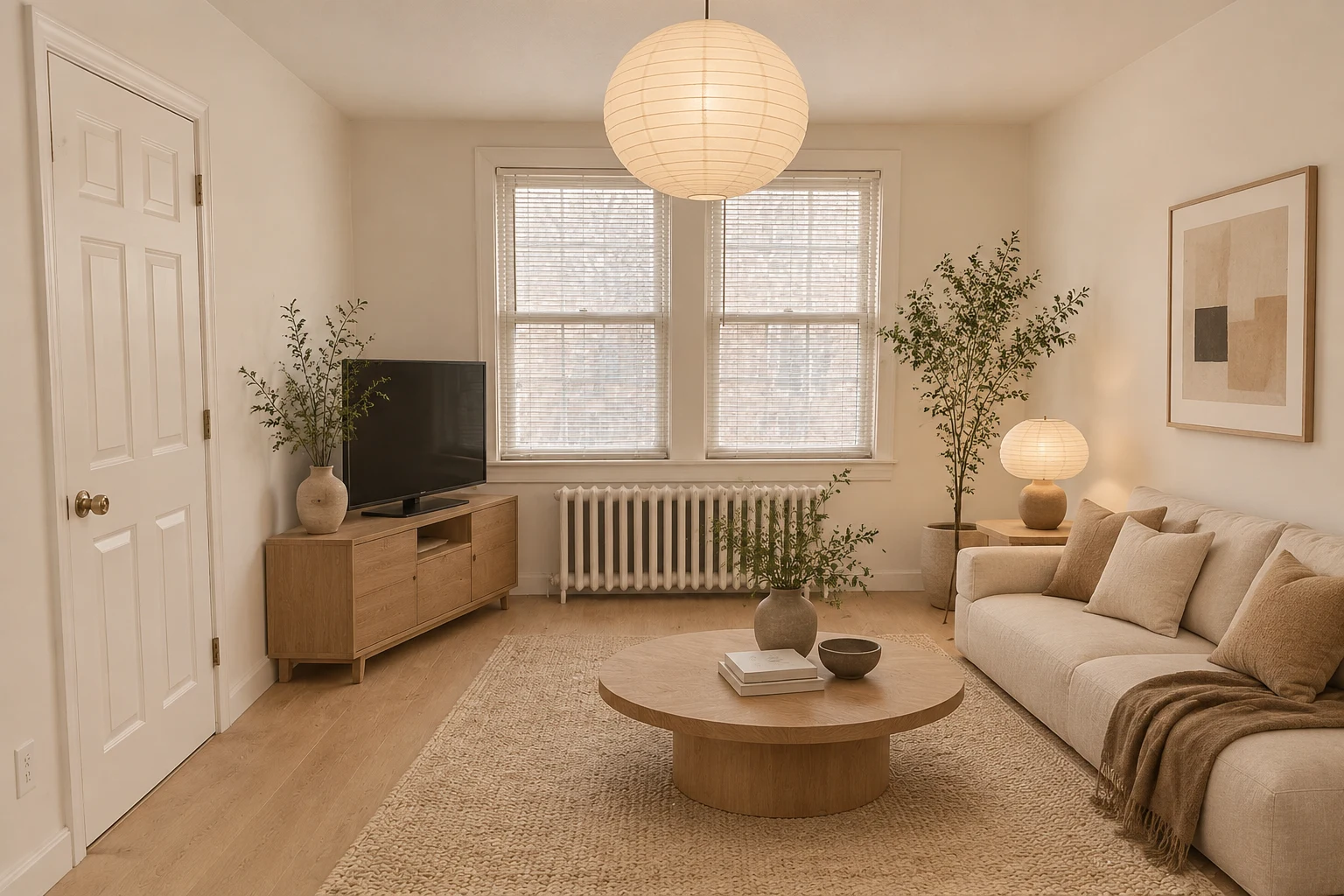
GPT Image 2.5 Flare · Generated · View the example record and price basis (JSON)
Prompts you can inspect and adapt
Prompt recipe to adapt
Your room, your style
Redesign this [room] in a [style] style: [floor], [wall color], [main piece of furniture], [one or two other pieces], [lighting] and [one finishing touch]. Keep the doors, the windows, [anything built in] and the room’s layout where they are.Fill in the brackets. One named style plus a few concrete materials steers it better than a list of styles. The last sentence is what keeps the room recognizable.
Recorded generation prompt
What was typed for this run
Redesign this living room in a Japandi style: light oak floor, warm white walls, a low linen sofa, a round oak coffee table, a wool rug, paper pendant lights and a few plants. Keep the door, both windows, the radiator and the room’s layout where they are.AI Interior Design sends your words as you type them, with your photo.
How a redesign is priced
One photo and one prompt make one picture. The price is the same for every room photo and shows on Generate before you run it.
The tool always runs GPT Image 2.5 Flare at low quality with one photo, and at that setting every picture size it makes costs the same, so your photo’s shape doesn’t change the price.
Price source: AI Interior Design · Checked
Each new try is priced again. Before a run starts, the price is checked; if it came out higher than the button showed, it stops and asks you to press Generate again. If the provider it was priced on fails, a backup provider can take the run at its own price, which can be higher. A run that fails isn’t charged.
What to review before you use the result
| What you see | What to try |
|---|---|
| A window or door moved or vanished | Name it in the last sentence (“keep the door on the left and both windows where they are”) and run it again. The model redraws the whole picture, so nothing is locked unless you ask. |
| Furniture looks wrong up close | Zoom in on legs, lamps and plant pots: a leg can go missing or a stem can run through a pot, as in this example. Run it again, or ask for simpler pieces, such as “a sofa on four short oak legs”. |
| The room looks too different | Ask for less at once: one style, three or four pieces. Say “same camera angle, same walls”. For a layout you can measure and walk around, plan it in Room Studio instead. |
| Dark or grainy result | Start from a brighter photo: daylight, or every light on. A dim photo gives the model less to keep, and it may guess at corners it can’t see. |
| Old clutter shows up in the new room | Clear the room before you shoot, or say what goes: “remove the TV and the boxes”. To take things out without changing the style, use Object Remover. |
| A mirror or TV screen looks odd | Reflections are redrawn too, so they may not match the new room. Keep mirrors out of the frame, or ask for the mirror to be replaced with art. |
Questions about this workflow
Will it keep my room’s layout?
Usually, when you ask. In this example the door, both windows, the radiator and the outlet stayed where they were. But the whole picture is redrawn from your photo, not masked, so small things can shift, like the radiator’s valve here. Name what must stay and compare the result with your photo.
Can it stage an empty room?
Yes. Upload the empty room and describe the furniture, or tap the Stage an empty room chip. Virtual Staging is a sibling tool set up for listing photos; it runs the same kind of edit.
Can I build or buy from the result?
Use it as a concept. Sizes and positions in the picture are drawn, not measured, so check anything structural with a professional. To plan a layout and walk around it in 3D, use Room Studio.
Which styles can I ask for?
Any style you can describe: Japandi, Scandinavian, mid-century modern, industrial, farmhouse, coastal. A style name plus a few materials, such as “light oak, linen, paper lamps”, works better than the name alone.
Can I redesign several rooms or angles at once?
No. Each run takes one photo and makes one picture. Run each room or angle on its own with the same style sentence to keep them consistent.
Do I need to sign in?
Yes, to generate. You can upload the photo and type the prompt first; if you sign in from Generate, the tool keeps them.
Work with Claude and Made
AI Interior Design runs in the tool. With the Made connector in Claude, you can ask for the same edit: Claude can find GPT Image 2.5 Flare in Made’s catalog, take your room photo as the image to edit, quote the price and generate, if your client offers a way to upload.
Conversation starter
Ask your assistant
Use Made to redesign the living room in my attached photo in a Japandi style: light oak floor, warm white walls, a low linen sofa, a round oak coffee table, a wool rug and paper pendant lights. Keep the door, both windows and the layout where they are. Use GPT Image 2.5 Flare as a photo edit at the size closest to my photo’s shape. Show me the price before generating one image.If your client doesn’t offer a way to upload, use AI Interior Design with the same photo and prompt.