The workflow
Pick a photo in the shape of the ad
Open the AI Ad Generator. The ad takes the shape of your photo: a square photo gives a square ad, and a 16:9 photo gives a wide banner. There is no size picker, so choose or shoot the photo in the shape you want. For a banner, put the product to one side and leave plain space where the headline will go. Use a sharp photo with the whole product in frame and the label facing the camera.
Upload the photo
Tap Upload image under Photo, or paste a photo from your clipboard. On a phone the button reads Upload a photo. It takes JPG, PNG or WebP up to 20 MB, and a photo bigger than 1,536 pixels on its long side is scaled down before it uploads. It takes one photo, so a logo that isn’t on the product can’t be added here. Replace swaps the photo.
Type the ad under Prompt
Prompt is optional: empty, the tool runs its sample prompt. Try offers three starting prompts, Lifestyle scene, Bold studio look and Seasonal campaign, which you can edit; they name a bathroom, a sneaker and a can, so change those words to your product. To get a banner, say what stays (“keep the bottle exactly as photographed, with its label reading DAYBREAK”), the scene and light, where the words go, and the exact headline in double quotes. The tool sends your words as typed and adds nothing.
Generate
Tap Generate. It shows the price before anything runs. If you aren’t signed in, you sign in first and your photo and prompt wait for you. The ad appears at the top of your Generations beside the tool.
Check every letter, then finish
Zoom in on the headline, the button line and the product’s label, and read each letter against what you typed. If a letter is wrong, run it again from the same photo, or change the words with Edit Text. For an exact pixel size, such as a standard display banner, run the result through the Image Resizer. Add your logo and final wording in your ad platform or design tool.
Recorded Made demonstration
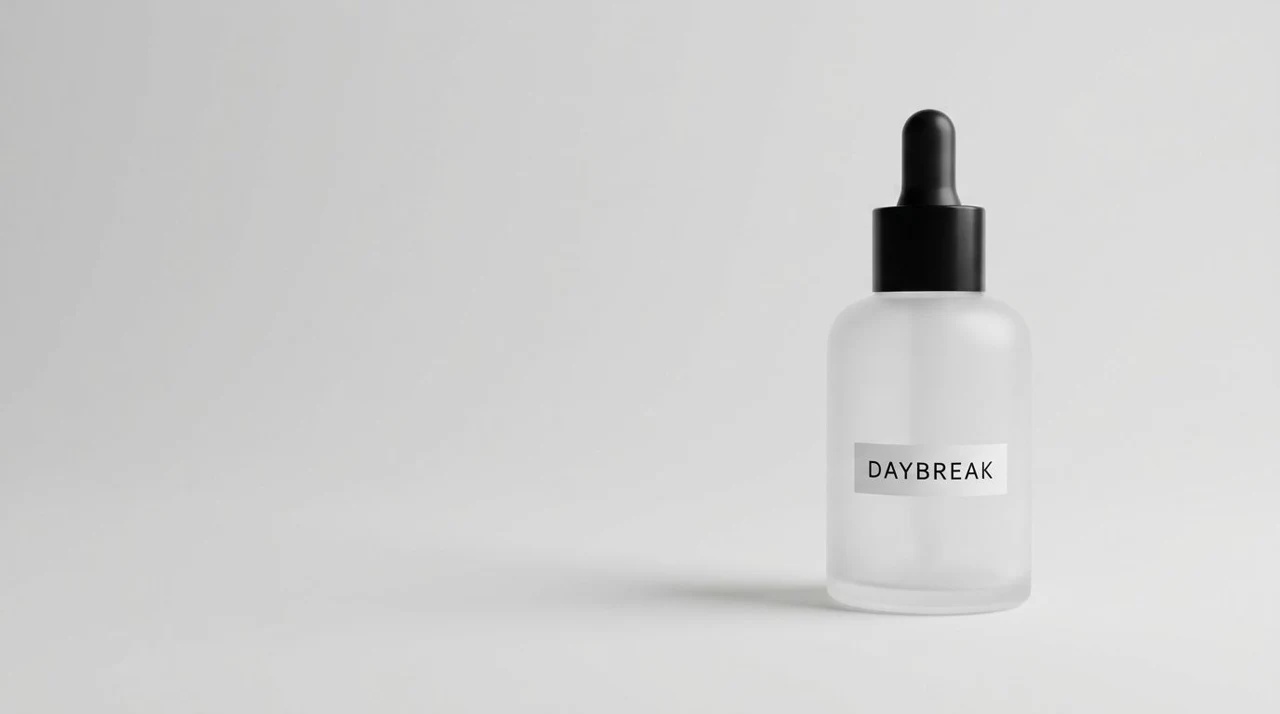
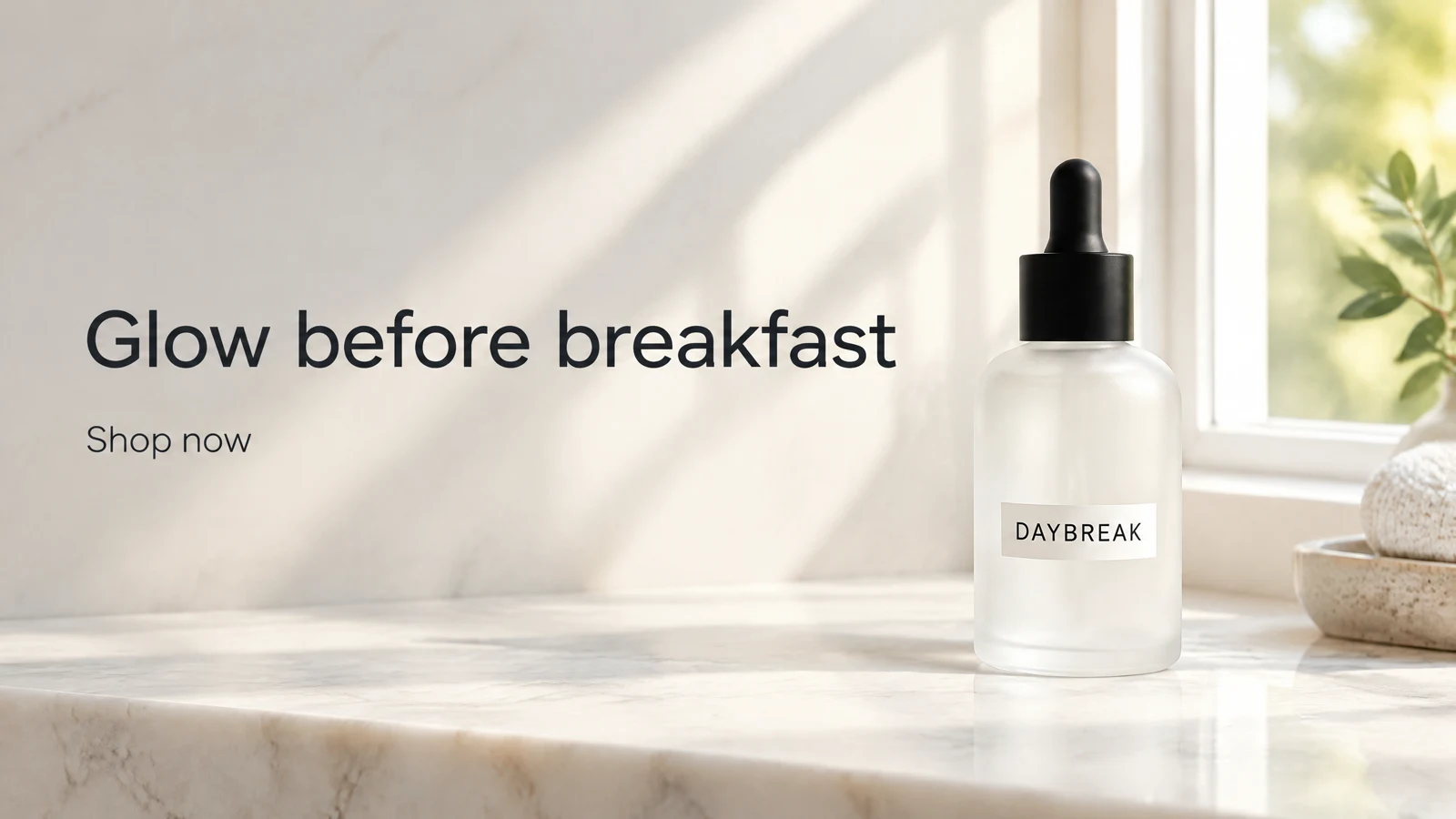
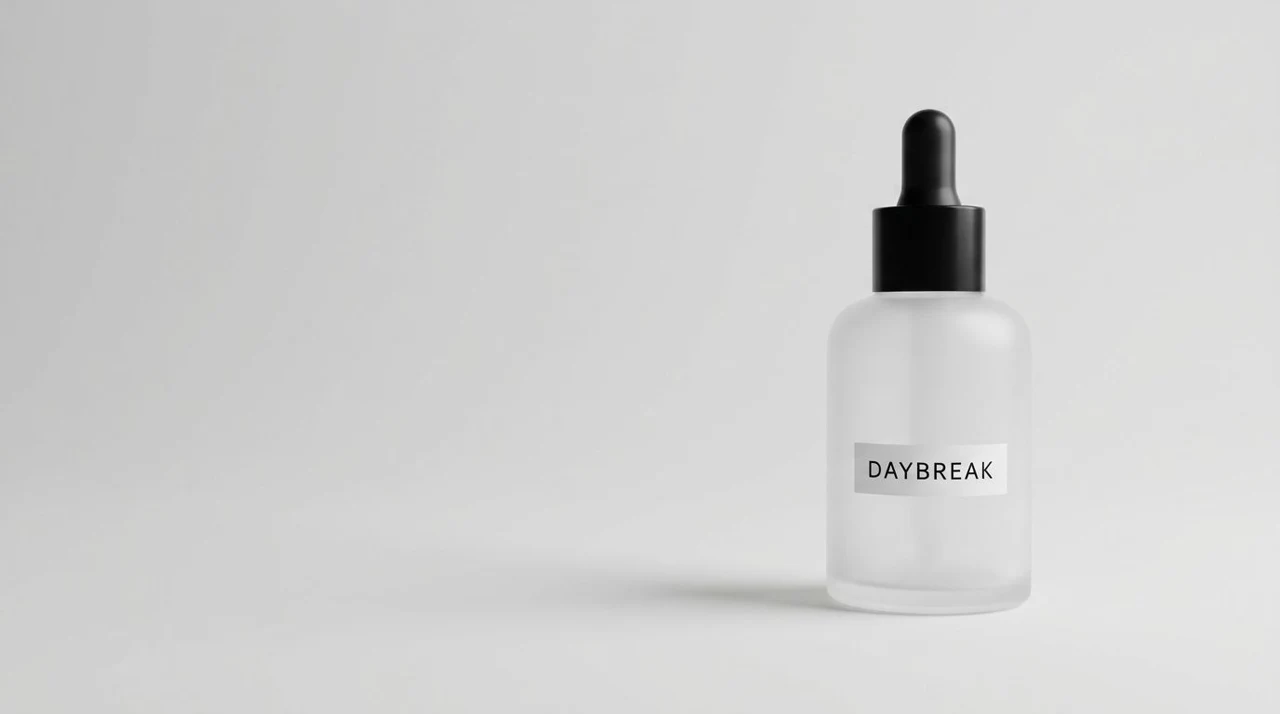
A serum bottle photo becomes a wide ad with a headline
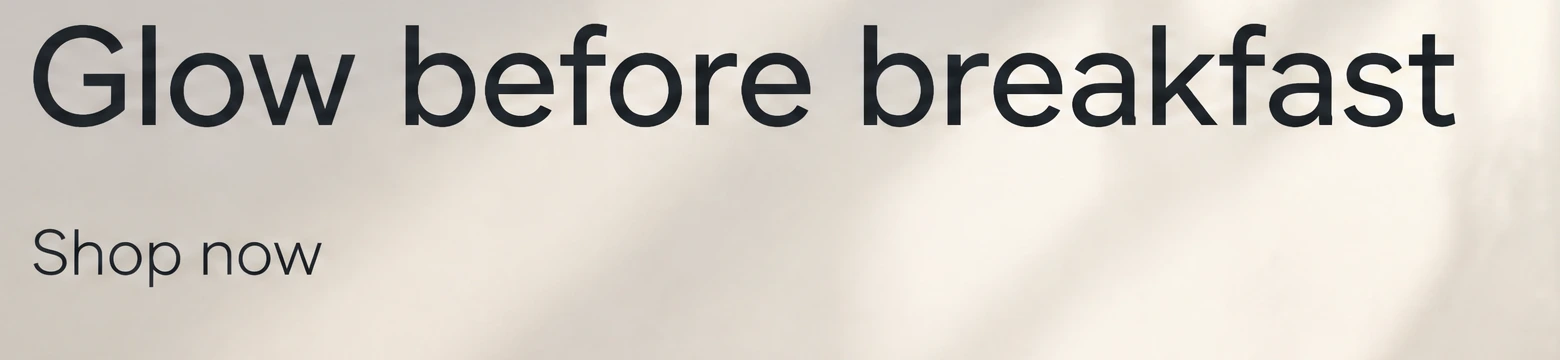
This is one real AI Ad Generator run from November 12, 2026. The product photo is a made-up serum Made generated for this guide with Nano Banana Pro (16:9, plain backdrop, the left side empty), with an invented label, DAYBREAK: no real brand and no real logo. The request is exactly what the tool builds for that photo and those words, sent through Made’s API from a script rather than tapped through the browser. The result came back as a 2560 × 1440 banner, the same shape as the photo. At full size every letter reads as typed: “Glow before breakfast” and “Shop now” on the left, and DAYBREAK on the bottle. What drifted: the bottle was redrawn, so its label came out slightly larger and whiter, and the cap and glass proportions shifted a little; the marble shelf, window and plant were invented, as asked. The words were short and in plain sans-serif; this does not show how longer sentences, small print or a real logo hold up. It is one run, not a measure of how often the lettering comes out right.
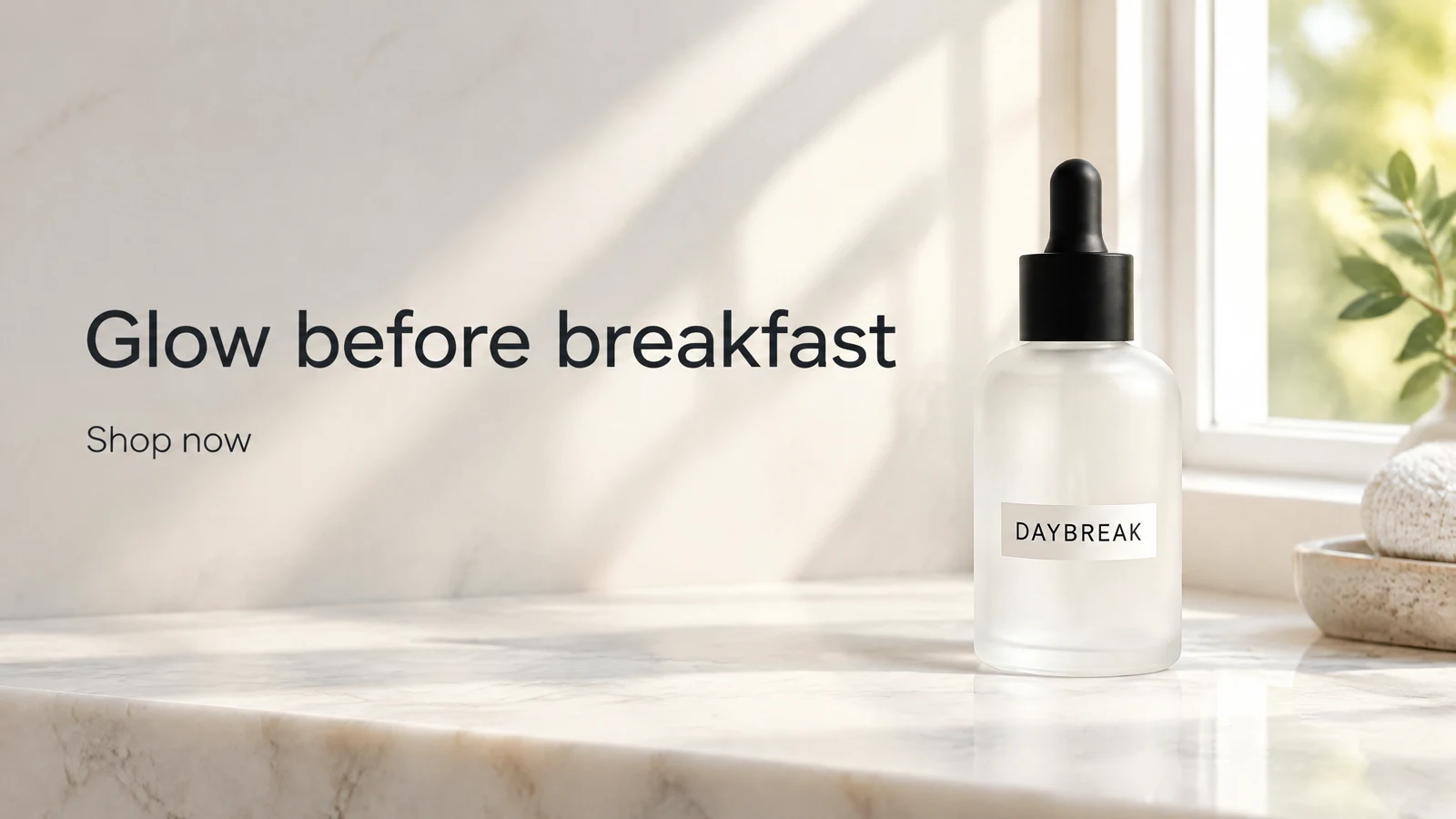
GPT Image 2.5 Flare (AI Ad Generator) · Generated · View the example record and price basis (JSON)
Prompts you can inspect and adapt
Prompt recipe to adapt
A banner prompt to adapt
Turn this into a wide ad banner. Keep the [product] exactly as photographed, with its label reading [LABEL]. Put it [on a surface, in a place, in this light], with the product on the [right/left]. On the empty [left/right] side write the headline "[Your headline]" in large, clean, dark sans-serif letters, and below it the small line "[Your button words]". Spell both exactly as written and add no other text.Fill in the brackets. Keep the headline to a few words: short words in a plain sans-serif came out right in the example, and the longer the text, the more likely a letter is wrong.
Recorded generation prompt
The prompt for this banner
Turn this into a wide ad banner. Keep the bottle exactly as photographed, with its label reading DAYBREAK. Put it on a pale marble bathroom shelf beside a sunlit window in soft morning light, with the bottle on the right. On the empty left side write the headline "Glow before breakfast" in large, clean, dark sans-serif letters, and below it the small line "Shop now". Spell both exactly as written and add no other text.Typed under Prompt with the serum photo as the only photo. The tool sent these words as they are. The headline and the button line are in double quotes, and the last sentence asks for no other text.
How an ad banner is priced
Per run: one image each time you press Generate, priced by the size of the result. The total appears on Generate before you run it.
The tool always runs at the model’s lowest quality setting and makes one image per run. The model is priced by output size, and the size follows your photo’s shape, so a wide photo can cost more than a square one.
Price source: GPT Image 2.5 Flare price sheet · Checked
Before the run starts, the tool checks the price again; if it came out higher than the button showed, it stops and asks you to press Generate again. If the provider it was priced on fails, a backup provider can take the run at its own price, which can be higher. A run that fails is refunded.
What to review before you use the result
| What you see | What to try |
|---|---|
| A letter in the headline is wrong | Short words in plain sans-serif came out right in the example, but any run can drop or swap a letter. Run it again from the same photo, shorten the headline, or change the words with Edit Text. Don’t publish an ad you haven’t read letter by letter. |
| The ad came out square, not wide | The ad takes the shape of your photo and the tool has no size picker. Upload a wider photo, with the product to one side and room for the headline, or run the result through the Image Resizer afterward. |
| The product’s label or shape changed | Say “keep the product exactly as photographed, with its label reading [LABEL]”, and compare the result with the real item. In the example the label kept its wording but came out slightly larger and whiter. Small print and detailed logos are what drift most; if one matters, add it back in a design tool. |
| My logo isn’t in the ad | The tool takes one photo, so it can’t place a separate logo file. Use a product photo that already shows the logo, or put the logo on the result in your ad platform or design tool. |
| The headline sits on a busy part of the scene | Leave plain space in the photo where the words go, and say which side they go on in the prompt. Add “plain, calm background behind the headline”. |
| The run failed | The tool says why and you aren’t charged. Try again, or try another photo or prompt. |
Questions about this workflow
Which AI tool turns a product photo into an ad banner?
Made’s AI Ad Generator does: you upload one product photo, type the scene and the headline, and get one ad image back in your photo’s shape. For a banner, upload a wide photo. It is one tool among several, so check that a headline in the result is spelled right, whichever you use.
Can it put my headline and button text in the ad?
Yes, if you type the words in double quotes and say where they go. The example came back with “Glow before breakfast” and “Shop now” spelled as typed. The tool’s own page warns generated lettering can misspell, so check every letter, or add the final words in your ad platform.
What size is the ad?
The size follows your photo. A 16:9 photo gives a 2560 × 1440 banner, and a square photo a square one. Other shapes it can make are 3:2, 2:3, 4:3, 3:4 and 9:16. For an exact pixel size, use the Image Resizer afterward.
How is this different from product photos for an online store?
Marketing Studio makes listing pictures: a plain white main image, lifestyle and dark styles, and callouts. This tool re-stages one photo into a scene you describe and can set a headline in it. If you need a moving ad, see the video guide linked below.
Can I add my logo?
Not as a separate file: the tool takes one photo. If the logo is on the product in the photo, name it in the prompt as something that stays, and check it in the result. Otherwise add it in your ad platform or design tool.
Can I make several ads to test?
Yes, one at a time: each press of Generate makes one image. Keep the photo and change one thing per run, such as the scene or the headline, so you can tell what changed the result.
Work with Claude and Made
The AI Ad Generator runs in the tool. With the Made connector in Claude, you can ask for the same kind of ad: Claude can look up an image editing model in Made’s catalog, quote the run, and generate it from a product photo you supply, if your client offers a way to upload.
Conversation starter
Ask your assistant
Use Made to turn my attached product photo into a wide 16:9 ad banner. Check the catalog for an image editing model, then show me the price and the prompt before generating one result. Keep the product exactly as photographed, with its label reading [LABEL]. Put it on a pale marble shelf by a sunlit window in soft morning light, product on the right. On the empty left side write the headline "[Your headline]" in large, clean, dark sans-serif letters, and below it the small line "[Your button words]". Spell both exactly as written and add no other text.Name the aspect ratio in your request. If your client can’t upload a photo, use the AI Ad Generator.