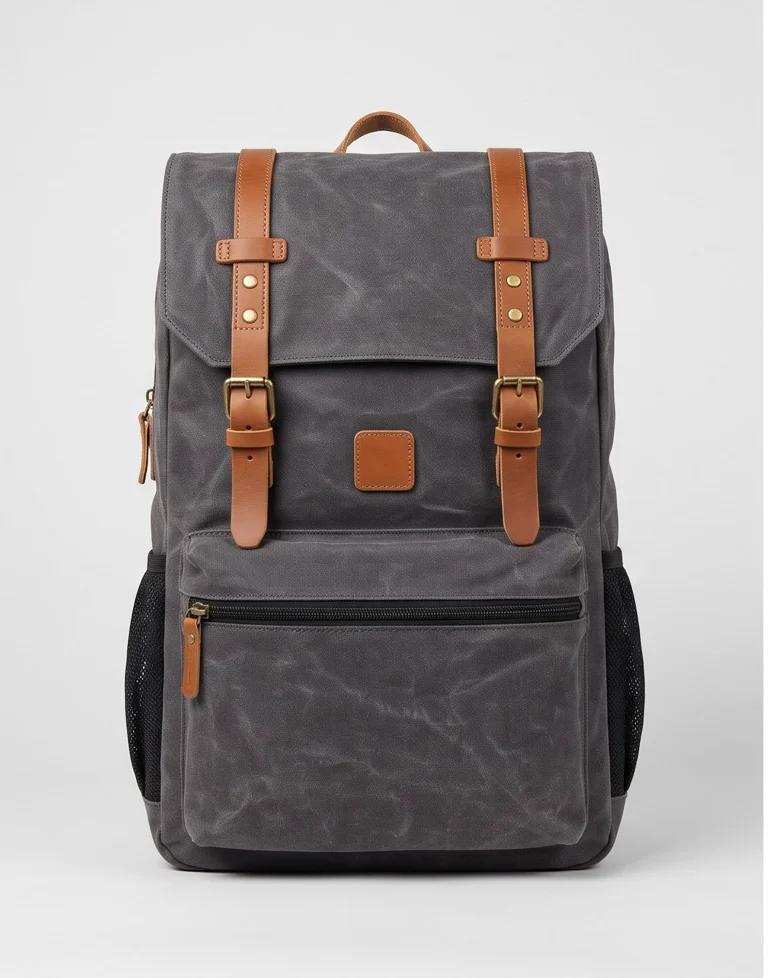
The workflow
Photograph the product from two or three sides
Take or make a clean photo of the front, one of a side and one of the back, in the same light and on a plain backdrop, with the whole product in frame. They must all show the same product: the studio tells the model they are the same product from different angles. A third photo is optional, and a fourth is ignored, because the studio takes at most 3.
Open Marketing Studio and set Output to Video
In Marketing Studio, switch Output to Video. Click the Product slot, then Add product, and drop or choose your photos under Drop product photos or choose them. Add them front first: the first photo you add is @Image1. Name the product, then click Save to my products, or Use without saving. You need a Made account to upload photos; you can try a sample product before signing in.
Pick a Motion style
Click the style chip to open Choose a look, then pick Orbit under Quick styles → Motion. Orbit is a smooth 180-degree camera orbit around the product on a pedestal, which is the style that most plainly shows more than one side. Hypermotion, Macro, Color pop and Typography also use all your photos. These styles show no person, so the Avatar slot stays unused.
Say which views to show, in order
Use the Direction box (up to 1,500 characters) to name the views in the order you added the photos, for example “Start on the front, circle past the side to the back.” The photos are not labelled, so your words are what connect “side” and “back” to the right picture. Keep it to one move; the style already sets the camera.
Choose length and resolution, then Generate
Pick Duration (5, 8 or 10 seconds), Resolution (480p or 720p) and 1–4 variations, then click Generate; it shows the price first. 5 seconds at 480p is the default. Watch the whole clip and pause on the side and back views: compare buckles, pockets and any printed words with your photos.
Recorded Made demonstration
A backpack turned from the front to the back, from three photos
This recorded example used three Made-generated photos of one made-up backpack, with no person and no brand: its front, its left side and its back, in that order. A Made model drew the three views together on one sheet so the product matched, and the sheet was cut into three photos. The request was sent from a script rather than clicked through the browser, but it is the one Marketing Studio sends: Orbit style, a typed direction, 5 seconds at 480p, 9:16, one variation. The clip turns from the front, past the side, to the back, and the back view (shoulder straps, chest strap, brass adjusters, top handle) matches the back photo. The front pocket, buckles and bottle pocket stay the same through the turn. Its limits: it turns on a black pedestal that is in none of the photos, the backdrop stays still so the product appears to turn rather than the camera moving, and the tan side loop and vertical zip from the side photo never appear. It is one run, not a measure of how often a result works.
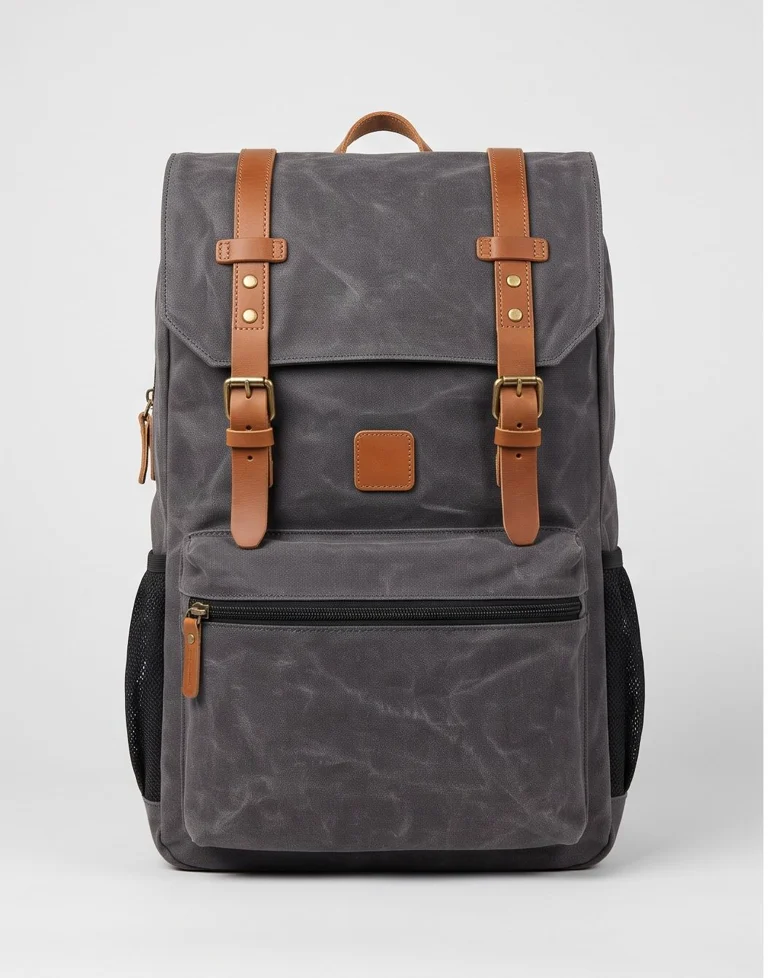
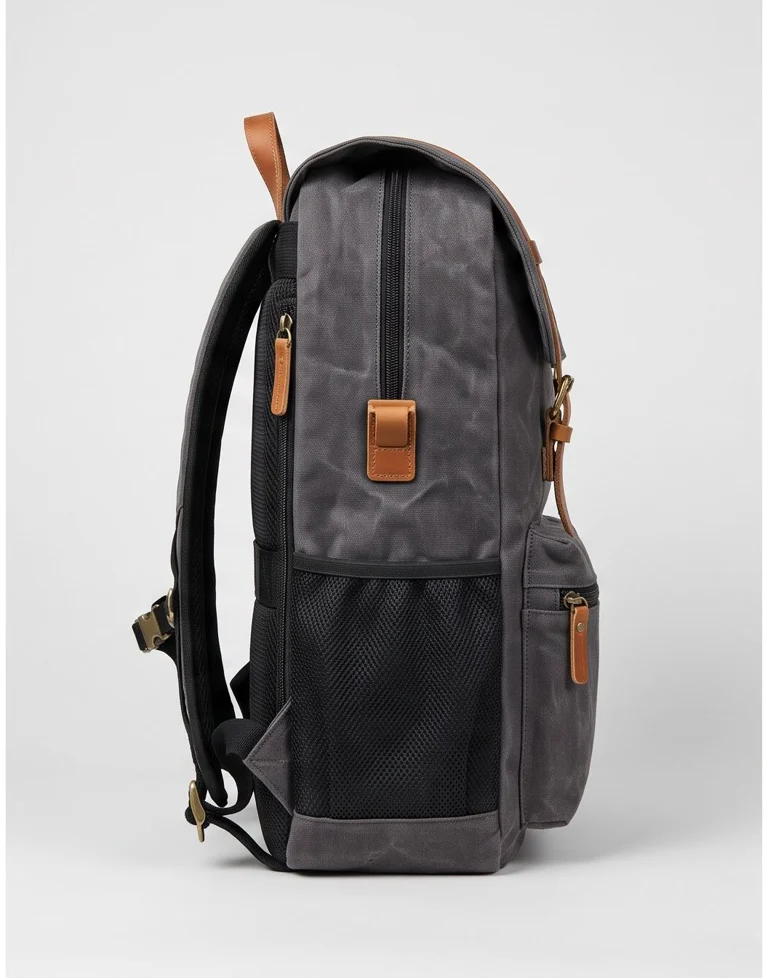
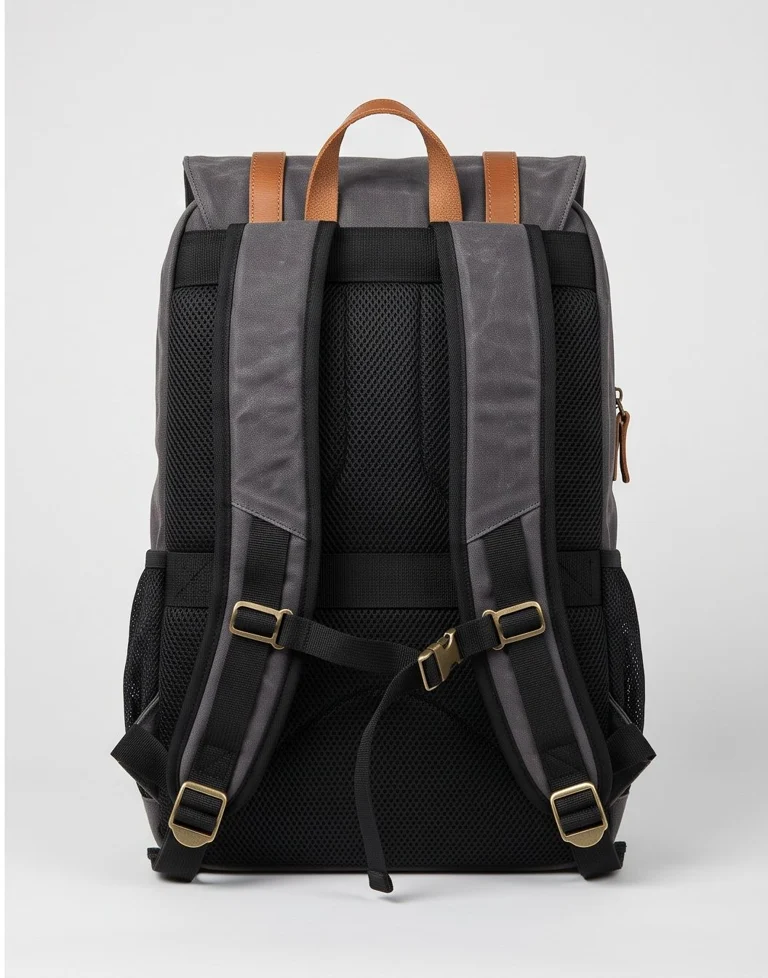
Seedance 2.5 reference-to-video · Generated · View the example record and price basis (JSON)
Prompts you can inspect and adapt
Prompt recipe to adapt
A direction that names the views
Start on the front of the [product], then circle slowly past its side to its back, so the real side and back from the photos come into view in turn. Keep the same [product], the same size and the same proportions in every frame.Type this in the Direction box with Orbit, and swap [product] for yours. Name the views in the same order you added the photos. It is added to the style’s own prompt.
Recorded generation prompt
What the studio sent for this run
A smooth 180-degree camera orbit around the product standing still on a pedestal in a minimal studio, soft reflections, the product sharp and recognizable the whole time.
Direction from the user: Start on the front of the backpack, then circle slowly past its side to its back, so the real side and back from the photos come into view in turn. Keep the same backpack, the same size and the same proportions in every frame.
@Image1 to @Image3 show the same product from different angles. Keep the product exactly as shown: the same shape, proportions, colors, materials, closure and every printed word or label. Never add, remove, or change labels, logos, or text on it, and never add a label to a product that has none.
No words, captions or logos anywhere except the product's own label.
Never invent reviews, ratings, prices, awards, or product claims.
The first line is the Orbit style, the second is the direction typed above, and the third is the studio’s own line for several photos: “@Image1 to @Image3 show the same product from different angles.” With one photo it reads “@Image1 is the product.”
How a product video from several photos is priced
By the clip length (5, 8 or 10 seconds) and resolution (480p or 720p), times the number of variations. The number of photos does not change it. The total appears on Generate before you run it.
Seedance 2.5 is priced per second, and 720p costs more per second than 480p. Each variation is a separate clip, so four cost four times one.
Price source: Made price sheet · Checked
Signed in, Generate shows the exact quote for your settings and checks your balance before anything starts. 5 seconds at 480p is the default and the lowest-priced setting, so test your photos there before a longer or sharper version. Failed generations are refunded, and each new run is priced again.
What to review before you use the result
| What you see | What to try |
|---|---|
| The back or side doesn’t match your photo | Use sharper photos that show the whole product, in the same light on a plain backdrop, and add them in the order you name them in the Direction. If it still drifts, make 2–4 variations and keep the best. The prompt tells the model to keep the product exactly as shown; it doesn’t lock the result. |
| The clip never reaches the last view | Orbit is a 180-degree turn in the time you give it. Choose 8 or 10 seconds instead of 5, or say in the Direction which view the clip should end on. |
| Two different products were added and the result is a blend | The studio treats every photo as the same product from a different angle, so photos of different products get merged or ignored. Make one video per product. For a person holding the product, use Video Ads. |
| A photo is refused, or the fourth one doesn’t count | Photos must be JPG, PNG or WebP and under 16 MB, and the studio takes at most 3. Drop the weakest one. |
| Printed words or a label change mid-turn | Pause in the middle of the turn, not only on the first and last frames. Use a sharper photo with the label facing the camera, add a second angle that shows it, or choose Macro, which moves more slowly than a fast style like Hypermotion. |
Questions about this workflow
How many product photos can I add?
Up to 3. They are used in the order you add them, so add the front first. A single photo works too, but then the model has to guess any side it can’t see.
Can I put several different products in one video?
Not in Marketing Studio. All the photos are treated as one product from different angles, so photos of different products get merged or ignored. Make one video per product and join the clips in your editor.
What should the photos be of?
The same product, whole and sharp, from different sides: front, side and back, or front, a three-quarter view and a detail. The same light and a plain backdrop help the model treat them as one object.
Does it show a person with the product?
No. Motion styles show the product alone. For a creator holding or talking about it, use a UGC style in Marketing Studio, or Video Ads, which takes up to 3 product photos, an avatar and a reference ad.
Which settings should I start with?
Orbit, 5 seconds at 480p, 9:16, one variation, the defaults. If the clip doesn’t reach every view, try 8 or 10 seconds, then 720p for a sharper copy.
Work with Claude and Made
Through the Made connector, Claude can save your product photos as a product, check the catalog for a Seedance reference-to-video model that takes several images, quote the price and make the video. The connector doesn’t include Marketing Studio’s Motion styles, so paste the Orbit wording from the recorded prompt above.
Conversation starter
Ask your assistant
Use Made to make a 5-second vertical product video from my three attached photos of one product (front, side, back, in that order). Save them as a product, check the catalog for Seedance 2.5 reference-to-video, and use 480p at 9:16. Prompt: a smooth 180-degree camera orbit around the product standing still on a pedestal in a minimal studio, soft reflections, the product sharp and recognizable the whole time. Start on the front, then circle slowly past the side to the back. @Image1 to @Image3 show the same product from different angles; keep its shape, colors, materials and every printed word exactly. Show me the price first, then make one video and return the link.If the client doesn’t list that model or can’t attach three photos, use Marketing Studio with the same photos; it builds the full prompt for you.