The workflow
Pick one clear product photo
Use a sharp, evenly lit photo with the whole product in frame, a plain background and some room around it. Show the side you want people to see first, since the clip starts on your photo. A product with a handle, a label or a distinct shape is easiest to check afterwards. Photos over 2,048 pixels on the long side are shrunk before they upload.
Tap “Upload image”
Open the 360 Product Video Maker and tap “Upload image”, or paste a photo from your clipboard. It takes JPG, PNG or WebP up to 20 MB, and one photo per clip; iPhone HEIC photos are turned into JPEGs first. On a phone the button reads “Upload”. Use a photo of your own product, or of something you have the right to show.
Say how the product should turn
In the Prompt box, ask for what you want: a full turn on a turntable, a half turn, or a slow orbit, and say the camera stays still if the product should be the thing that turns. Leave the box empty and the tool uses its own prompt, “Orbit the camera slowly around the product with soft studio lighting”, which moved the camera only a little in our test. The “Try” chips under the box load example prompts.
Tap Generate
Generate shows the price. If you aren’t signed in, you’re asked to sign in first and your photo and prompt are kept. If your balance is short, you’re asked to add credits and your photo is saved. The clip appears in the tool when it’s ready; ours took between half a minute and two and a half minutes.
Watch the whole clip, then check the back
Play it through, and pause on the sides your photo didn’t show. Check that the words, label, color and shape match your real product from every angle. The back is invented, so if your product has printing, a barcode or a logo on the far side, the clip will not show it correctly. If something drifts, change the prompt and generate again.
Recorded Made demonstration
A mug that turns all the way around
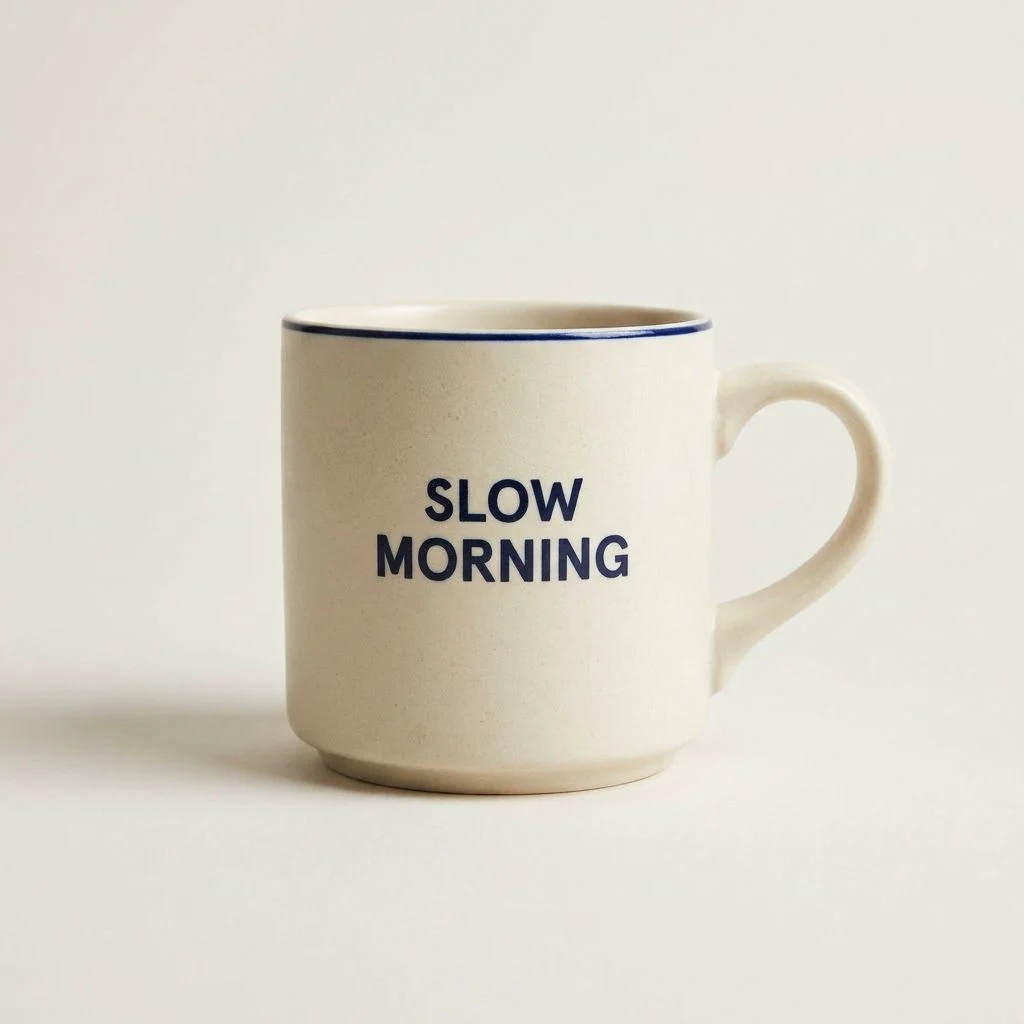
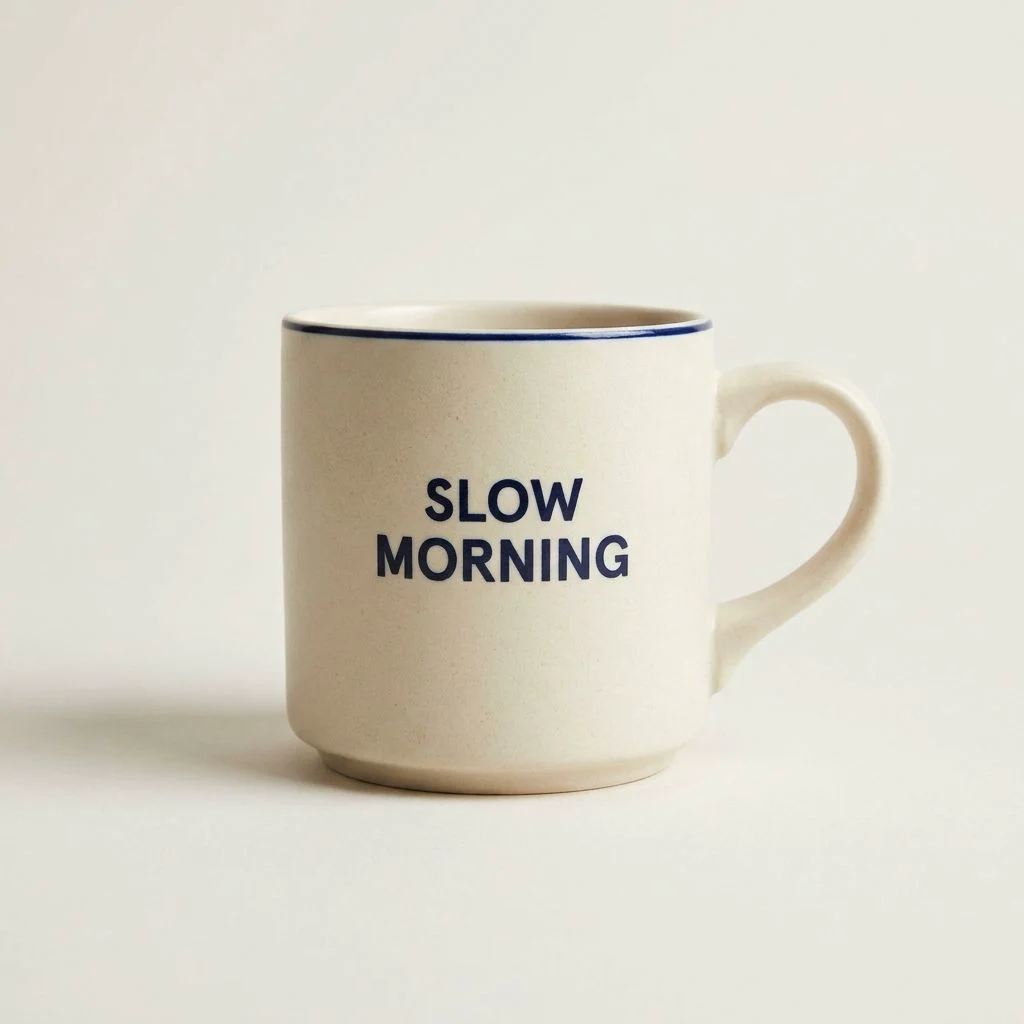
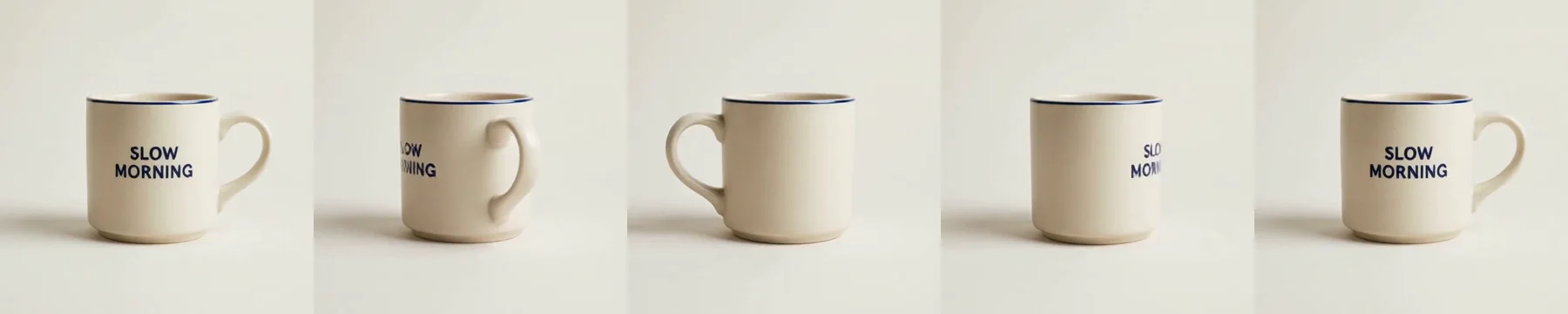
This is a real run from November 12, 2026 (US time). The photo is a mug that Made generated for this guide: cream stoneware with a handle on the right, a thin navy band at the rim and the words SLOW MORNING on the front. It is a plain phrase, not a brand or a logo, and there is no person in it. It went into the 360 Product Video Maker with the prompt below, and every other setting was left as the tool sends it: MiniMax H3 Max, 5 seconds, 480P. The request is exactly what the tool sends for that photo and prompt, sent through Made’s API from a script rather than clicked through the browser. The mug turns one full time while the camera holds still: the handle swings round to the back and the front comes back at the end. The clip came out square like the photo, and the strip in the middle shows five frames from it. The words stayed sharp and spelled right on the front, wrapped off the edge as the mug turned and returned whole, and the glaze, the rim band and the shadow stayed steady with no flicker. The weak points: the handle looks thin and slightly flattened for about half a second as it passes edge-on; the back is plain cream with the rim band and nothing printed, which looks right but is a guess, because the photo never showed it; the mug and its words end a little larger than they began; and the clip has no sound. One clip shows what can happen, not how often. A first run with the tool’s own empty-box prompt, the slow orbit, moved the mug only about 40 degrees in five seconds, so it never reached the back. That is why this one asks for a full turn.
MiniMax H3 Max · Generated · View the example record and price basis (JSON)
Prompts you can inspect and adapt
Recorded generation prompt
What was typed for this run
The mug turns slowly on a turntable, one full rotation, so the handle swings round to the back and the far side comes into view, then the handle and the words come back to the front. The camera stays still. Soft studio lighting.The tool sends what you type as it is, with nothing added. The prompt says what turns, how far, where the words should end up and that the camera stays still.
Prompt recipe to adapt
A prompt for your own product
The [product] turns slowly on a turntable, one full rotation, so [a feature on the front, such as the handle or the label] swings round to the back and the far side comes into view, then [that feature] comes back to the front. The camera stays still. Soft studio lighting.Fill in the brackets with the feature you most want to keep an eye on. Naming it tells you where to look when you check the clip, and gives the model a feature to carry round and bring back.
Prompt recipe to adapt
A half turn that stops on the side you pick
The [product] turns slowly on a turntable, half a turn, and stops with its [side you chose] facing the camera. The camera stays still. Soft studio lighting.Less turning means less of the product is invented. If only the front and one side matter, a half turn leaves the back out entirely.
How a 360 product video is priced
The tool makes one 5-second clip at 480P, so the price is the same for every photo. It appears on Generate before you run it.
MiniMax H3 Max is priced per second, and this tool fixes the length at 5 seconds and the quality at 480P, so the photo and the prompt don’t change the price.
Price source: Made price sheet · Checked
Signed in, Generate shows the price for your run and checks your balance before anything starts. A run that fails is refunded, and each new run is priced again. A second try with a better prompt costs the same as the first.
What to review before you use the result
| What you see | What to try |
|---|---|
| The product only turns a little | Ask for the turn in words: “one full rotation” or “half a turn”, and say who moves. The tool’s own empty-box prompt orbits the camera slowly and, in our test, turned the view only about 40 degrees in 5 seconds. |
| The words or label change as it turns | Start from a sharper photo with the label facing the camera and no glare on it. Ask for a slower turn, and check frames in the middle of the turn, not only the first and last. Fine print is the first thing to drift. |
| The back looks wrong, or shows something it shouldn’t | The back is made up from one photo. Ask for a half turn that stops on a side you have photographed, or use real photos of the back where it matters, such as a barcode or ingredient panel. |
| The shape bends or the handle looks thin | Make the turn slower in the prompt, give the product more room around it in the photo, and regenerate. Handles, straps and thin parts are the weakest points. |
| The photo is refused | It must be a picture, up to 20 MB. If you see “Use a JPG, PNG, or WebP image.”, the file isn’t a picture the tool can read; save the photo as a JPG and try again. If you see “Images can be up to 20 MB.”, use a smaller file. |
| It looks soft | Clips are 480P and the tool has no setting to change that. Start from a sharp photo, and expect a clip that suits a listing thumbnail, a story or a feed post more than a full-screen player. |
Questions about this workflow
Is this a true 360-degree spin of my product?
No. It is a video the AI makes from one photo. It turns the product it sees and invents the sides it can’t, so the back, the bottom and any hidden printing are guesses. For a spin that shows the real back, take photos from several sides.
Can I use it on a Shopify or Etsy listing?
You can, if the clip matches your real product. Watch it from start to end and compare the label, color, shape and any text with the product you ship. If any angle shows something that isn’t true, regenerate or don’t use that clip.
How long is the video, and can I change the quality?
Five seconds as an MP4 at 480P, and the tool has no setting to change either. It follows the shape of your photo: ours was square and came out square.
How is this different from turning a product photo into a video ad?
This tool does one simple thing: it takes one photo and spins the product, with no settings. The product video ad guide uses Marketing Studio, where you pick a motion style such as bursts, an orbit or a macro glide, add up to three photos, and choose the length, quality and shape. Use this one for a plain spin, and that one for an ad.
Does the clip have sound?
The one in this guide has an audio track with nothing audible on it. Add music or a voiceover in your video editor if you want sound.
What photo works best?
A sharp, even-lit shot with the whole product in frame on a plain background, from the side you want people to see first. Products with a clear shape or a short printed label are the easiest to check afterwards.
Work with Claude and Made
With the Made connector in Claude, you can ask for the same clip: Claude can find MiniMax H3 Max in Made’s catalog, use your product photo as the start image for 5 seconds at 480P, and quote the run before it starts, if your client offers a way to attach the photo.
Conversation starter
Ask your assistant
Use Made to turn my attached product photo into a 5-second video. Check the catalog for MiniMax H3 Max and use my photo as the start image, 5 seconds at 480P. Prompt: the product turns slowly on a turntable, one full rotation, so its front feature swings round to the back and the far side comes into view, then comes back to the front; the camera stays still; soft studio lighting. Show me the price first, then make one video and give me the link.If your client can’t attach the photo, use the 360 Product Video Maker with the same photo and prompt.