The workflow
Open Object Swap on its product edit
Use the button on this guide. It opens Object Swap on its Swap a product edit, so a clip, one photo and a line of text are enough. Opened any other way, Object Swap needs the change in words under Describe your edit, like the recipe below.
Add the video
Tap Add original video and choose an MP4 or MOV from 4 seconds to 3 minutes. A longer clip is cut to its first 3 minutes. Over 30 seconds, it’s made in parts, one after another, so it takes longer. Pick a clip where the product is in view and not covered by hands for most of it.
Add a photo of the product in the new color
Tap Add characters, products, or clothing and add a photo of the same product in the new color: JPG, PNG or WebP, under 10 MB. Use the product itself, not a flat color swatch: the edit copies the product in your photo, colors included. A clear photo of the product, ideally on a plain background. If you only have a photo in the old color, make the new one first with the AI Photo Editor, as the example did. The first photo is @Image1, and you can add up to 30.
Say only the color changes, then generate
Under Describe your edit, write one line: “Only the color changes”, which product, which parts take the new color, and what stays, like the logo, the label text, the stitching and the hands. Then tap Generate. The button shows the price, and Object Swap checks it again before it starts. The video goes to the top of Assets, usually in about 10 minutes, and you’re told when it’s ready.
Check it frame by frame
Play it at full speed, then pause where the product turns, where fingers cross it, and on the last second. Compare the shape, the sole or base, the logo and any label text with your original. Look at the shine and reflections: a glossy finish can come back flatter or brighter. For a listing or an ad, hold the new color next to the real product.
Recorded Made demonstration
An orange-and-white sneaker turned green, from one product photo
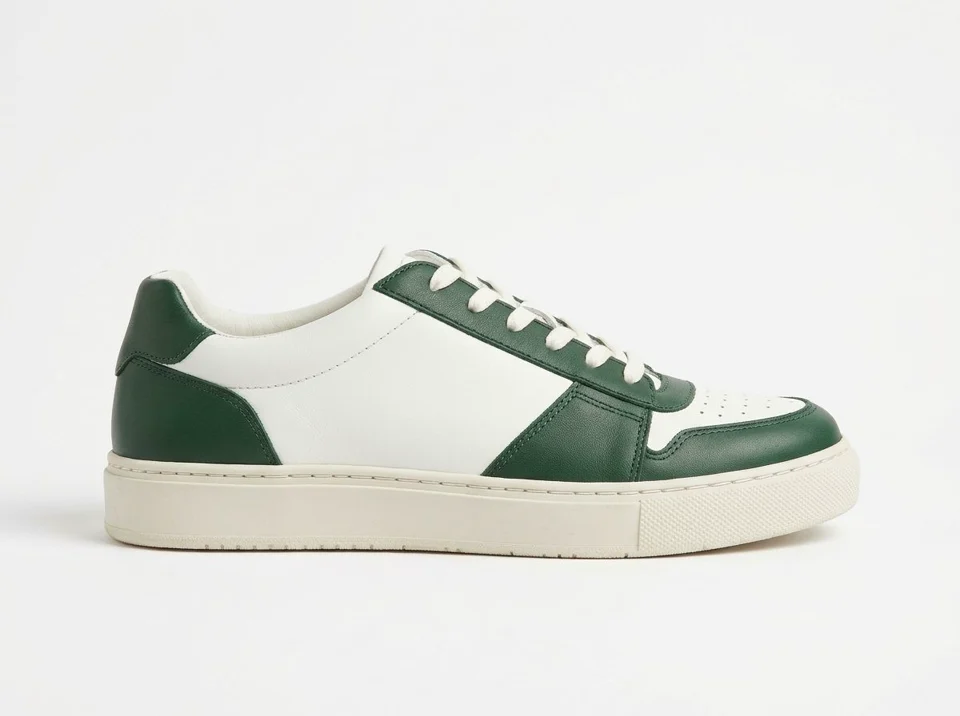
This is a real Object Swap run from November 13, 2026 (UTC). The clip is a 5-second unboxing video that Made generated: a woman who isn’t a real person holds up a white sneaker with burnt-orange leather panels, turns it toe-first toward the camera and back. The color photo is the same sneaker with forest-green panels, made by Made from a still of the clip, with no one in it. The request is exactly what Object Swap builds from this guide’s link, with one line typed under Describe your edit. It was sent through Made’s API from a script rather than clicked through the browser. The panels are green in every frame, through the side view, the turn and the return, and the white leather, laces, sole, toe holes and stitching stay as they were. Her hands, face, the shoebox and the timing of every move match the original. Two things didn’t hold: a small patch inside the heel collar stays orange while the toe faces the camera, and during the turn the heel panel on the far side thins to a narrow green line. The sneaker has no logo or lettering, so this run doesn’t show how a logo or label text holds up. The clip has no sound, so neither does the result. It’s one run, not a measure of how often a recolor holds.
Object Swap (Seedance 2.5 Edit, upscaled 2×) · Generated · View the example record and price basis (JSON)
Prompts you can inspect and adapt
Prompt recipe to adapt
Say only the color changes
Only the color changes. The bag on her shoulder in @Video1 becomes the color in @Image1. Keep its exact shape, straps, buckles, stitching, logo and label text from @Video1, and keep her hands, her clothes and the background as they are.Type it under Describe your edit, with your own product and the parts that must stay. With this guide’s link, it’s added to the product edit’s own instruction; opened any other way, it’s the whole instruction. Your first photo is @Image1.
Recorded generation prompt
What Object Swap sent for this example
Replace the featured product in @Video1 with the product in @Image1. Preserve its recognizable shape, material, colors, and visible design details. Match the source object's placement, perspective, interactions, shadows, and reflections. Preserve hands, people, and the rest of the shot.

Only the color changes. The sneaker in her hands becomes the green and white colorway in @Image1: its orange leather panels turn that forest green, and the white leather, laces and sole stay white. Keep the exact shape, stitching and sole of the sneaker in @Video1, and keep her hands, her grip and the shoebox as they are.

Preserve the source shot duration, camera movement, timing, and all elements not explicitly selected for editing.
Only the middle paragraph was typed. Object Swap wrote the rest: the product edit’s instruction first, and the line it adds to every edit last.
How a product recolor is priced
By the length of your clip, plus the 2× upscale of the result. The total appears on Generate before you run it.
The edit is priced per second of your clip, rounded up to a whole second, and the upscale by the size and length of the result. Your photos and what you type don’t change the price.
Price source: Public video-editor catalog · Checked
Add your clip to see its exact price on Generate. Before the run starts, Object Swap checks the price again; if it came out higher than the button showed, it stops and asks you to try again. If the provider it was priced on fails, a backup provider can take the run at its own price, which can be higher. A run that fails is refunded.
What to review before you use the result
| What you see | What to try |
|---|---|
| The product changed shape, or became a different product | Use a photo of the same product, from an angle close to your clip, and start your line with “Only the color changes.” Name what must stay: “Keep its exact shape, sole and laces from @Video1.” |
| The wrong parts took the new color | Say which parts change and which don’t, the way the example did: “its orange panels turn green, and the white leather, laces and sole stay white.” |
| The logo or label text is wrong | Write “Keep the logo and label text exactly as in @Video1.” Then check every frame where it shows. Lettering is redrawn by the model and can drift; for exact branding, put approved artwork on in your editor. |
| The color is off from the real product | Use a photo taken in even, neutral light, without a filter. Then compare the result with the real product: the clip’s own lighting changes how the new color looks. |
| You only have a color swatch, not the product in that color | Make the product photo first. Add a still of your product to the AI Photo Editor, ask for the new color, and use that photo here. The example’s photo was made that way. |
| Your clip is refused | Use an MP4 or MOV of at least 4 seconds. A very narrow or very wide video can’t be edited; crop it closer to 9:16 or 16:9. |
Questions about this workflow
Can AI change the color of a product in a whole video, not just one frame?
Yes. Object Swap edits your whole clip, so the new color follows the product as it turns, moves through hands and catches the light. Watch the whole result: fast turns, fingers crossing the product and shiny surfaces are the hardest parts.
What photo should I use for the new color?
A photo of the same product in the new color, ideally on a plain background and from an angle close to your clip. JPG, PNG or WebP under 10 MB. A flat swatch isn’t enough on its own, because the edit copies the product in the photo; make a product photo in that color first.
How is this different from putting a different product in my video?
Here the product stays the same and only its color changes, so your line starts with “Only the color changes” and the photo shows your own product. To put a different product in its place, follow the guide on replacing a product in a video.
Can I change the color of clothes someone is wearing?
For a whole new outfit, follow the guide on changing clothes in a video. To recolor one piece, the same steps apply: a photo of that piece in the new color and a line naming it, like “the shirt she’s wearing”. The example here is a sneaker held in the hands, not a worn piece, so check folds and edges closely.
Does the video keep its sound?
Yes. Object Swap puts your clip’s original sound back on the result.
Can I do this on my phone?
Yes. On a phone, this guide’s button opens Object Swap with its controls showing. If you close them, tap Start generating.
Work with Claude and Made
With the Made connector, Claude can run the same kind of edit on a clip and a color photo you attach: it looks up Made’s video-editing models, writes the instruction, shows you the price and runs it after you say yes, if your client lets you attach a video.
Conversation starter
Ask your assistant
Use Made to change only the color of the sneaker in my attached video to the colorway in my attached photo. Keep its exact shape, logo, stitching and sole, her hands, every move, the framing, the camera and the original sound. Check the catalog for a video-editing model that takes a video and an image, then show me the price and the prompt before generating one result.Object Swap’s product edit does the same from this guide’s link: the clip, the photo, one line and Generate. If your client can’t attach a video, use Object Swap with the same files.