Person Remover
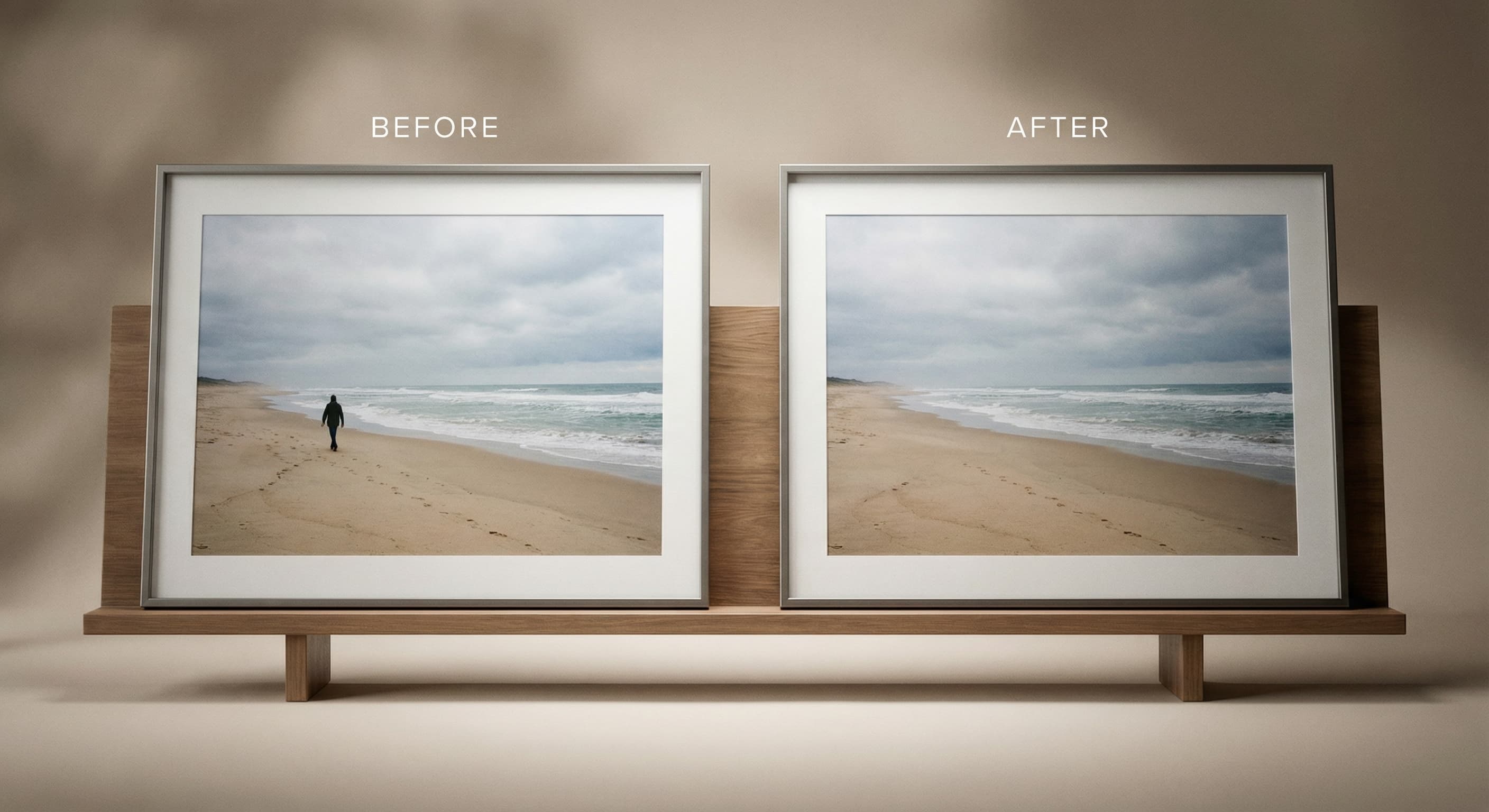
Name the person in plain words, like “the man on the left” or “the person in the red shirt”, and Made erases them and fills the space with background that matches the rest of the scene.
Sign in to run it. It’s paid in credits, shown before you run it.

How to use Person Remover
- 1
Upload one image
Choose a JPEG, PNG, or WebP where the person you want removed is visible.
- 2
Name the person
Clothing and position work best: “the person in the red shirt on the left”.
- 3
Let Made erase and refill
The person is removed and the space is filled with background that matches the scene.
- 4
Compare and download
Flip between Before and After, check where they stood (feet and shadows), then download the PNG.
Person Remover examples
Real results from Made. Open Person Remover to try it on your own photo.
Photobombers
Product cleanup
Real estate photos
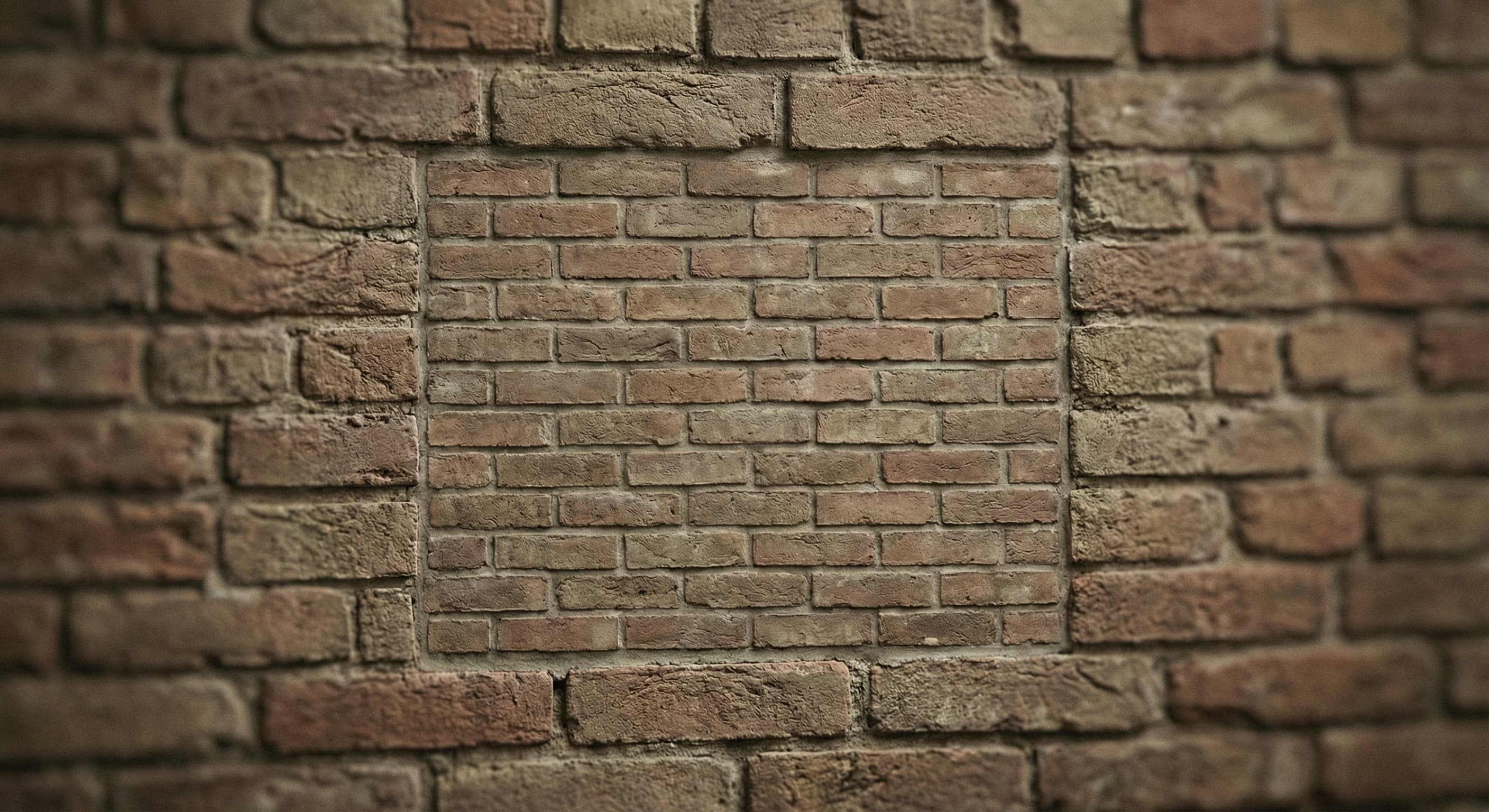
Busy backgrounds
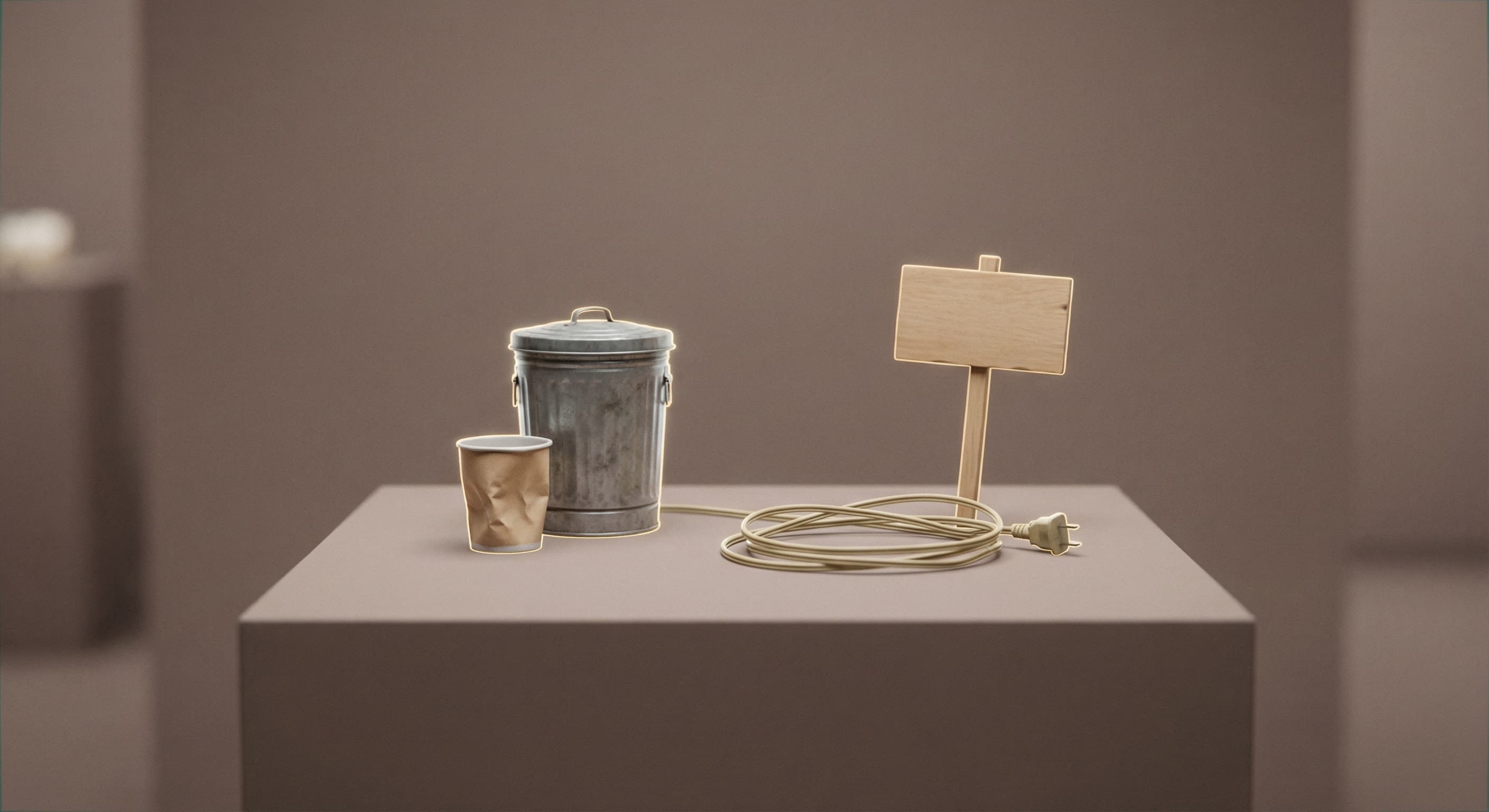
Clean final shot
What people use it for
- Photobombers and strangersErase the tourist, passer-by, or photobomber who wandered into an otherwise good shot.
- Cleaner group photosRemove one person from a group shot and let the background rebuild behind them.
- Travel photosClear crowds out of landmark shots one described person at a time.
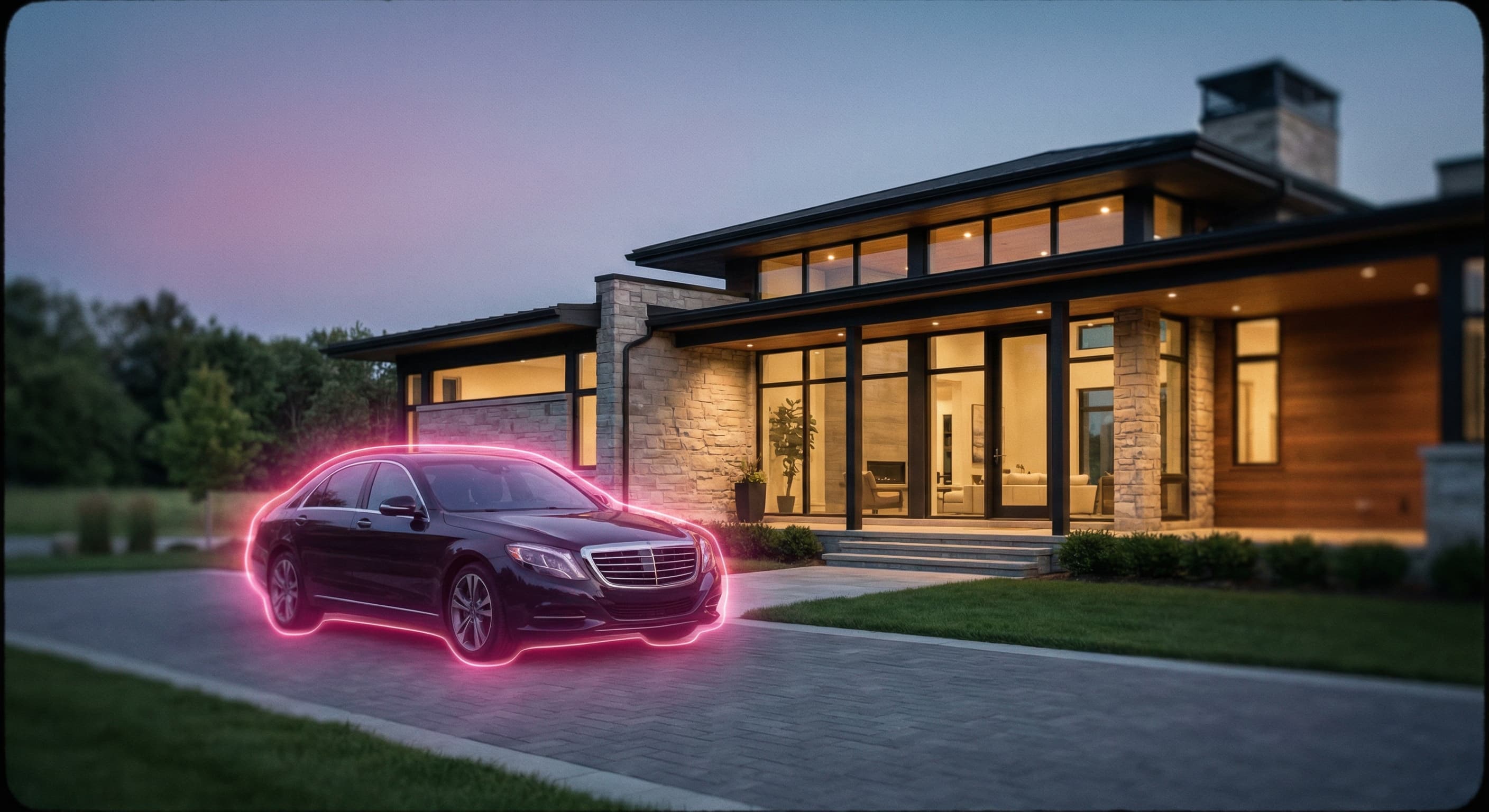
- Listing and venue photosTake staff or bystanders out of real estate, venue, and event photos.
Remove a person from a photo
What it does
- Input
- JPEG, PNG, or WebP image, plus a few words naming the person
- Output
- PNG at the photo’s shape, about 1 megapixel, with the person erased
- How it works
- Made sends the photo and your description to FLUX Kontext object removal on fal.ai, which erases the person and repaints the space to match the scene.
- Access
- Sign in to run it. It’s paid in credits, shown before you run it.
Formats and limits
- Input formats
- JPEG, PNG, WebP, HEIC
- Output format
- PNG, about 1 megapixel at the photo’s shape
- Selection
- A few words naming the object or person; no brushing needed
- Processing model
- FLUX Kontext object removal on fal.ai
- Limits
- One thing per run is most reliable; it can’t remove clothing
Checked against the running tool on 2026-09-29.
Questions about Person Remover
How do I tell Made which person to remove?
Describe them the way you would to a friend: clothing, color, and position. “The person in the red shirt” or “the man on the far left” both work.
Can I remove several people at once?
“The people in the back” often works for a small crowd. For specific people, remove one per run; each pass starts from the cleaned photo.
Will their shadow disappear too?
Usually, because the model repaints the scene around them. If a shadow or reflection stays, run it again and name it: “the shadow on the pavement”.
What fills the space where the person was?
New background painted to match the scene. Plain surfaces like grass, sand, walls, and sky fill convincingly; a person overlapping other people is worth a close look.
What resolution is the result?
About 1 megapixel at your photo’s shape, as a PNG. For a larger file, run the cleaned photo through Image Upscaler.
More Object Remover options
More photo fixes
Background Remover
A clean transparent cutout in one step
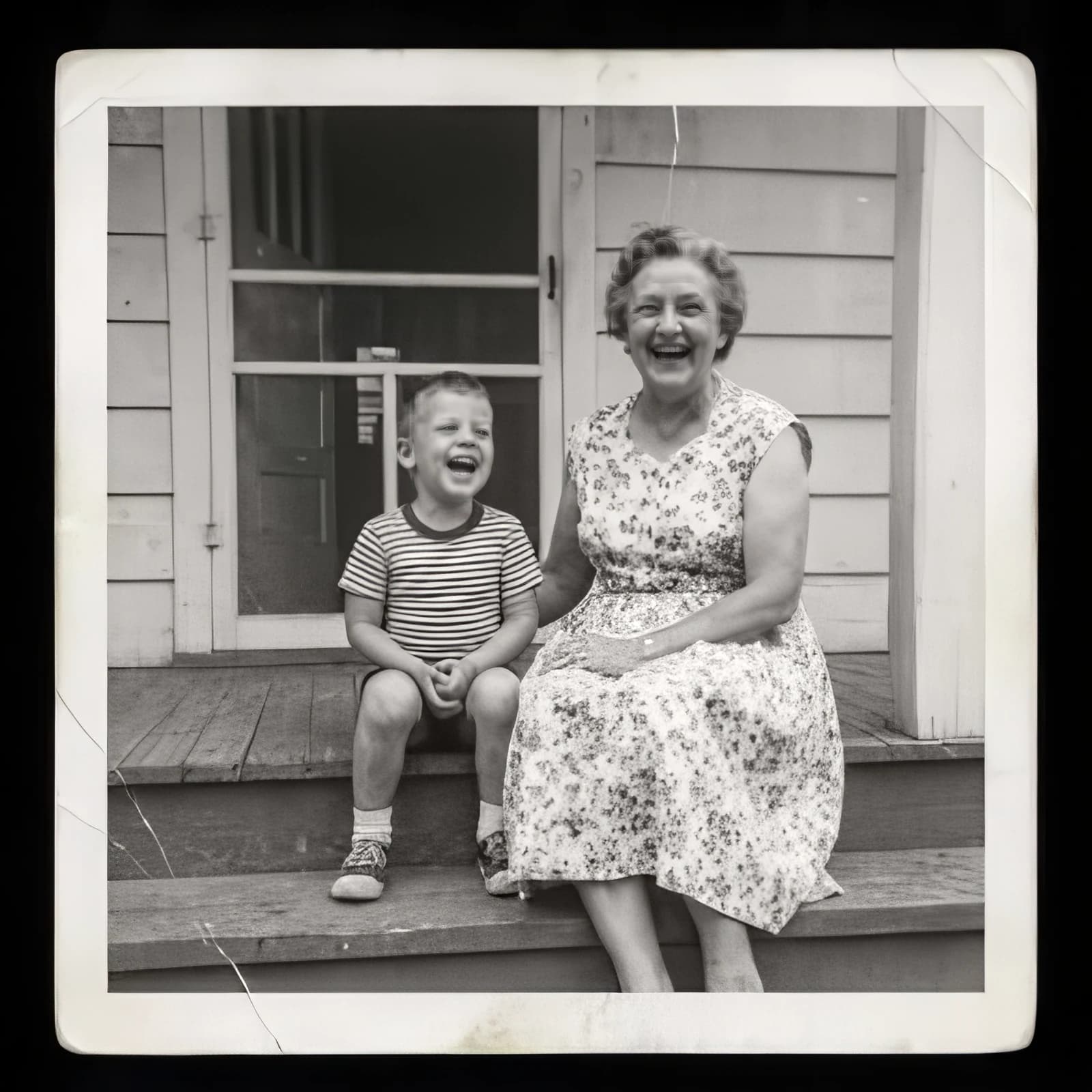
Image Upscaler
Sharpen and enlarge up to 4×
AI Photo Editor
Edit any photo by describing the change
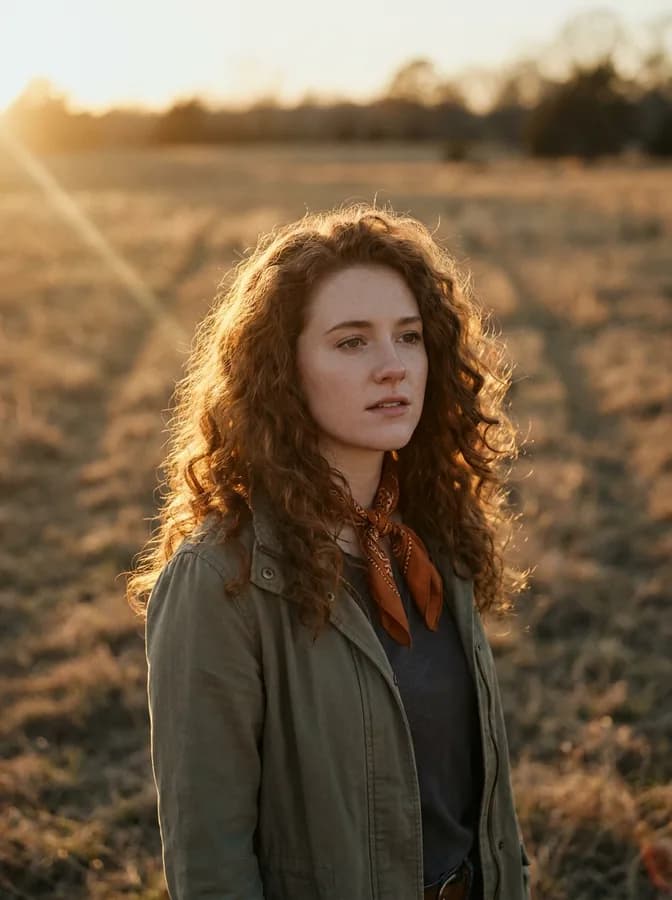
Expand Image
Extend any photo past its edges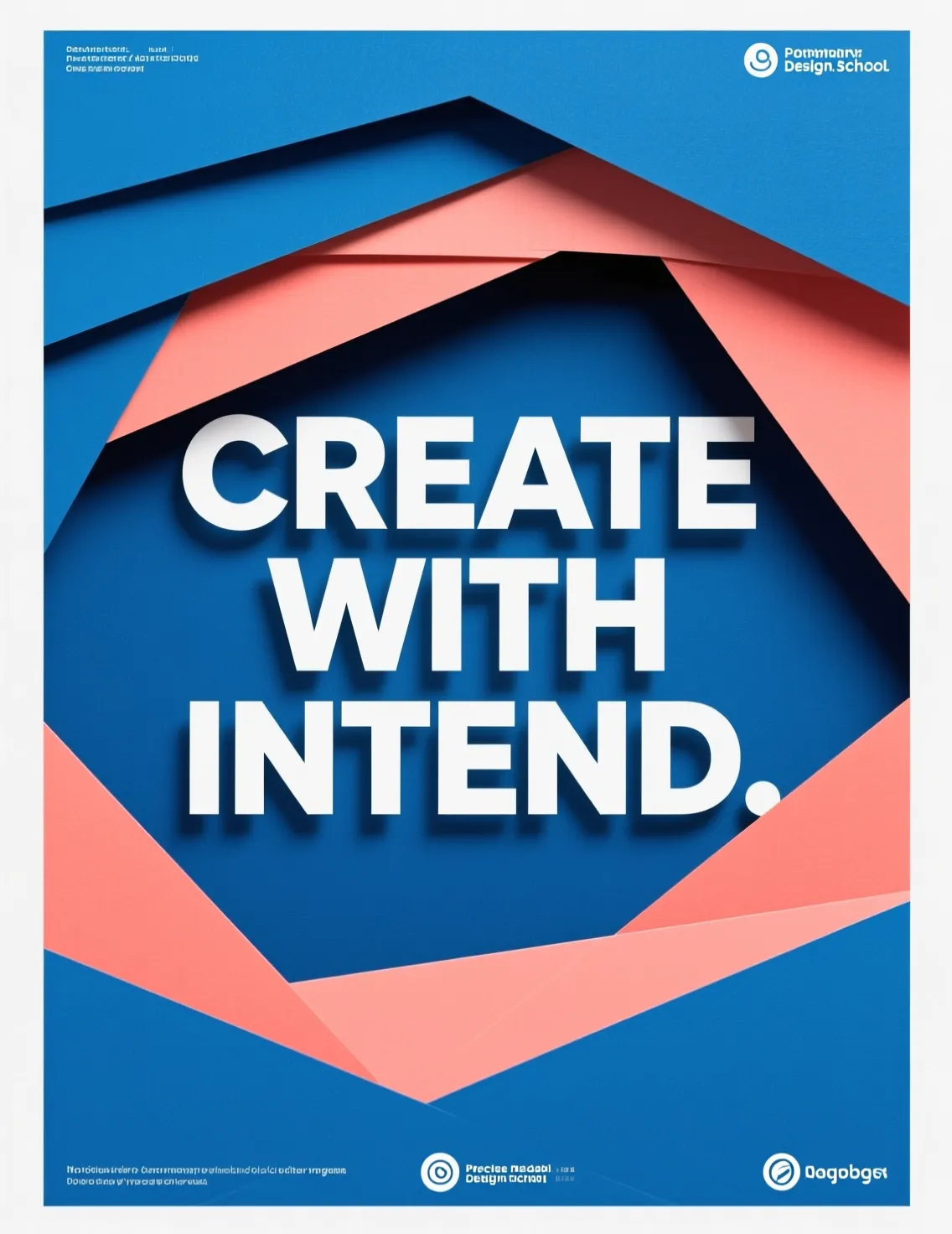
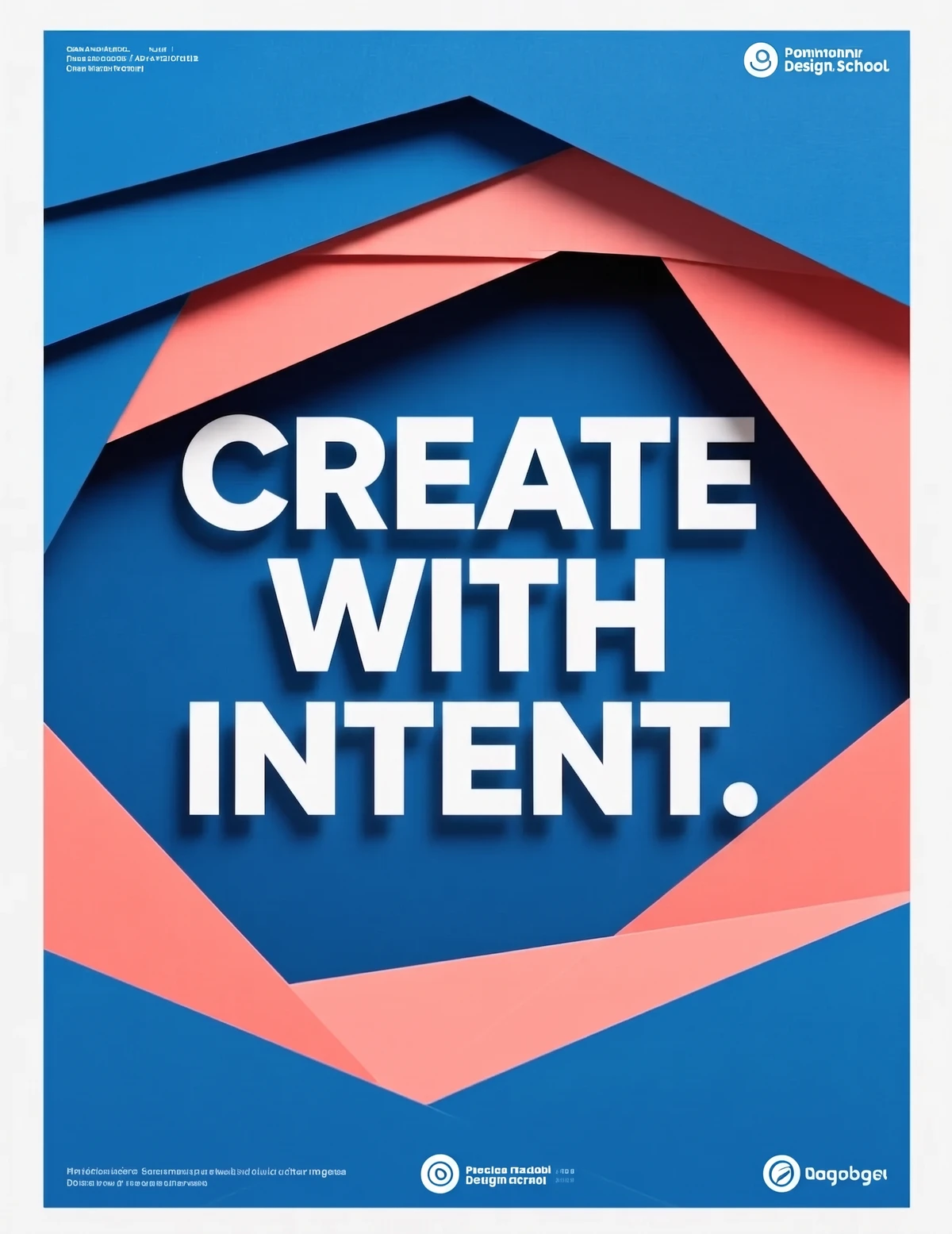
Edit Text
Change the words in any image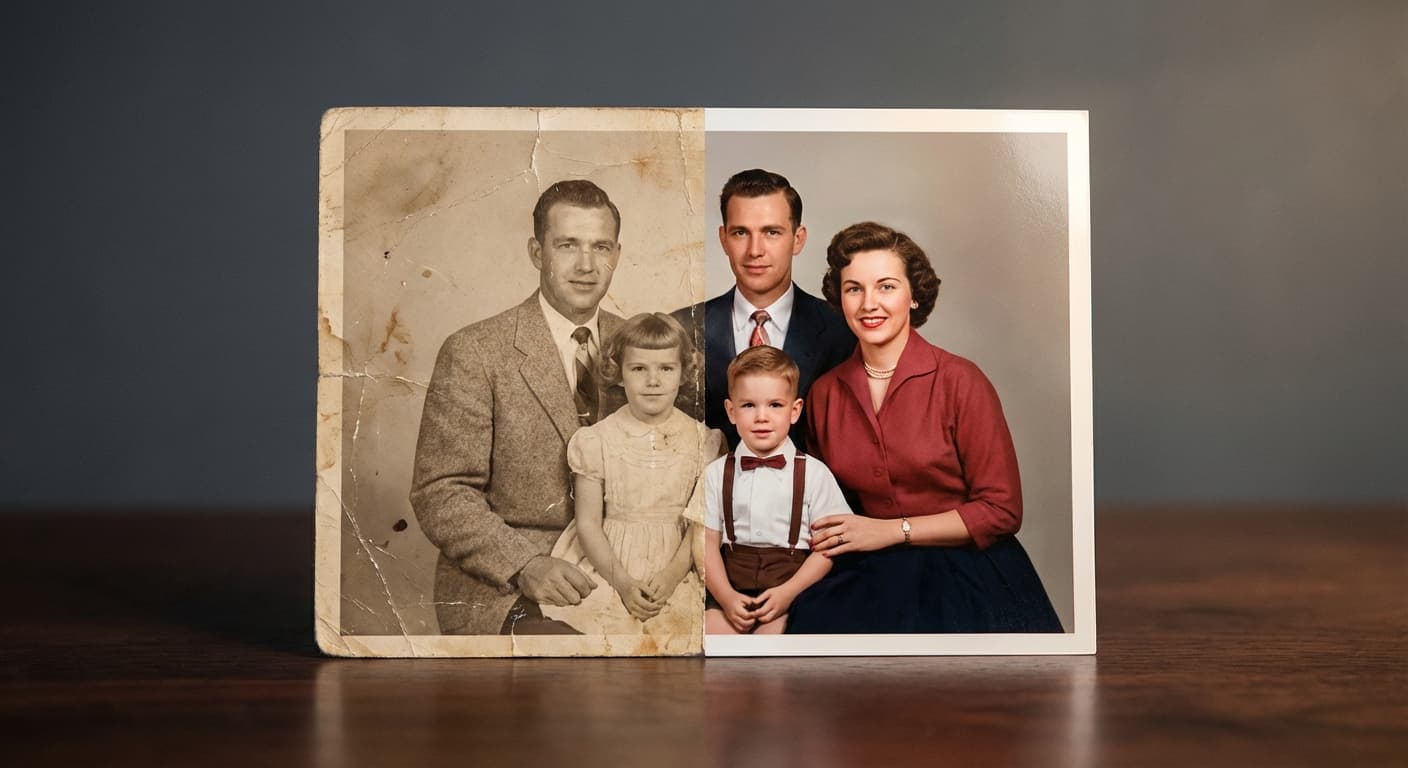
Photo Restoration
Repair scratches, tears and fading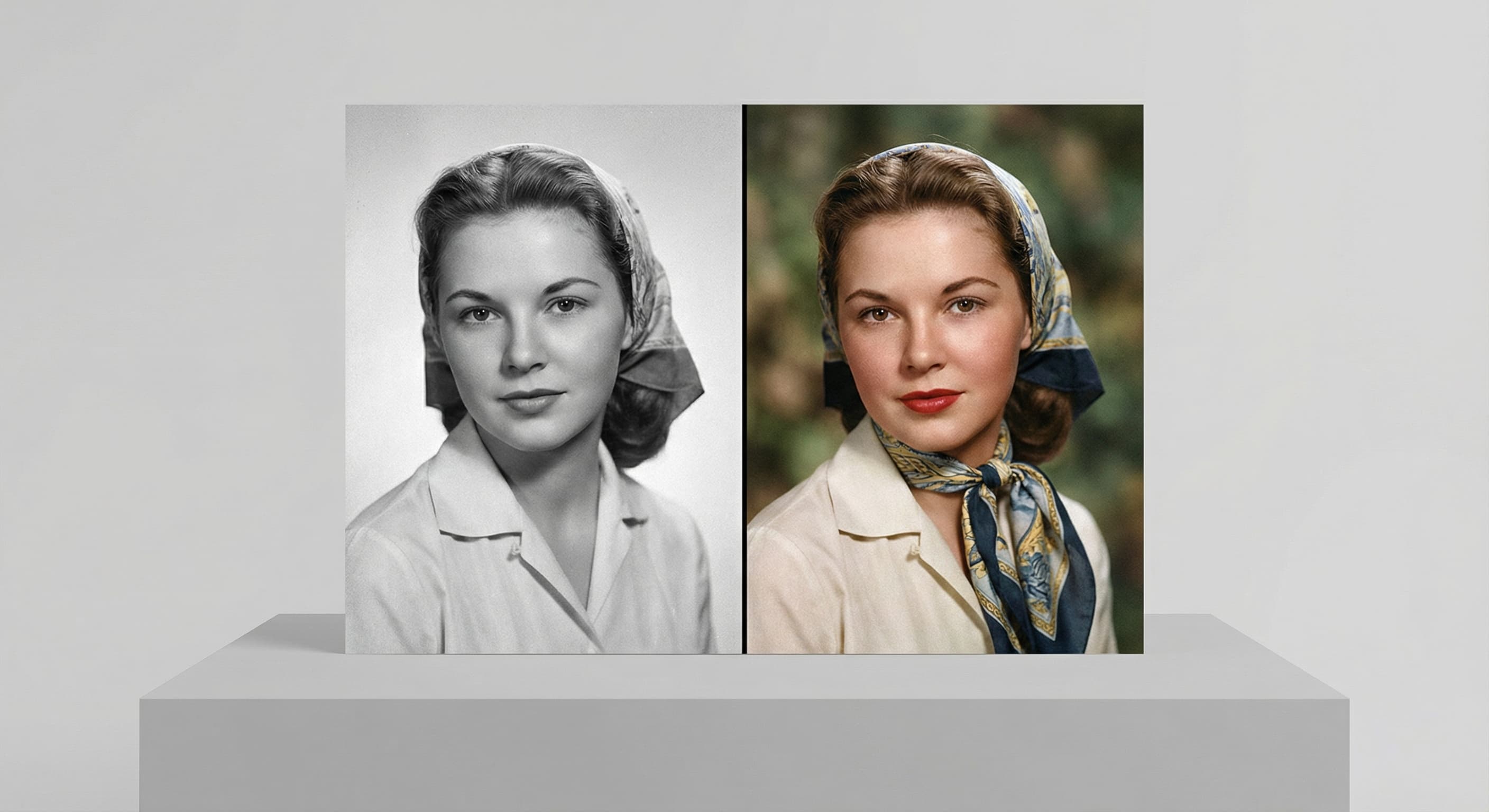
Photo Colorizer
Natural color for black-and-white photos
Unblur Image
Sharpen soft and blurry photos
Text Remover
Erase captions, dates and watermarks
Background Changer
Put your subject in a new sceneRelated models
See what each one makes, then open it in Made.