The workflow
Upload one image of the character
Open Lip Sync Studio and tap Upload a photo or video. Choose a JPG, PNG or WebP under 10 MB and at least 300 pixels on each side. The best images face the camera, with the head and shoulders filling much of the frame, even light on the face, and the mouth visible and closed. A portrait image makes a 9:16 video and a landscape one a 16:9 video. Use a character you made or have the rights to. To try it before you upload, pick Nova, the 3D character, or Biscuit, the dog, under Choose a face.
Type the line and describe the voice
In the Script tab, type the words under “What should they say?”, up to 400 characters. Under Voice and delivery (optional, up to 300 characters), cast the voice the way you would for an animated film: age, pitch, accent and energy, such as “squeaky”, “gravelly” or “deadpan”. The model speaks the line in that voice. The studio calls an uploaded image “the person” in its instructions to the model; that still worked on the cartoon otter in the example below.
Or give it a voice track
To use your own recording or a voice actor’s, switch to Voice and tap Upload audio or Record. With an image, the studio moves to Kling Avatar 2.0 if your model can’t lip-sync audio. To keep typing but pick the voice yourself, choose a voice-track model such as Kling Avatar 2.0 and stay in Script mode: one of 21 ElevenLabs voices reads your line first, and Hear it plays a sample.
Pick the model and the length
Veo 3.1 Lite, marked Best value, makes 4, 6 or 8 seconds at 720p or 1080p, and the length follows your line until you change it. For more time, Kling 3 Pro and Happy Horse 1.1 run up to 15 seconds and FLUX 3 up to 20. Voice-track models run as long as the audio, up to 60 seconds on most of them. The Model menu shows what each one does and its longest length.
Generate, then check the mouth
Tap Generate; the button shows the price, and you sign in if you haven’t. The video appears under Generations. Watch it with sound, then scrub slowly through the words: the mouth should open on each word and close in the pauses. On animals and cartoons, also check that the muzzle or beak keeps its shape, that hands, paws and wings stay the right count, and that no captions were drawn in.
Recorded Made demonstration
A 3D cartoon otter says one line, from a single render
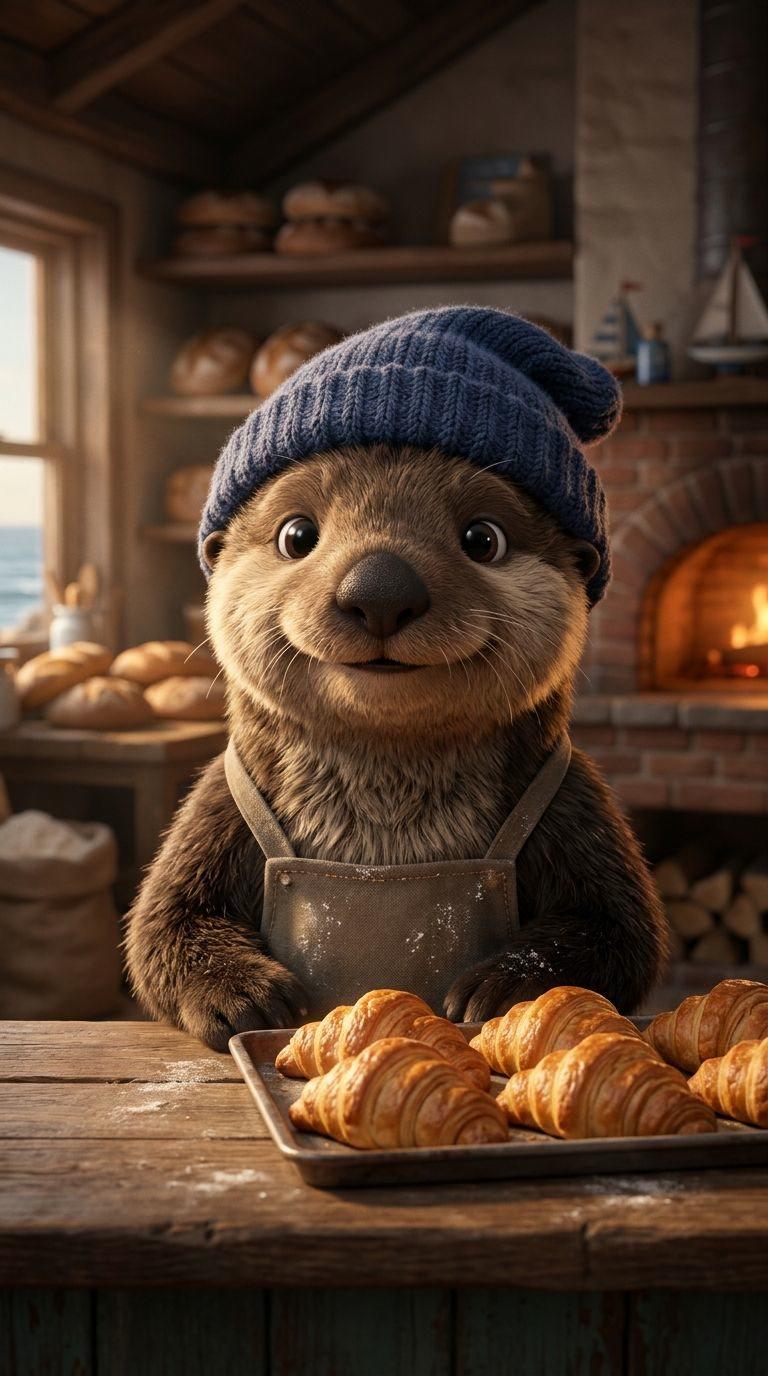
Pip is an original 3D cartoon otter made for this guide with Nano Banana 2.1 on Made: not a real person, mascot or brand. The render went into Lip Sync Studio as an upload, with the line and voice below, on the studio’s defaults: Veo 3.1 Lite, 6 seconds, 9:16, 720p. The request was built with the studio’s own code and sent to Made from a script rather than tapped through the browser. Every word came out as typed, and the mouth opens on each word and closes between them. The model gave the muzzle a human-style open mouth with small front teeth, added a paw wave nobody asked for, and the paws blur a little when they move fast. It shows one short English line from one image; it doesn’t show a character with a beak or no mouth, a longer script, or a voice-track model.
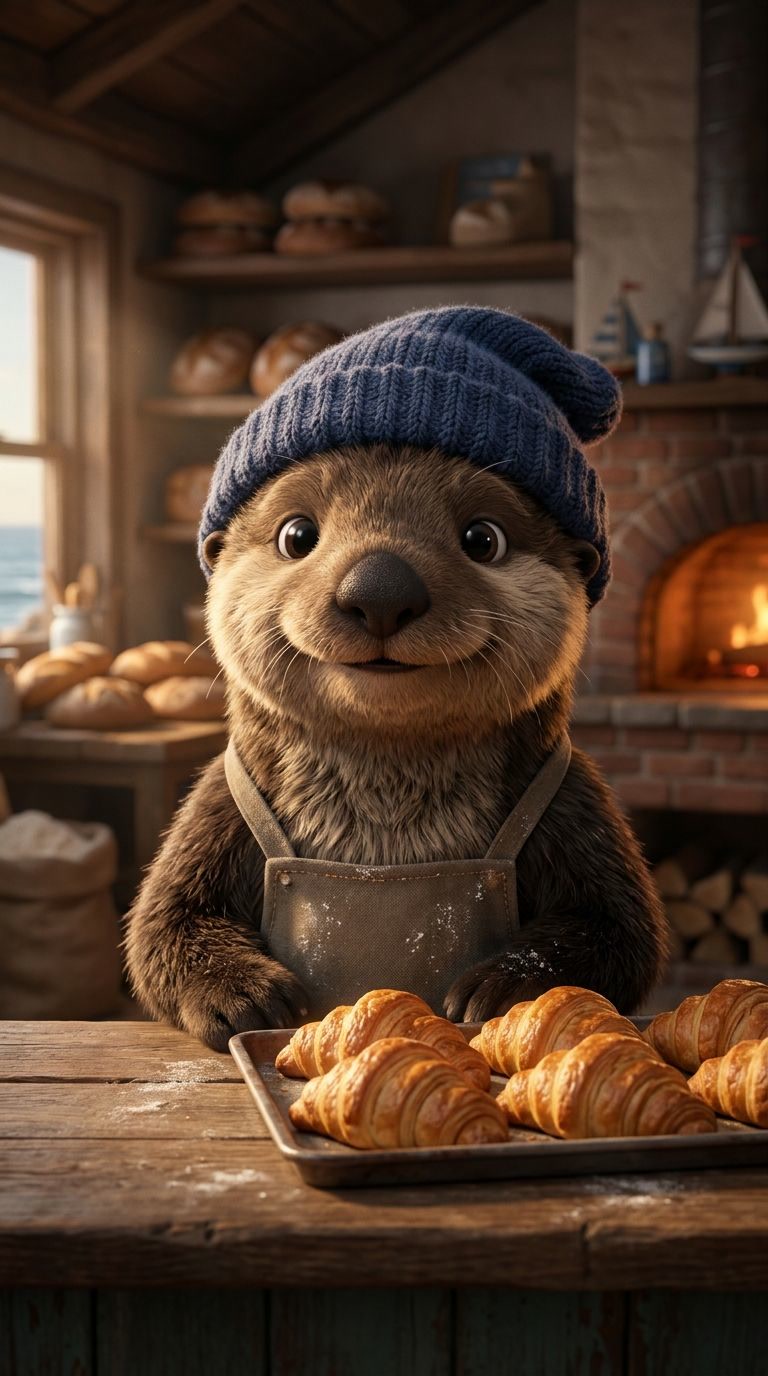
Veo 3.1 Lite · Generated · View the example record and price basis (JSON)
Prompts you can inspect and adapt
Recorded generation prompt
The exact prompt behind the example
Lip-synced talking video. The person in the image looks into the camera and speaks naturally, with subtle head movement, natural blinking and matching facial expressions. The camera stays still.
The person says: "Hi, I’m Pip. Fresh croissants every morning, and the best one is yours." (no subtitles)
Voice and delivery: Cheerful, slightly squeaky young voice with animated-film energy, warm and welcoming.
Keep the same face, hair, clothing, framing and background as the image. No one else speaks. No subtitles, no captions, no on-screen text, no background music.
You don’t type this. You type the line and the voice; the studio wraps them in these instructions, including the cue for no subtitles right after the quoted line.
Prompt recipe to adapt
A mascot line for a shop or channel
What should they say?
New flavors drop Friday. Come early, because I always eat the first batch.

Voice and delivery
Goofy, high-energy cartoon voice, fast and playful, like a mascot in a Saturday-morning show.
About 13 words, which the studio sizes to 6 seconds on Veo 3.1 Lite. Put the line and the voice in their own boxes.
Character image prompt
The prompt that made the character
A stylized 3D animated feature-film character: a chubby young sea otter who runs a tiny seaside bakery, wearing a knitted beanie and a small apron, standing behind a wooden counter with a tray of croissants. Big expressive eyes, soft fur, a short rounded muzzle with a clearly visible mouth. Soft cinematic lighting, high-quality 3D animation render. Vertical 9:16 frame. The character faces the camera, head, shoulders and upper body in frame, face clearly visible and well lit, mouth closed in a relaxed friendly expression, eyes looking straight into the lens. An original character. No text, no logos, no watermark.Made with Nano Banana 2.1 on Made before the talking step. Ask for the face toward the camera, a visible mouth that’s closed, and no text, so the video model has a clean face to animate.
How a talking character video is priced
By the model, the seconds of video and, where offered, the resolution. In Script mode on a voice-track model, the voice it reads is added by script length. The total appears on Generate before you run it.
Models that speak the line bill the length you pick, so 8 seconds costs more than 4, and 1080p costs more than 720p on Veo 3.1 Lite. Voice-track models bill the measured audio instead. Making the character image first is a separate image job.
Price source: Veo 3.1 Lite on the Made price sheet · Checked
The studio checks the exact price after upload; if it came out higher than the button showed, it shows the new price and waits for another tap. If the provider it was priced on fails, a backup provider can take the run at its own price, which can be higher. Failed videos aren’t charged, and neither is a voice that doesn’t finish.
What to review before you use the result
| What you see | What to try |
|---|---|
| The mouth looks human on an animal | Video models tend to draw a human-style mouth, with teeth, on a muzzle or snout, as in the example. Generate again, or start from an image that already shows the mouth the way the character should look. |
| The character has a beak, a mask or no mouth | The model has to invent a mouth, and the face can change shape around it. Pick or make an image where the mouth is clearly drawn and not covered. |
| It moves more than you wanted | The studio asks for subtle head movement and a still camera, but a model can still add gestures, like the paw wave in the example. Generate again, and check hands, paws and wings for blur and extra fingers. |
| The voice sounds like an adult, not a cartoon | Cast it in Voice and delivery: age, pitch and energy. For a voice you choose exactly, upload or record it in Voice, or use a voice-track model with one of the ElevenLabs voices and Hear it first. |
| The words don’t fit the length | Shorten the line or pick a longer length. Kling 3 Pro and Happy Horse 1.1 run up to 15 seconds and FLUX 3 up to 20; voice-track models follow the audio. |
| Captions or text appear in the video | The studio’s prompt asks for no subtitles, captions or on-screen text, but a model can still draw some. Generate again or try another model, and check the whole clip before posting. |
Questions about this workflow
Does it work on cartoons and animals, not just people?
Yes. The example above is a 3D cartoon otter, and the studio’s preset faces include Nova, a 3D character, Biscuit, a dog, and Vera, an oil painting, each with its own clip. What matters most is a big, clear face with a visible mouth.
How is this different from making a photo of a person talk?
It’s the same studio and the same models. With a character, the model has to guess how a muzzle, beak or drawn mouth should move, so check the mouth more closely, and cast the voice in Voice and delivery, since there is no real voice to match. For real-looking portraits, see the guide on making a talking video from one photo.
Can I use my own voice or a voice actor?
Yes. Switch to Voice and upload or record a track; models that lip-sync audio, such as Kling Avatar 2.0, follow it for up to 60 seconds. MP3 and WAV under 5 MB upload as they are, and other audio is converted to WAV first.
How long can the talking clip be?
Veo models make 4, 6 or 8 seconds; Kling 3 Pro and Happy Horse 1.1 up to 15; FLUX 3 up to 20. Voice-track models run as long as your audio, up to 60 seconds on most of them.
Can I make a famous cartoon character talk?
Use a character you made or have the rights to. Characters, mascots and logos that belong to someone else aren’t yours to post, and a model can decline them; a declined run isn’t charged.
Work with Claude and Made
Through the Made connector, an assistant can do both parts: make the character with an image model, then use it as the start image for a video model that speaks, quoting each price first. It doesn’t use Lip Sync Studio’s prompt builder, so ask it to quote the exact line and to rule out subtitles, as the studio does.
Conversation starter
Ask your assistant
Use Made to make a 6-second vertical talking video with Veo 3.1 Lite from my attached character image. The character looks into the camera and says, word for word: "New flavors drop Friday. Come early, because I always eat the first batch." Goofy, high-energy cartoon voice. Keep the character’s face, body, outfit and background; camera still; no subtitles, captions, on-screen text or music. Check the model in the catalog and show me the price before generating one video.No character yet? Ask it first to make one with an image model, facing the camera with the mouth visible, and show you the image before the video. If your client doesn’t offer the video model, use Lip Sync Studio with the same image and line.