Image to video AI: animate a photo
Upload a still photo, describe the motion or pick a suggestion, and MiniMax H3 Max animates it into a five-second MP4 clip with camera movement and subject motion.
Runs in the tool. You sign in to run it, see the price before you start, and failed runs are refunded.
How to use Image to Video Generator
- 1
Upload one photo
Choose a JPEG, PNG, or WebP with a clear subject you want to animate.
- 2
Describe the motion (optional)
Name the camera move and subject action you want — pan, zoom, dolly, or “make the person walk.” If you skip this, Made adds natural motion and a slow push-in.
- 3
Let Made animate it
MiniMax H3 Max renders a five-second clip at 480P from your photo and prompt.
- 4
Review and download
Check the motion and subject consistency, then save the MP4.
Image to Video Generator examples
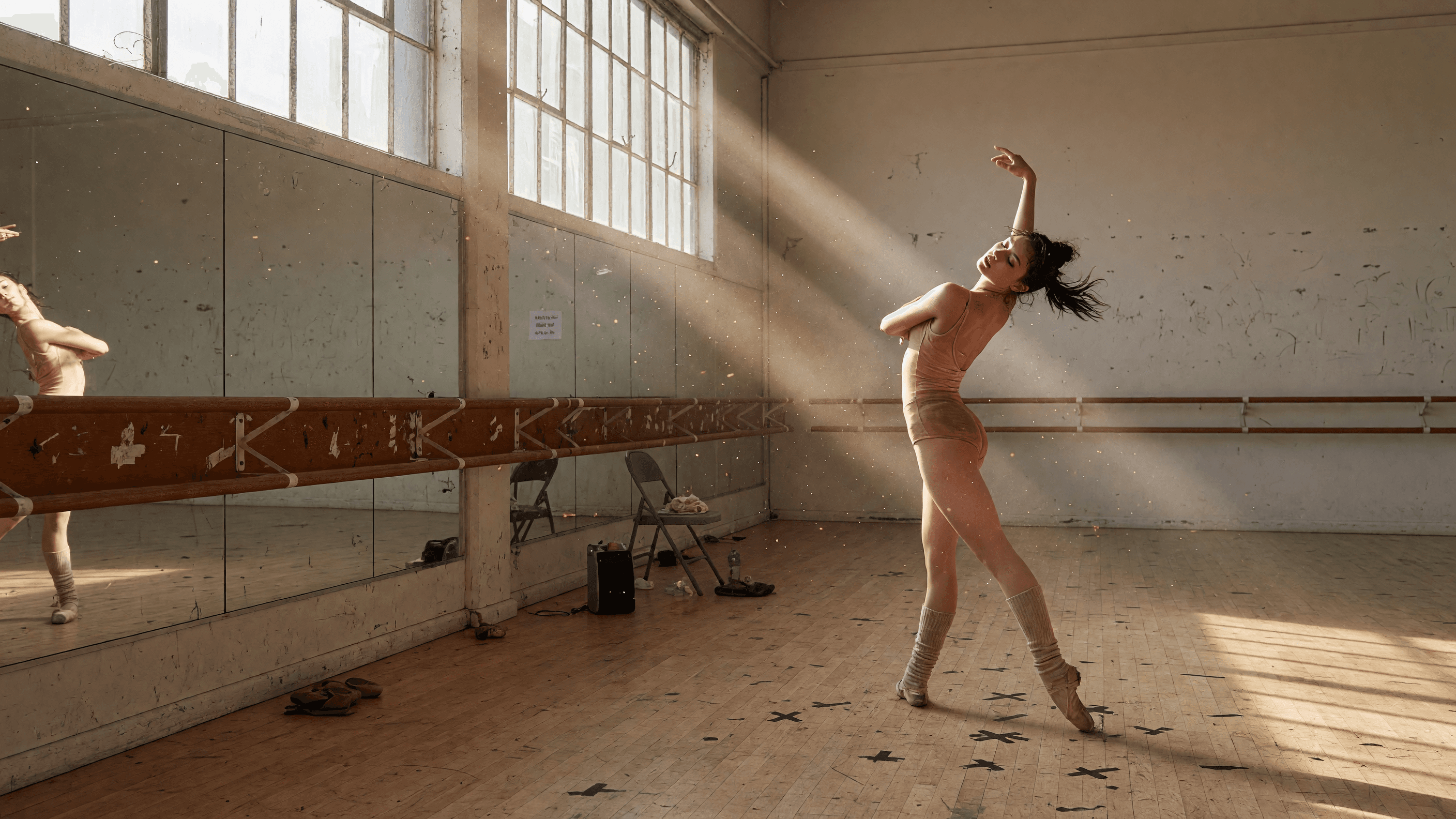
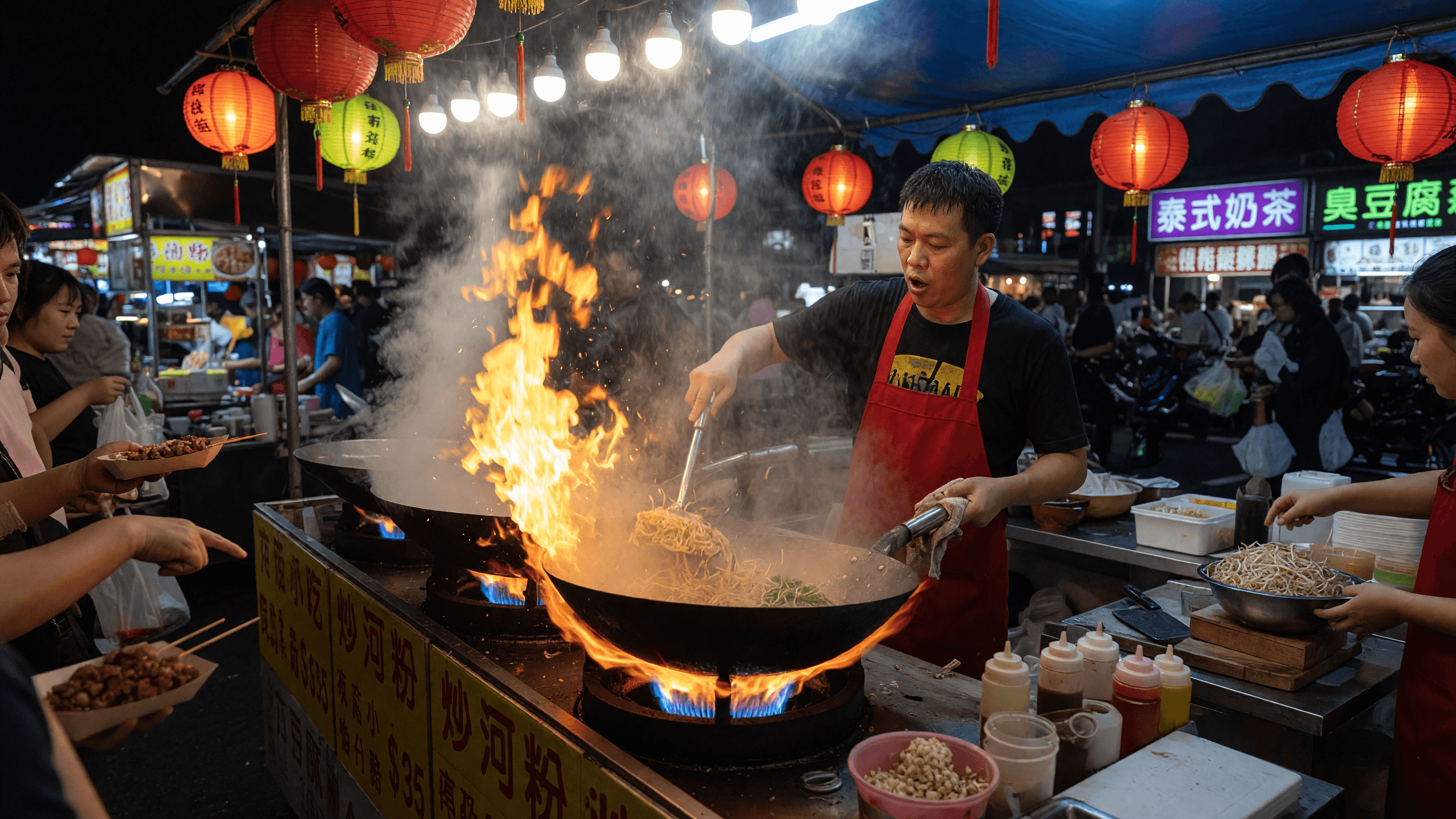
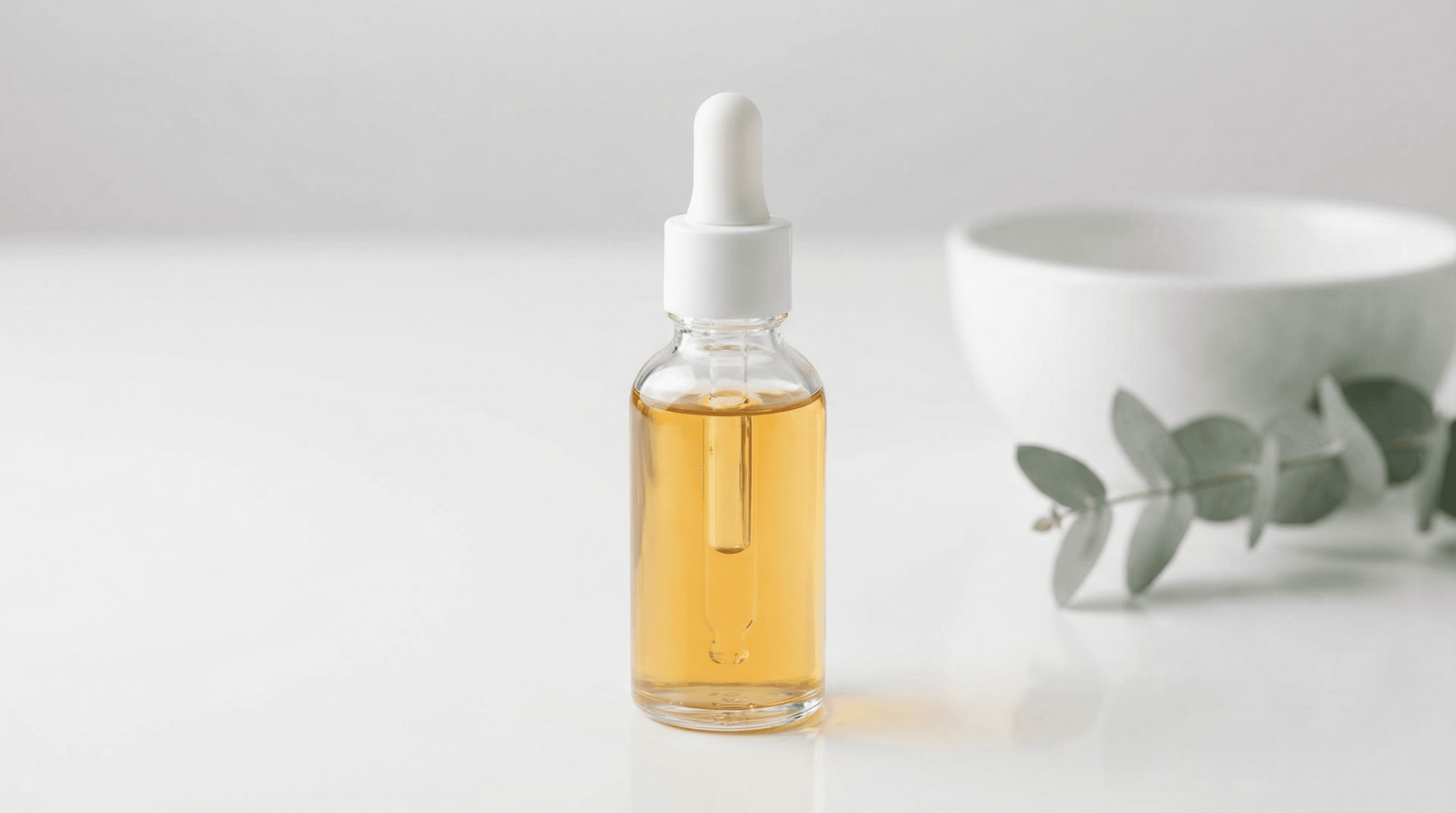
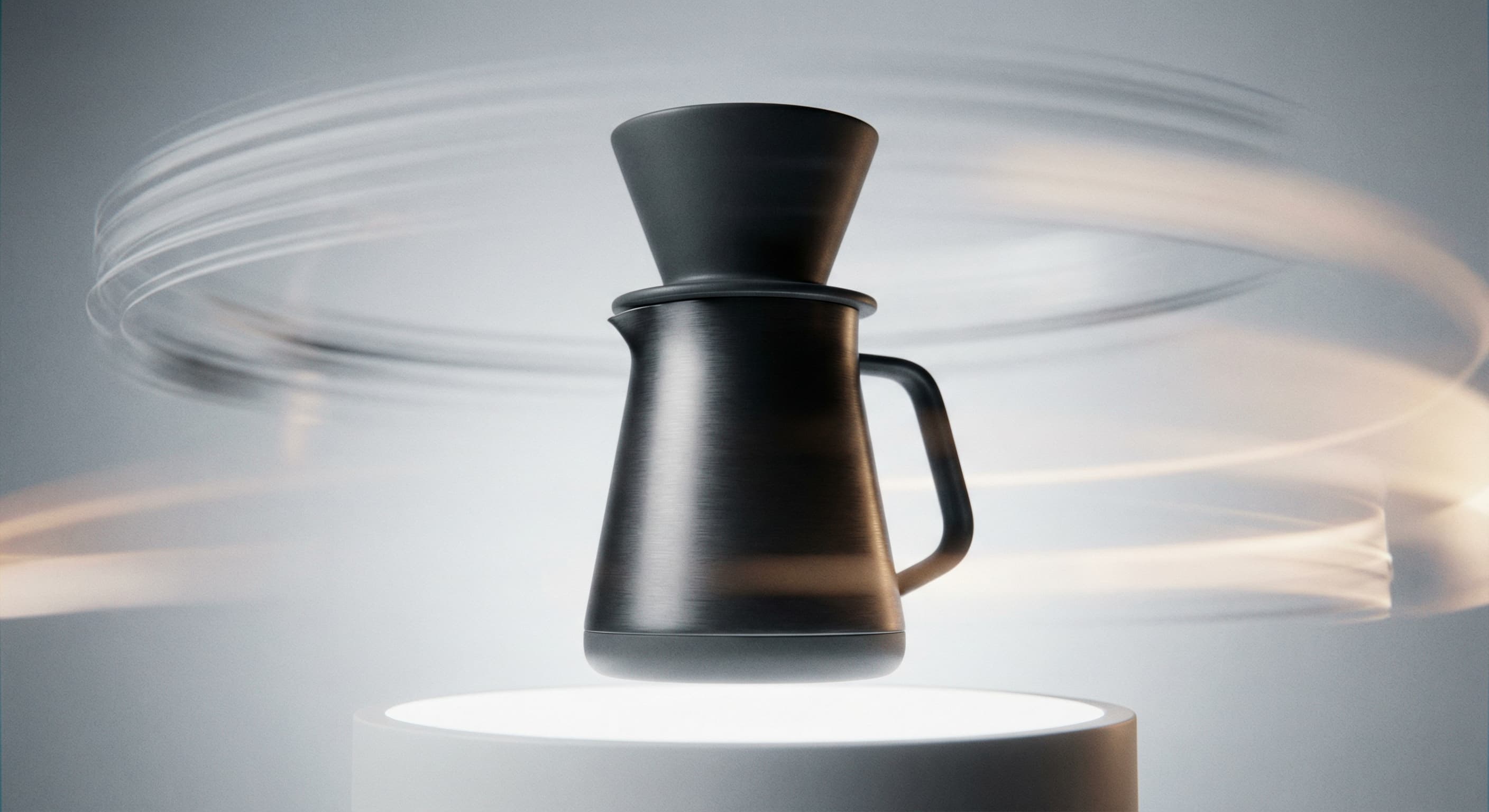
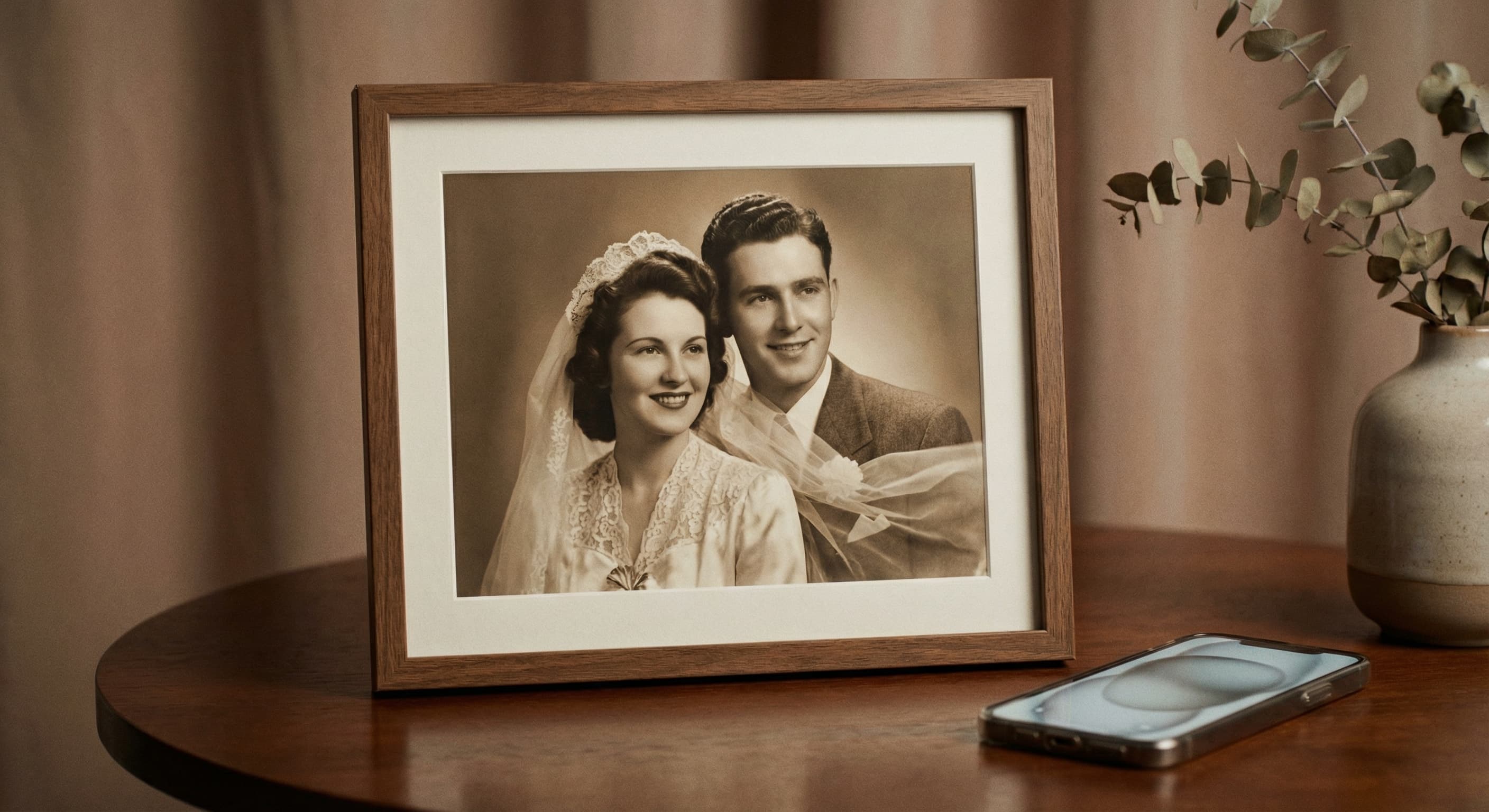
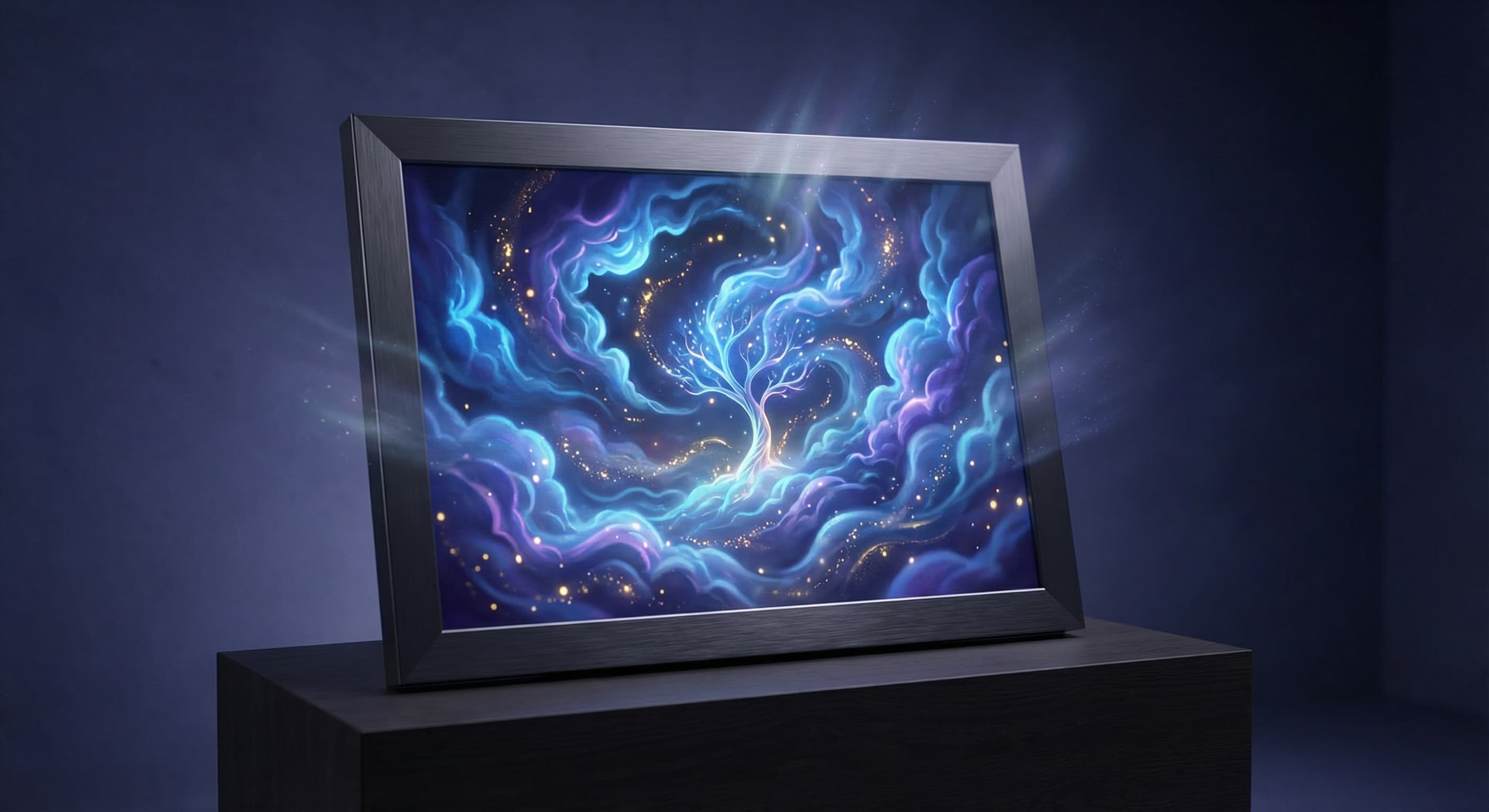
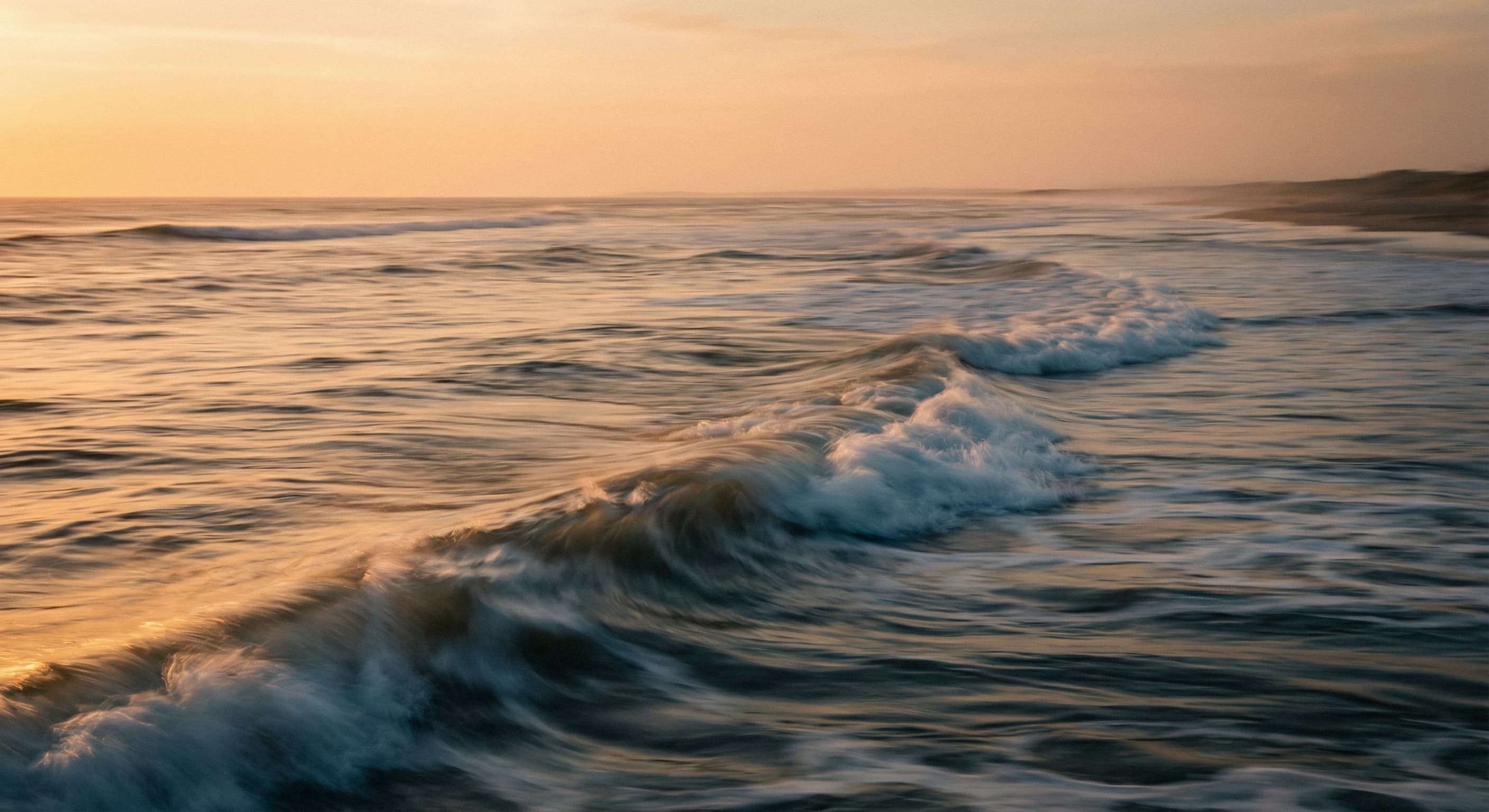
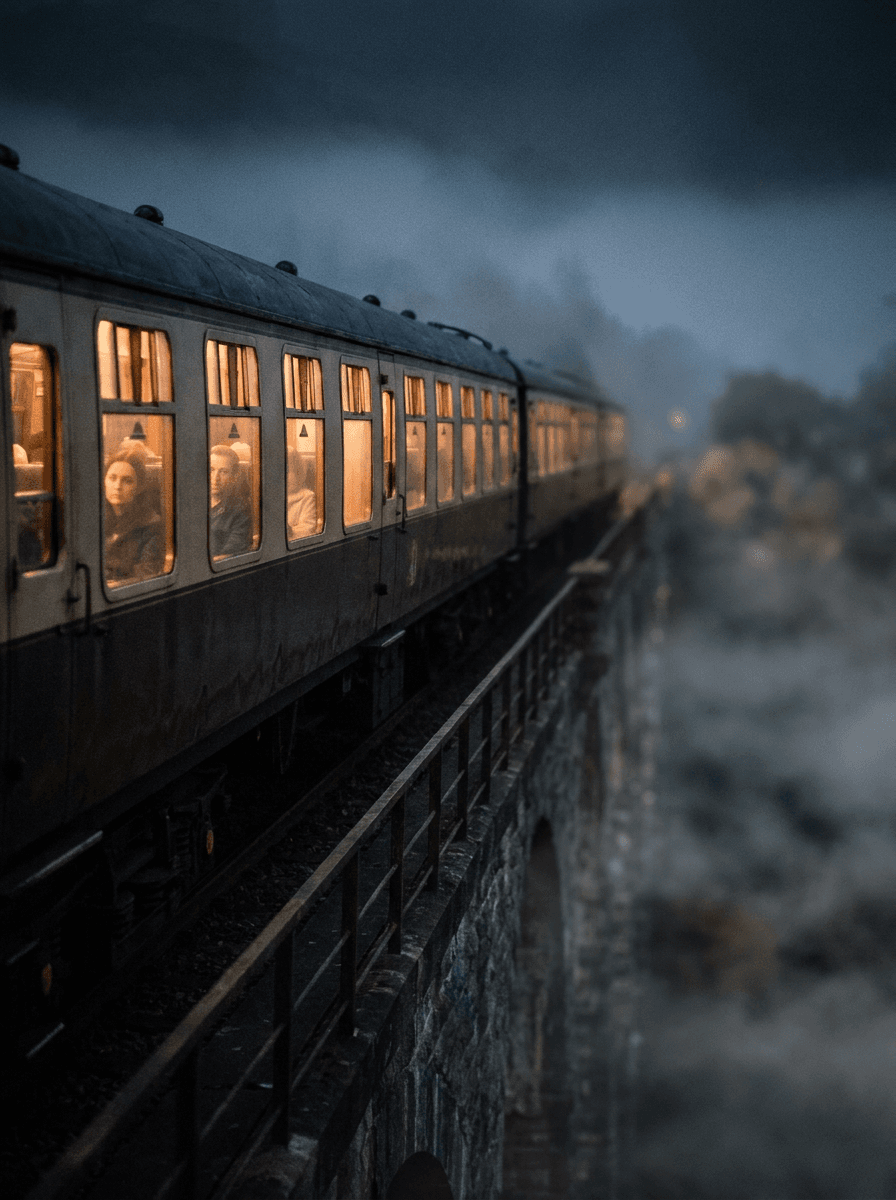
Real results from Made. Use a prompt to open it in Image to Video Generator, then add your own photo.
What people use it for
- Product showcasesAnimate an existing product photo with an orbit, push-in, or lighting shift instead of scheduling a video shoot.
- Portraits that moveAdd subtle breathing, expression, or camera drift to a portrait for a profile, promo, or tribute clip.
- Old photos and memoriesBring an archival or family photo to life with gentle, natural motion while keeping the original scene.
- Social posts from stillsTurn a single strong photo into a short motion clip that performs better than a static image in feeds.
Turn an image into a video with AI motion
What it does
- Input
- One JPEG, PNG, or WebP image, plus an optional motion prompt
- Output
- Five-second MP4 video clip at 480P
- How it works
- Made animates the photo with MiniMax H3 Max at 480P, following your motion prompt, or natural motion and a slow push-in when you leave it blank.
- Access
- Runs in the tool. You sign in to run it, see the price before you start, and failed runs are refunded.
Formats and limits
- Input formats
- JPEG, PNG, WebP
- Images per request
- One
- Output
- MP4 video, five seconds
- Resolution
- 480P via MiniMax H3 Max
- Prompting
- Optional: describe the motion, pick a suggestion, or leave it blank for natural motion and a slow push-in
Checked against the running tool on 2026-10-20.
Questions about Image to Video Generator
What does an image to video generator do?
It animates a single still photo into a short video. Made adds subject motion and camera movement while keeping the scene from your original image, and returns the result as an MP4 clip.
Do I need to write a prompt?
No. If you upload only the photo, Made animates it with natural motion and a slow push-in. Describe the motion you want, or pick a suggestion, to direct it.
Which model animates the image?
MiniMax H3 Max. Made sends your photo to its image-to-video model and renders a five-second clip at 480P.
How long is the generated video?
Five seconds. For longer clips or a choice of models and durations, use the AI Video Generator.
Can I animate several photos at once?
The workflow animates one image per request. To sequence several photos into a single video, generate the clips individually or use the AI Slideshow Maker.
Will the video stay consistent with my photo?
Your photo is the clip’s opening frame, so the scene starts from your image, but generated motion can still drift on faces, hands, and fine text. Review the clip before publishing.
How is this different from a text to video generator?
Image to video starts from your photo and animates it, so the scene is anchored to a real still. Text to video invents the entire scene from a written description. Use this tool when you already have the image you want to bring to life.
More ways to create
Text to Video Generator
Type a scene, get a video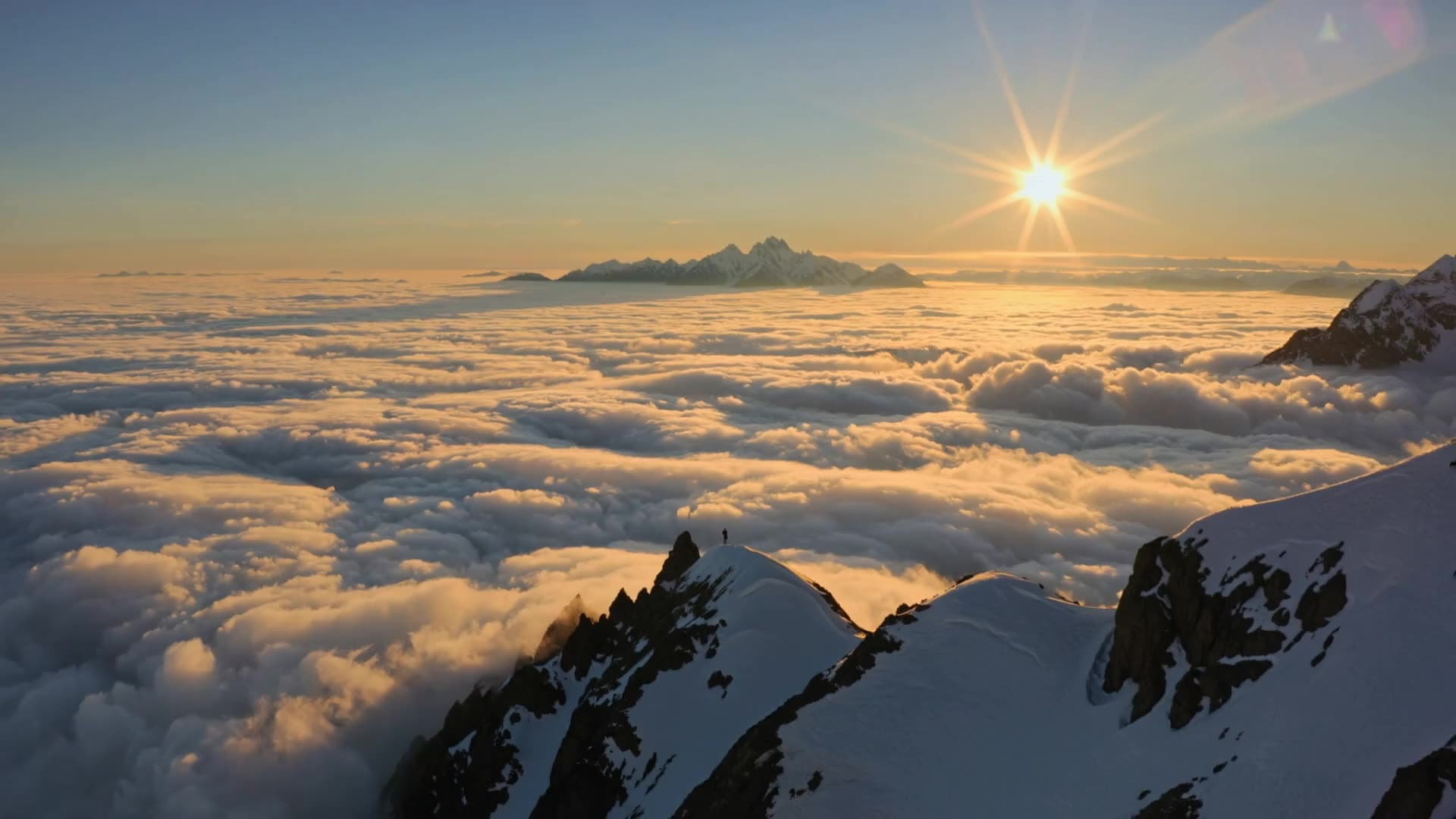 Core
CoreCreate Video
Seedance 2.5, Kling 3, Veo 3.1 and more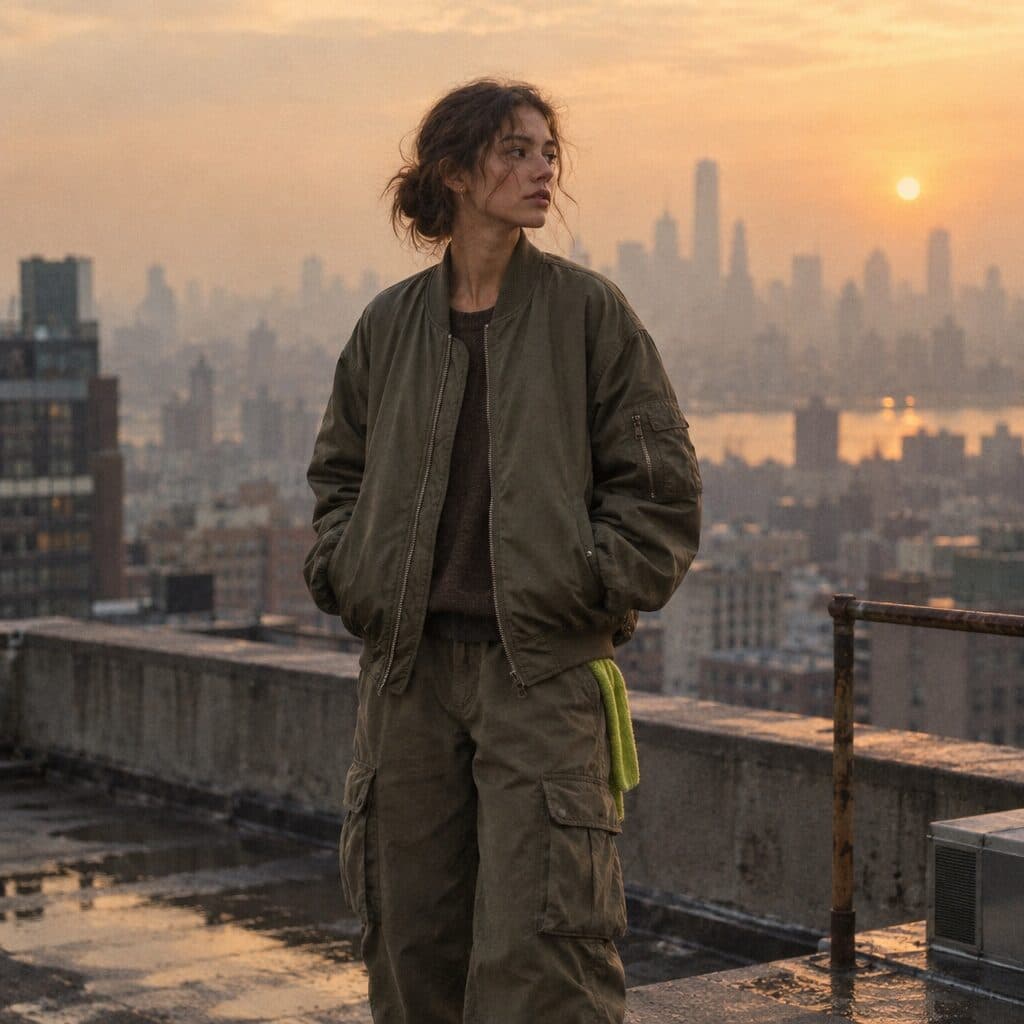
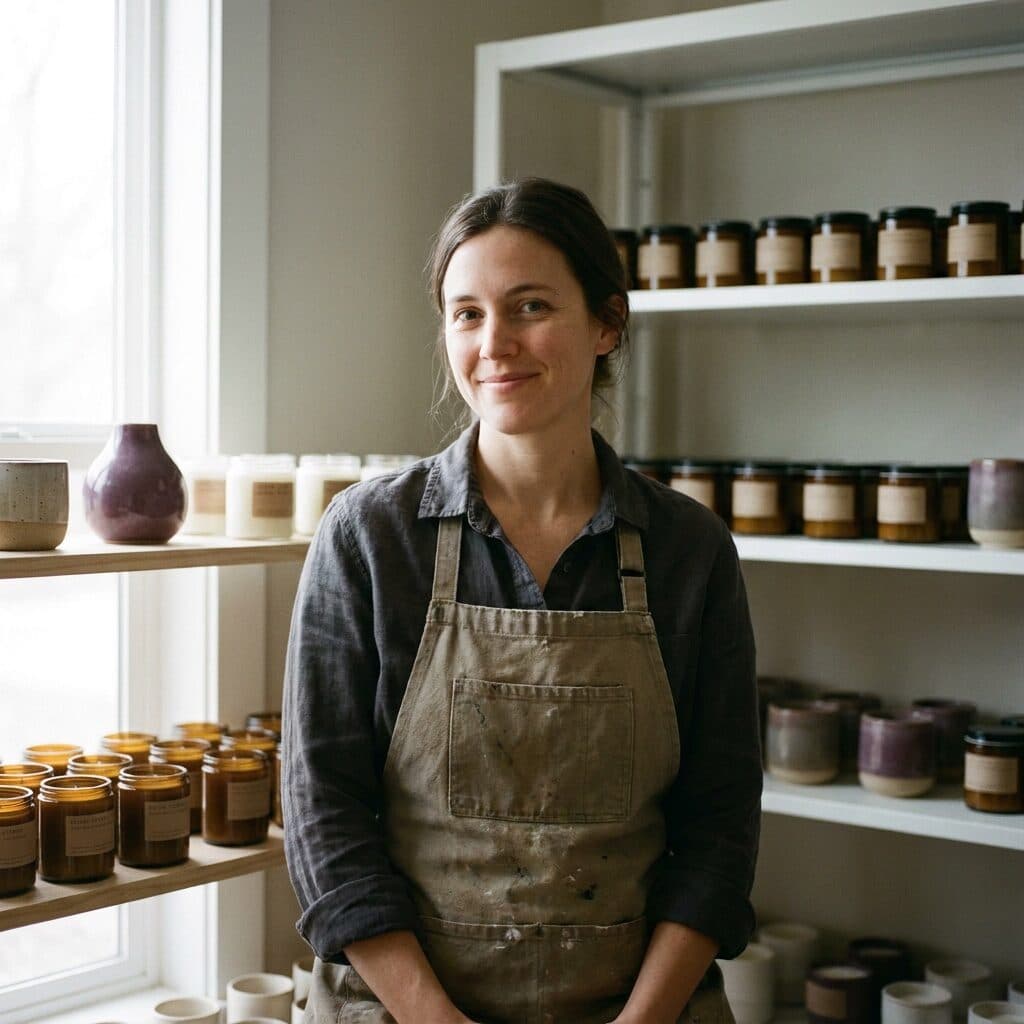 Core
CoreCreate Image
Every top image model in one place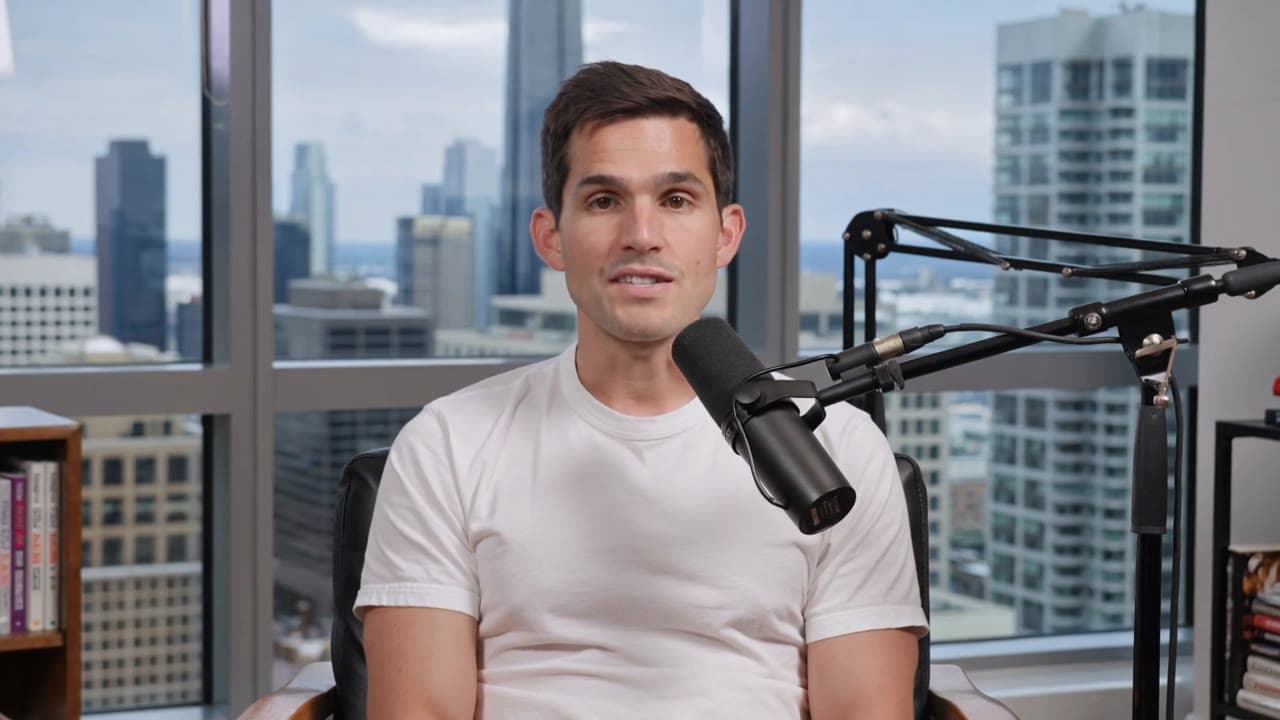 New
NewAI Podcast Generator
AI hosts talking in a studio, from a prompt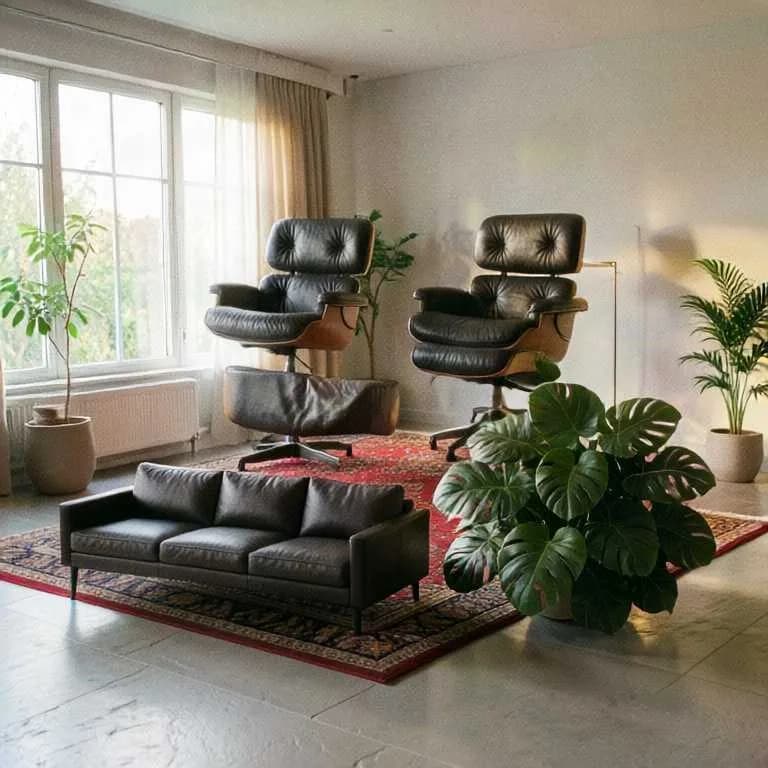
 New
NewRealtime
Draw or film, and watch it redraw live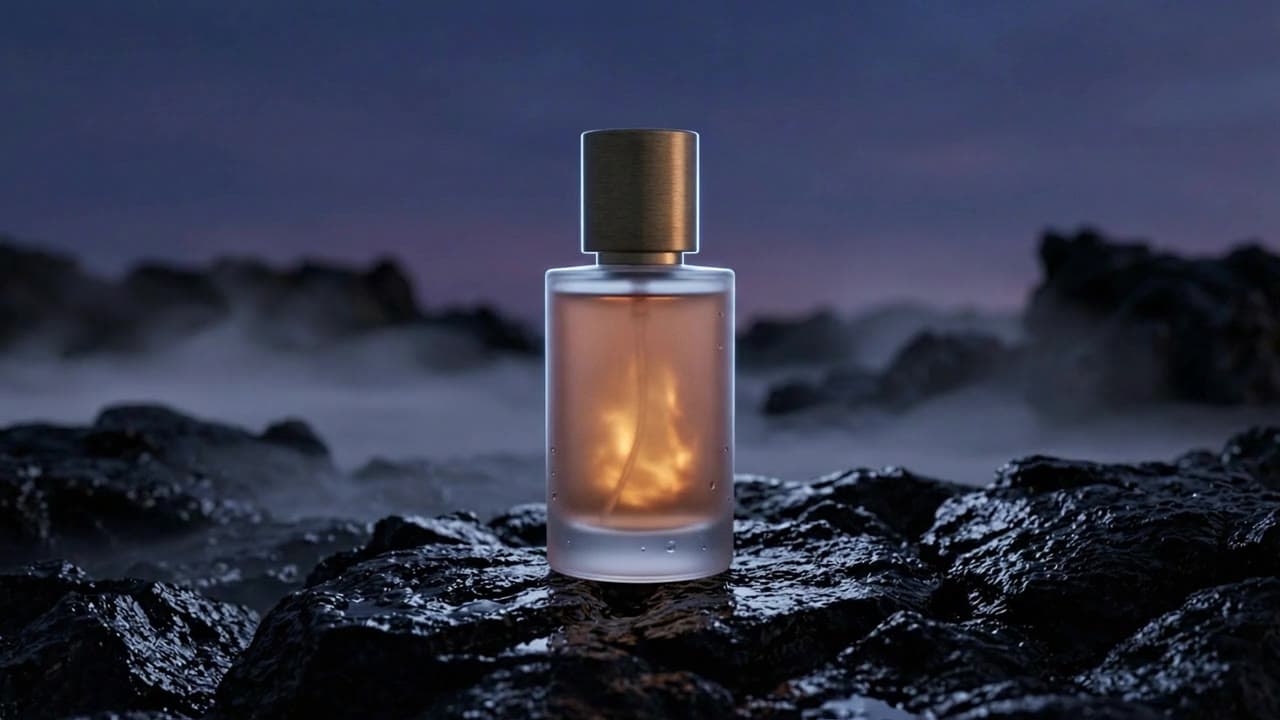
Canvas
Chain prompts, references and models
Templates
Tested workflows, ready to run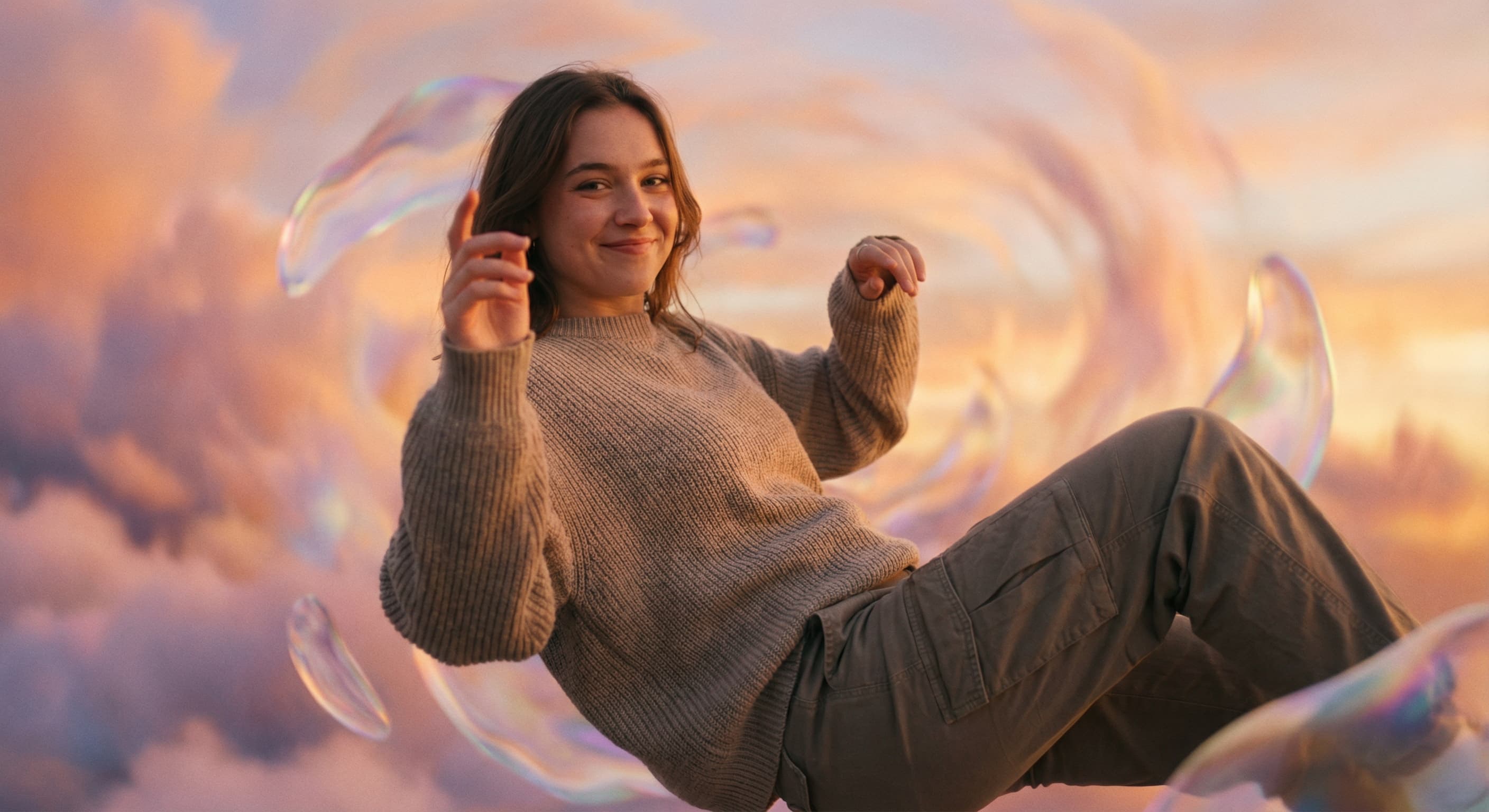
AI Photo Editor
Edit any photo by describing the change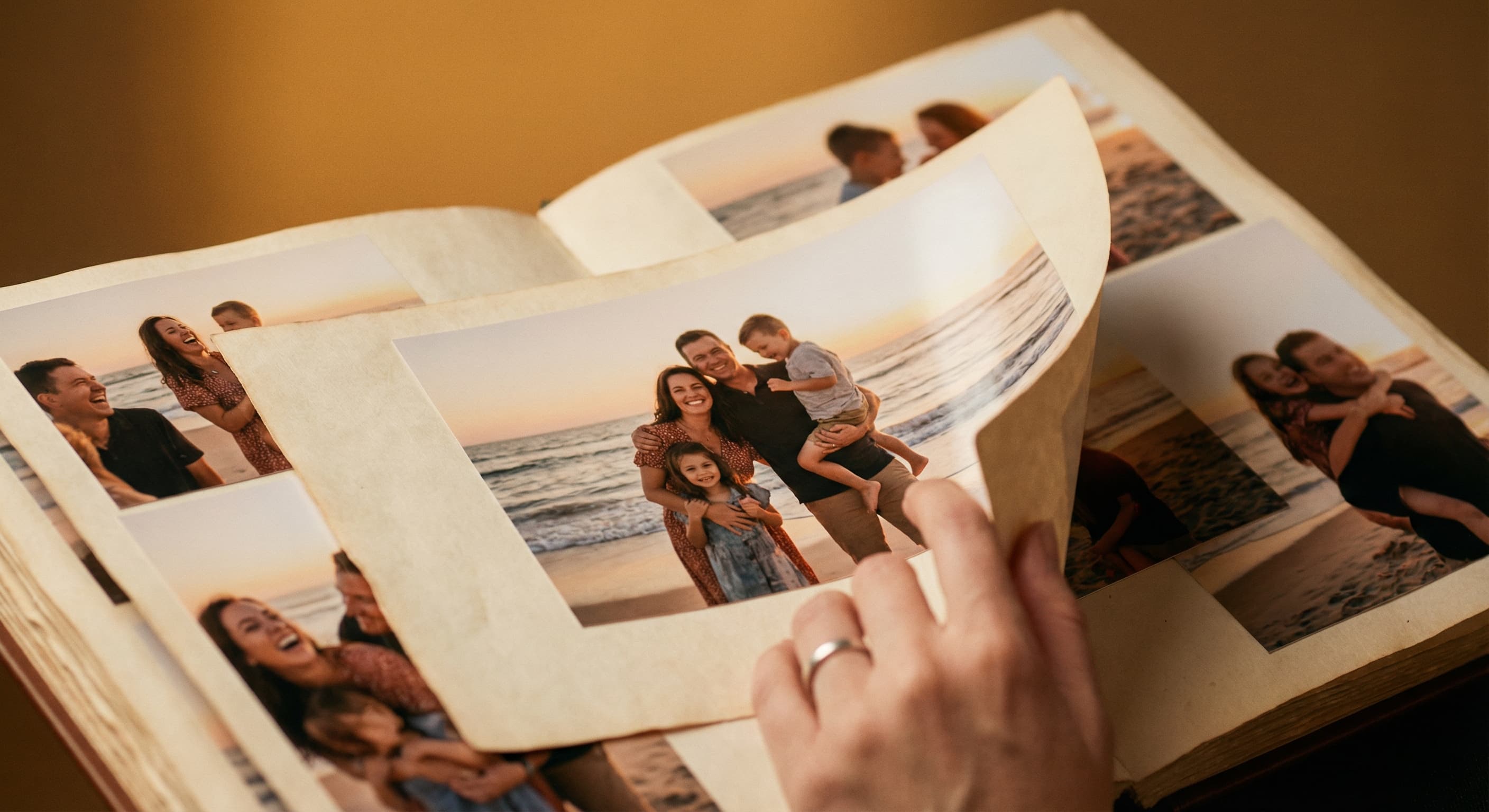
AI Slideshow Maker
Turn photos into a video slideshow
Audio Studio
Voiceovers, voice changes and video translationRelated models
See what each one makes, then open it in Made.