Image Vectorizer
Upload a photo or logo and Made redraws it as a clean, flat vector-style graphic — simplified shapes, crisp edges, and solid fills — delivered as a PNG.
Runs in the tool. You sign in to run it, see the price before you start, and failed runs are refunded.
How to use Image Vectorizer
- 1
Upload one image
Choose a JPEG, PNG, or WebP — logos and images with a clear subject convert most cleanly.
- 2
Describe the style
Ask for flat colors, crisp edges, a limited palette, or a thick sticker outline.
- 3
Let Made redraw it
The edit model returns a simplified, vector-style version of your image as a PNG.
- 4
Check edges and colors
Zoom in on outlines and fills; rerun with a tighter instruction if you want fewer colors or cleaner shapes.
Image Vectorizer examples
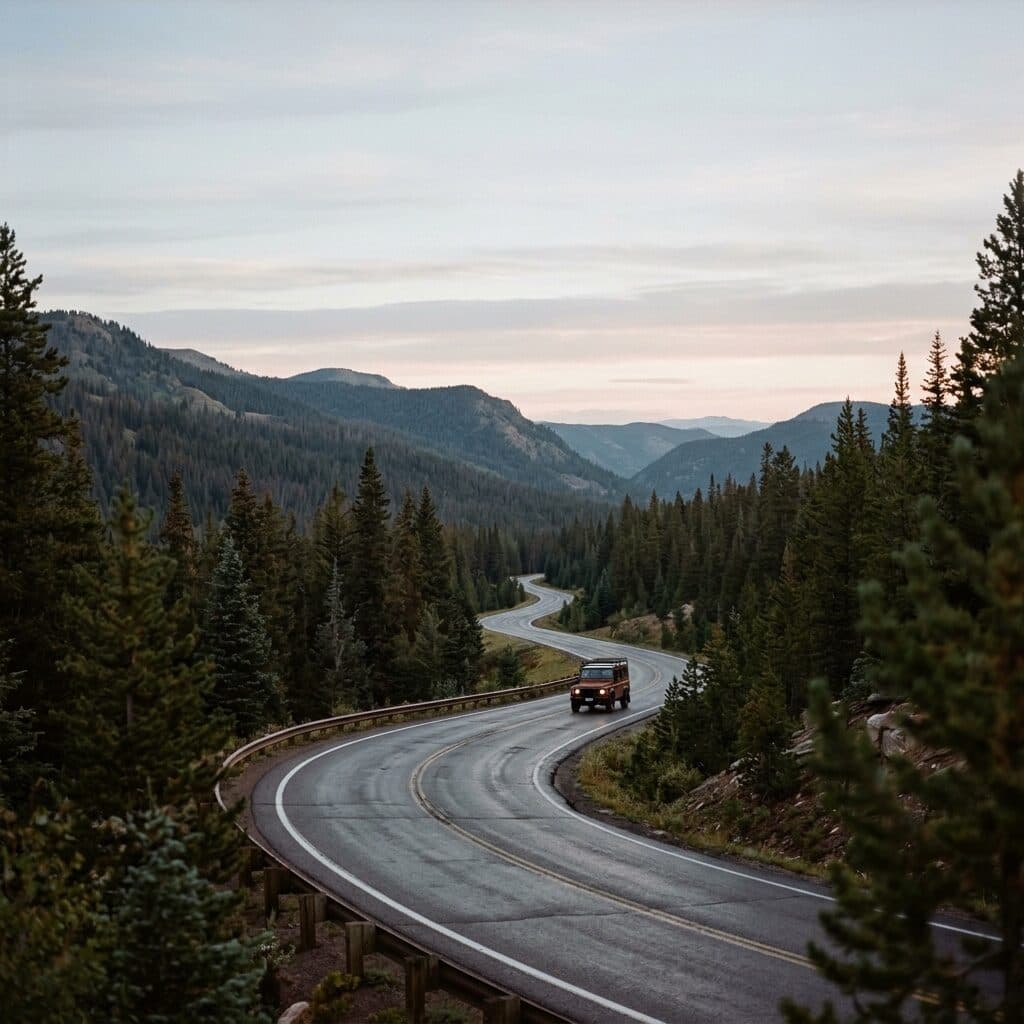
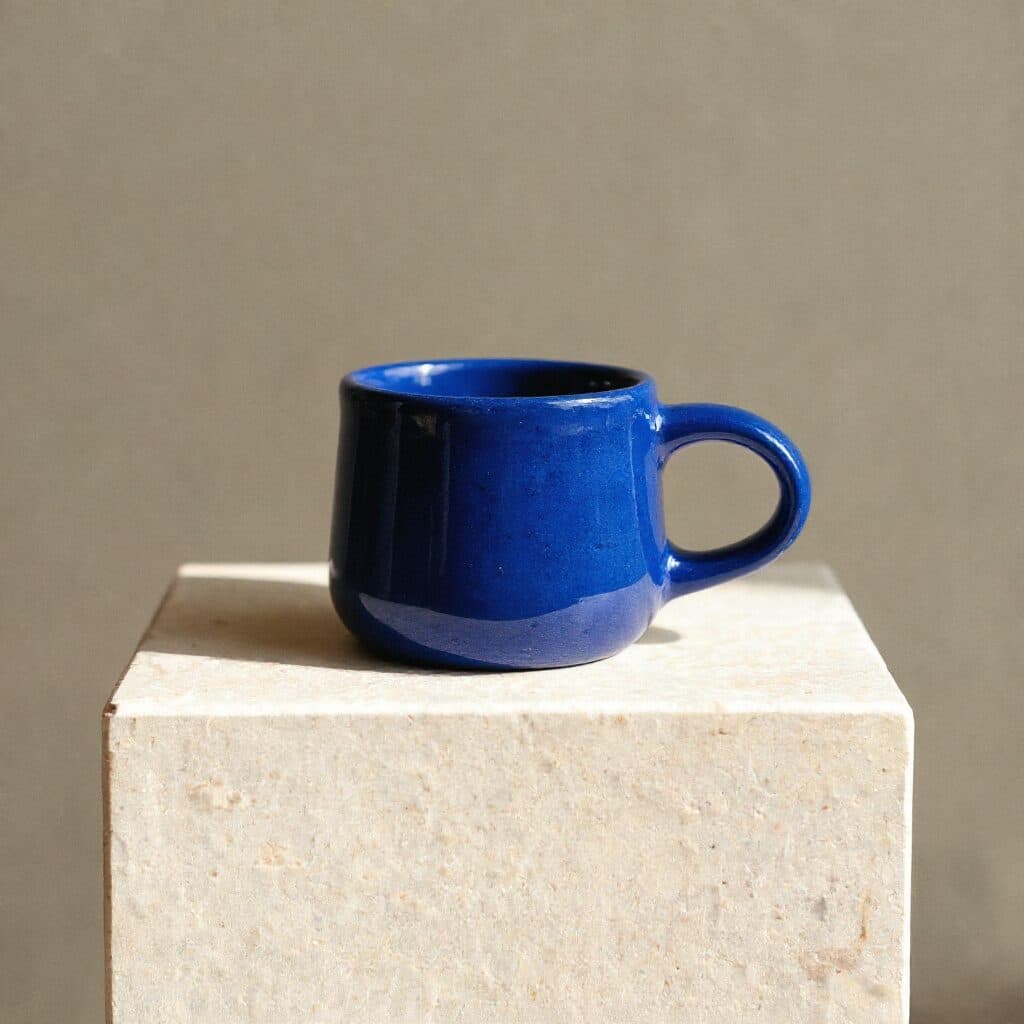
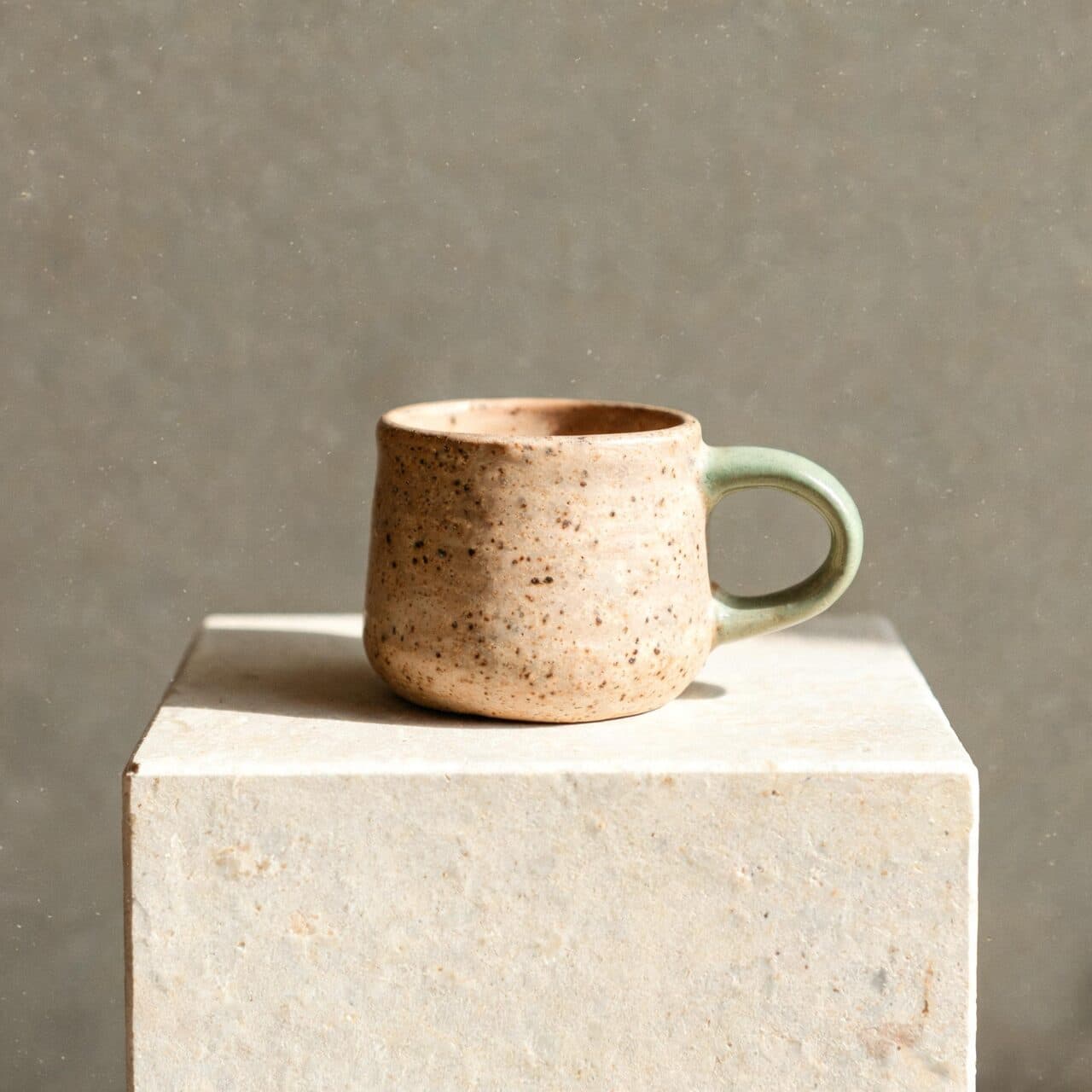
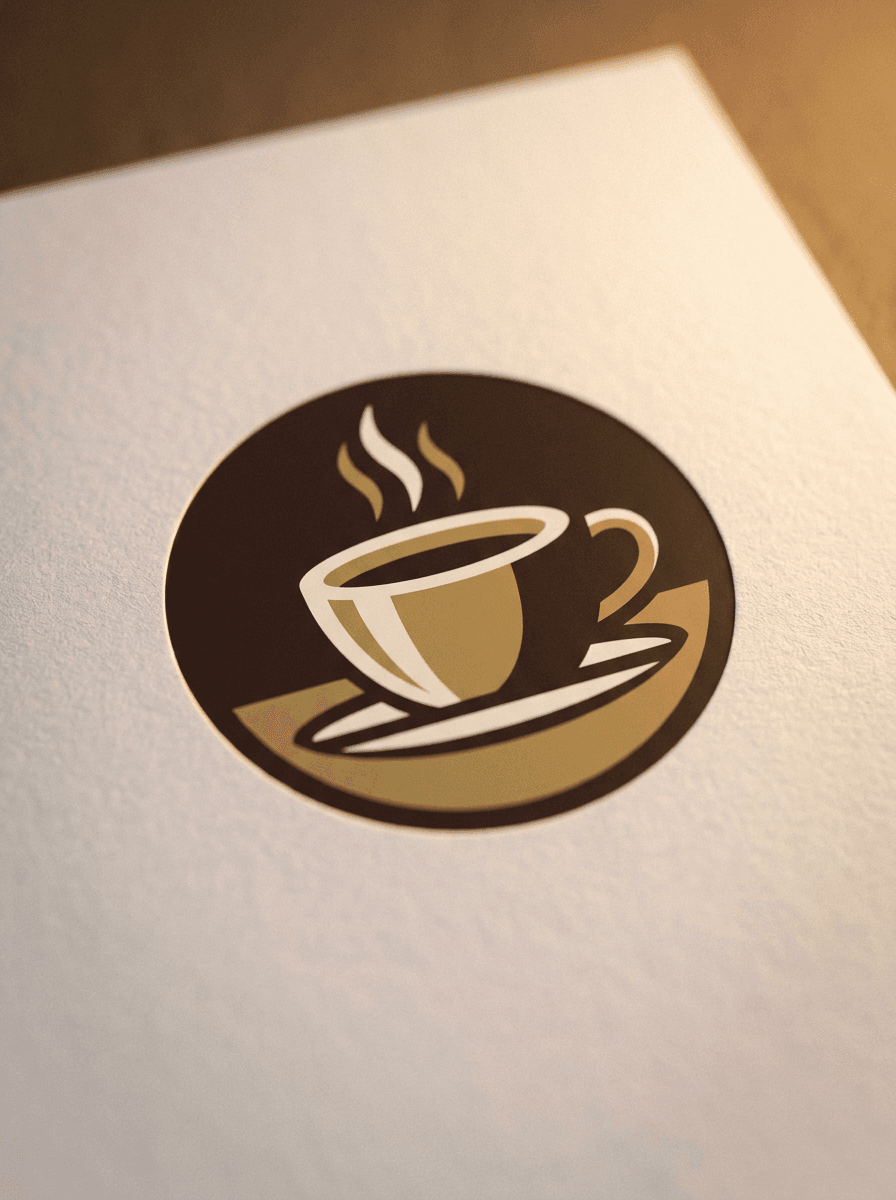
Real results from Made. Use a prompt to open it in Image Vectorizer, then add your own photo.
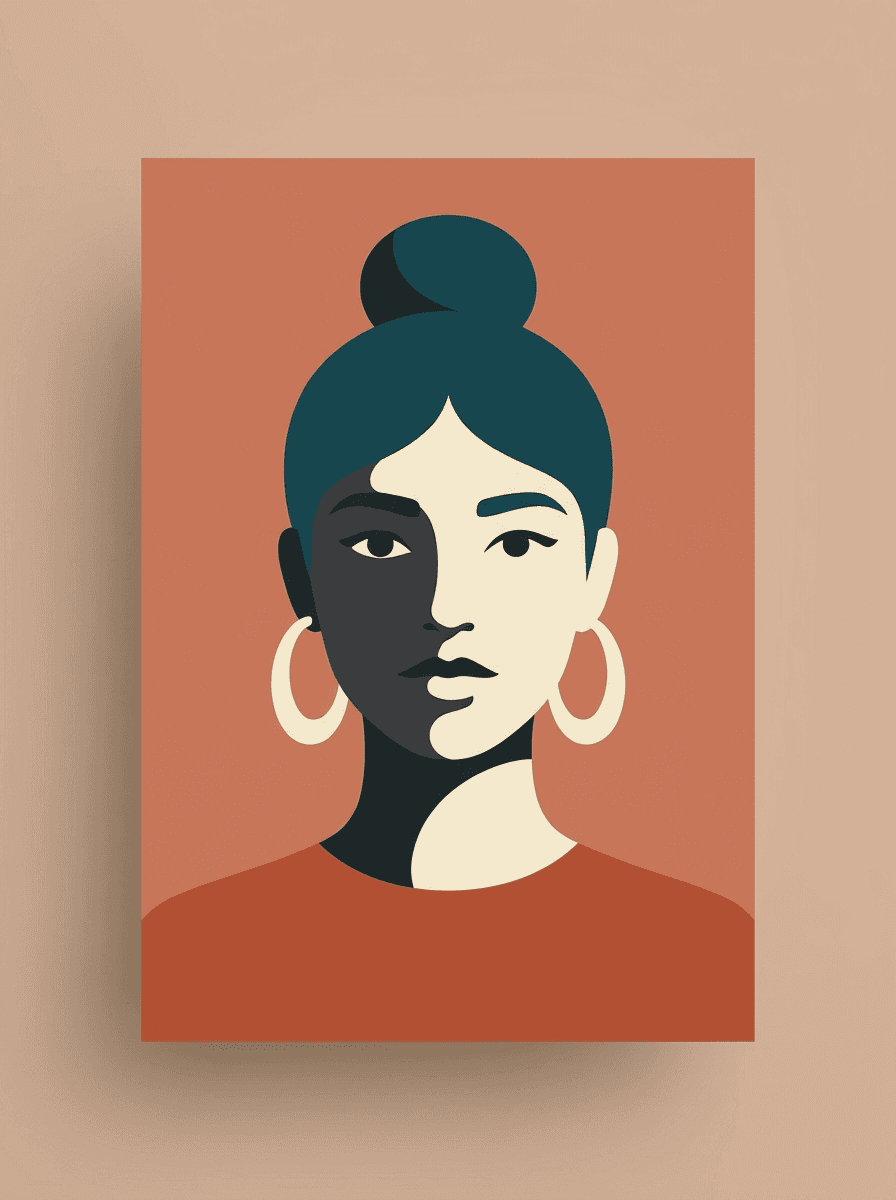
Flat portrait
“Turn this portrait into a flat vector-style illustration with four colors.”
Use this promptWhat people use it for
- Logo and mark cleanupTurn a photographed or low-quality logo into a crisp, flat rendition you can drop into layouts.
- Avatars and profile artConvert a portrait into a simplified flat illustration for profiles and channel art.
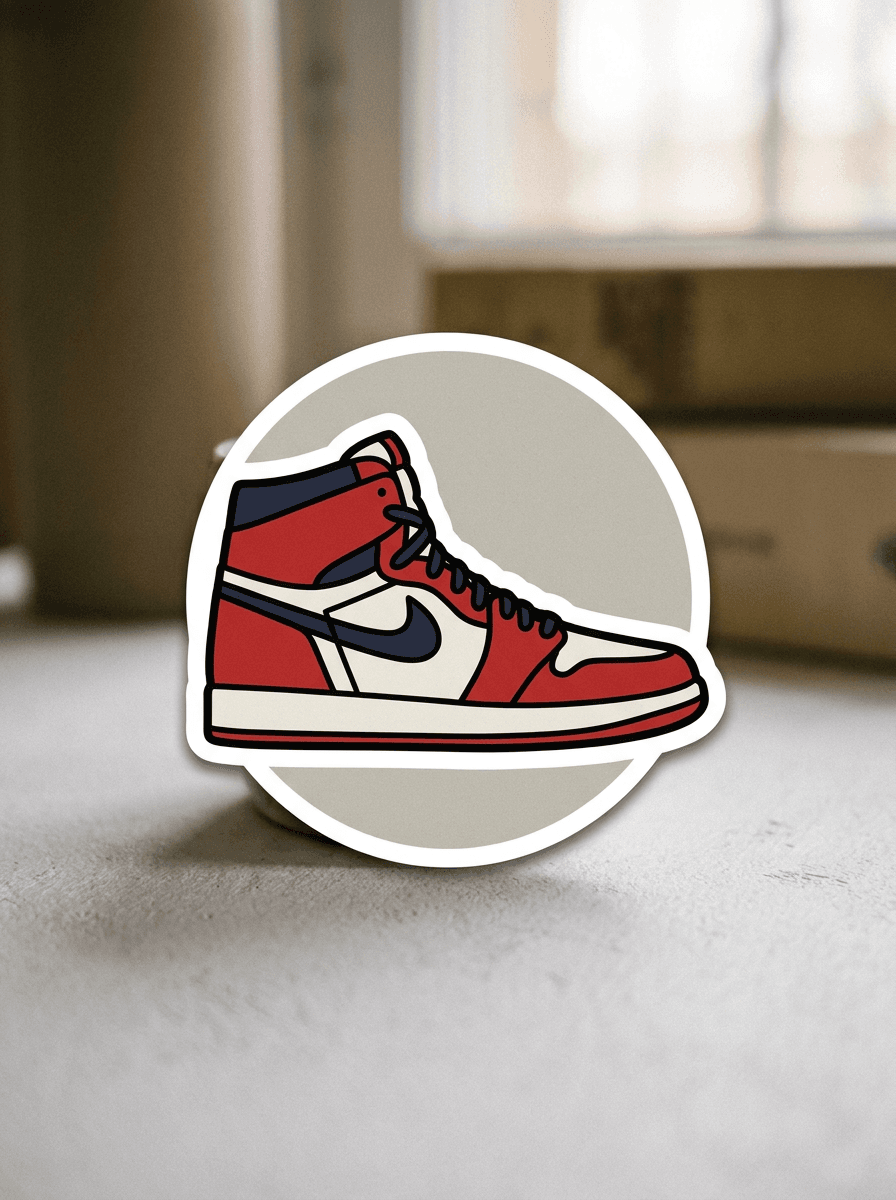
- Sticker and merch conceptsExplore bold, outlined sticker-style versions of a photo before committing to production artwork.
- Slide and web graphicsReplace busy photos with clean flat graphics that match a minimal visual style.
Vectorize an image into a flat graphic
What it does
- Input
- One JPEG, PNG, or WebP image, plus an optional style instruction
- Output
- PNG image in a flat, vector-style look — not an SVG file
- How it works
- Made sends your image and instruction to GPT Image 2.5 Flare and returns a PNG; inputs over 1,536 pixels are downscaled first.
- Access
- Runs in the tool. You sign in to run it, see the price before you start, and failed runs are refunded.
Formats and limits
- Input formats
- JPEG, PNG, WebP
- Output format
- PNG raster in a vector style — not an SVG file with editable paths
- Images per request
- One image plus one text instruction
- Large-input handling
- Inputs over 1,536 pixels on either side are downscaled before editing
- Processing model
- GPT Image 2.5 Flare
Checked against the running tool on 2026-10-20.
Questions about Image Vectorizer
How do I vectorize an image?
Upload a photo or logo and ask Made to redraw it in a flat vector style. Made sends the image and your instruction to GPT Image 2.5 Flare and returns a simplified, crisp-edged version of the image.
Is the result a real SVG file?
No. Made returns a vector-style image delivered as a PNG raster, not an SVG with editable paths. If you need true vector paths for cutting, engraving, or infinite scaling, run the PNG through a dedicated tracing tool afterwards — the clean flat output traces much more reliably than the original photo.
What kinds of images vectorize best?
Logos, icons, and photos with one clear subject convert most cleanly, because the model can reduce them to a small set of shapes and colors. Busy scenes with many overlapping elements produce more approximate results.
Can I control the style of the graphic?
Yes. Your instruction guides the edit — ask for a limited palette, geometric shapes, a thick sticker outline, or a specific color scheme, and the model applies it to the redraw.
What formats can I upload?
Upload one JPEG, PNG, or WebP per request. Inputs over 1,536 pixels on either side are downscaled before editing.
How is this different from Photo to Sketch?
Photo to Sketch renders your image as hand-drawn line work, keeping a sketchy, pencil-like texture. Image Vectorizer aims for the opposite finish: flat solid fills, uniform edges, and a graphic, printable look.
Which model does the conversion?
GPT Image 2.5 Flare, which returns a PNG.
More photo fixes
AI Logo Generator
Logo concepts from your brand name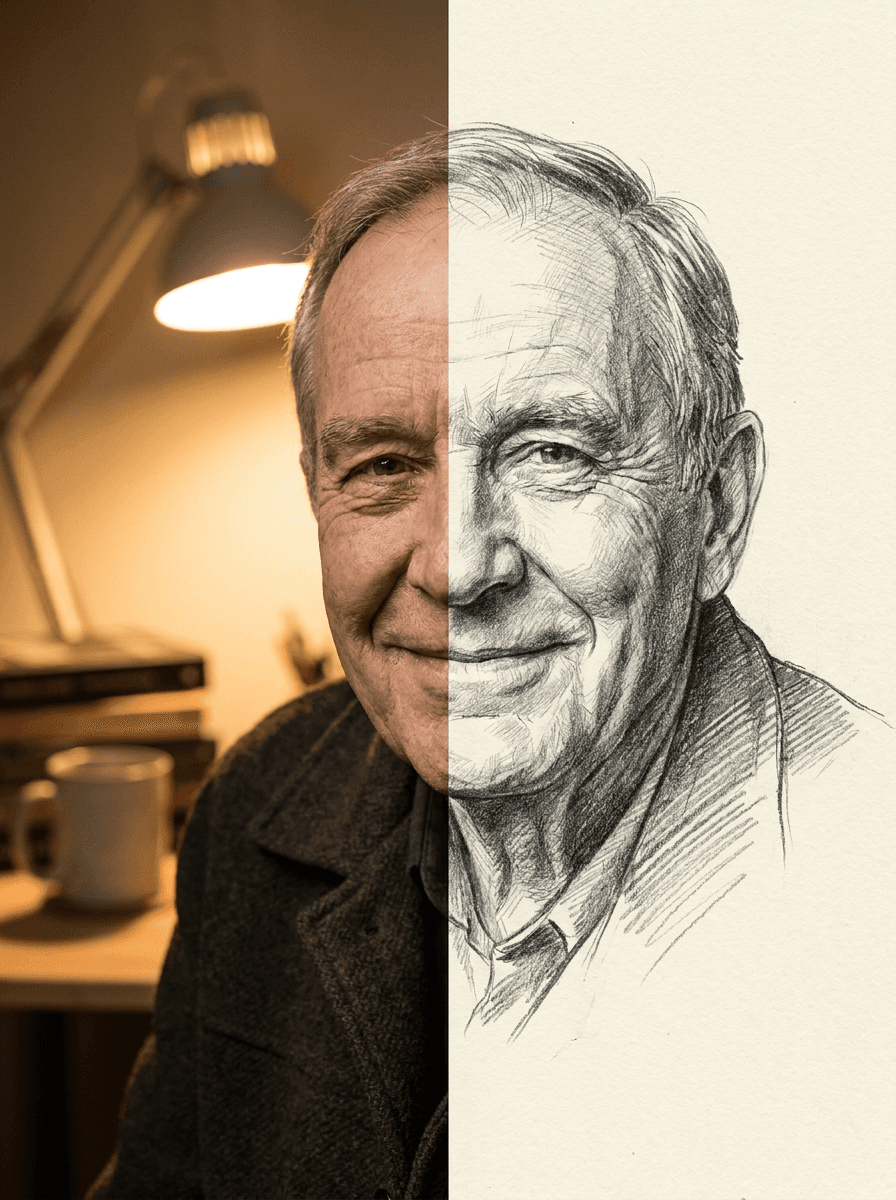
Photo to Sketch
Your photo as a pencil sketch
AI Photo Editor
Edit any photo by describing the change
Expand Image
Extend any photo past its edges
Image Upscaler
Sharpen and enlarge up to 4×
Background Remover
A clean transparent cutout in one step
Object Remover
Erase people, cars or clutter
Edit Text
Change the words in any image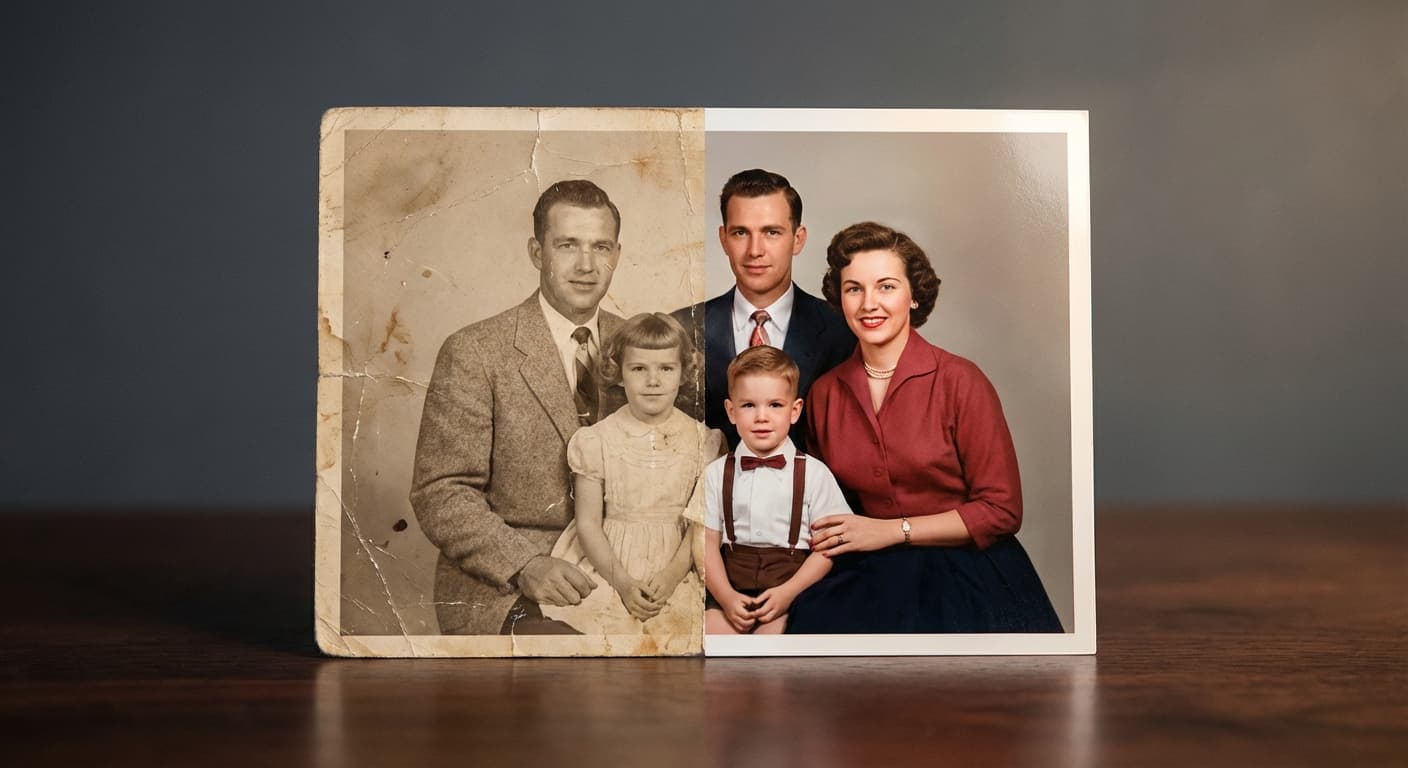
Photo Restoration
Repair scratches, tears and fading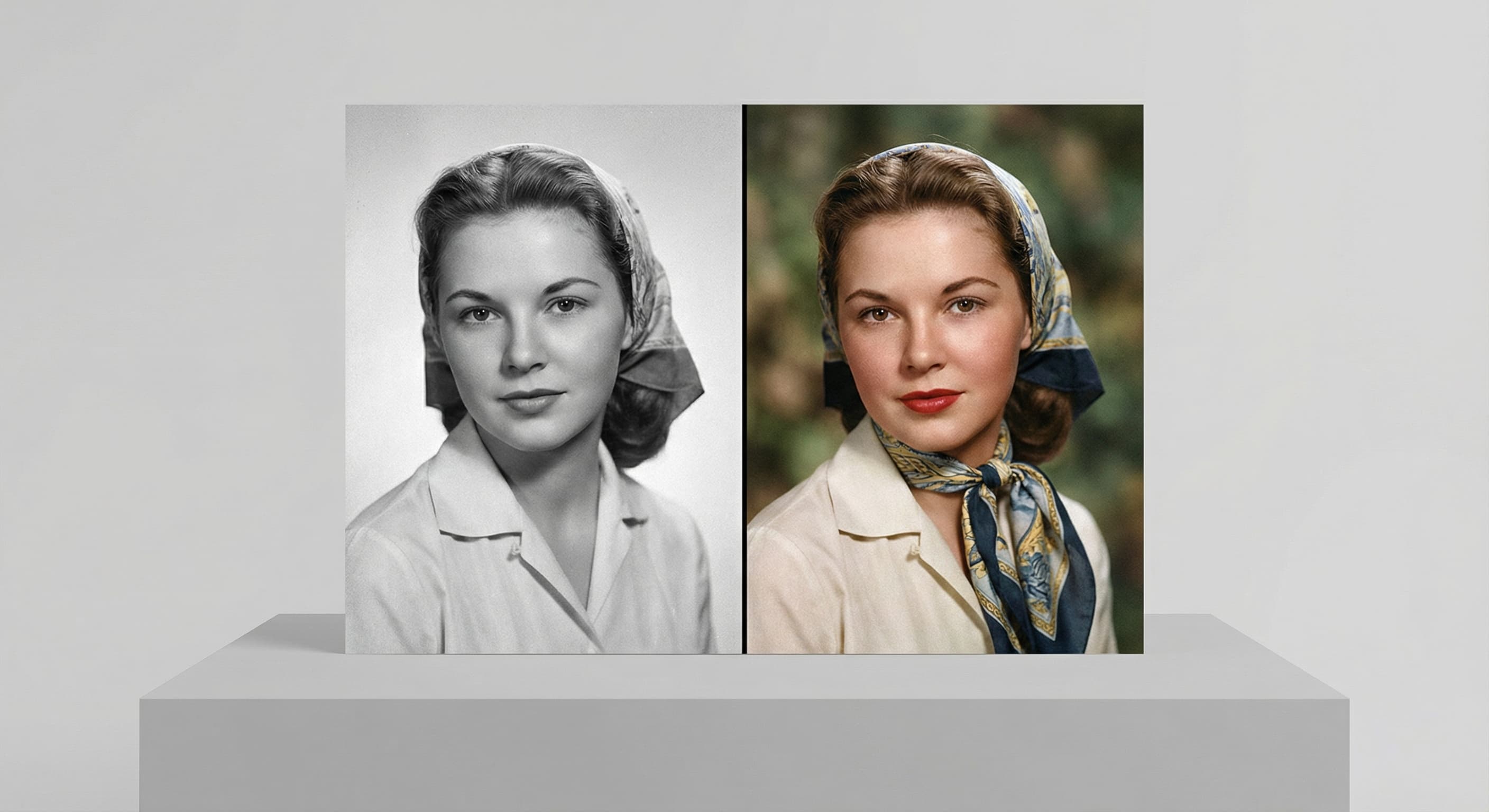
Photo Colorizer
Natural color for black-and-white photosRelated models
See what each one makes, then open it in Made.