The workflow
Open Orbit 360 in Video Effects
Open Orbit 360 in Made’s Video Effects (/tools/effects/orbit-360). The Effect box at the top previews the 360-degree turntable move, with Change beside it if you want to switch to another camera effect. You can also browse examples and tips on the Orbit 360 effect page (/effects/orbit-360).
Add one full-body, stand-still photo
Tap the Character box and upload one photo: JPG, PNG or WebP, under 10 MB and under 40 megapixels (iPhone HEIC photos are converted automatically). On a phone, tap Add a character. A full-body, stand-still pose with a clean floor and an interesting backdrop behind the subject gives the strongest parallax as the camera circles. Use your own photo or one of an adult who agreed.
Add optional direction, then pick Resolution and Aspect ratio
Leave Prompt switched off for the standard 360 orbit, or switch on Prompt to add up to 1,800 characters of extra direction — such as asking for a slower or faster orbit, or naming the light. It appends after the orbit move rather than replacing it. Resolution starts at 480p, with 720p and 1080p above it. Aspect ratio starts at 9:16 for Reels, TikTok and Shorts, with 16:9, 1:1, 4:3 and 3:4 available. On a phone, these controls sit under Options.
Tap Generate and inspect all four sides
Check the label above Generate — it reads 8-second video — and review the price on the button before tapping it. If you are not signed in yet, you sign in now and your photo and settings stay ready. Your finished clip appears under Generations. Watch the full loop: check the face on the return to front, and inspect the unseen back side the model invented.
Recorded Made demonstration
One rooftop portrait, circled 360 degrees in eight seconds
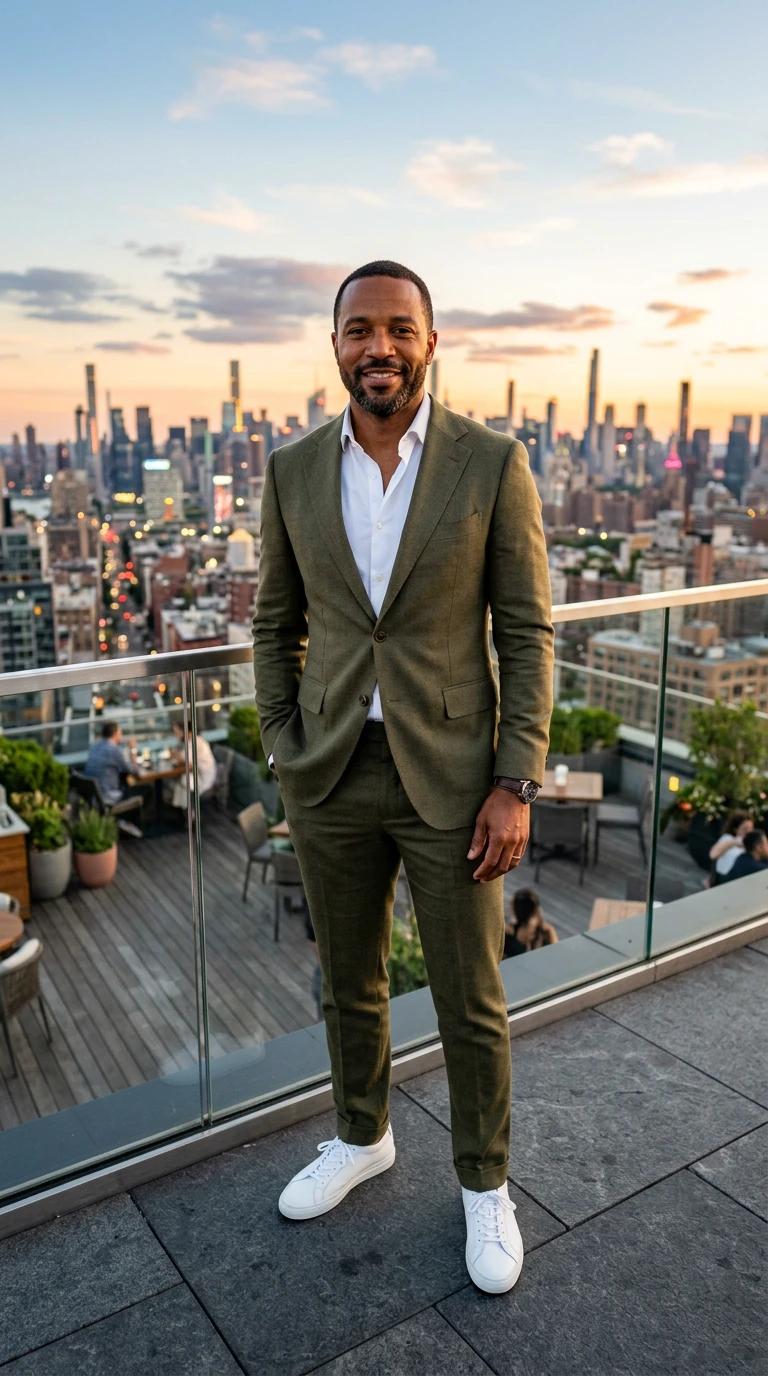
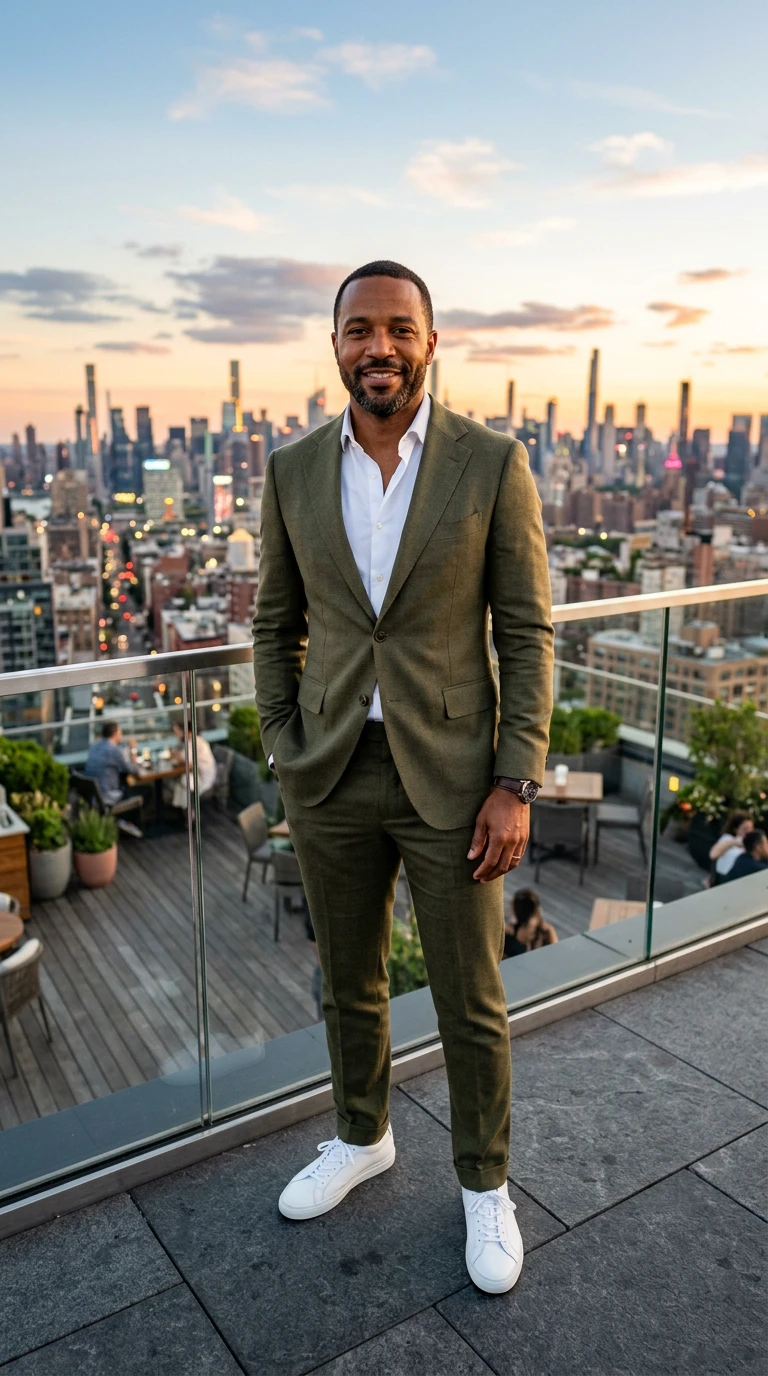
This is a real Orbit 360 run from November 29, 2026, at the tool’s default settings: 480p, 9:16, no prompt. The source photo is a fictional adult man in a tailored olive suit and white sneakers standing on a golden-hour rooftop terrace with a city skyline behind him. Made generated him with Nano Banana 2 for the Orbit 360 example; he is not a real person. The request is exactly what Video Effects builds for Generate, sent through Made’s API from a script rather than clicked through the browser. Across nine inspected frames from 0.20s to 7.83s, the camera completes a full clockwise 360-degree circle at chest height — front view (0.20s), right side profile (2.01s), full back view (4.02s), left side profile (6.03s), and back to the front (7.83s) — keeping his full-body framing, face, hand-in-pocket pose, olive suit, and white sneakers consistent. Four honest limits from this take: the unseen back of his head, jacket seam, trousers, and the far side of the rooftop terrace are invented by the model because the photo only shows the front; distant skyline buildings and terrace lines show minor warping and flickering as they sweep past; at 480p, fine facial details and distant buildings stay soft at full screen; and he holds his standing pose instead of turning his head toward the camera as the circle finishes. The clip came back with a stereo AAC sound track generated by the model. It is one run, not a measure of how often every photo holds.
WAN 3.0 Prime (Reference to Video) · Generated · View the example record and price basis (JSON)
Do it again: build an orbit series or sharpen your best take
Once you see how one full-body portrait spins, you can draft looks quickly at 480p, keep the framing consistent across outfits, and upscale the winners for posting.
Generate a clean full-body subject photo first
If your existing portrait is cropped tight or shot against a flat wall, create a full-body standing portrait with open background depth first so the orbit has real foreground and skyline parallax.
Draft at 480p, then sharpen your favorite take
Run your first check at the default 480p to verify the invented back view and face return. When a take works, either re-run at 720p or 1080p, or pass the finished MP4 through the Video Upscaler.
Repeat the same framing for an outfit series
Shoot several outfits in the same standing pose on an open floor with clear space around the subject. Running Orbit 360 on each photo gives matching 8-second reveals you can cut together.
What to pair with Orbit 360
Sharpen a 480p orbit clip up to 4K
Video Upscaler
Keep the exact orbit take you liked at 480p and upscale it 2× or 4× in Made’s Video Upscaler so facial detail, fabric texture, and skyline lines hold up on full-screen feeds.
Direct a custom camera move from one photo
Image to Video Generator
When you want a dolly-in, crane rise, or custom duration instead of a fixed 8-second 360 spin, animate the same still in the Image to Video Generator with your own camera prompt.
Pair an orbit reveal with a pull-back to space
Earth zoom out
Use the same outdoor photo setup with another 8-second camera effect in Video Effects when you want a dramatic intro or outro clip beside your 360 spin.
Prompts you can inspect and adapt
Recorded generation prompt
What Video Effects sent for this run
Made Effects: orbit-360. Create a 8-second cinematic video.
Image 1 is the main subject. Preserve their identity, outfit, colors, and recognizable details. An object or product may also be the main subject.
Use the environment in Image 1 as the starting scene.
Motion direction: The camera travels one full circle around the subject at chest height, like a turntable shot: front view, side profile, back view, the other side, and back to the front. The subject stays centered and holds their pose while the background sweeps past behind them with strong parallax, and they turn their head to the camera as the circle completes. Smooth, stabilized, one continuous shot.
Do not add captions, watermarks, or invented logos.
Video Effects wrote this entire prompt with Prompt switched off. It tells the model to preserve the subject and environment from Image 1, then runs Orbit 360’s chest-height full-circle move.
Prompt recipe to adapt
Slow down the spin and match golden-hour light
Slower, unhurried 360-degree camera orbit with warm golden-hour rim light and a gentle breeze moving the fabric.Switch on Prompt and paste a line like this when you want a calmer turntable pace. Video Effects appends it after the built-in orbit direction.
Prompt recipe to adapt
Speed up the spin for an outfit reveal
Faster, energetic camera spin for an outfit reveal, crisp natural daylight, subject holds a relaxed confident stance.Useful for lookbooks and profile reveals where you want a snappier pace around a stand-still pose.
How an Orbit 360 video is priced
By the resolution you pick. Every Orbit 360 clip is 8 seconds, so 720p costs more than 480p, and 1080p costs more than 720p. Generate shows the exact price before you start.
Pricing is per second of video at your chosen resolution, and the length is fixed at 8 seconds. Your photo, optional prompt, and aspect ratio do not change the price.
Price source: Video Effects’ public rate catalog · Checked
Add your photo to see the live price on Generate. If the price updates before you tap Generate, nothing runs — the tool shows the updated price for another tap. If the priced provider fails, a backup provider can run the job at its own price, which can be higher. A run that fails is refunded.
What to review before you use the result
| What you see | What to try |
|---|---|
| The back of the outfit or hair looks invented or mismatched | Because a single front photo never shows the back, the model invents the back of the head, jacket, and environment. Check the 3–5 second mark closely; simpler solid-color outfits and hairstyles hold up much better than complex back prints or logos. |
| Background buildings or floor lines warp while turning | Some warping in distant architecture is normal during a 360 sweep from one frame, as in the skyline above. Start from a photo with an uncluttered floor and breathing room around the subject, or run a fresh take. |
| The face drifts on the return to front or feet get cropped | Start from a sharp, well-lit full-body photo in a stand-still pose rather than a mid-motion shot or a tight crop. Leave clear headroom and floor space so the camera stays centered through the turn. |
| Fine details look soft at full screen | Orbit 360 opens on 480p so you can check the spin first. Once a photo works, raise Resolution to 720p or 1080p, or sharpen your saved 480p take in the Video Upscaler (/video-upscale). |
| Your photo won’t upload or the video didn’t finish | Use a JPG, PNG or WebP under 10 MB and under 40 megapixels (iPhone HEIC photos are converted automatically). If a run doesn’t finish, Video Effects says so beside Generate so you can try again. |
Questions about this workflow
Does the camera really go a full 360 degrees from just one photo?
Yes. Orbit 360 directs the camera to circle all the way around your subject in one 8-second continuous shot: front, side profile, back, other side, and back to the front. Because the model invents the unseen back of the subject and room, always review the middle of the clip before posting.
What kind of photo works best for an AI camera spin around me?
Use a sharp, well-lit full-body photo in a stand-still pose with a clean floor and open space behind you. Mid-motion poses, cramped walls, or busy crowds make parallax and the invented back side much harder to hold together.
Can I make a widescreen orbit video or sharpen a 480p clip?
Yes. Switch Aspect ratio from 9:16 to 16:9 (or 1:1, 4:3 or 3:4) before generating, and pick 720p or 1080p under Resolution. You can also keep a 480p take you already like and sharpen it afterward in Made’s Video Upscaler.
Can I control the spin speed or use a different camera move?
Switch on Prompt in Orbit 360 to ask for a slower or faster spin or lighting notes (up to 1,800 characters), which appends to the built-in orbit move. If you want a totally different camera move or duration from one photo, use the Image to Video Generator instead.
Whose photos can I use, and do I need to sign in?
Use photos of yourself or of an adult who agreed to appear in the video — never upload someone else’s photo without permission. You can open Orbit 360, upload your photo, and pick your settings first; when you tap Generate, Made asks you to sign in and keeps your photo and settings ready.
Work with Claude and Made
With the Made connector in Claude, you can chain the whole series in one conversation: generate a clean full-body subject image in Made, run an 8-second 360-degree orbit around it on WAN 3.0 Prime reference-to-video, sharpen the best clip through Made’s Video Upscaler (/video-upscale), and repeat the pipeline across multiple looks while quoting each step before paying.
Conversation starter
Ask your assistant
Using Made, help me build a 360 orbit video series: first generate one full-body vertical (9:16) photorealistic portrait of a fictional adult creator standing on an open rooftop at golden hour, and show me the quote before running it. Once I approve that image, check Made’s catalog for the WAN 3.0 Prime reference-to-video model and quote an 8-second 480p 9:16 video where the camera travels one smooth 360-degree circle around the subject at chest height while the skyline sweeps past with parallax. After I review the orbit clip, quote upscaling it with Made’s Video Upscaler so we can repeat the same chain for two more outfits.For the exact built-in Orbit 360 preset with one tap — or if your connected client cannot upload a local photo — open /tools/effects/orbit-360 directly.